

How to Create a Price Hiding Rule
This tutorial builds the demo store’s widest rule: hide the price of everything that costs $20 or more, from guests, with the default login button. The same steps build any rule.
Step 1: Open Add Rule
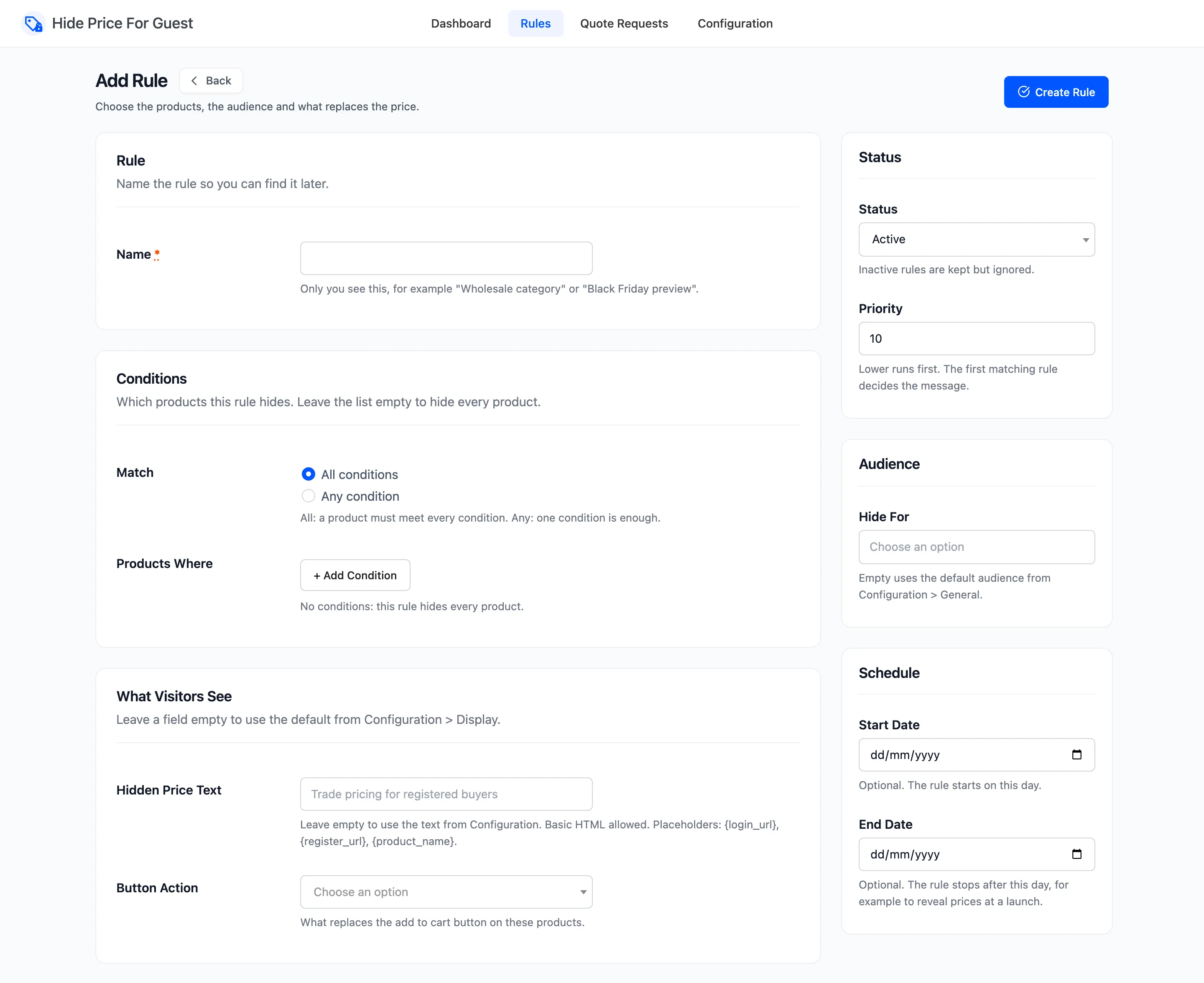
Section titled “Step 1: Open Add Rule”Go to DevDiggers Plugins → Hide Price For Guest → Rules and click Add New.
Step 2: Name the rule
Section titled “Step 2: Name the rule”Type a name in Name: “Trade catalog: $20 and over”. Visitors never see it. It shows on the Rules list and in the dashboard’s Why Prices Are Hidden chart, so make it say what the rule is for.
Step 3: Add conditions
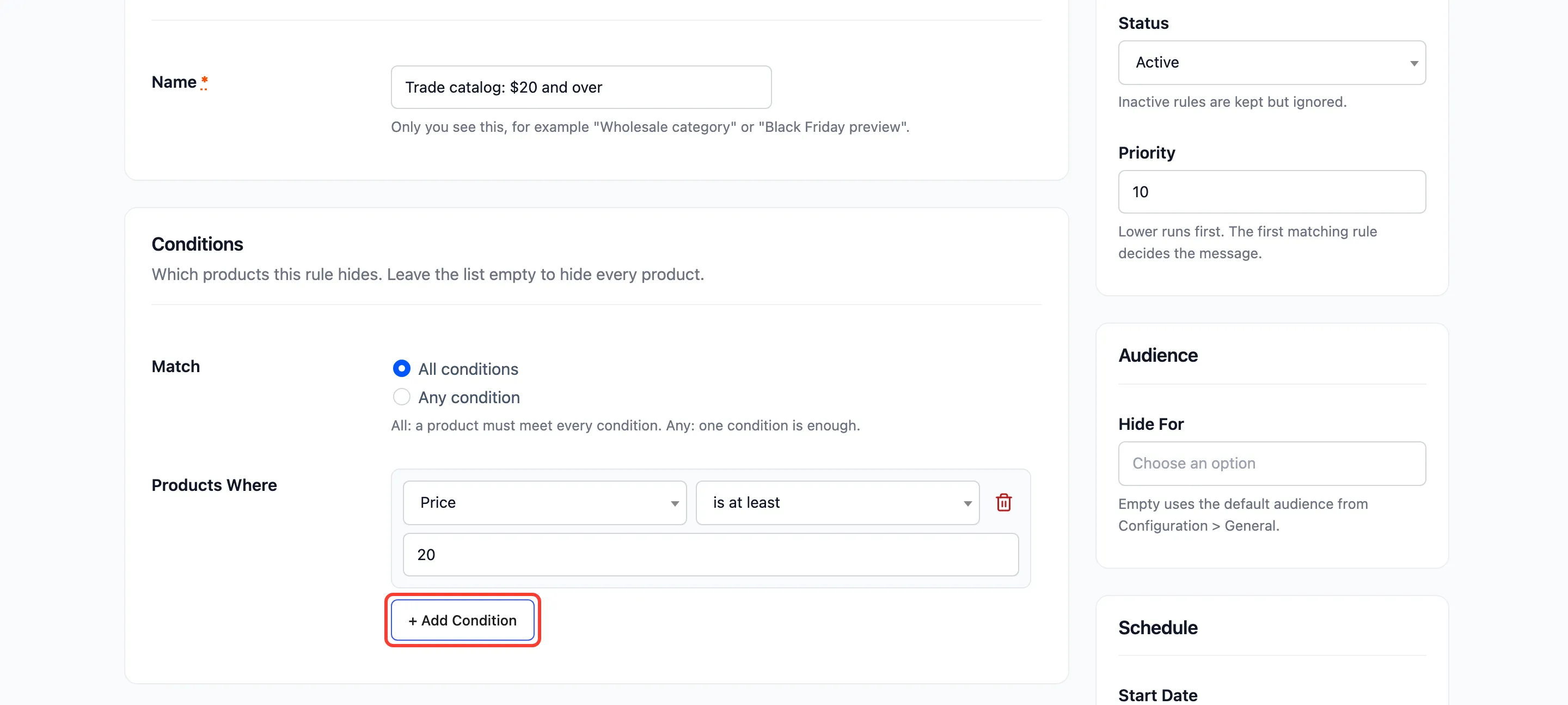
Section titled “Step 3: Add conditions”Click + Add Condition. A row appears with three parts: the condition type, the operator and the value.
For this rule:
- Type: Price
- Operator: is at least
- Value: 20
“At least 20” includes $20 itself. The price compared is what the customer would pay, so a $25 product on sale at $18 does not match.
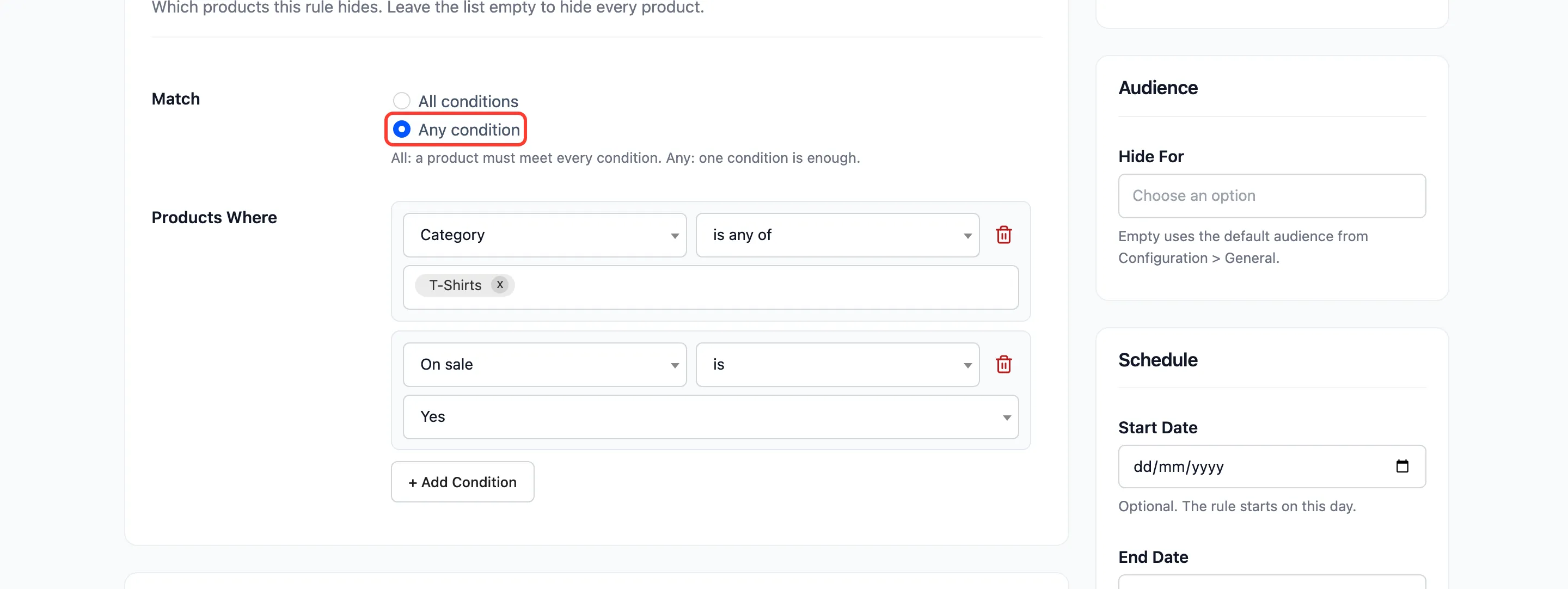
To add more conditions, click + Add Condition again, then choose under Match:
- All conditions: a product must meet every one. “Category is any of T-Shirts” plus “On sale is Yes” hides only T-shirts on sale.
- Any condition: one is enough. The same two conditions hide every T-shirt and everything on sale.
To hide every product, add no conditions at all.
Step 4: Set what visitors see
Section titled “Step 4: Set what visitors see”Under What Visitors See, every field is optional. An empty field takes its value from Configuration → Display. This rule leaves them all empty, so it shows the store’s default message and login button.
To give the rule its own wording, fill in Hidden Price Text and Button Text, and pick a Button Action. How to Customize the Hidden Price Message covers the options.
Step 5: Set status, priority, audience and dates
Section titled “Step 5: Set status, priority, audience and dates”In the side column:
- Status: Active.
- Priority: 10. Lower numbers run first, and the first rule that matches a product wins. Give narrow rules a lower number than broad ones. How to Combine Rules With Priority explains why.
- Hide For: Leave empty to use the default audience (guests).
- Start Date and End Date: Leave empty for a rule that always runs.
Step 6: Save and check
Section titled “Step 6: Save and check”Click Create Rule. The form reloads with “Rule saved.”
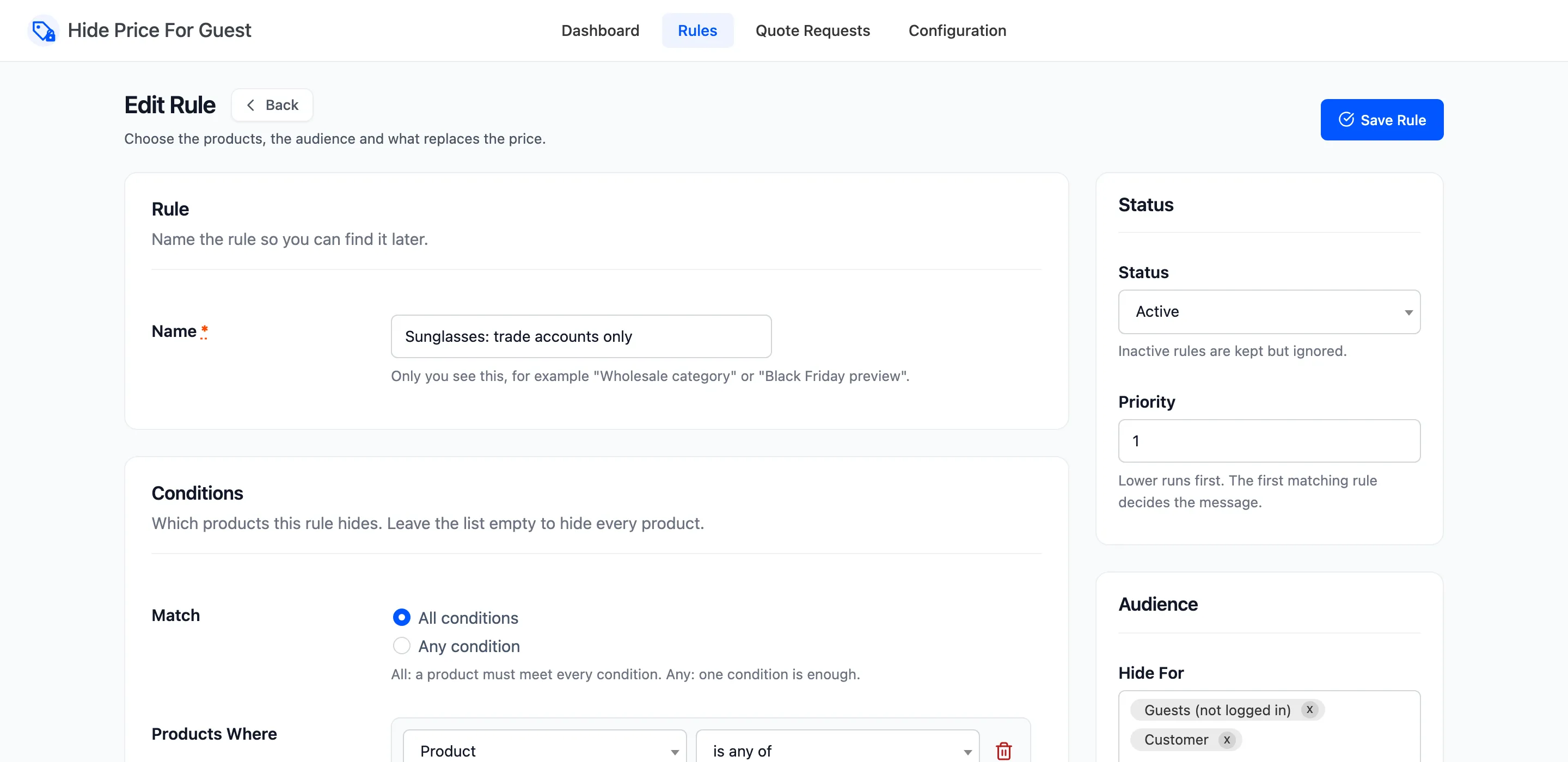
Now check the storefront. You are logged in as an administrator, so you see every price. Open a private window and visit a product of $20 or more.
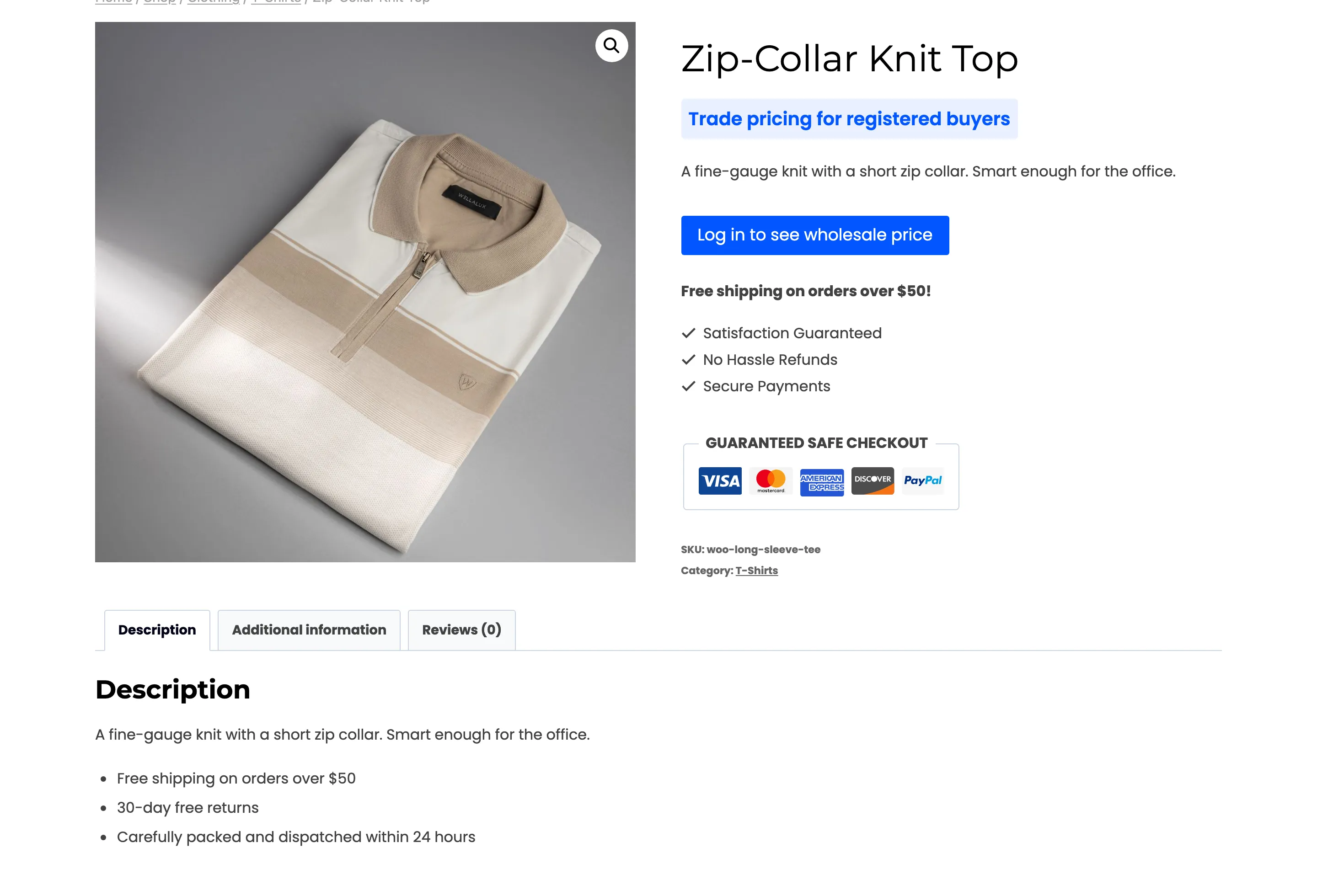
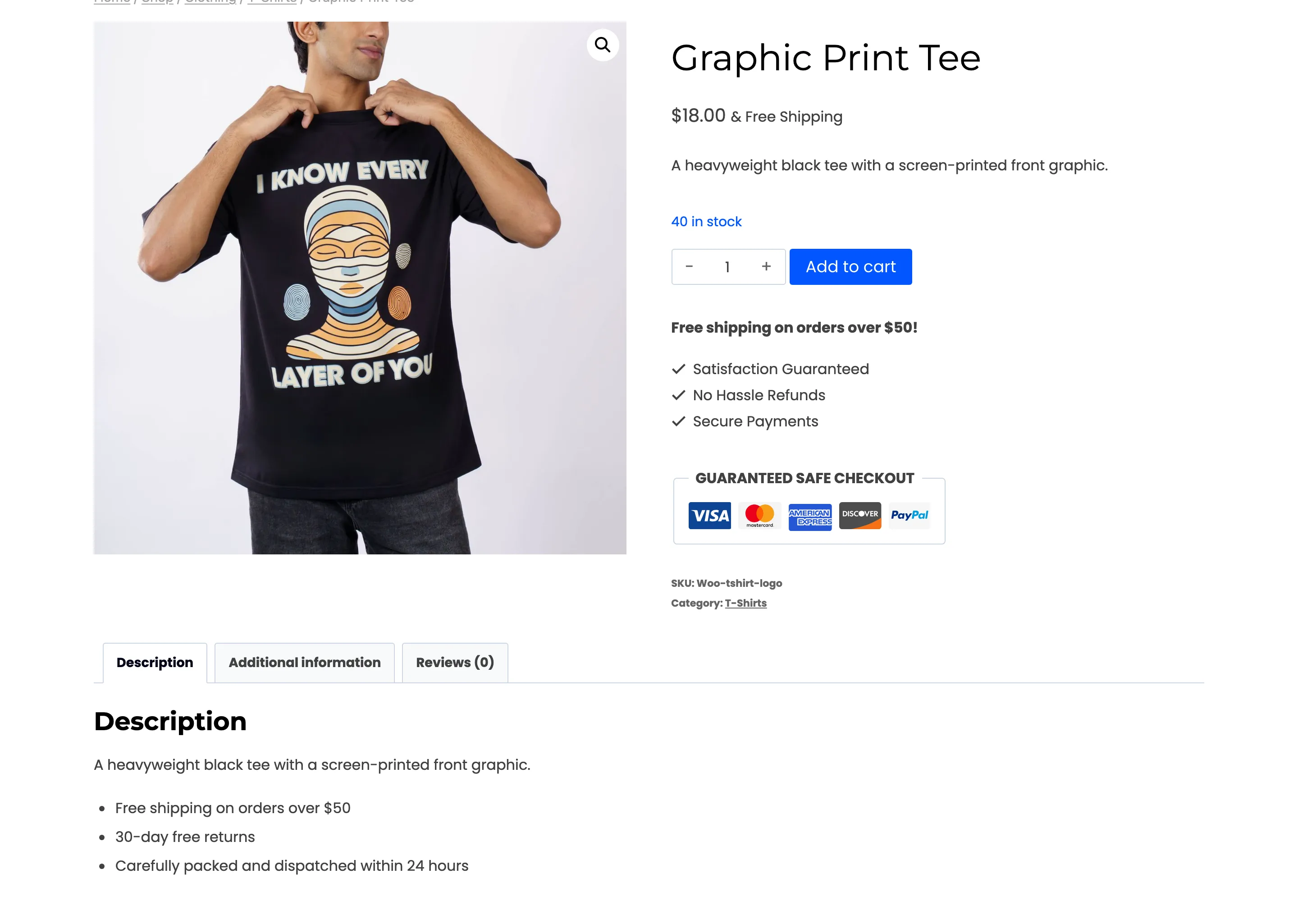
Then a cheaper one, which keeps its price and its Add to cart button.
If the price still shows
Section titled “If the price still shows”- The rule is Active, and today is inside its dates.
- Apply In on the General tab is not limiting hiding to countries you are not in.
- The product is not excluded on the General tab, and its own Guest price visibility is not Always show price.
- You are really logged out. A private window is the safe test.