

How to Send Visitors to a Custom Page
When the next step is not a login and not a quote, link to it. A trade application, a contact form, a booking page or a WhatsApp chat all work.
Step 1: Pick the page
Section titled “Step 1: Pick the page”Copy the full URL, starting with https://. It can be on your site or anywhere else.
Step 2: Set the action on a rule
Section titled “Step 2: Set the action on a rule”Edit the rule. Under What Visitors See, set Button Action to Go to a custom URL and paste the address into Custom URL.
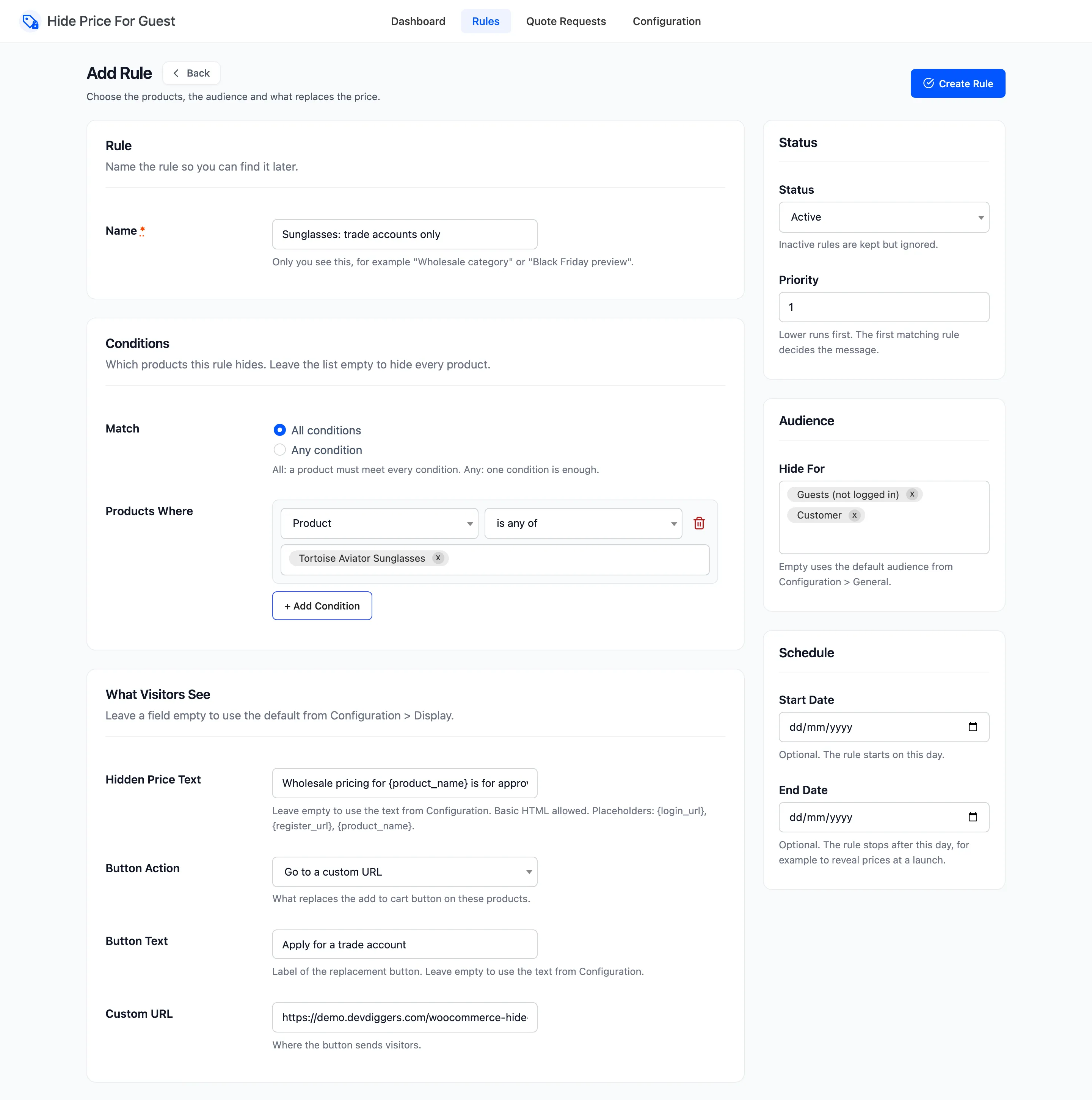
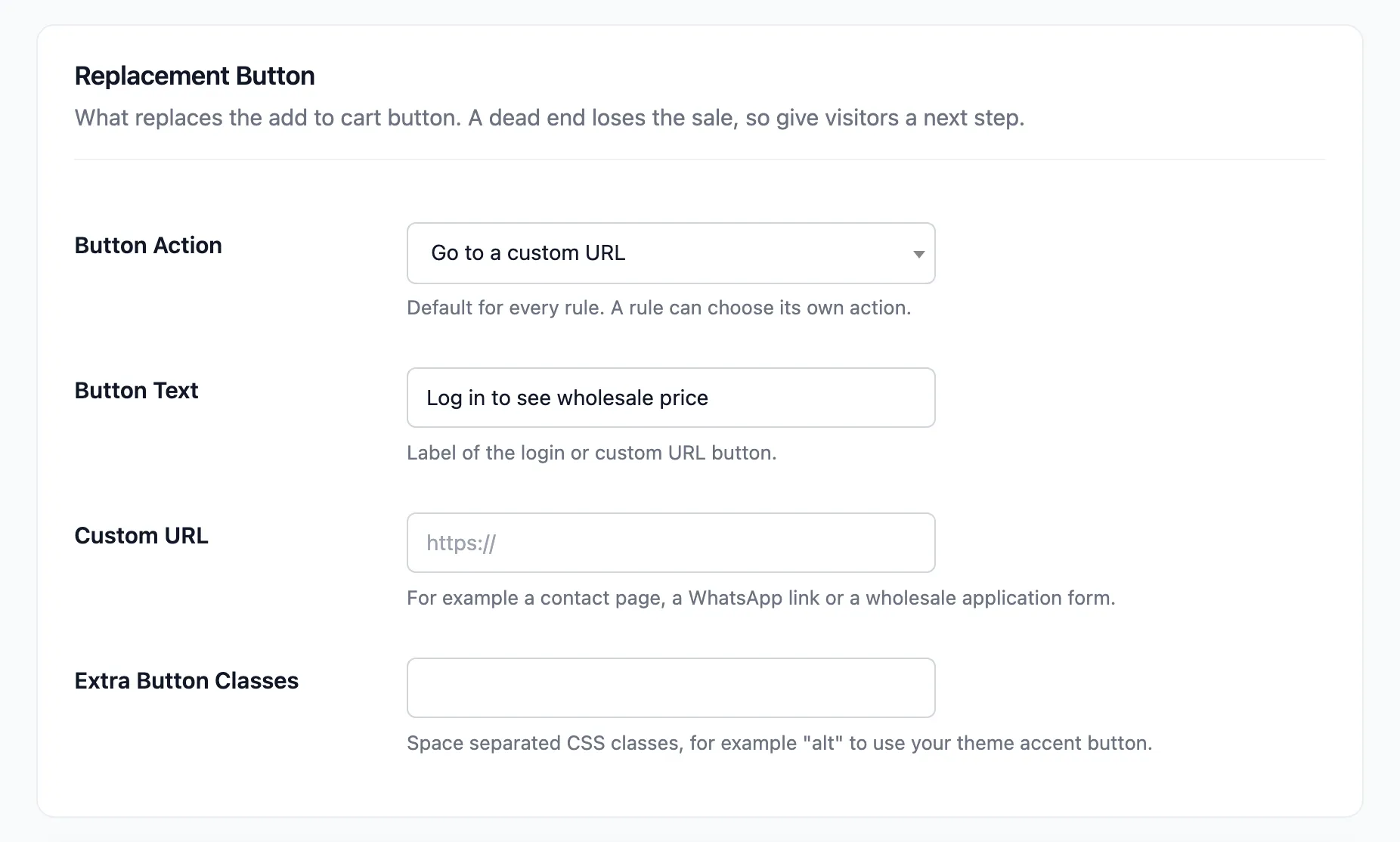
To use the link for every rule instead, set the same two fields on the Display tab.
Step 3: Label the button
Section titled “Step 3: Label the button”Fill in Button Text. Left empty, the label falls back to the Display tab’s login text, “Login to purchase”, which is wrong for a link that does not log anyone in. The demo uses “Apply for a trade account”.
Click Save Rule.
Step 4: Check the link
Section titled “Step 4: Check the link”Open a covered product in a private window.
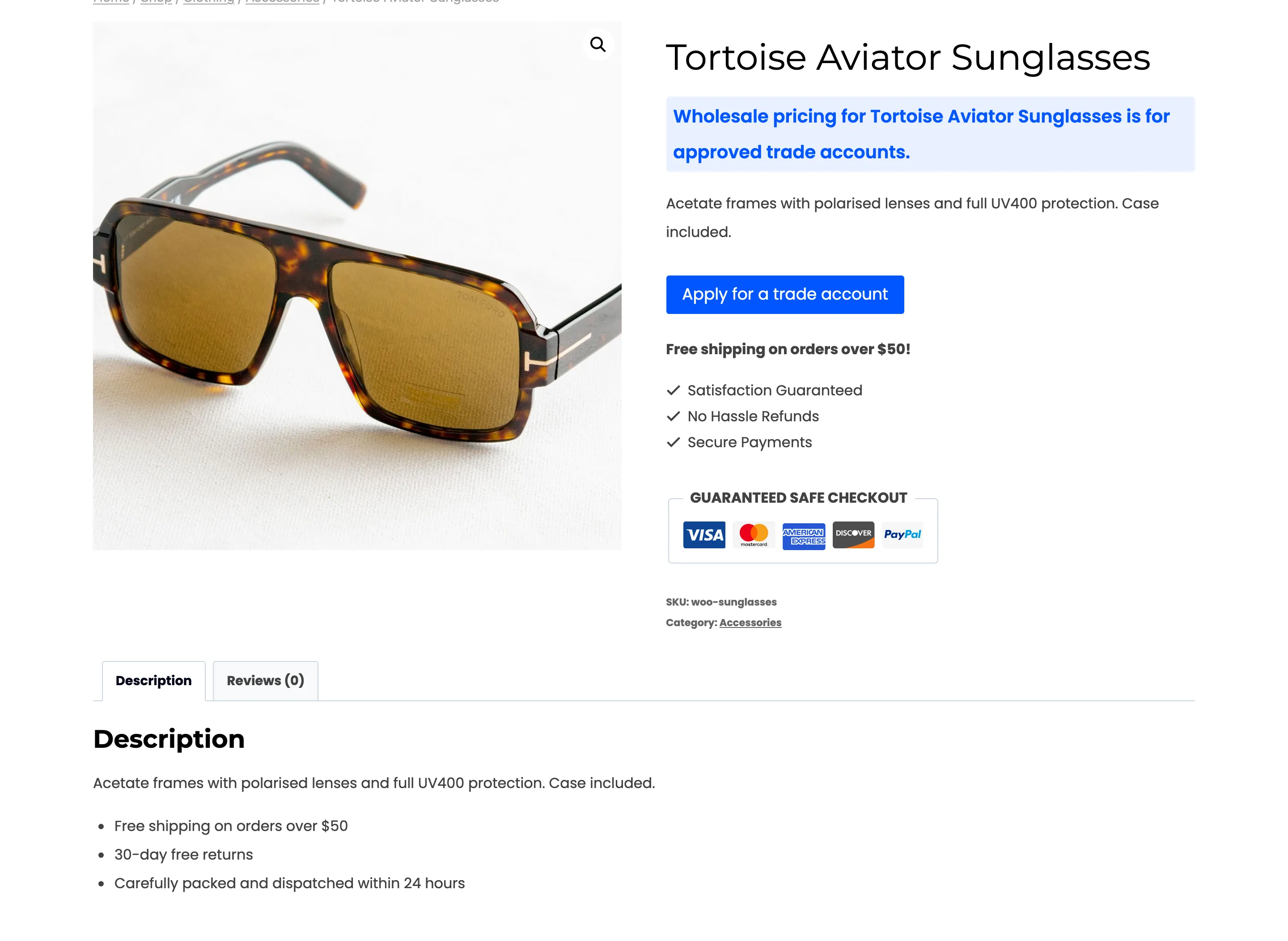
Click the button. It opens the page in the same tab, as a normal link.
Things to know
Section titled “Things to know”- No URL, no button. A rule set to the custom URL action with an empty Custom URL, and no URL on the Display tab either, shows the message alone.
- It works for signed-in visitors. Unlike the login button, the link shows to everyone the rule hides prices from. That makes it the right action for a rule that targets customers.
- Clicks are counted. Each click shows on the dashboard like a login or quote click. A login that follows within a day is counted too.