

How to Customize the Hidden Price Message
The message is what replaces the price, everywhere the price would show: the shop, product pages, related products and product blocks. It is worth a sentence that tells the visitor what to do.
Step 1: Write the default message
Section titled “Step 1: Write the default message”Go to Configuration → Display and fill in Hidden Price Text. Default “Login to view price”. The demo uses “Trade pricing for registered buyers”.
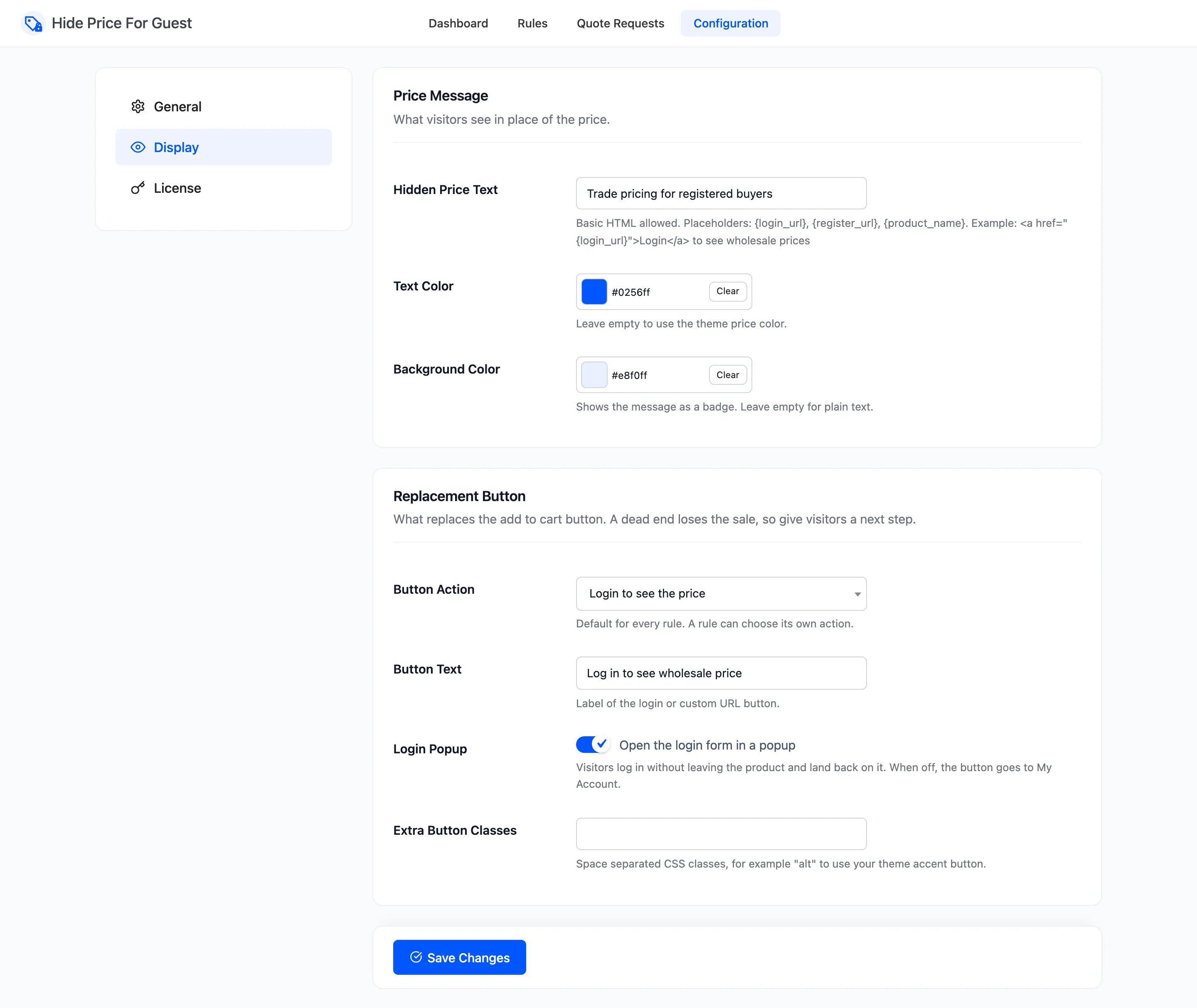
Keep it short. On a shop page it sits in the space of a price.
Step 2: Add a link or the product name
Section titled “Step 2: Add a link or the product name”Basic HTML works: a link, bold, italics. Three placeholders are filled in for each product:
{login_url}: the My Account page, which sends the visitor back to this product after login.{register_url}: the same page, where WooCommerce shows its registration form if you allow account creation on My Account.{product_name}: the product’s name.
For example:
<a href="{login_url}">Log in</a> to see wholesale pricesA link in the message is useful with No button, or for a short “or create an account” next to a login button.
Step 3: Choose badge or plain text
Section titled “Step 3: Choose badge or plain text”- Text Color: default
#0256ff. Clear it to use your theme’s price colour. - Background Color: default
#e8f0ff, which draws a small badge behind the text. Clear it for plain text.
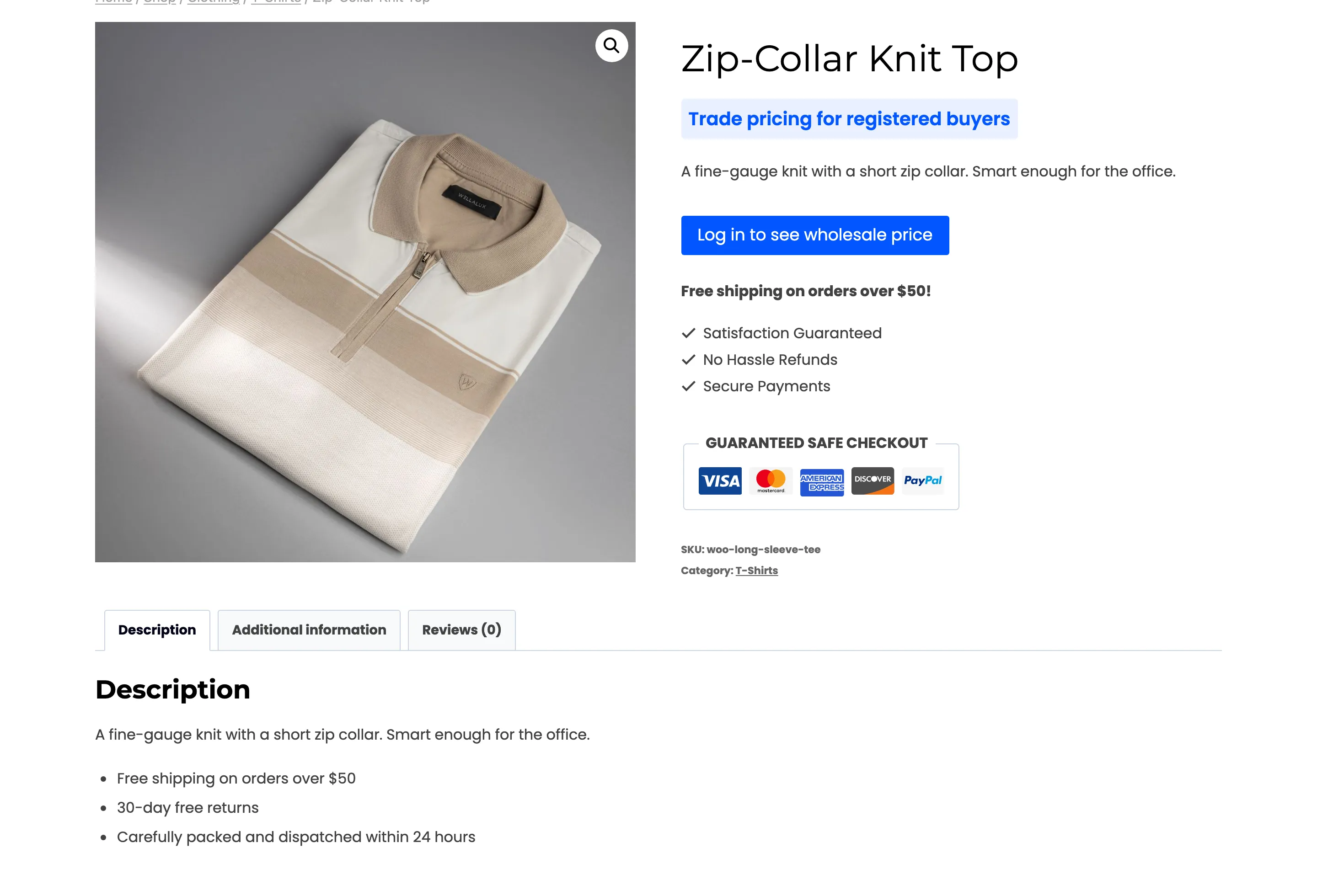
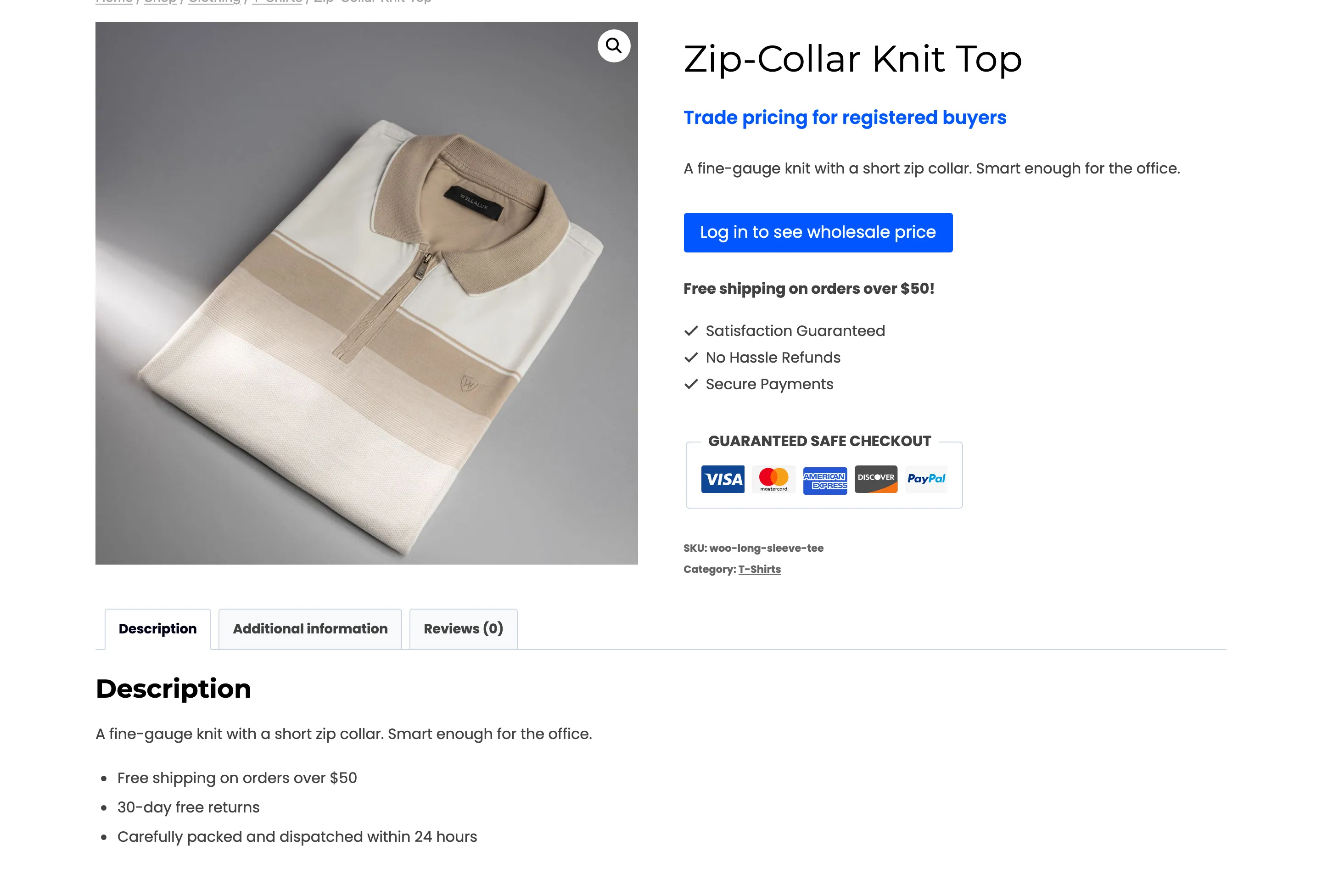
Click Save Changes. The colours apply to every rule.
Step 4: Give a rule its own wording
Section titled “Step 4: Give a rule its own wording”Edit the rule and fill in Hidden Price Text under What Visitors See. The same HTML and placeholders work. The demo’s sunglasses rule uses:
Wholesale pricing for {product_name} is for approved trade accounts.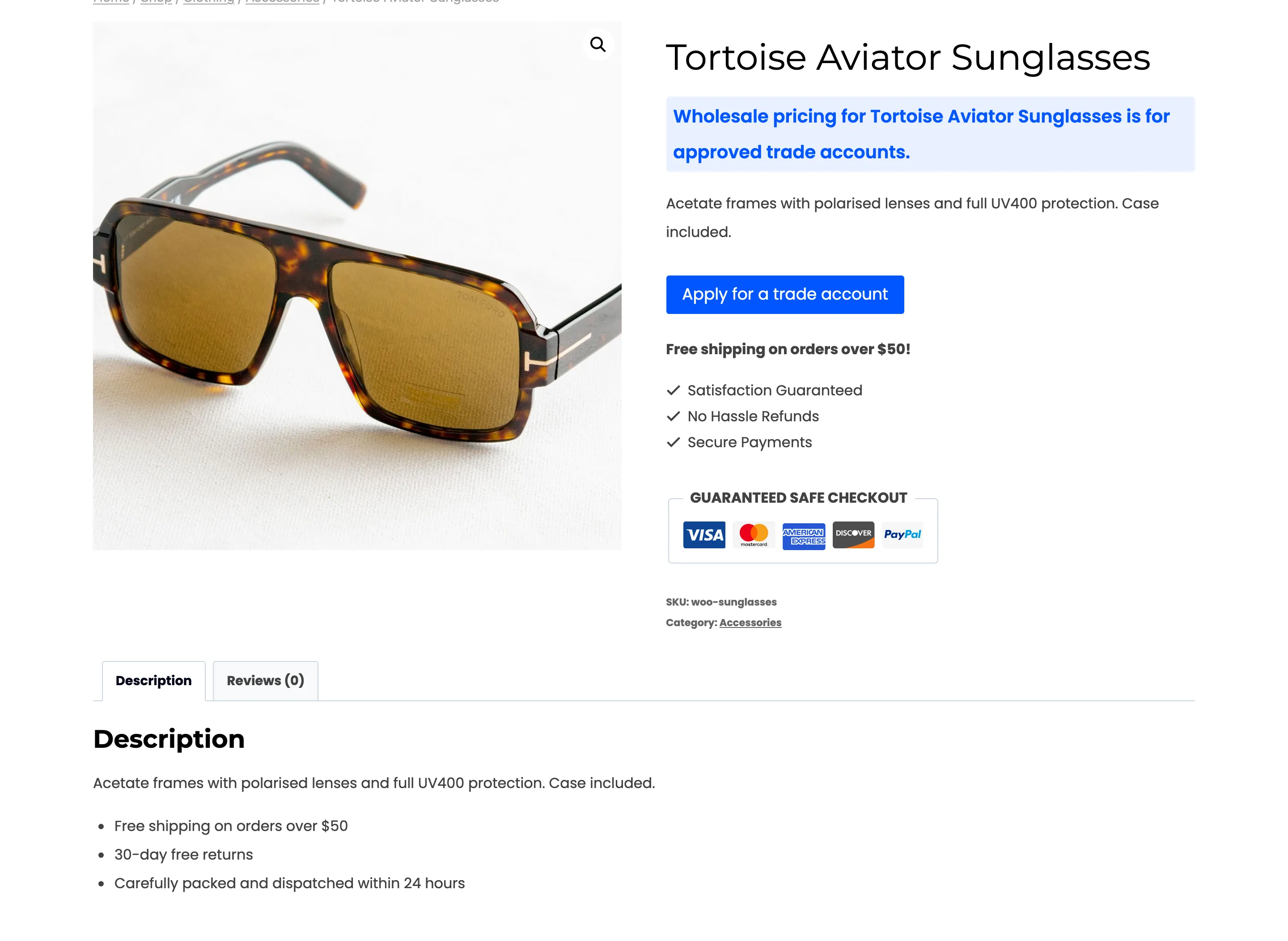
Leave the field empty and the rule uses the Display tab’s text.
Step 5: Check the storefront
Section titled “Step 5: Check the storefront”Open a covered product in a private window. Check the shop page too: a long message wraps under the product name and can push the button down.
Things to know
Section titled “Things to know”- Write for who will read it. A rule that hides prices from signed-in customers should not say “log in”. See How to Run a Trade-Only Catalog.
- An empty message falls back to the default. You cannot blank the price out entirely. To show the button alone, keep a short message such as “Members only”.
- The button is styled by your theme. Add classes under Extra Button Classes, for example
alt.