

The Visitor Experience
This page is the storefront side of the plugin, seen as a guest on the demo store. Each section is one thing a visitor can run into.
The shop
Section titled “The shop”Products whose price is hidden show your message where the price was. Their Add to cart button is replaced by the rule’s button, or removed. Products no rule covers look exactly as they did before.
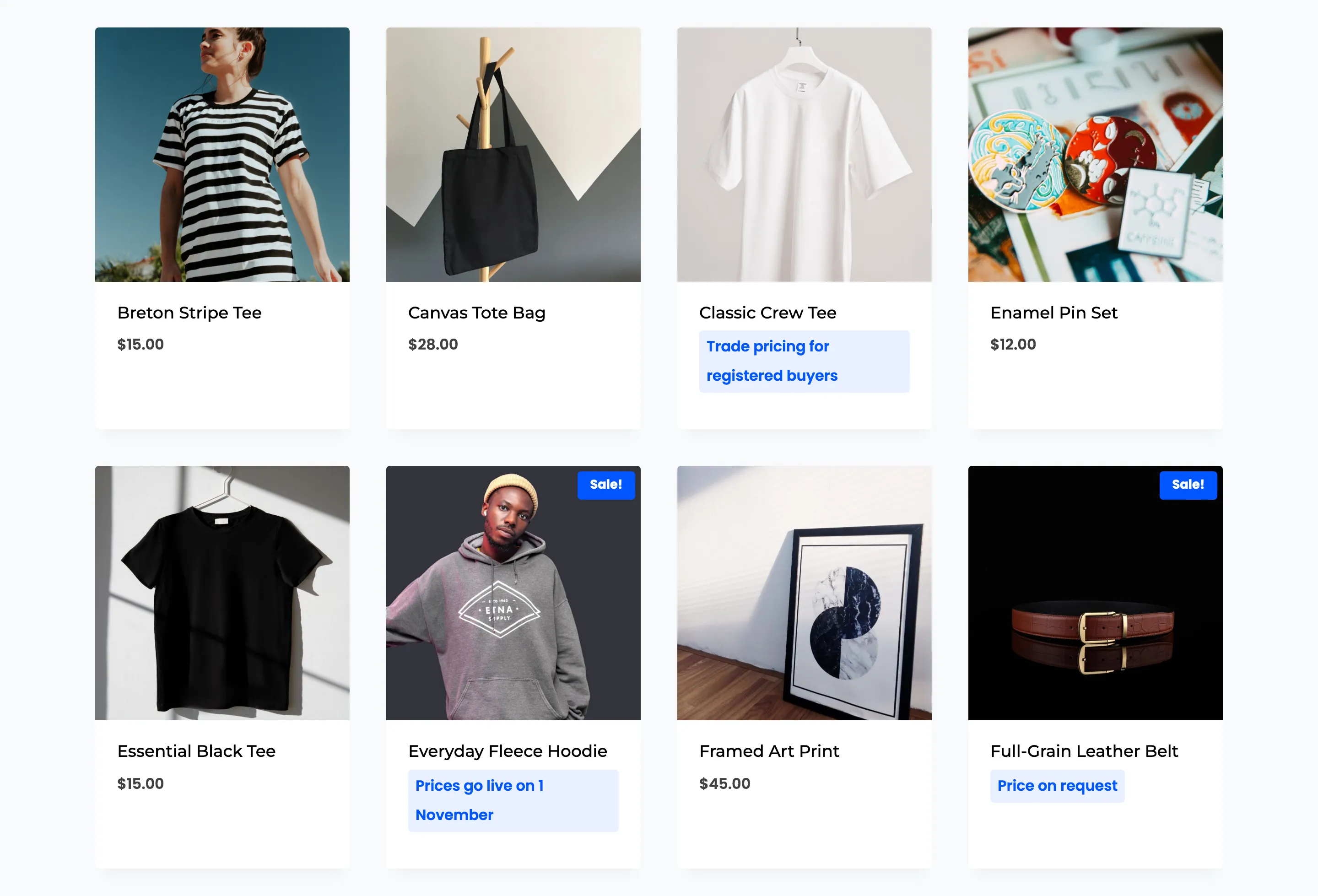
The message has a light blue badge by default. Clear the Background Color on the Display tab and it becomes plain coloured text instead.
The four buttons
Section titled “The four buttons”Each rule picks one, so a store can use all four at once.
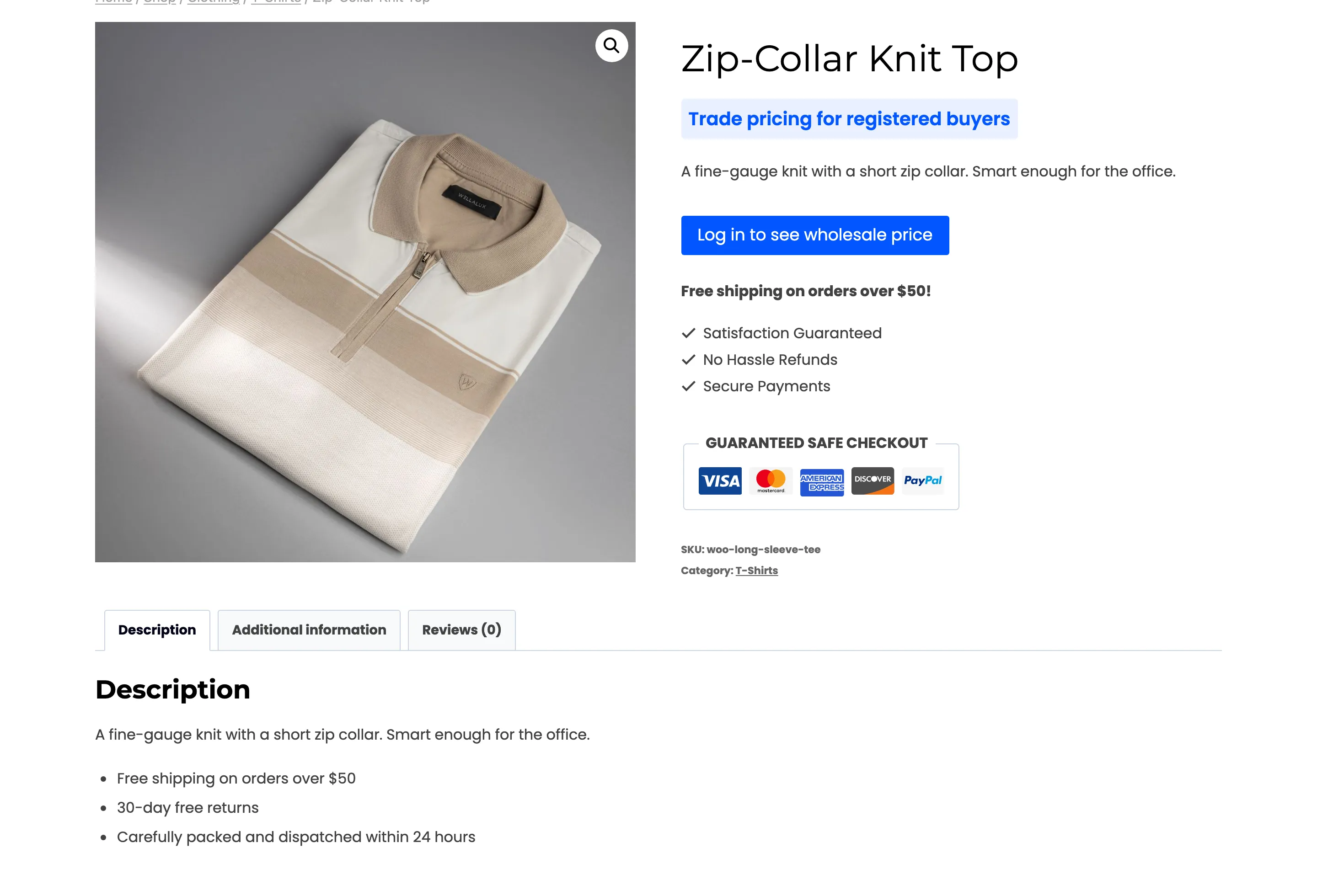
Log in to see the price
Section titled “Log in to see the price”The default. The button opens a login popup.
Request a quote
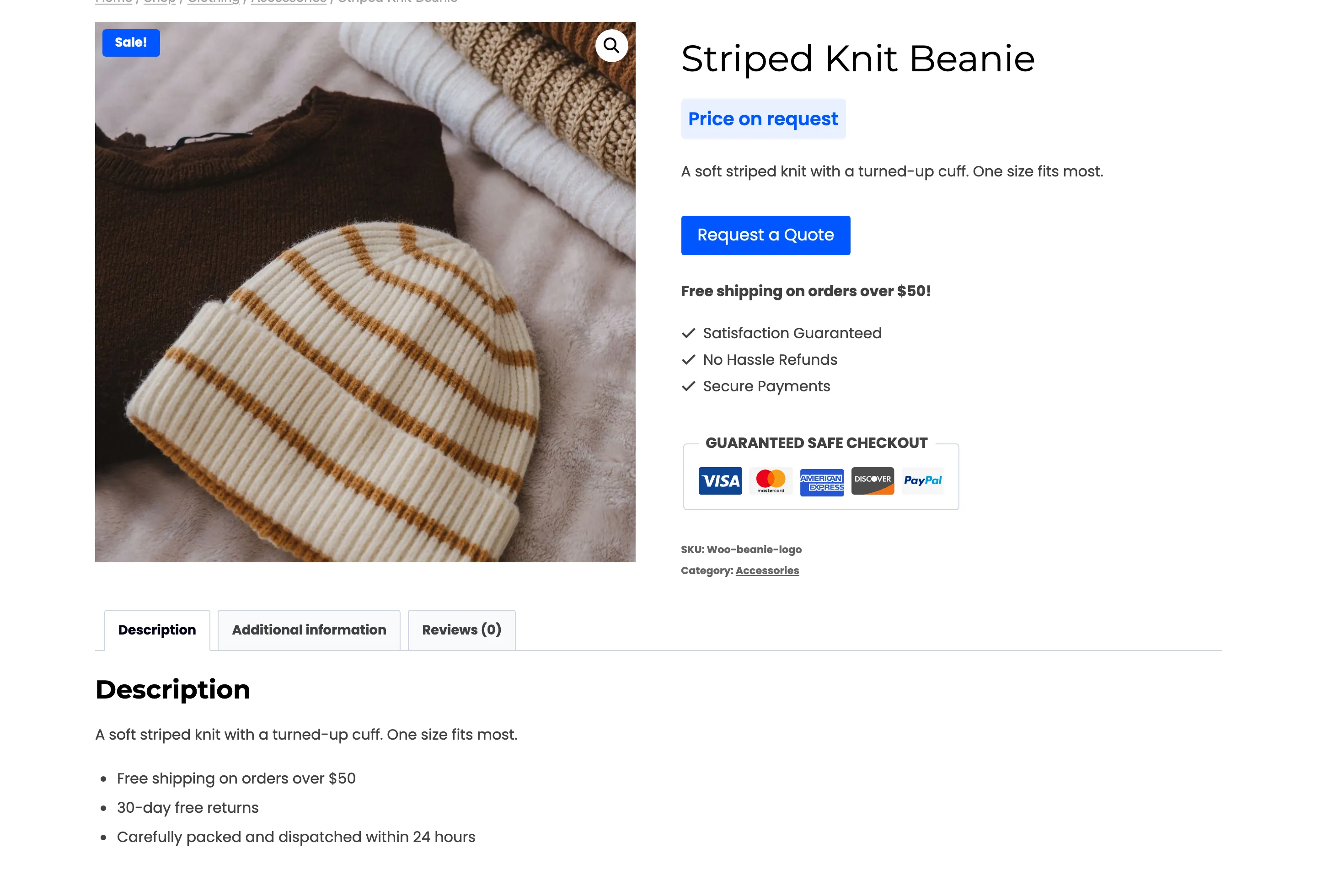
Section titled “Request a quote”The button opens a quote form. The demo uses it for the Accessories category, with the message “Price on request”.
Go to a custom URL
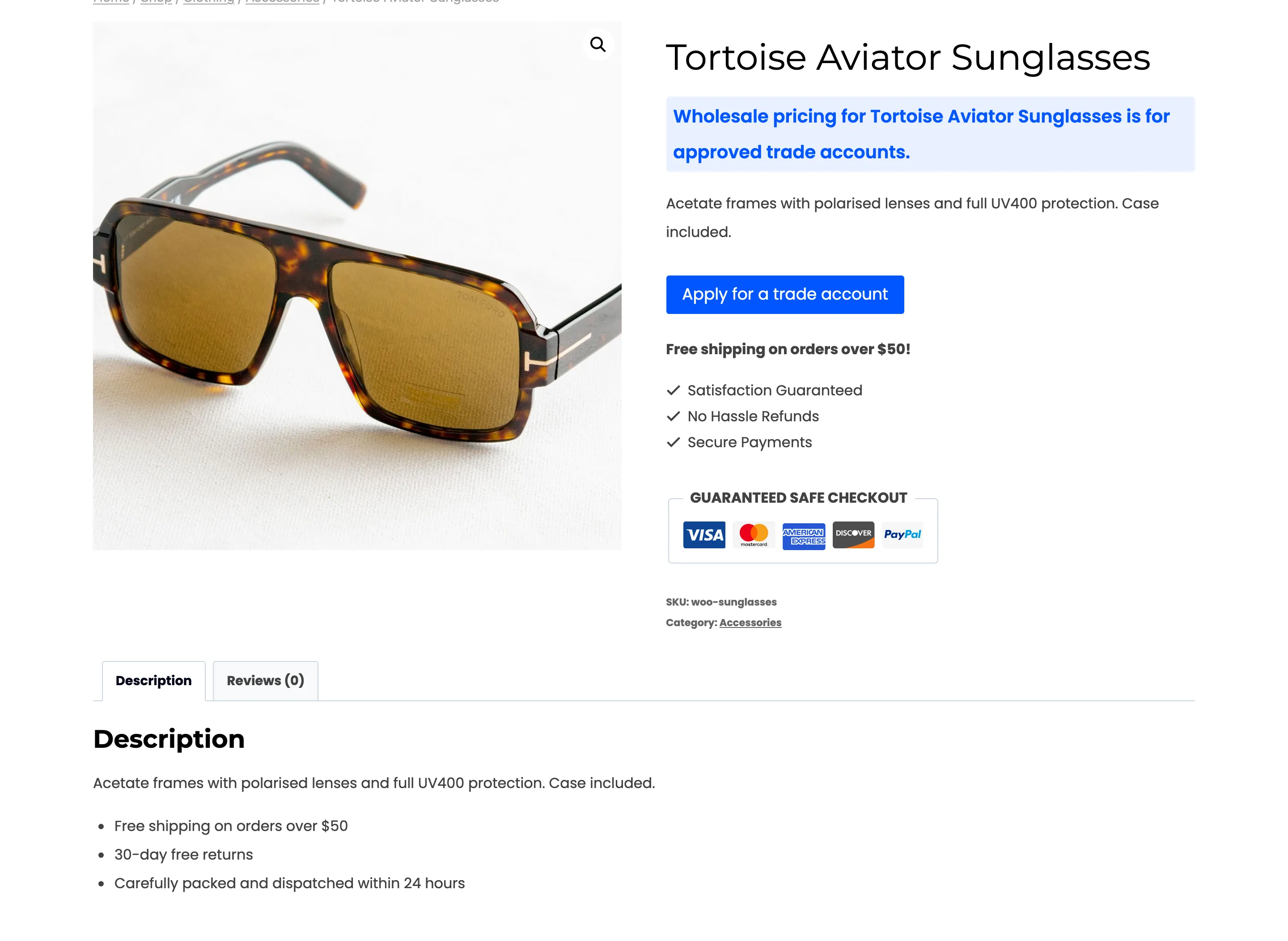
Section titled “Go to a custom URL”The button is a plain link to any page. The demo sends sunglasses buyers to its contact page to apply
for a trade account. The message here uses the {product_name} placeholder.
No button
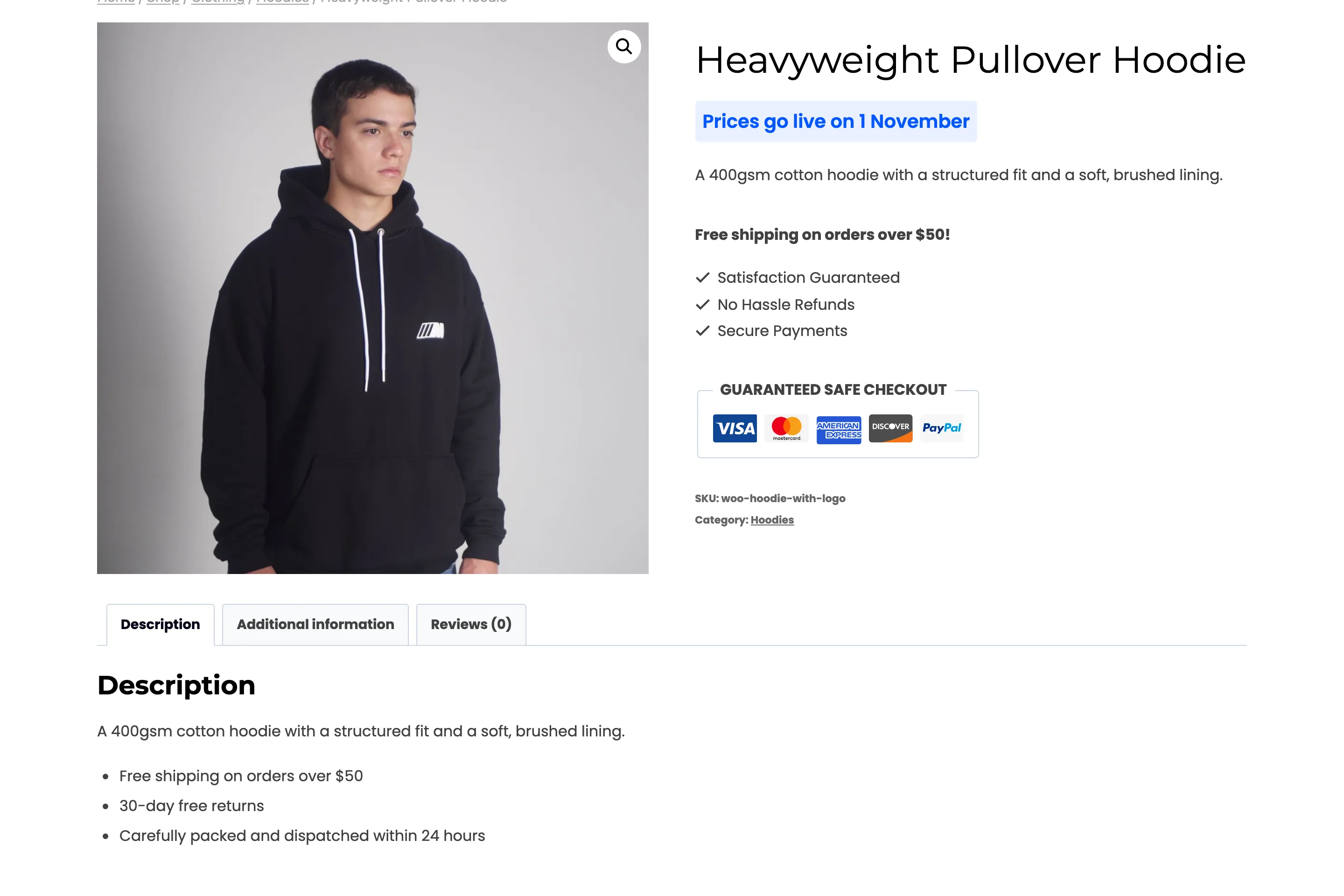
Section titled “No button”Only the message shows. The demo uses it for a launch, where there is nothing to do yet but wait.
The login popup
Section titled “The login popup”The visitor logs in without leaving the product.
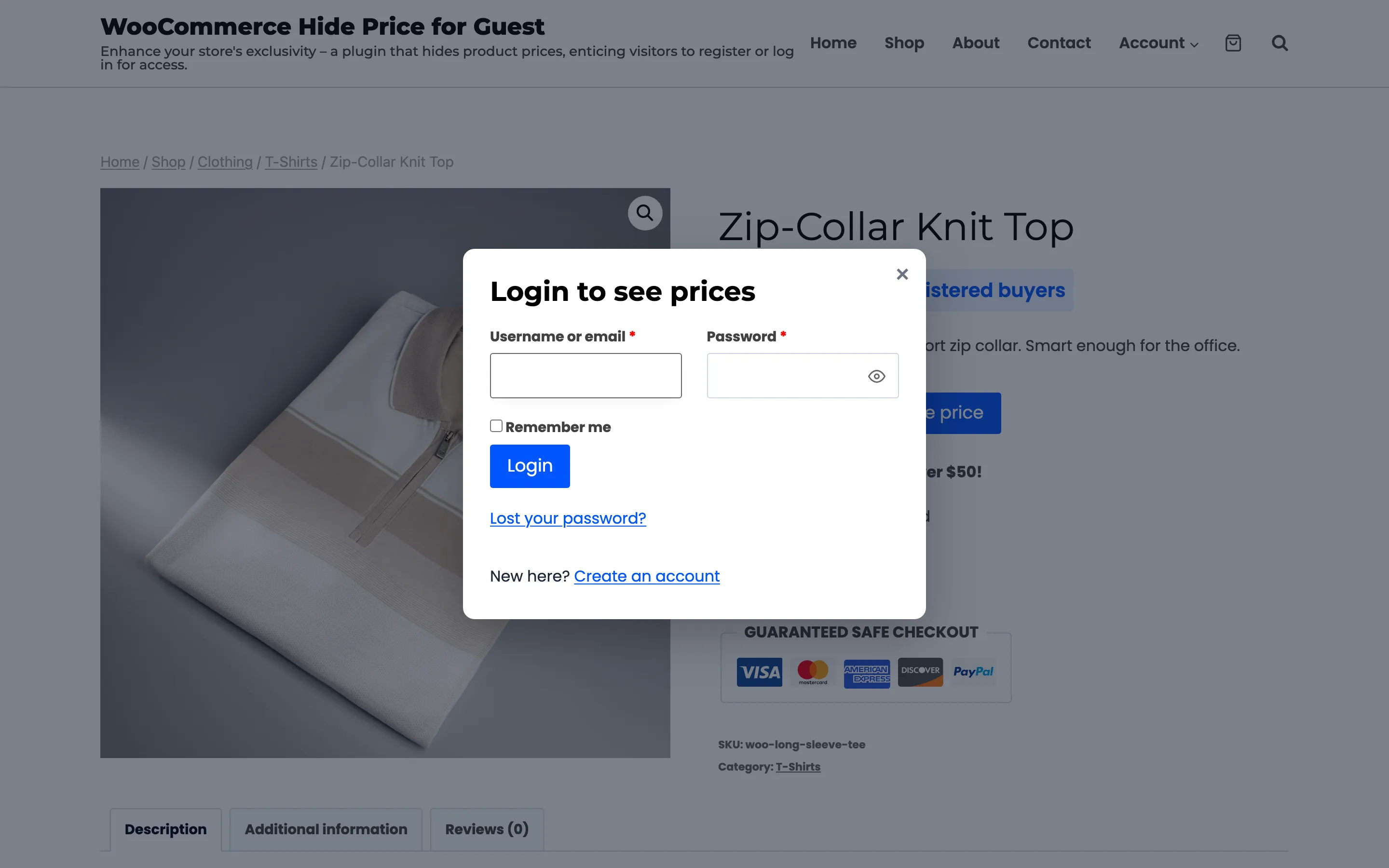
It is WooCommerce’s own login form, so it has Remember me and Lost your password?. When WooCommerce lets customers create accounts on My Account, a New here? Create an account link appears under the form. It goes to the My Account page.
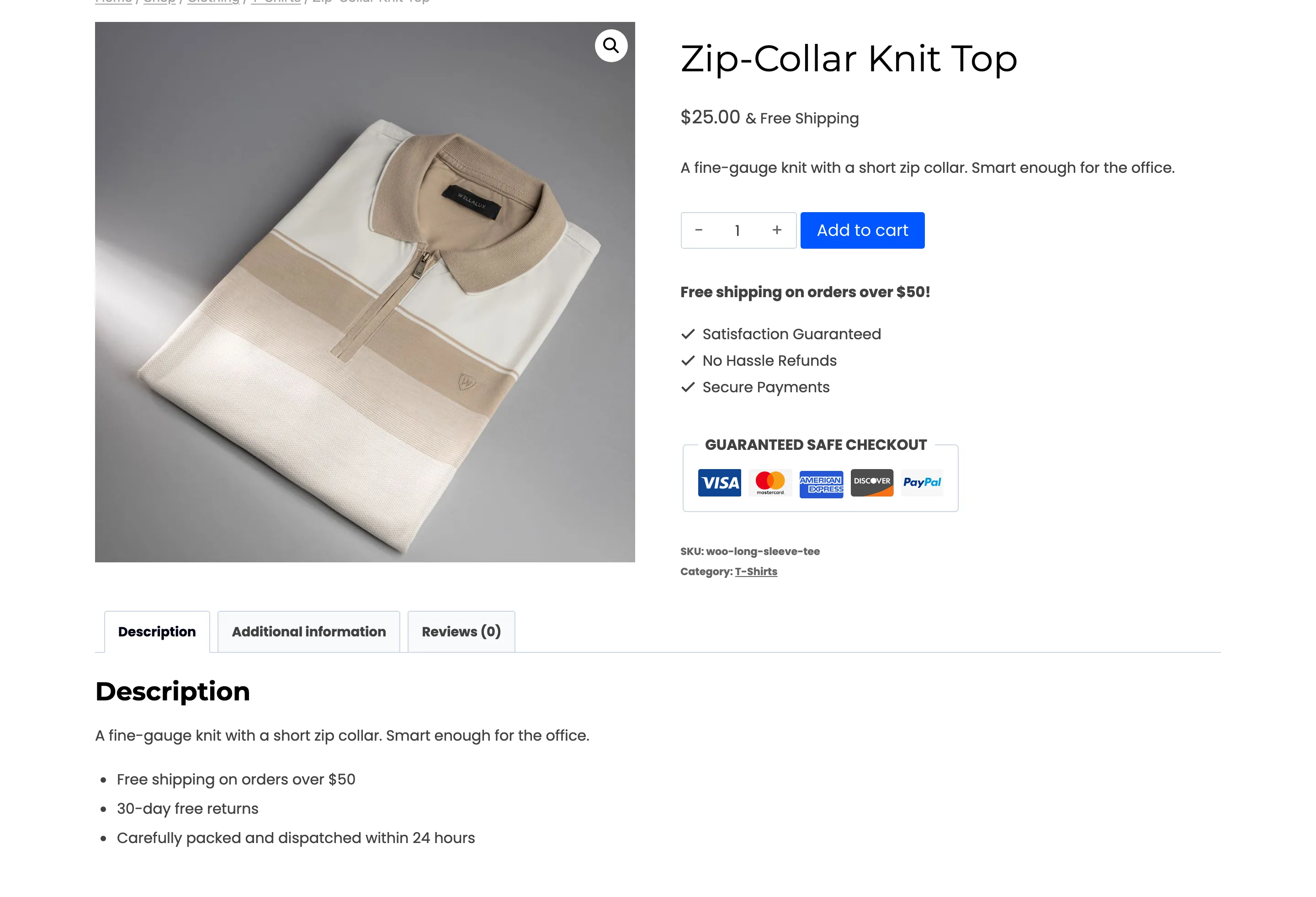
After logging in, the visitor lands back on the same product. If no rule hides prices from their role, the price and the Add to cart button are there.
With Login Popup turned off on the Display tab, the button goes to the My Account page instead, and the visitor still returns to the product after logging in.
The quote form
Section titled “The quote form”The form asks for Name and Email (both required), Phone, Quantity and a Message. The product’s name sits above the fields. A signed-in visitor finds their name and email filled in.
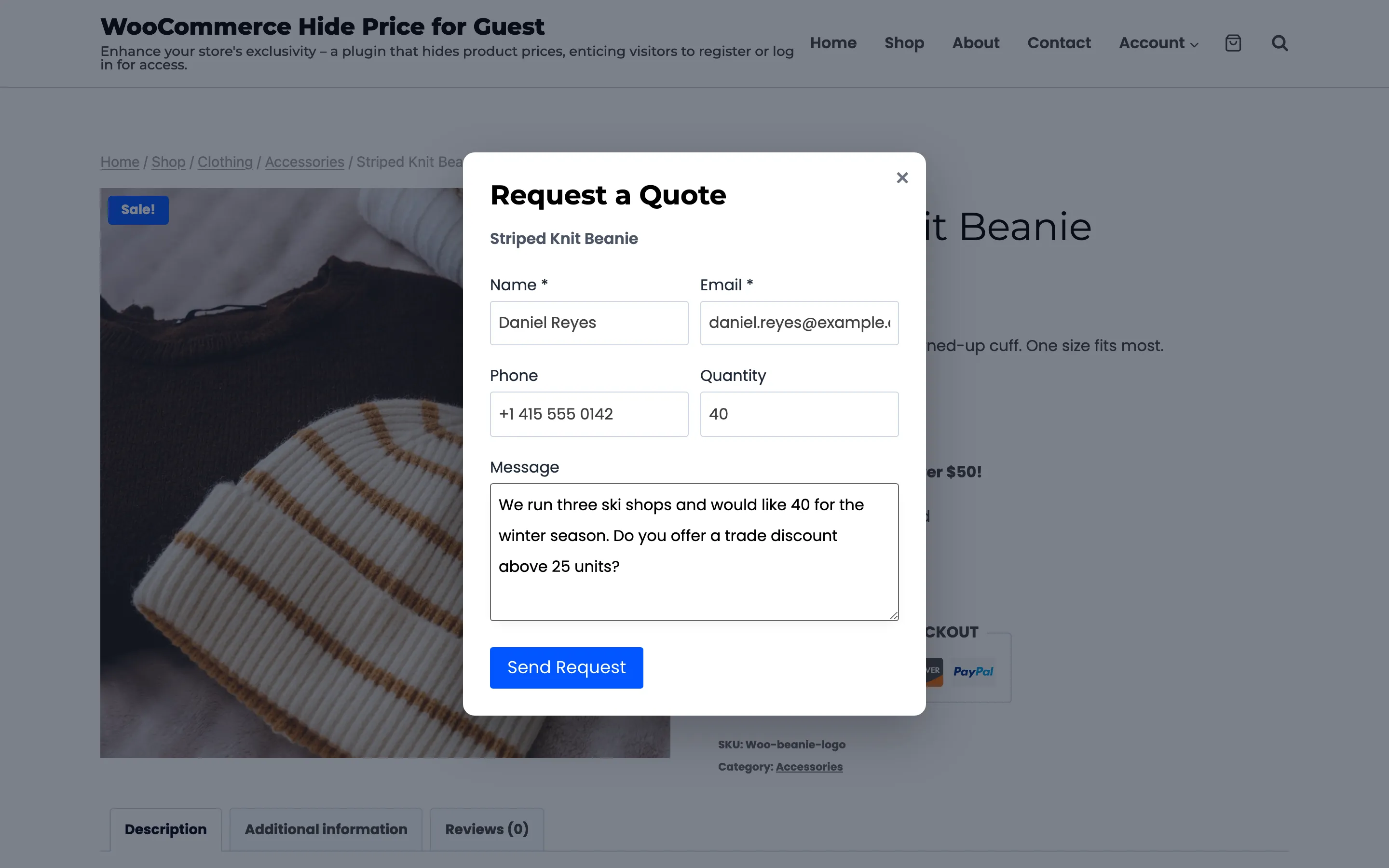
Send Request saves the request and shows the success message in the form. The fields clear, so the visitor can ask about another quantity.
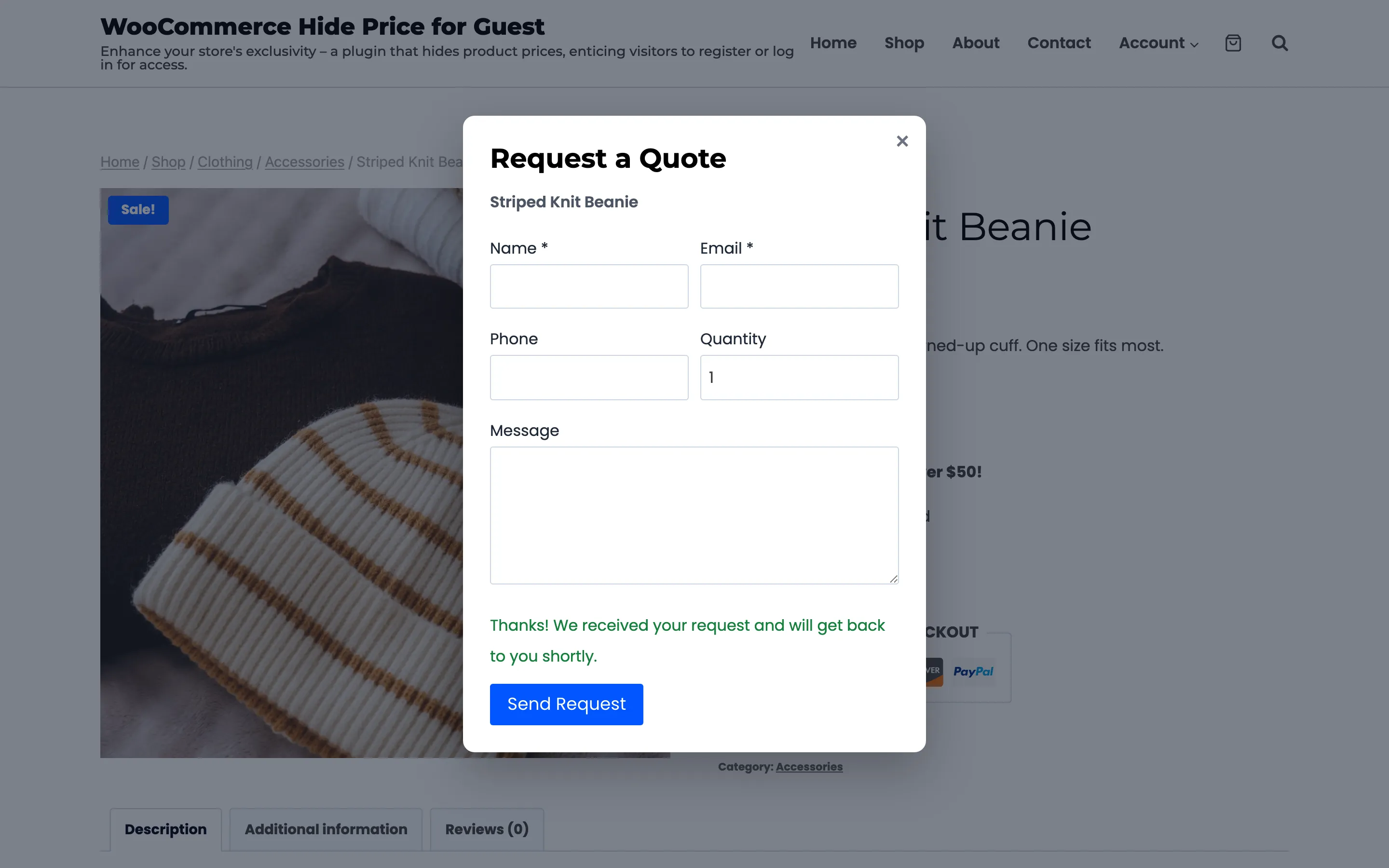
The visitor also gets a copy of their request by email, if Customer Copy is on.
A variable product
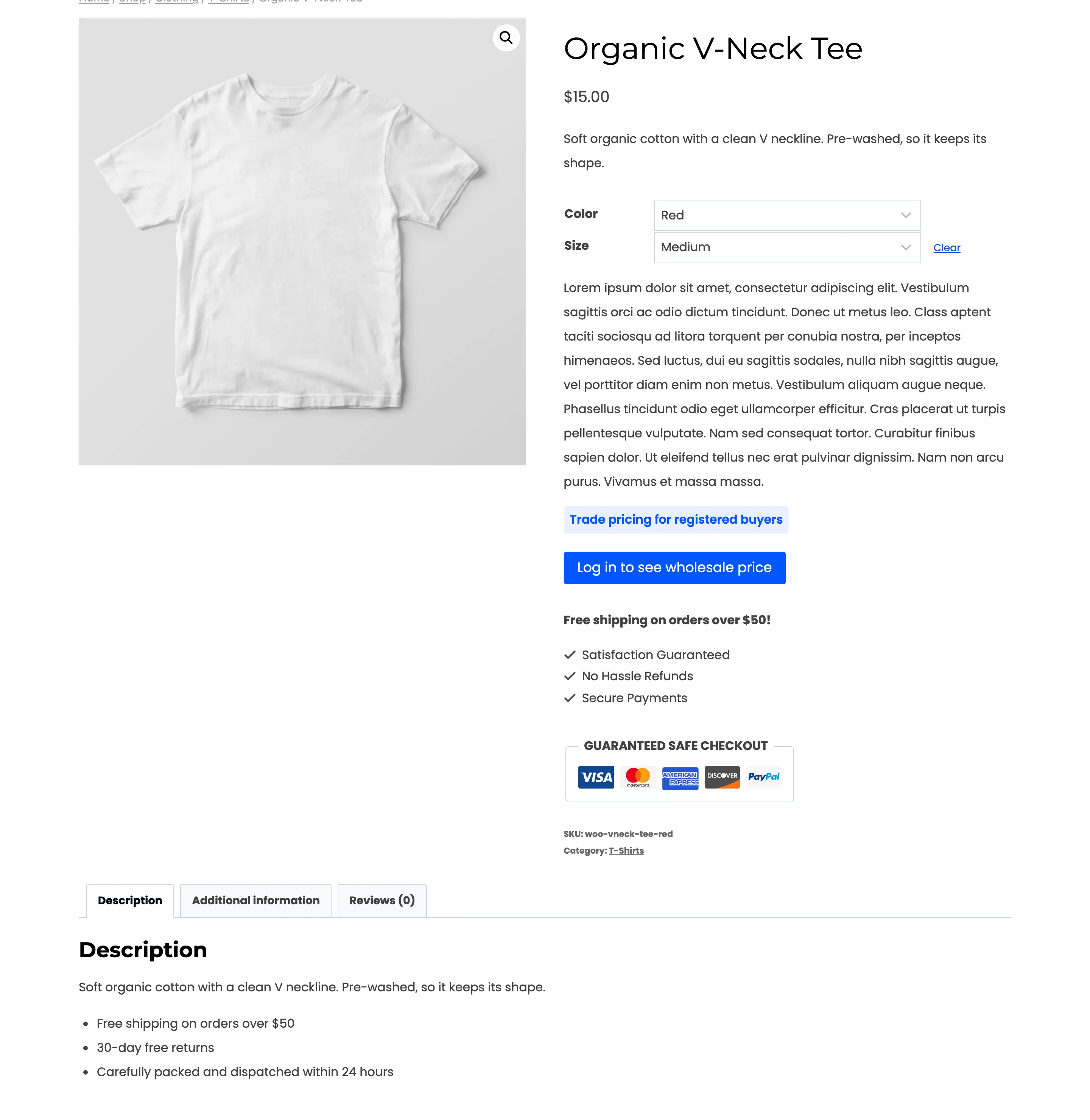
Section titled “A variable product”Each variation is checked on its own. On the demo’s Organic V-Neck Tee the $20 Red variation is hidden and the $15 Blue one is not. Pick Red, and the message and the login button appear where the price and Add to cart would be.
Pick Blue, and the price and Add to cart come back.
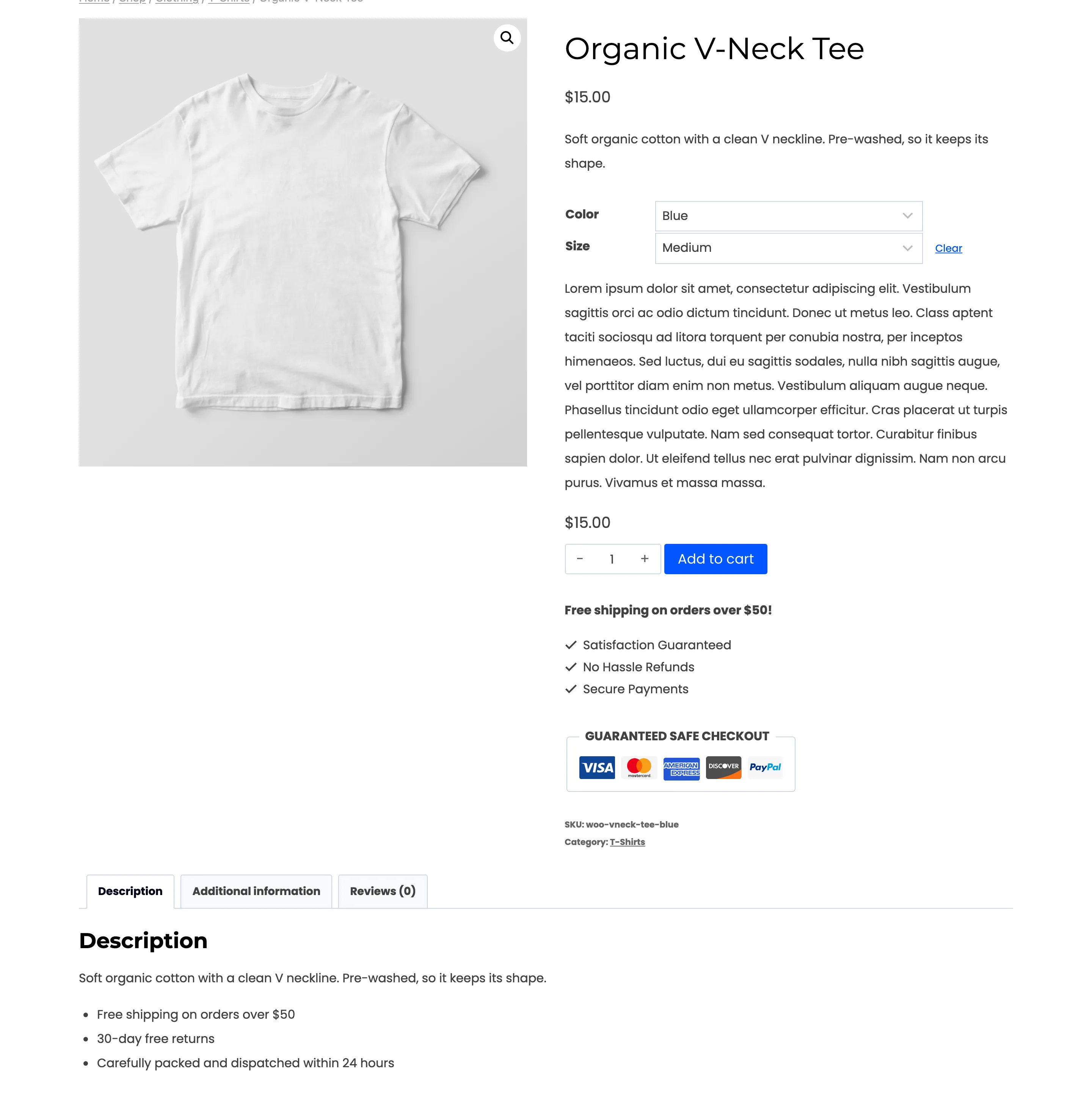
The price under the title reads “$15.00”. The product’s full range is $15 to $20, but the $20 figure belongs to a hidden variation, so it is left out. See How Hidden Prices Work.
A direct add to cart link
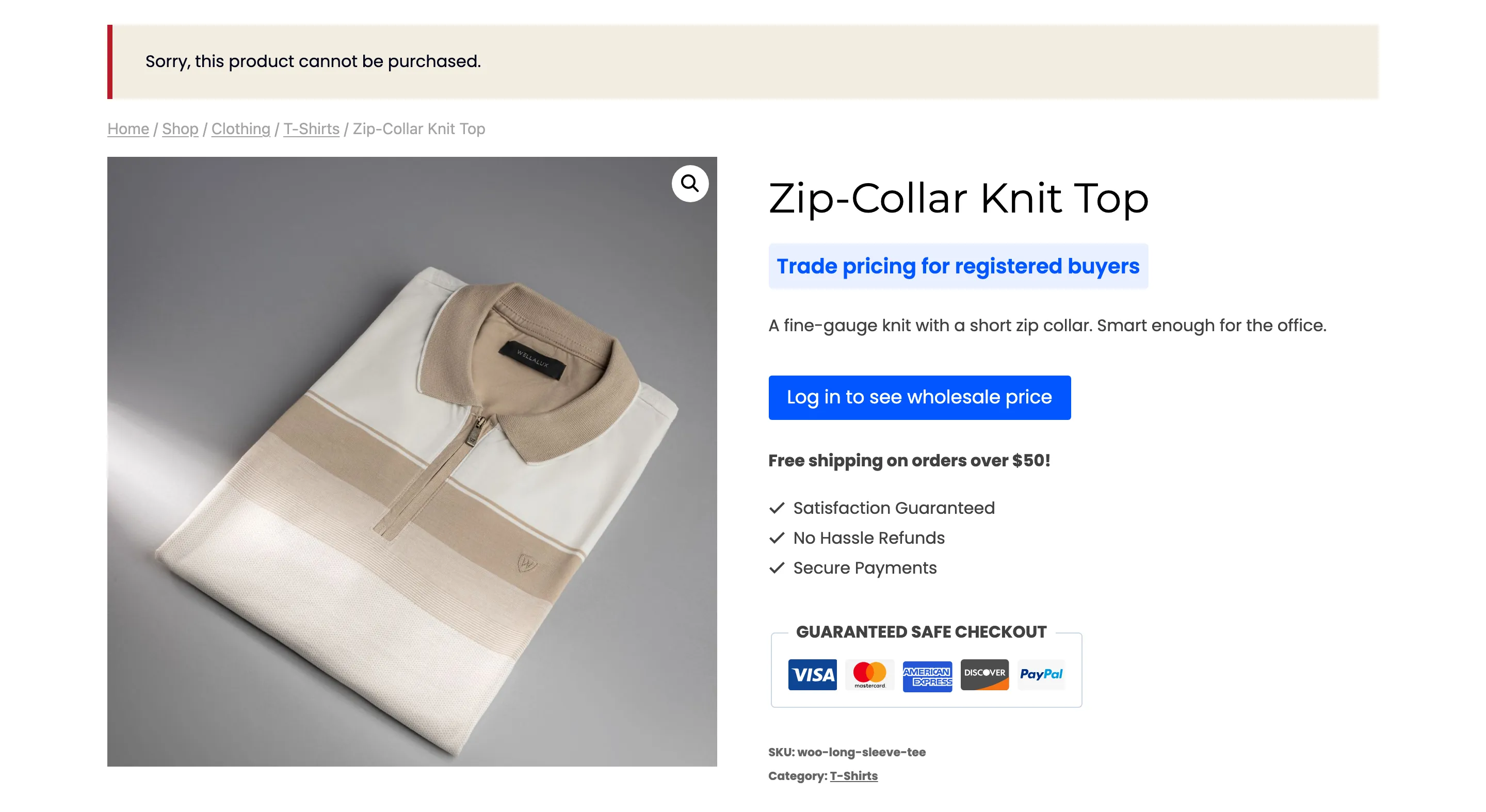
Section titled “A direct add to cart link”A link such as ?add-to-cart=21 for a hidden product does not add it. WooCommerce answers “Sorry, this
product cannot be purchased.”
A signed-in customer
Section titled “A signed-in customer”Rules hide prices from guests unless they say otherwise. On the demo, a signed-in customer sees every price except the sunglasses, whose rule includes the Customer role. That rule’s wording asks for a trade account rather than a login, because some of the people reading it are already signed in.
A login button never shows to someone already signed in. A rule that targets a role and keeps the login action shows that role the message and no button.