

How to Hide Prices on Variations
A variable product is decided one variation at a time. That lets you show the price of a basic option and hide a premium one, or hide the whole product.
Step 1: Decide what to hide
Section titled “Step 1: Decide what to hide”- Some variations: a guest can buy the open ones, and sees your message on the others.
- The whole product: no variation shows a price, and neither does the range.
Step 2: Hide some variations
Section titled “Step 2: Hide some variations”Use a condition that reads each variation’s own data:
- Price (a variation’s own price),
- Stock quantity and Stock status,
- On sale, Virtual, Downloadable,
- Product type is any of Variation, which matches every variation of every product.
Category, tag and featured are read from the parent, so they match all variations of a product or none.
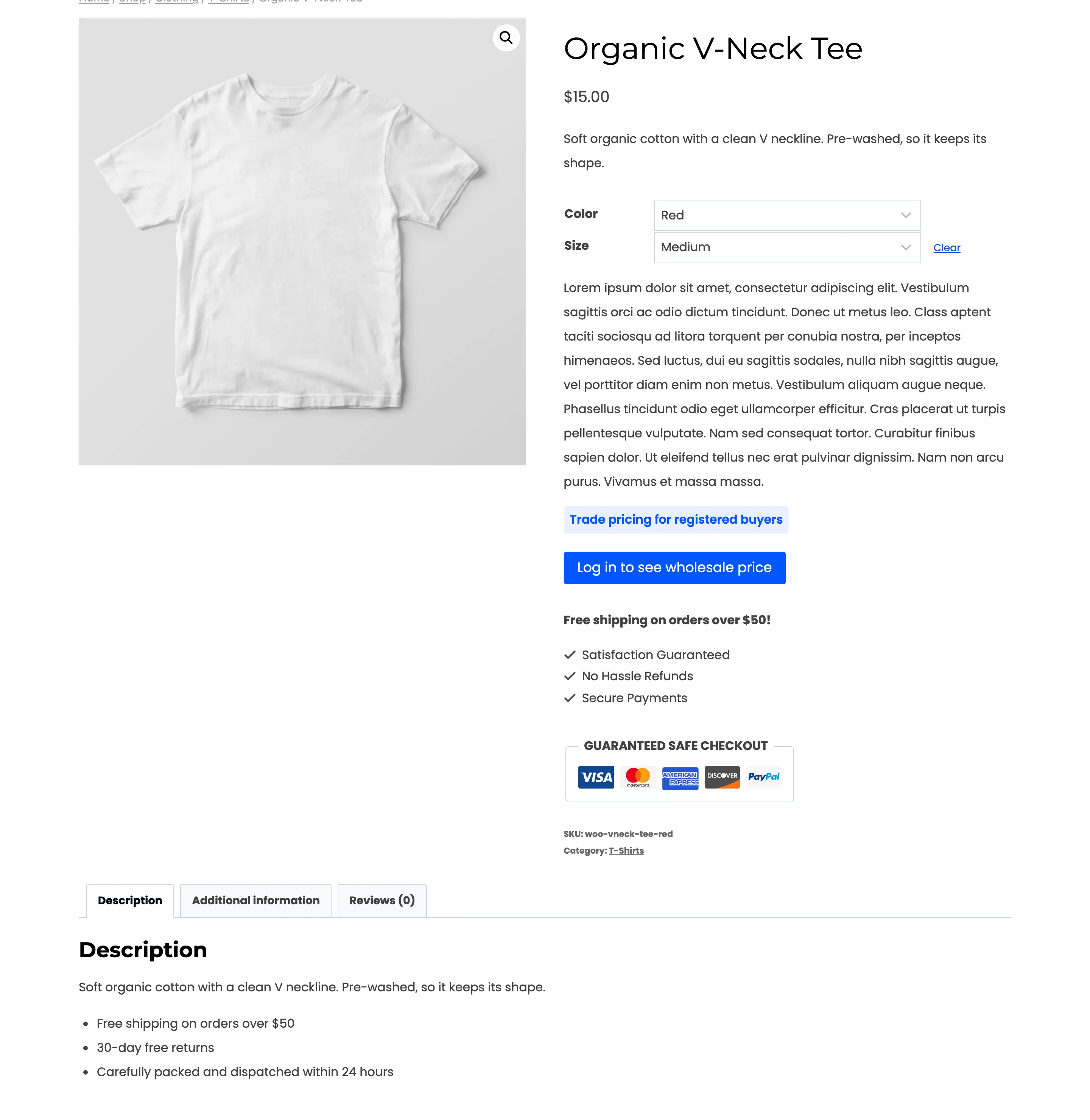
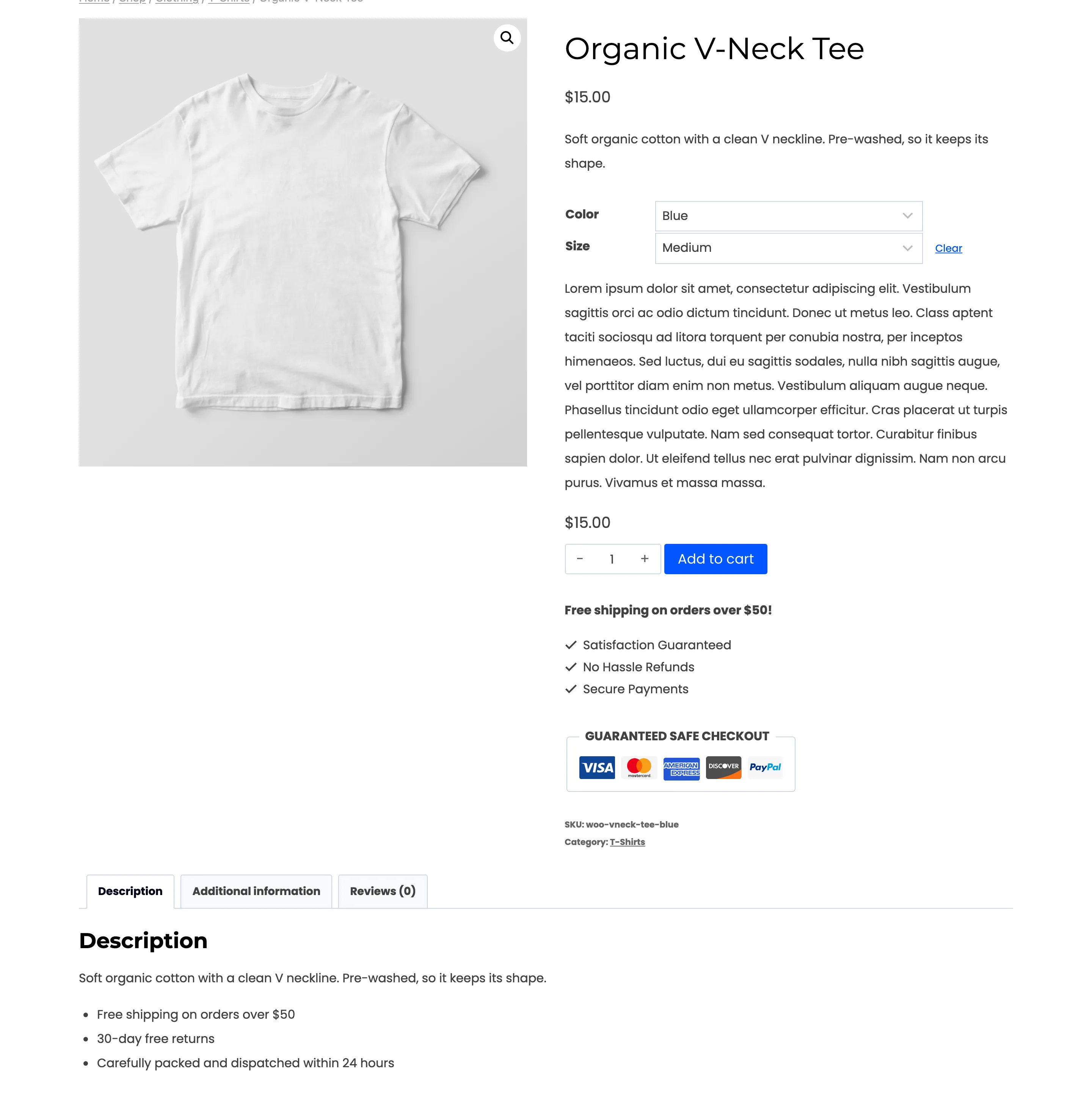
On the demo store the “$20 and over” rule does this to Organic V-Neck Tee. Pick Red ($20) and the message and the login button take the place of the price and Add to cart:
Pick Blue ($15) and they come back:
The hidden variation also cannot be added to the cart through a link, with Block Purchases on.
The range follows
Section titled “The range follows”The price under the title is the product’s range. With some variations hidden, the plugin builds it from the open ones only, so it reads “$15.00” in both screenshots, not “$15.00 – $20.00”. The shop shows the same. Nothing in the range gives away the price of the Red variation.
Step 3: Hide the whole product
Section titled “Step 3: Hide the whole product”Make a rule match the parent product as well as its variations. Either:
- add a rule with Product is any of and the variable product, or
- add a rule with Product type is any of Variable product to cover every variable product.
Both match the parent and all of its variations: a variation counts as its own type, Variation, and as its parent’s. The product then shows your message in place of any price, and every variation shows the replacement button.
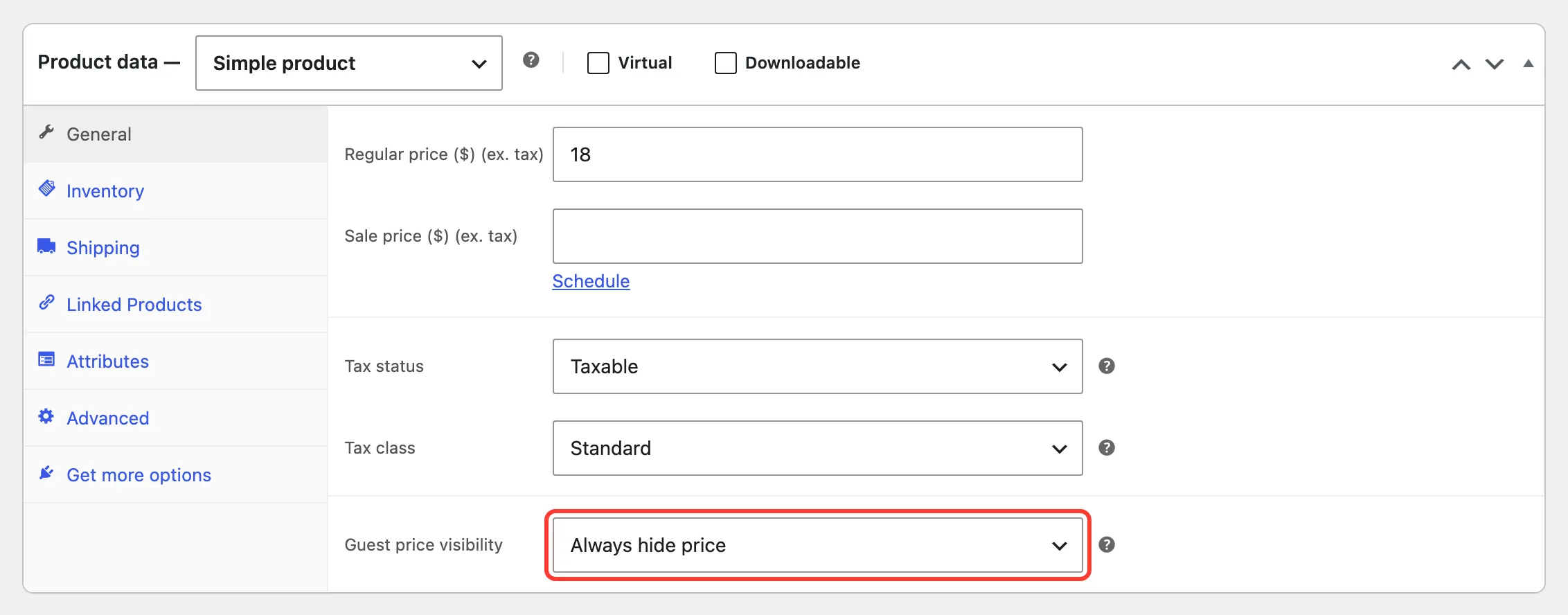
Or set the product’s own Guest price visibility to Always hide price. The setting is on the parent, and it covers every variation.
Step 4: Check the product page as a guest
Section titled “Step 4: Check the product page as a guest”Open the product in a private window and pick each variation in turn. Look at three places: the range under the title, the price that appears when a variation is chosen, and the button under it.
What the plugin does on the page
Section titled “What the plugin does on the page”When a hidden variation is chosen, the plugin swaps the variation’s price for your message, puts the replacement button where the stock line was, and hides the quantity box and Add to cart. Choosing another variation, or Clear, brings them back. This all happens in the browser, with no page reload.