

General Settings
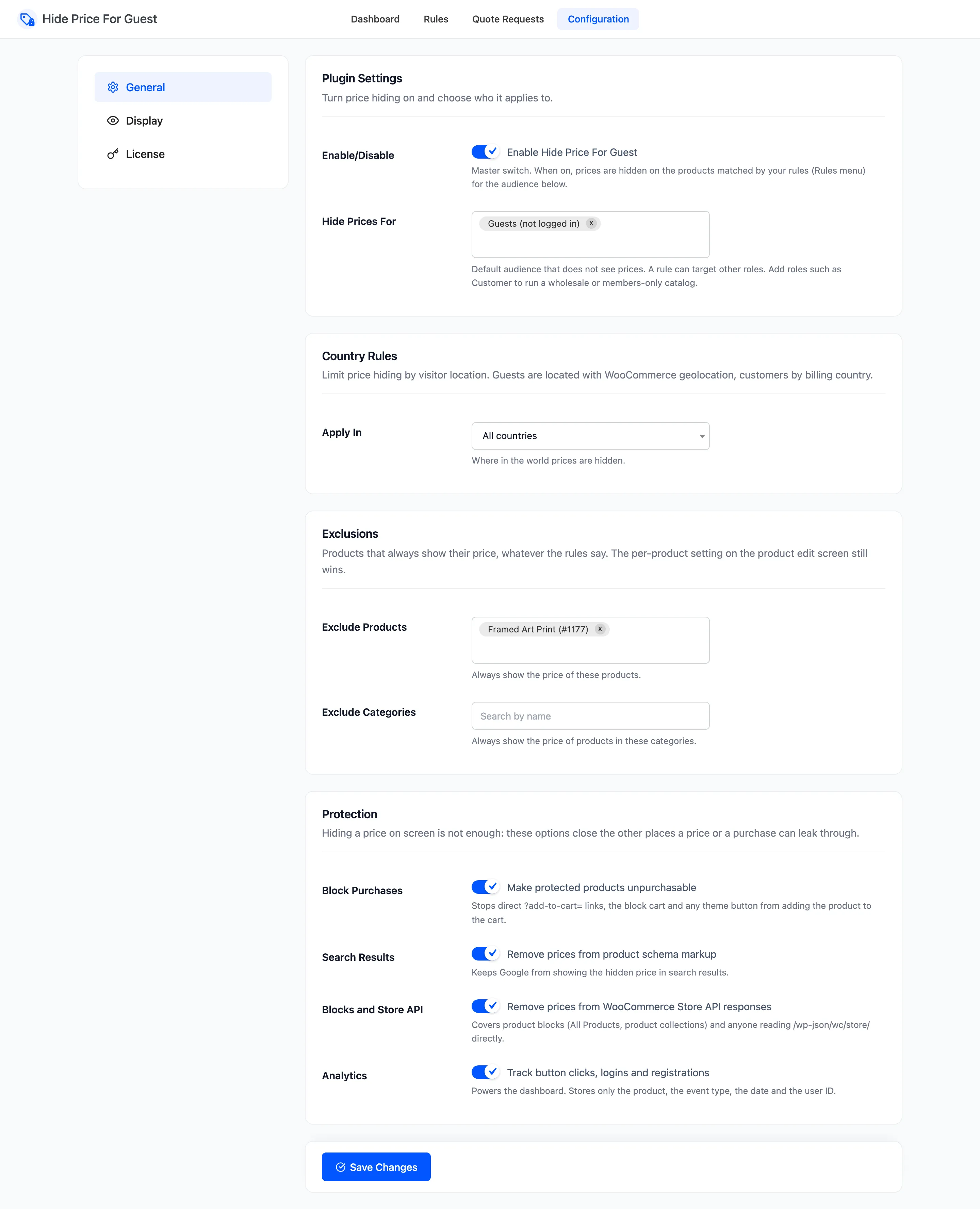
The General tab decides whether the plugin runs, who prices are hidden from by default, where in the world, which products are never hidden, and how hidden prices are protected. Open DevDiggers Plugins → Hide Price For Guest → Configuration → General.
Which products are hidden is not set here. That is the job of the Rules screen.
Plugin Settings
Section titled “Plugin Settings”- Enable/Disable: “Enable Hide Price For Guest”. The master switch. Off on a new install until the setup wizard or you tick it. Off, every price shows to everyone.
- Hide Prices For: The default audience. Guests (not logged in) by default. The list also holds every user role on your site. A rule with its own Hide For list uses that list instead.
Adding Customer here hides prices from signed-in customers too, which is how a members-only or approved-trade catalog works. Your own administrator role is in the list as well. Leave it out, or you will not see your own prices.
Country Rules
Section titled “Country Rules”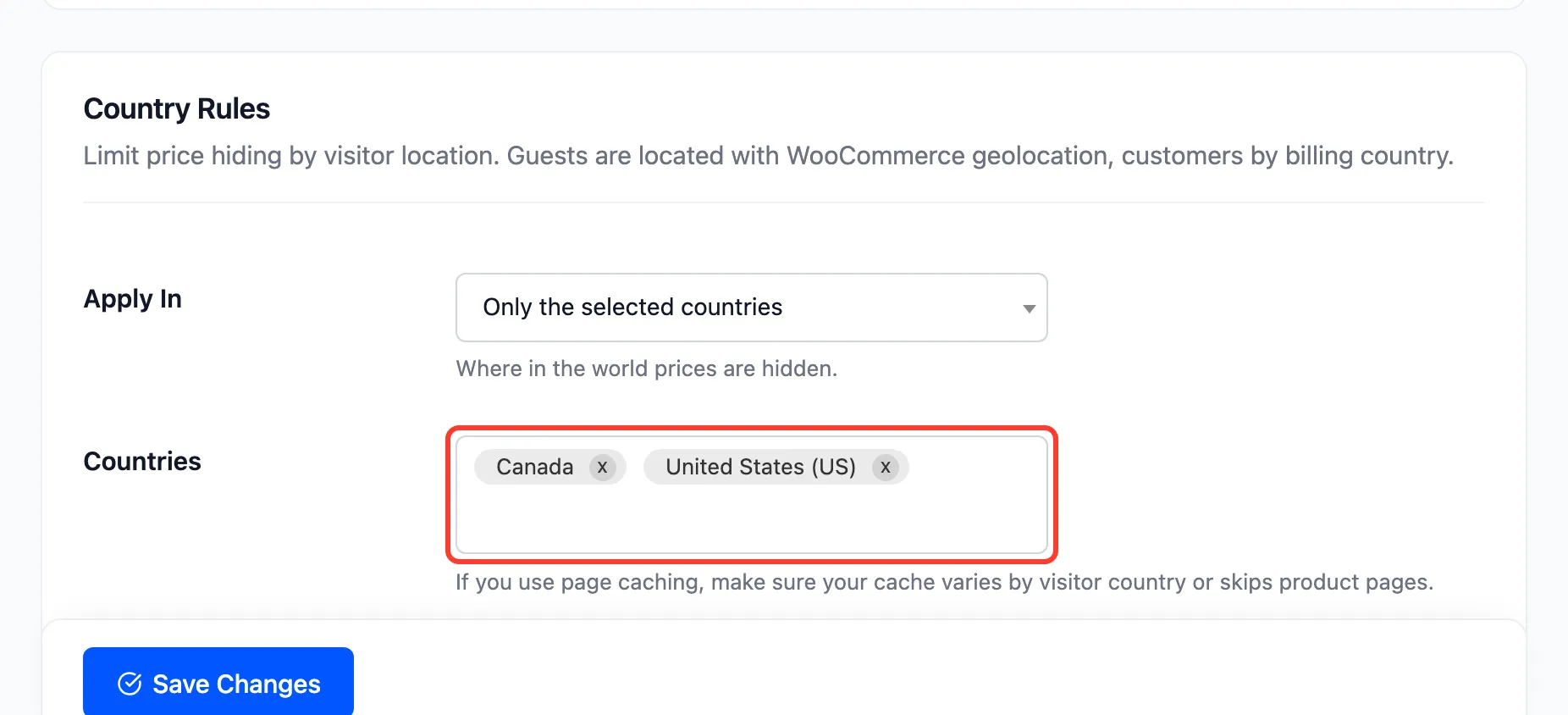
- Apply In: Where prices are hidden.
- All countries (default).
- Only the selected countries: Hidden for visitors in the list, shown to everyone else.
- All countries except the selected ones: Shown to visitors in the list, hidden for everyone else.
- Countries: The list. It appears once you pick one of the last two options. An empty list behaves like All countries.
A guest is placed by WooCommerce geolocation from their IP address. A customer is placed by their billing country, or by geolocation if they have none. This check comes before everything else, including a product’s own Always hide price setting.
If your store uses page caching, the cached page has to vary by country, or skip product pages. Otherwise the first visitor’s country decides what everyone sees. How to Hide Prices by Country shows it on the demo.
Exclusions
Section titled “Exclusions”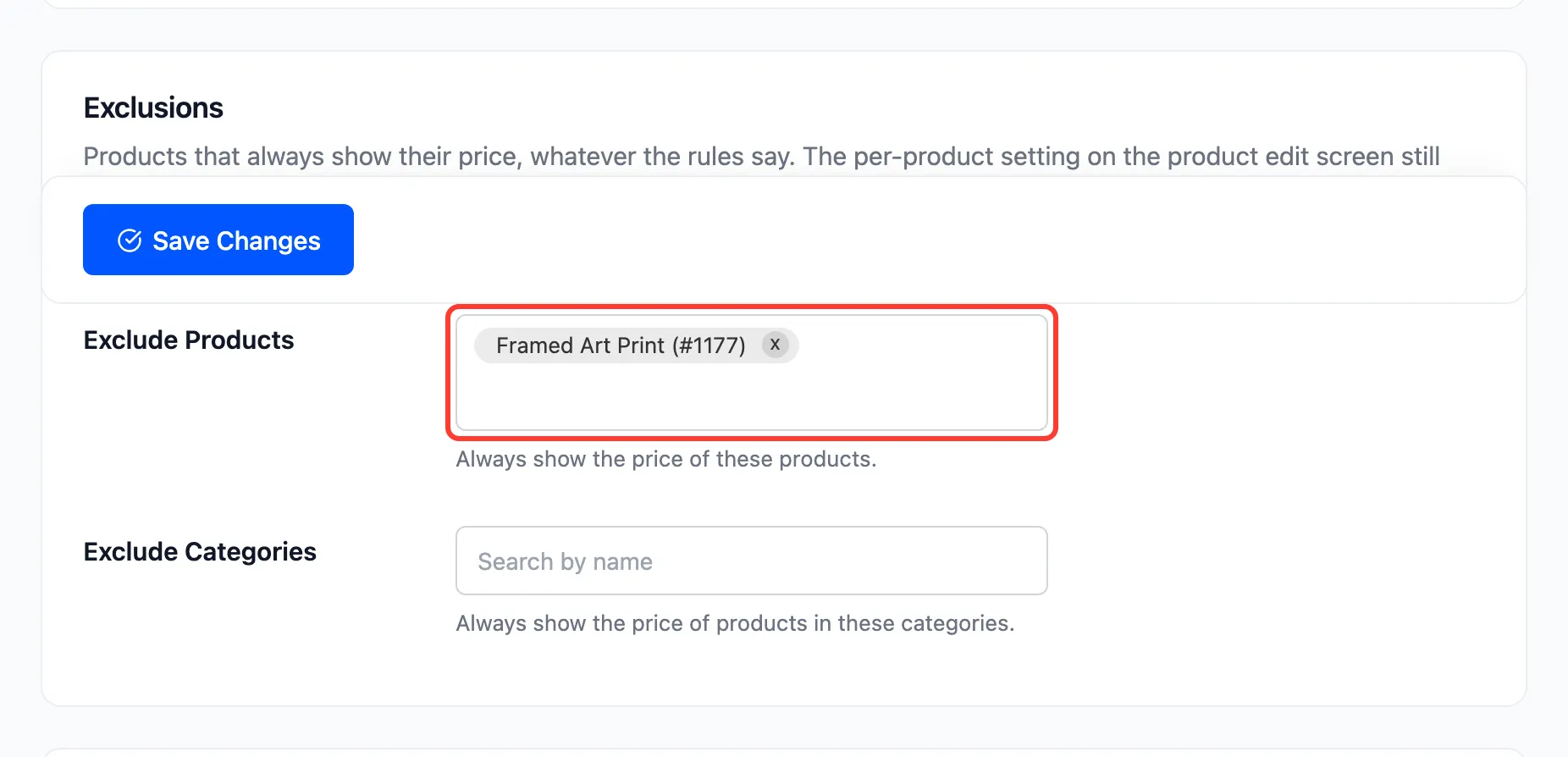
- Exclude Products: Products that always show their price. Empty by default.
- Exclude Categories: Every product in these categories always shows its price. Empty by default.
Exclusions beat every rule. A product’s own Always hide price setting beats exclusions, because it is checked first.
Protection
Section titled “Protection”Hiding the price on the page is one thing. These four options close the other ways a price can be seen or a hidden product bought. All four are on by default.
- Block Purchases: “Make protected products unpurchasable”. A hidden product cannot reach the cart:
not through a direct
?add-to-cart=link, the block cart or a theme’s own button. - Search Results: “Remove prices from product schema markup”. Removes the price from the structured data Google reads, so the hidden price does not appear in search results.
- Blocks and Store API: “Remove prices from WooCommerce Store API responses”. Product blocks such as
All Products read prices from the Store API. With this on, a hidden product’s prices come back empty,
and anyone reading
/wp-json/wc/store/directly gets nothing either. - Analytics: “Track button clicks, logins and registrations”. Powers the dashboard. It stores only the product, the kind of event, the date and the user ID.
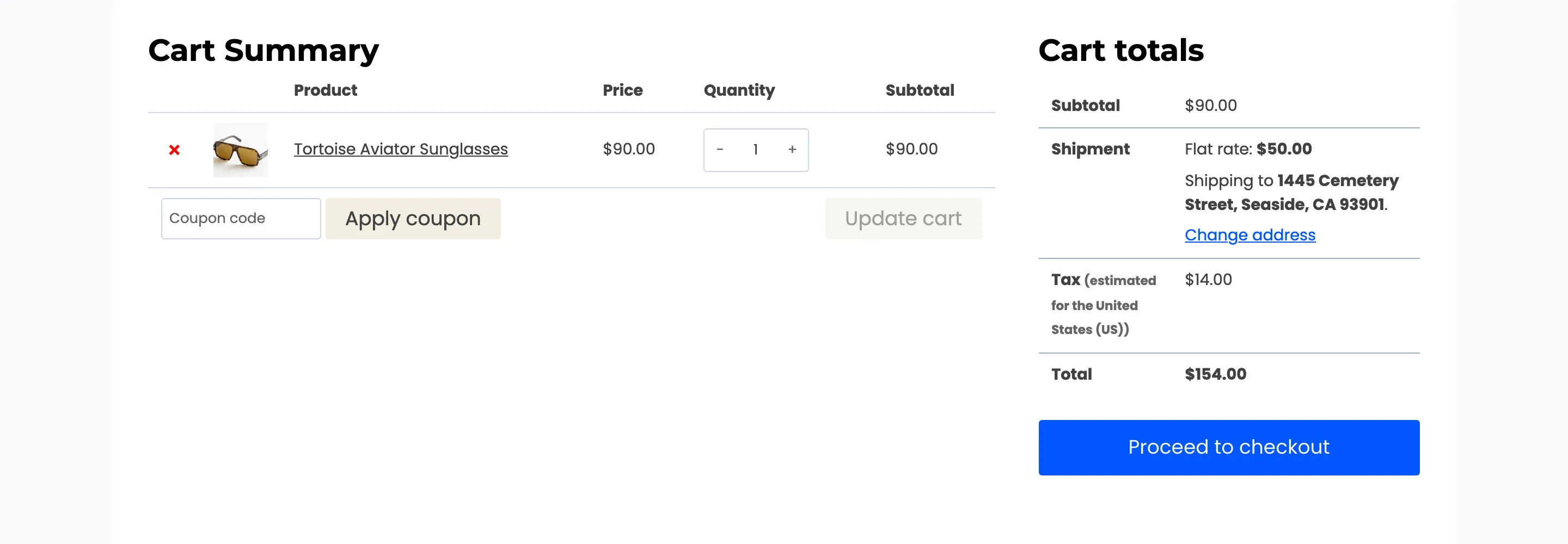
Keep Block Purchases on. With it off, the replacement button still hides the add to cart button, but a direct link puts the product in the cart, and the cart shows its price.
Click Save Changes at the bottom of the tab.