

How to Always Show or Hide One Product
Rules work on groups. Sooner or later one product needs to be the exception. There are two places to set it, and they behave a little differently.
Step 1: Show a product’s price with an exclusion
Section titled “Step 1: Show a product’s price with an exclusion”Go to Configuration → General → Exclusions and add the product under Exclude Products. For a whole category, use Exclude Categories. Click Save Changes.
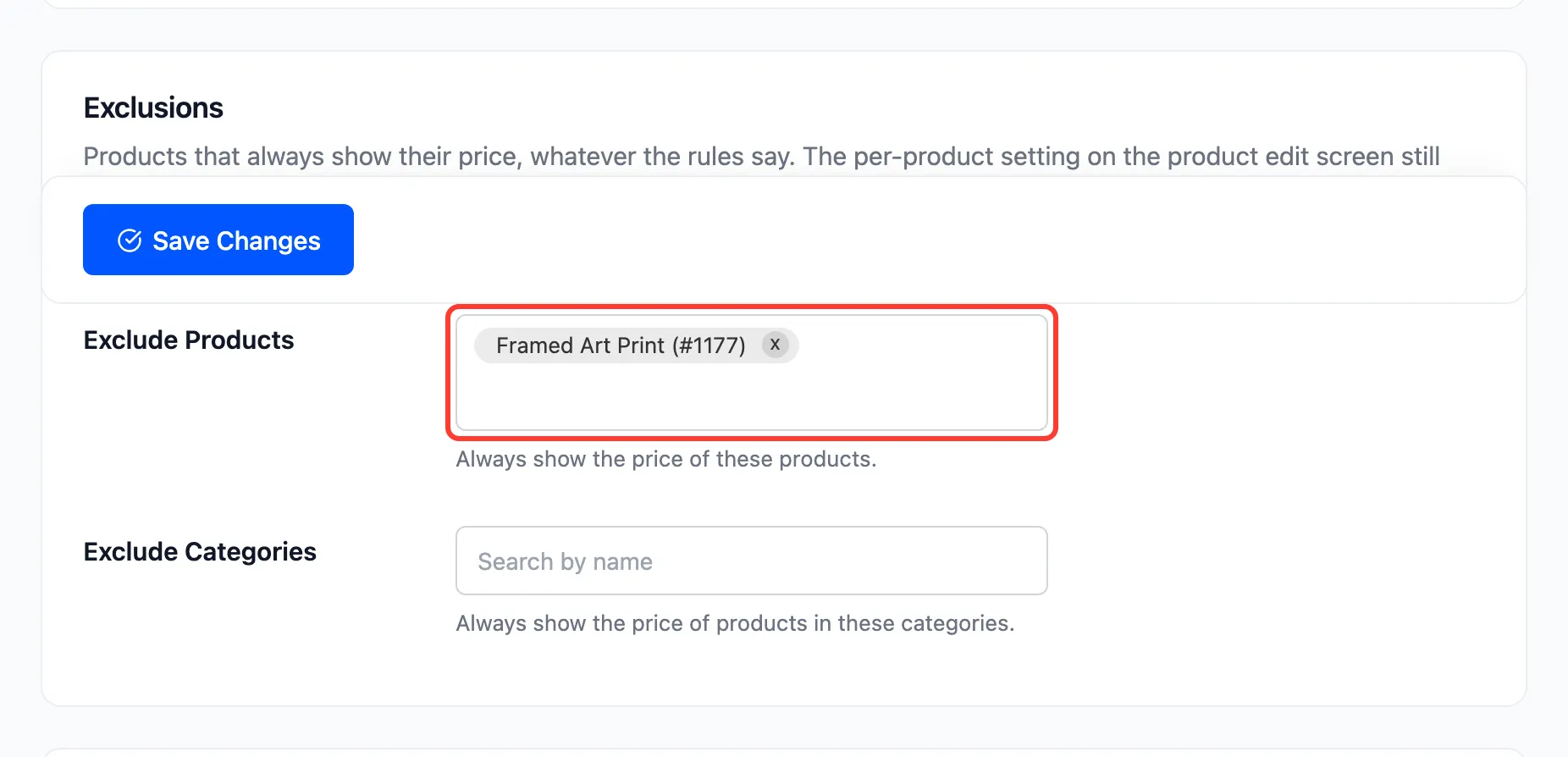
The demo’s Framed Art Print costs $45, so the “$20 and over” rule would hide it. Excluded, it shows its price and Add to cart to everyone.
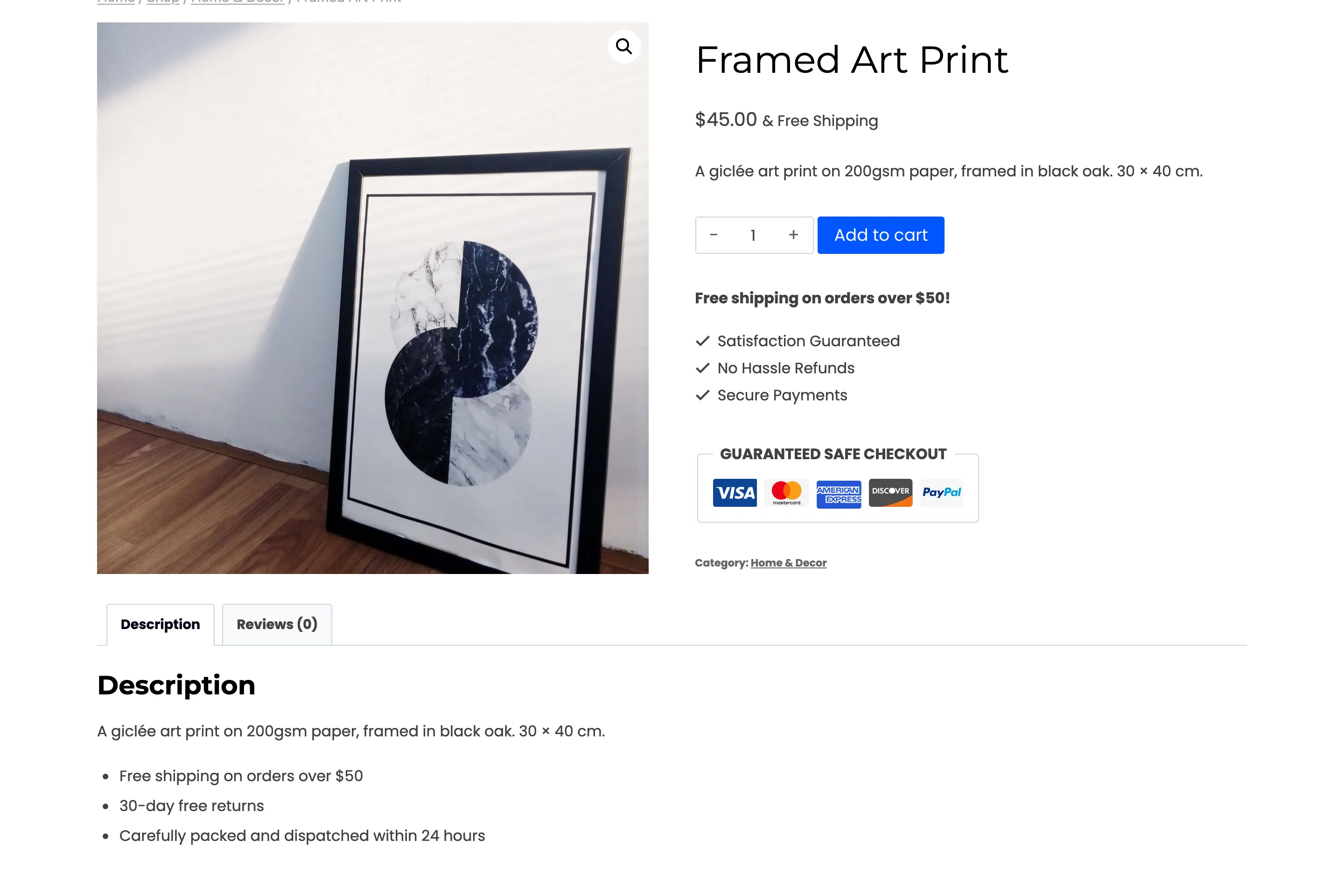
Exclusions are best for lists you manage in one place: samples, gift cards, a category of loss leaders.
Step 2: Or set it on the product
Section titled “Step 2: Or set it on the product”Edit the product. In Product data → General, set Guest price visibility to Always show price and click Update. The demo does this to Canvas Tote Bag ($28).
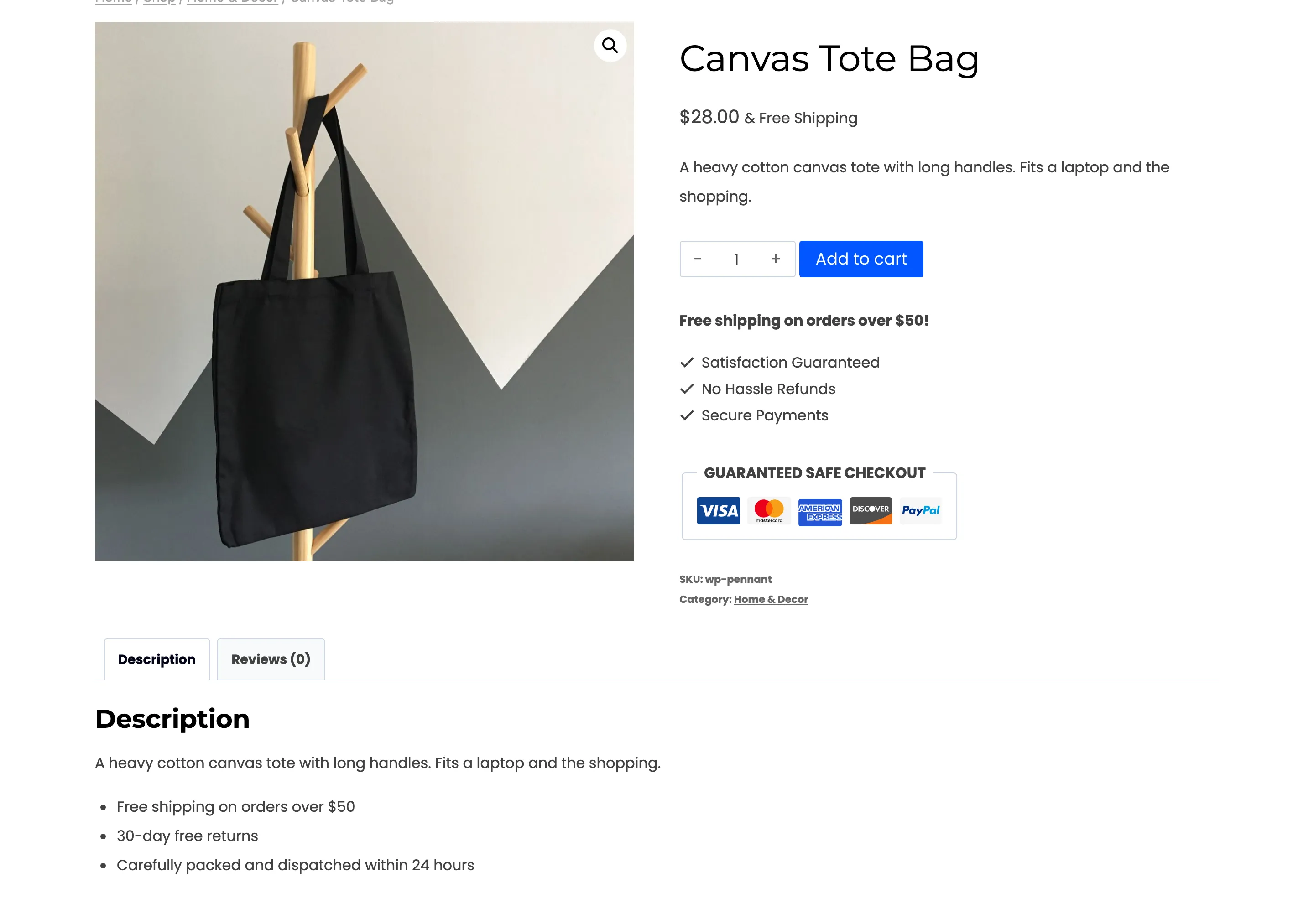
The effect is the same. The setting is easier to find when you are already editing the product, and harder to review across the store.
Step 3: Hide a product no rule covers
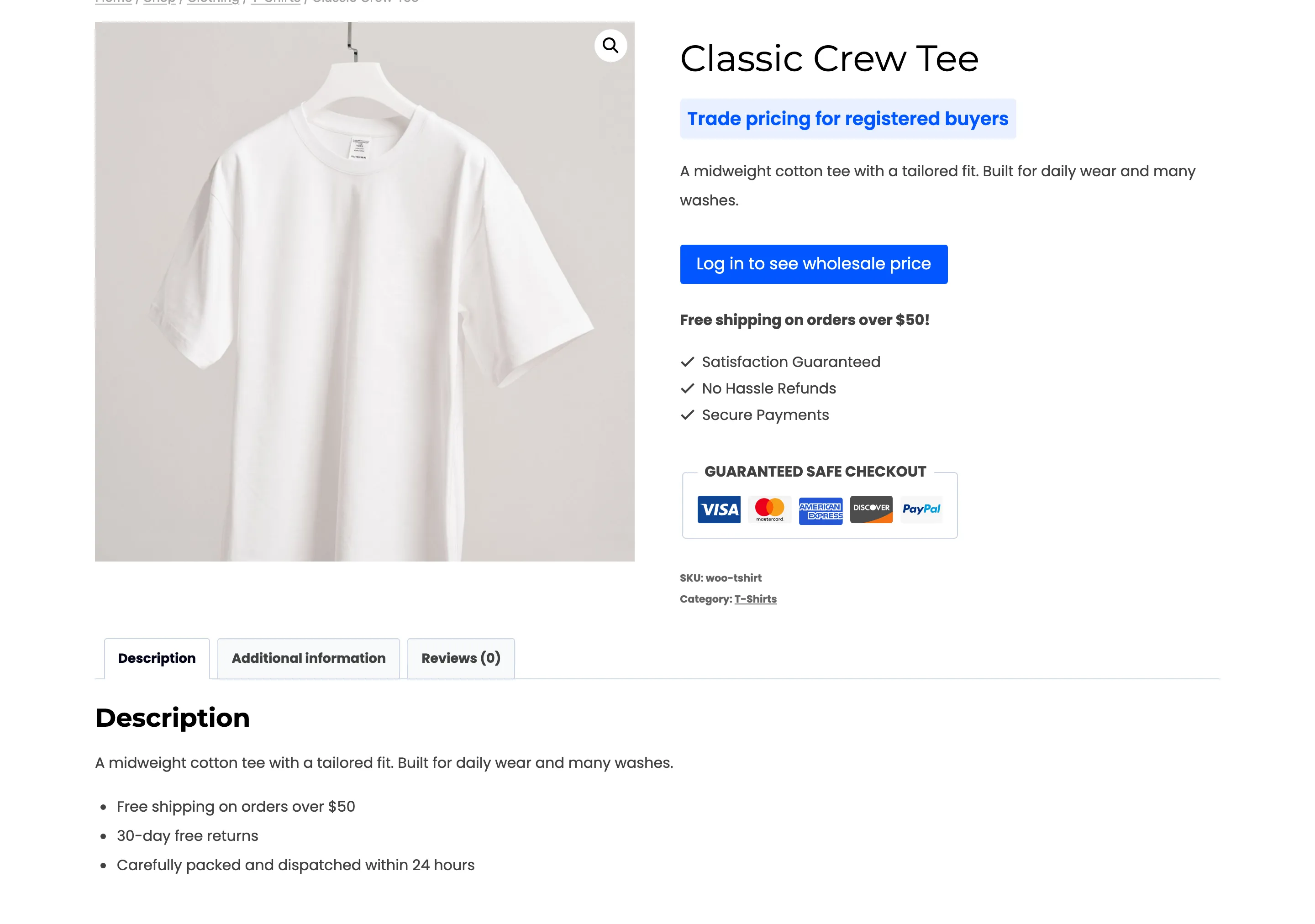
Section titled “Step 3: Hide a product no rule covers”The same field has Always hide price. Classic Crew Tee is $18, below every rule, so the demo sets it on the product.
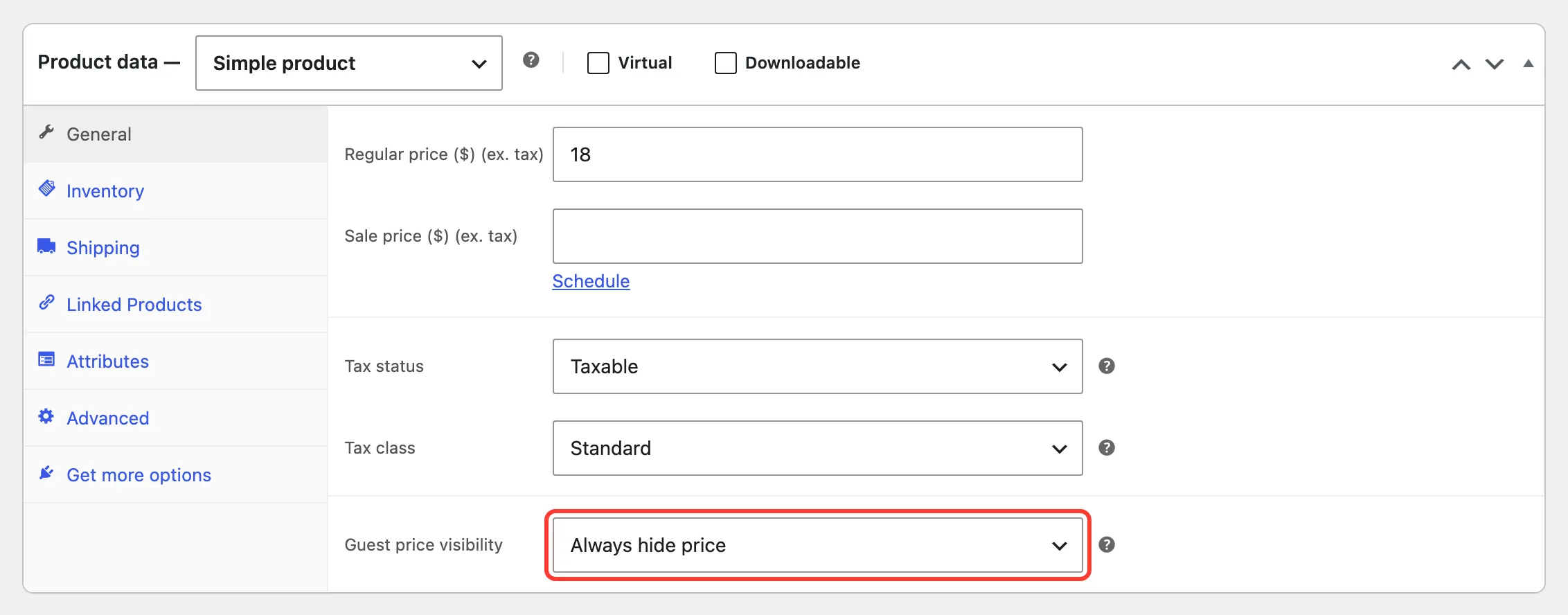
It hides the price from the default audience, with the Display tab’s message and button. To use a different message or audience for one product, add a rule with a Product condition instead.
Step 4: Check both as a guest
Section titled “Step 4: Check both as a guest”Open the products in a private window.
Which one wins
Section titled “Which one wins”Checked in this order, first answer wins:
- The product’s Always show price or Always hide price.
- Exclude Products and Exclude Categories.
- Rules, by priority.
So a product set to Always hide price stays hidden even if its category is excluded. The one thing above all three is Apply In on the General tab: a visitor outside your hidden countries sees every price.