

The Hide Price for Guest Dashboard
The dashboard answers one question: are hidden prices turning visitors into customers? Open DevDiggers Plugins → Hide Price For Guest → Dashboard.
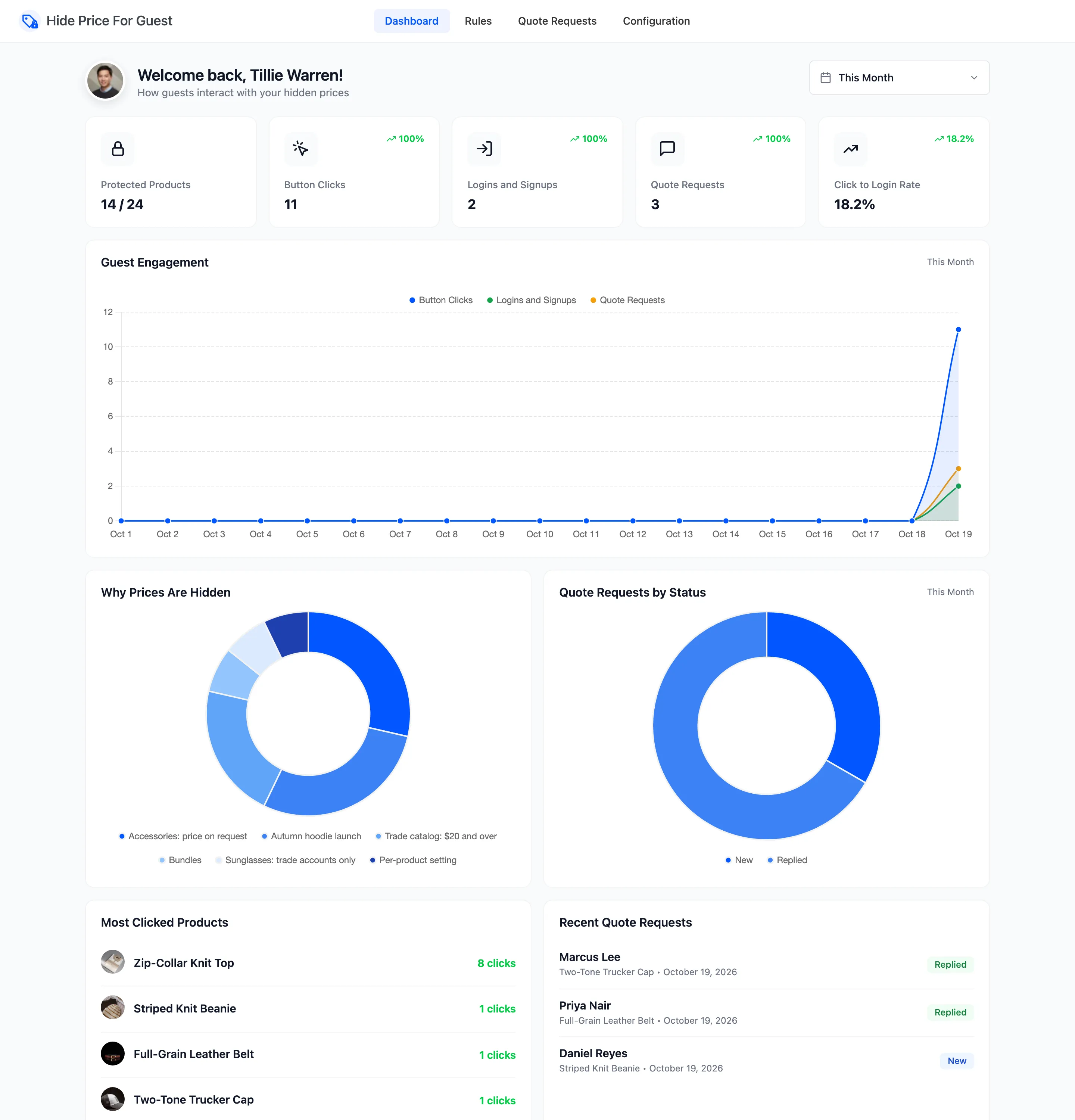
Everything except Protected Products follows the date range at the top right. This Month is the default. Pick another preset or a custom range, and each card compares itself with the period of the same length just before it.
The summary cards
Section titled “The summary cards”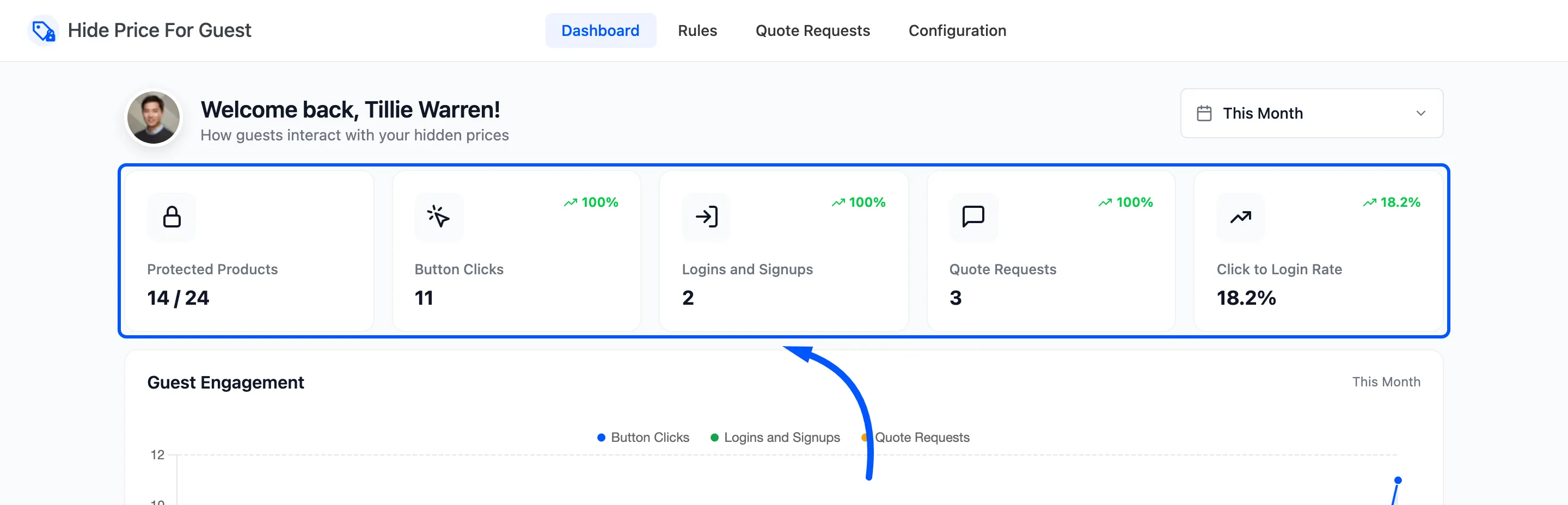
- Protected Products: Published products that hide their price for at least one audience, out of all published products. 14 / 24 on the demo store.
- Button Clicks: Clicks on a replacement button: login, quote or custom URL. Each product counts once per browser session, so ten clicks from one visitor on one product are one click.
- Logins and Signups: Logins and new accounts that followed a click. See below for how they are tied to the click.
- Quote Requests: Requests sent from the quote form.
- Click to Login Rate: Logins and signups divided by clicks. On the demo store 2 of 9 clicks led to a login, 22.2%.
The small figure on each card is the change against the previous period. A card that had nothing to compare against shows 100%.
How a login is tied to a click
Section titled “How a login is tied to a click”A click leaves a cookie in the visitor’s browser naming the product, for 24 hours. Any login or WooCommerce registration in that browser within the day counts once for that product, then the cookie is cleared. It does not matter whether the visitor logs in through the popup, the My Account page or the checkout.
Guest Engagement
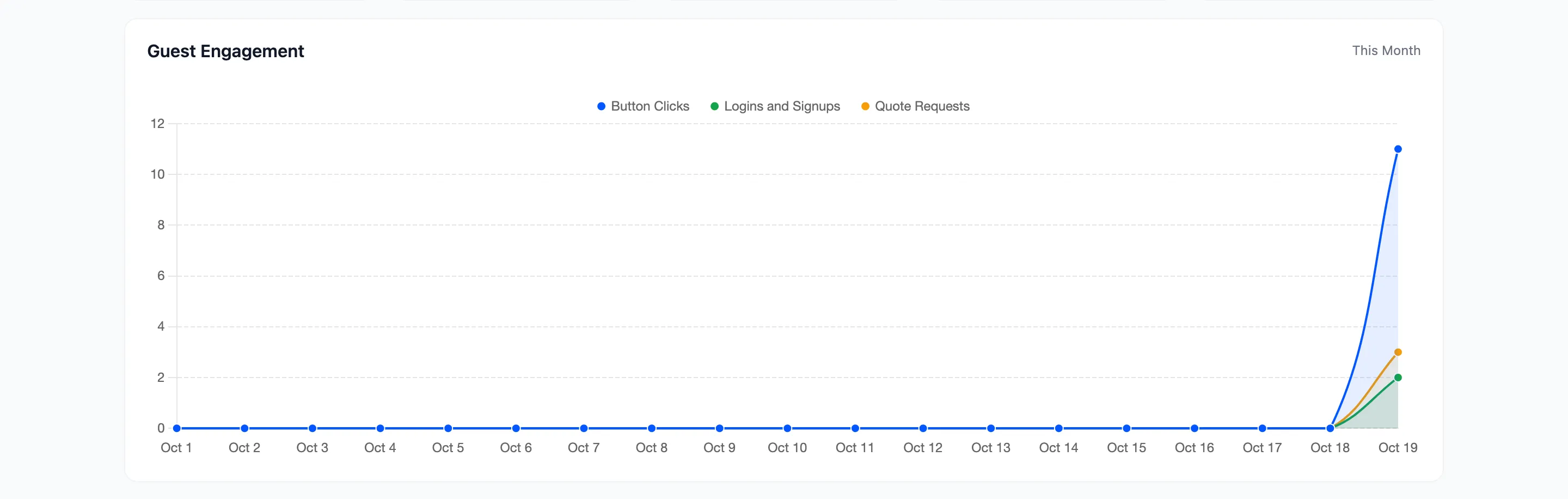
Section titled “Guest Engagement”Clicks, logins and signups, and quote requests per day across the range.
Why Prices Are Hidden and Quote Requests by Status
Section titled “Why Prices Are Hidden and Quote Requests by Status”Why Prices Are Hidden splits the protected products by the rule that hides them. A product hidden by its own Always hide price setting appears as Per-product setting. Each product is counted under the first rule that matches it, the same rule the storefront uses.
Quote Requests by Status splits the period’s requests into New, Replied and Closed.
Most Clicked Products and Recent Quote Requests
Section titled “Most Clicked Products and Recent Quote Requests”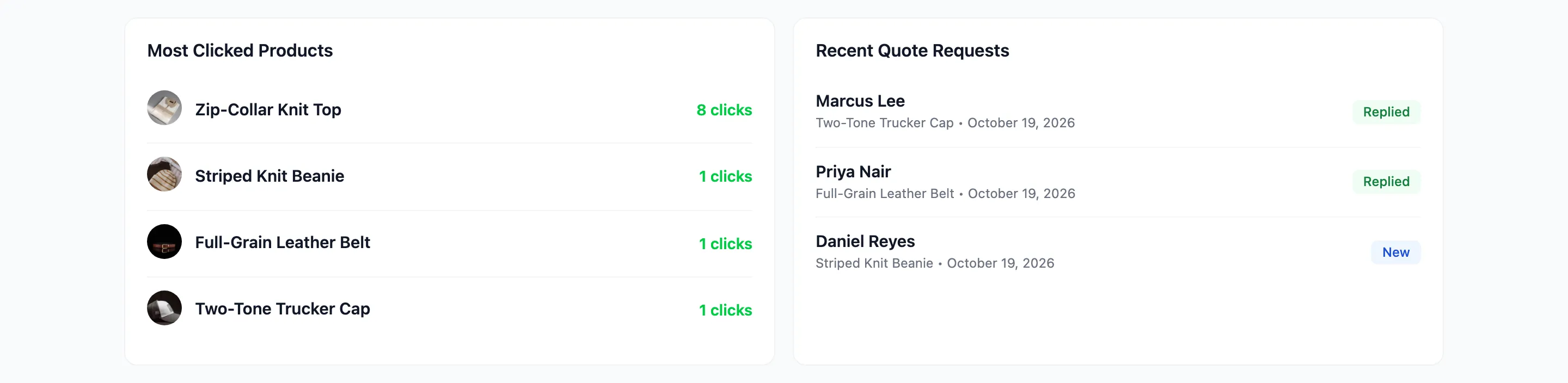
Most Clicked Products lists the five products with the most button clicks in the range. A product there is one people want, which makes it worth a look: is the message clear, is the button the right one?
Recent Quote Requests shows the five newest requests with their status. Open the Quote Requests screen to act on them.
Things to know
Section titled “Things to know”- Protected Products is refreshed every 12 hours, and at once when you save a setting, a rule or a product. A rule whose start or end date passes can take up to 12 hours to show in the count. The storefront itself changes on the day.
- It counts up to 3,000 products. A larger catalog is counted on its first 3,000.
- Turning off Analytics stops the counting. With Track button clicks, logins and registrations off under Configuration → General, no clicks, logins or quote events are recorded. Quote requests are still saved and listed on Quote Requests, but the dashboard’s quote card stays at 0.
- Only clicks on the replacement button count. A visitor who reads the message and leaves is not counted anywhere.
How to Measure Guest Conversions shows how to read these numbers over time.