

Display Settings
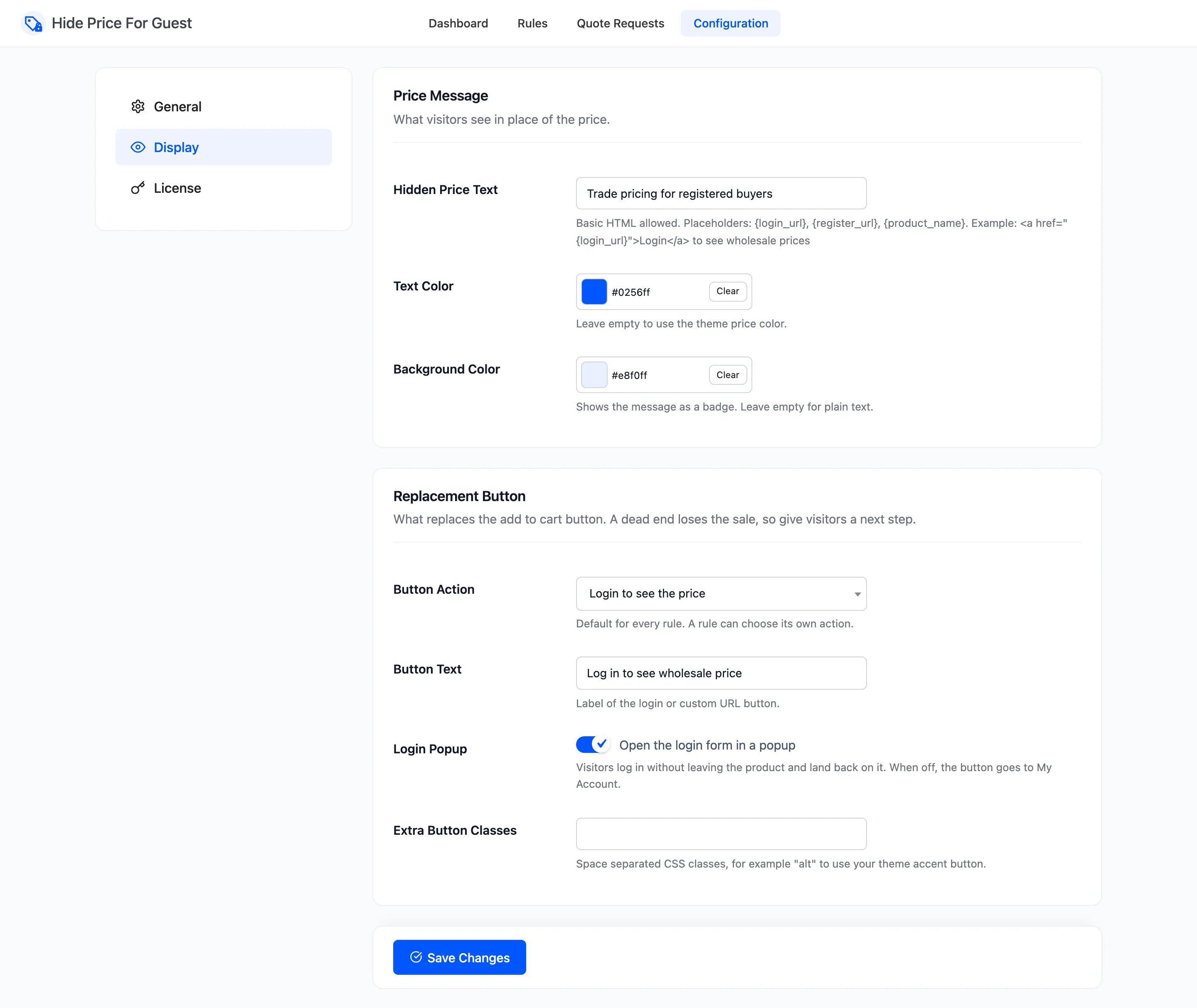
The Display tab sets what visitors see in place of a hidden price: the message, its colours and the button. These are defaults. A rule can set its own message, button action, button text and URL, and whatever it leaves empty comes from here. Open DevDiggers Plugins → Hide Price For Guest → Configuration → Display.
Price Message
Section titled “Price Message”-
Hidden Price Text: Shown where the price would be. Default “Login to view price”. Basic HTML such as a link or bold text is allowed, and three placeholders work:
{login_url}: the My Account login page, returning to this product after login.{register_url}: the same page. WooCommerce shows its registration form there when account creation on My Account is allowed.{product_name}: the product’s name.
For example:
<a href="{login_url}">Log in</a> to see wholesale prices. -
Text Color: The message colour. Default
#0256ff. Clear it to use your theme’s price colour. -
Background Color: Default
#e8f0ff, which shows the message as a badge. Clear it for plain text.
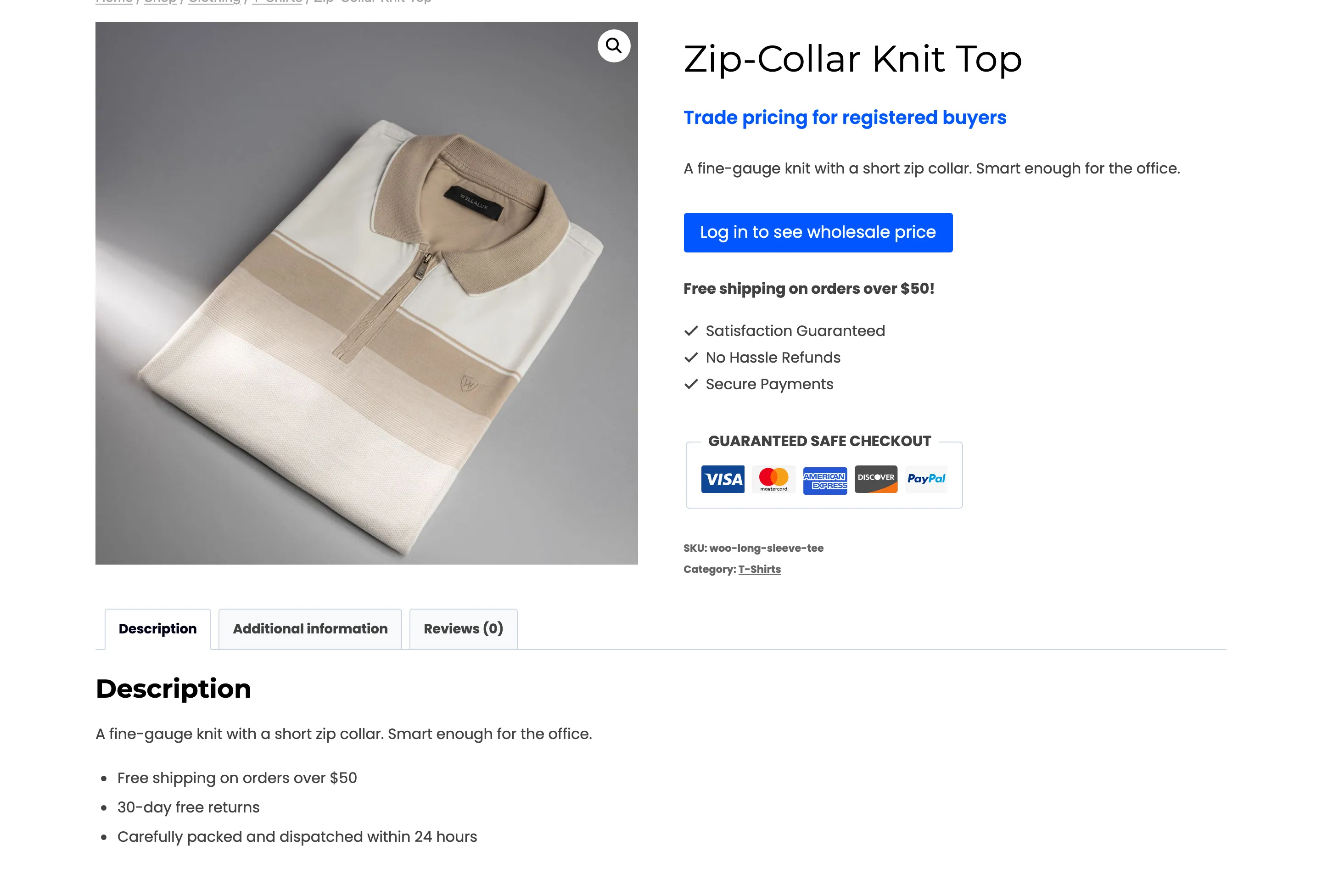
A rule’s own Hidden Price Text replaces this text. The colours always come from here.
Replacement Button
Section titled “Replacement Button”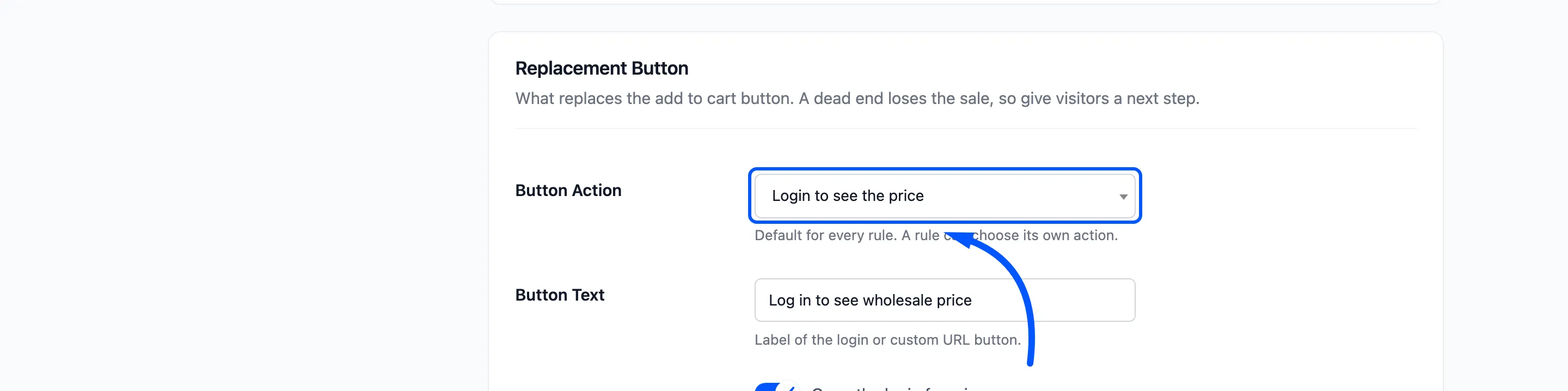
- Button Action: What replaces the add to cart button. Default Login to see the price.
- Login to see the price: A login button.
- Request a quote: A button that opens the quote form.
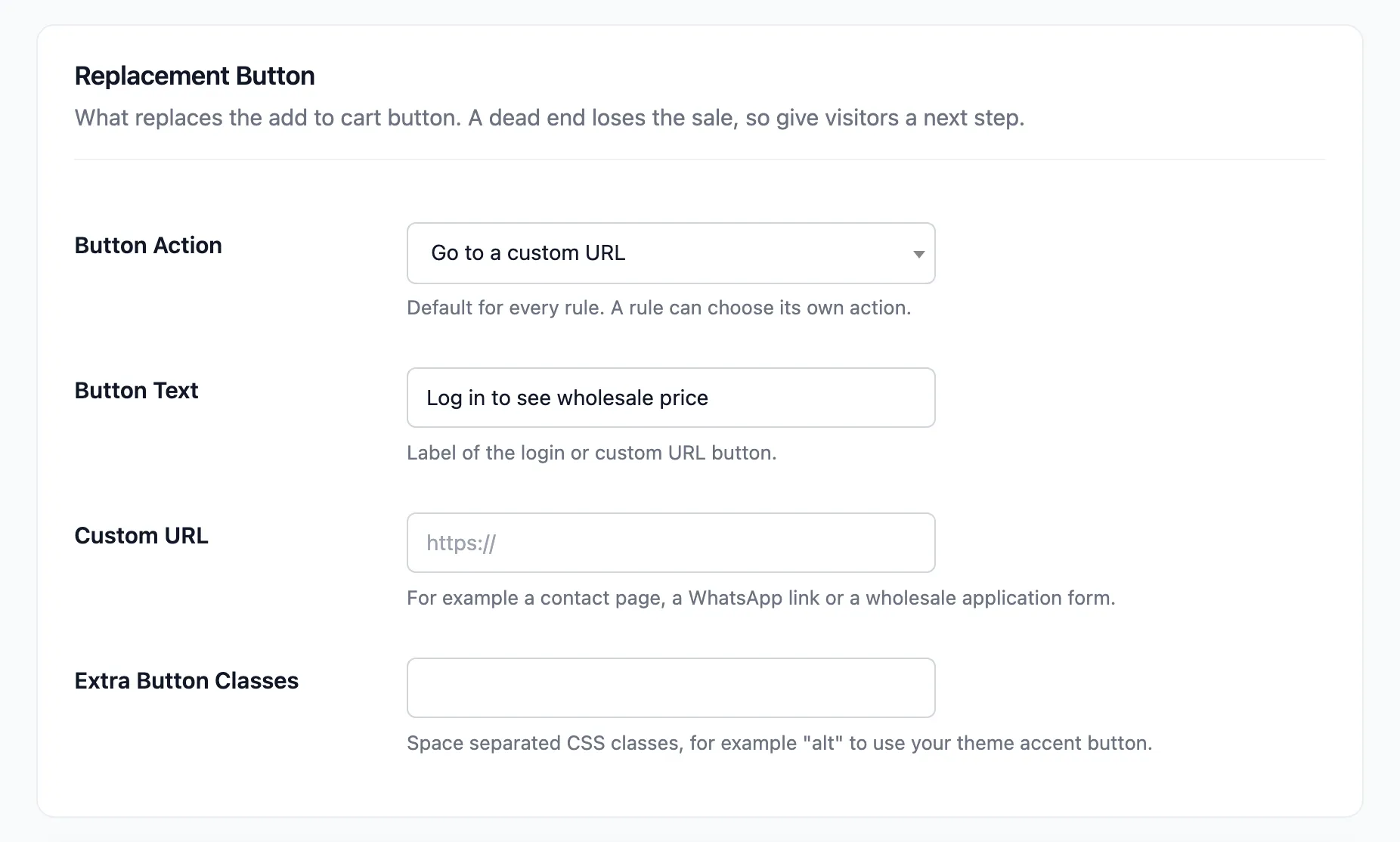
- Go to a custom URL: A link to a page you choose.
- No button: The message alone.
The fields below change with the action.
With the login action
Section titled “With the login action”- Button Text: Default “Login to purchase”.
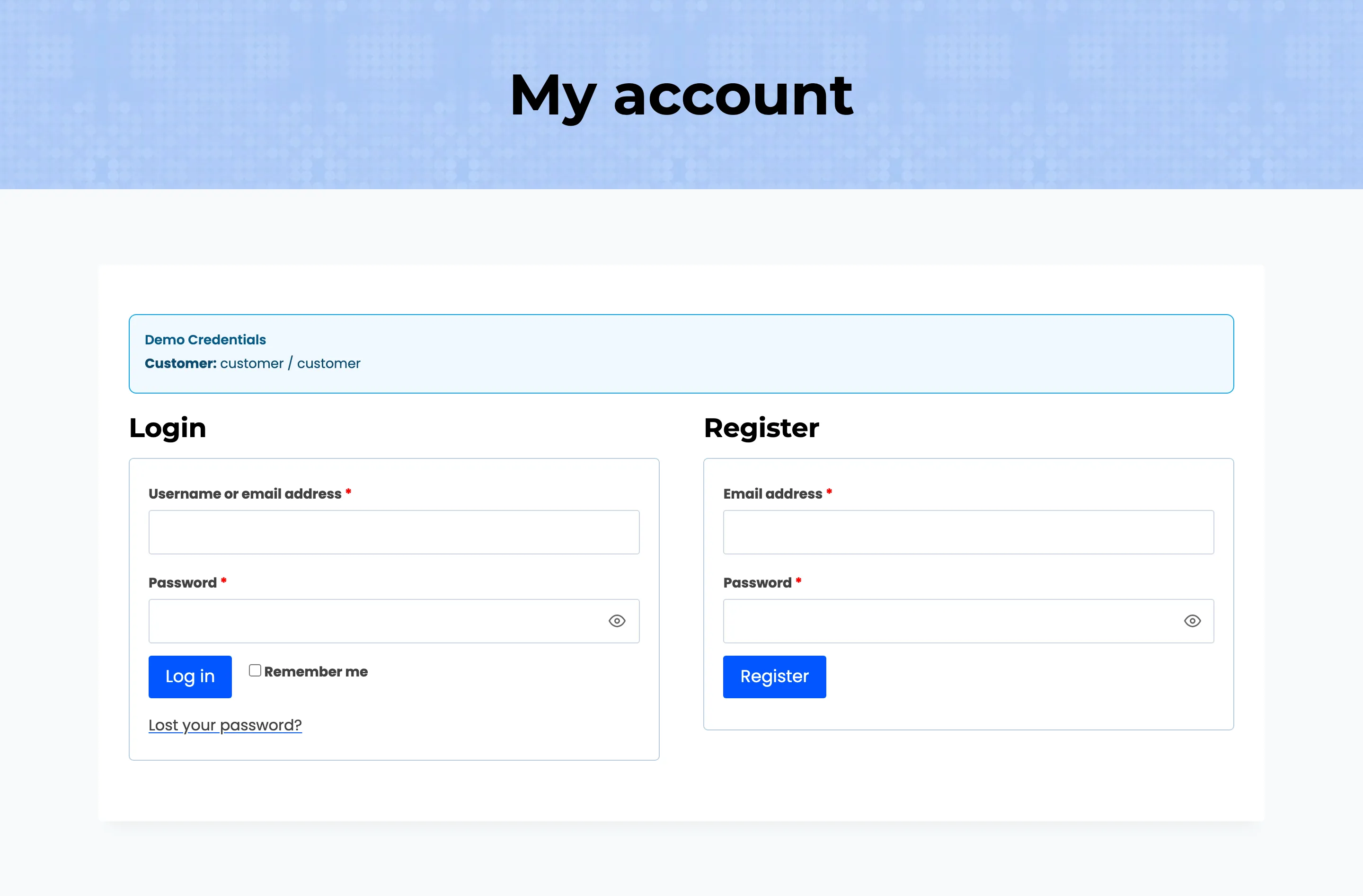
- Login Popup: “Open the login form in a popup”. On by default. Visitors log in without leaving the product and land back on it. Off, the button goes to the My Account page, and the visitor still returns to the product after logging in.
With the custom URL action
Section titled “With the custom URL action”- Button Text: The link’s label. Default “Login to purchase”, so change it.
- Custom URL: Where the button goes: a contact page, a WhatsApp link, a trade application form. With no URL, no button shows.
With the quote action
Section titled “With the quote action”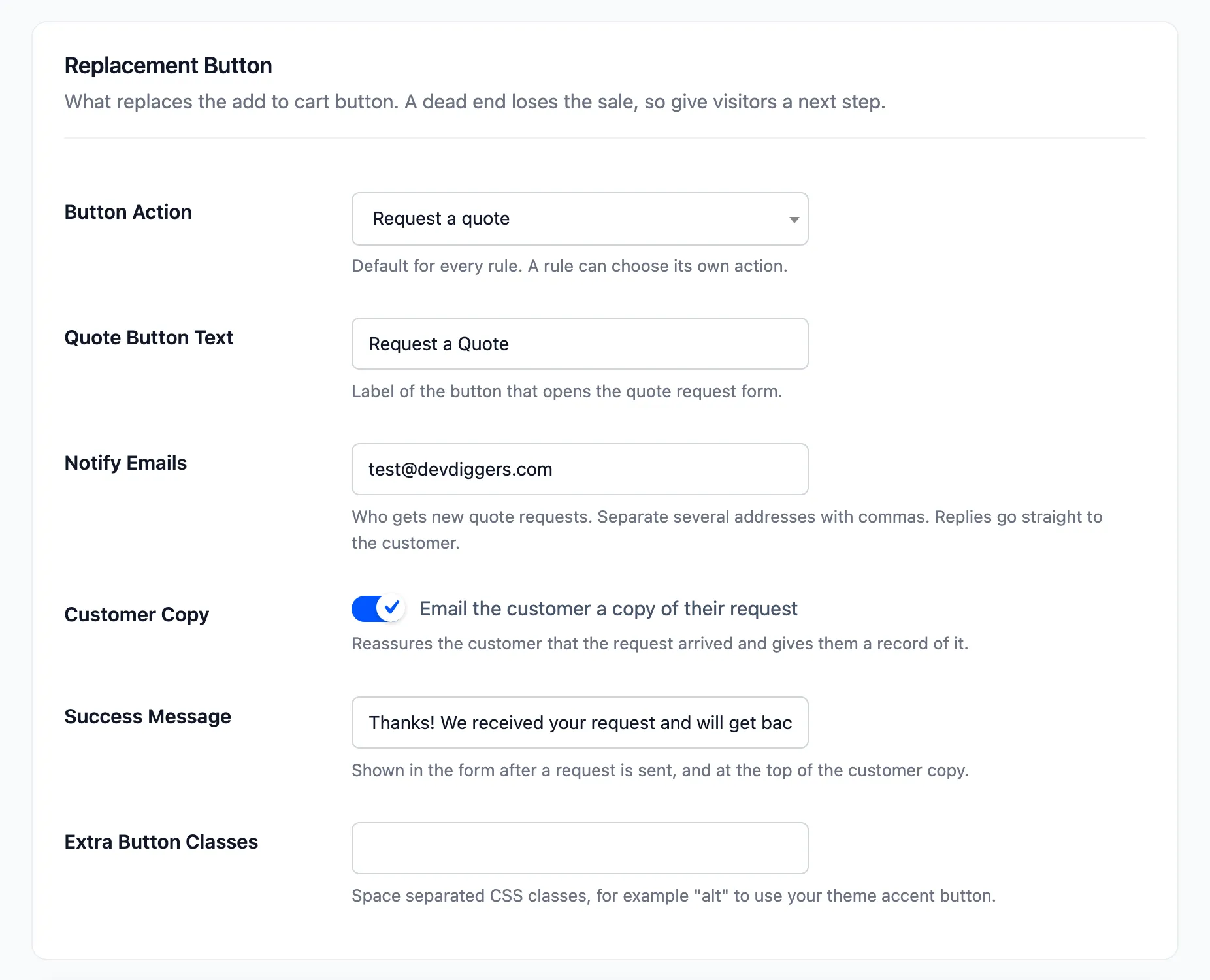
- Quote Button Text: Default “Request a Quote”.
- Notify Emails: Who receives each new request. Your site’s admin email by default. Separate several addresses with commas. Each email’s Reply-To is the customer, so pressing Reply answers them.
- Customer Copy: “Email the customer a copy of their request”. On by default.
- Success Message: Shown in the form after sending, and at the top of the customer’s copy. Default “Thanks! We received your request and will get back to you shortly.”
Each email’s subject, heading, extra text and on/off switch are under WooCommerce → Settings → Emails. See How to Collect Quote Requests.
These quote fields apply to every quote button, including a rule’s, even while the default action here is something else. To change them while the default is login, pick Request a quote, edit them, save, then set the action back.
Every action
Section titled “Every action”- Extra Button Classes: Extra CSS classes for the button, separated by spaces.
altgives most themes’ accent button style.
Empty fields
Section titled “Empty fields”A text field saved empty falls back to its default, so a visitor never sees a blank label. To show no button at all, choose No button, not an empty Button Text.
Click Save Changes at the bottom of the tab.