

How to Run a Trade-Only Catalog
By default only guests have prices hidden. Signing up is enough to see them. For a trade store that is too easy: anyone can create an account. The fix is to hide prices from the Customer role as well, and give approved buyers a different role.
Step 1: Decide which role sees prices
Section titled “Step 1: Decide which role sees prices”WooCommerce gives every new account the Customer role. Approved buyers need a role that is not in your rule’s audience. Many stores add a Wholesale or Trade role with a role editor plugin and assign it by hand once a buyer is approved. Shop managers and administrators are not affected unless you add them.
Step 2: Add the rule’s audience
Section titled “Step 2: Add the rule’s audience”Edit the rule (or add one), and in Hide For choose Guests (not logged in) and Customer.
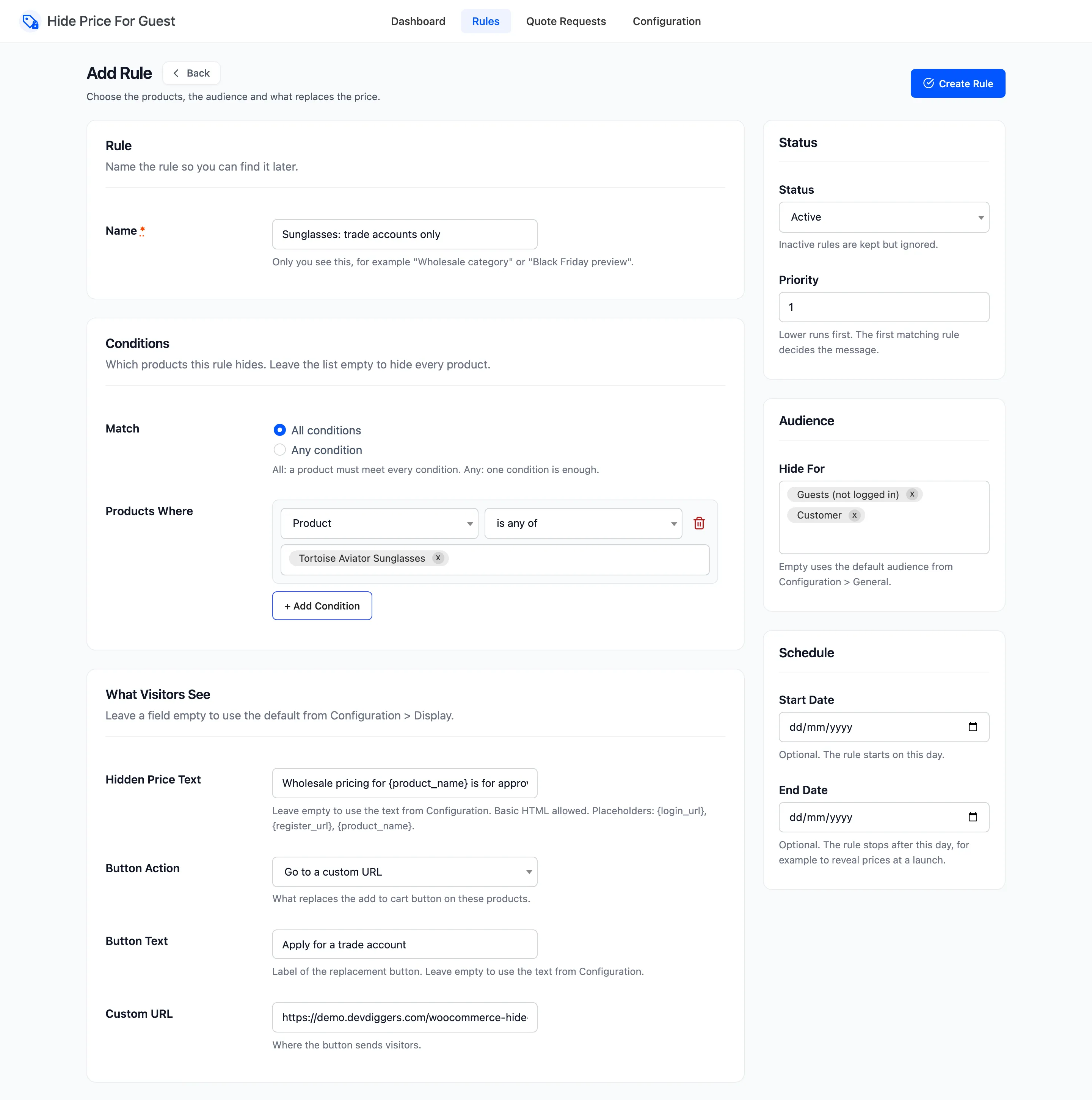
Hide For replaces the default audience for this rule. List guests too, or guests will see the price.
To do this for the whole store, add Customer to Hide Prices For on the General tab instead. Every rule without its own audience then hides from both.
Step 3: Point the button somewhere useful
Section titled “Step 3: Point the button somewhere useful”A login button is useless to someone already signed in, so it does not show to them. Give the rule a next step that works for both:
- Button Action: Go to a custom URL.
- Custom URL: your trade application form or contact page.
- Button Text: “Apply for a trade account”.
- Hidden Price Text: words that make sense signed in or not. The demo uses “Wholesale pricing for
{product_name}is for approved trade accounts.”
Click Save Rule.
Step 4: Approve buyers
Section titled “Step 4: Approve buyers”When you approve someone, go to Users, edit the user and change their role to your trade role. The next page they load shows prices.
Step 5: Check as a customer
Section titled “Step 5: Check as a customer”Log in as an ordinary customer account. The product is still hidden, with the custom URL button:
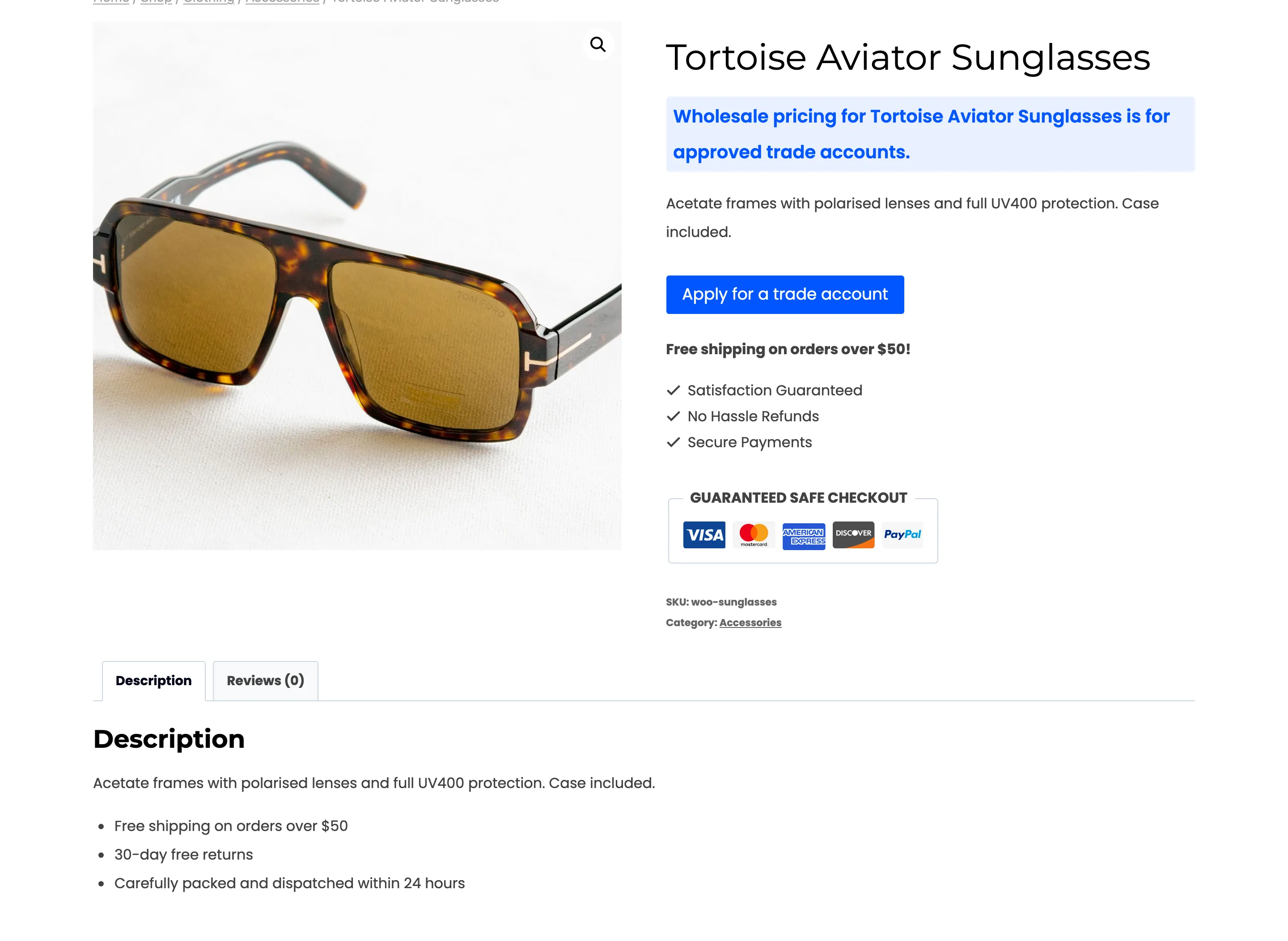
Products under other rules, which target guests only, show their prices to the same customer:
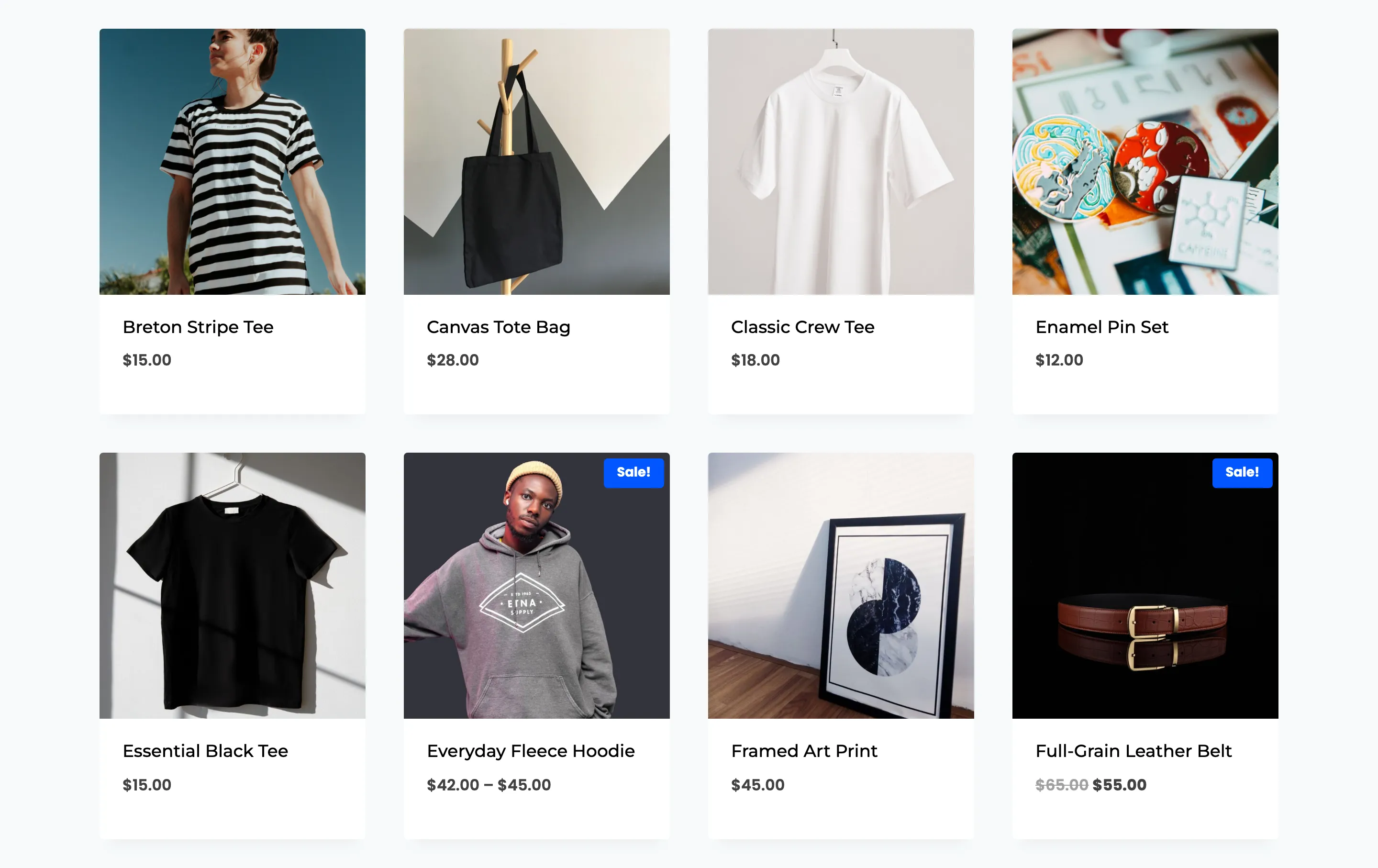
Things to know
Section titled “Things to know”- Your own role is in the list. Do not add Administrator to an audience, or you will stop seeing your own prices on the storefront.
- A user with several roles is hidden from if any of their roles is in the audience.
- Caching: a page cache must not serve a guest’s copy of a page to a signed-in user. Most caching plugins skip logged-in users already. Check yours.