

How to Collect Quote Requests
A quote button suits products whose price depends on the order: bulk quantities, custom work, trade terms. The visitor tells you what they want, and you answer with a price.
Step 1: Choose where the quote button shows
Section titled “Step 1: Choose where the quote button shows”Two ways:
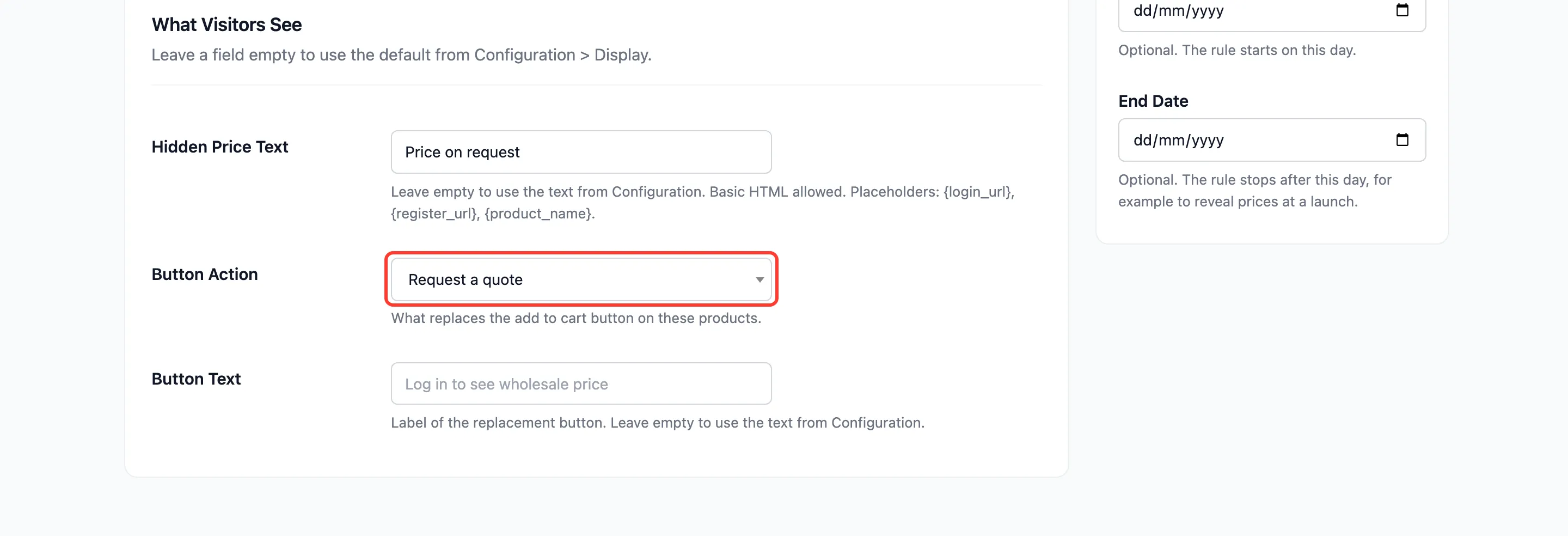
- On one rule: edit the rule and set Button Action to Request a quote. The demo store does this for its Accessories rule, with the message “Price on request”.
- For everything: set Button Action to Request a quote on the Display tab. Every rule that leaves its own action on the default uses it.
Step 2: Set the quote emails
Section titled “Step 2: Set the quote emails”Go to Configuration → Display. The quote fields show while Button Action is Request a quote.
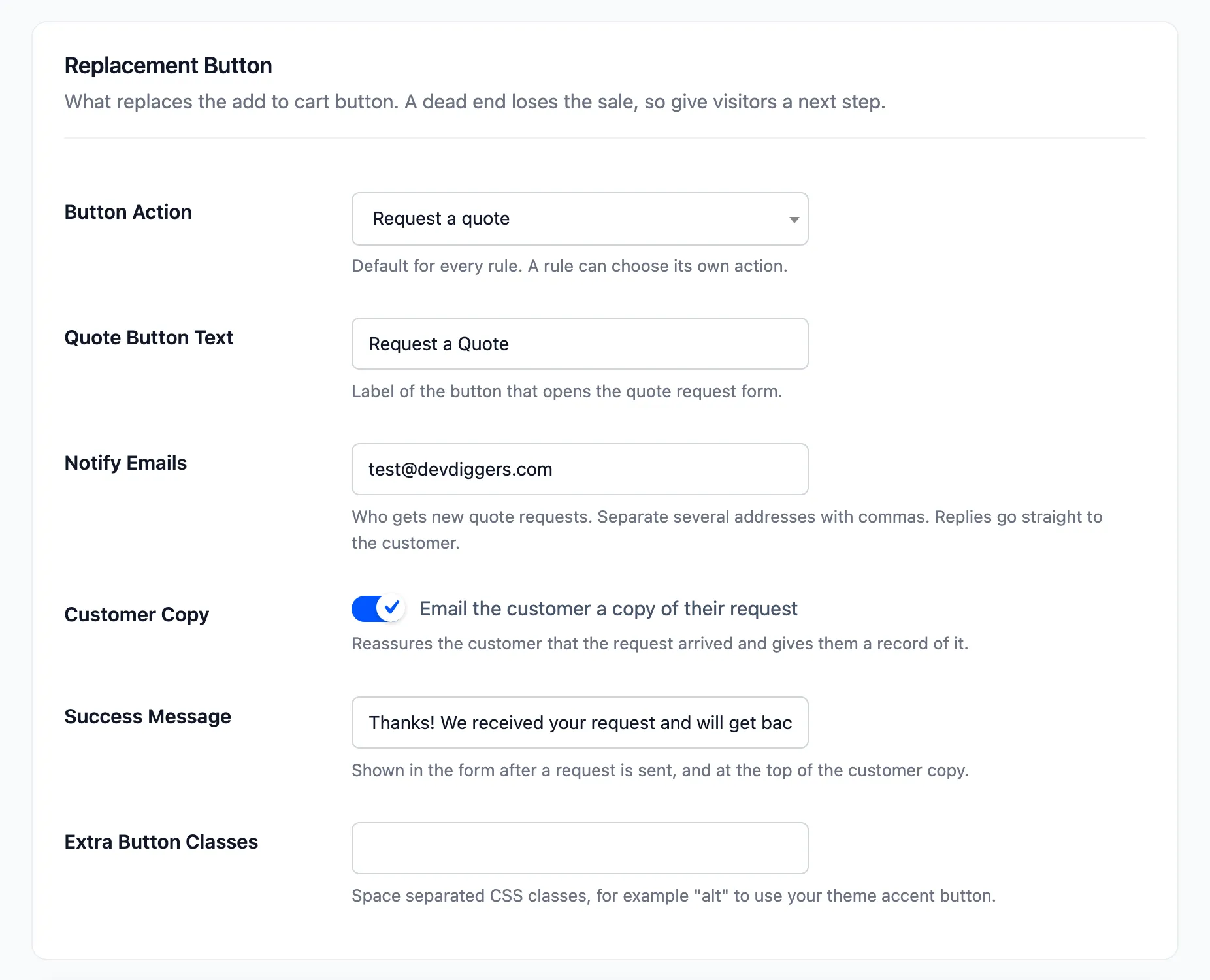
- Quote Button Text: the button label. Default “Request a Quote”.
- Notify Emails: who hears about each request. Your admin email by default. Add your sales inbox, separating addresses with commas.
- Customer Copy: sends the visitor a copy of what they asked for. On by default.
- Success Message: what the form says after sending, also the first line of the customer’s copy.
If the store-wide default should stay as login while one rule uses quotes, set these fields, save, then put Button Action back to Login to see the price and save again. The quote fields keep their values and apply to every quote button.
Step 3: Send a test request
Section titled “Step 3: Send a test request”In a private window, open a product the quote rule covers and click Request a Quote. Fill in the form. Name and Email are required. Quantity starts at 1.
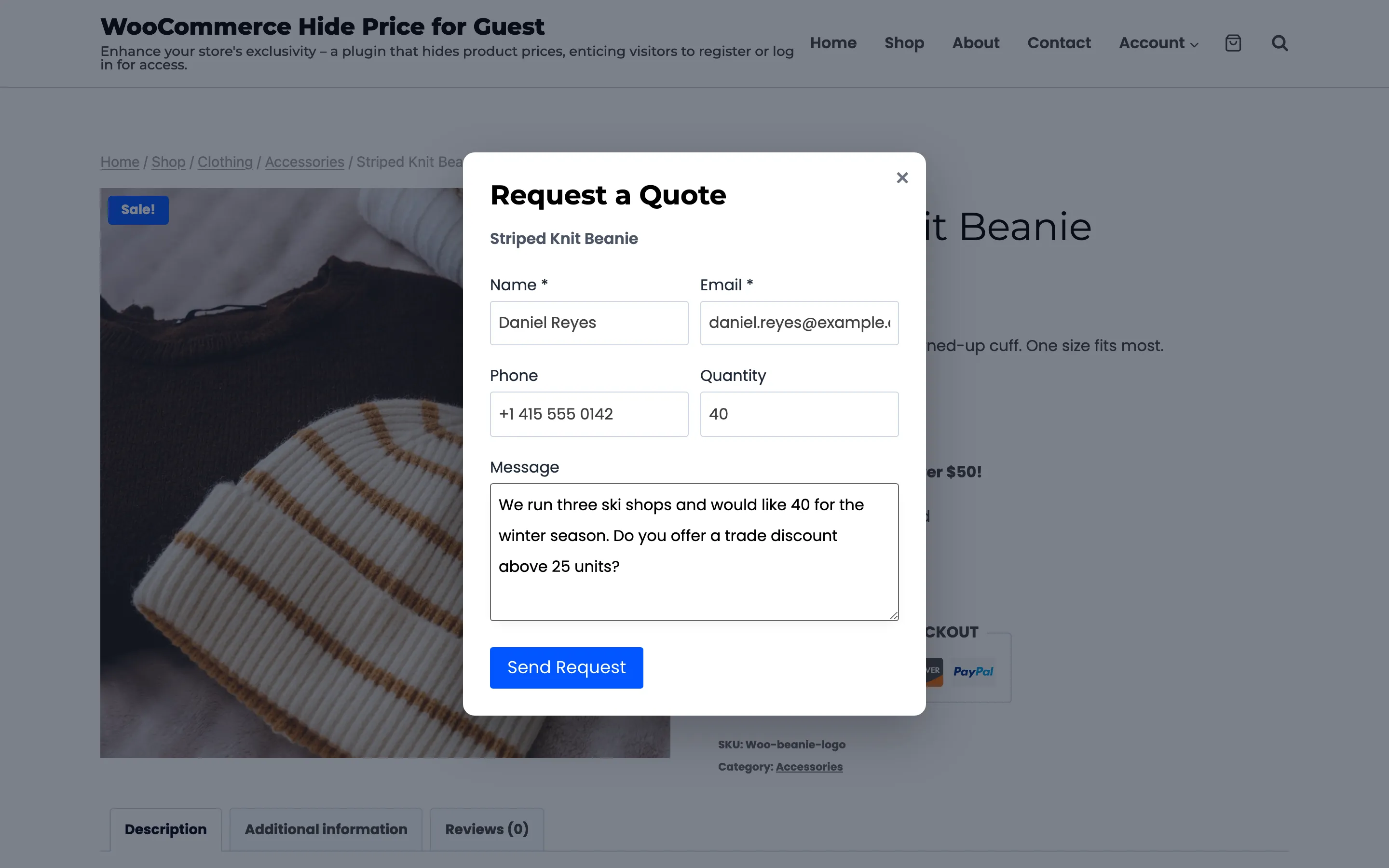
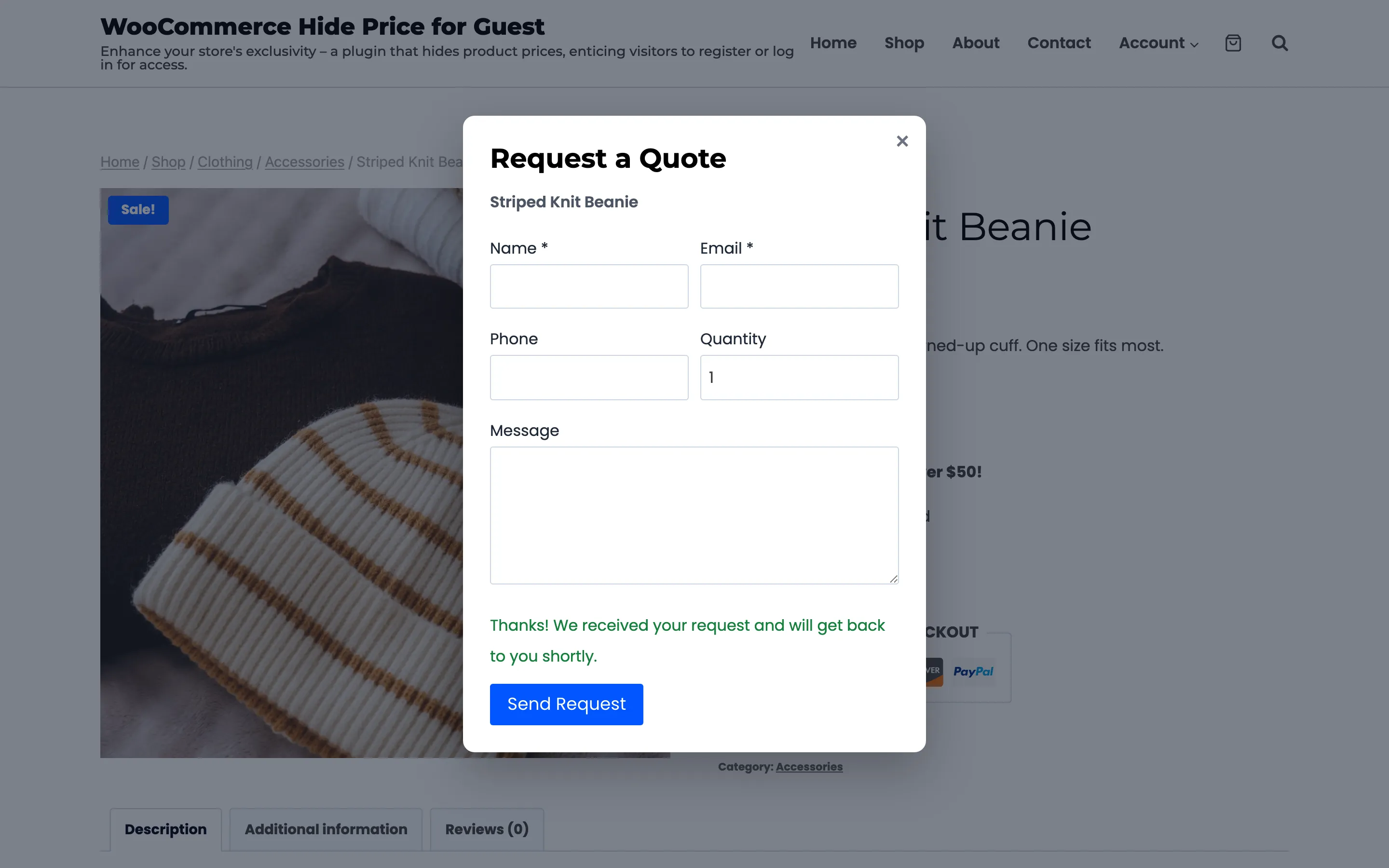
Click Send Request. The form shows your success message and clears its fields.
Step 4: Find the request
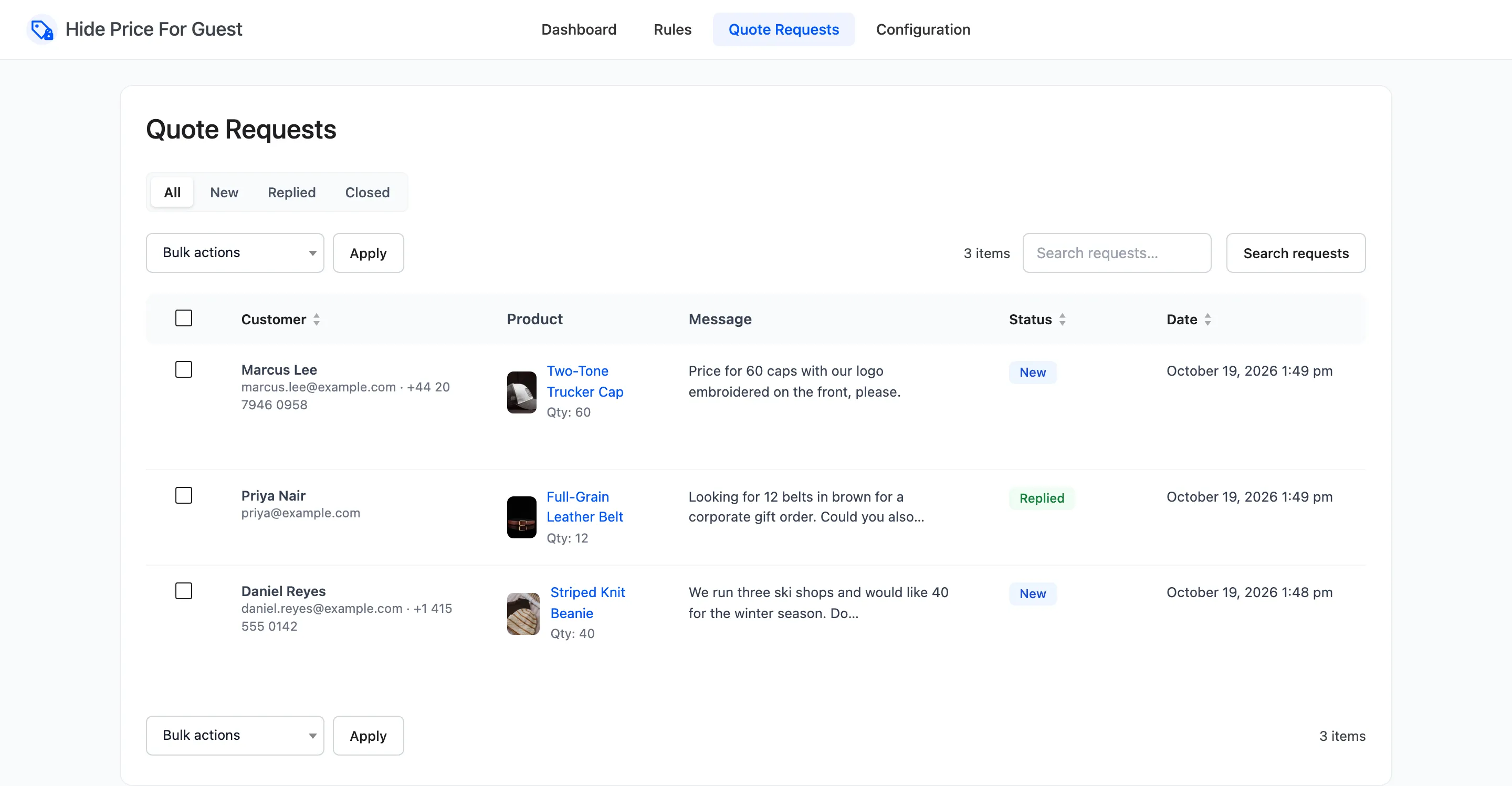
Section titled “Step 4: Find the request”Go to Hide Price For Guest → Quote Requests. The request is at the top with the status New.
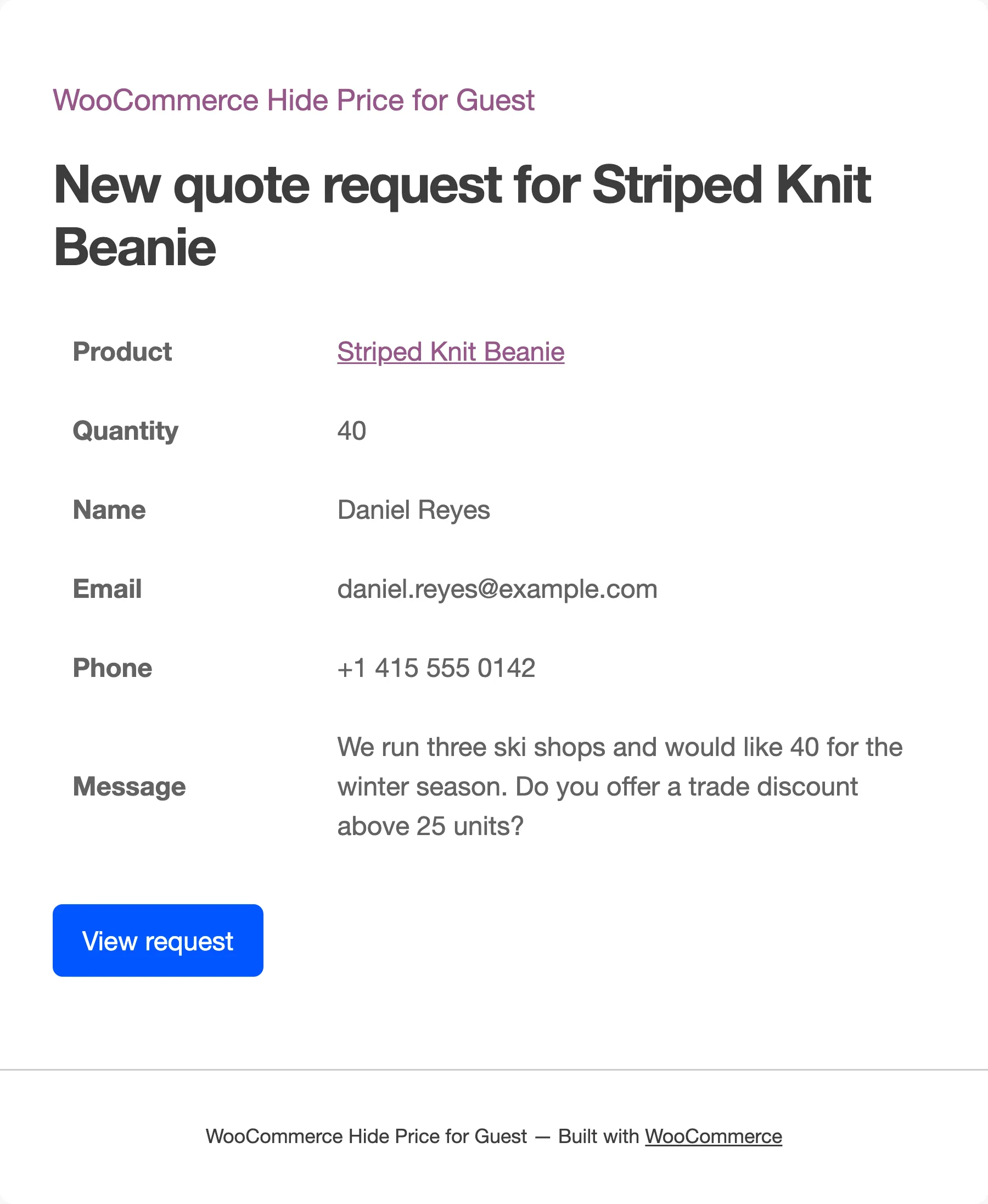
Your team’s email lists the product, quantity, name, email, phone and message, with a View request link to the admin screen. Replying to it writes straight to the customer, because the email’s Reply-To is their address.
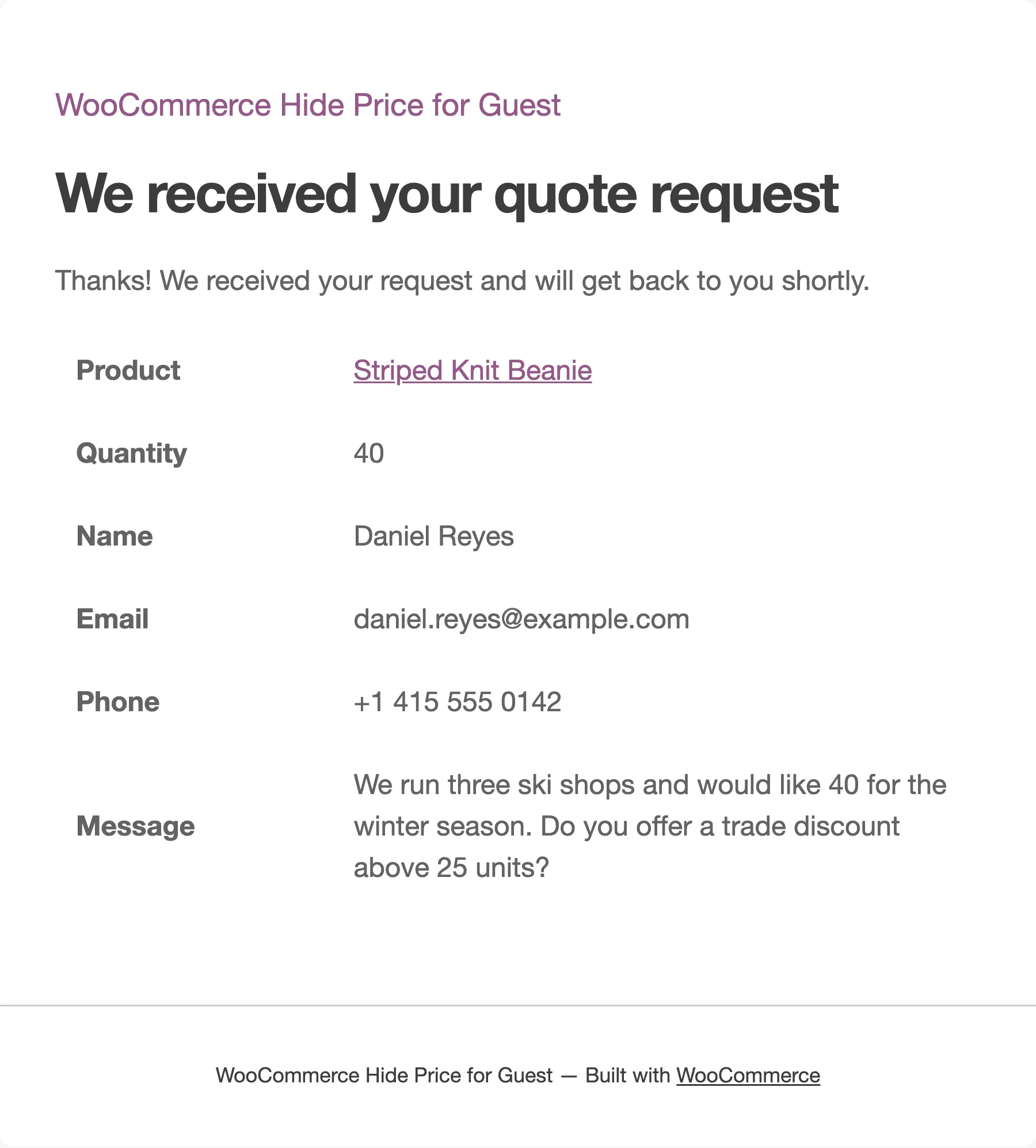
The customer’s copy opens with your success message, then the same table.
Change the emails’ wording
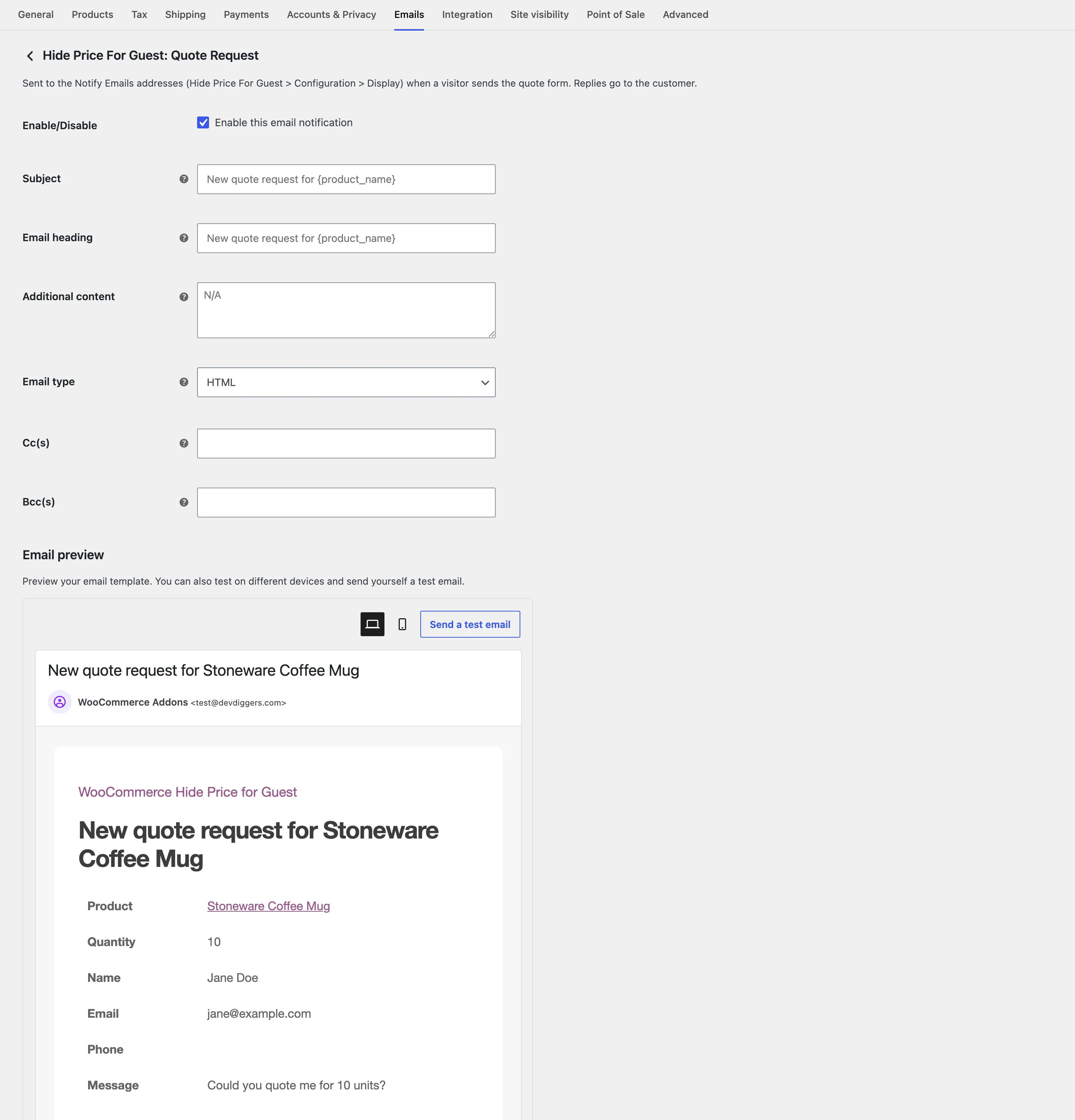
Section titled “Change the emails’ wording”Both emails are WooCommerce emails. Go to WooCommerce → Settings → Emails. They are listed as Hide Price For Guest: Quote Request (to your team, its recipients taken from Notify Emails) and Hide Price For Guest: Quote Request Received (to the customer).
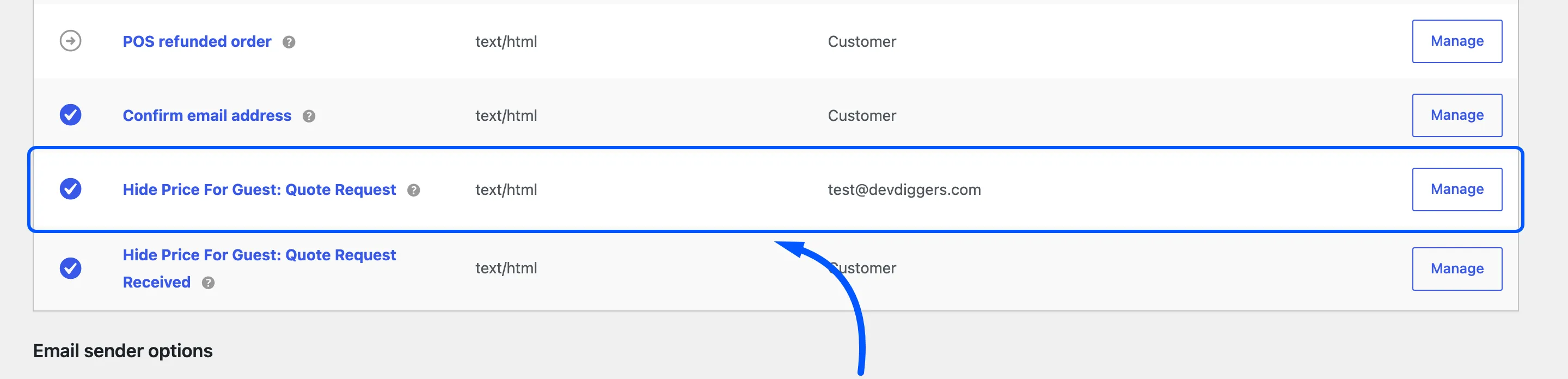
Click Manage on either one to switch it off, change its Subject and Email heading, add
Additional content under the table, choose HTML or plain text, or add Cc and Bcc addresses. Both
subject and heading accept {product_name}. The preview at the bottom shows a sample request.
The customer’s copy is sent only when it is enabled here and Customer Copy is ticked on the
Display tab. To restyle either one completely, copy templates/emails/quote-request.php from the plugin
into yourtheme/woocommerce/emails/ and edit the copy.
Things to know
Section titled “Things to know”- The request is saved even if email fails. It is on the Quote Requests screen whatever your mail setup does. If the emails do not arrive, check your site’s email delivery: they go through WordPress like every WooCommerce email.
- Both emails can be switched off under WooCommerce → Settings → Emails. See the next section.
- Five requests per visitor per hour. A sixth from the same IP address in an hour gets “Too many requests. Please try again later.” This and a hidden spam trap keep bots out.
- Signed-in visitors find their name and email already filled in.