

How to Stop Hidden Prices Leaking
Hiding the price on the product page is the obvious part. A determined visitor, a search engine or a script has other ways in. This tutorial closes each one, and every one of them was tried on the demo store.
Step 1: Keep the Protection options on
Section titled “Step 1: Keep the Protection options on”Go to Configuration → General → Protection. All three of these are on by default. Leave them on.
Block Purchases
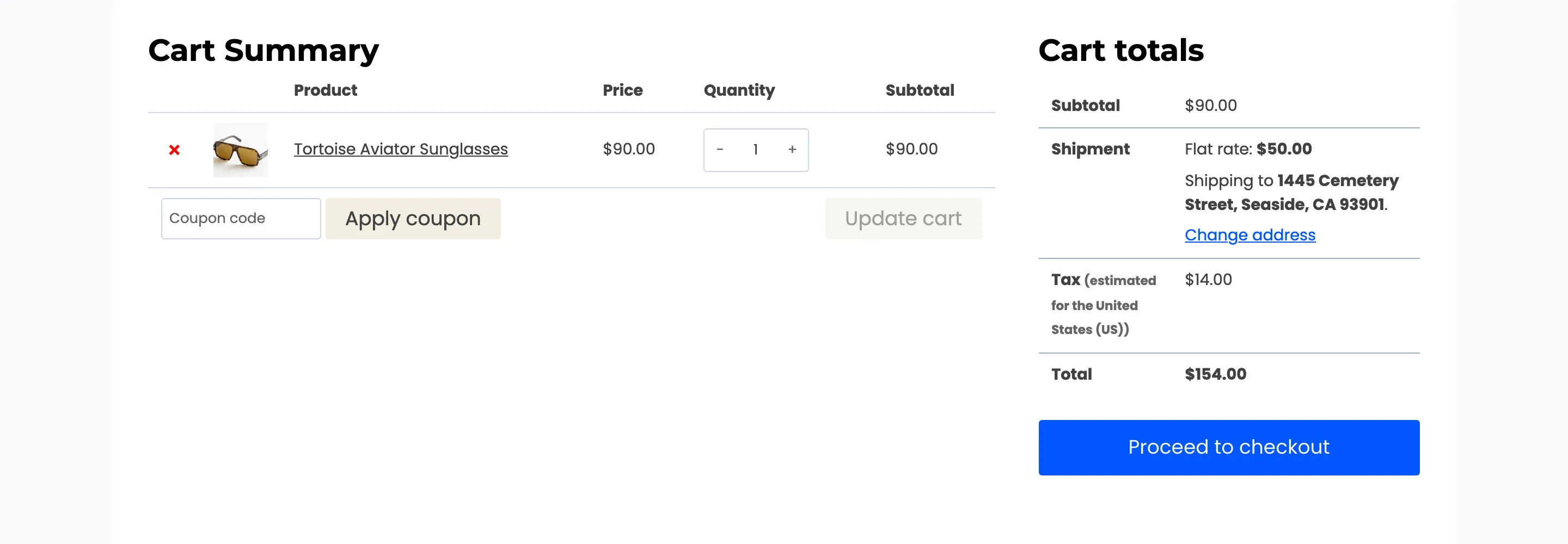
Section titled “Block Purchases”Without it, the replacement button still hides Add to cart, but anyone with a link like
?add-to-cart=18 can put the product in their cart. The cart then shows the price, because the cart
does not use the hidden message.
With it on, the same link is refused:
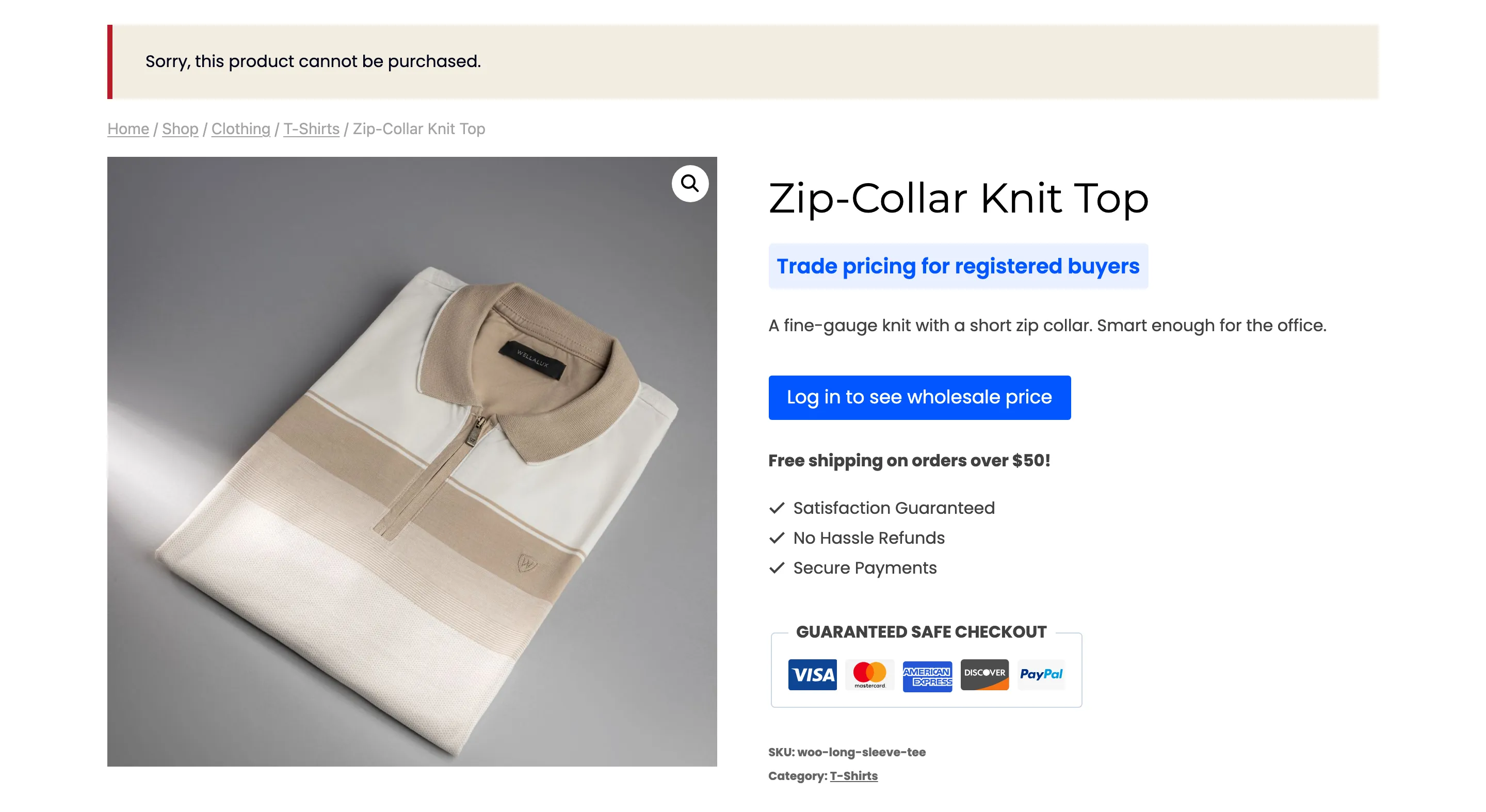
It also stops the block cart and any theme’s own button from adding the product.
Search Results
Section titled “Search Results”Product pages carry schema data that Google reads to show a price in search results. This option removes the price offer from a hidden product’s schema, so search results do not show what the page hides.
Google refreshes its copy when it next crawls the page. A price it saw before you installed the plugin can show in results for a while.
Blocks and Store API
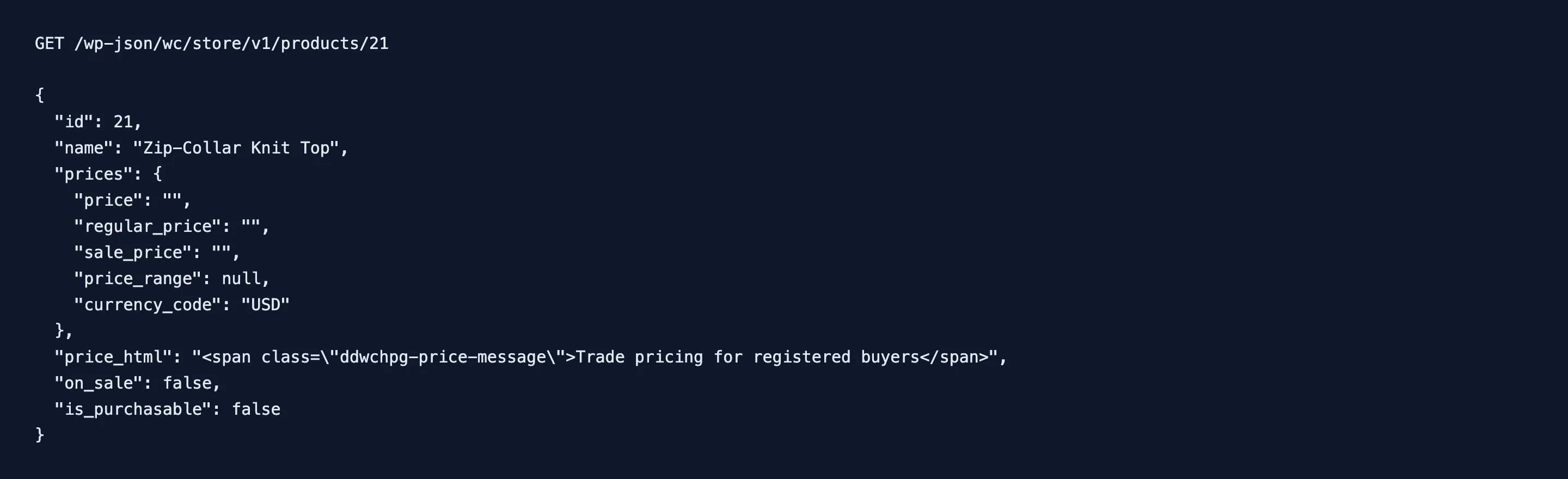
Section titled “Blocks and Store API”WooCommerce’s product blocks (All Products, product collections, the block cart) read prices from the
Store API at /wp-json/wc/store/, and so can anyone else. With this option on, a hidden product’s
response comes back with empty prices, your message as price_html, and is_purchasable: false.
Step 2: Check a price range
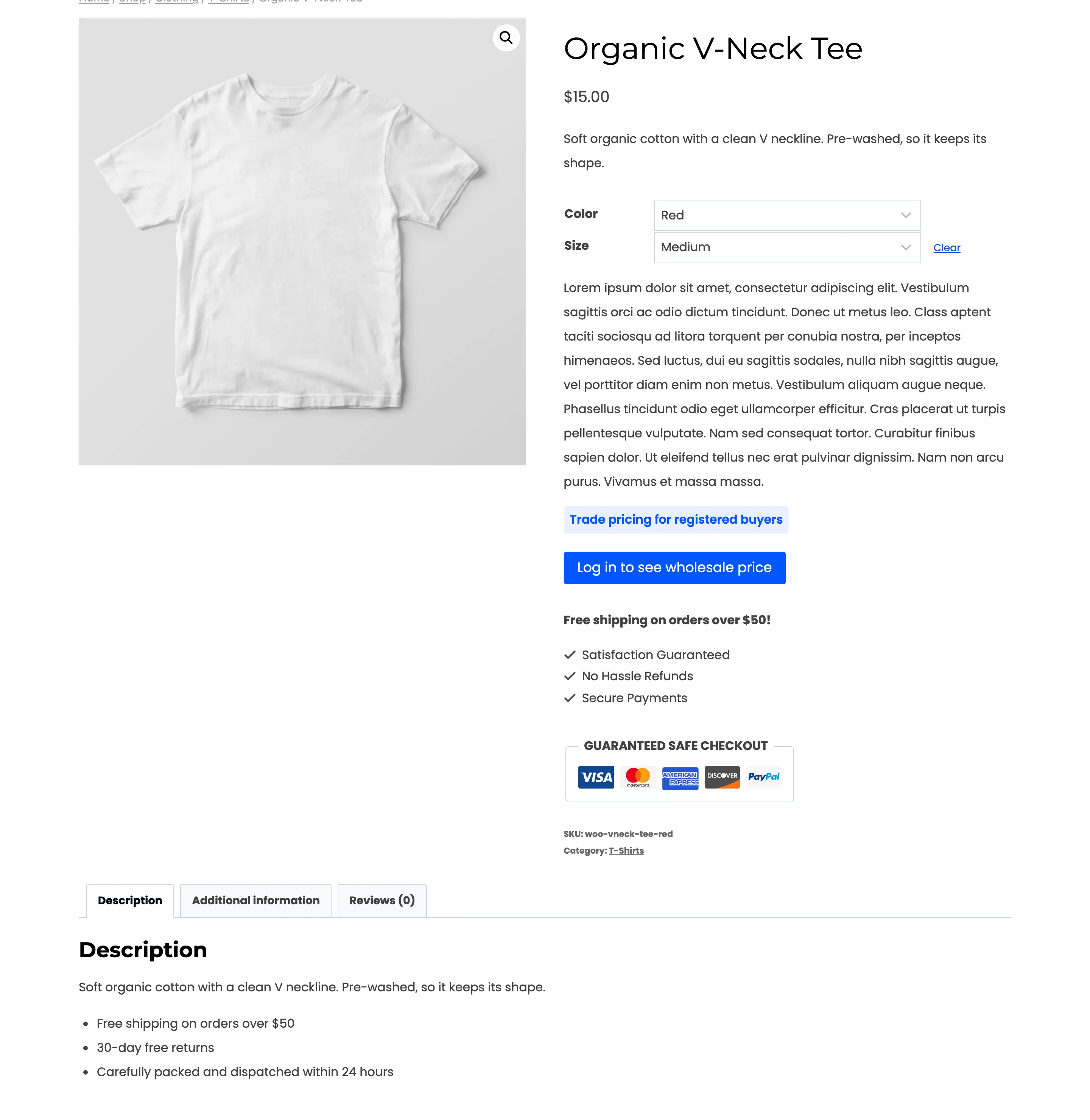
Section titled “Step 2: Check a price range”Rules decide each variation, and each child of a grouped product, on its own. The parent’s price is a range built from its children, so it could name a hidden child’s price. The plugin rebuilds the range from the children the visitor may see, in the shop, on the product page, in the Store API and in the schema data. When every child is hidden, the parent shows your message.
On the demo store, Organic V-Neck Tee has a hidden $20 variation and an open $15 one, and shows “$15.00”.
The demo’s Bundles rule (Product type is any of Grouped product) hides its grouped product outright, so the group shows the message rather than a shorter range.
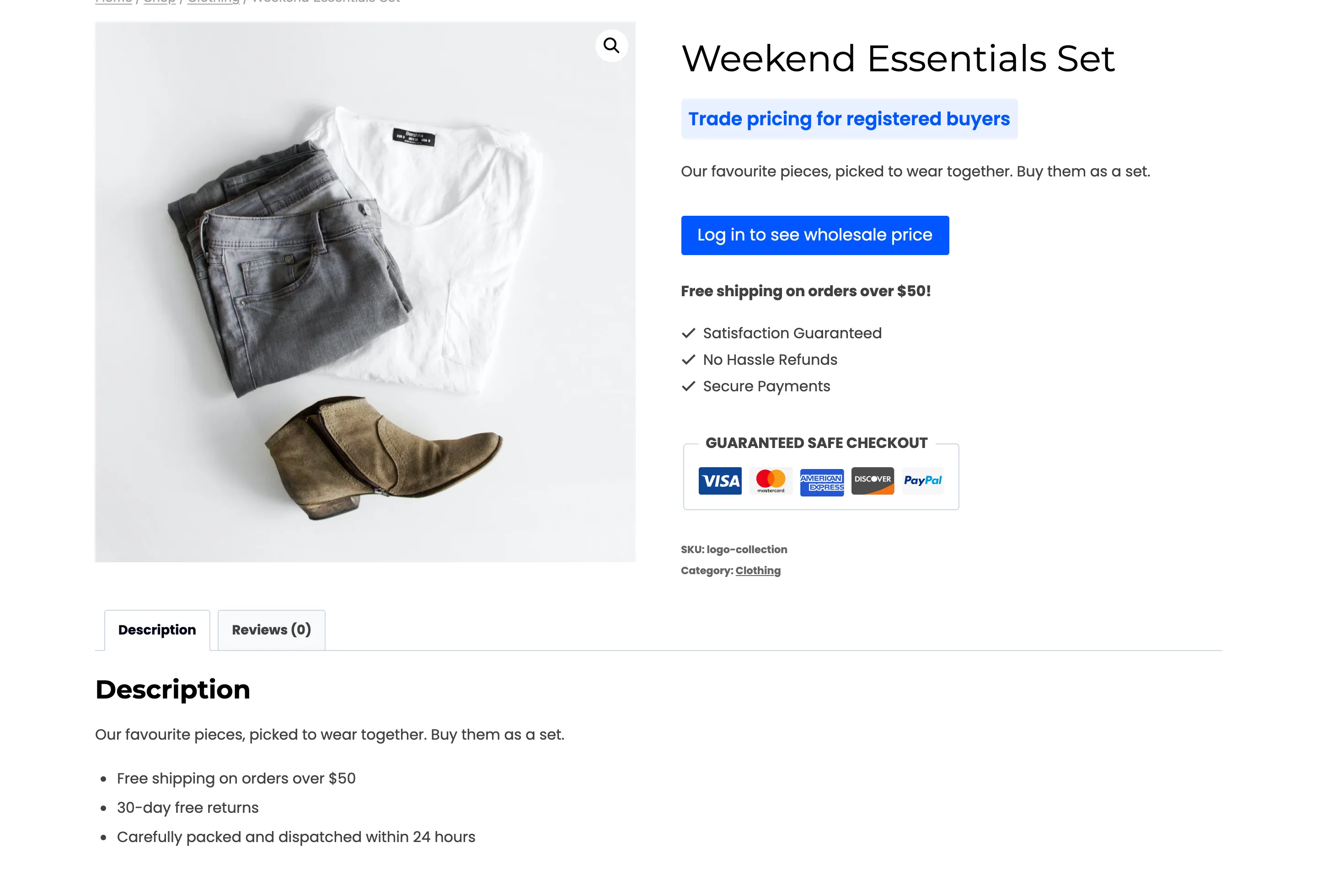
Step 3: Test the side doors
Section titled “Step 3: Test the side doors”In a private window:
- Open
yourstore.com/?add-to-cart=IDwith a hidden product’s ID. You should see “Sorry, this product cannot be purchased.” - Open
yourstore.com/wp-json/wc/store/v1/products/ID.prices.priceshould be empty. - View the page source of the product and search for
"offers". It should not be there.
What the plugin does not touch
Section titled “What the plugin does not touch”- The product’s price in your admin, feeds and exports. Product feeds for shopping sites read prices directly and are not filtered.
- The WooCommerce REST API at
/wp-json/wc/v3/. It needs API keys, so it is not public. - Prices in old orders and emails. Only the storefront is filtered.