

How to Hide Prices by Country
Some stores sell openly at home and through distributors abroad, or the other way round. Apply In limits price hiding to the countries you choose. It sits above every rule: a visitor it rules out sees every price.
Step 1: Choose the mode
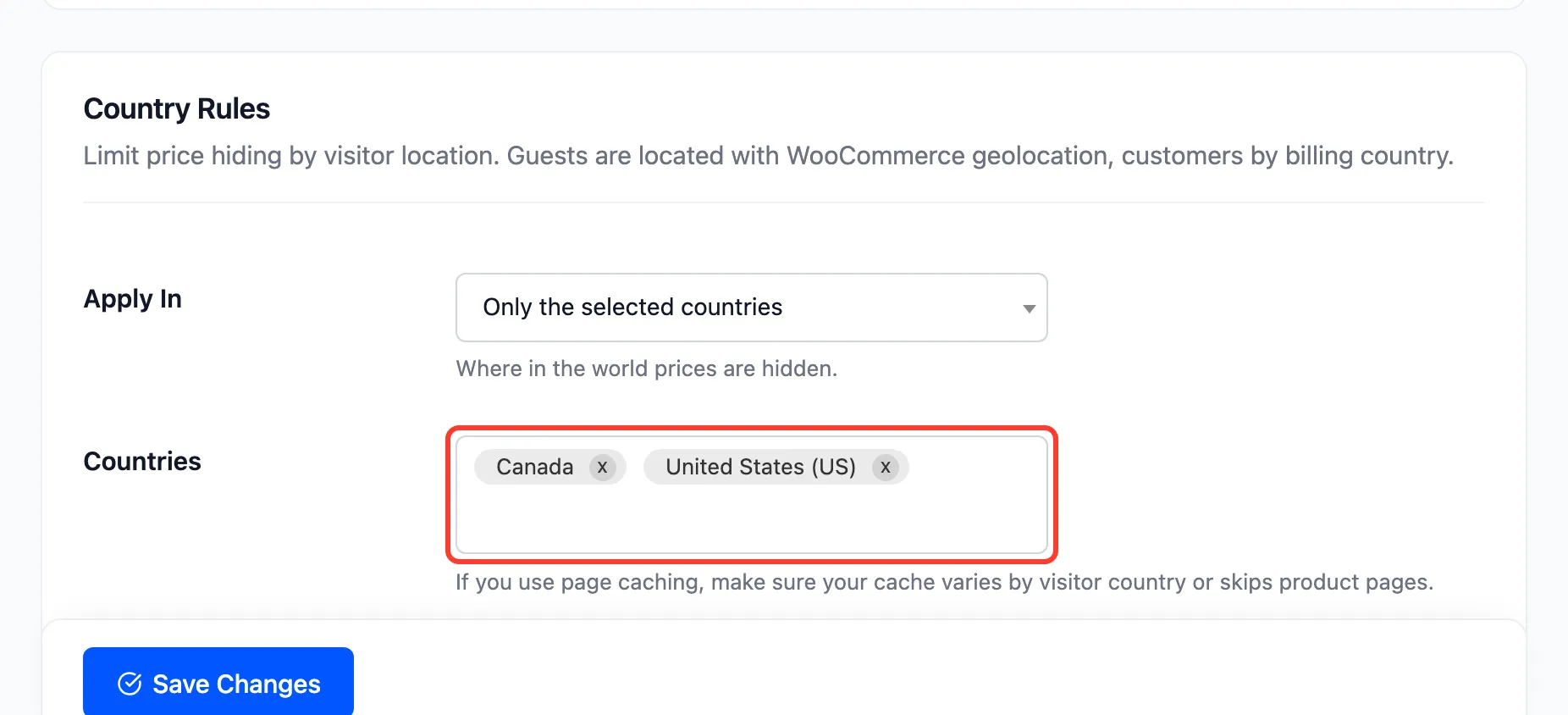
Section titled “Step 1: Choose the mode”Go to Configuration → General → Country Rules and set Apply In:
- Only the selected countries: prices are hidden for visitors in the list, and shown to everyone else.
- All countries except the selected ones: prices are shown to visitors in the list, and hidden for everyone else.
Step 2: Pick the countries
Section titled “Step 2: Pick the countries”Choose them in Countries and click Save Changes.
An empty list behaves like All countries.
Step 3: Know how visitors are located
Section titled “Step 3: Know how visitors are located”- Guests are located by WooCommerce geolocation, from their IP address. If your site sits behind a CDN that passes the visitor’s country, such as Cloudflare, that country is used.
- Signed-in customers are located by their billing country. A customer with no billing address falls back to geolocation.
WooCommerce finds a guest’s country in this order: the country your CDN passes along, then WooCommerce’s MaxMind database if you have set it up under WooCommerce → Settings → Integration, then an online lookup service. You do not need to change Default customer location for this to work.
Step 4: Check from inside and outside
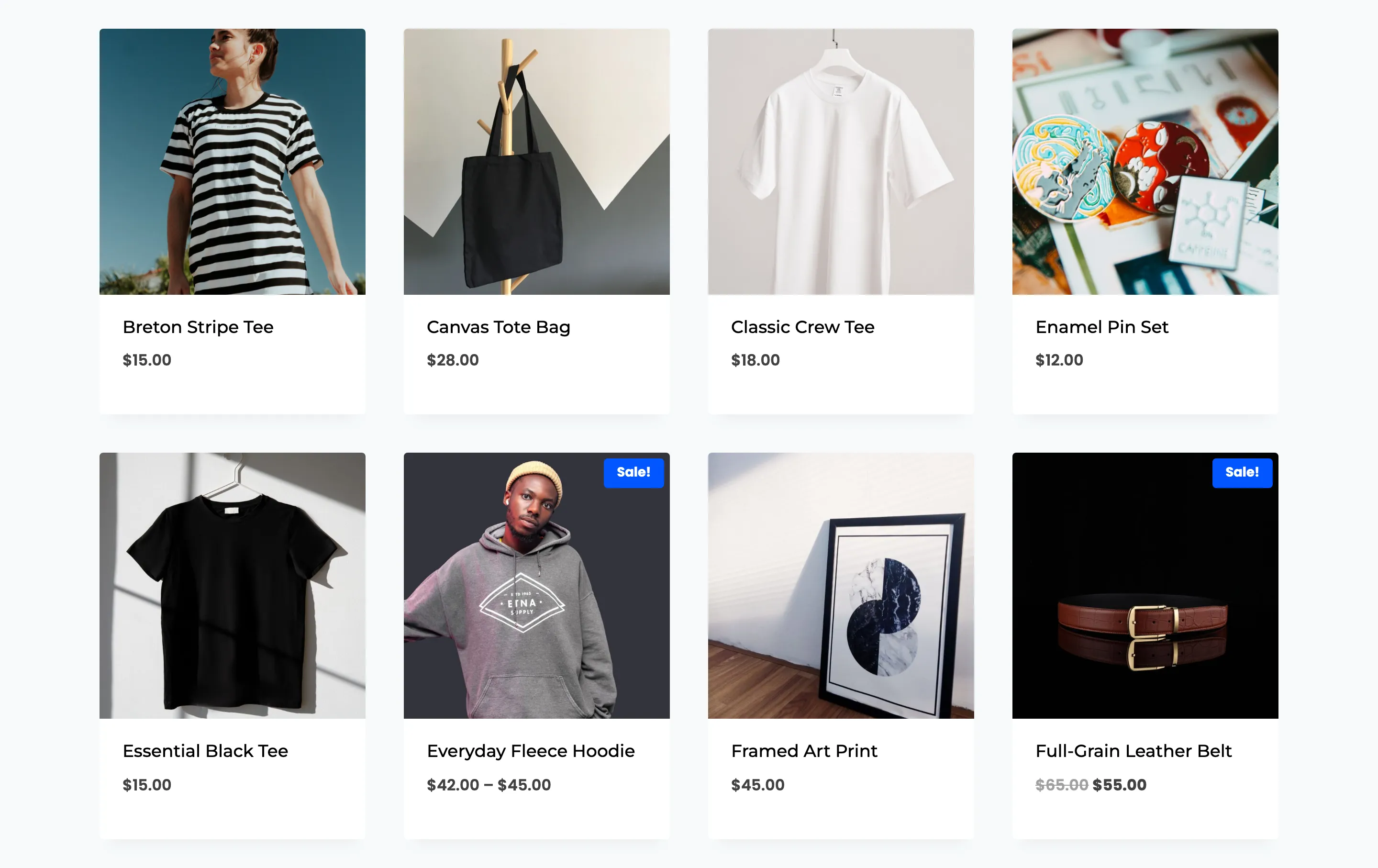
Section titled “Step 4: Check from inside and outside”The demo was set to hide prices only in Canada and the United States, then visited from India. Every price showed, including products the rules hide everywhere else:
To test from another country, use a VPN, or ask someone there to look.
Things to know
Section titled “Things to know”- It beats every other setting, including a product’s own Always hide price.
- Page caching must vary by country or skip product pages. Otherwise the first visitor’s country decides what everyone sees, until the cache clears.
- A customer’s billing country wins over where they are. A Canadian customer on holiday elsewhere is still treated as Canadian.