

The Setup Wizard
The wizard opens on first activation. It takes about a minute and leaves you with a working store: license active, price hiding on, and a rule for the whole catalog if you want one.
To run it again later, use the Setup Wizard link under the plugin’s name on the Plugins screen.
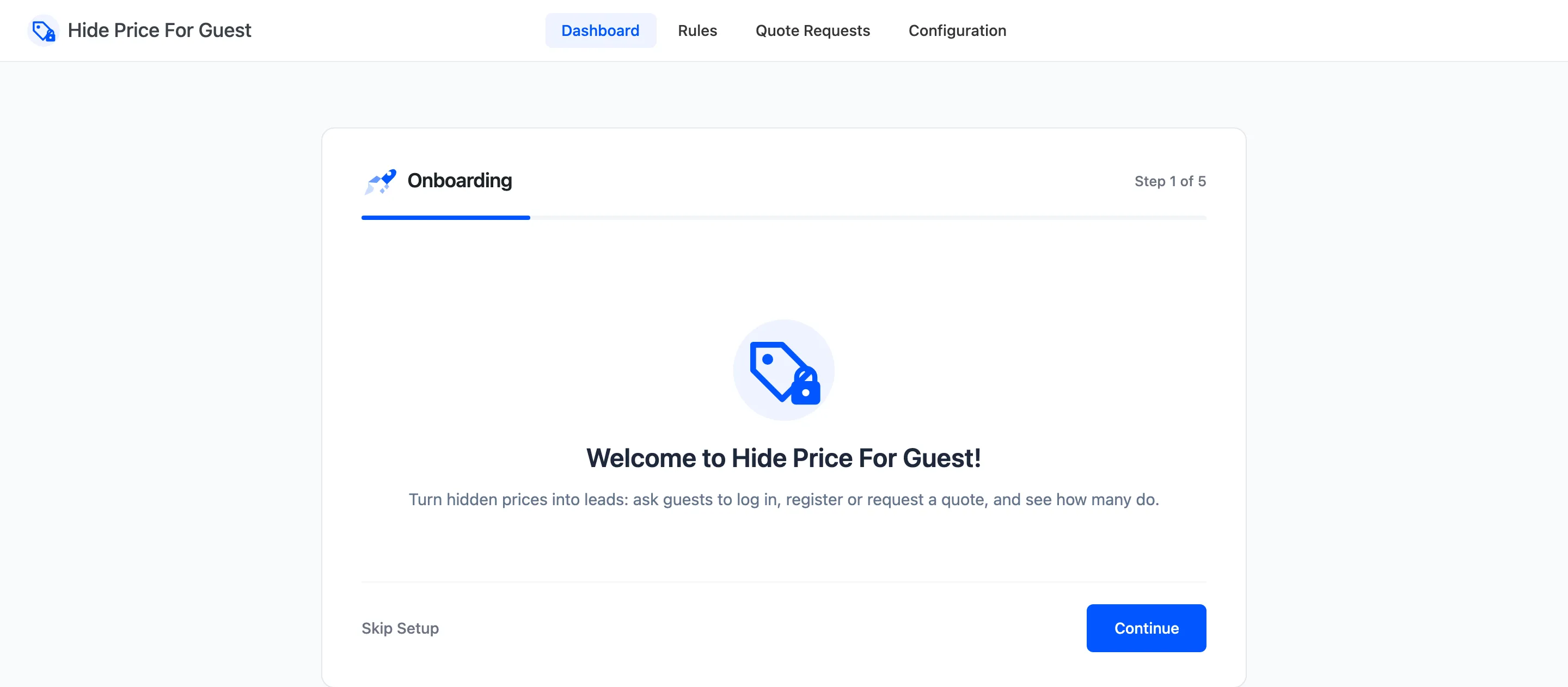
Step 1: Welcome
Section titled “Step 1: Welcome”A summary of what the plugin does. Click Continue, or Skip Setup to go straight to the dashboard. Skipping leaves price hiding off.
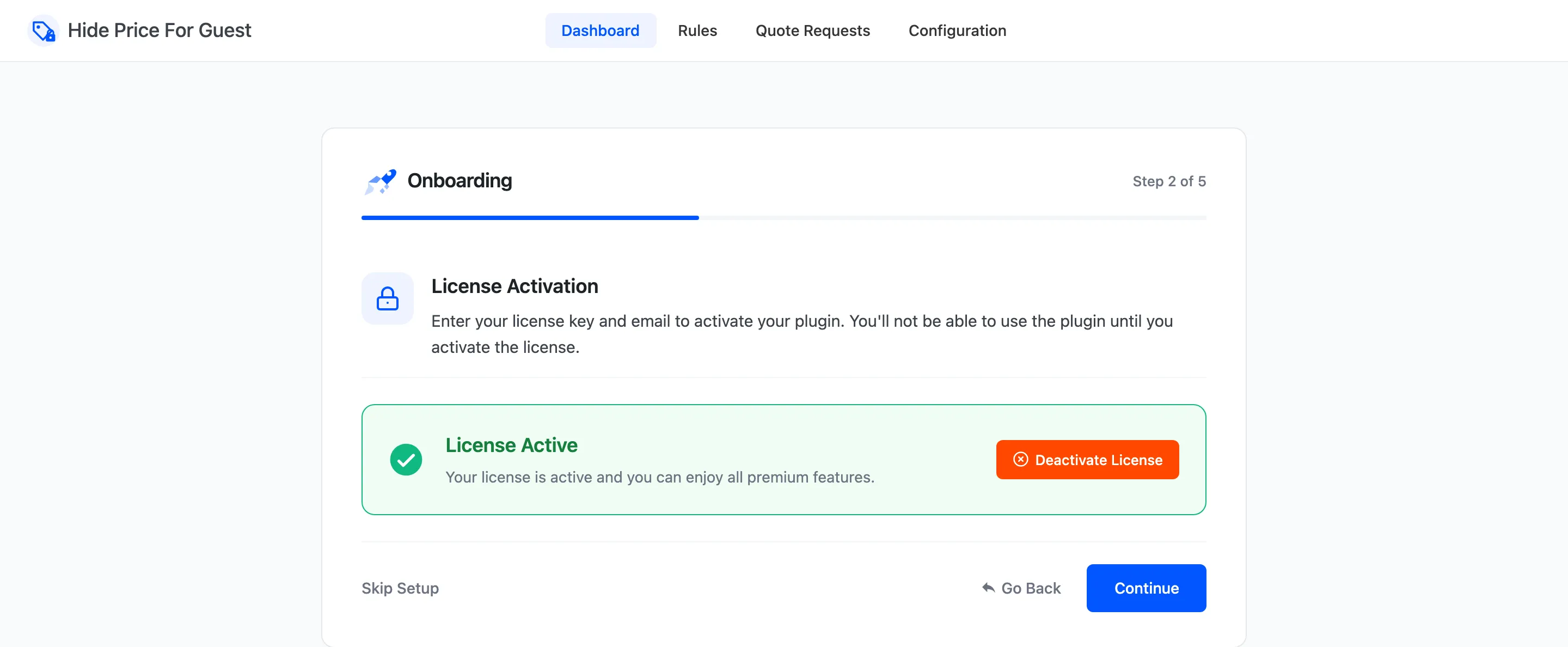
Step 2: License
Section titled “Step 2: License”Enter your purchase code and email, then activate. The wizard will not move on until the license is active, because nothing runs on the storefront without it.
Step 3: Audience
Section titled “Step 3: Audience”“Who should not see prices?”
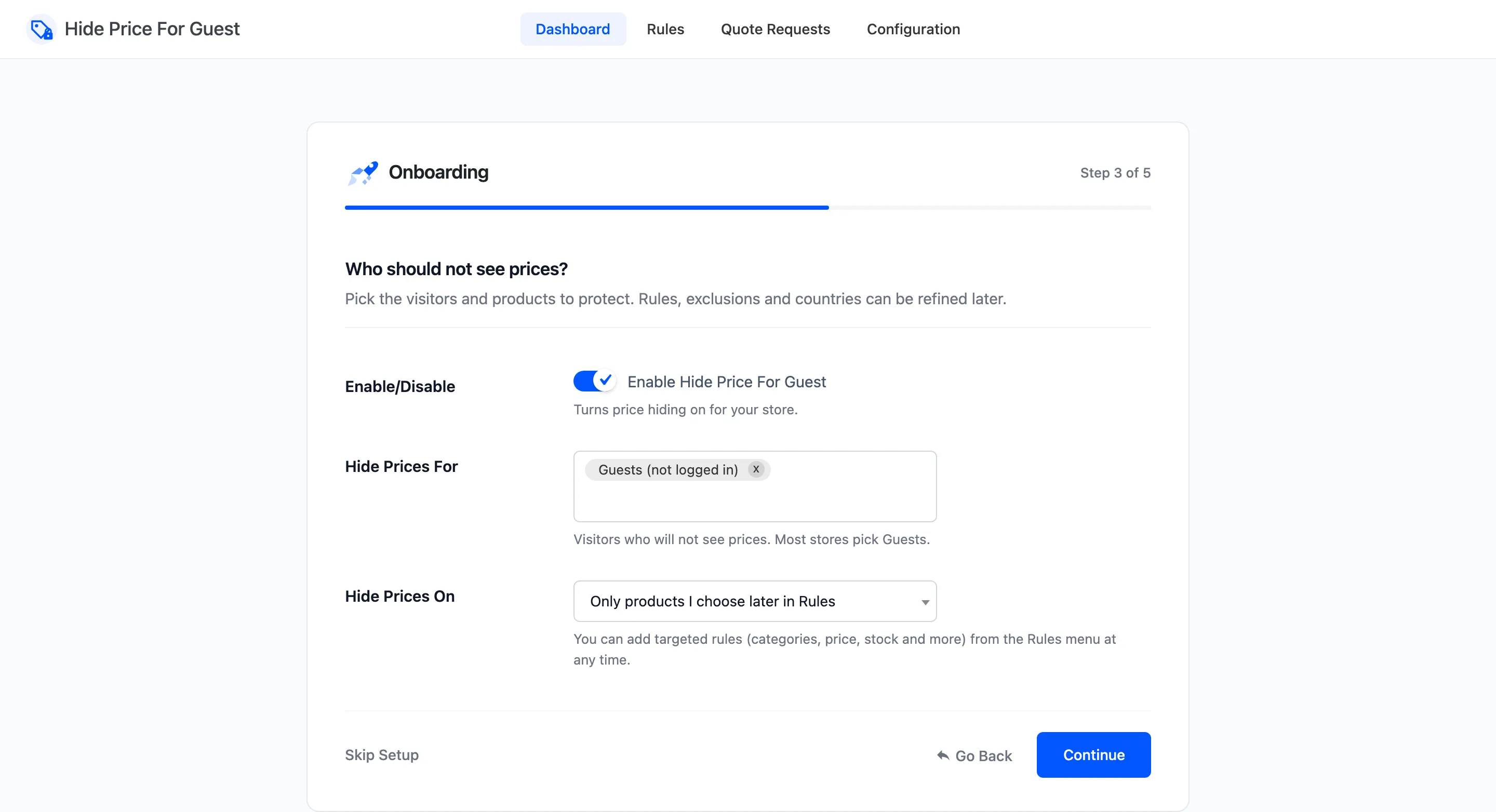
- Enable/Disable: Turns price hiding on. Leave it ticked.
- Hide Prices For: The default audience. Guests (not logged in) is preselected and is what most stores want. Add a role, such as Customer, to hide prices from signed-in shoppers too.
- Hide Prices On:
- All products creates a rule named All products with no conditions, so every product is hidden.
- Only products I choose later in Rules creates nothing. Prices stay visible until you add a rule.
All products creates its rule only when you do not already have an active rule with no conditions. If you do, the field opens on All products and nothing new is created. Choosing Only products I choose later in Rules never deletes a rule.
Step 4: Display
Section titled “Step 4: Display”“What do visitors see instead?”
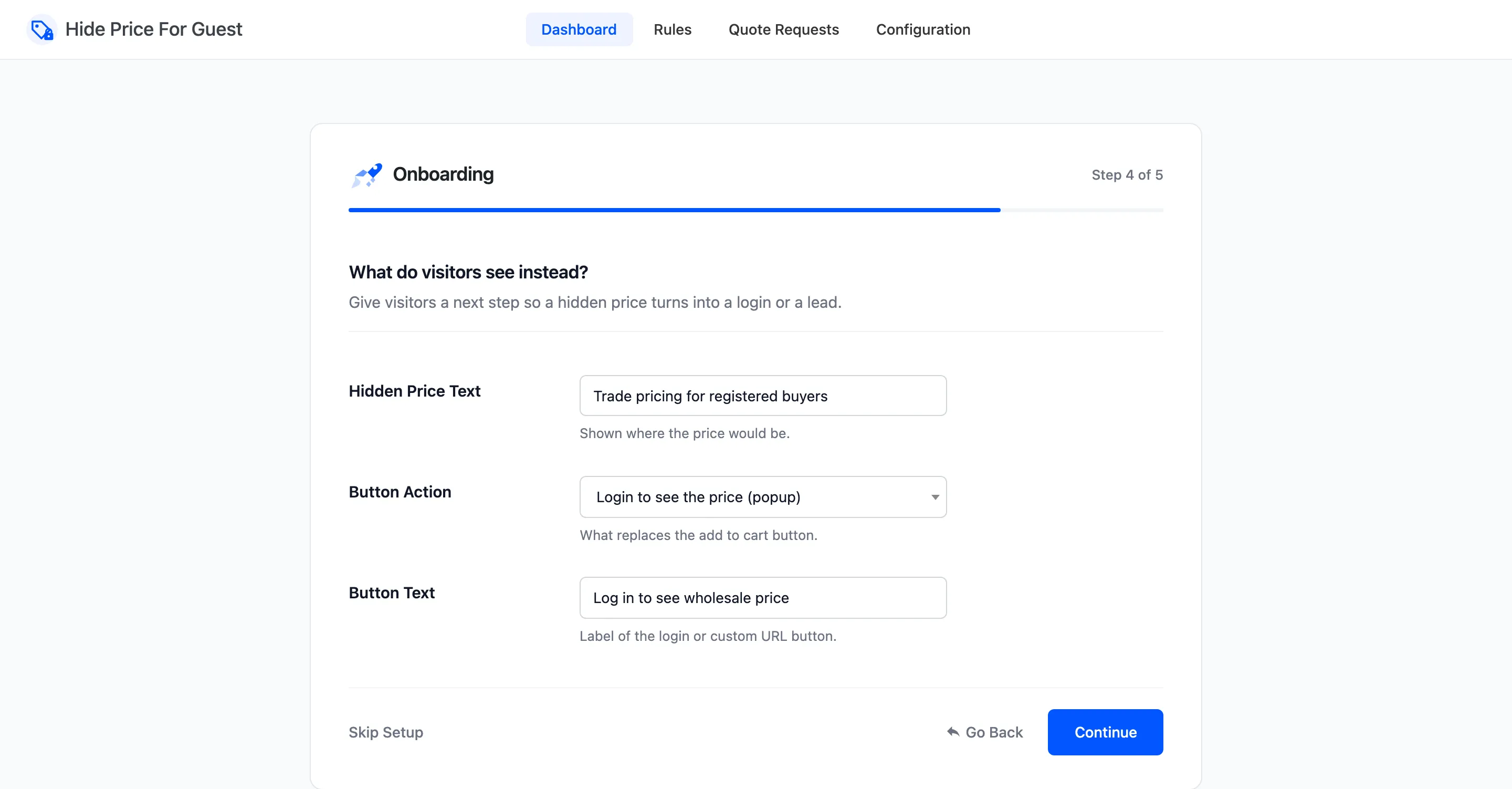
- Hidden Price Text: Shown where the price would be. Default “Login to view price”.
- Button Action: What replaces the add to cart button: Login to see the price (popup), Request a quote, Go to a custom URL or No button.
- Button Text: The login or custom URL button’s label. Default “Login to purchase”.
- Custom URL: Where the custom URL button goes. Shown with that action only.
- Quote Button Text: The quote button’s label. Default “Request a Quote”. Shown with the quote action only.
These become the defaults on the Display tab. Every rule uses them unless it sets its own.
Step 5: Ready
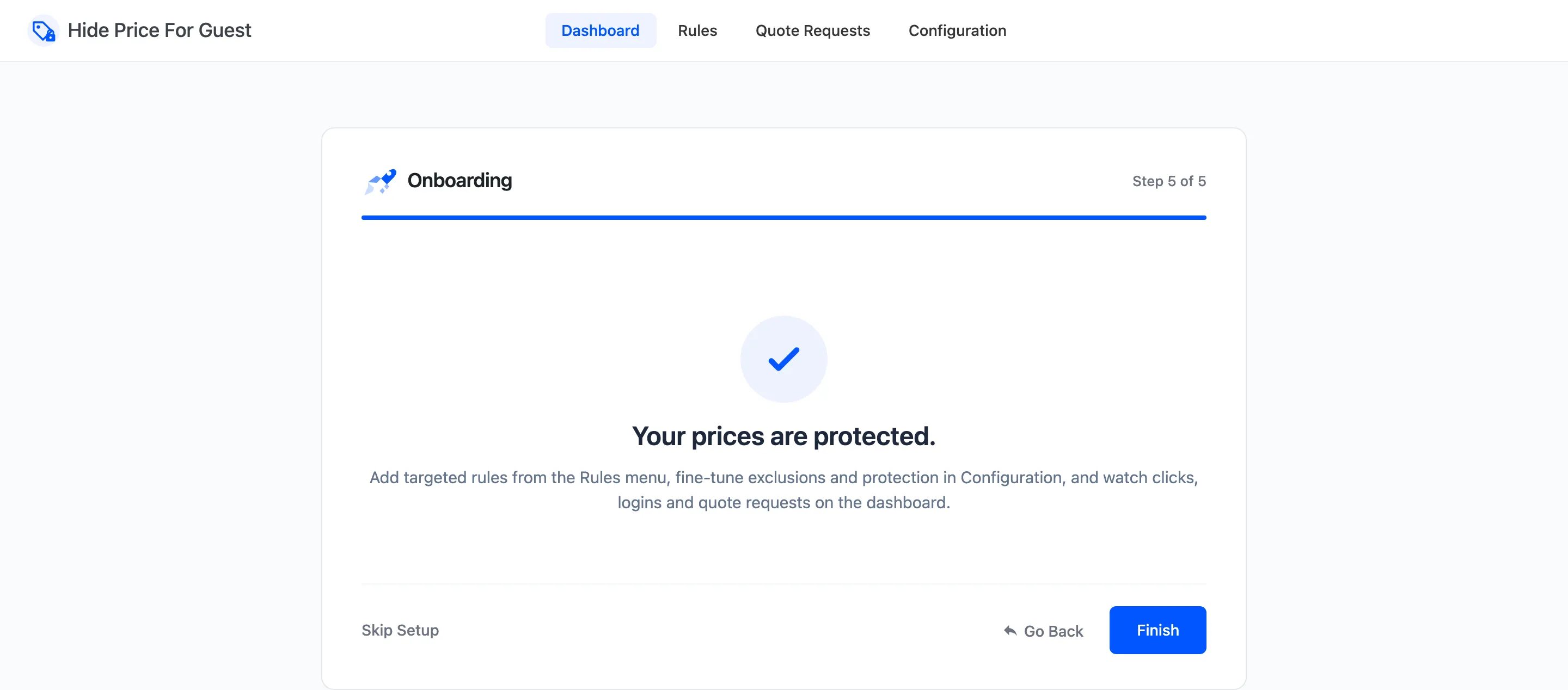
Section titled “Step 5: Ready”“Your prices are protected.” The links lead to the dashboard and the settings.
After the wizard
Section titled “After the wizard”Open a product in a private window to see what a guest sees. Then read How Hidden Prices Work before adding more rules.