

How to Show Options as Dropdowns
Buttons show every choice at a glance, which suits three colors and five sizes. A product with twenty shades or forty sizes fits better in dropdowns.
Step 1: Pick Dropdowns
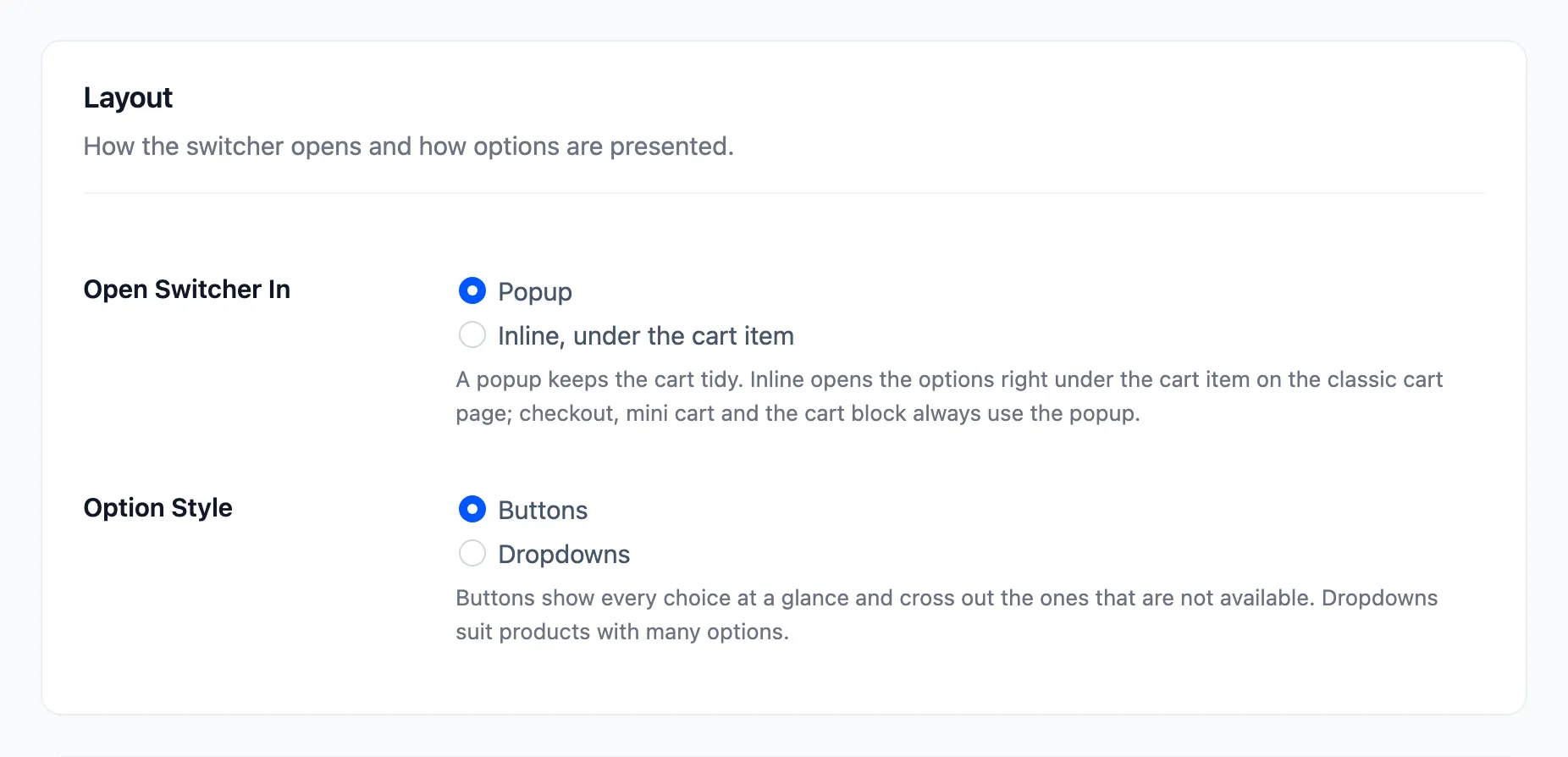
Section titled “Step 1: Pick Dropdowns”Open Configuration → Display. Under Layout, set Option Style to Dropdowns and click Save Changes.
Step 2: Open the switcher
Section titled “Step 2: Open the switcher”Press Change options on a cart item. Each attribute is a dropdown, labelled as on the product page.
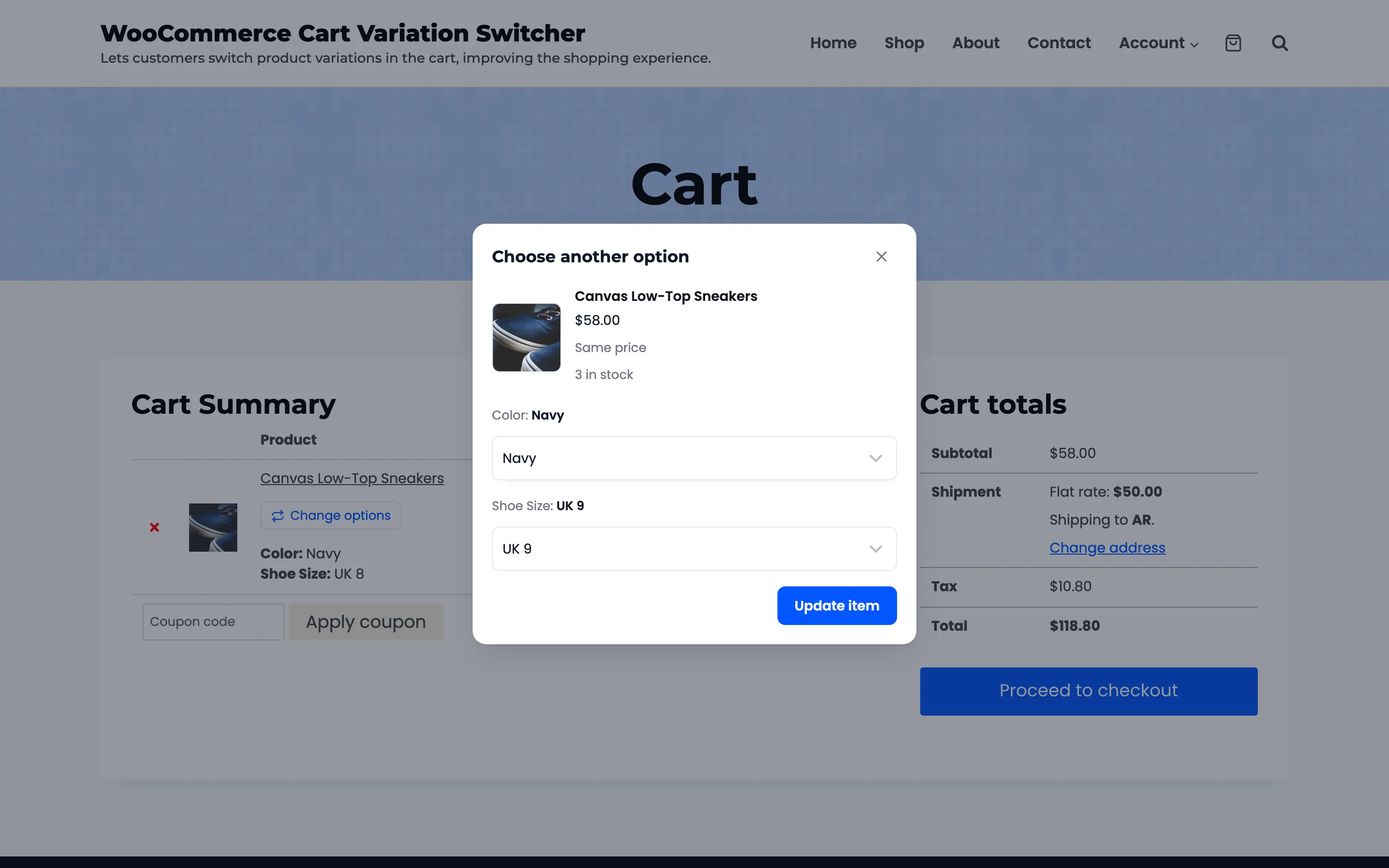
Options that cannot be picked with the other choices are greyed out in the list, where buttons would be crossed out.
Step 3: Pick and update
Section titled “Step 3: Pick and update”Choose from each dropdown and press Update item.
The setting applies to every product and every place the switcher opens. It cannot differ per product.