

How the Variation Switcher Works
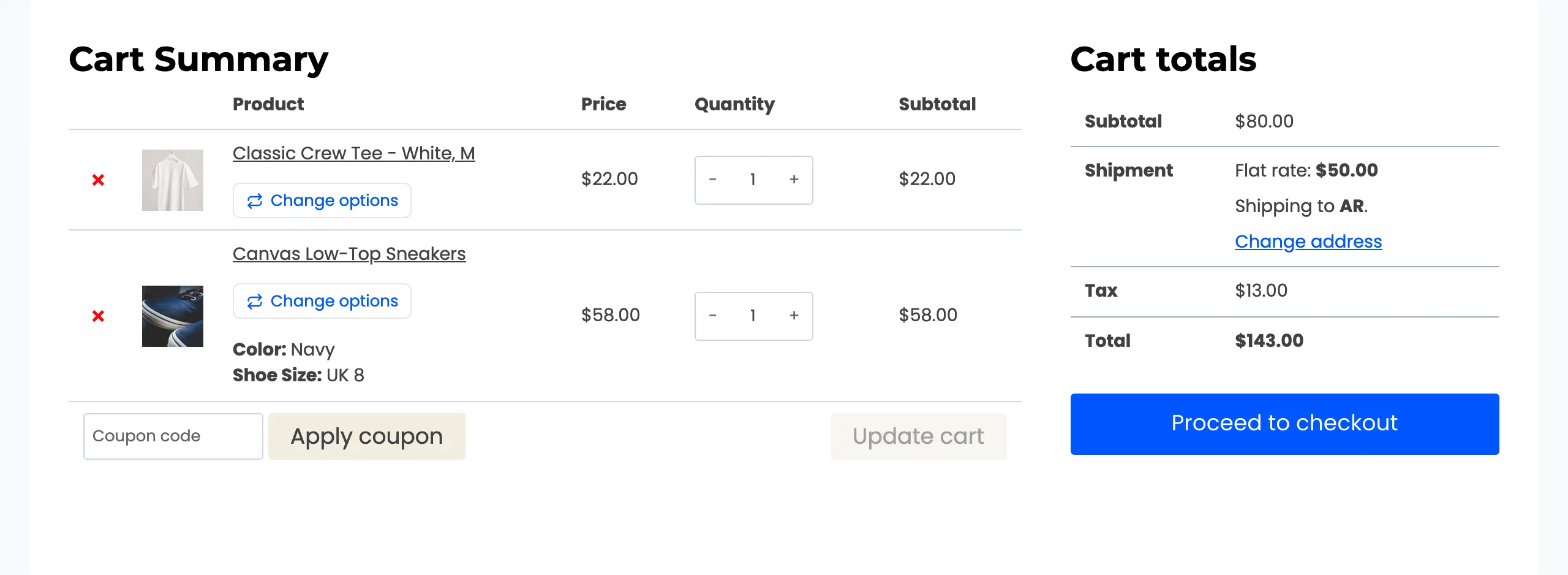
This page follows one shopper on the demo. They added a Classic Crew Tee in White, size M, and a pair of Canvas Low-Top Sneakers in Navy, UK 8. Then they changed their mind about the tee.
Which items get a button
Section titled “Which items get a button”A cart item gets Change options when all of these are true:
- It is a variation of a variable product with two or more variations.
- The switcher is on, the license is active, and the page is one of those under Show Switcher On.
- Configuration → Rules lets this shopper’s role and this product through.
- The product’s own Cart variation switcher box on its Inventory tab is not ticked.
Simple products, and variable products with one variation, never get a button. There is nothing to switch to.
1. The shopper opens the switcher
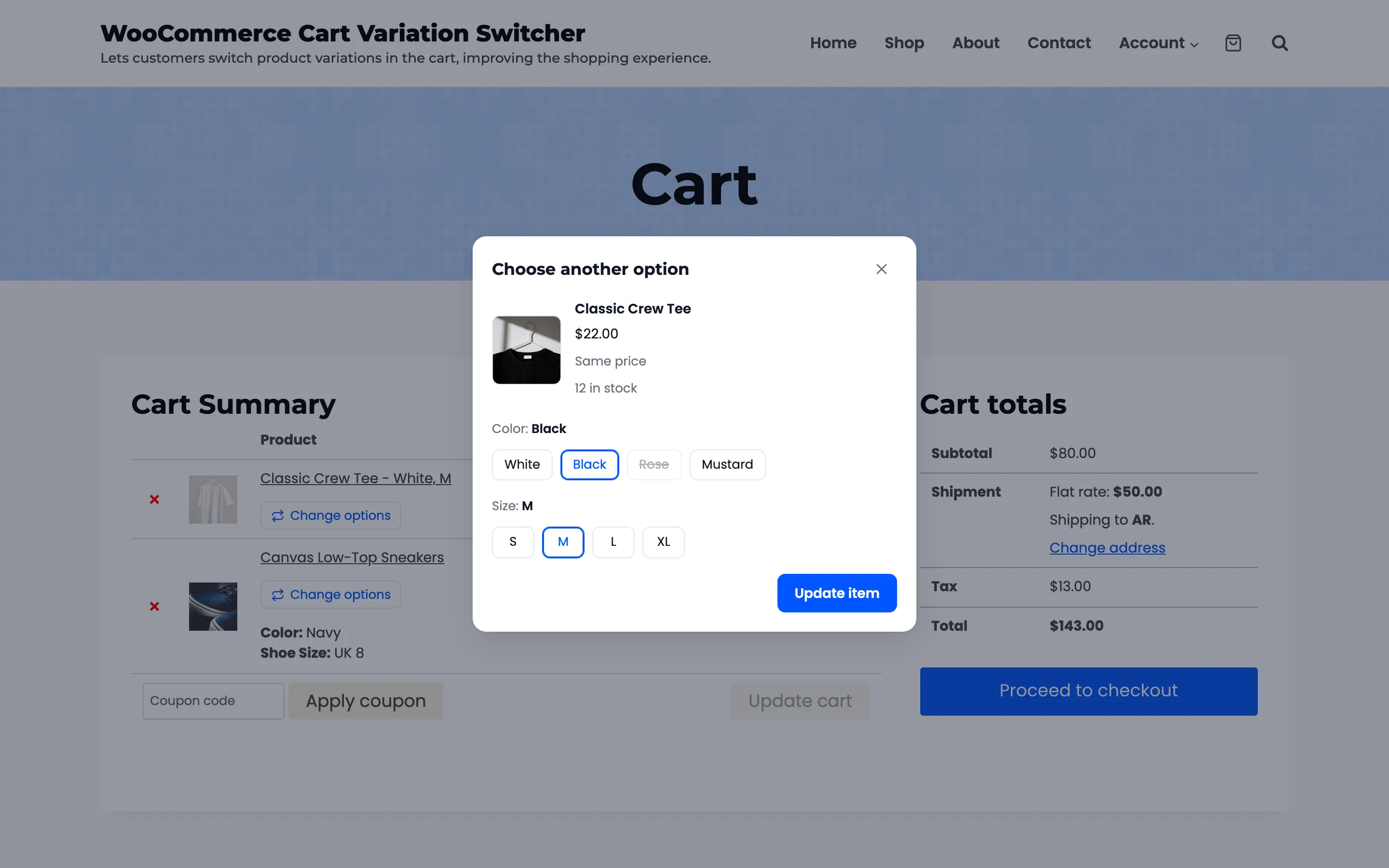
Section titled “1. The shopper opens the switcher”Pressing Change options opens a popup titled Choose another option. It starts on what is already in the cart: White and M. The notice says “This is what is already in your cart.” and Update item is greyed out, because nothing has changed yet.
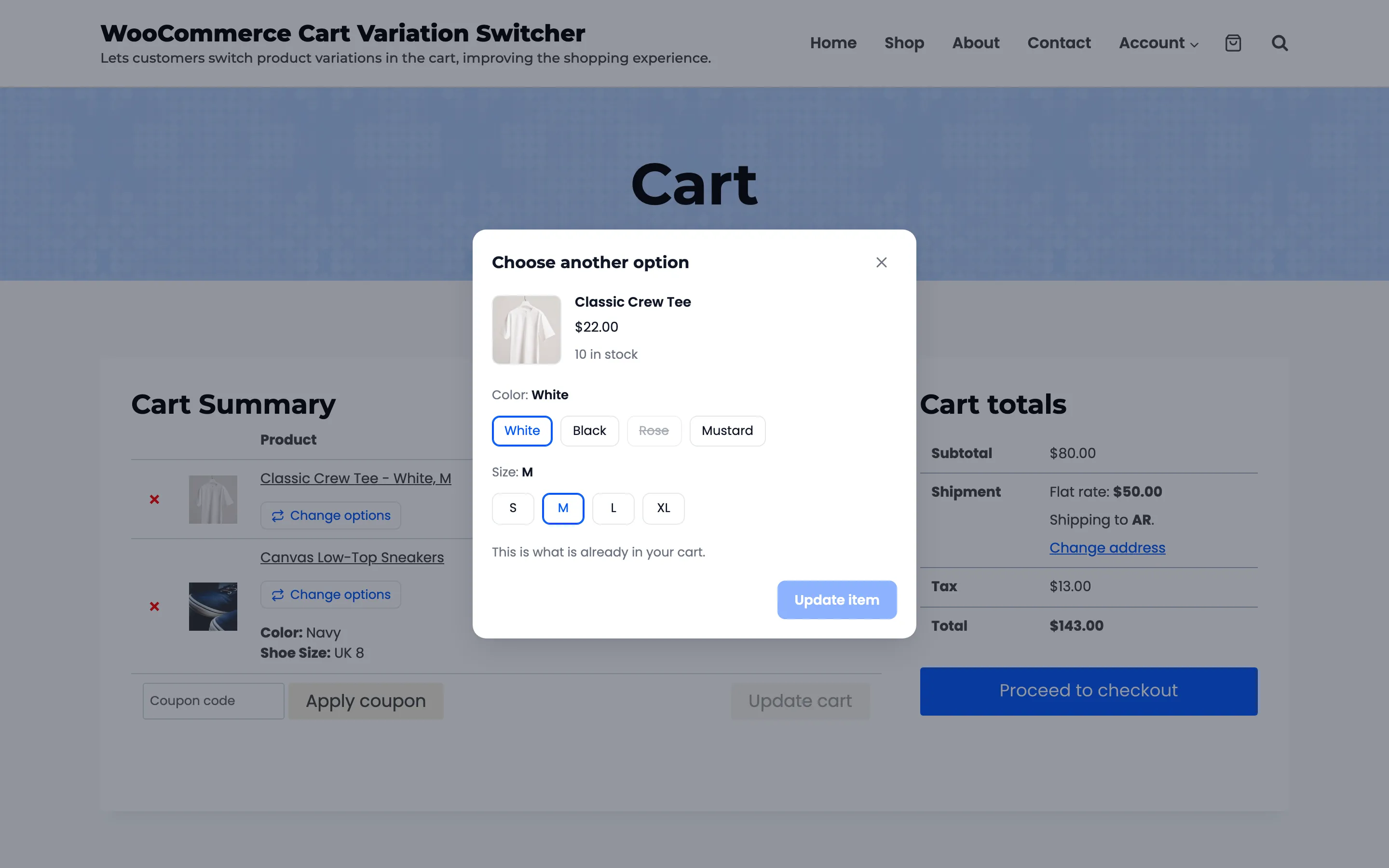
The dashboard counts this as one Switcher Open.
2. They pick a new option
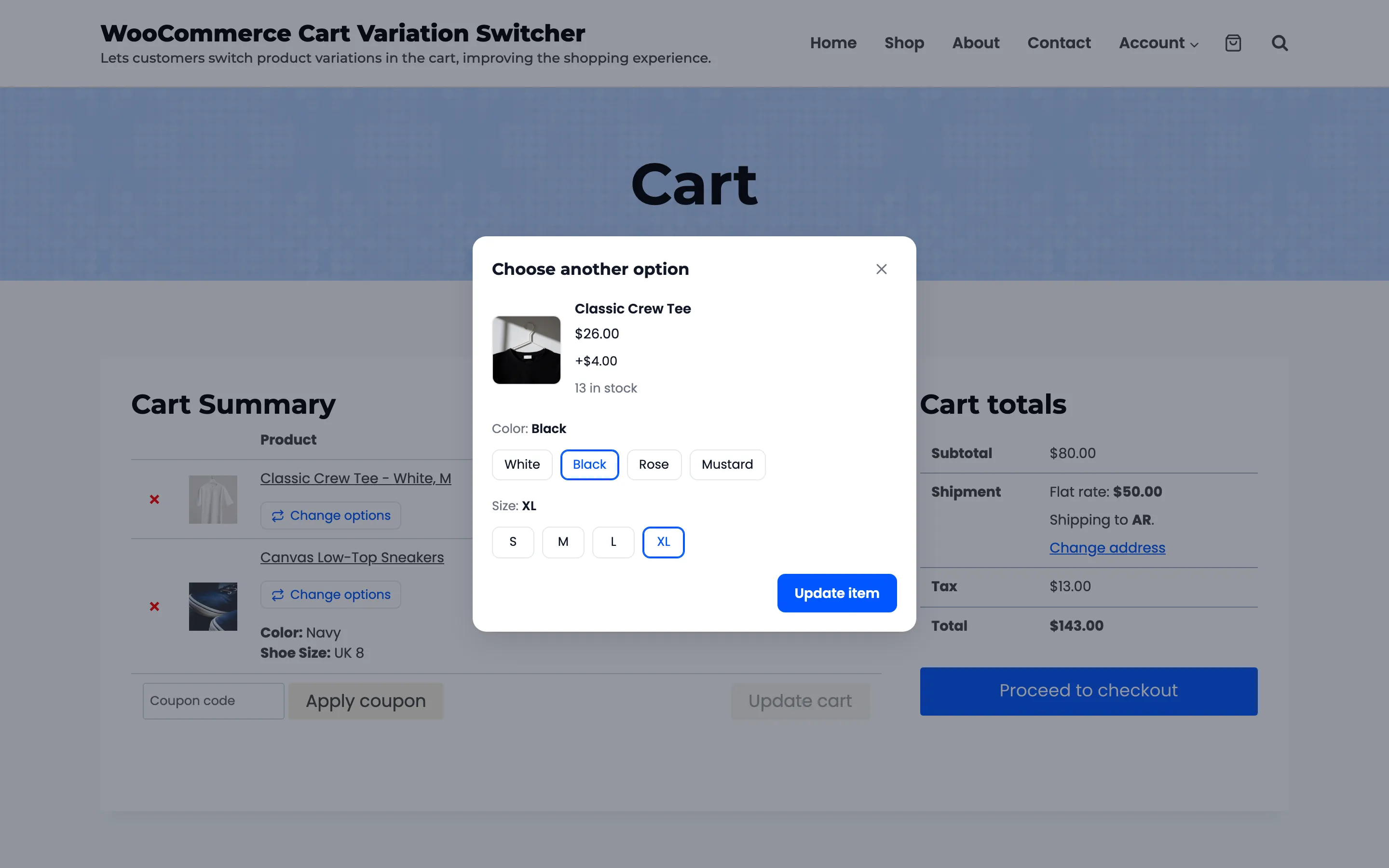
Section titled “2. They pick a new option”Each pick updates the top of the popup straight away: the image, the price, the stock and the difference from what is in the cart. Black and XL costs $26.00, so the popup shows +$4.00.
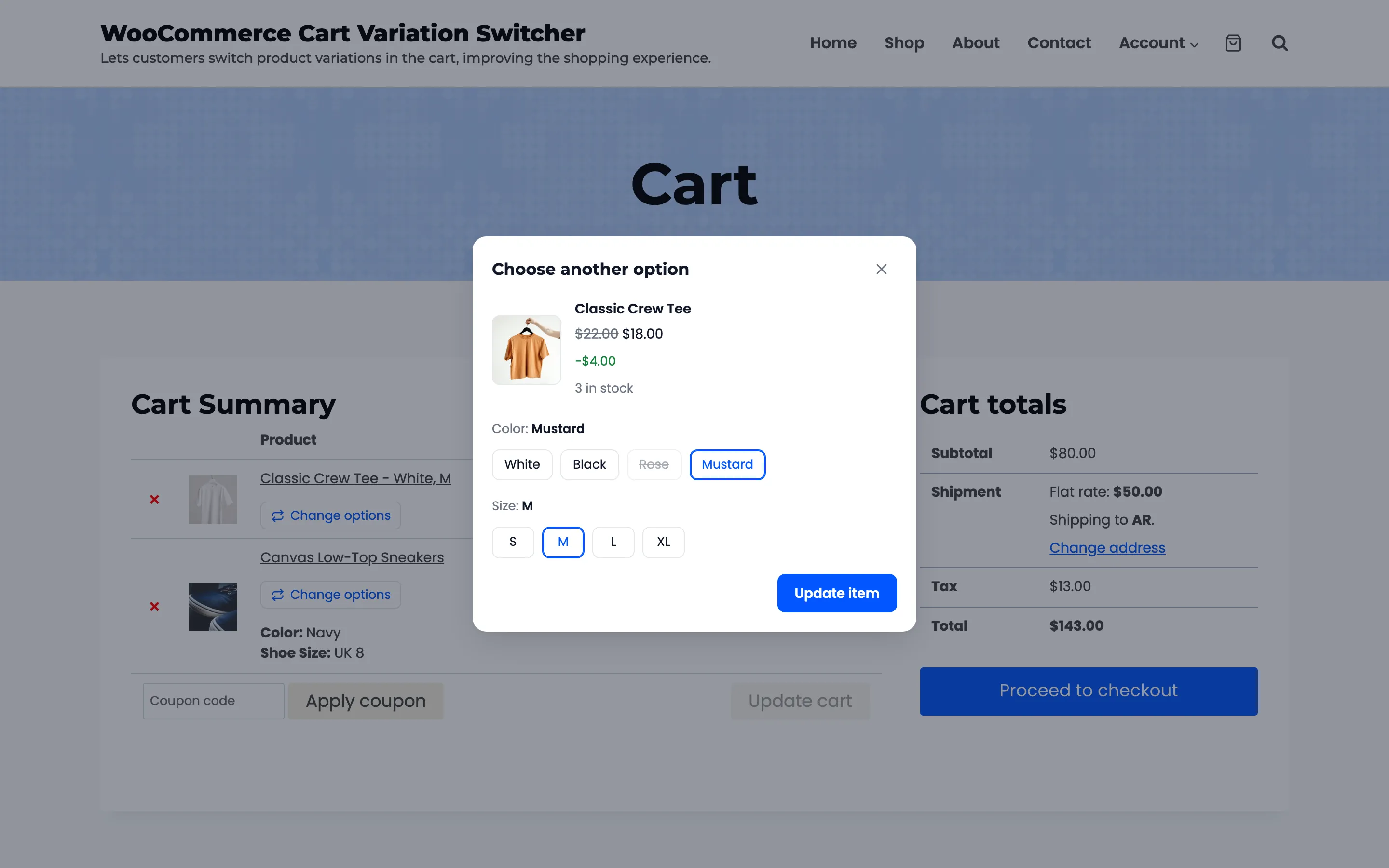
Mustard in M is on sale at $18.00, so it shows −$4.00, with the regular price struck through.
With M chosen, Rose is crossed out. Rose in M is out of stock on the demo, so it cannot be picked with M. Choosing S or L brings Rose back.
3. They press Update item
Section titled “3. They press Update item”The store checks the choice again before anything changes:
- The combination exists and can be bought.
- It is in stock, with enough for the quantity in the cart, plus any of the same option already in another line.
- A product sold one per order is not already in the cart.
When a check fails, the popup stays open with the reason, such as “Sorry, only 3 of this option are in stock.” Nothing in the cart changes.
4. The cart updates in place
Section titled “4. The cart updates in place”The line changes to the new option, in the same position, with the same quantity. A short Item updated. message appears, and the totals, the shipping and the tax are worked out again.
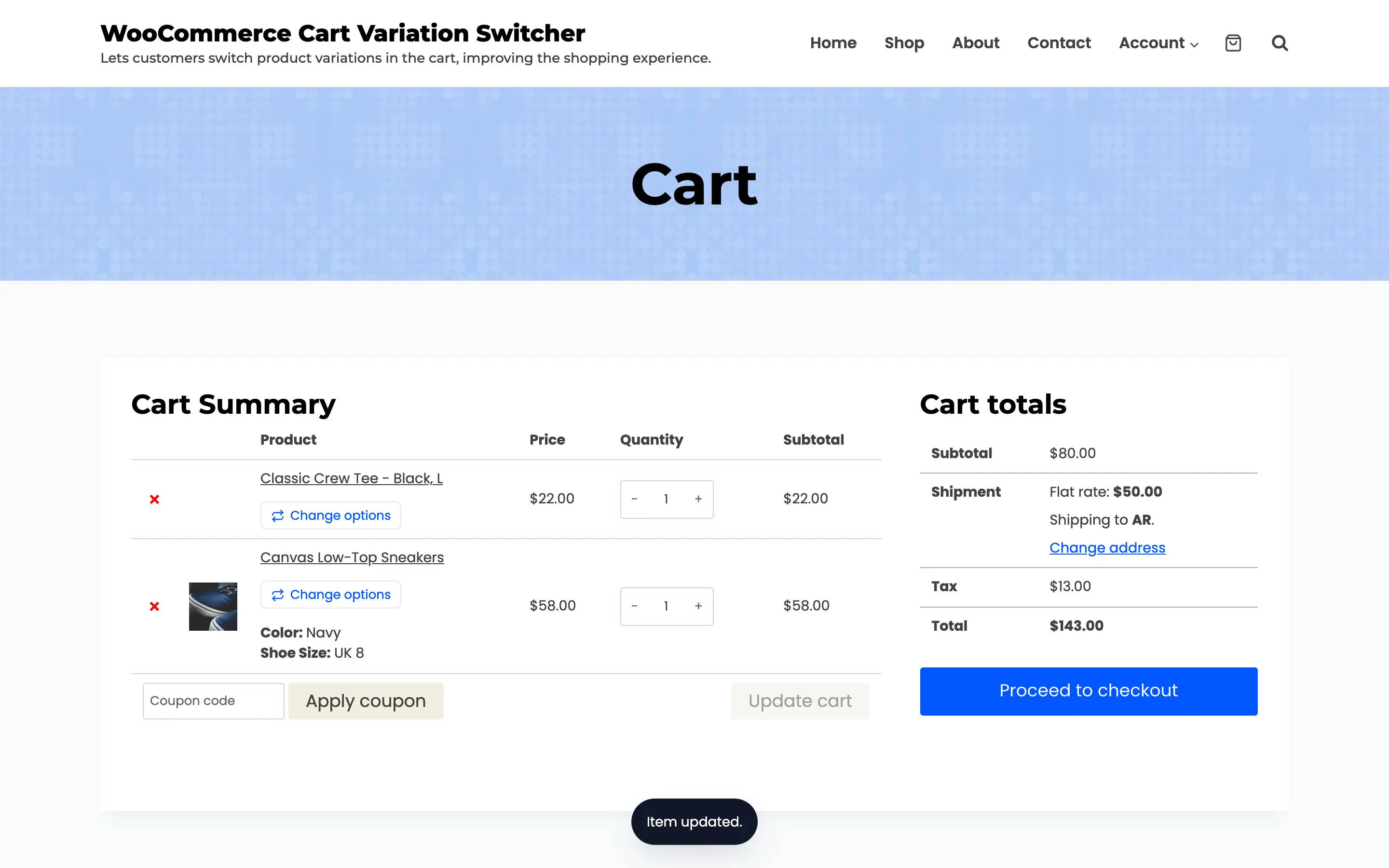
Data that other plugins added to the line, such as a gift message or product add-ons, stays with it. The mini cart in the header shows the change too.
When the new option is already in the cart
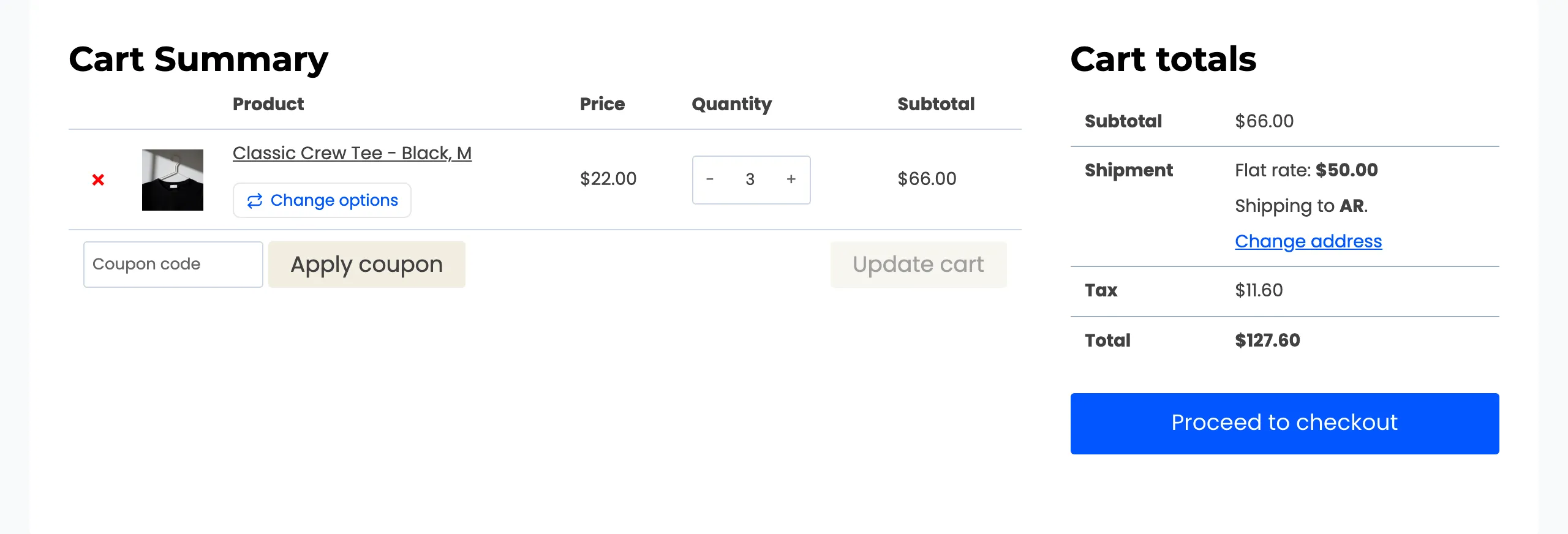
Section titled “When the new option is already in the cart”If the cart already has a line with the chosen option, the two lines become one, with the quantities added together. On the demo, a cart with two Black M tees and one White M tee became three Black M tees.
Every case of what a switch keeps, with gift notes and products sold one per order, is in What a Switch Keeps in the Cart.
What gets recorded
Section titled “What gets recorded”With Tracking on, the store records each open and each switch: the product, the two options, the quantity, the price difference and where it happened. Nothing is sent anywhere. The dashboard turns it into the switch rate, the cart value change and the most switched products.
A signed-in customer’s switch is saved to their account cart as well. On the demo, Amara switched a hoodie from White to Sage, then opened the cart in a new browser and found the Sage one.
Where else it works
Section titled “Where else it works”The same switch runs from the checkout’s order summary, from the mini cart, and from the Cart and Checkout blocks. Each one opens the popup and refreshes everything else on the page that shows the cart. See The Shopper Experience.