

How to See Which Products Shoppers Switch Most
A product that is switched a lot is telling you something. Shoppers keep picking the wrong size, the photo shows a color it is not, or the option they wanted sold out. The dashboard shows which products.
Step 1: Open the dashboard
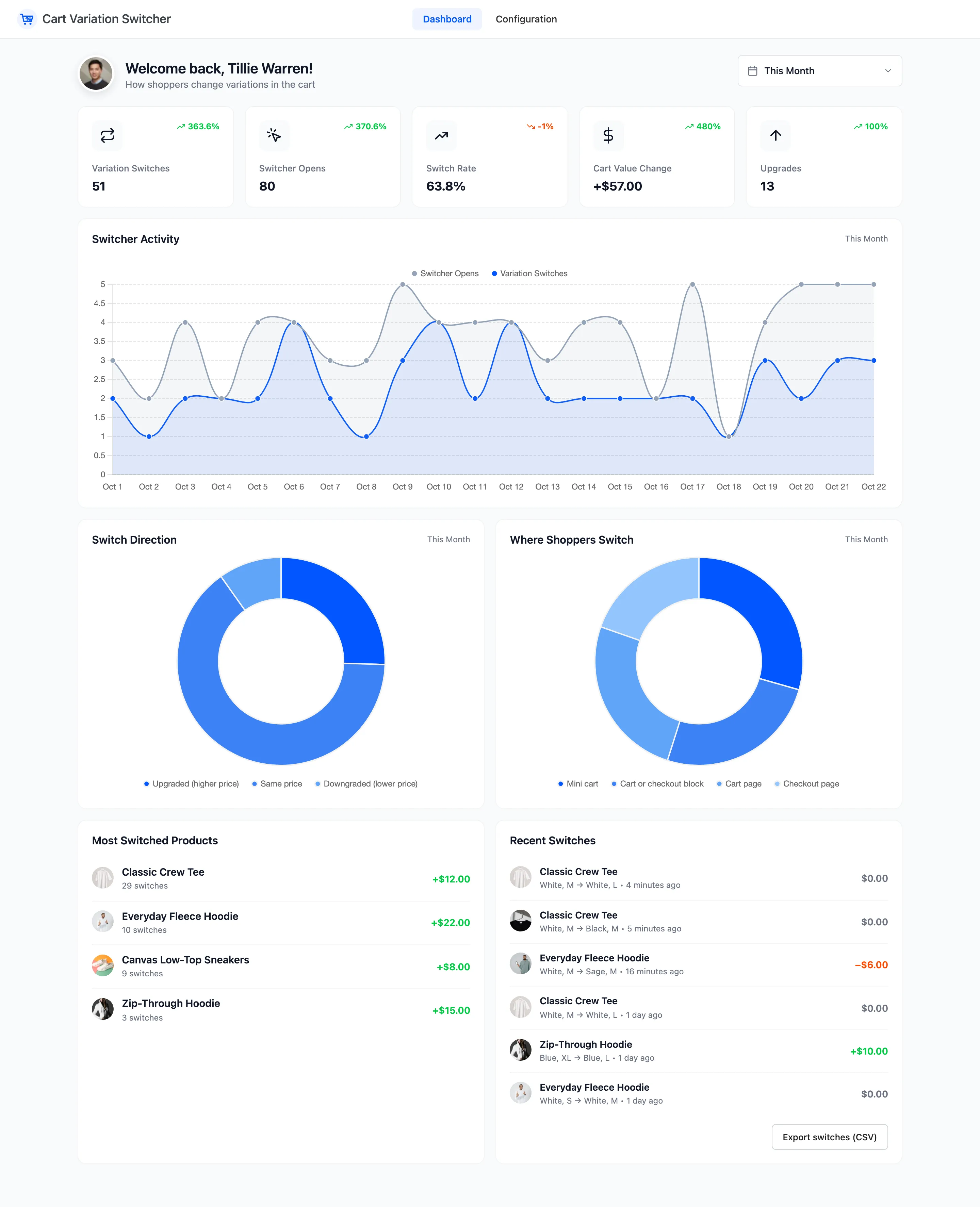
Section titled “Step 1: Open the dashboard”Open DevDiggers Plugins → Cart Variation Switcher → Dashboard and pick a period at the top right.
Step 2: Read Most Switched Products
Section titled “Step 2: Read Most Switched Products”The five products switched most in the period, with the number of switches and what they did to cart value.
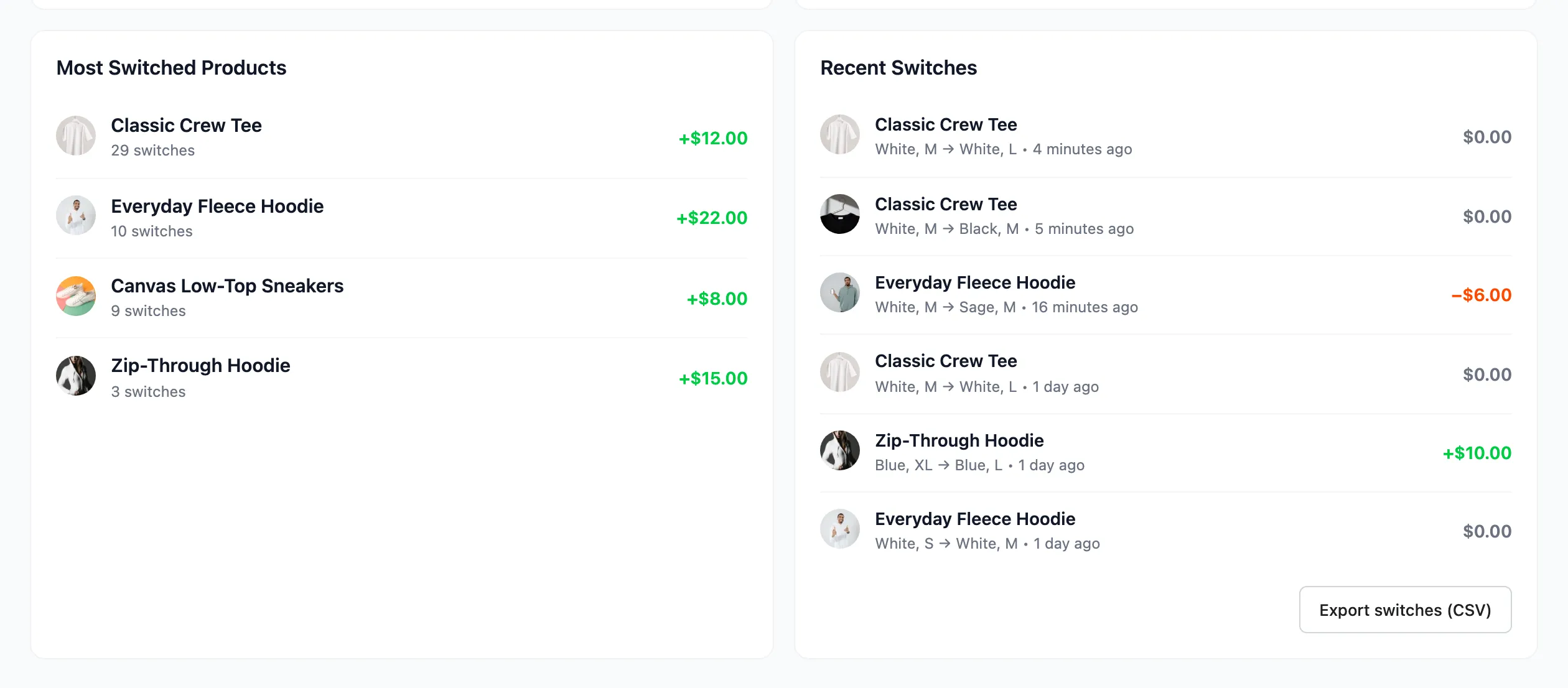
On the demo, the Classic Crew Tee was switched 29 times, most of them a size up or down at the same price.
Step 3: Read Recent Switches
Section titled “Step 3: Read Recent Switches”Each row shows the option before and after, such as White, M → White, L. A run of the same move on one product is the pattern to look for.
Step 4: Export the period
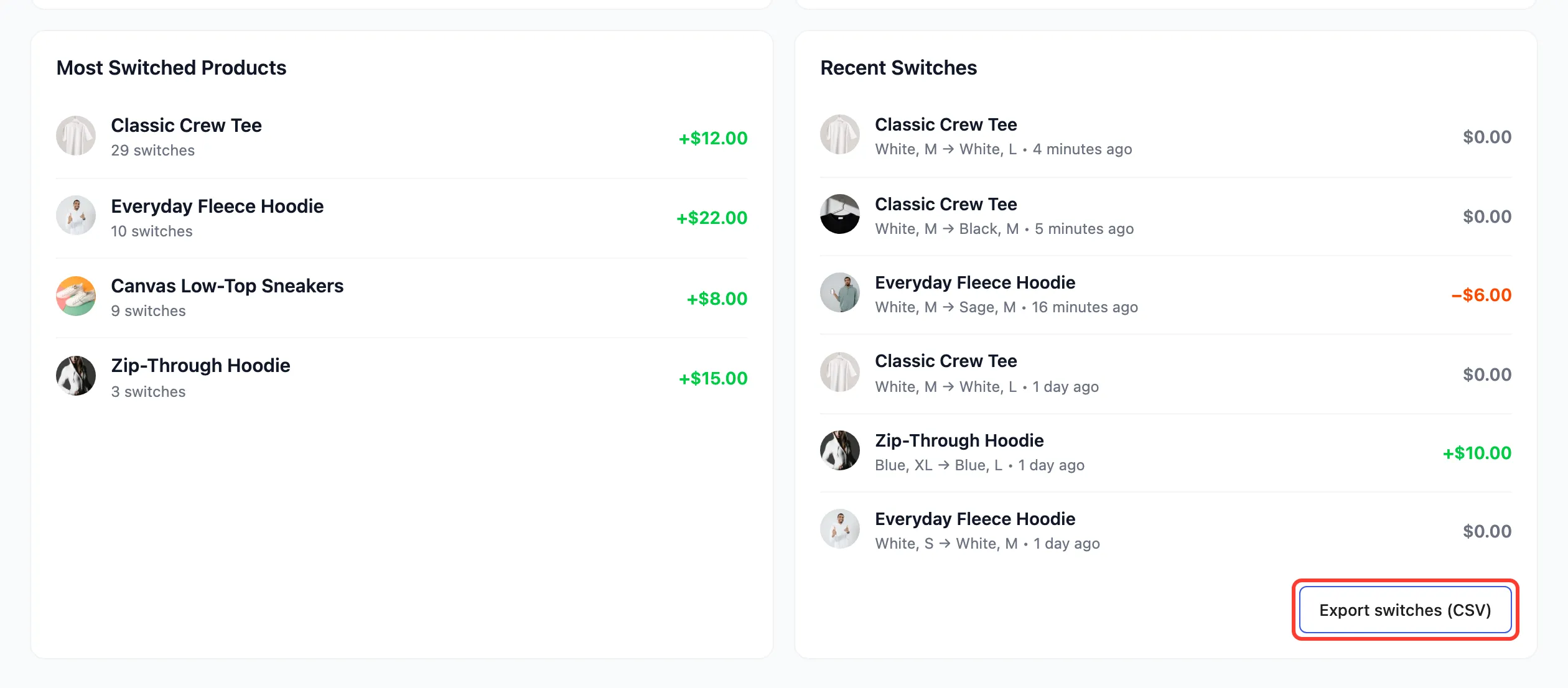
Section titled “Step 4: Export the period”For more than six rows, click Export switches (CSV) and sort by product, then by From and To.
 See
How to Export Switches to CSV.
What to do with it
Section titled “What to do with it”- Mostly one size up: The product runs small. Say so on the product page, or add a size guide.
- Mostly one color to another: The photo may not match the first color. Check the variation images.
- Many opens, few switches: Shoppers look for an option you do not have, or it is out of stock. Compare Switcher Opens with Variation Switches on the cards.
- Cart Value Change below zero: Shoppers move to cheaper options, often a sale color. Worth knowing before the next sale.