

How to Exclude a Product from the Switcher
Some products should not change once they are in the cart: an engraved ring, a made-to-measure shirt, a bundle priced as a set. Three ways keep the switcher off them.
Step 1: Choose how to exclude
Section titled “Step 1: Choose how to exclude”- Exclude Categories: For a group, such as everything made to order.
- Exclude Products: For a short list kept in one place.
- The product’s own box: For one product you are already editing.
Step 2: Exclude a category
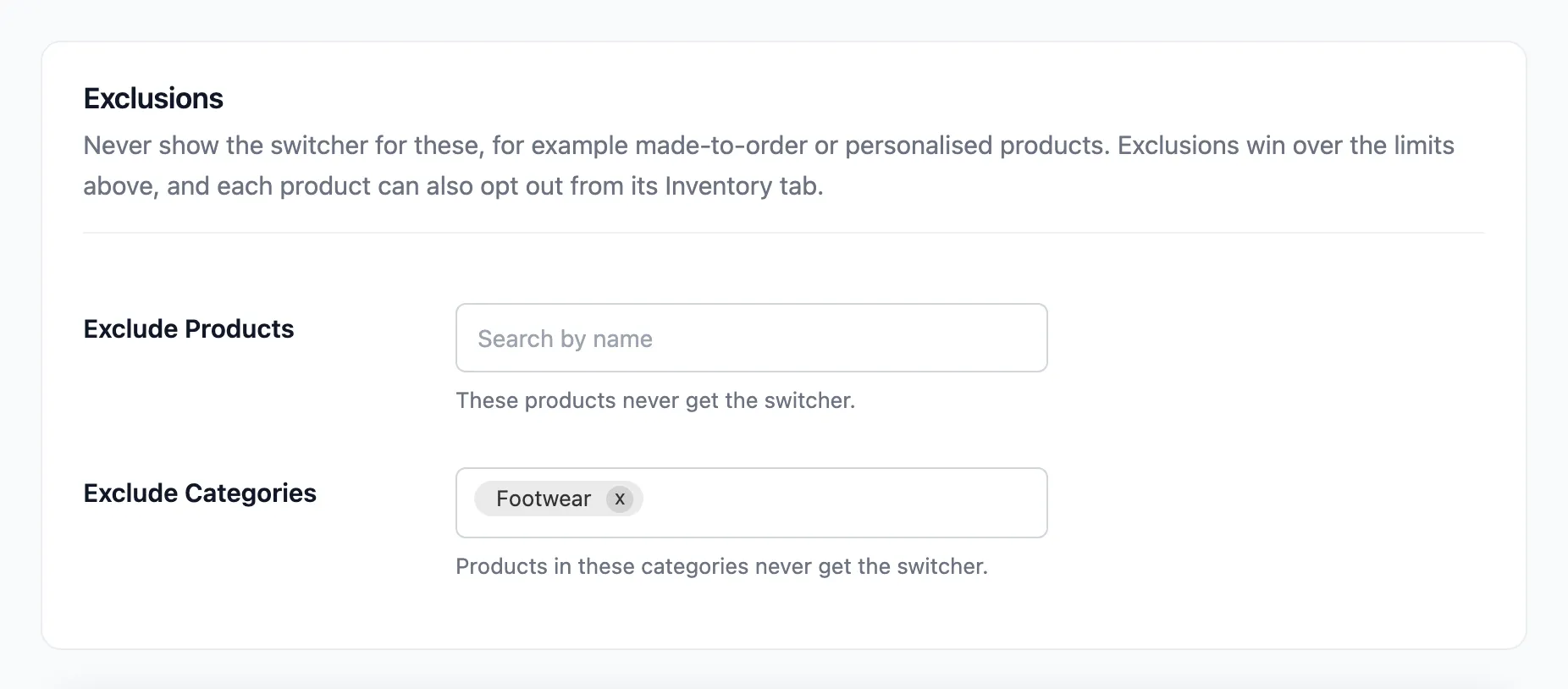
Section titled “Step 2: Exclude a category”Open Configuration → Rules and find Exclusions. Add the category to Exclude Categories and click Save Changes. The demo excluded Footwear.
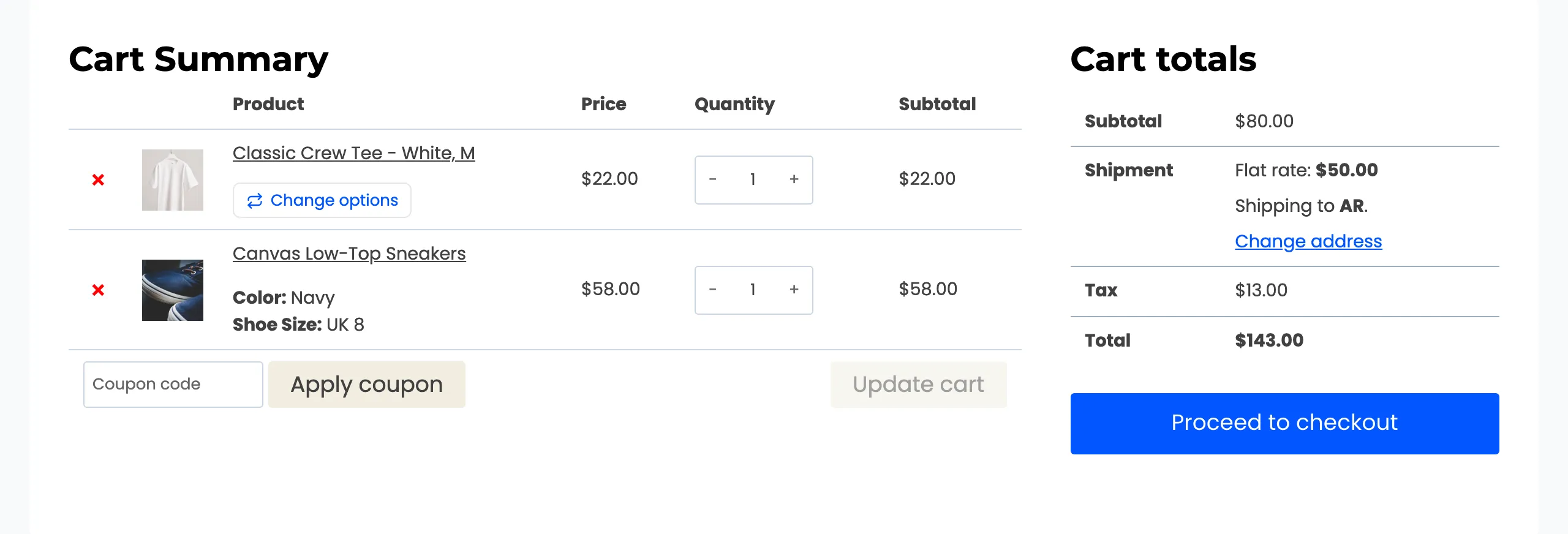
The sneakers, in Footwear, lost their button. The tee kept its.
Step 3: Or exclude one product
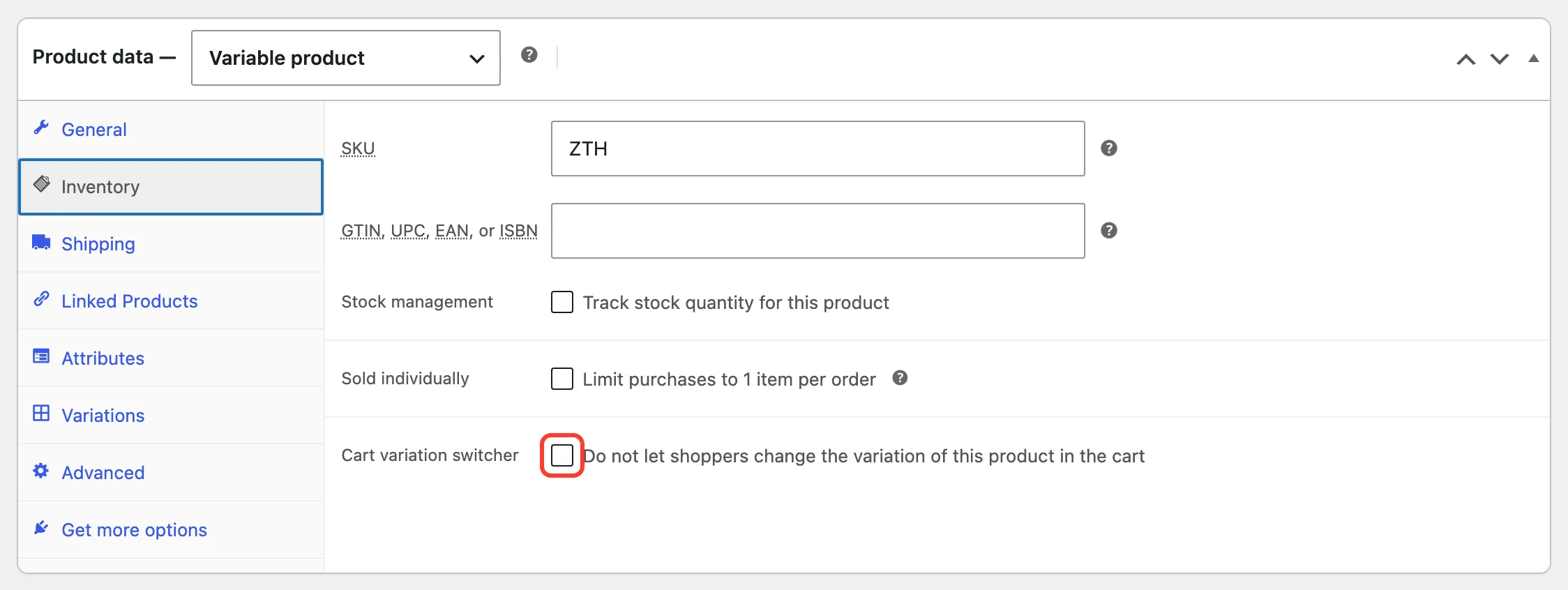
Section titled “Step 3: Or exclude one product”Open the product, then its Inventory tab. Tick Cart variation switcher, “Do not let shoppers change the variation of this product in the cart”, and click Update.
Step 4: Check the cart
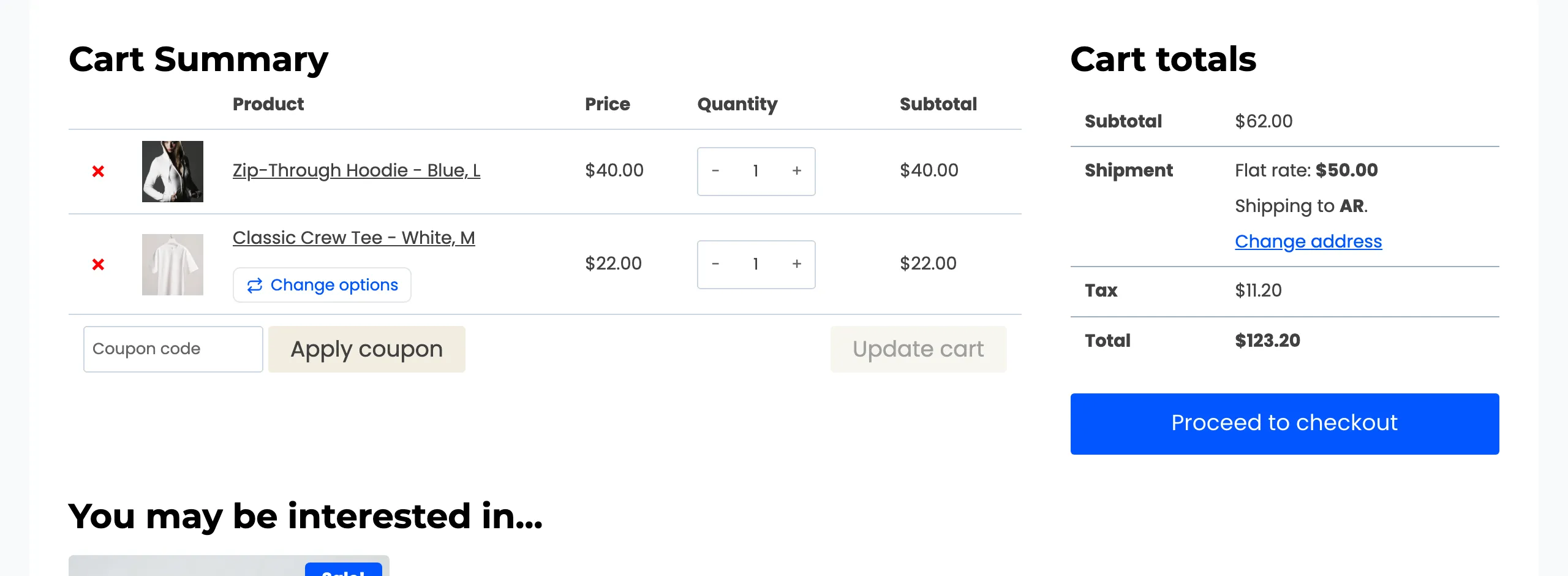
Section titled “Step 4: Check the cart”On the demo, the Zip-Through Hoodie was opted out this way. It has no button. The tee next to it does.
Good to know
Section titled “Good to know”- Exclusions win over Limit to Products.
- Shoppers can still remove the item and add another option from the product page as usual.