

Installing and Activating Cart Variation Switcher
Every DevDiggers WooCommerce plugin installs the same way. You upload the plugin zip, activate it, and confirm WooCommerce is running. This guide covers both install methods and how to check the plugin is active.
Before you start
Section titled “Before you start”Check that your store meets the plugin’s requirements. Each plugin lists its own minimum versions on its product page and in its Introduction doc. Across the range, the general floor is:
- WordPress 5.5 or newer.
- WooCommerce 5.0 or newer.
- PHP 7.4 or newer.
WooCommerce must be active first. A DevDiggers WooCommerce plugin lists WooCommerce as required and will not run without it.
Install from a downloaded zip
Section titled “Install from a downloaded zip”Use this method for a plugin you bought and downloaded from DevDiggers or CodeCanyon.
-
In WordPress admin, go to Plugins → Add New Plugin.

-
Click Upload Plugin at the top of the screen.

-
Click Choose File and select the plugin
.zipyou downloaded.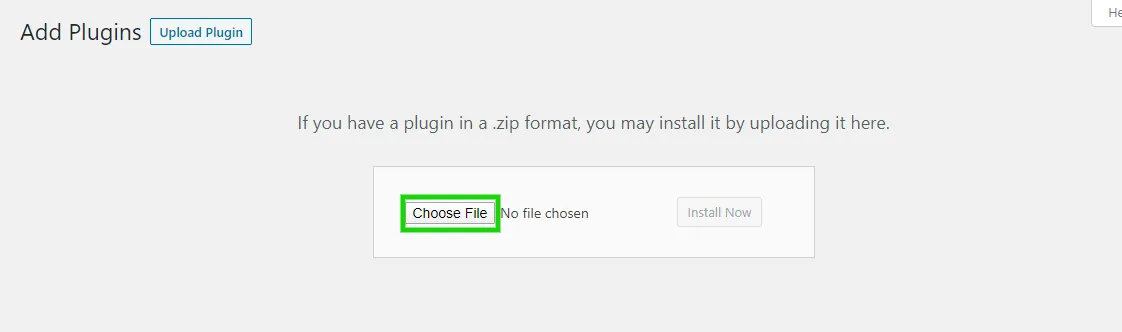
-
Click Install Now.

-
When the install finishes, click Activate Plugin.

Do not unzip the file first. WordPress expects the .zip, not the folder inside it.
Install a free plugin from the directory
Section titled “Install a free plugin from the directory”If you are installing the free version of a plugin, you can pull it straight from the WordPress plugin directory.
- Go to Plugins → Add New Plugin.
- Search for the plugin by name in the search box.
- On the plugin’s card, click Install Now, then click Activate.
Confirm the plugin is active
Section titled “Confirm the plugin is active”After activation, the plugin’s menu appears under DevDiggers Plugins in the admin sidebar. Open it to reach the plugin’s dashboard and settings.
If the menu is missing, open Plugins → Installed Plugins and check the plugin is listed and active. If WooCommerce is inactive, activate it, then reload the plugin.
Where to go next
Section titled “Where to go next”Open the plugin’s own Introduction and Configuration docs to set it up. Most DevDiggers plugins run a short setup wizard the first time you open them, which gets a working configuration live in about a minute.