How to Handle Out of Stock Options
A shopper should never switch to an option the store cannot ship. The switcher guards this in two places: in what it lets shoppers pick, and in a check before every switch.
Step 1: Find Out of Stock Options
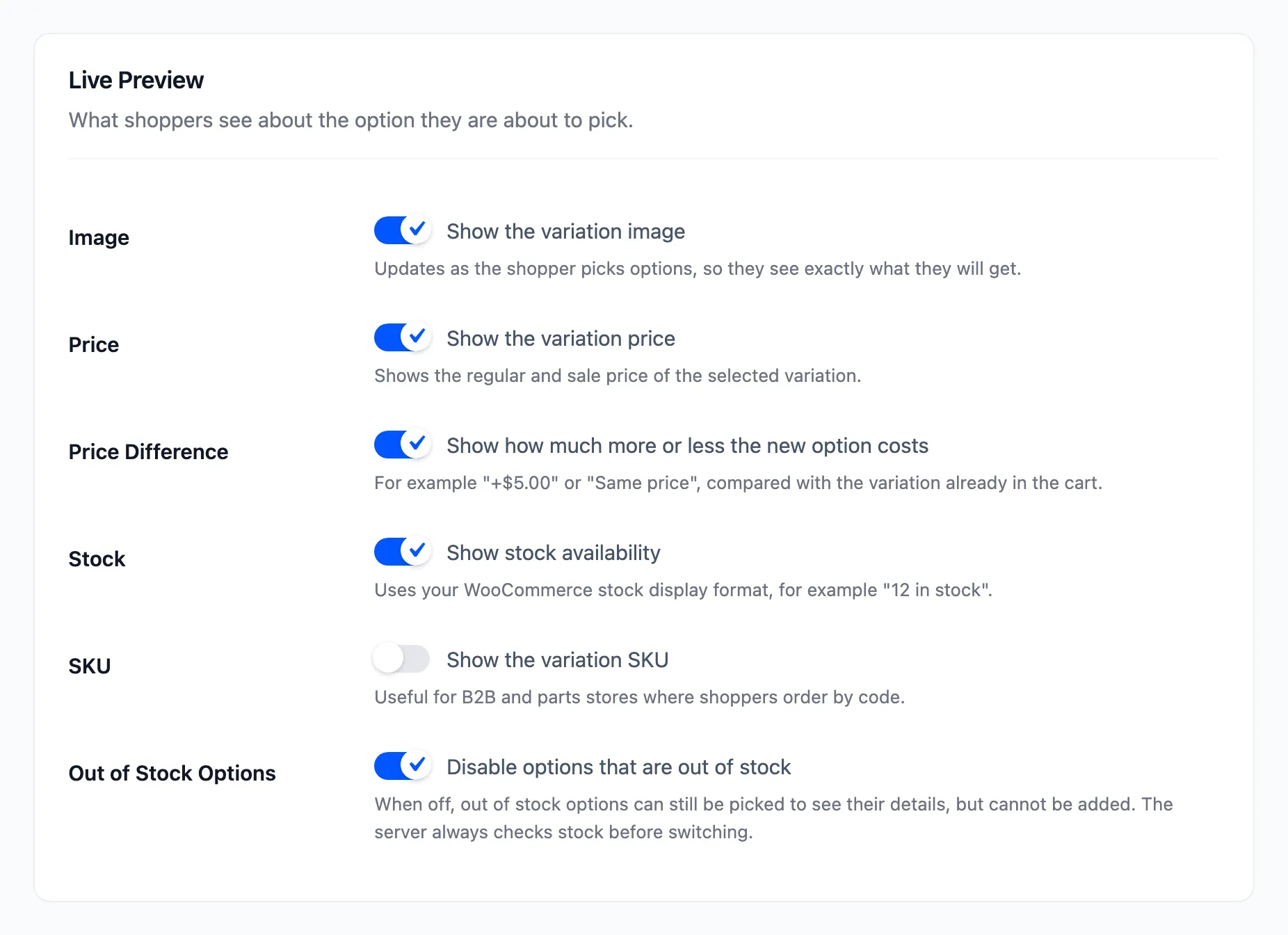
Section titled “Step 1: Find Out of Stock Options”Open Configuration → Display and find Out of Stock Options under Live Preview. It reads “Disable options that are out of stock” and is on by default.
Step 2: Keep it on to cross them out
Section titled “Step 2: Keep it on to cross them out”On the demo, the Classic Crew Tee in Rose and M is out of stock. With M chosen, Rose is crossed out and cannot be pressed.
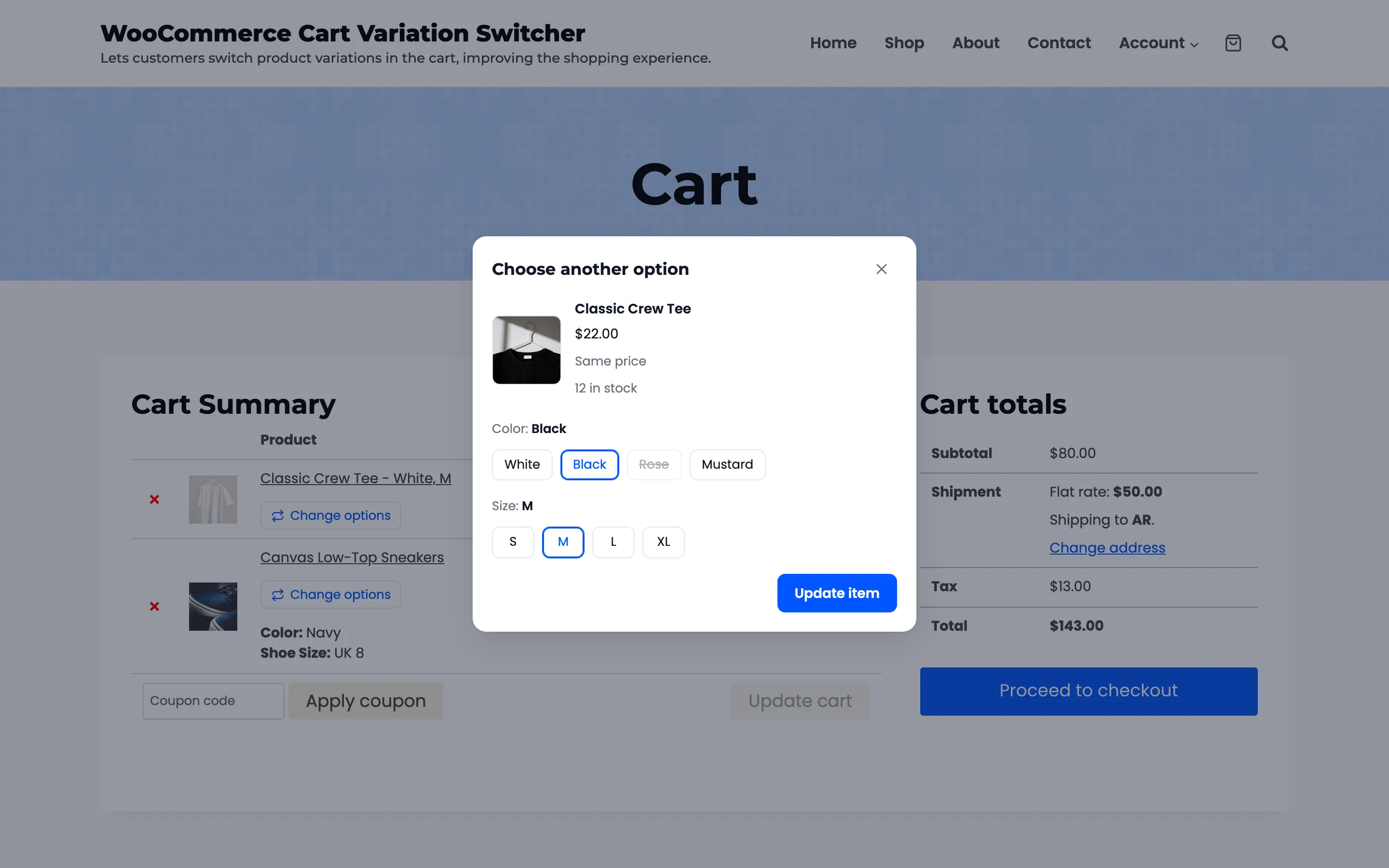
Rose is crossed out only while M is chosen. Pick S and it comes back, because Rose in S is in stock.
Step 3: Or turn it off to show their details
Section titled “Step 3: Or turn it off to show their details”With the setting off, Rose can be picked. The popup shows its price and SKU and says Out of stock, and Update item stays greyed out.
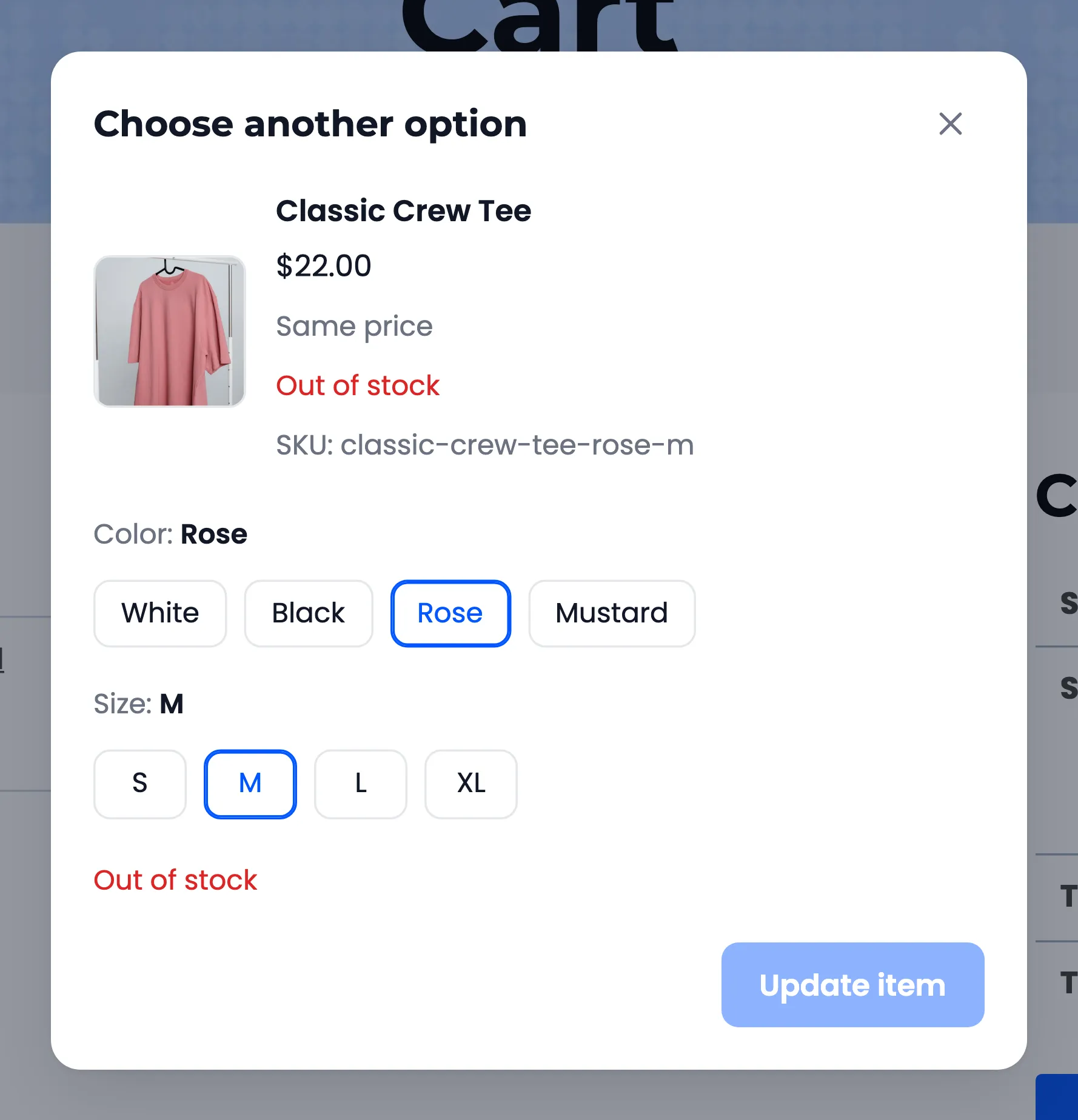
This suits stores whose shoppers want to see an option before it is back.
Step 4: Rely on the stock check
Section titled “Step 4: Rely on the stock check”Before any switch, the store checks the stock again. It counts the quantity of the item being switched, plus any of the same option already in another line.
The demo cart held three Black M tees. White in S has 3 in stock and one was already in the cart, so the switch was refused.
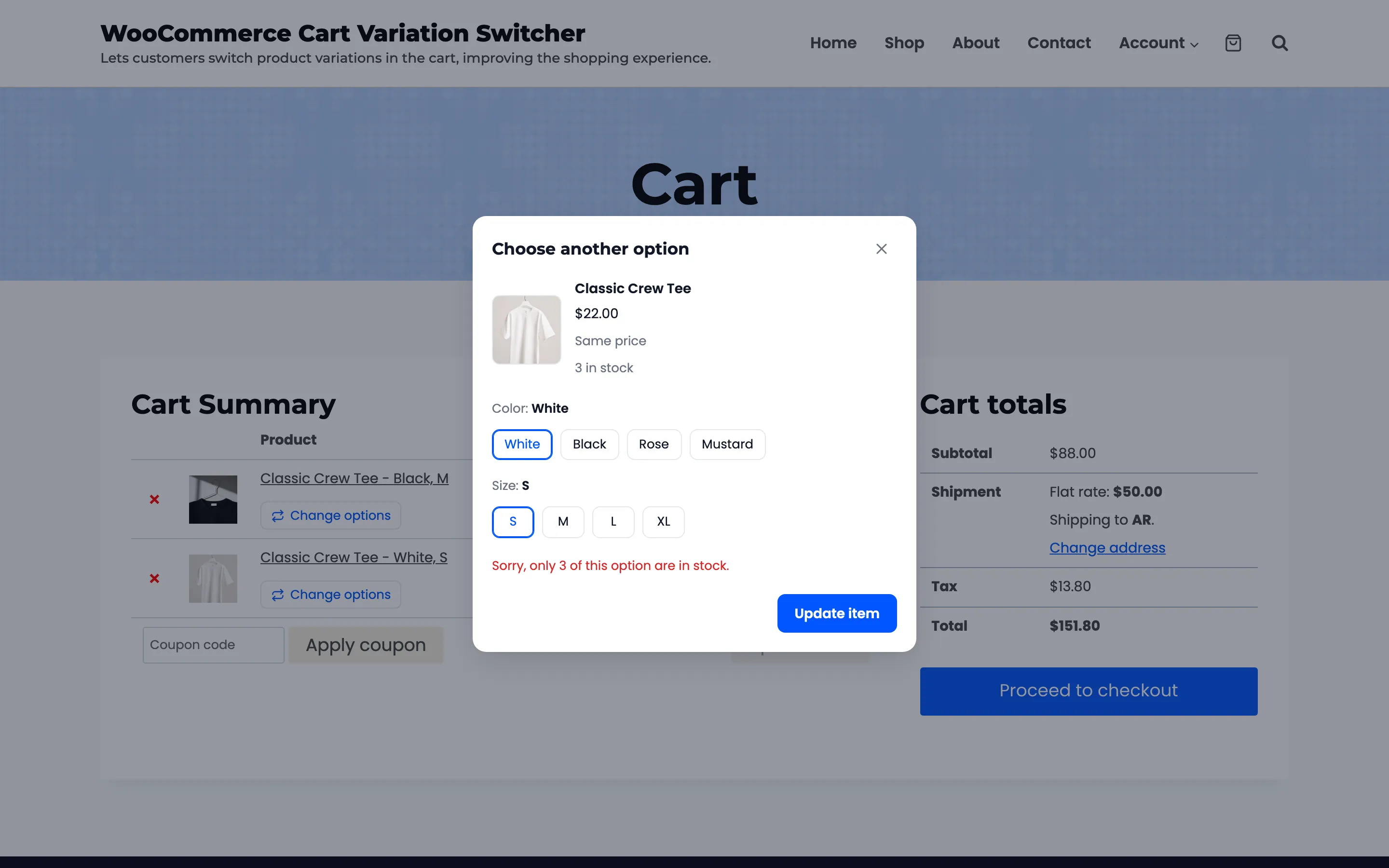
Nothing in the cart changed. The shopper can lower the quantity first, or pick another option.
Combinations that do not exist
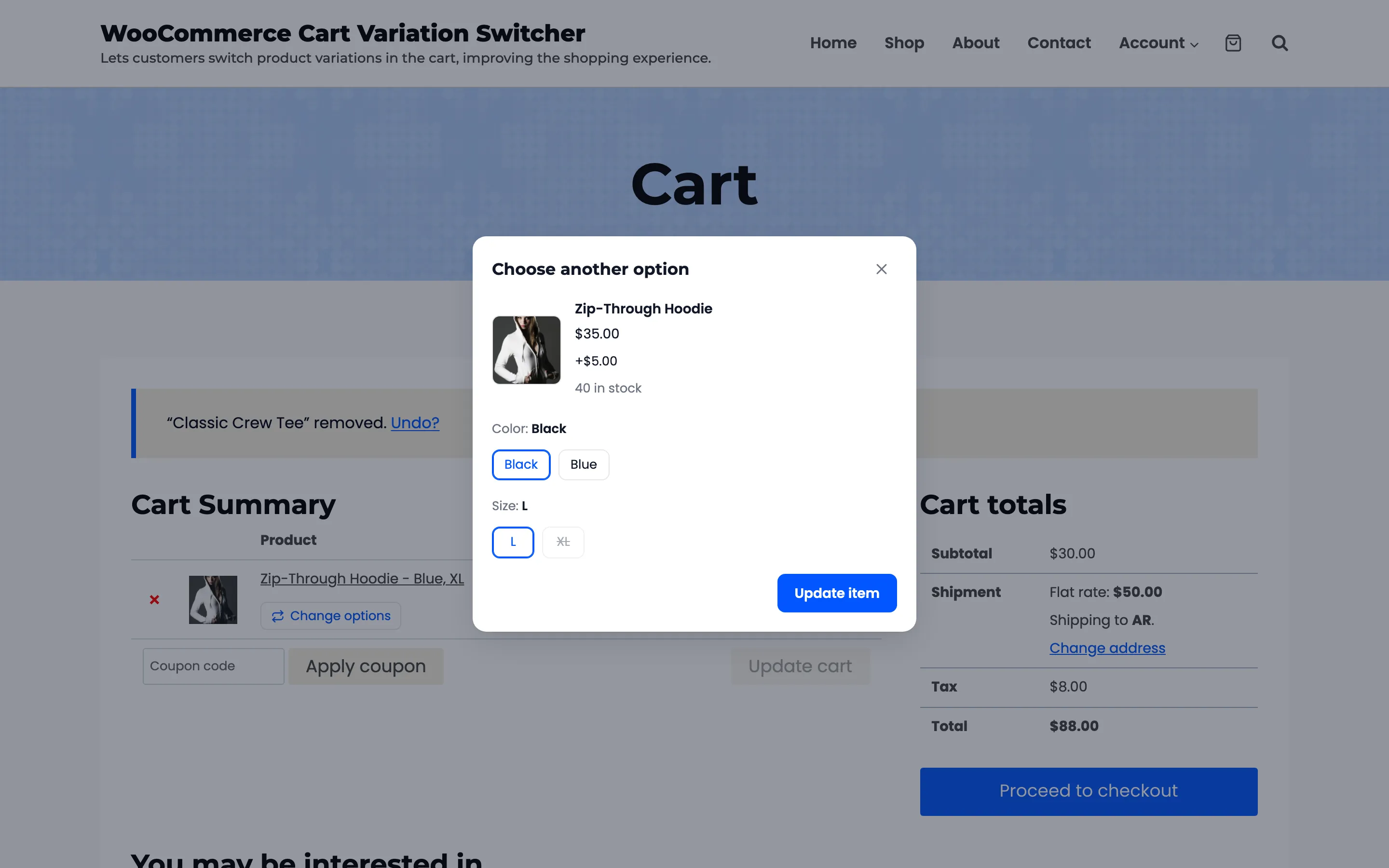
Section titled “Combinations that do not exist”The same crossing out covers options a product never offered. The demo’s Zip-Through Hoodie has no Black in XL, so with XL in the cart, Black is crossed out.
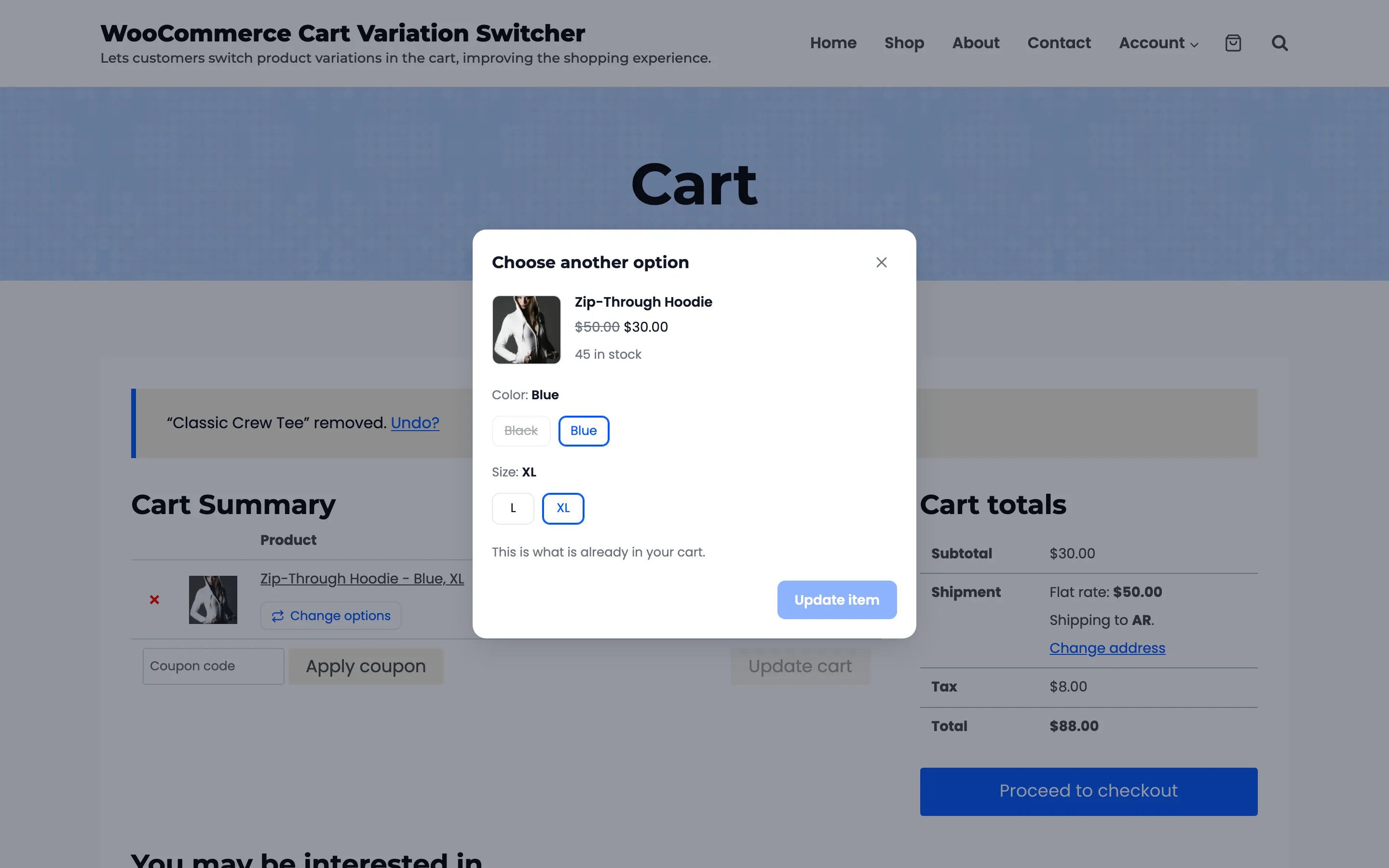
Pick L first, and Black can be chosen. Black in L costs $35.00, so the popup shows +$5.00.