

General Settings
The General tab decides whether the switcher runs, where shoppers see it, and whether the dashboard records anything. Open DevDiggers Plugins → Cart Variation Switcher → Configuration → General.
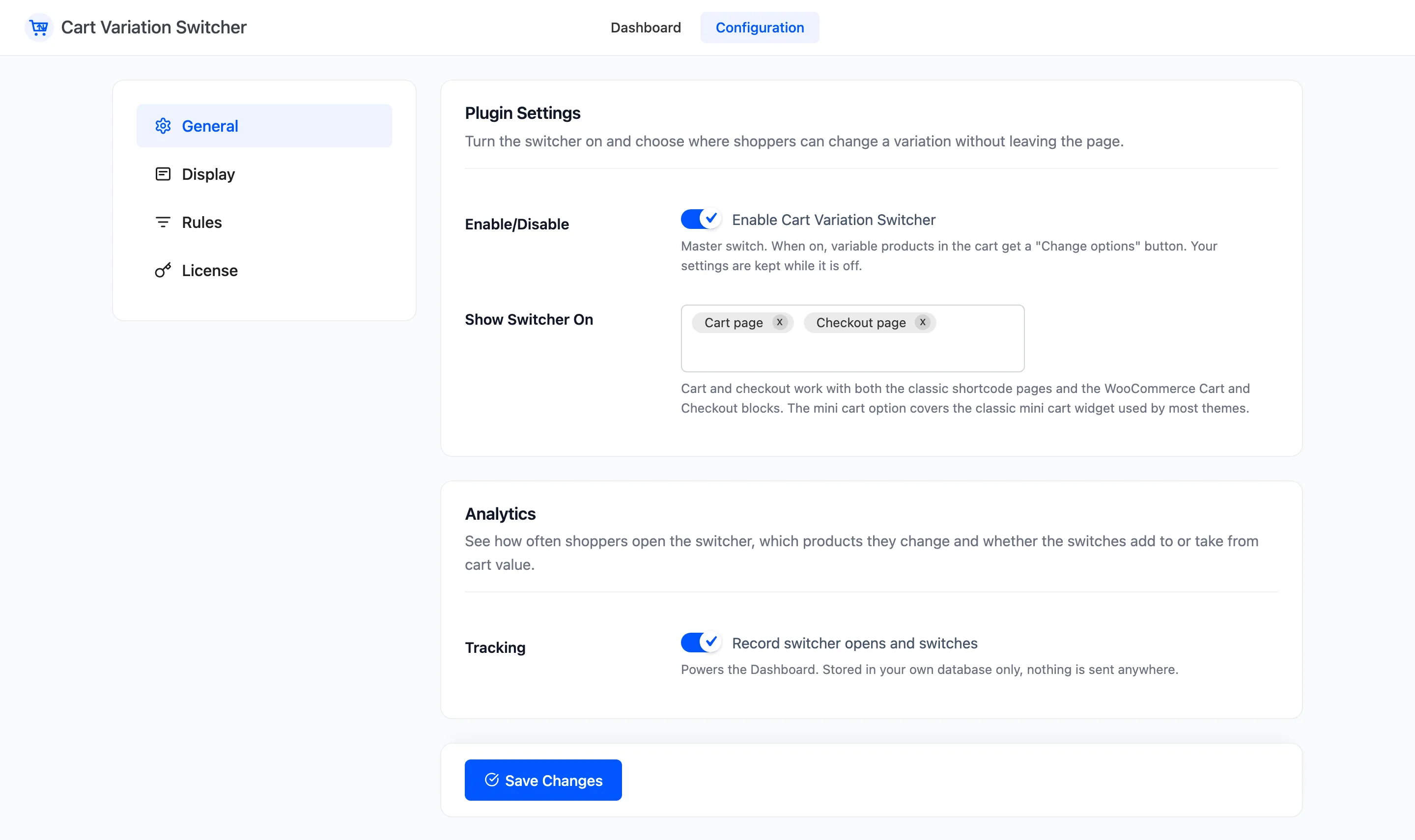
Plugin Settings
Section titled “Plugin Settings”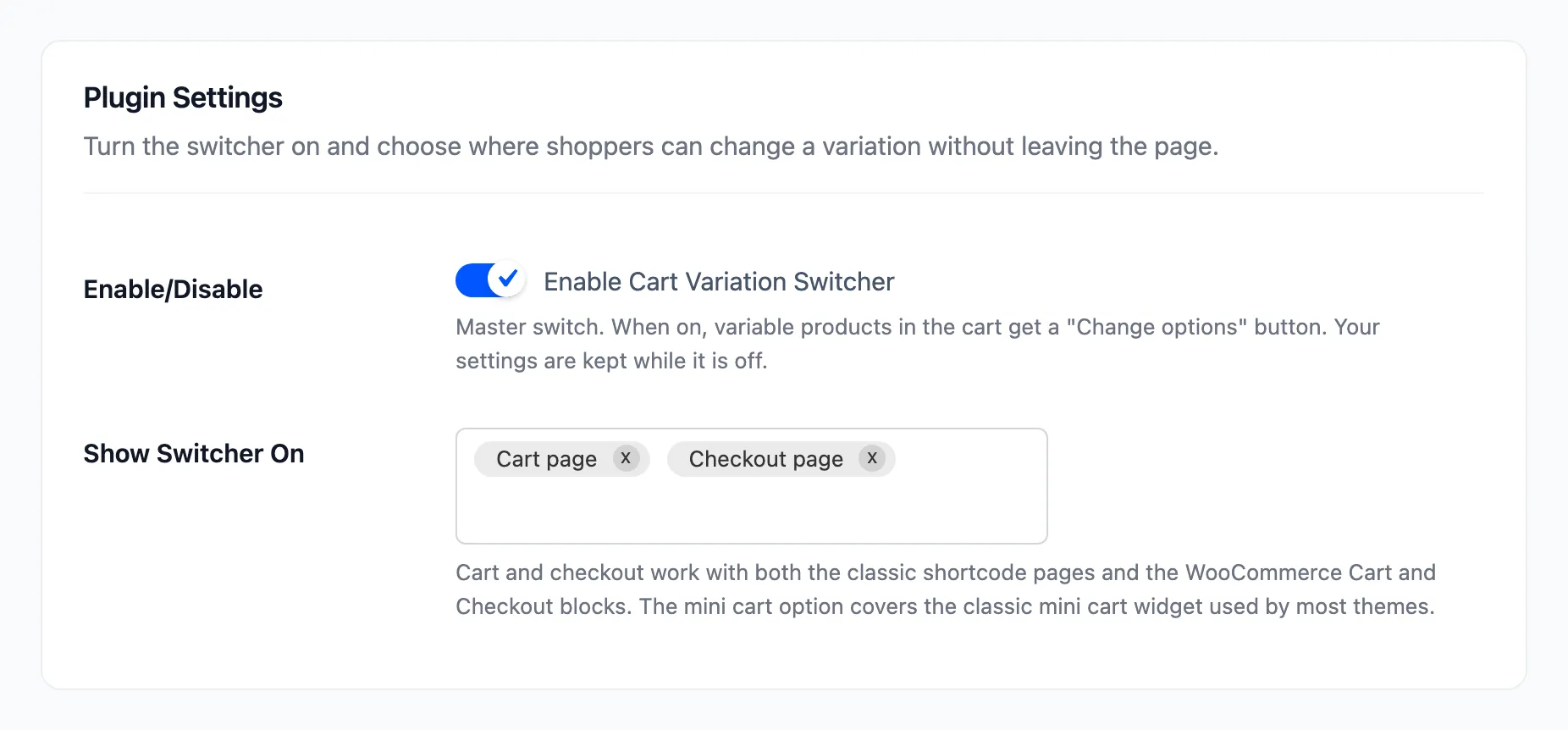
- Enable/Disable: “Enable Cart Variation Switcher”. The master switch. Off on a new install until you tick it here or walk through the setup wizard. Your other settings are kept while it is off.
- Show Switcher On: The pages that get the Change options button. Default Cart page and Checkout page. Mini cart widget adds it to the theme’s header or side cart.
Cart page and Checkout page cover both the classic shortcode pages and the WooCommerce Cart and Checkout blocks. The mini cart option covers the classic mini cart, which is the one most themes show in their header.
Leave Show Switcher On empty and the switcher is on but shown nowhere. The dashboard warns about that.
Analytics
Section titled “Analytics”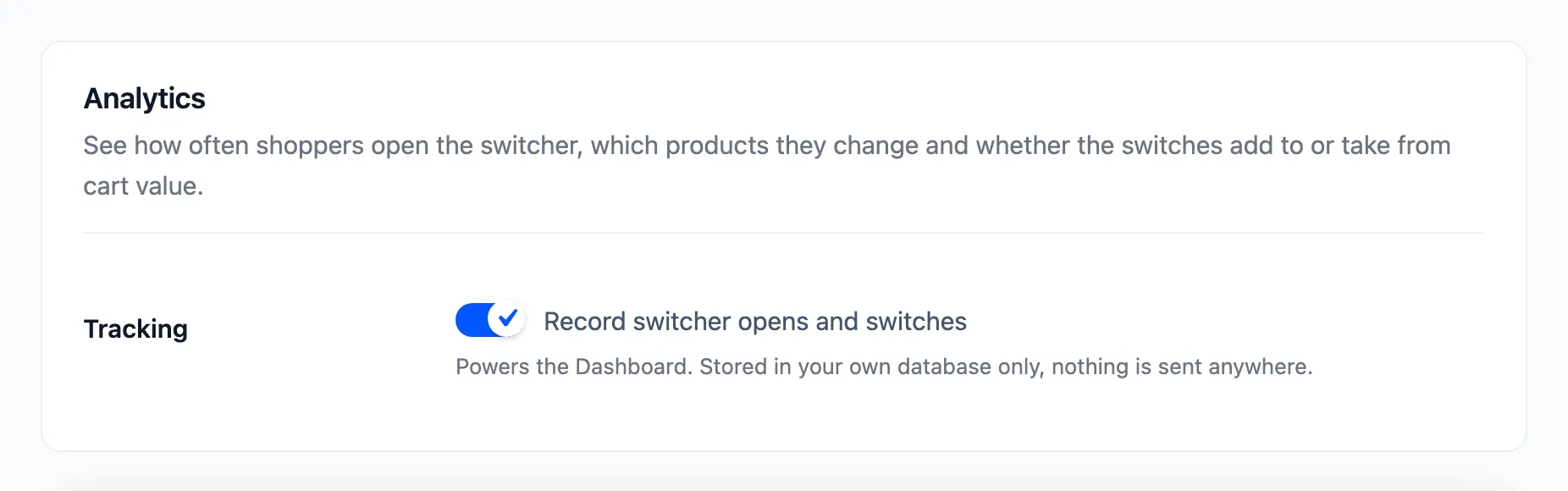
- Tracking: “Record switcher opens and switches”. On by default. It powers the dashboard. The data stays in your own database, and nothing is sent anywhere.
With tracking off, switching keeps working and the dashboard keeps what it already has, but adds nothing new. See How to Turn Off Switcher Tracking.
Click Save Changes at the bottom of the tab.
How the mini cart option loads
Section titled “How the mini cart option loads”With Mini cart widget picked, the switcher’s small script and style load on every page, because the header cart is on every page. Without it, they load on the cart and checkout pages only.