

How to Change the Switcher Texts and Color
The default wording is plain, but your store may say “size” more than “options”. Three texts and one color change it.
Step 1: Open Texts and Color
Section titled “Step 1: Open Texts and Color”Open Configuration → Display and scroll to Texts and Color.
Step 2: Type your own texts
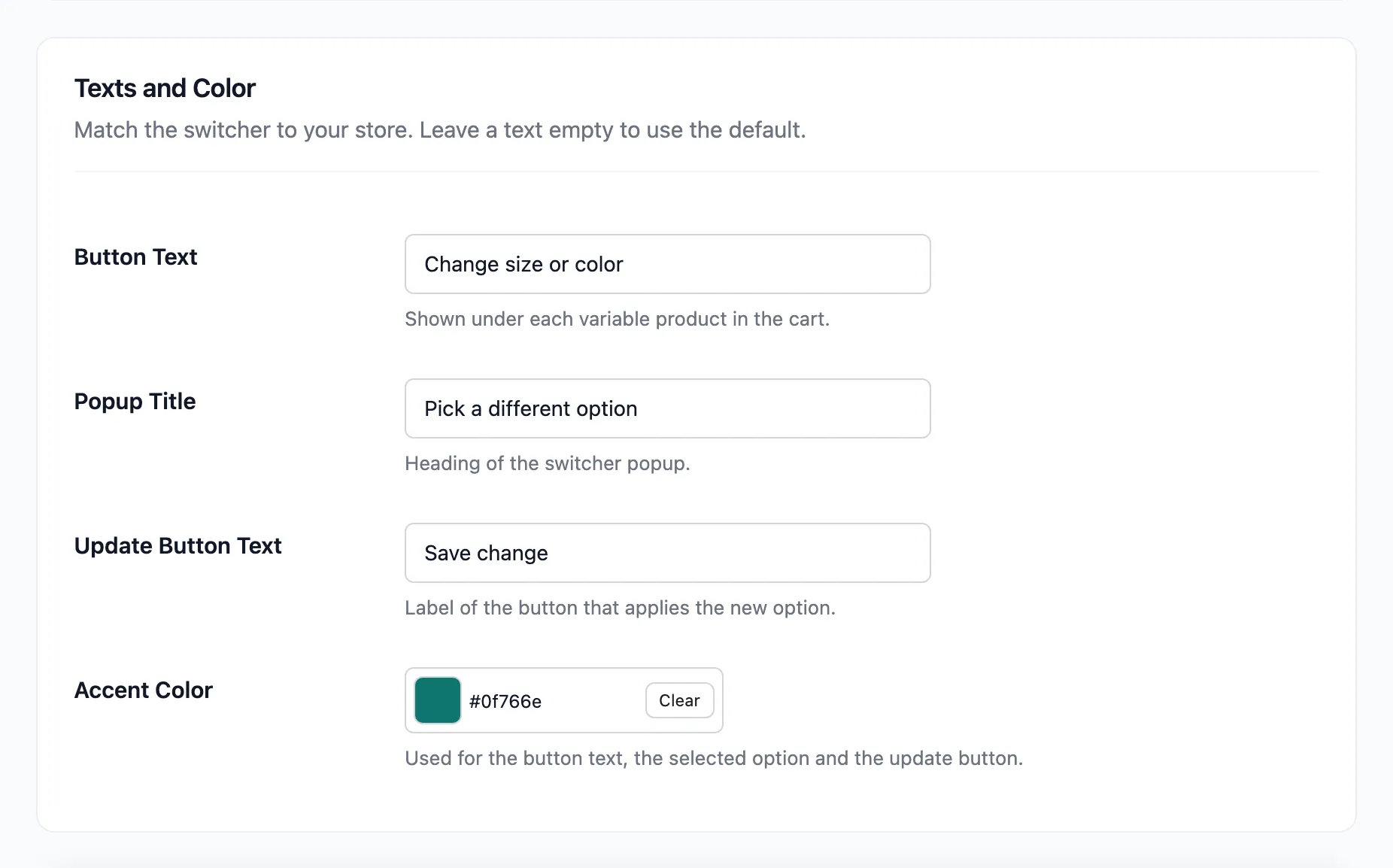
Section titled “Step 2: Type your own texts”- Button Text: Under each item. Default Change options.
- Popup Title: Default Choose another option.
- Update Button Text: Default Update item.
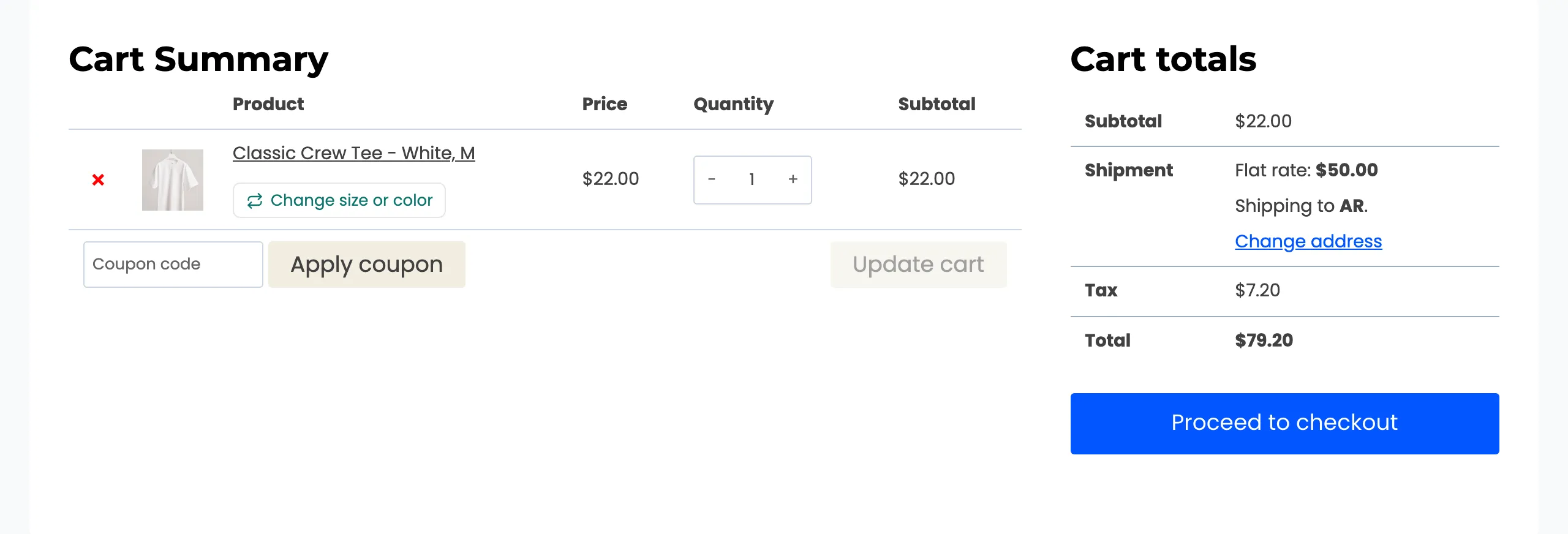
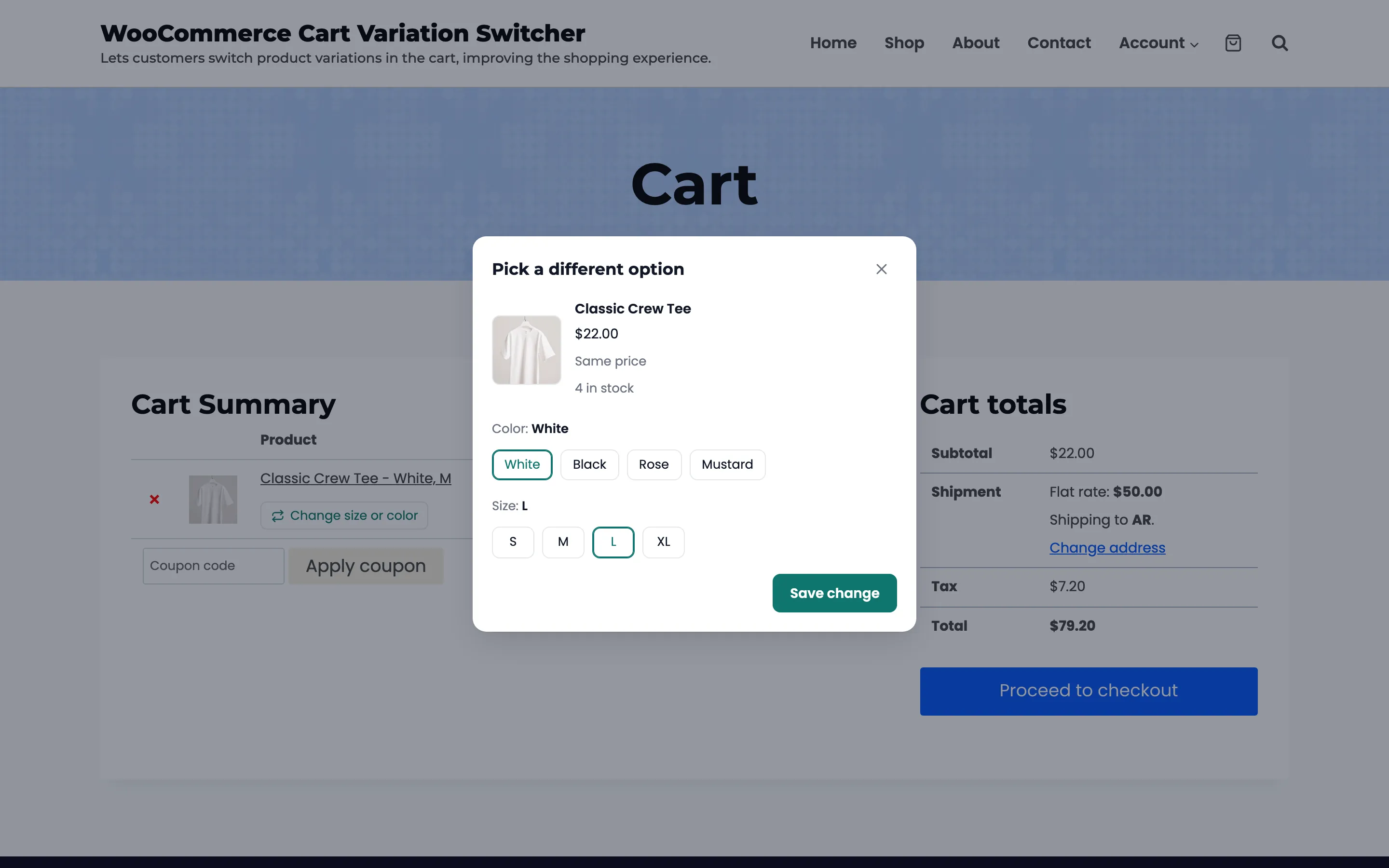
The demo used “Change size or color”, “Pick a different option” and “Save change”.
Step 3: Pick an accent color
Section titled “Step 3: Pick an accent color”Pick a color in Accent Color. It is used for the button text, the selected option’s outline and the update button. The demo used teal, #0f766e. Click Save Changes.
Step 4: Check the cart
Section titled “Step 4: Check the cart”The button under each item now reads your text, in your color.
The popup uses the new title, the new color on the selected options and the new update button.
Good to know
Section titled “Good to know”- Leave a text empty and save to go back to its default.
- Other messages, such as Item updated. and the stock messages, come from the plugin’s translation file. Translate them with any translation plugin.
- A dark accent color keeps the update button’s white text readable.