

How to Set Up the Desktop QR Code (Pro)
Augmented reality needs a camera pointed at the room, which a desktop browser does not have. This is the bridge: the desktop shopper scans a code and carries on with the product on their phone.
Go to DevDiggers Plugins → Product View in AR → Configuration → QR Code.
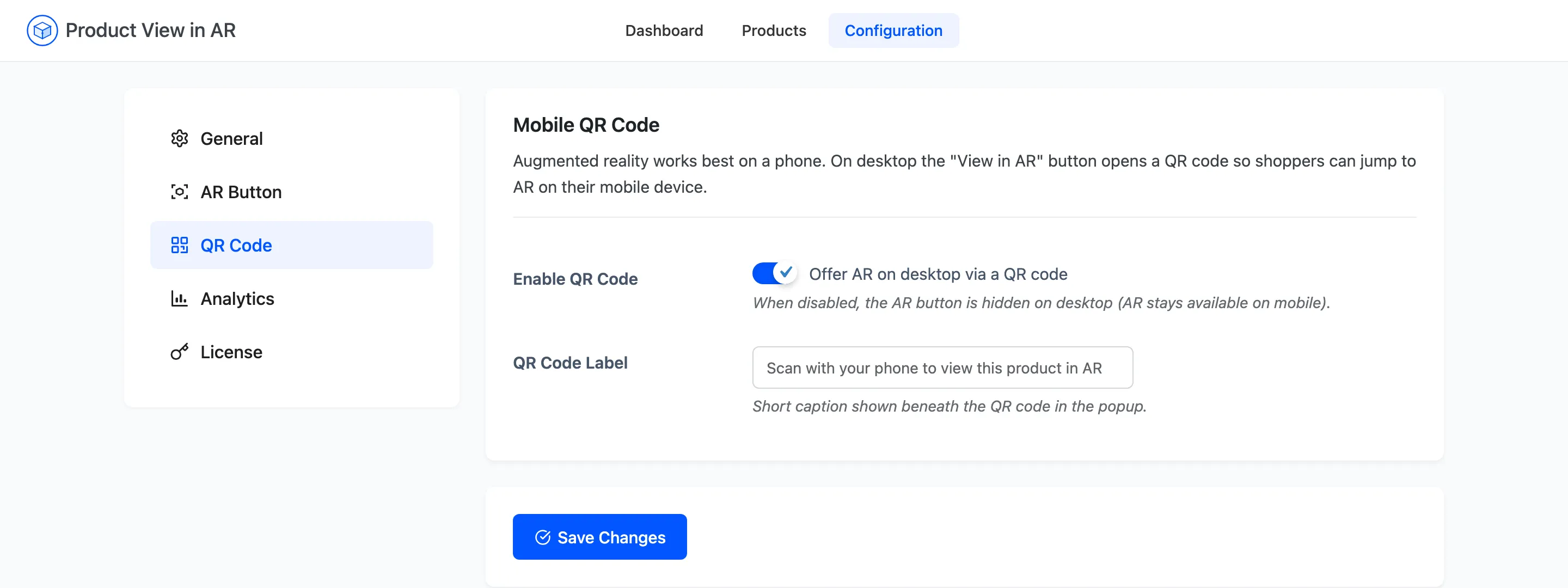
Step 1: Turn the hand-off on
Section titled “Step 1: Turn the hand-off on”Tick Offer AR on desktop via a QR code.
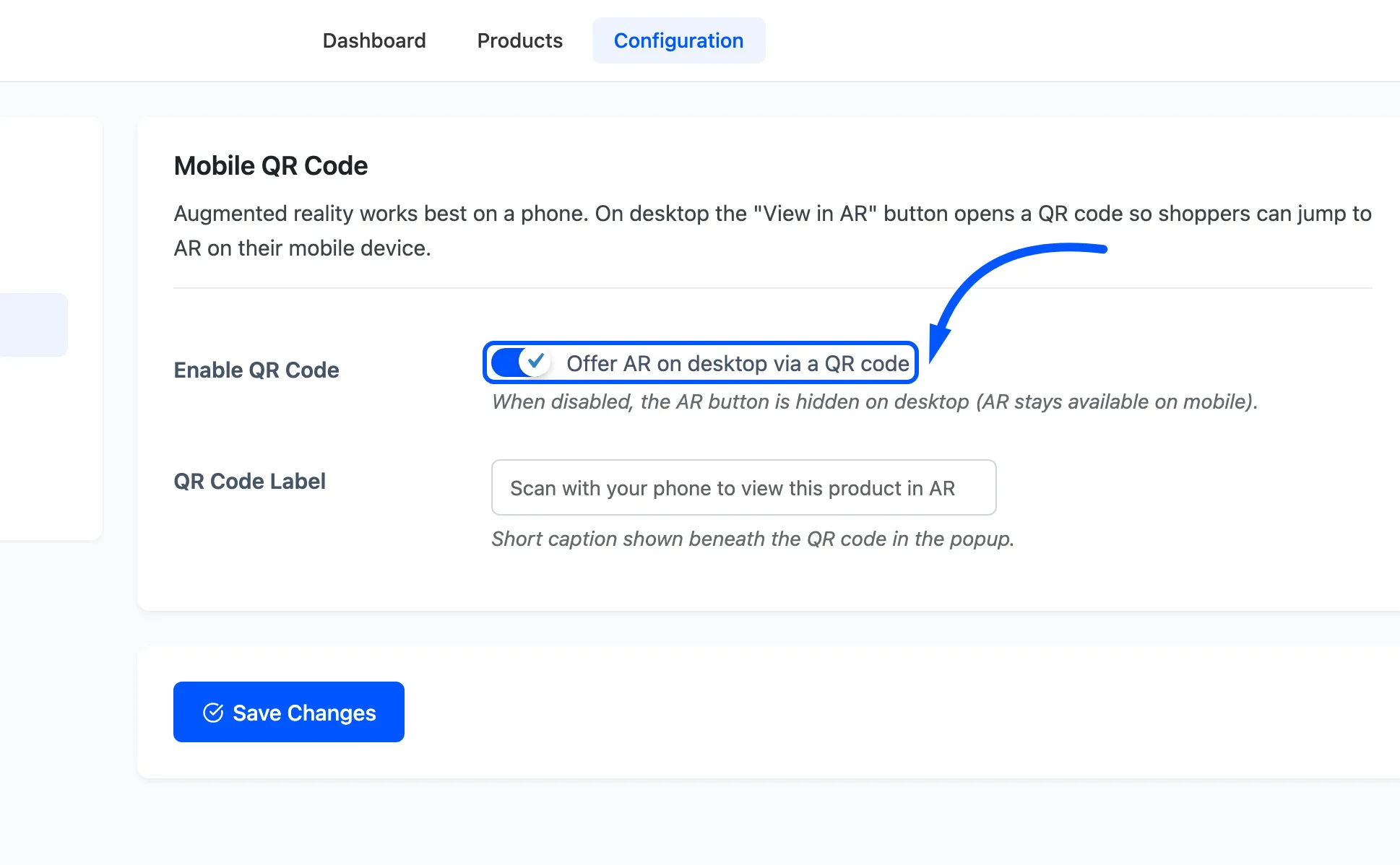
It is on by default, and the setup wizard asks about it too.
Know what turning it off does. It does not disable AR. It hides the AR button on desktop entirely, leaving the 3D viewer as the whole desktop experience, while phones are unaffected. That is a deliberate choice: a button that opens nothing costs more trust than it earns.
Step 2: Write the caption
Section titled “Step 2: Write the caption”QR Code Label is the line under the code. It defaults to Scan with your phone to view this product in AR.
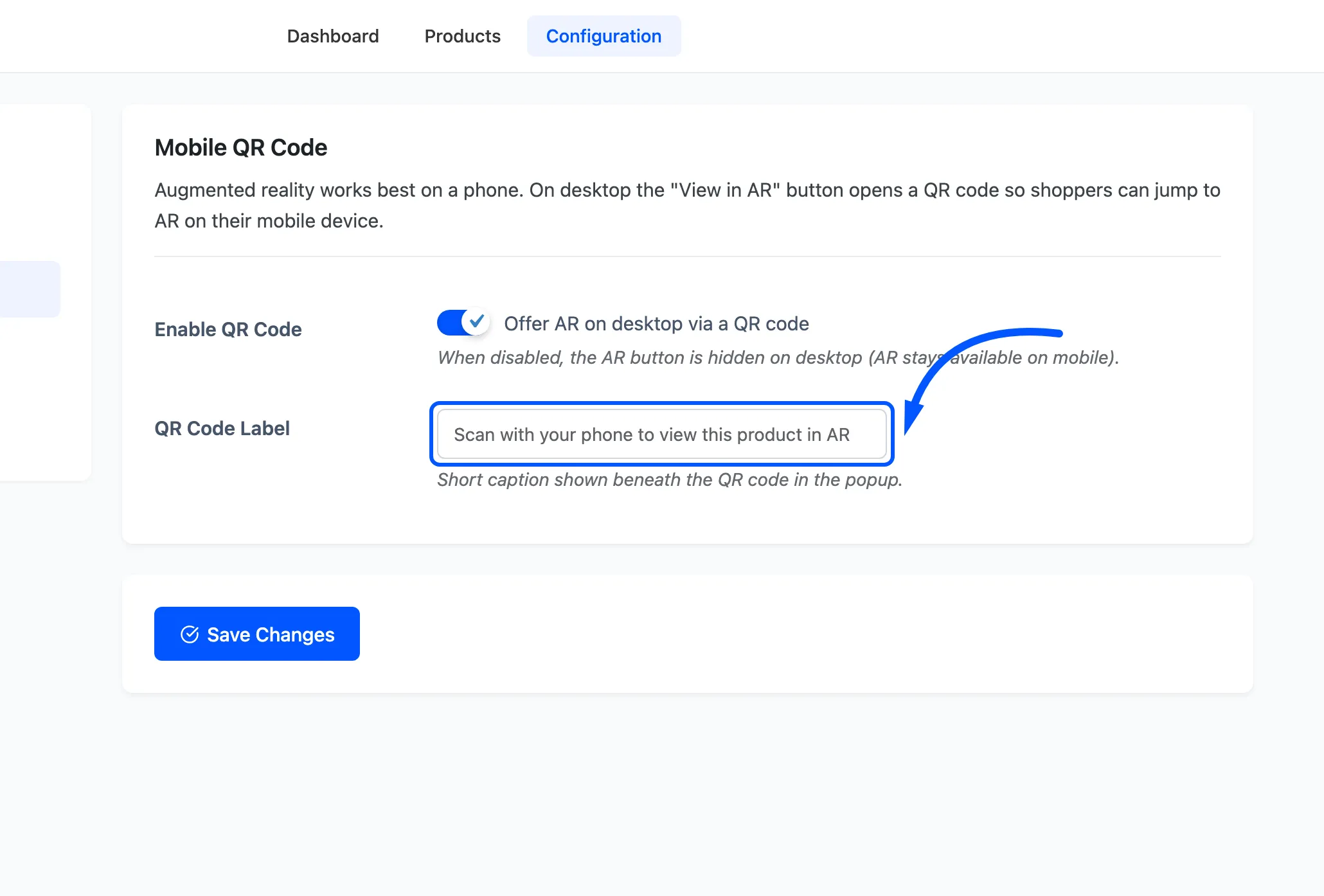
The popup’s heading is fixed at View in your space, so this field is the only line in your own voice. Keep it to one short sentence. It sits under a square of code on a small card, and anything longer wraps to three lines.
Say what happens rather than what to do, if you can. “Scan to stand this in your own room” tells a first-time AR user why picking up their phone is worth the effort.
Step 3: Save and open a product on desktop
Section titled “Step 3: Save and open a product on desktop”Press Save Changes, then open a product that has a model in a desktop browser.
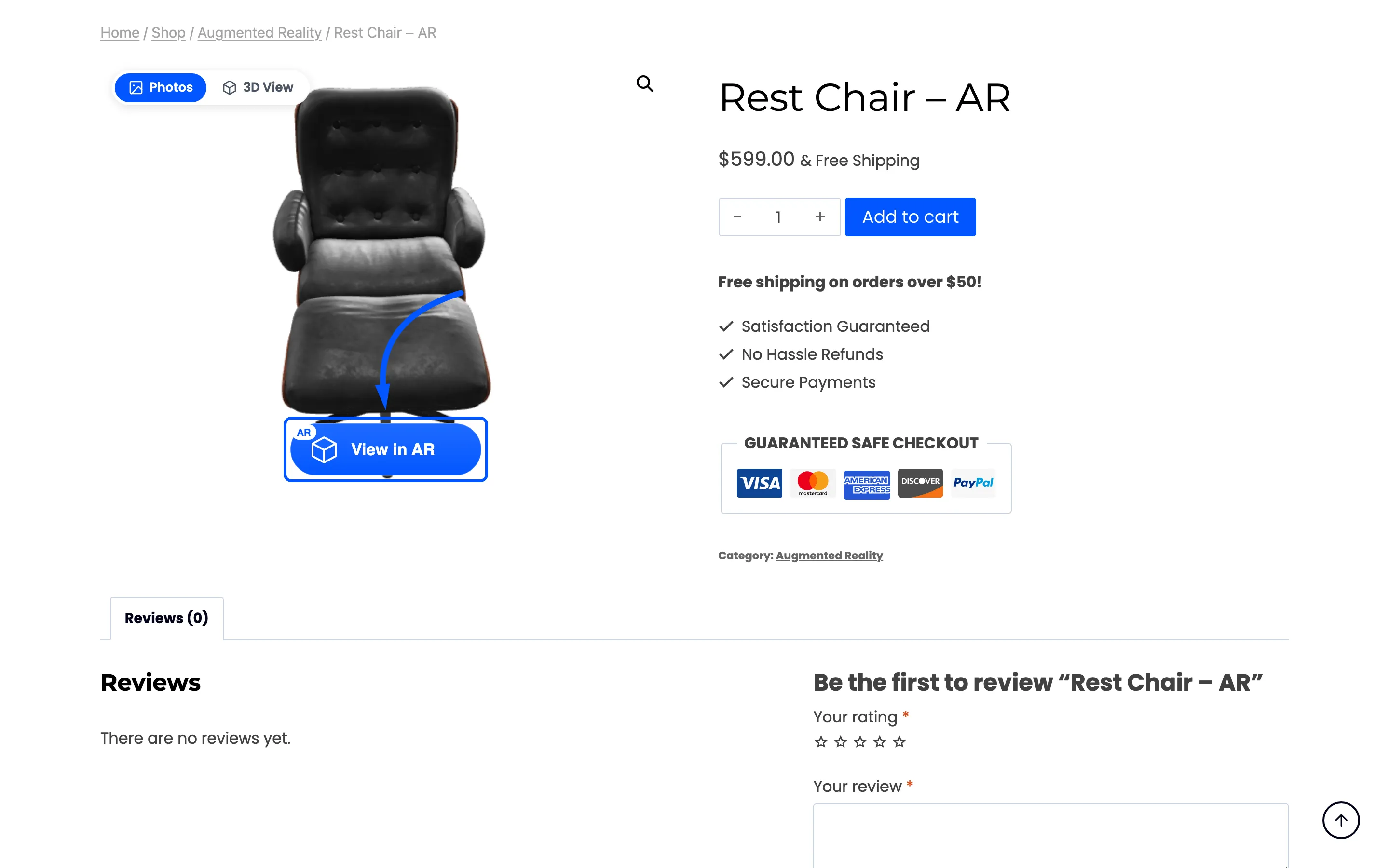
Press View in AR. The popup opens.
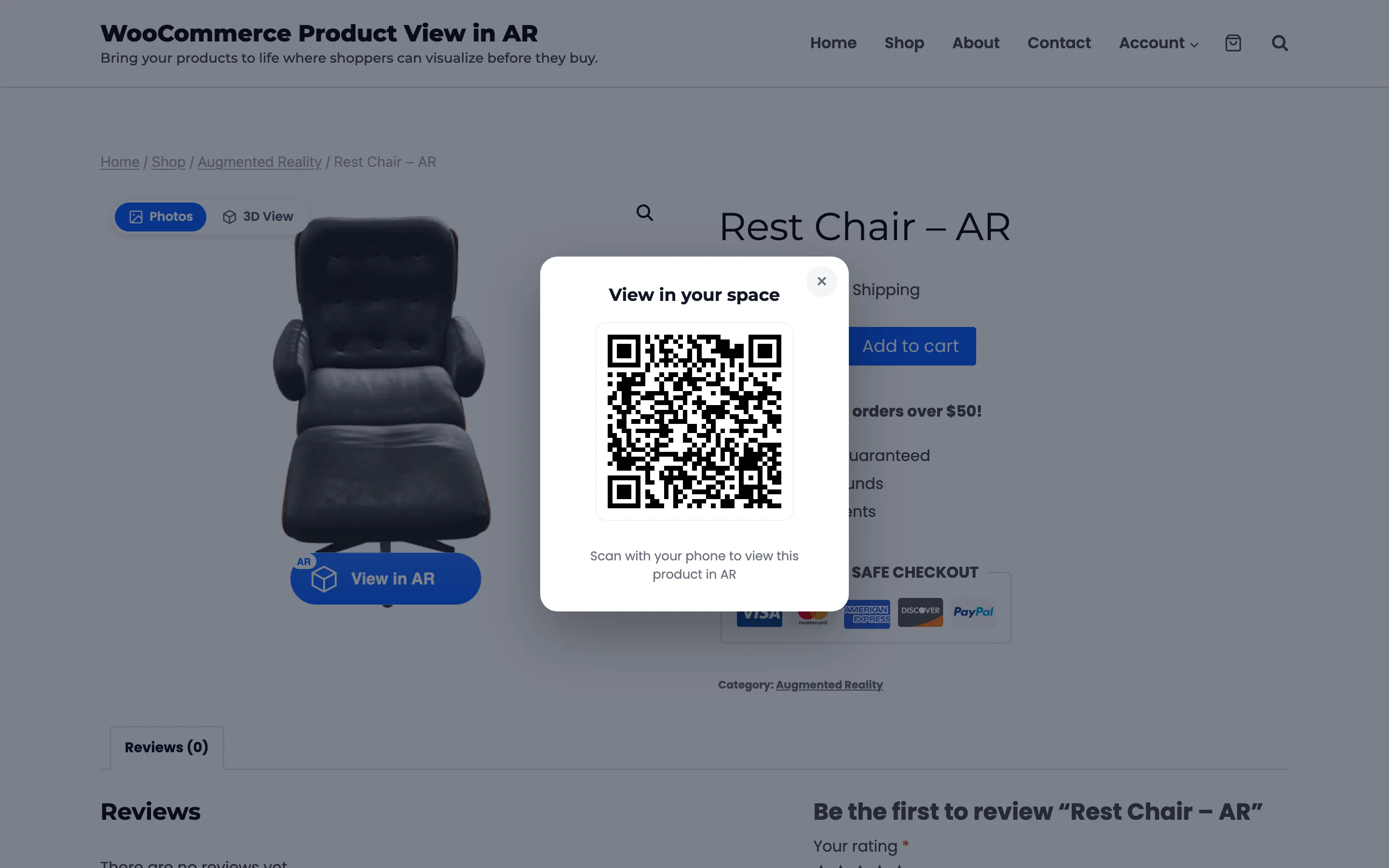
Check three things. The code renders, and your caption reads well at that size. The popup closes on the X, on the dimmed background and with the Escape key.
This is the whole desktop path in one gallery, with no page reload anywhere in it:

Step 4: Scan it with a phone
Section titled “Step 4: Scan it with a phone”Point your phone’s camera at the code. It should open this product’s page, because the code encodes the product’s own URL rather than a generic link. That is what makes the feature need no per-product setup.
On the phone, press View in AR there.
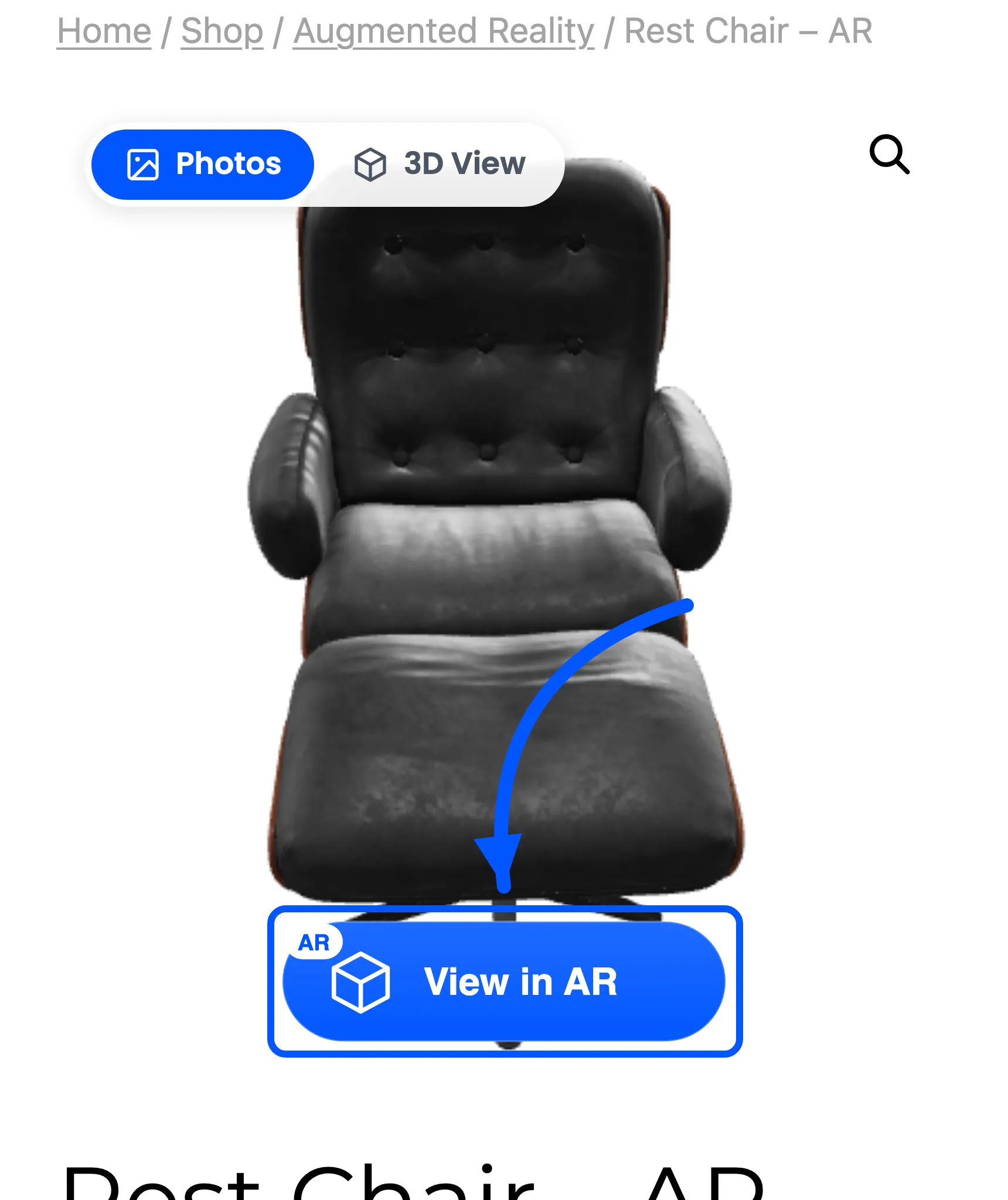
That opens the phone’s own AR viewer, which is the end of the hand-off and the point of the whole feature.
How the hand-off shows up in your numbers
Section titled “How the hand-off shows up in your numbers”A scan is not recorded as an AR launch. The scan happens in the phone’s camera app, outside your site. What gets recorded is the AR launch on the phone afterwards, as a mobile view.
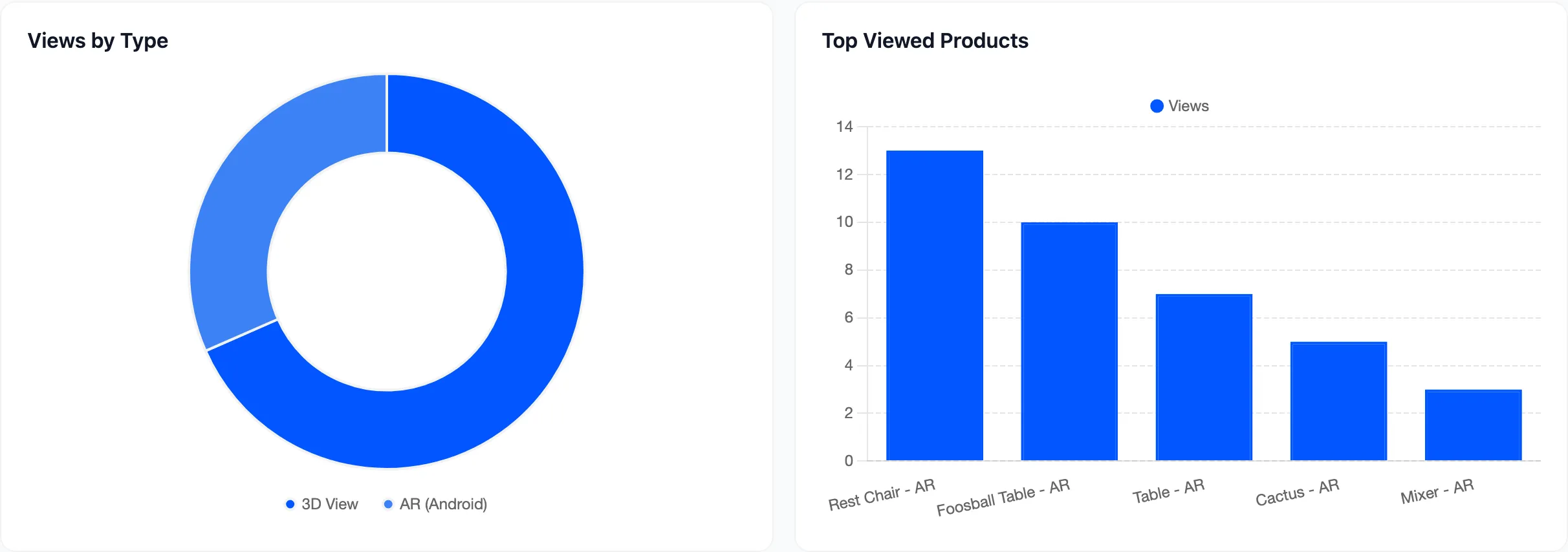
So the way to see the hand-off working is the shape of Views by Type. AR slices growing while desktop 3D views stay flat means desktop shoppers are moving to their phones. If AR stays at nothing while 3D climbs, the bridge is not being crossed, and the caption is the first thing to rewrite.