

General Settings
The General tab is two sections: the switch that makes the feature exist, and the behaviour of the 3D viewer behind it.
Go to DevDiggers Plugins → Product View in AR → Configuration → General.
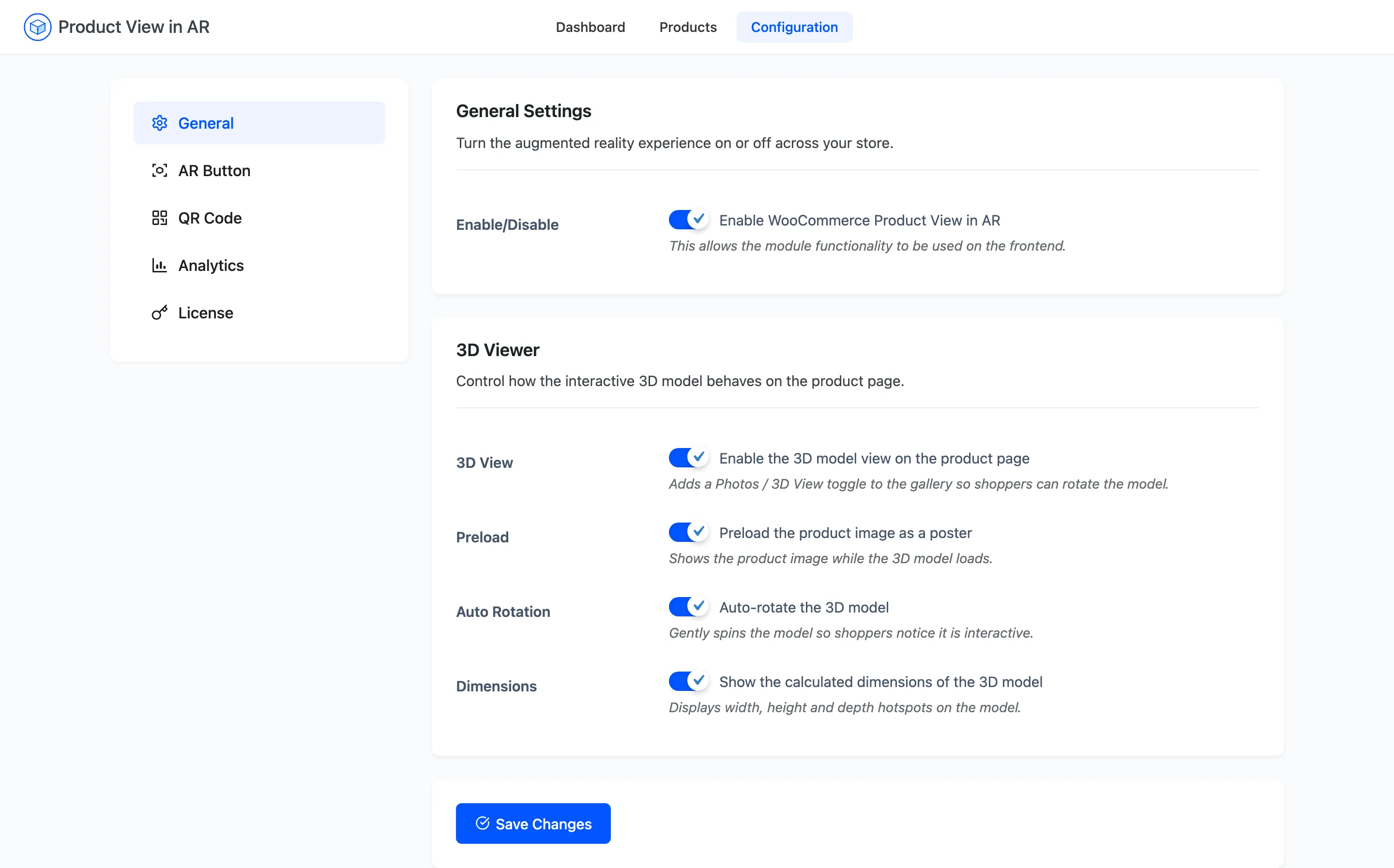
General Settings
Section titled “General Settings”Enable/Disable
Section titled “Enable/Disable”Enable WooCommerce Product View in AR: The master switch. Off, and the plugin adds nothing to any product page: no toggle, no AR button, no QR code, whatever each product has attached.
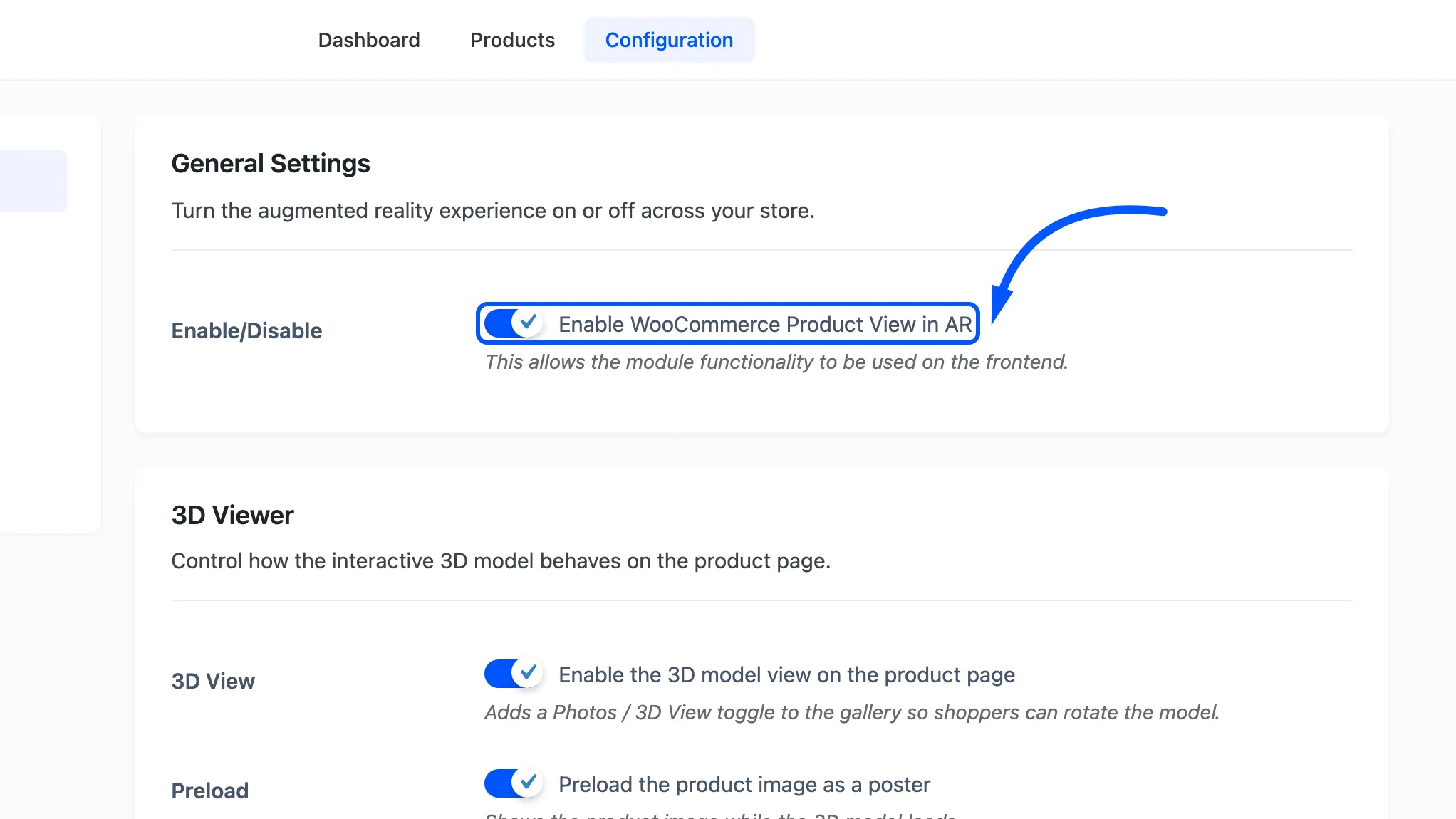
The setup wizard turns it on. Turning it off is the clean way to pull the feature from the storefront for a while without deactivating the plugin or detaching any models.
3D Viewer
Section titled “3D Viewer”Four settings, and the first one gates the visible control.
3D View
Section titled “3D View”Enable the 3D model view on the product page. Adds the Photos / 3D View toggle to the gallery. Default on.
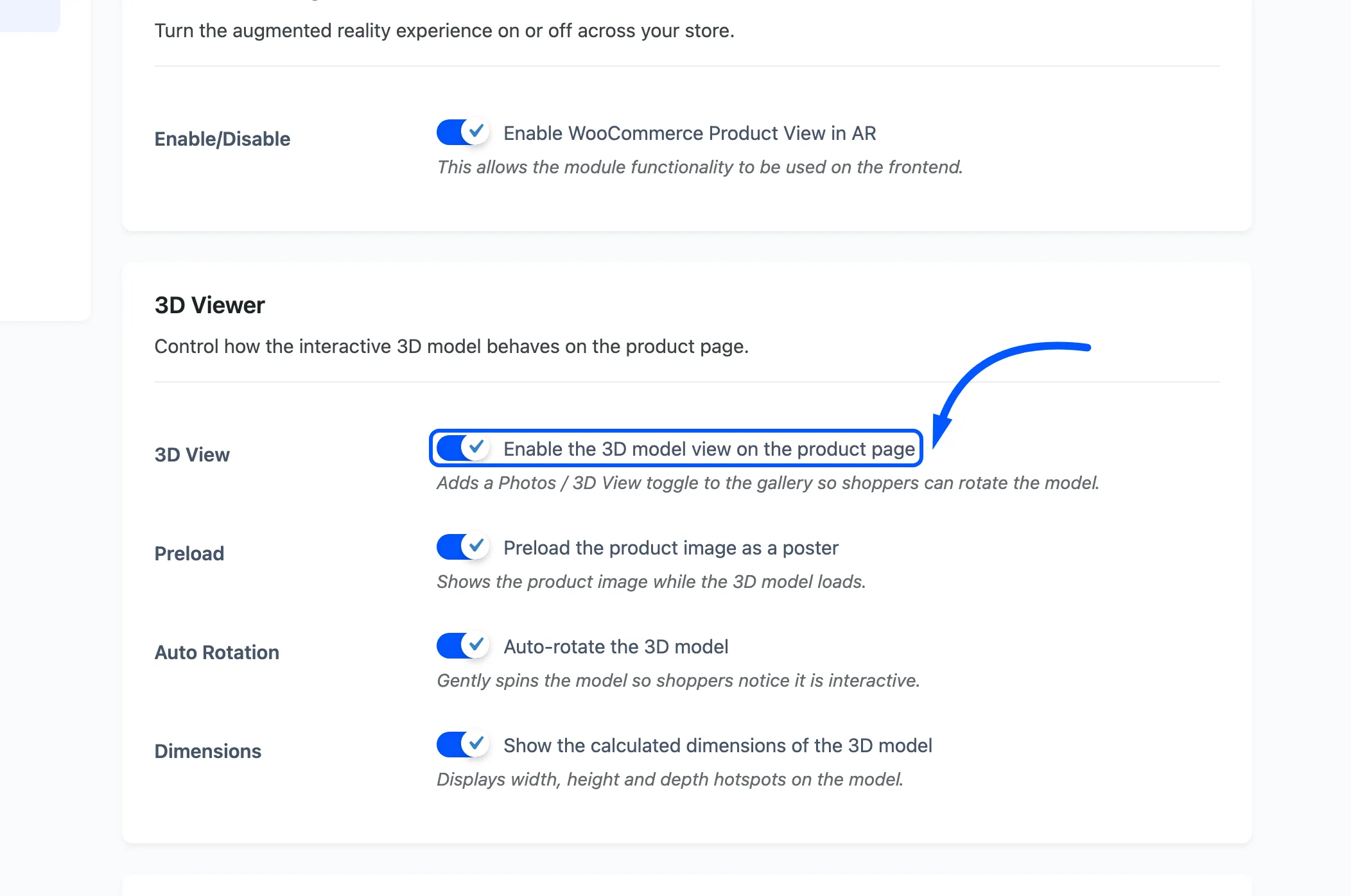
Off, and shoppers get the AR button but no on-page viewer, so the only way to see the model is to open it in AR. That is a reasonable choice for a store selling only to phone traffic and a poor one otherwise.
The toggle also needs the product to have a .glb. With this on and only a .usdz attached, no
toggle appears. The on-page viewer cannot render a USDZ. See
3D Model File Formats.
Preload
Section titled “Preload”Preload the product image as a poster: Shows the product’s own photo inside the viewer while the model downloads. Default on.
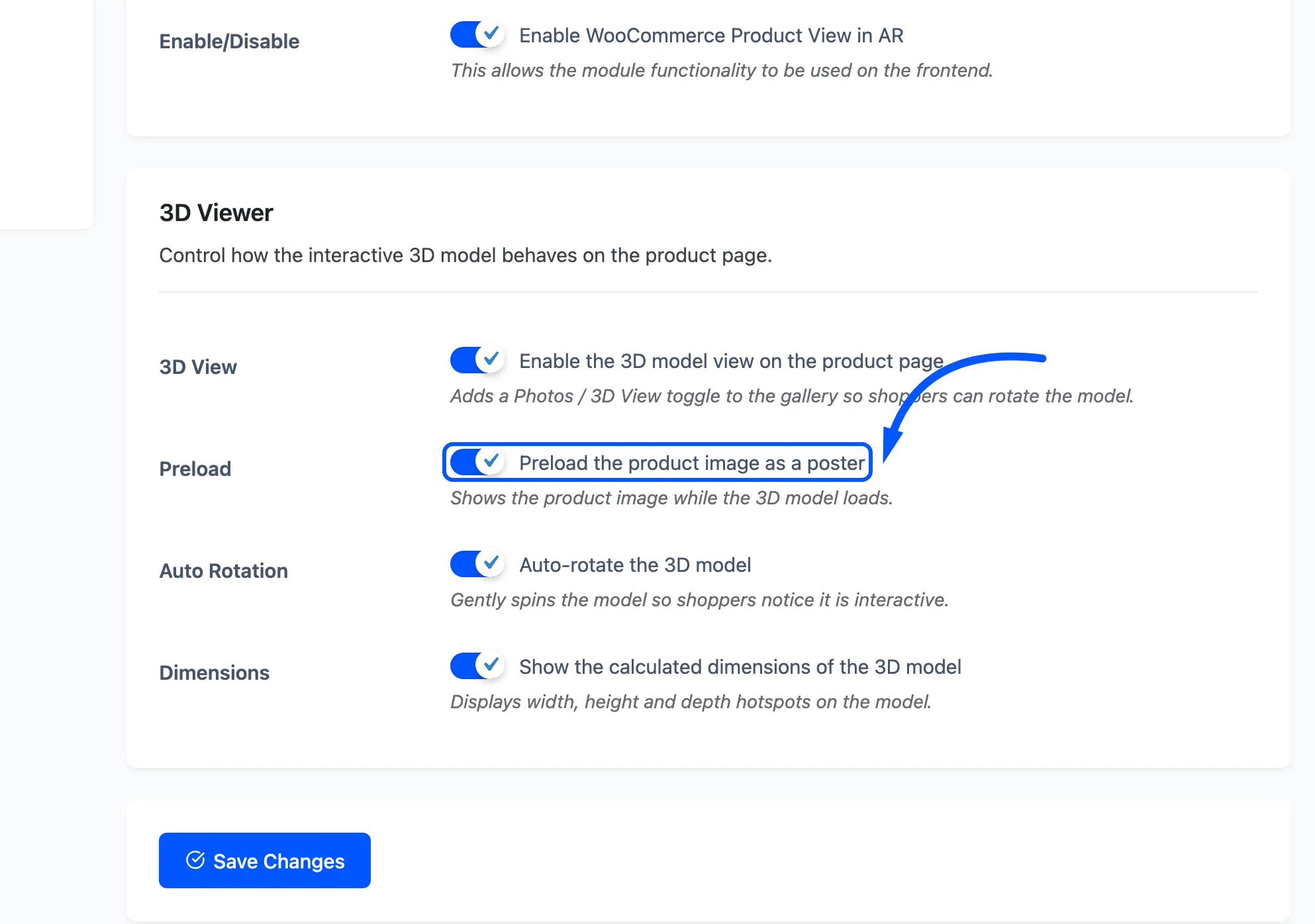
Leave it on. A model is several megabytes and the alternative is an empty box on the slowest part of the page.
Auto Rotation
Section titled “Auto Rotation”Auto-rotate the 3D model: Turns the model slowly on its own when the viewer opens. Default on.
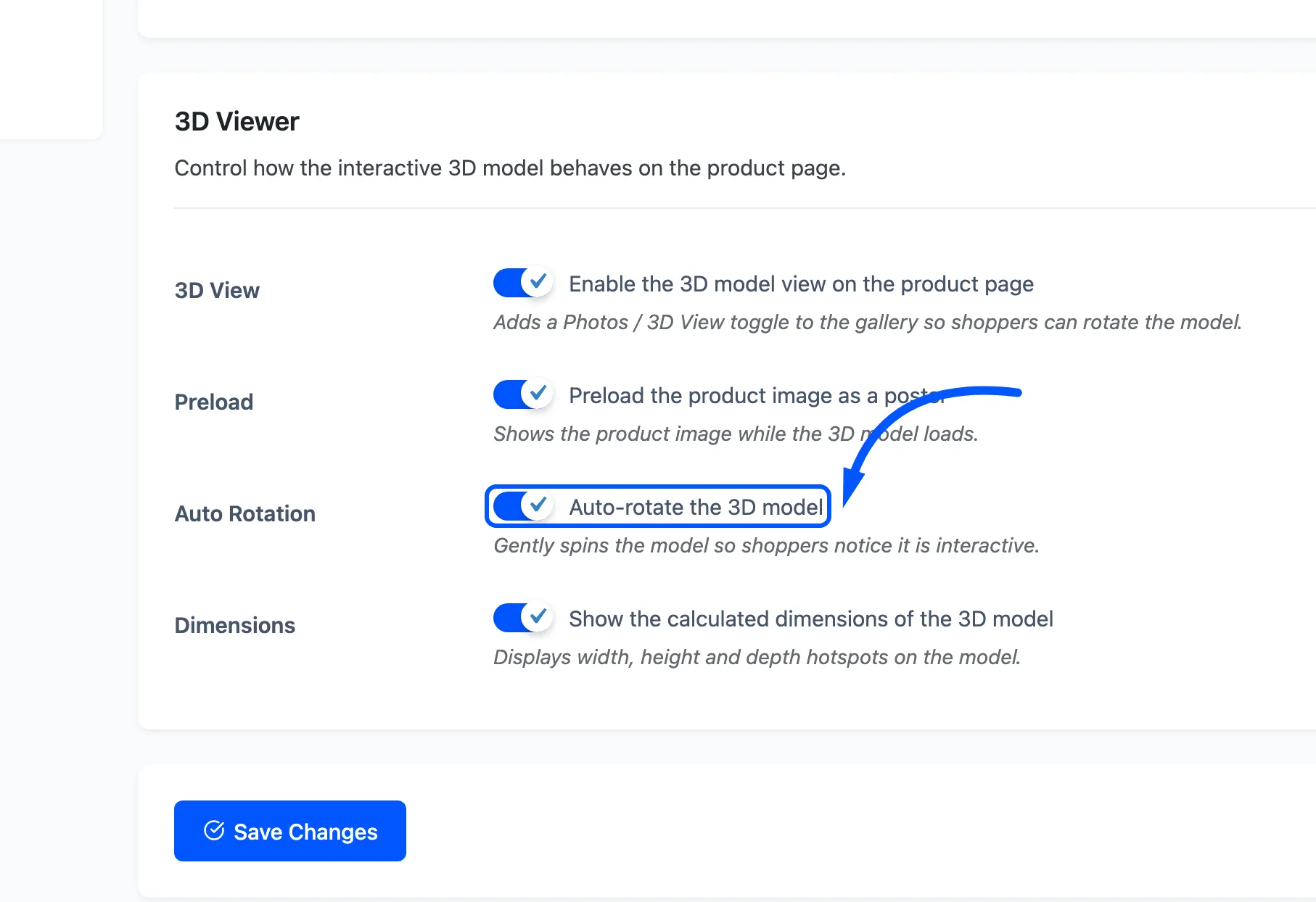
Its job is discovery: a still 3D render looks like a photo, and a turning one does not. Any drag by the shopper takes over.
Dimensions
Section titled “Dimensions”Show the calculated dimensions of the 3D model. Labels the model with its own width, height and depth in centimetres. A Show Dimensions checkbox in the viewer lets the shopper hide them. Default on.
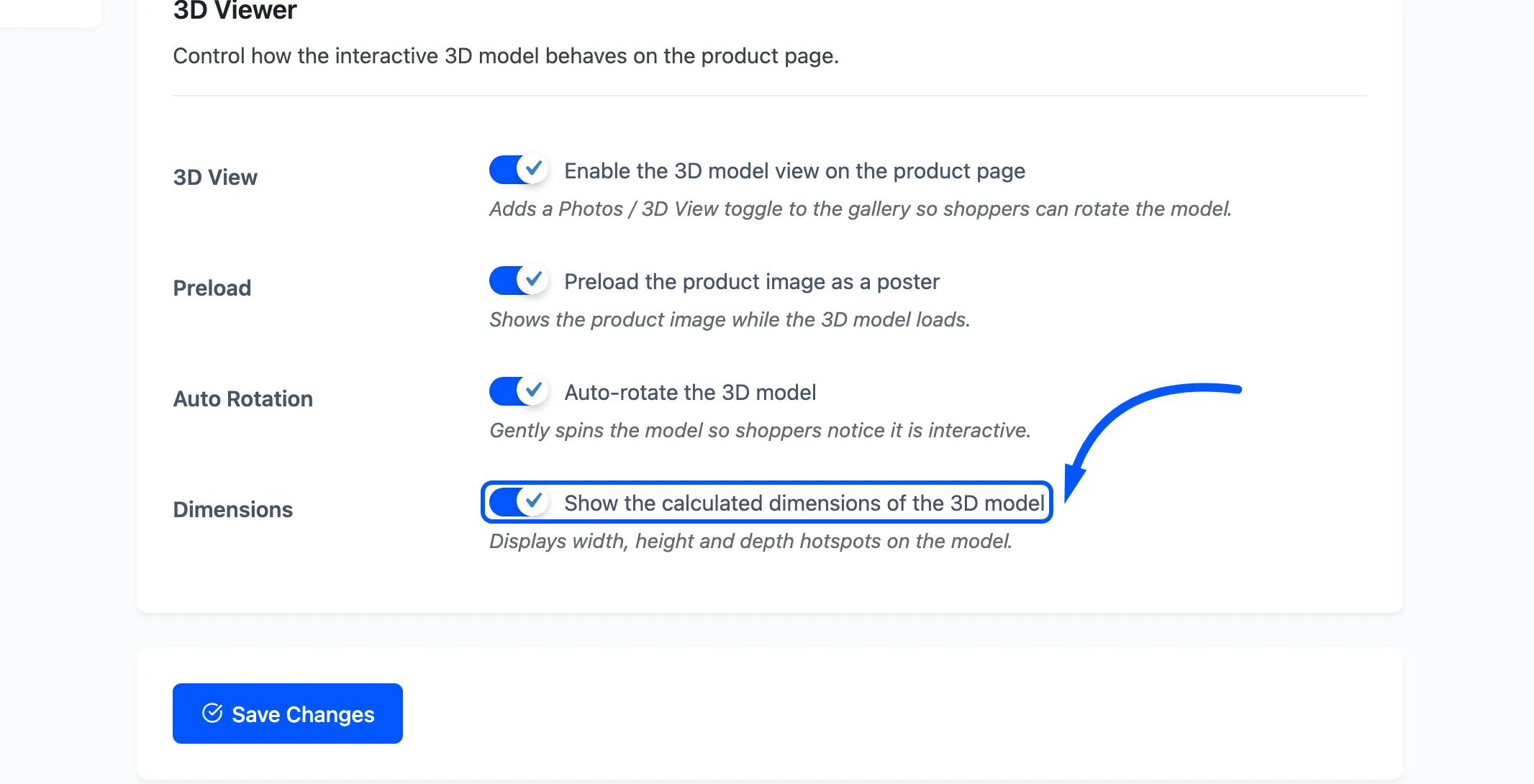
The figures are measured from the model file, not from the product’s WooCommerce shipping dimensions. They will disagree if the model was exported at the wrong scale. That is the point. It is the cheapest check you have on a new file.
Press Save Changes
Section titled “Press Save Changes”Nothing on this tab takes effect until you save. The change is live on the storefront immediately afterwards, with no cache to clear on the plugin’s side.