

How AR Viewing Works
Everything the plugin does follows one chain. Knowing it explains every odd thing you will hit later. Why a toggle is missing on one product. Why desktop gets a QR code instead of AR. Why a view count only moves once per shopper.
The chain, end to end
Section titled “The chain, end to end”- You attach a
.glb, a.usdz, or both, to a product on the Products screen. - A shopper opens that product page. The plugin’s assets load only because the product has a model.
- The gallery gains a Photos / 3D View toggle and a View in AR launcher.
- What the launcher does depends on the device.
- Opening either viewer records one anonymous view.
Each step has a rule attached, and the rules are what this page is really about.
Step 1: assets load per product, not per site
Section titled “Step 1: assets load per product, not per site”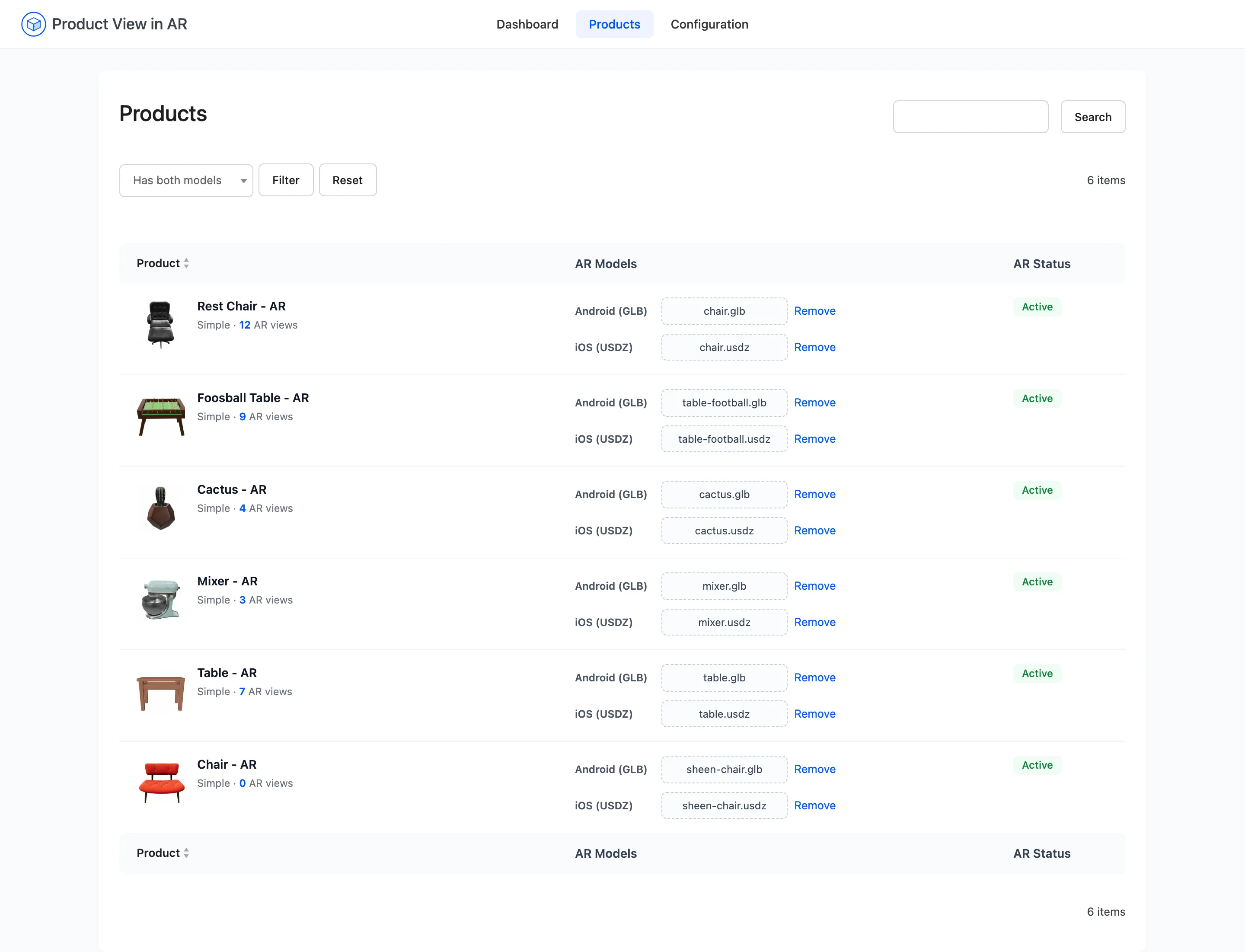
The plugin adds nothing to a product page unless that product has at least one model file. A store with three AR products and three hundred ordinary ones ships the 3D library on three pages.
That is worth knowing when a page looks wrong. If the toggle and the button are both missing, the product has no model. The other two causes are a switched-off plugin and an inactive license. It is never a theme problem first.
Step 2: the toggle needs the GLB specifically
Section titled “Step 2: the toggle needs the GLB specifically”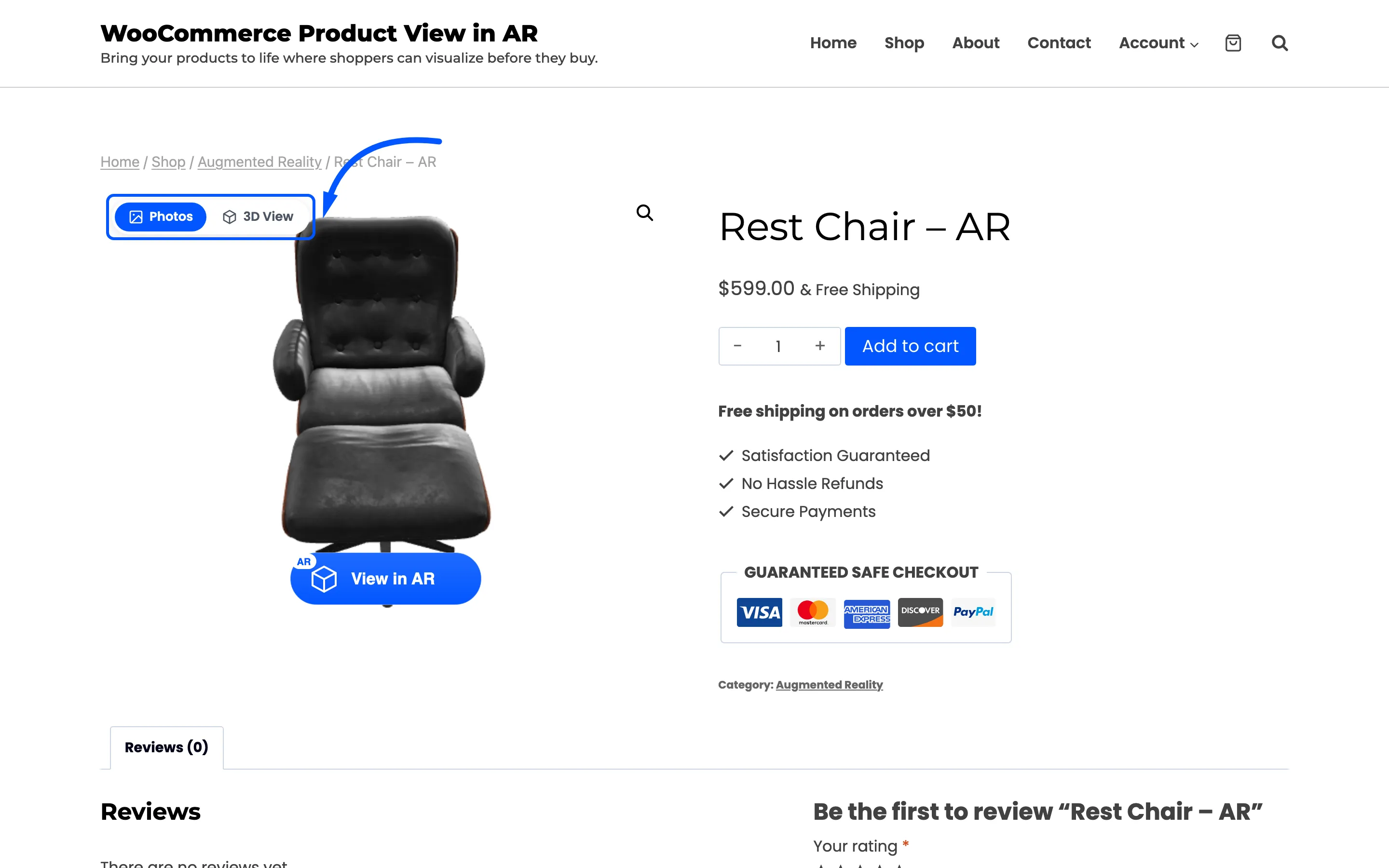
The on-page 3D viewer renders the .glb file. So the toggle appears when two things are true: 3D
View is on in the settings, and the product has a .glb.
A product carrying only a .usdz gets the AR button on an iPhone and no toggle at all, on any
device. That is the single most common gap in a half-finished catalogue, and the Complete (Both)
card on the dashboard is what catches it.
Step 3: the launcher is a different control on each device
Section titled “Step 3: the launcher is a different control on each device”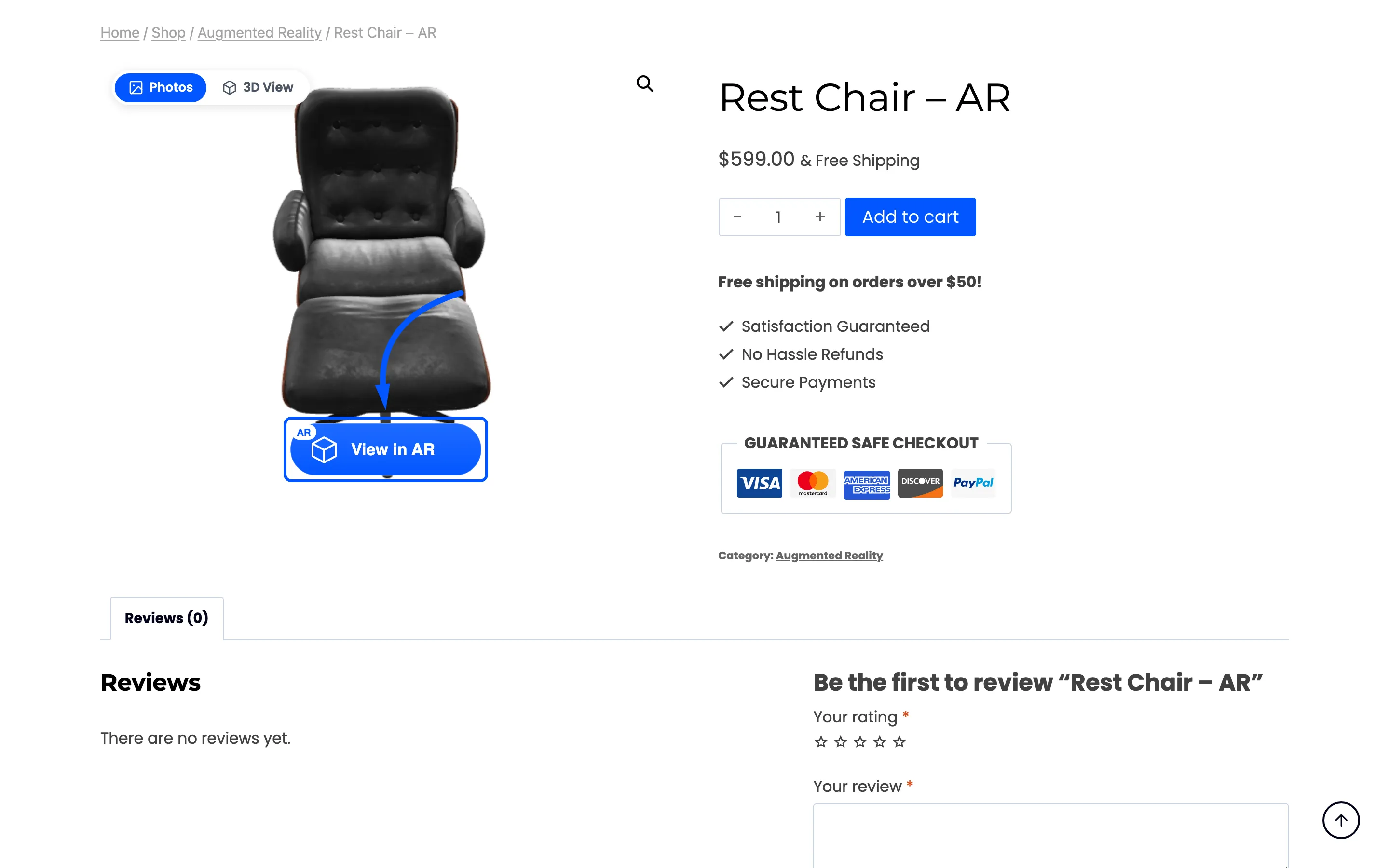
On a phone or tablet the launcher is a link straight into the device’s own AR viewer. Android opens
Google’s Scene Viewer with the .glb; iPhone and iPad open AR Quick Look with the .usdz. Neither
needs an app install, because both are part of the operating system.
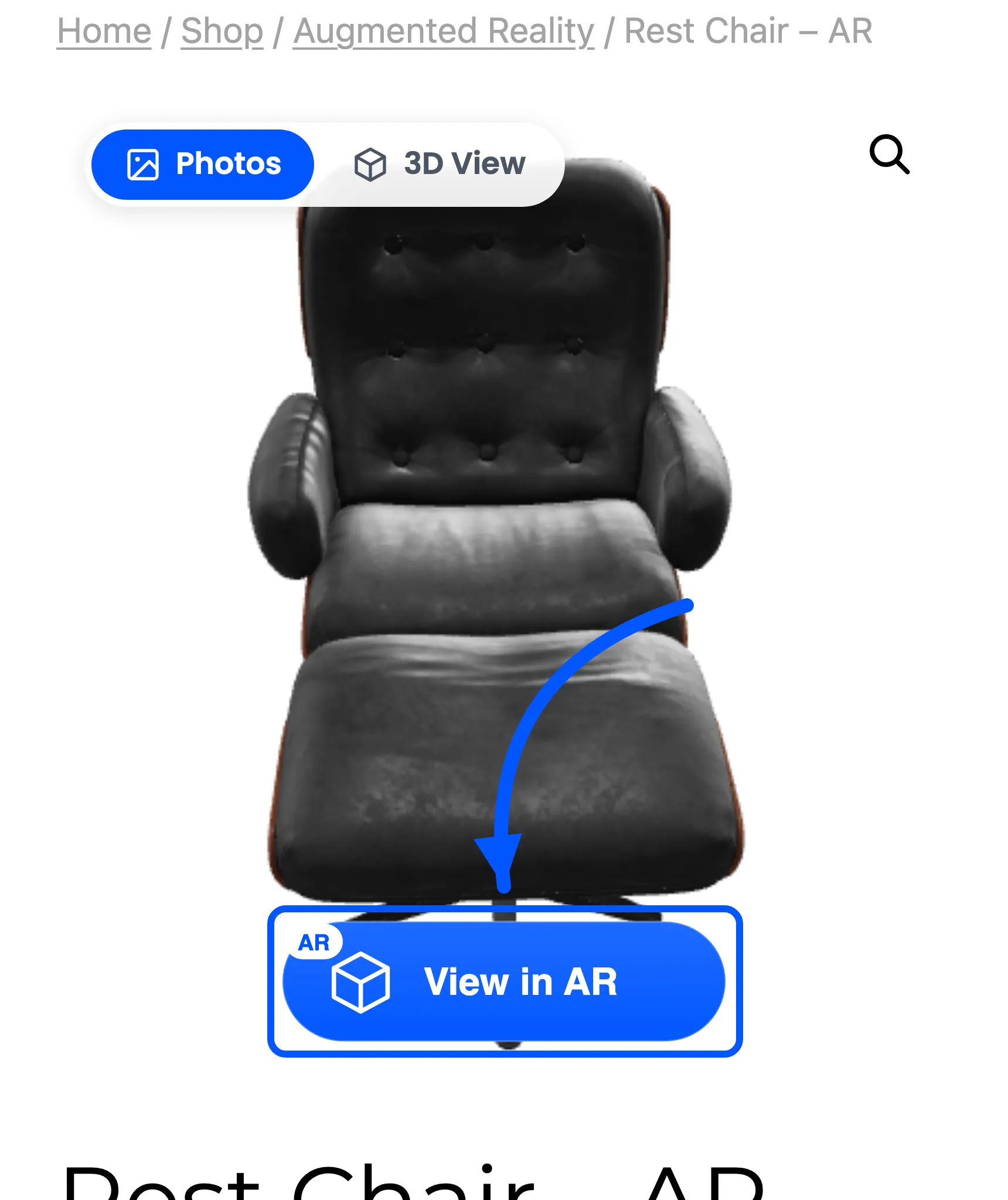
Pressing it hands the model to the operating system, and from there the store is out of the picture. These two recordings pick up at that hand-off, on a real Android phone and a real iPhone.


The percentage badge in both is the viewer’s own scale readout as the shopper resizes the model. It is part of the operating system, not something the plugin draws or can change.
On a desktop browser there is no camera to place anything in, so the same button opens a QR code instead. The shopper scans it, the product page opens on their phone, and the AR button there is the real one.
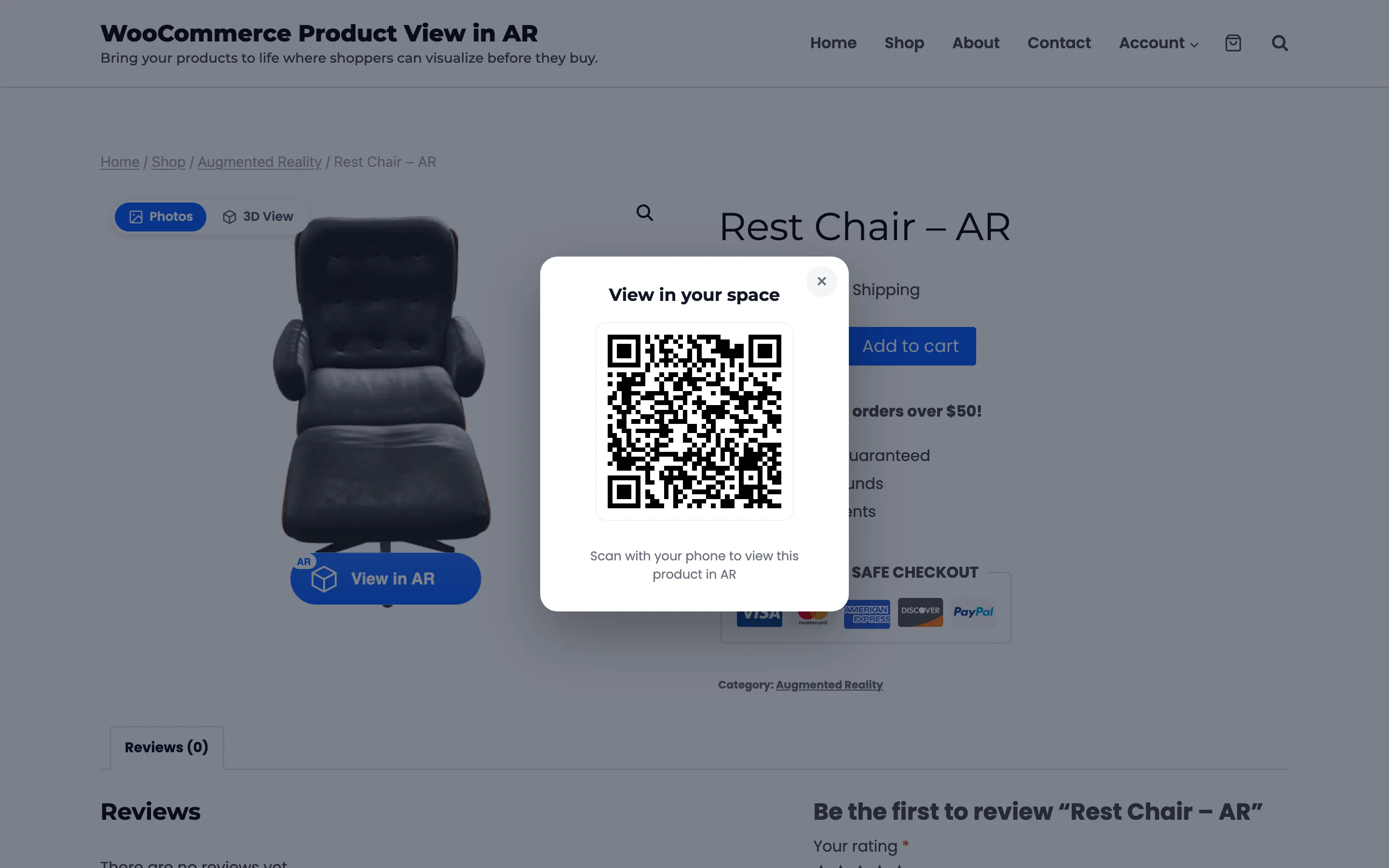
The whole desktop path runs in one gallery, without a page reload:

With the QR hand-off switched off, the AR button is hidden on desktop entirely. AR stays available on mobile. That is the deliberate behaviour, not a bug: a button that cannot work is worse than no button.
One quirk worth knowing if you plan to use the custom text button: on iPhone the launcher is always an image badge. Apple’s AR Quick Look only triggers from a link containing an image. The plugin swaps a text button back to a badge on iOS by itself.
Step 4: real size, not screen size
Section titled “Step 4: real size, not screen size”The model is placed at the size it was authored, in metres. A chair modelled 94cm wide arrives 94cm wide on the shopper’s floor. Nothing in the plugin scales it, which is exactly what makes AR worth having and also why a wrongly-scaled model is so obvious.
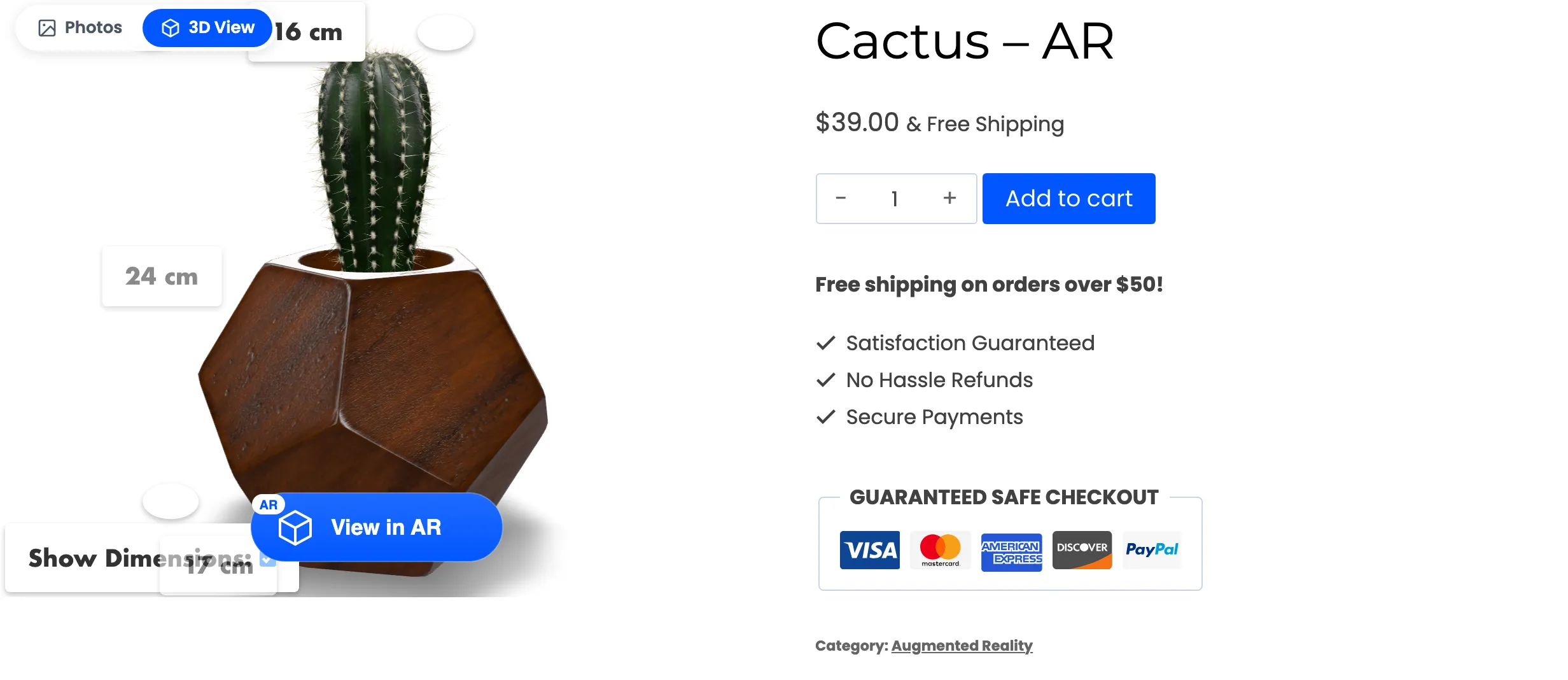
Turning Dimensions on labels the model with its own measured width, height and depth in centimetres. Those figures are read from the file, not from the WooCommerce shipping fields. It is the fastest way to check a new model was exported at the right scale.
Step 5: what a view records
Section titled “Step 5: what a view records”Opening either viewer sends one anonymous row. It holds the product and whether the view was 3D or AR. It also holds the device class, mobile or desktop, and a random session id kept in the browser. No name, no email, no IP and no account.
Two behaviours follow from that, and both surprise people:
- A view is counted once per browser session per product per type. A shopper who spins the same chair five times adds one 3D view. The numbers are people, not clicks.
- A desktop QR scan is not an AR launch. The scan opens the phone’s page. The AR launch is recorded there, on the phone, as a mobile view.
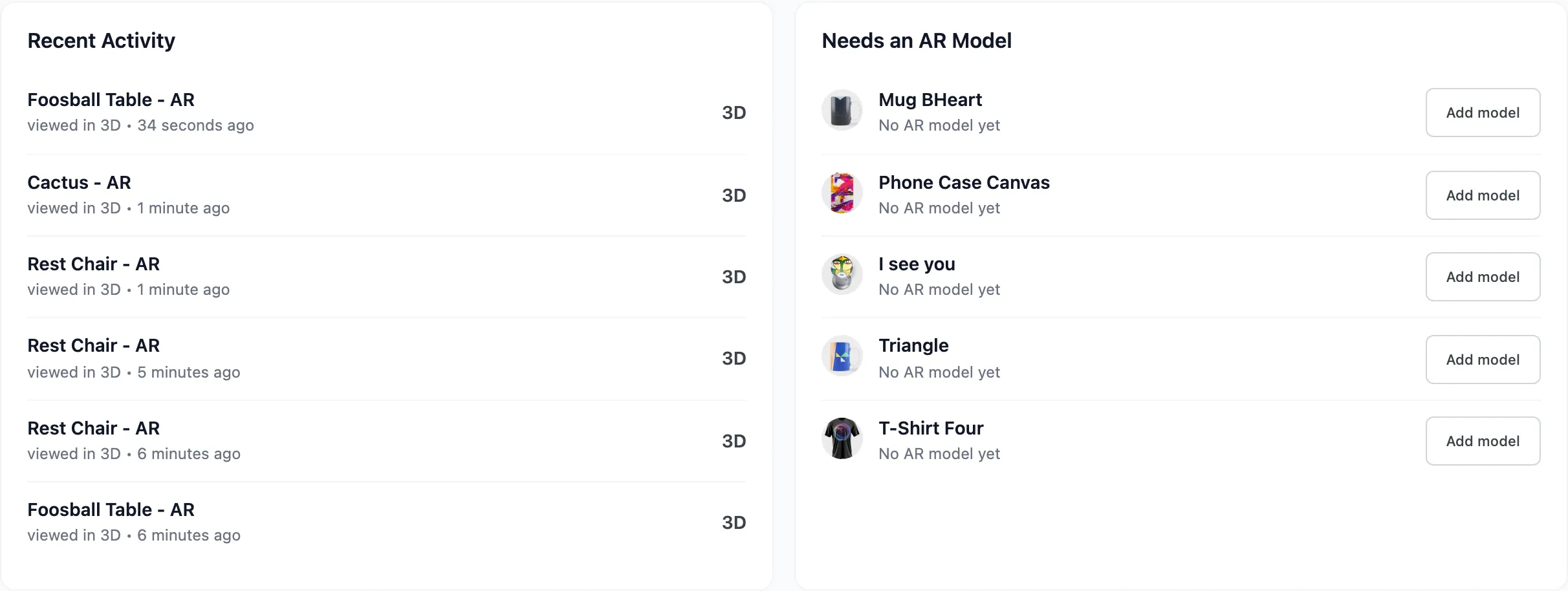
Views are what the dashboard’s charts, Recent Activity and Top Viewed Products are all built from.
Variations
Section titled “Variations”A variable product can carry a different model on each variation, so a chair in oak and a chair in walnut each get their own. The viewer swaps as the shopper changes the dropdown. A variation with no model removes the toggle and the button until they pick one that has one.