

How to Add AR Models to Product Variations (Pro)
A chair in oak and the same chair in walnut are two different models. This is how each variation carries its own, so the viewer shows what the shopper actually selected.
When it is worth doing
Section titled “When it is worth doing”Only when the variation changes what the product looks like.
- Worth it: colour, finish, upholstery, material, wood.
- Not worth it: size, where one model plus the dimensions labels tells the whole story.
Each variation needs its own pair of files, so a product with eight colourways is eight models. Start with the two or three that sell.
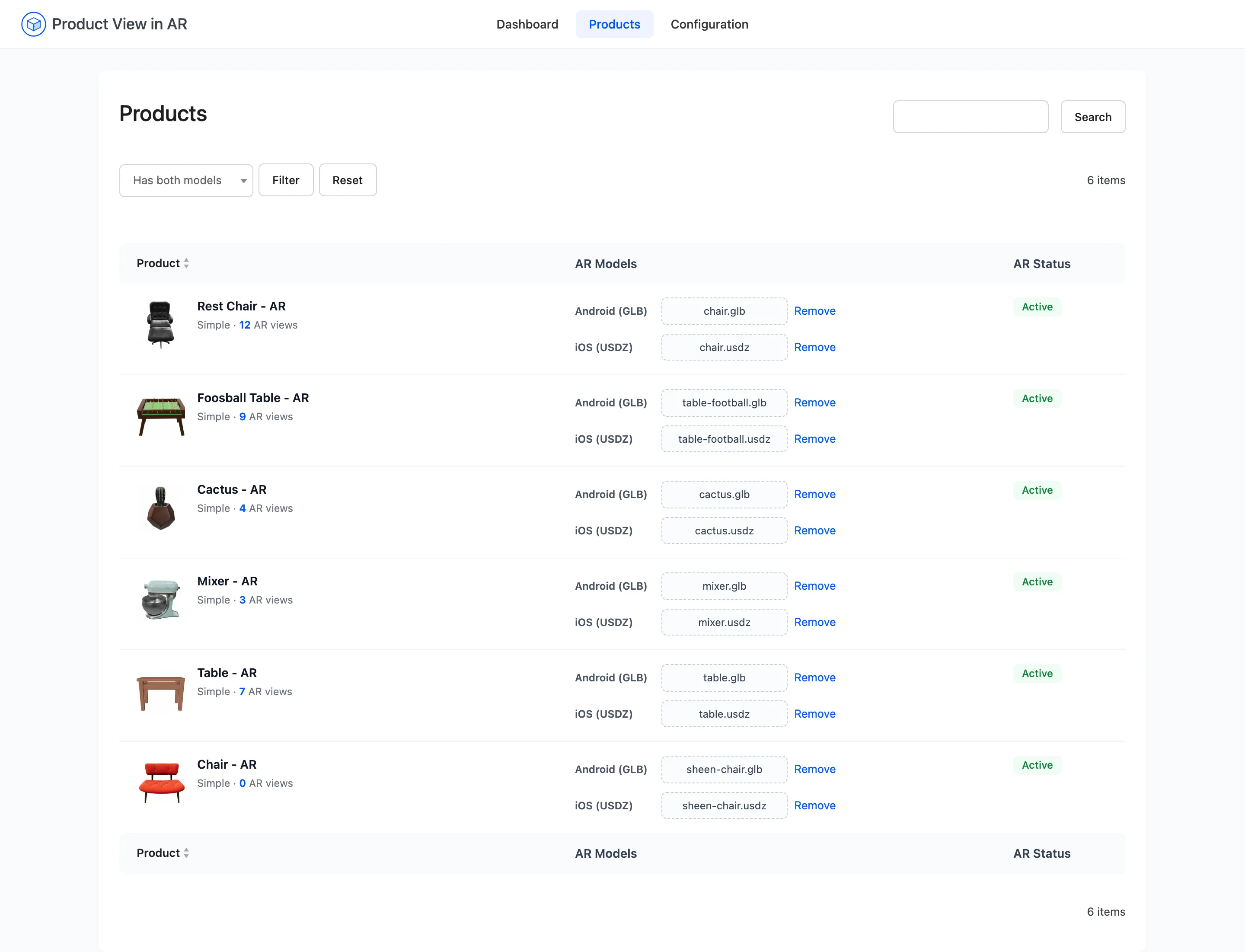
Step 1: Open the Products screen
Section titled “Step 1: Open the Products screen”Go to DevDiggers Plugins → Product View in AR → Products.
Step 2: Find the variations
Section titled “Step 2: Find the variations”Variable products are not listed as one row. Each variation appears on its own, named as the parent plus its attributes, and labelled Variation in the meta line under the name.
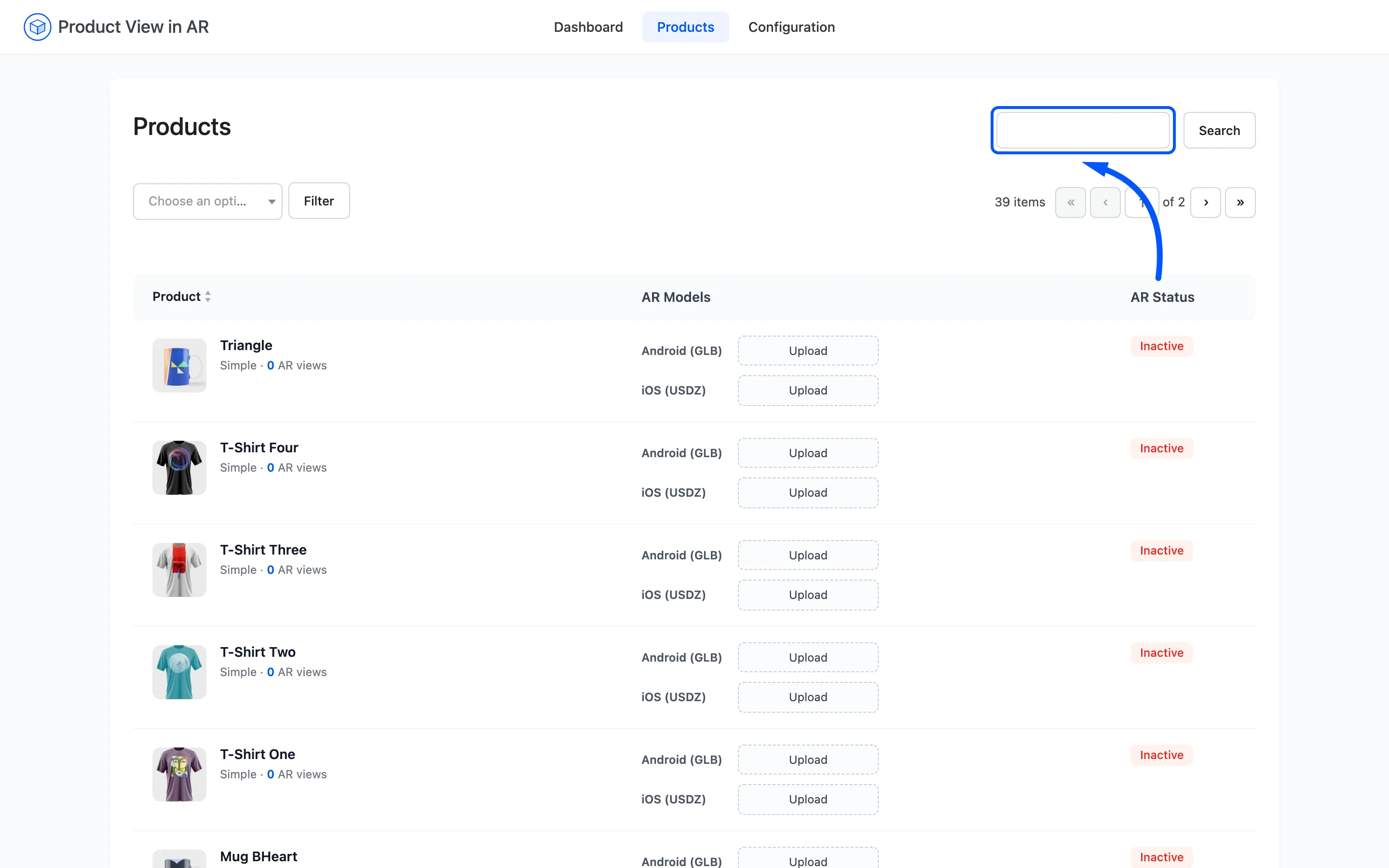
Search the parent product’s name to bring its variations together, since they all share it.
Step 3: Attach models per variation
Section titled “Step 3: Attach models per variation”Upload a .glb and a .usdz on each variation row, exactly as for a simple product.
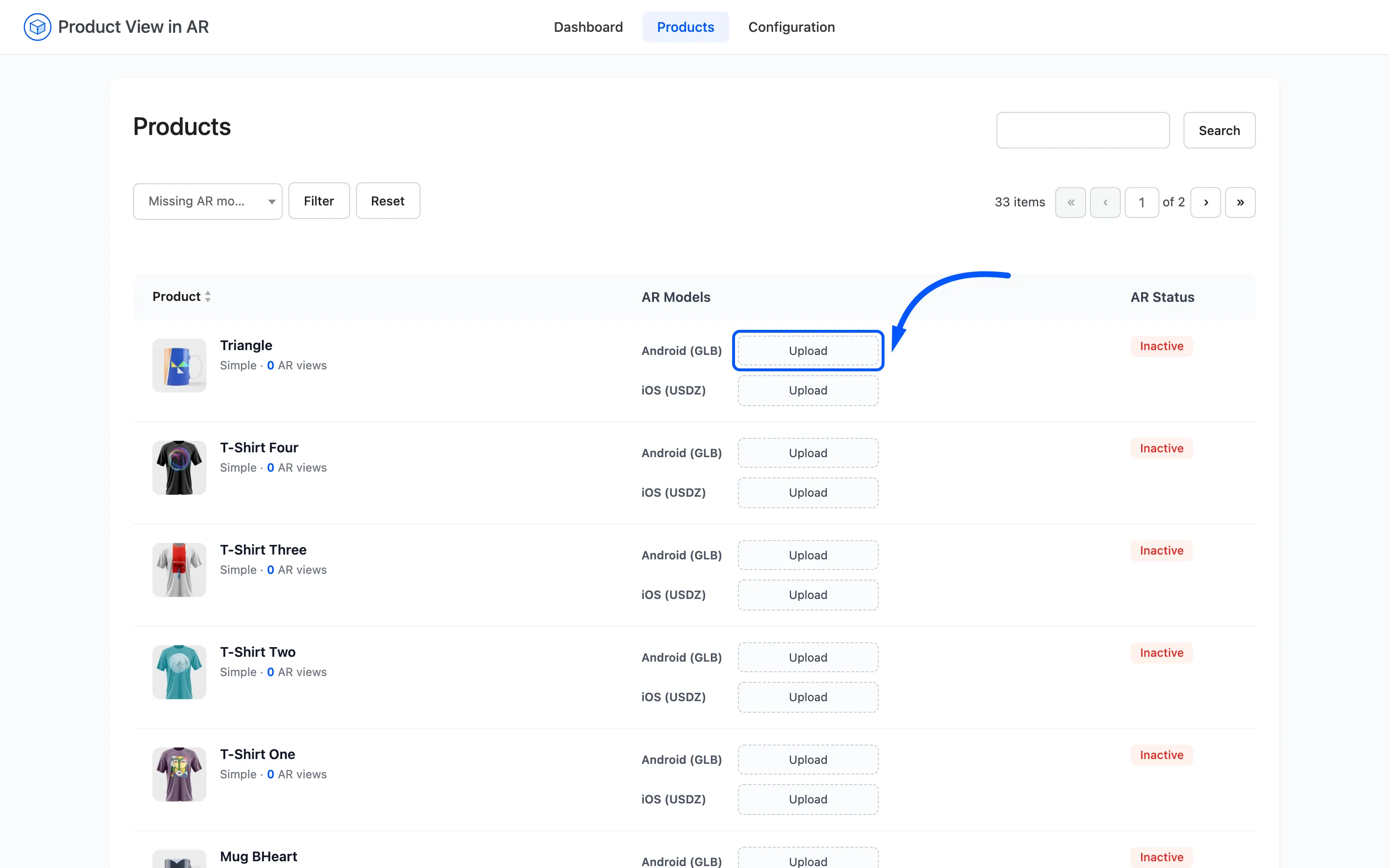
Each row saves on its own as soon as you pick a file. Work down them one at a time.
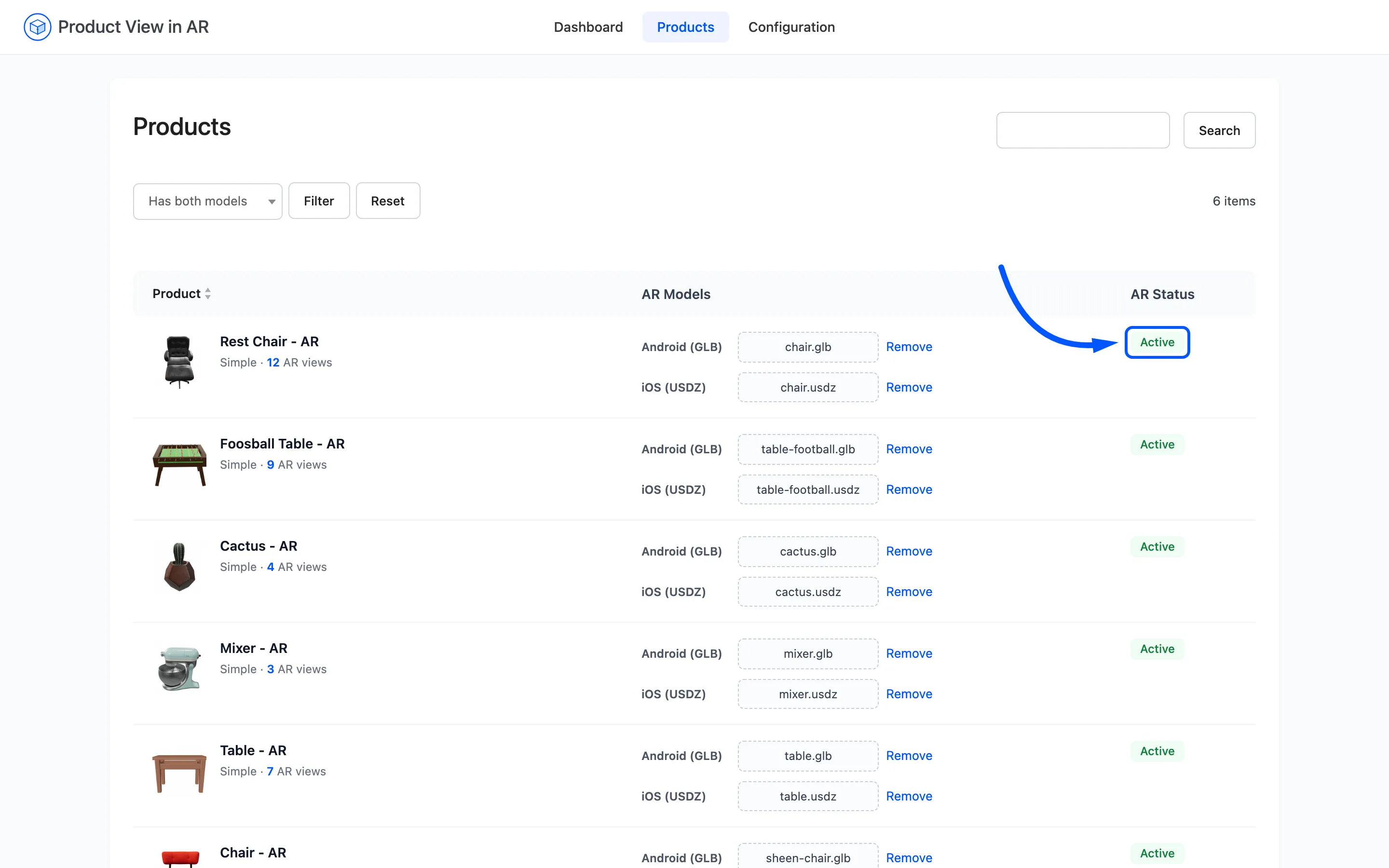
Do a whole variation at once, both files, rather than doing all the .glb files and coming back
for the .usdz ones. Half-done variations are hard to spot afterwards, because the AR Status
badge reads Active with only one file attached.
Step 4: Check the product page
Section titled “Step 4: Check the product page”Open the parent product on the storefront and choose a variation that has a model.
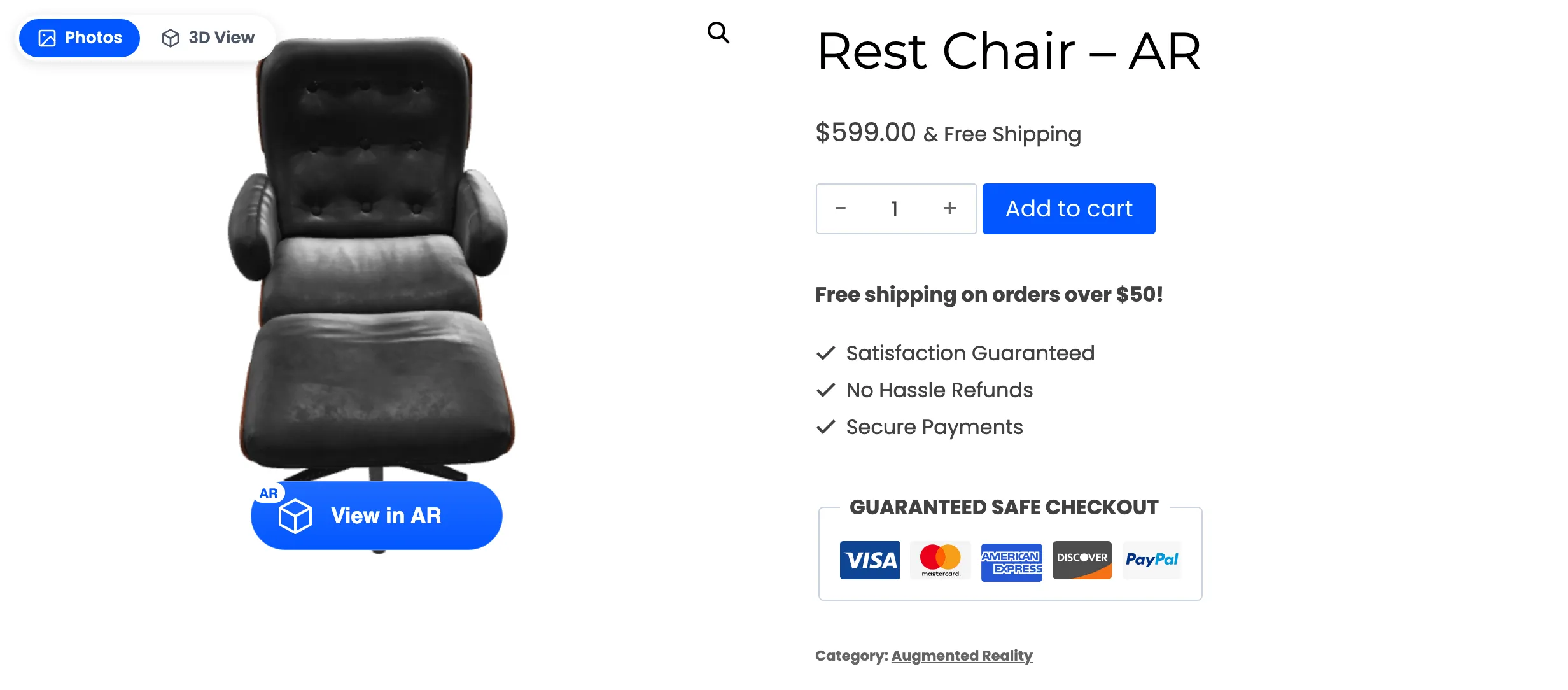
Switch to 3D View and confirm the right model loads.
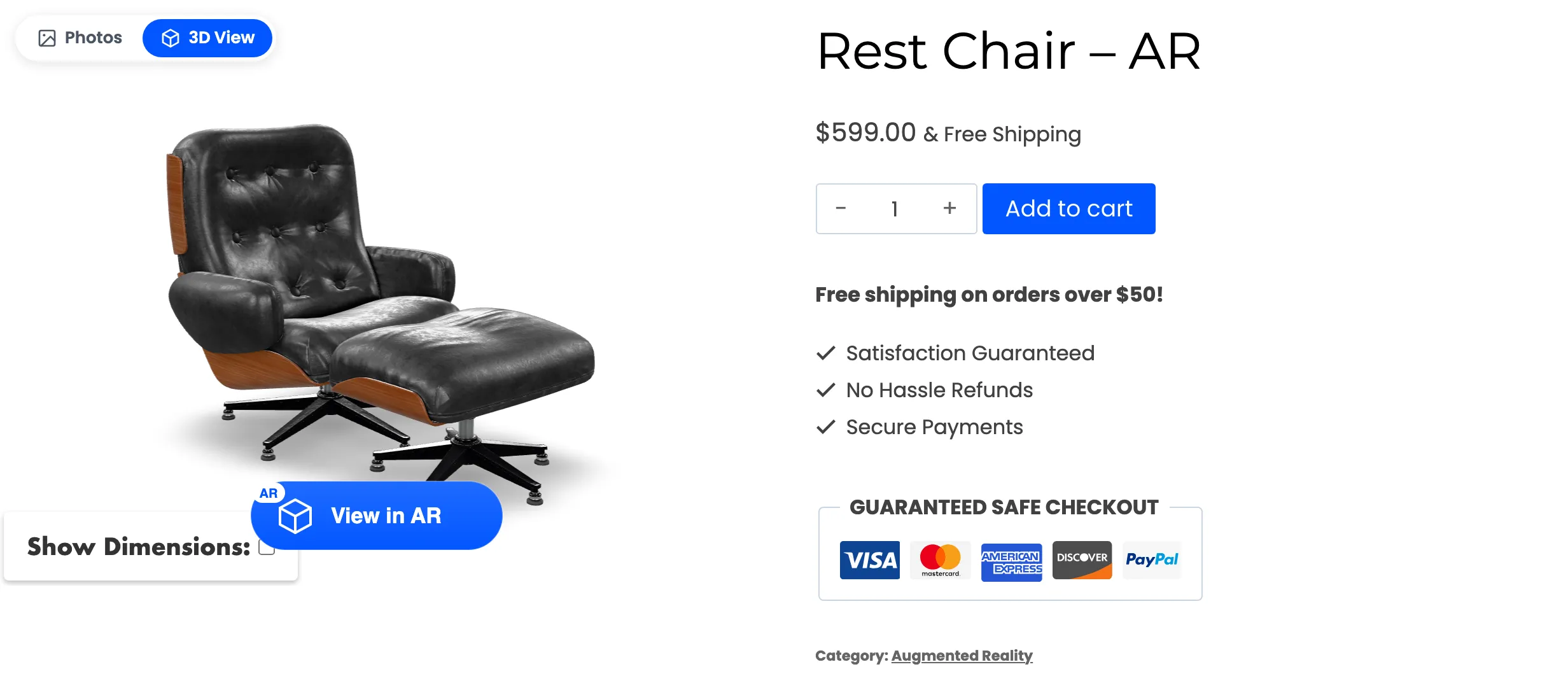
Now change the variation dropdown. The viewer swaps to that variation’s model without reloading the page.
What a shopper sees with gaps
Section titled “What a shopper sees with gaps”Three behaviours to expect while a range is only partly done, all of them by design.
- No variation chosen yet. The toggle and the AR button are absent until the shopper selects one.
- A variation with no model: Both controls disappear again when they select it, and come back when they pick one that has a model.
- A variation with only a
.usdz: The AR button appears on an iPhone and the toggle does not, on any device. The on-page viewer renders GLB.
Nothing warns the shopper, so the fix is coverage rather than configuration: finish the variations you start.