

Introduction
Product View in AR puts a 3D model on your product page. A shopper can then stand that product in their own room through their phone camera. It is the answer to the question every furniture, decor and homeware store gets asked: will this actually fit.
What it adds to a product page
Section titled “What it adds to a product page”Once a product has a model attached, three things appear in the gallery.
- A Photos / 3D View toggle, which swaps the photo gallery for a model the shopper can spin, tilt and zoom without leaving the page.
- A View in AR button, which opens the phone’s own augmented reality viewer and drops the product into the camera view at real size.
- A QR code on desktop, because AR needs a camera. Desktop shoppers scan it and carry on with the product on their phone.
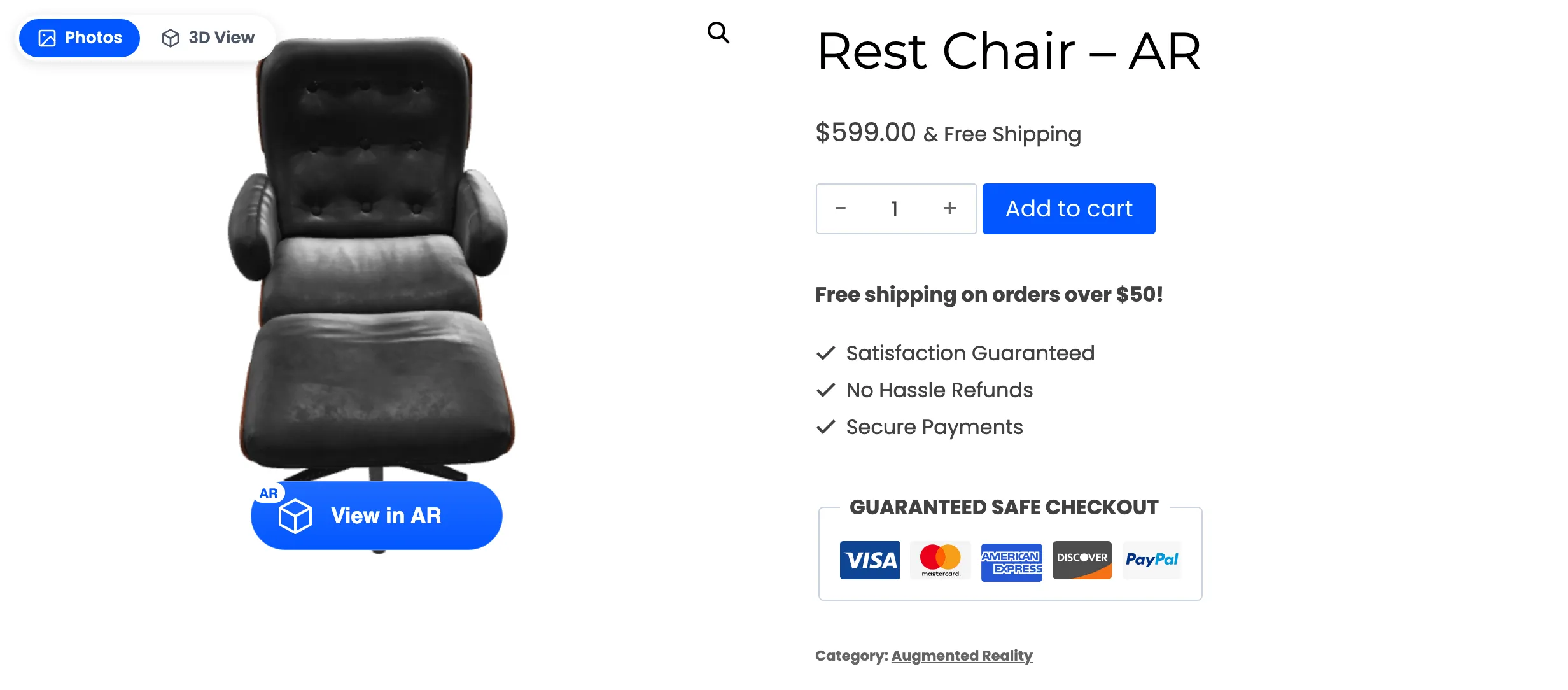
Nothing is replaced. The gallery, the price and the Add to cart button stay where your theme puts them. The plugin adds its controls over the gallery column.
What you need first
Section titled “What you need first”Two model files per product, and they are not interchangeable.
- A
.glbfile drives the 3D viewer on the page and AR on Android. - A
.usdzfile drives AR on iPhone and iPad.
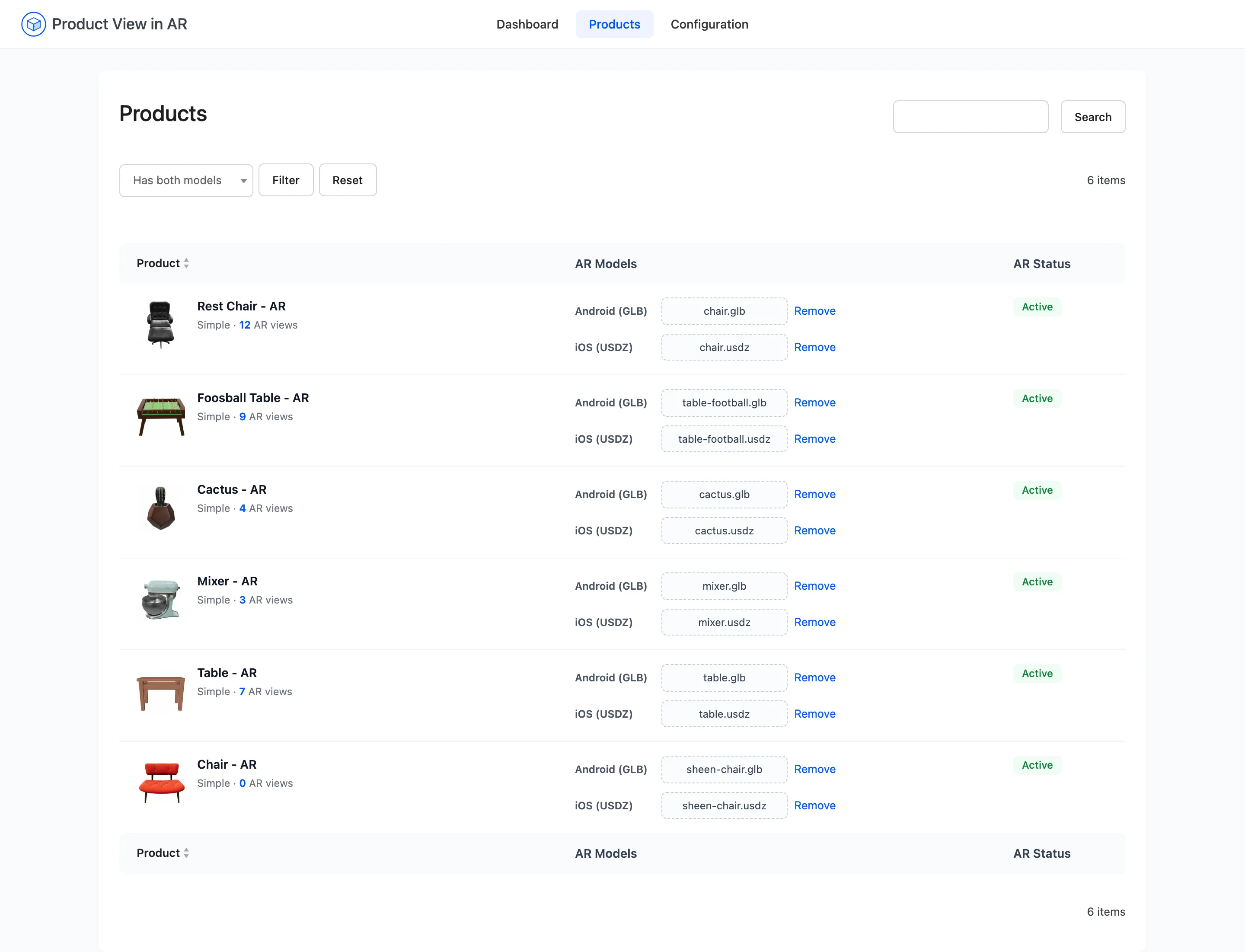
A product with only a .usdz still gets the AR button on an iPhone. It gets no Photos / 3D View
toggle anywhere, because the on-page viewer reads the .glb. Attach both and every device is
covered.
The plugin ships a sample of each, linked at the top of the Products screen. Use them to see the formats working before you commission your own.
3D Model File Formats covers where the files come from and what a good one looks like.
Where you work
Section titled “Where you work”Everything lives under one menu.
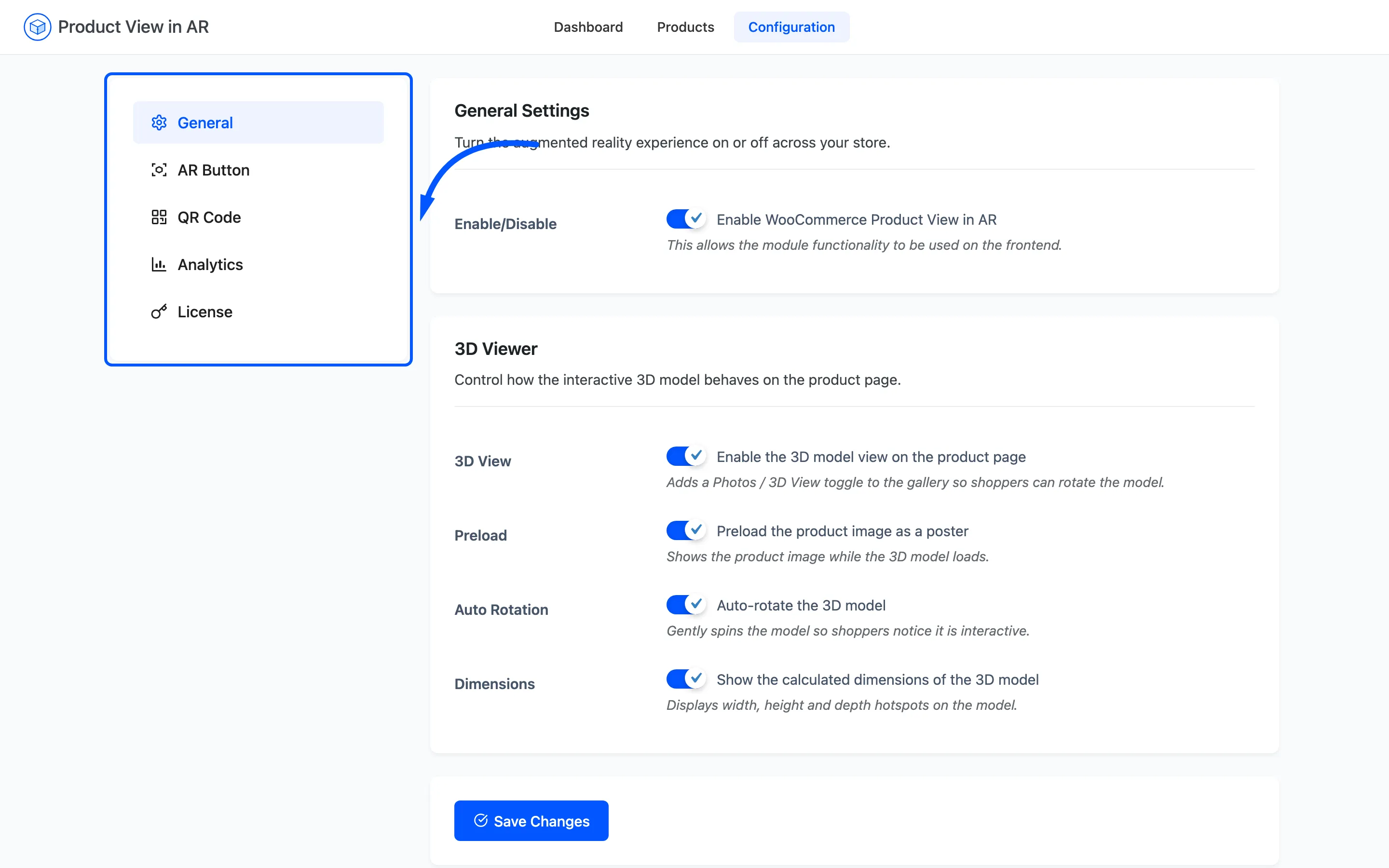
Go to DevDiggers Plugins → Product View in AR. It has three screens:
- Dashboard reports how many products carry a model and how shoppers are using them.
- Products is where you attach and remove model files, one row per product.
- Configuration holds five tabs: General, AR Button, QR Code, Analytics and License.
Installing and activating
Section titled “Installing and activating”The plugin installs like any other WordPress plugin, and the setup wizard opens by itself the first time. See Installing and Activating.
Free and Pro
Section titled “Free and Pro”The free version renders 3D and AR on both simple and variable products. What Pro adds is control over how it looks, the desktop bridge, per-variation models, and the numbers.
The viewer
Section titled “The viewer”| Feature | Free | Pro |
|---|---|---|
| 3D viewer on the product page | Yes | Yes |
| Photos / 3D View gallery toggle | Yes | Yes |
| AR button on Android and iOS | Yes | Yes |
| Poster image while the model loads | Yes | Yes |
| Photos / 3D toggle colours | Yes | Yes |
| Auto-rotate the model | No | Yes |
| Dimensions on the model | No | Yes |
| Button style, image, text and position | No | Yes |
| Toggle position | No | Yes |
| Desktop QR hand-off | No | Yes |
Products and models
Section titled “Products and models”| Feature | Free | Pro |
|---|---|---|
| Simple products | Yes | Yes |
| Variable products, one model for the whole product | Yes | Yes |
| A separate model per variation | No | Yes |
| GLB and USDZ upload per row | Yes | Yes |
| Model status filters, badges and one-click removal | Yes | Yes |
| Sample GLB and USDZ to test with | Yes | Yes |
| AR view count on each product row | No | Yes |
Dashboard and reporting
Section titled “Dashboard and reporting”| Feature | Free | Pro |
|---|---|---|
| Setup wizard | Yes | Yes |
| Model coverage cards: Android, iOS, Complete, Missing | Yes | Yes |
| View tracking | No | Yes |
| Total Views, AR Launches, 3D Views, Avg Views cards | No | Yes |
| Views Over Time, Views by Type and Device charts | No | Yes |
| Top Viewed Products and Recent Activity | No | Yes |
| Date range filter on the dashboard | No | Yes |
| License tab | No | Yes |
Variable products work on the free version. A variable product takes one model, attached to the product itself, and every variation shows it. What Pro adds is a different model per variation, swapped live as the shopper changes the dropdown. So a chair sold in three sizes needs nothing from Pro. The same chair in oak and walnut does.