

How to Remove or Replace an AR Model
Models get replaced more often than people expect. A first export at the wrong scale, a 60MB file that needs slimming, or a product photographed again. Both jobs happen on the same screen, and neither touches the product itself.
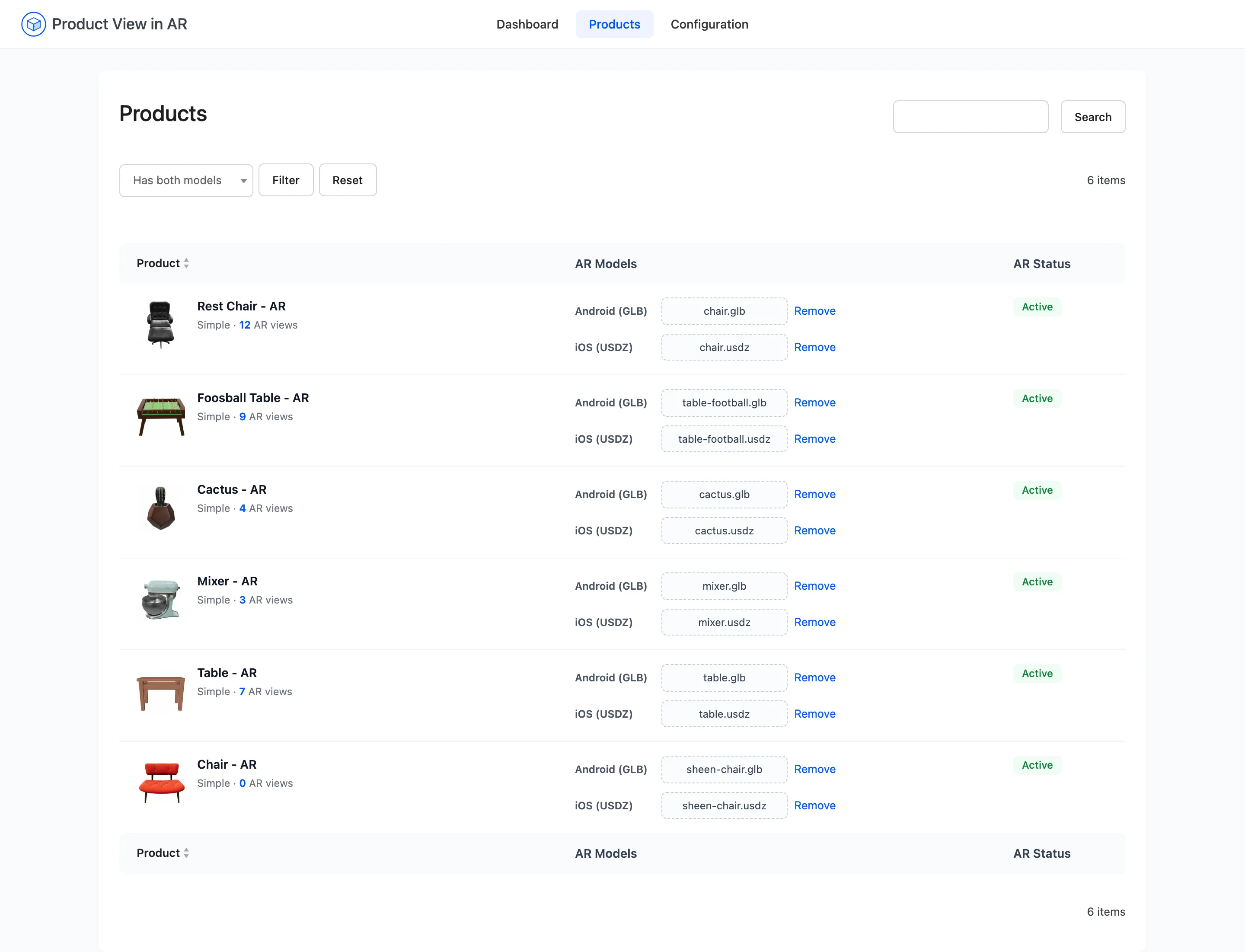
Step 1: Open the Products screen
Section titled “Step 1: Open the Products screen”Go to DevDiggers Plugins → Product View in AR → Products.
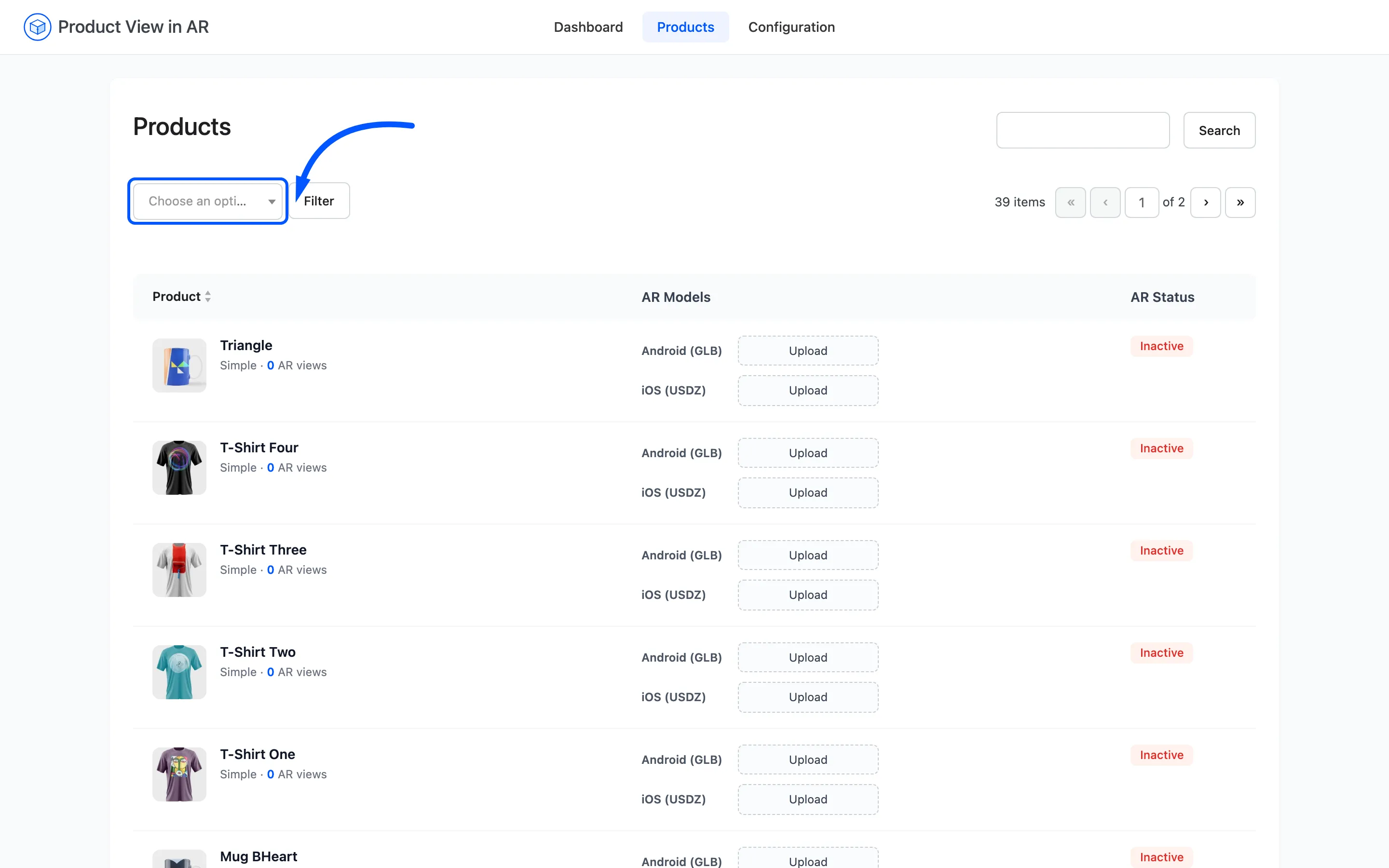
Step 2: Find the product
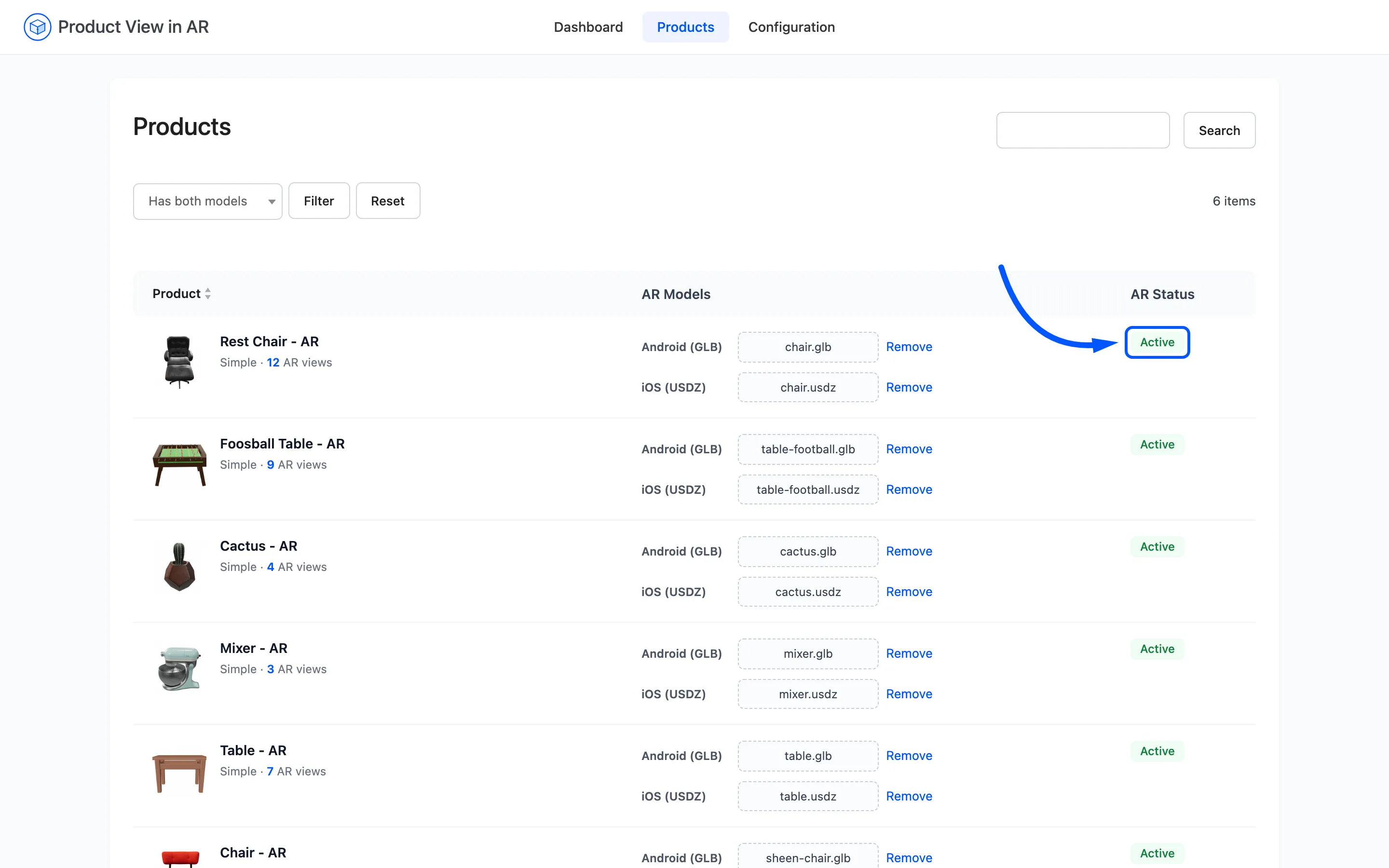
Section titled “Step 2: Find the product”Set the filter to Has both models and press Filter, or search for the product by name.
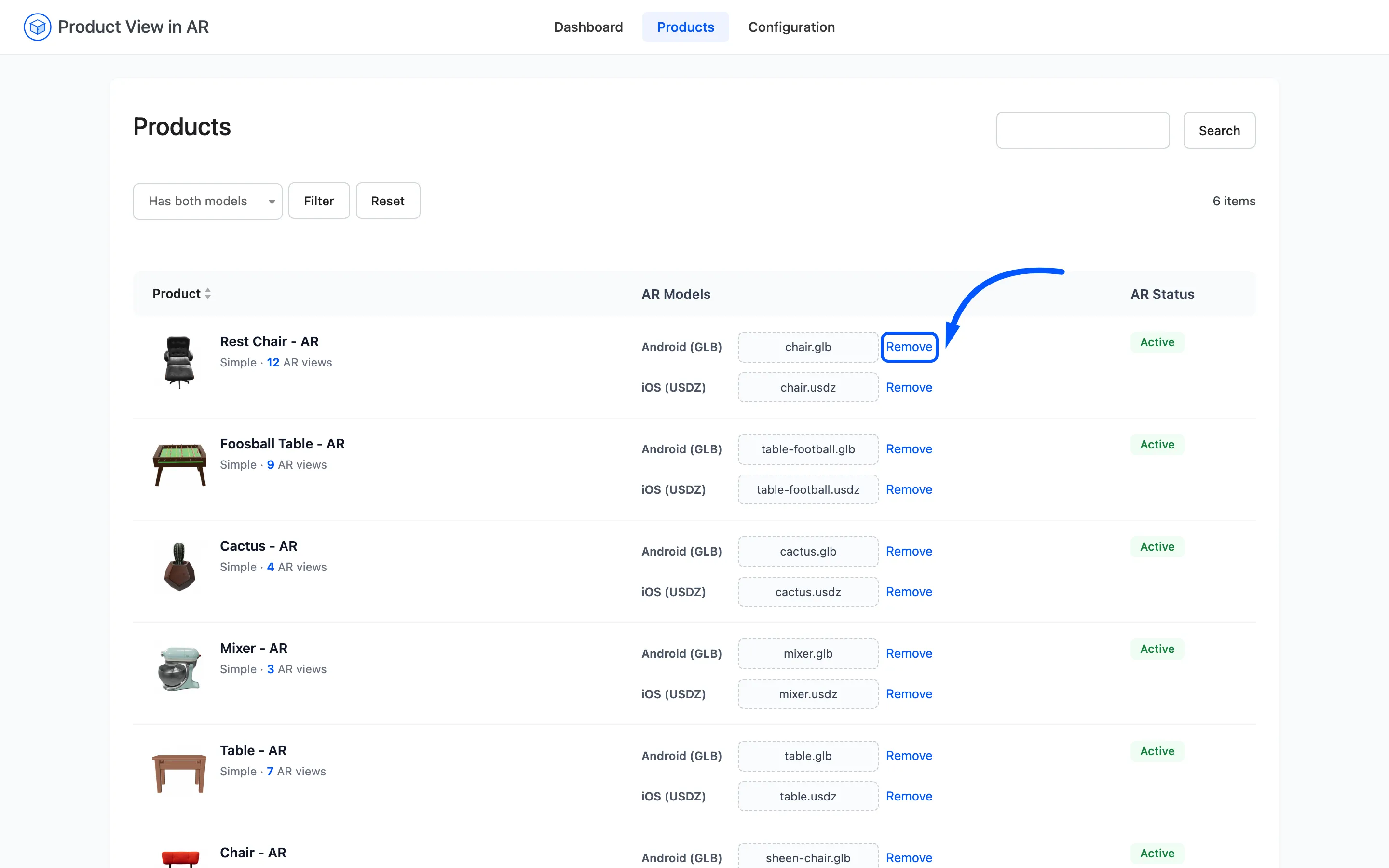
Step 3: Press Remove
Section titled “Step 3: Press Remove”Each attached file shows its filename with a Remove link beside it. Click the one on the tier you want to clear.
Your browser asks Remove this AR model from the product? Confirm it. That prompt is the browser’s own, so it looks slightly different in Chrome, Safari and Firefox, and it is the only warning you get.
The control goes back to reading Upload, and the change is saved immediately with no button to press.
Step 4: Upload the replacement
Section titled “Step 4: Upload the replacement”To replace rather than just remove, click Upload on the same tier and choose the new file.
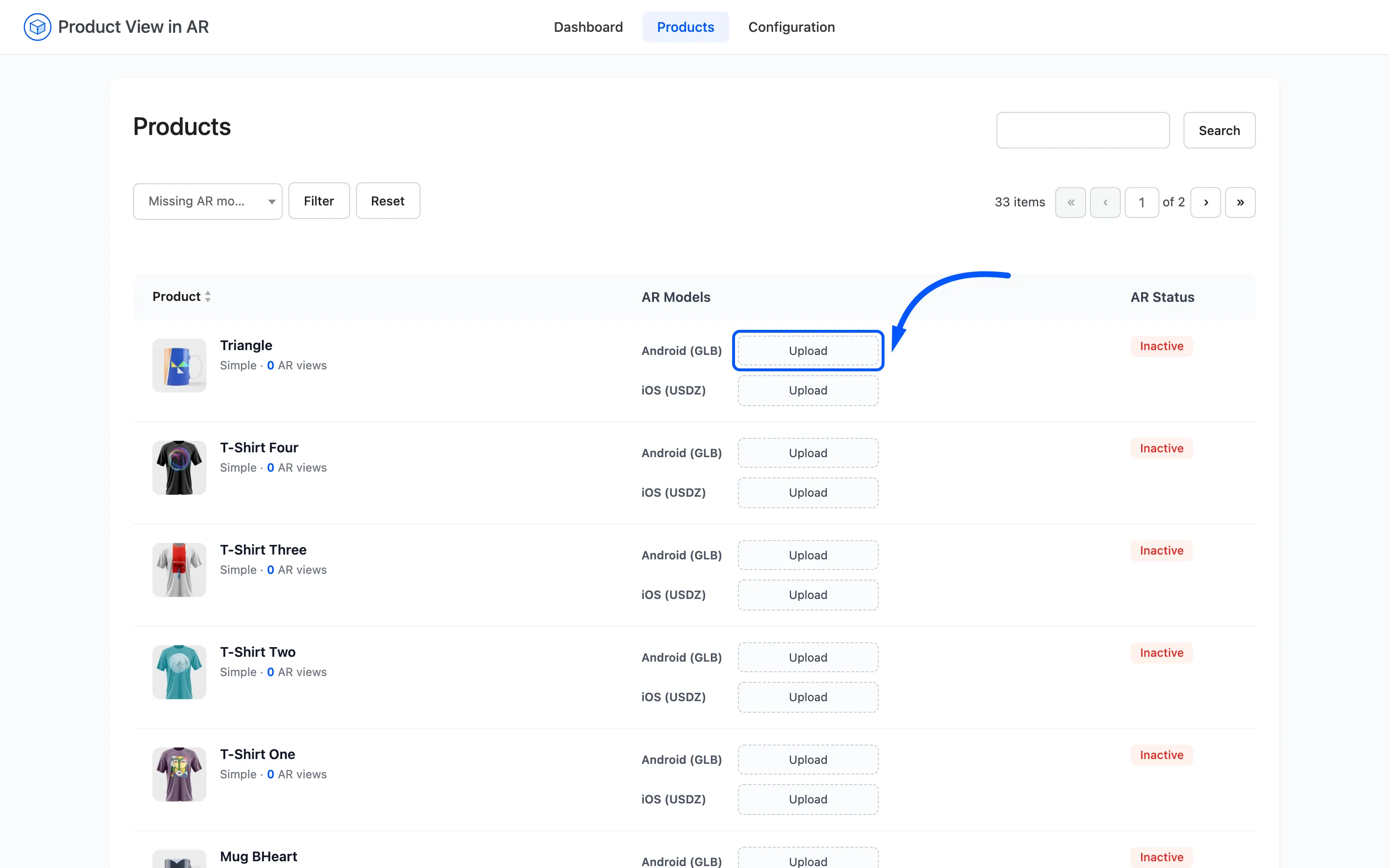
You do not have to remove first. Uploading over a tier that already has a file repoints the product at the new one. That is one fewer confirmation and one fewer chance to leave a product half-empty.
Step 5: Check the result
Section titled “Step 5: Check the result”If you removed both files, the AR Status badge on that row turns Inactive. The product page goes back to a plain gallery with no toggle and no AR button.
If you replaced a file, open the product and switch to 3D View to confirm the new model loads and sits at the right size.
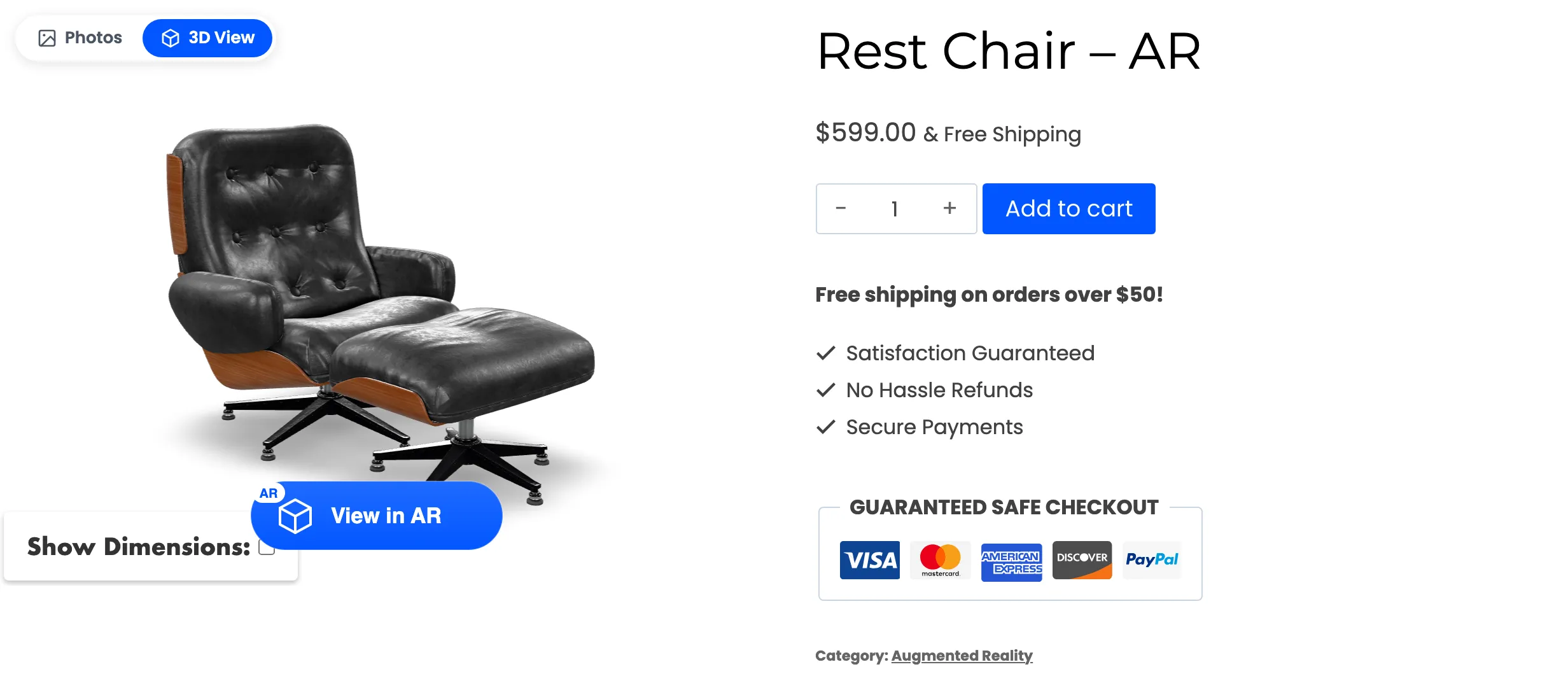
A replaced model can be cached by the browser under the old file’s URL. Use a private window for this check if you still see the old one.
What removing does not do
Section titled “What removing does not do”Three things stay exactly as they were, and all three are the reason removing is safe to do freely.
- The file stays in your media library. Removing detaches it from the product, nothing more, so you can re-attach the same file in seconds.
- The view history stays. Views already recorded against that product keep counting on the dashboard, and its total AR views figure does not reset.
- The product is untouched. No price, stock, gallery or description changes, and no WooCommerce cache needs clearing.