

3D Model File Formats
The plugin does not make models. It shows them. So the quality of the whole feature is decided before you ever open WordPress, by the two files you attach to each product.
The two formats, and why both
Section titled “The two formats, and why both”| Android (GLB) | iOS (USDZ) | |
|---|---|---|
| File extension | .glb |
.usdz |
| Drives the on-page 3D viewer | Yes | No |
| Drives AR on Android | Yes | No |
| Drives AR on iPhone and iPad | No | Yes |
They are not alternatives. .glb is the workhorse: it renders the Photos / 3D View toggle on
every device and drives AR on Android. .usdz exists for one reason, which is that Apple’s AR
Quick Look reads nothing else.
Attach only a .glb and iPhone shoppers get the 3D viewer but no AR. Attach only a .usdz and you
get AR on iPhone and no 3D viewer anywhere. Attach both and every shopper is covered.
The sample files
Section titled “The sample files”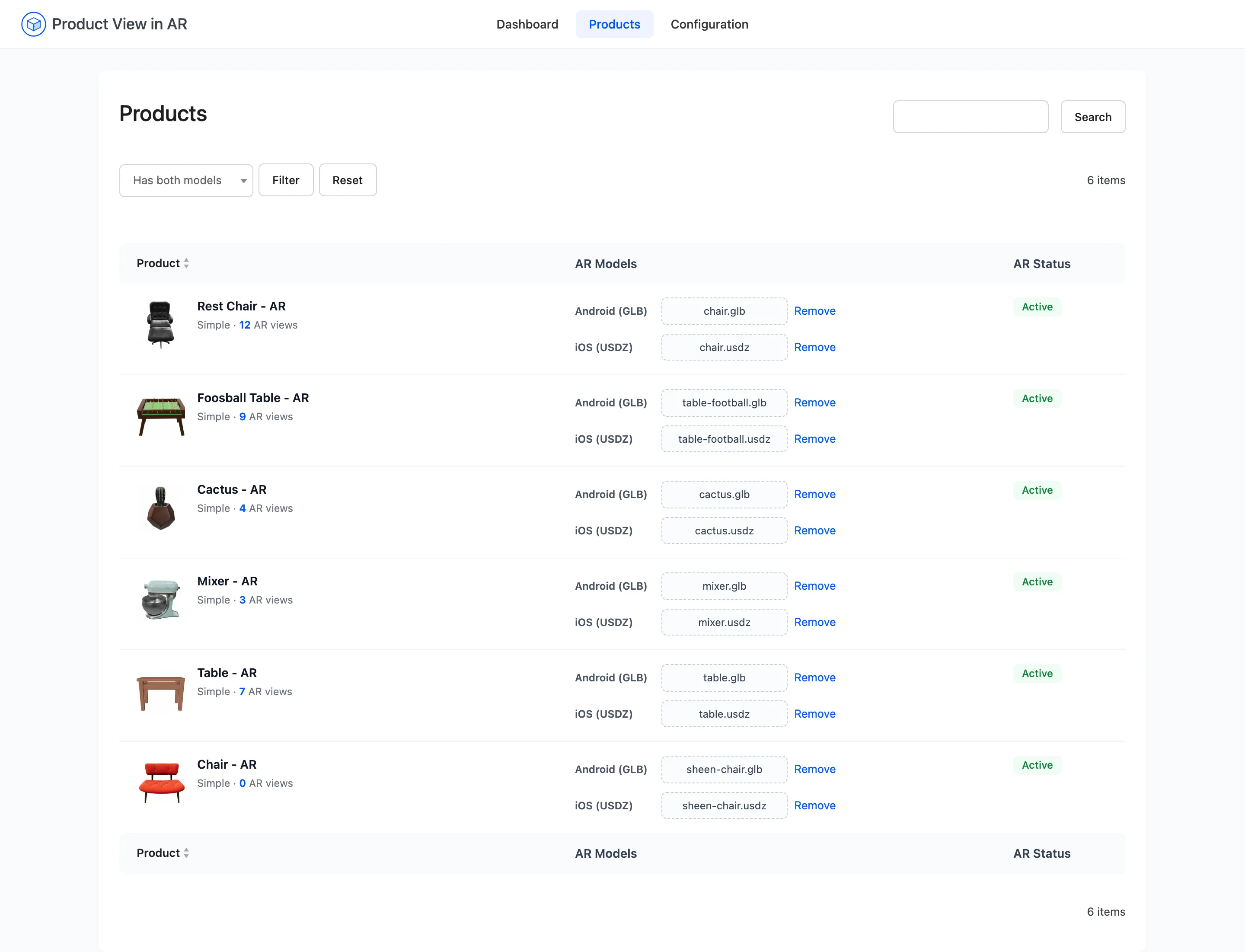
The Products screen carries a notice at the top linking a sample .glb and a sample .usdz.
Download them, attach them to a test product and open it on a phone. It takes two minutes and it
answers the question people usually spend a week on: what this actually looks like on my theme.
Where models come from
Section titled “Where models come from”Three routes, in rough order of cost.
- Your supplier already has one. Manufacturers of furniture, lighting and appliances often commission 3D assets for their own catalogues. Ask before you pay for anything.
- A 3D marketplace: Generic products such as pots, frames and tables can be bought outright for the price of a stock photo, then re-exported.
- Photogrammetry or a modeller: For your own products, either a scanning service or a freelance 3D artist. Ask for the deliverable as GLB plus USDZ, in metres, with the origin at the base.
WordPress will refuse both file types until this plugin is active, because neither is in the default allowed upload list. The plugin adds them, so if an upload is rejected with an unhelpful security message, check the plugin is still active.
What a good model looks like
Section titled “What a good model looks like”Five things separate a model that sells from one that makes a shopper close the tab.
- Correct real-world scale, in metres. AR places the model at its authored size. A sofa exported in centimetres arrives a hundred times too big and lands halfway through the wall.
- The origin at the base, centred. The model should sit on the floor when placed, not hover or sink into it.
- Under about 10MB: The file downloads before anything renders, on a phone, often on mobile data. A 60MB model is a blank viewer for most of a minute.
- Baked textures at a sane resolution: 2K maps are plenty for something viewed at arm’s length.
- The right way up and the right way round. The default camera looks at the front. If your product faces away, it was exported facing away.
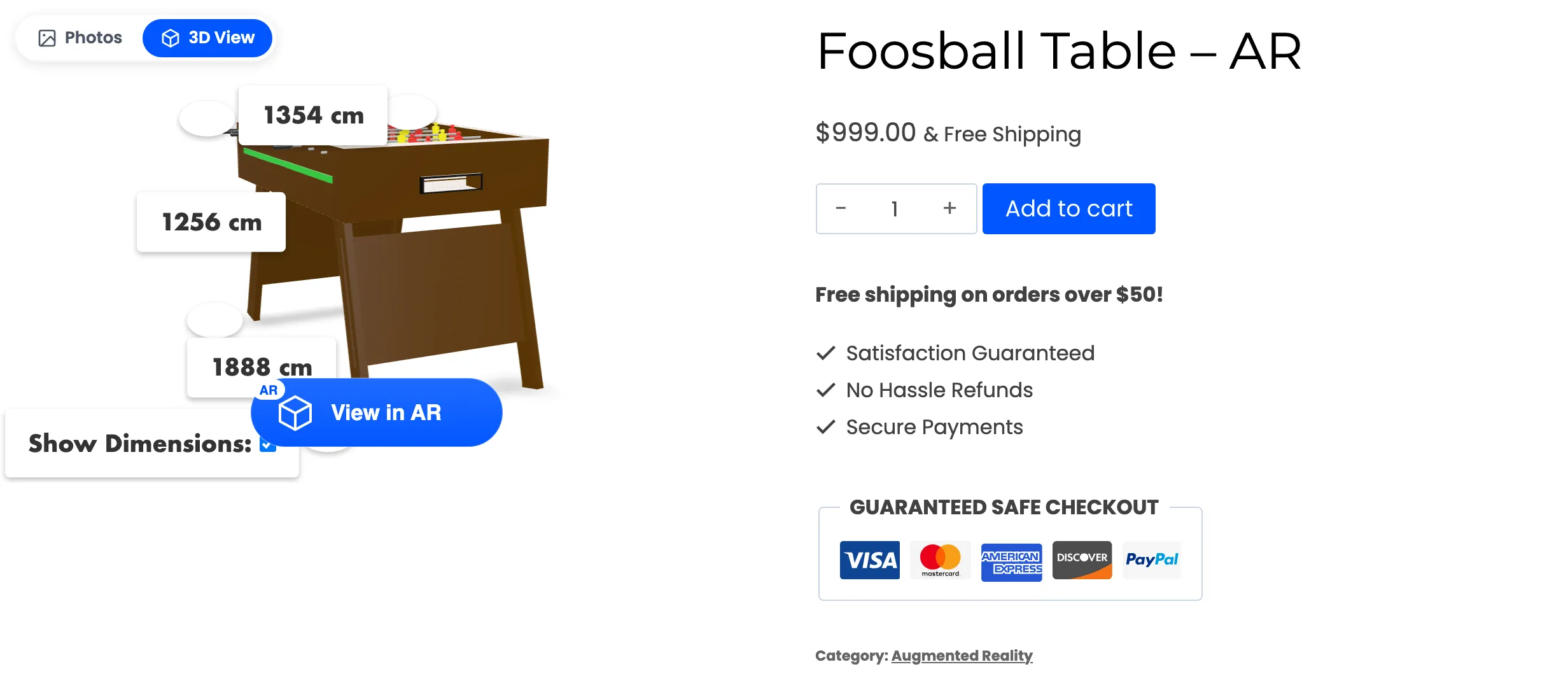
Use the Dimensions feature to check the first two without a phone: it labels the model with its own measured width, height and depth.
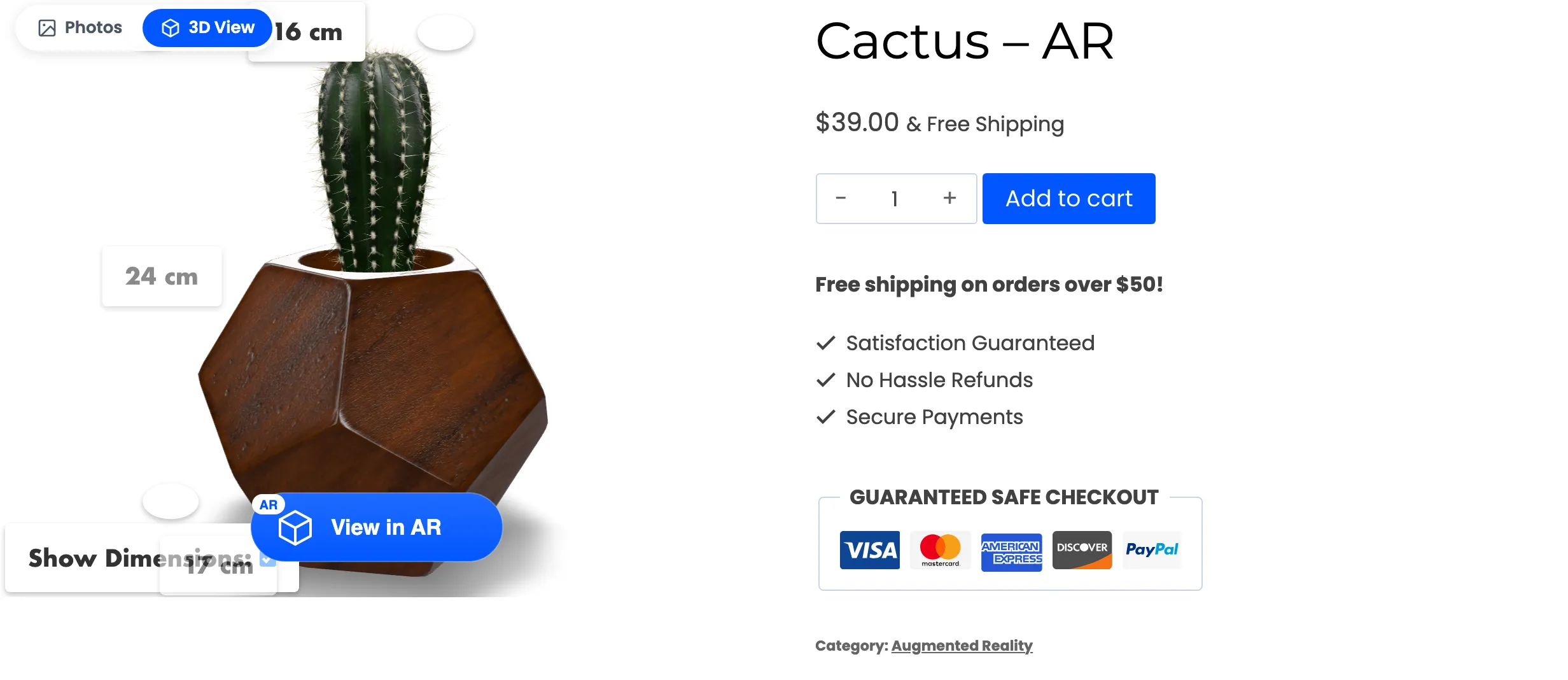
If those numbers do not match the real product, the file is wrong and no setting will fix it.
A poster image while it loads
Section titled “A poster image while it loads”A model is a large download, so the plugin can show the product’s own photo in the viewer’s place until the model is ready. That is the Preload setting, and it is on by default.
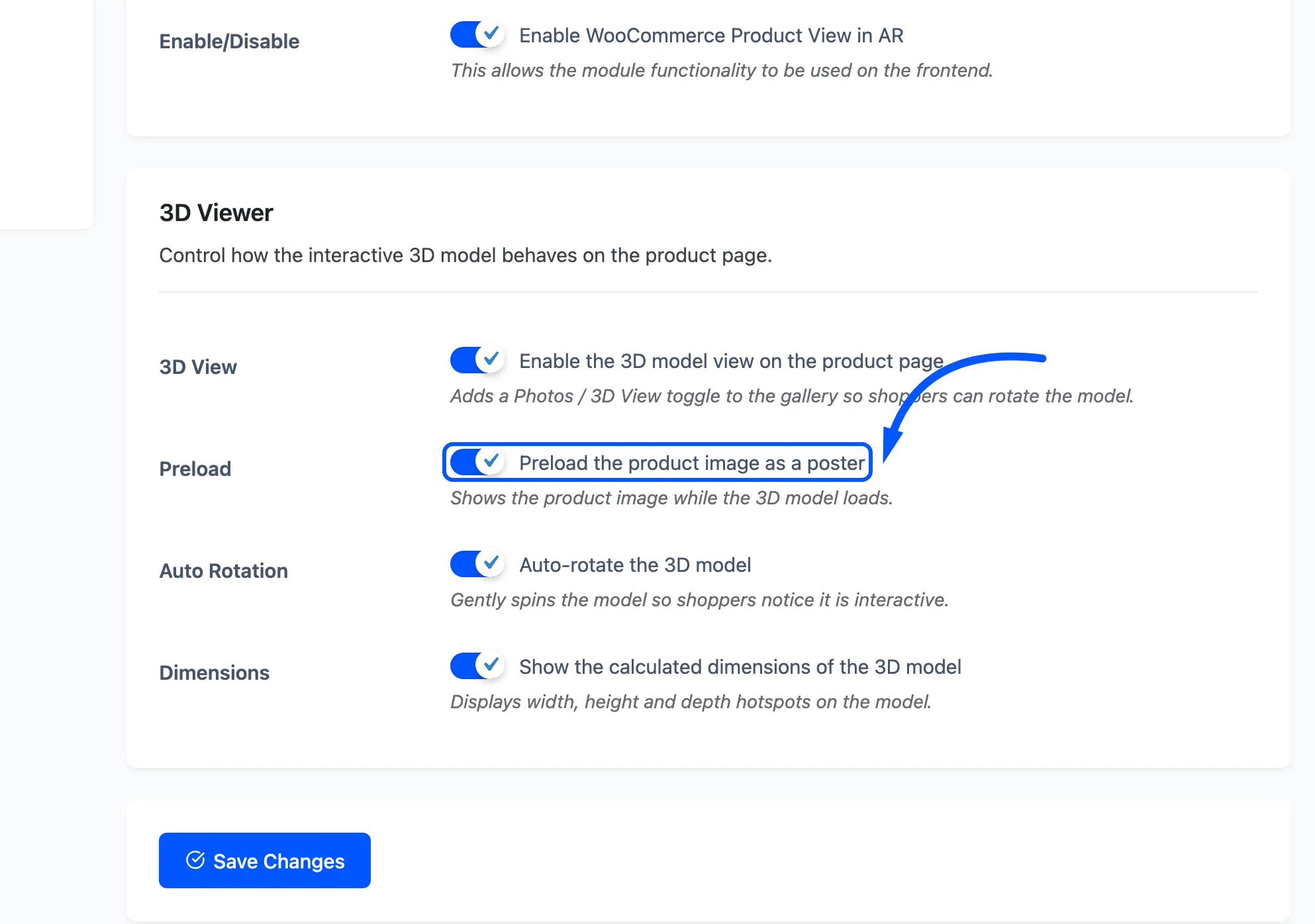
Leave it on. The alternative is an empty grey box on the slowest part of the experience.