

QR Code Settings (Pro)
Augmented reality needs a camera, and a desktop browser does not have one pointed at the room. This tab decides what a desktop shopper is offered instead.
Go to DevDiggers Plugins → Product View in AR → Configuration → QR Code.
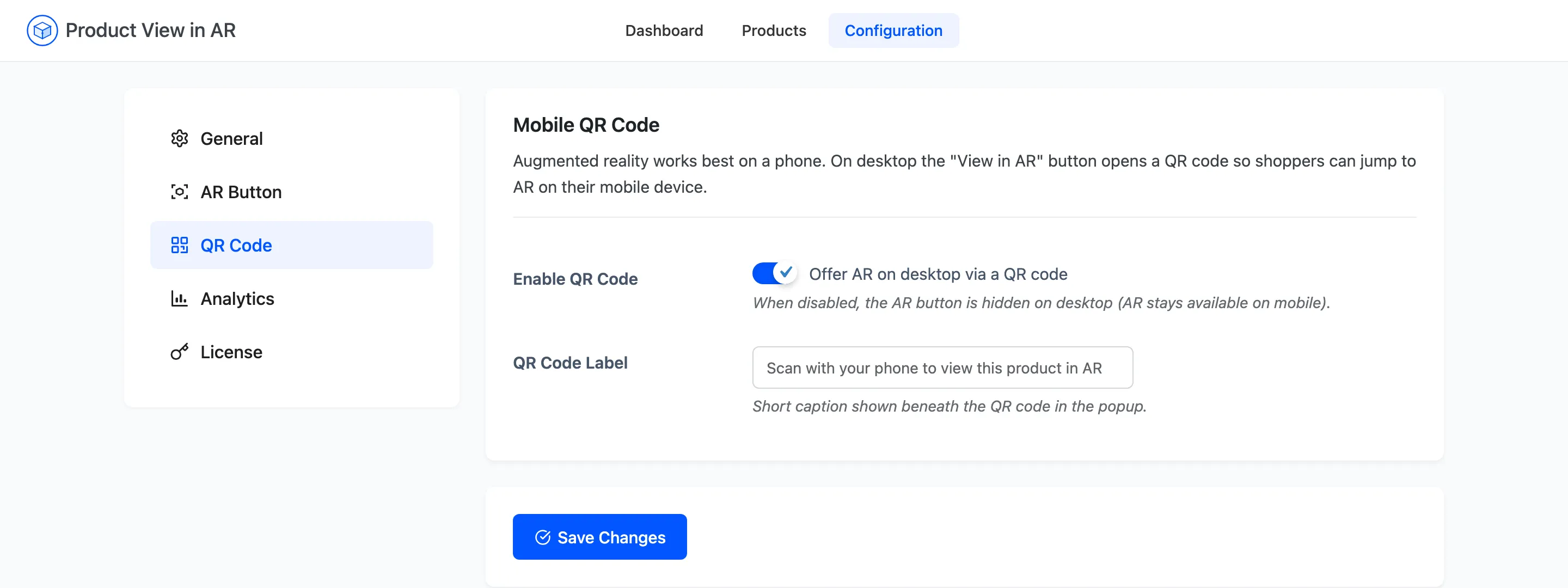
Mobile QR Code
Section titled “Mobile QR Code”Enable QR Code
Section titled “Enable QR Code”Offer AR on desktop via a QR code. Default on.
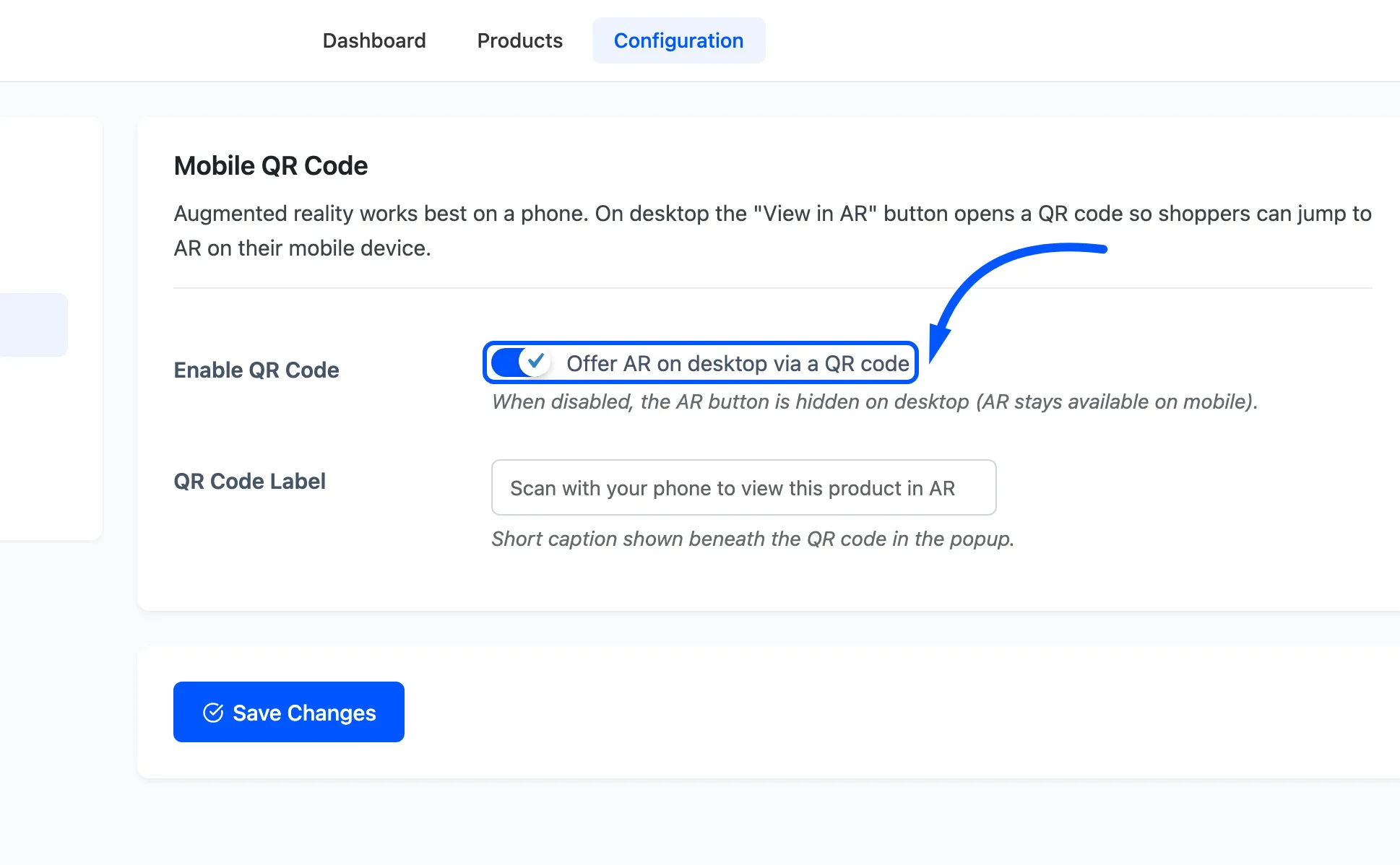
On, the View in AR button appears on desktop and opens a popup holding a QR code for that product’s own page. The shopper scans it with their phone camera, the product opens on the phone, and the AR button there launches the real thing.
Off, the AR button is hidden on desktop entirely. AR stays available on mobile, and desktop shoppers still get the Photos / 3D View toggle. That is the intended behaviour rather than a limitation: a button that cannot do anything is worse than no button.
QR Code Label
Section titled “QR Code Label”The caption under the code. Default Scan with your phone to view this product in AR.
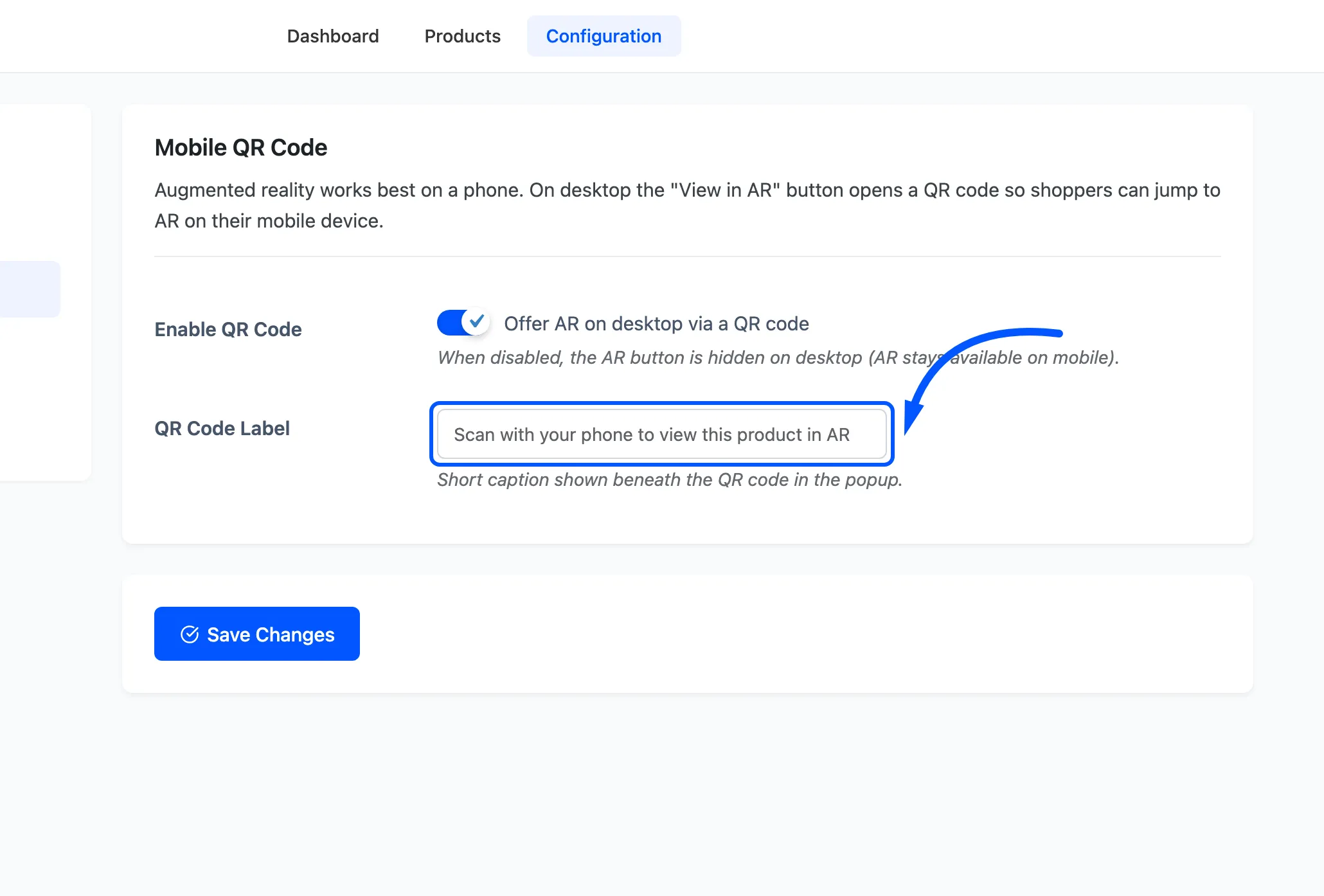
The popup’s heading is fixed at View in your space. This field is the line beneath the code, and the one place to say something in your own voice. Keep it to one short sentence, because it sits under a square of code on a small card.
What the popup looks like
Section titled “What the popup looks like”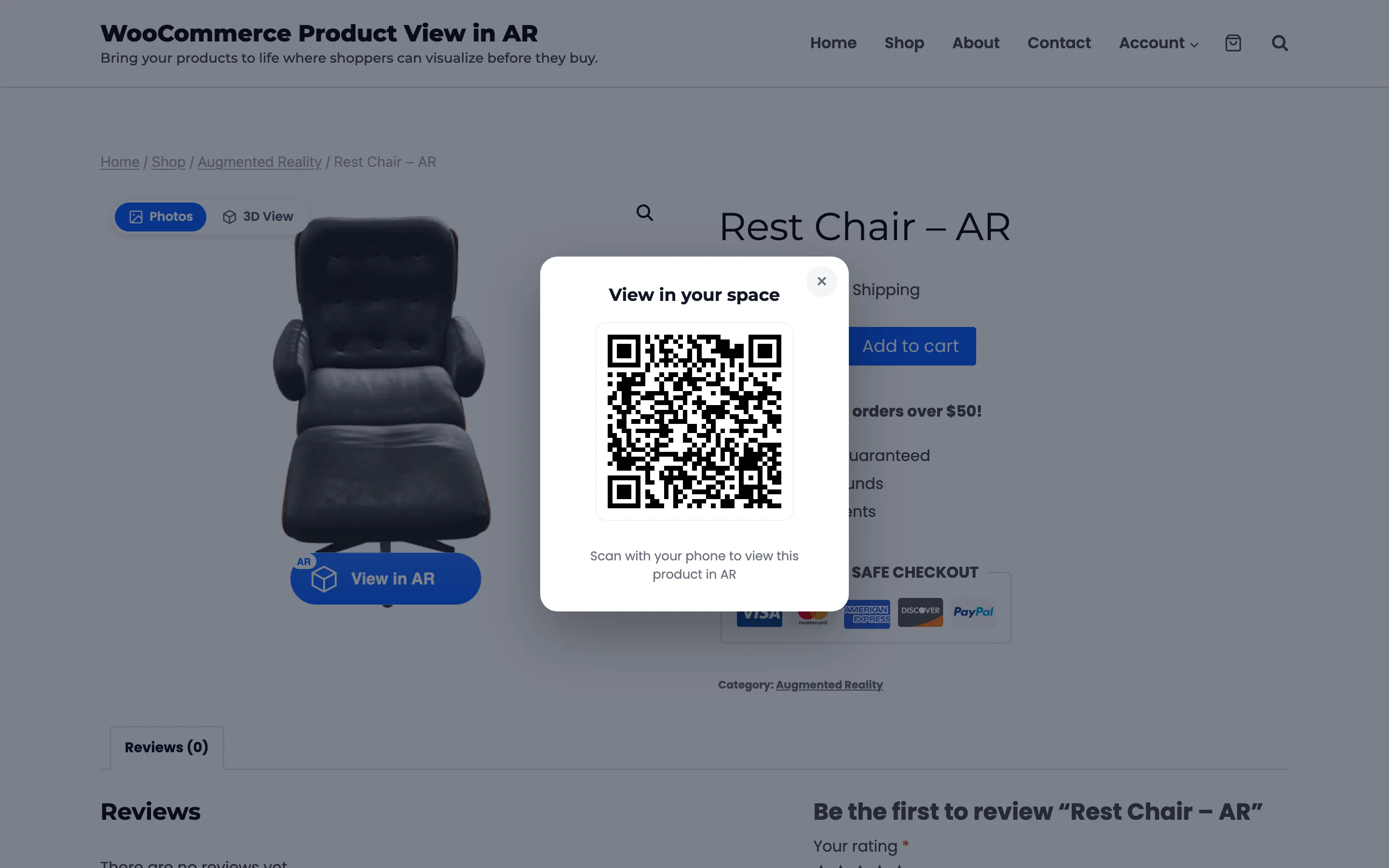
The code encodes the product’s own URL, so it works for every product with no per-product setup. The popup closes on the X, on the dimmed background, or with the Escape key.