

How to Set Up Your Outlet
The POS will not open until an outlet exists. An outlet is not just a label. It decides the tax on every sale, the address on every receipt, the stock the POS sells from and the payment methods a cashier can take.
Do this before you add cashiers or assign barcodes.
Step 1: Define your payment methods first
Section titled “Step 1: Define your payment methods first”The outlet form asks you to pick payment methods, so they have to exist before you get there.
Go to DevDiggers Plugins → MultiPOS for FluentCart → Configuration → Payments.
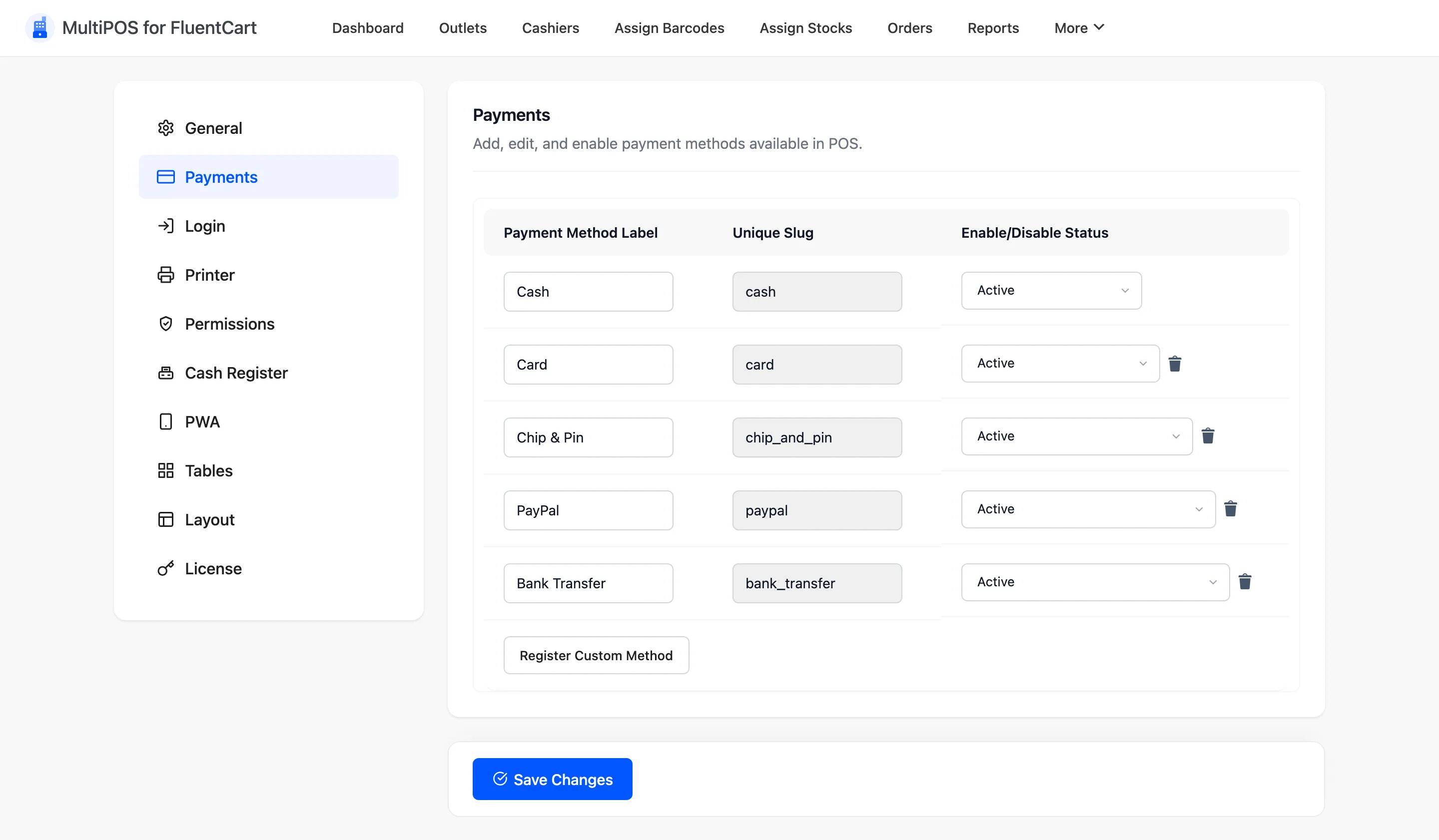
One method ships by default, Cash, and it cannot be deleted. Add the rest with Register Custom Method under the table.
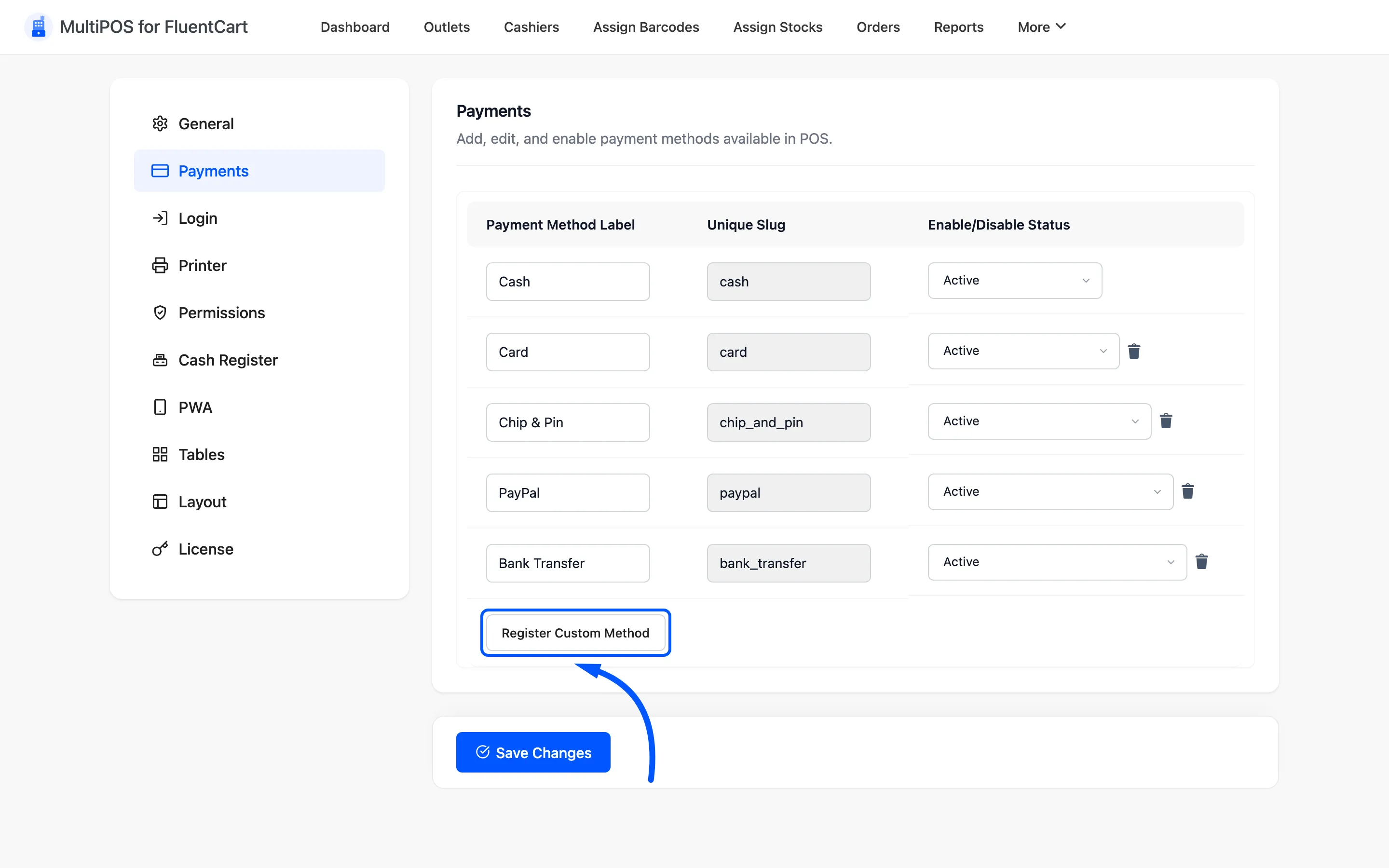
Add what you actually take at the counter: Card, Chip & Pin, Bank Transfer, Gift Card. Set each to Active and click Save Changes.
These are POS tenders, not FluentCart payment gateways. The cashier takes the money; the POS records how it was paid.
Leave the Cash method’s slug as cash. Change is only recorded for that exact slug, so renaming it
breaks your drawer check.
Step 2: Open the Add Outlet form
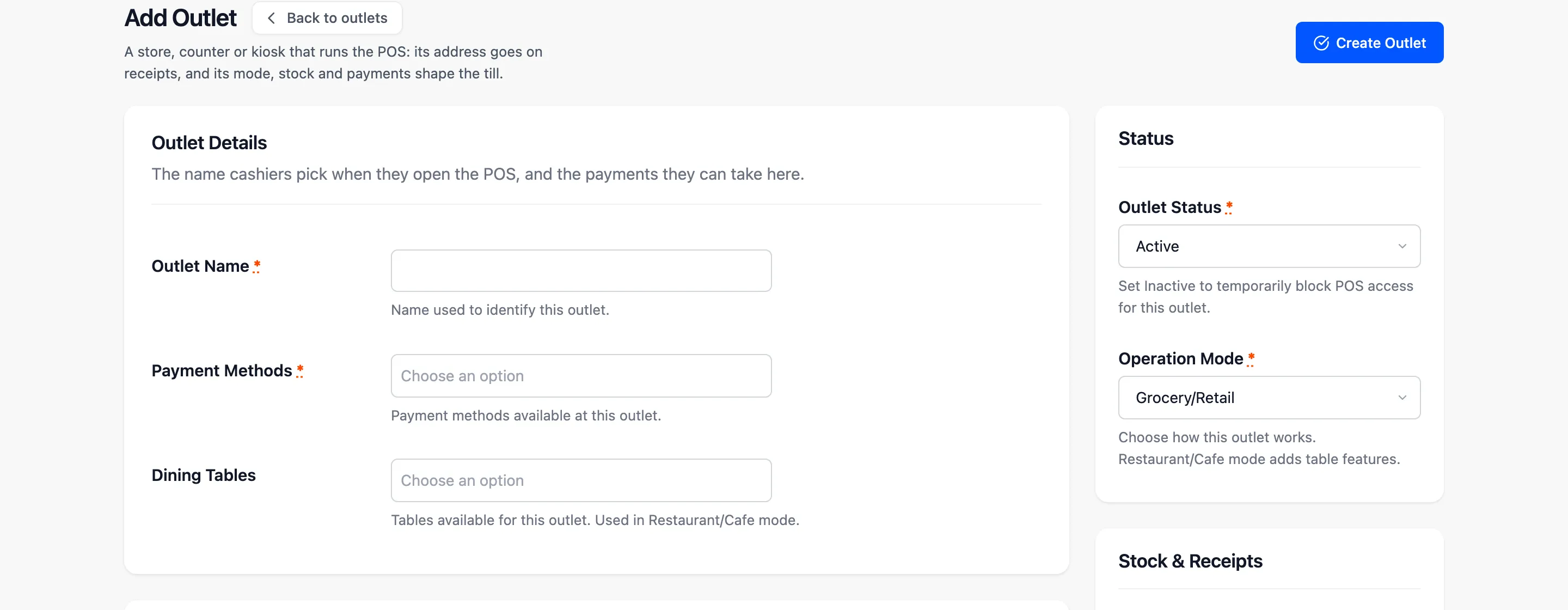
Section titled “Step 2: Open the Add Outlet form”Go to DevDiggers Plugins → MultiPOS for FluentCart → Outlets and click Add New.
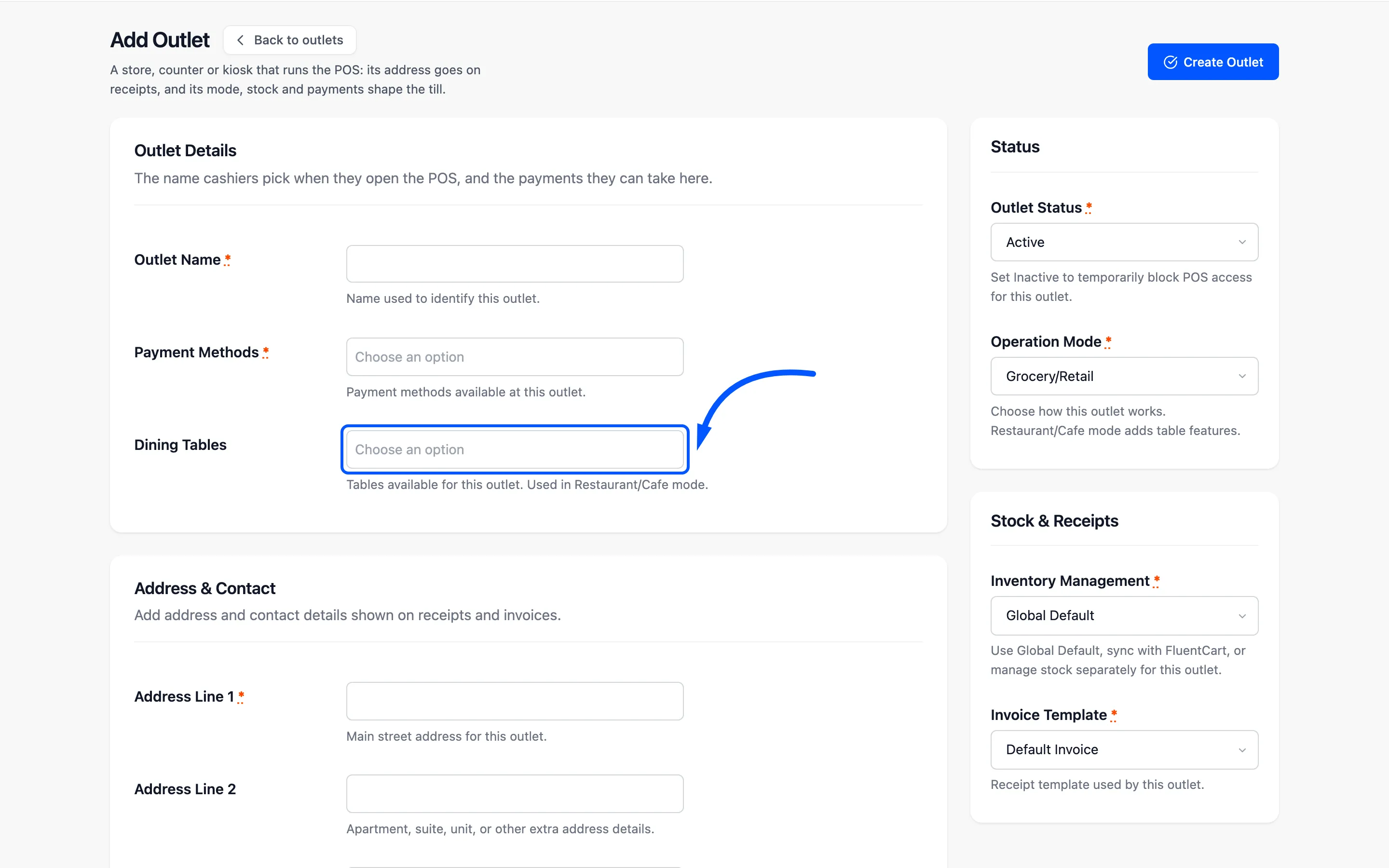
Step 3: Name the outlet and pick its payment methods
Section titled “Step 3: Name the outlet and pick its payment methods”Outlet Name is a label you will recognise, such as Harbor Lane Market. It appears on the outlet
picker your cashiers see.
Payment Methods is a multi-select of the Active methods from step 1. At least one is required.
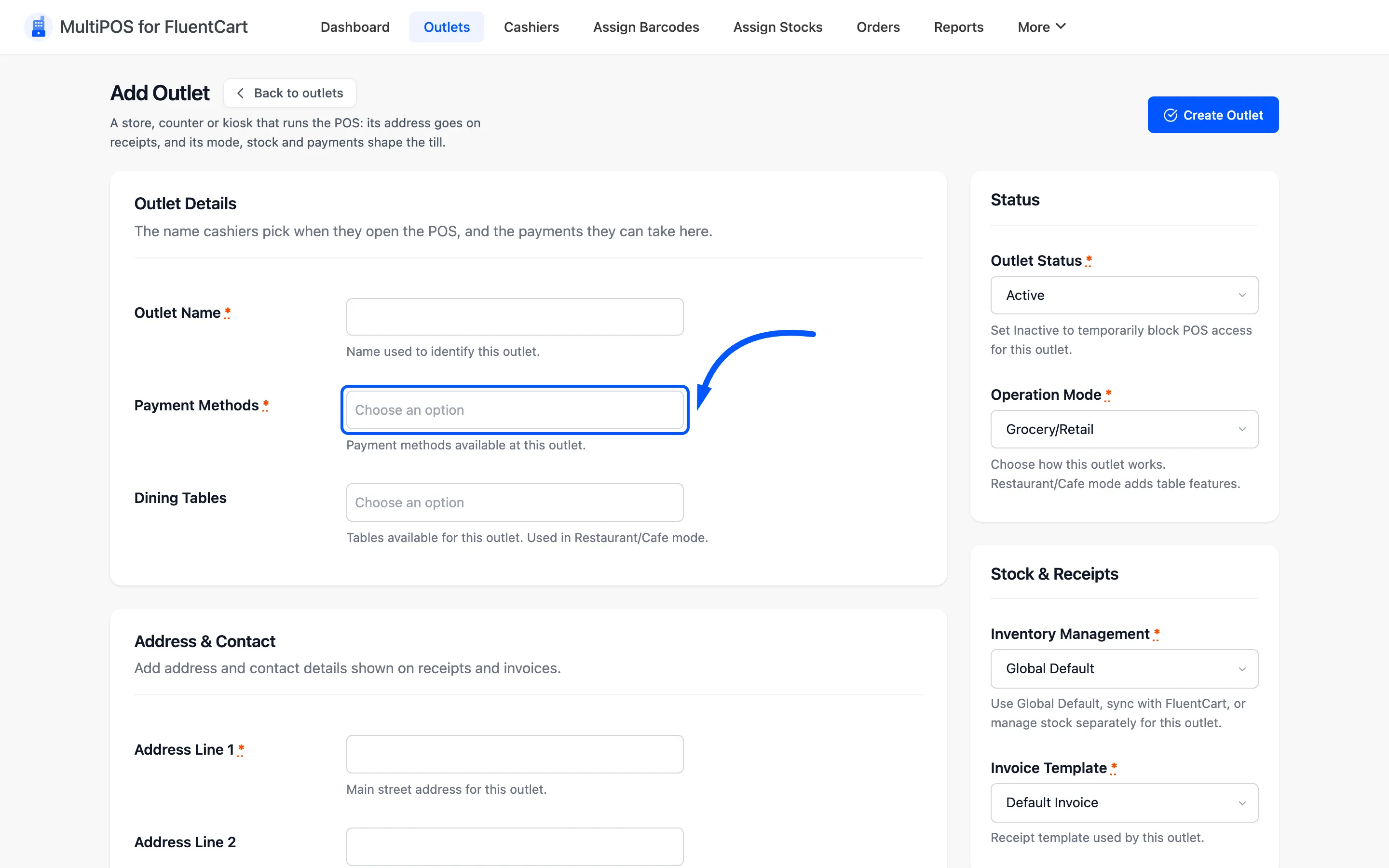
This is the step people miss. A method that is Active under Configuration but not selected here never reaches the POS. The cashier just sees a shorter list with no explanation.
Dining Tables only matters in Restaurant/Cafe mode. Pick the tables this location has.
Step 4: Enter the address and contact details
Section titled “Step 4: Enter the address and contact details”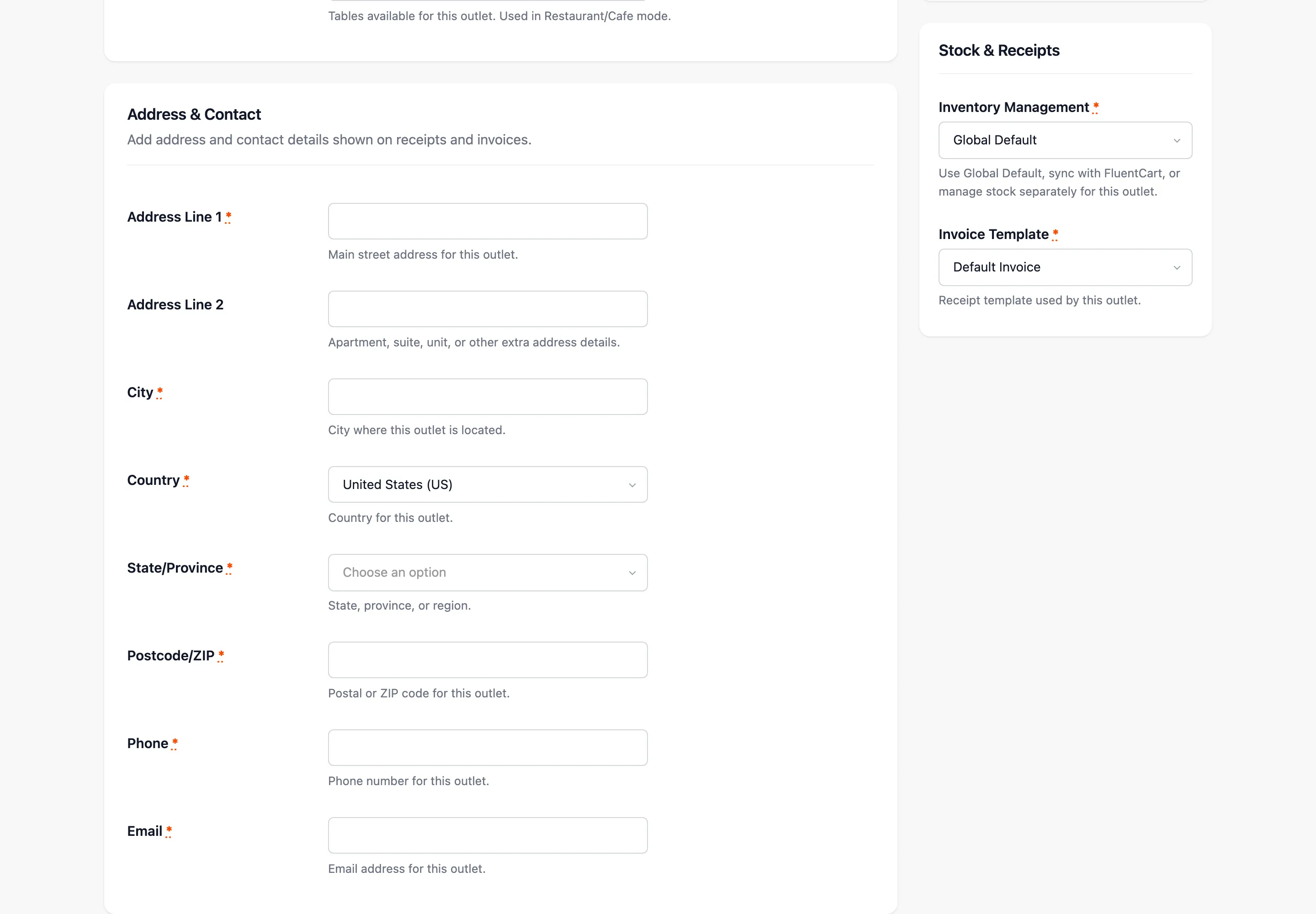
Eight fields, and everything except Address Line 2 is required.
This is the section worth slowing down for. Two things depend on it:
- Tax: FluentCart’s own tax engine works out the tax for this address. A wrong state or postcode is a wrong tax rate on every sale until someone notices. On the demo the Market in Belleville, MI charges Michigan’s 6%, and the Café in Cincinnati, OH charges Ohio’s 5.75%.
- Receipts and orders: The address and phone print on every receipt, and the address becomes the FluentCart order’s address.
Enter the shop’s real trading address, not your registered office.
Step 5: Set the status, mode and stock
Section titled “Step 5: Set the status, mode and stock”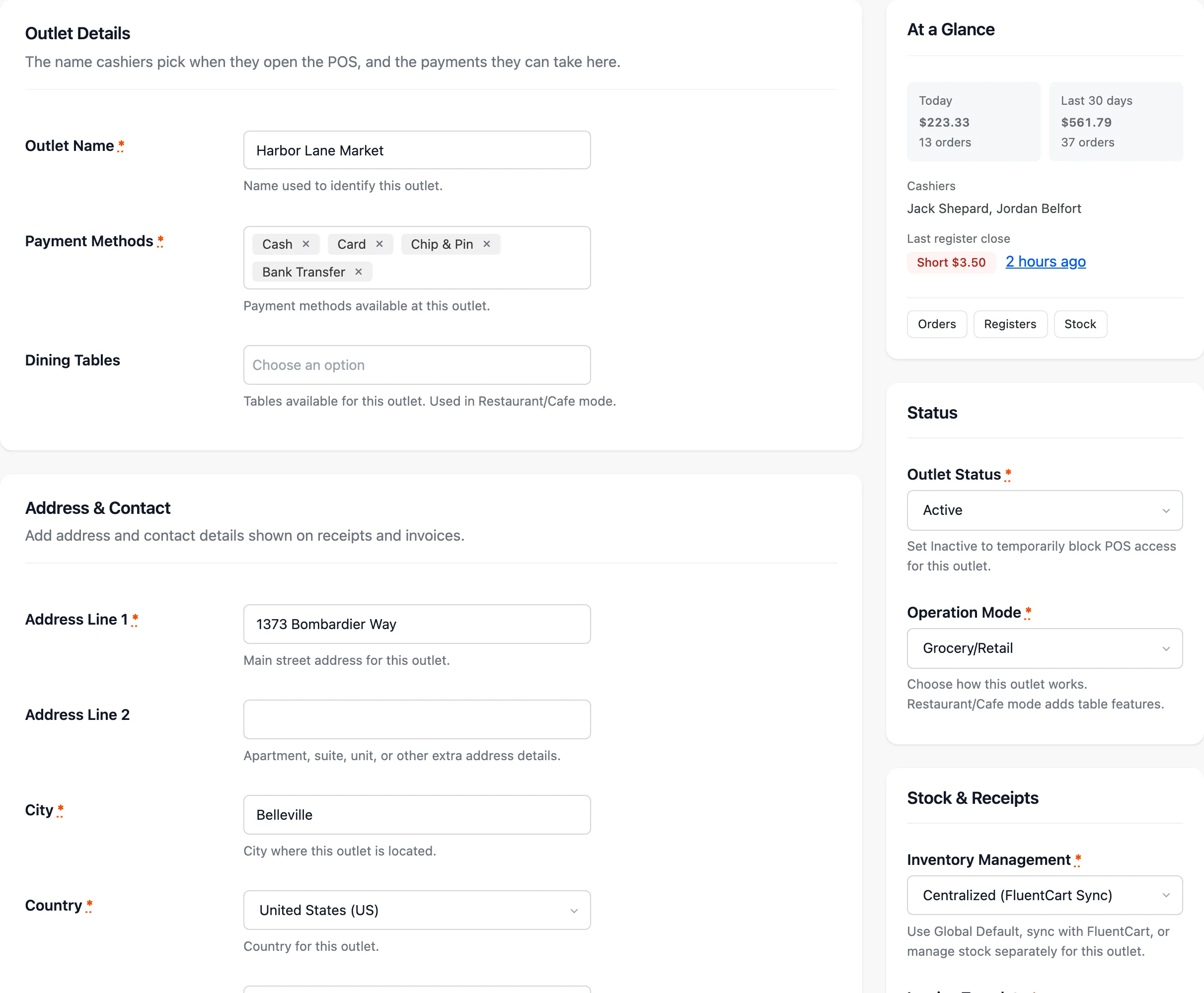
Outlet Status must be Active for the POS to open it.
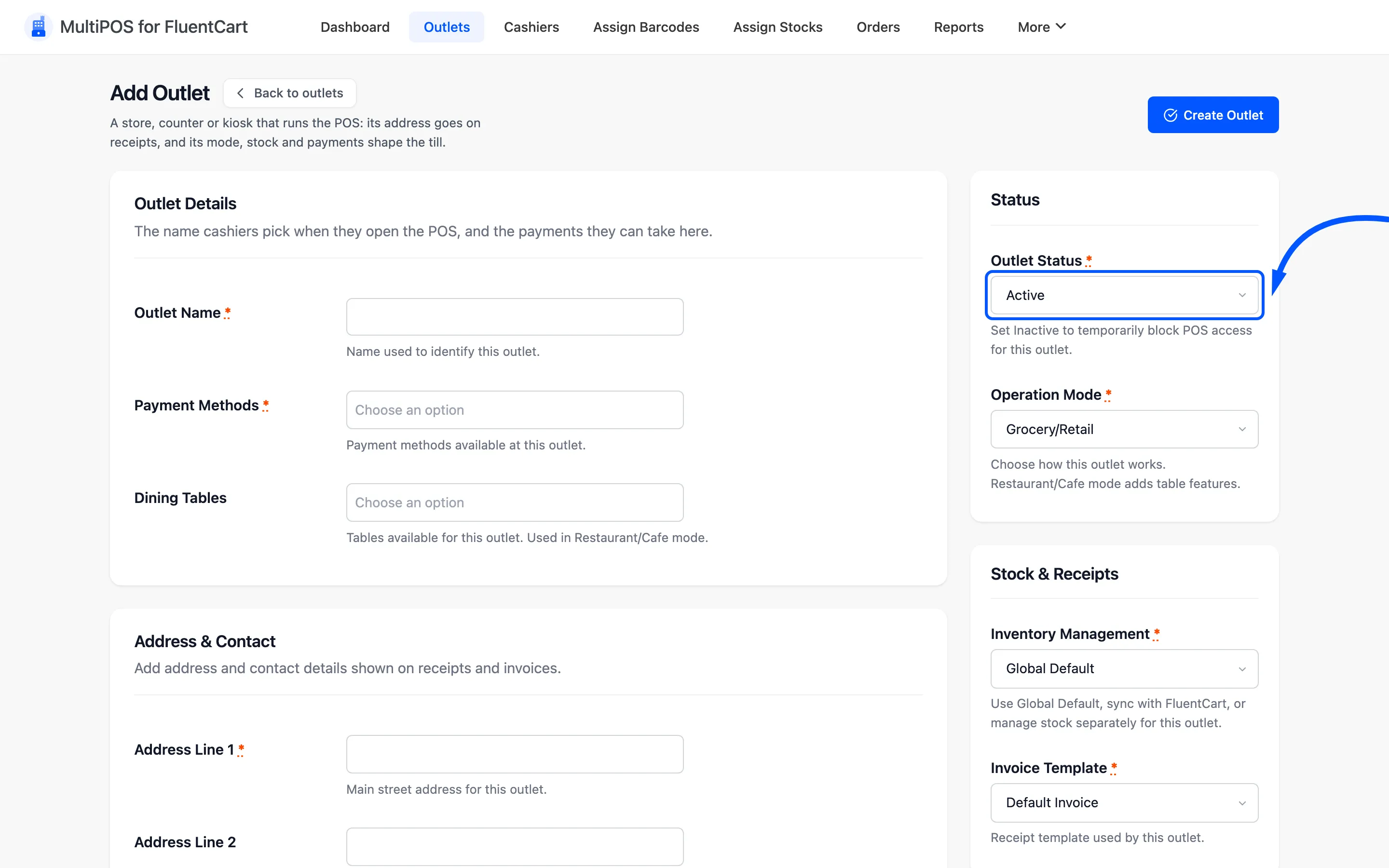
Set it to Inactive later if you close the location for a refit. Nothing is lost and orders stay where they are.
Operation Mode is the field that changes the terminal.
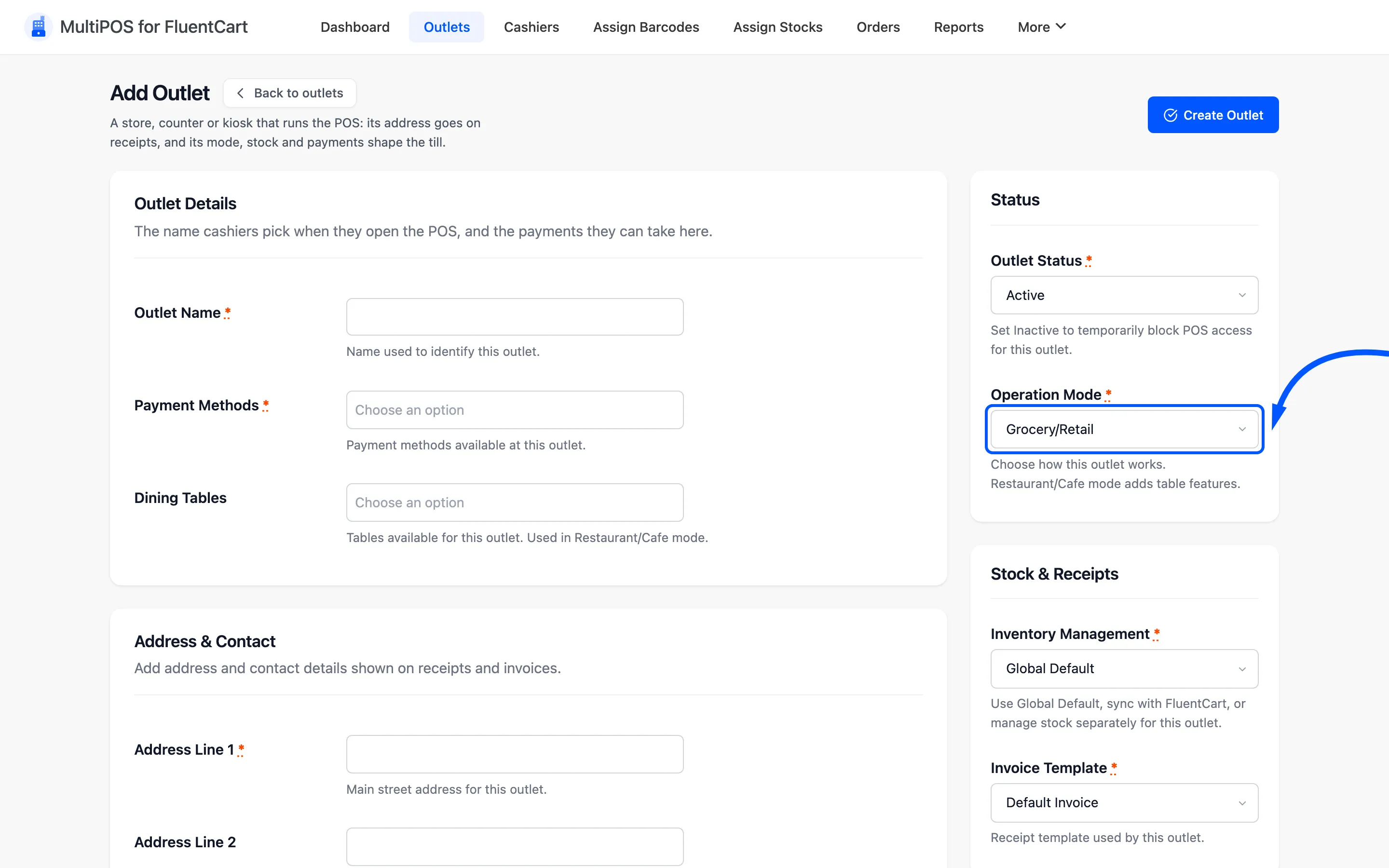
- Grocery/Retail gives a straight product-and-cart POS.
- Restaurant/Cafe adds three things: the Tables screen in the sidebar, a Select Table control in the cart, and a Dine in / Take Away choice.
Pick the one that matches how you sell. A shop set to Restaurant mode shows staff a floor plan they will never use.
Inventory Management decides the stock the POS sells from:
- Centralized (FluentCart Sync): The POS sells from FluentCart’s stock, the same count your website uses. It needs FluentCart’s Stock Management module.
- Custom (Manual POS Stock): The outlet keeps its own count, set under Assign Stocks, and FluentCart’s stock is left alone. The POS only lists products that have a count at this outlet.
- Global Default: Follows the store-wide choice under Configuration → General.
Invoice Template picks the receipt this outlet prints.
Here is the form filled in for the demo’s market:
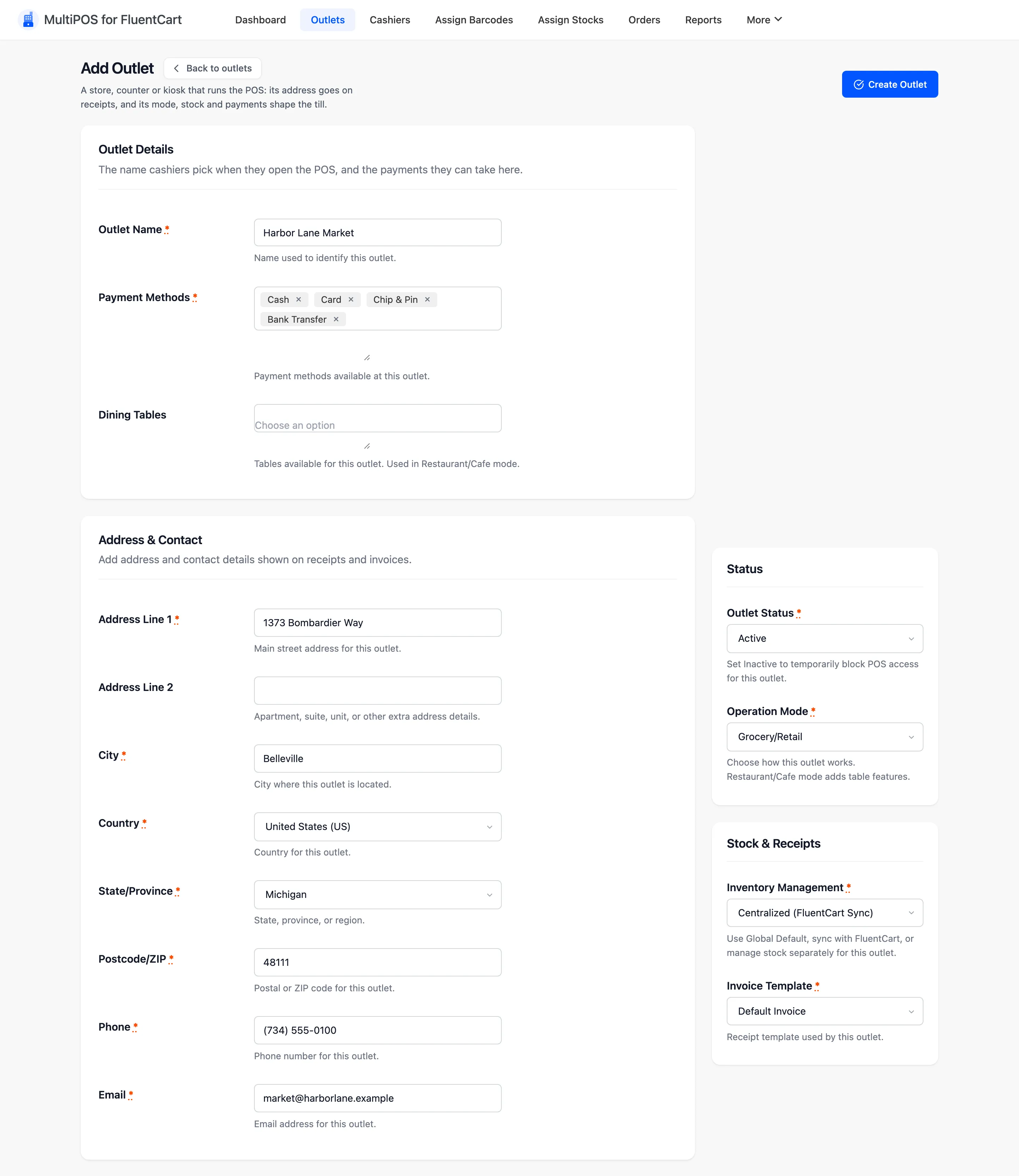
Click Create Outlet. The outlets list opens with a notice that the outlet was saved.

Step 6: Open the terminal
Section titled “Step 6: Open the terminal”The outlets list header carries a Visit POS button. Click it.
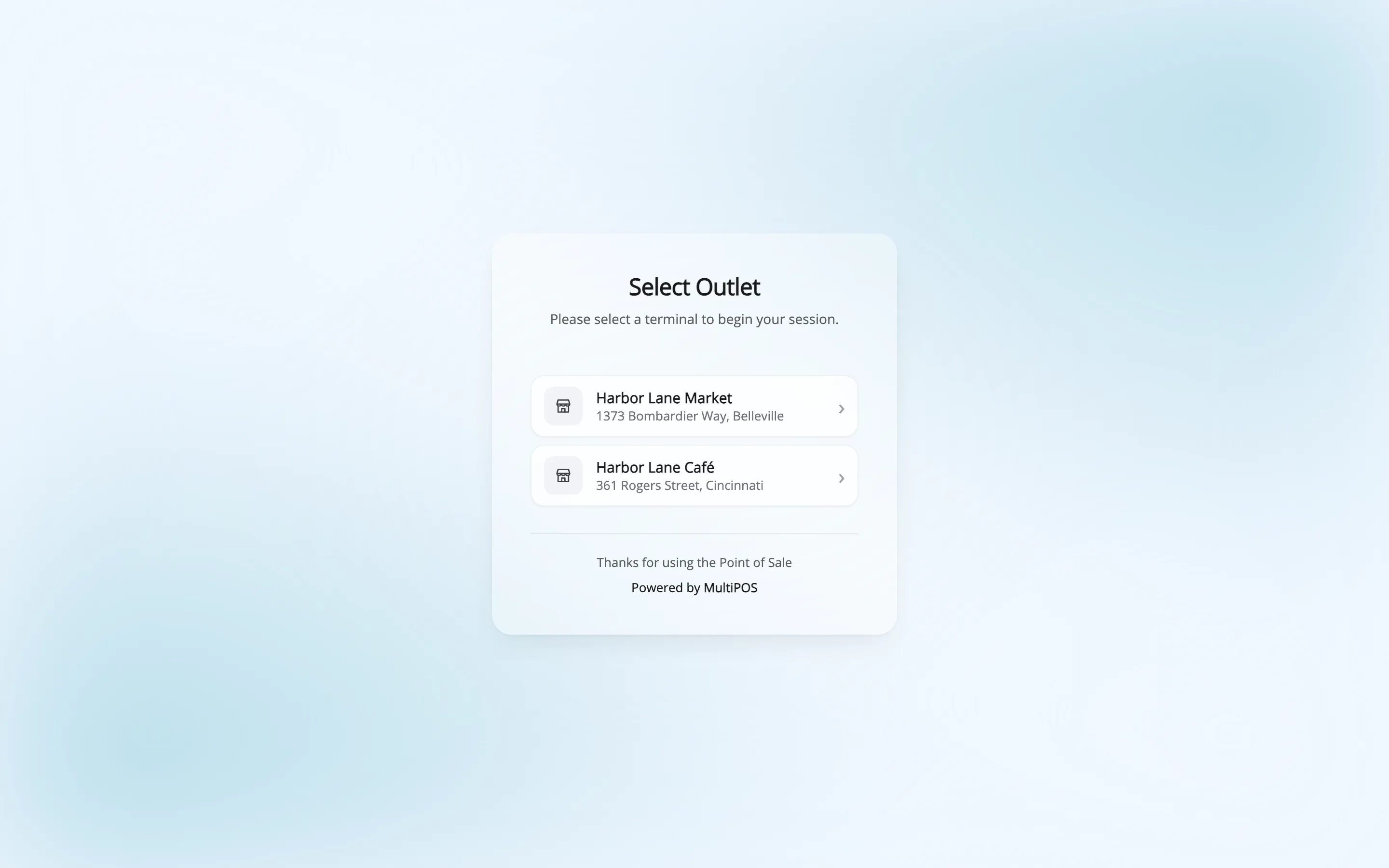
Your outlet should be on the picker. Choose it and the POS loads.
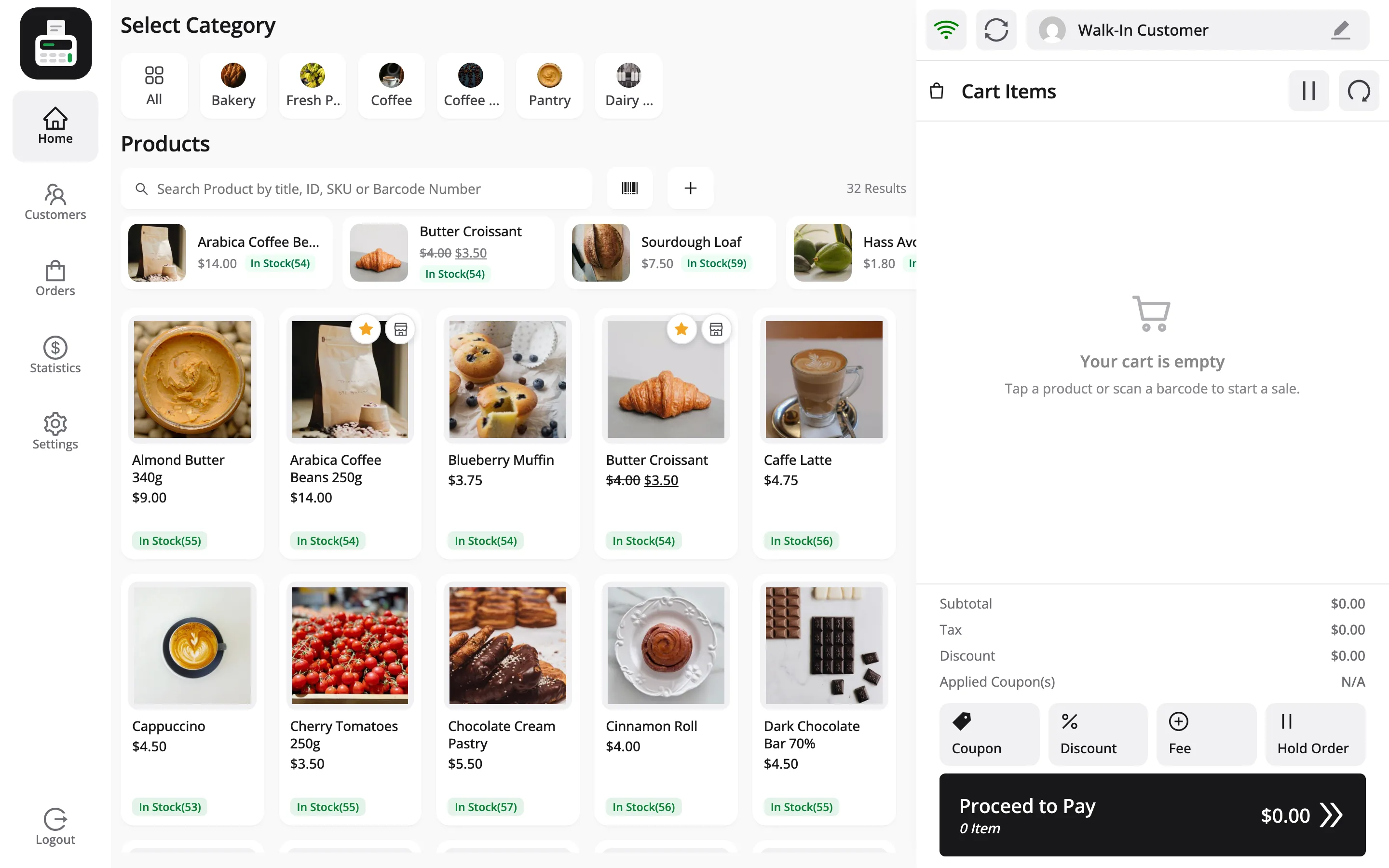
Now add a product to the cart and press Proceed to Pay. The payment methods you assigned should be the ones listed.
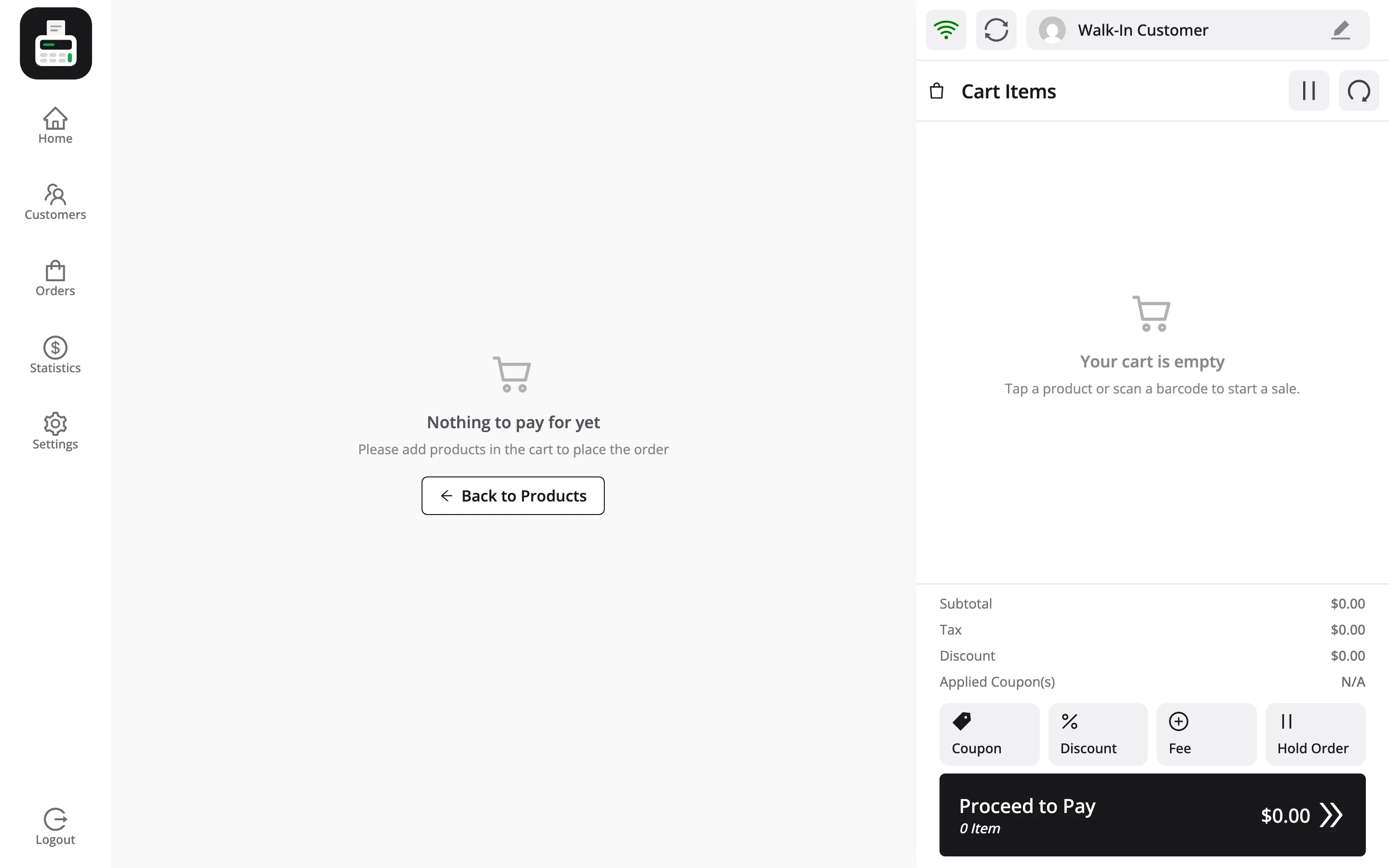
If the outlet is missing from the picker, check Outlet Status and Enable Point of Sale System under Configuration → General. Both have to be on.
Changing the outlet later
Section titled “Changing the outlet later”Everything on the form can be edited, and changes apply to new orders only. Press Update Outlet to save.
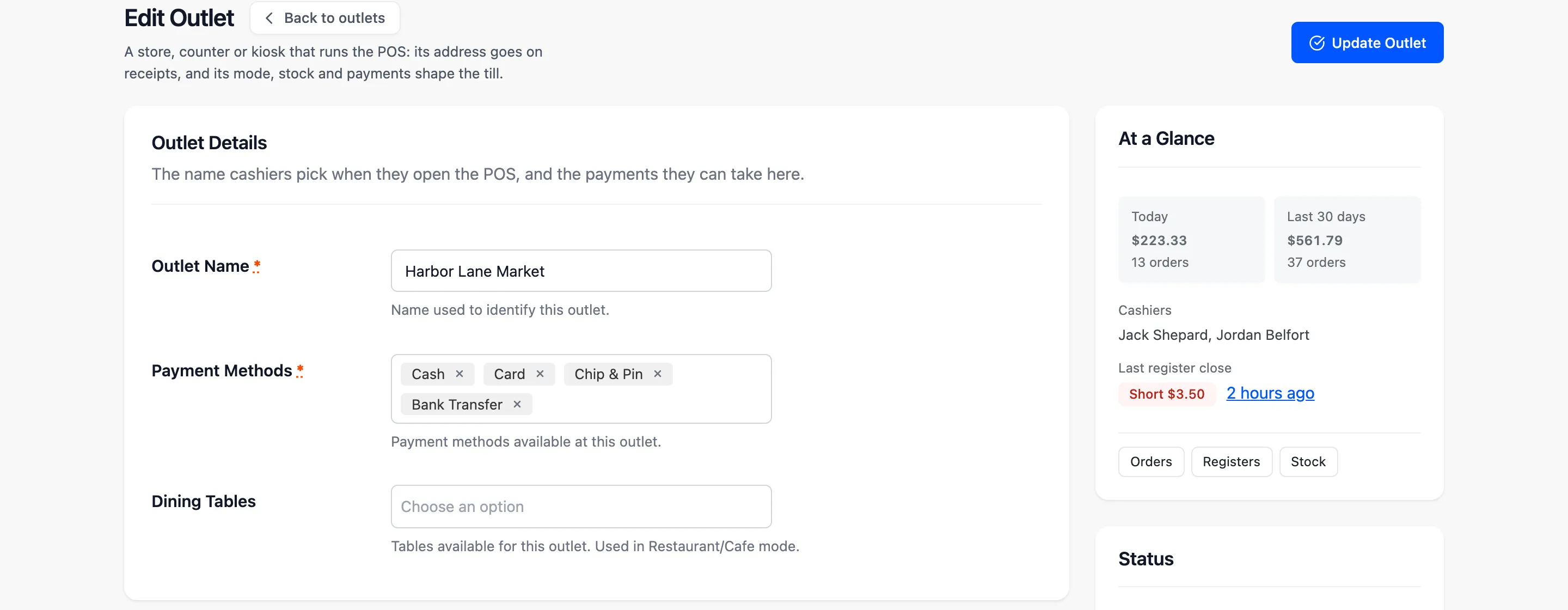
Past orders keep the address and the payment method they were created with, which is exactly what your records need.
Where to go next
Section titled “Where to go next”- How to Add a Cashier
- How to Take Your First Sale
- Outlets for the field reference.