

Reports
Reports is the detail behind the dashboard. It answers what sold, who sold it, how customers paid, when you were busy and whether the drawers balanced, all on one page.
Open the screen
Section titled “Open the screen”Go to DevDiggers Plugins → MultiPOS for FluentCart → Reports.
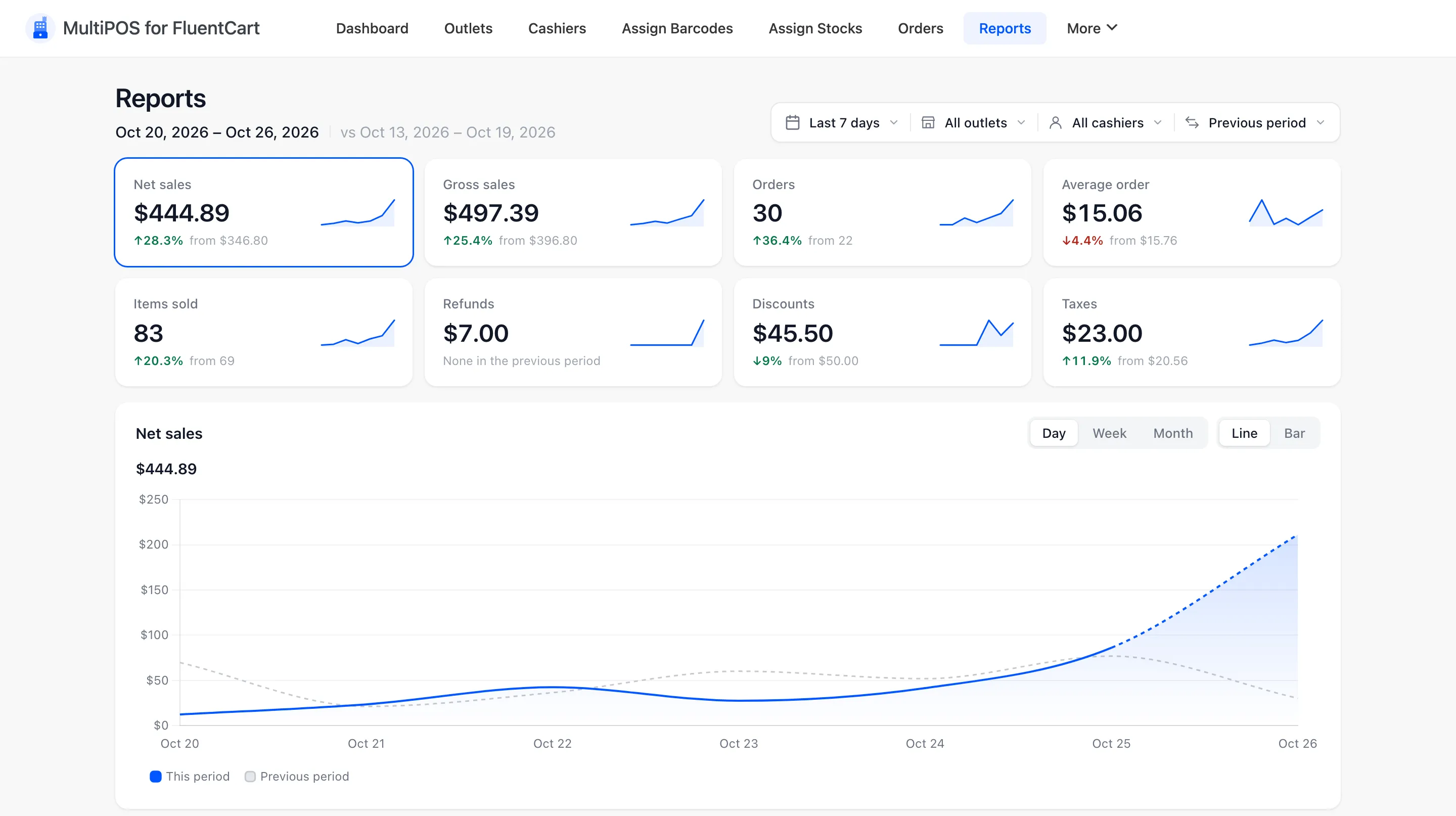
Under the title sit the dates you are looking at, and the dates they are compared with in grey.
Where the figures come from
Section titled “Where the figures come from”Reports reads your FluentCart orders directly. A sale shows up the moment the cashier takes it, with nothing to switch on and nothing to wait for.
Only POS orders count. An order placed on the website is left out, because it has no outlet. Canceled and failed orders are left out too.
The figures are worked out like this:
- Gross sales: What the items and fees sold for before discounts, without tax and shipping.
- Discounts: Coupons, line discounts and the cart discount a cashier gives at the counter.
- Refunds: The FluentCart refunds on those orders, without their tax. A refund counts on the day it was made, so an old sale refunded today lowers today.
- Net sales: Gross sales, less discounts, less refunds.
- Taxes: Tax collected, less any tax that was refunded.
The filters
Section titled “The filters”Four controls sit at the top right, and every tile, chart and table below follows all four.
Date range
Section titled “Date range”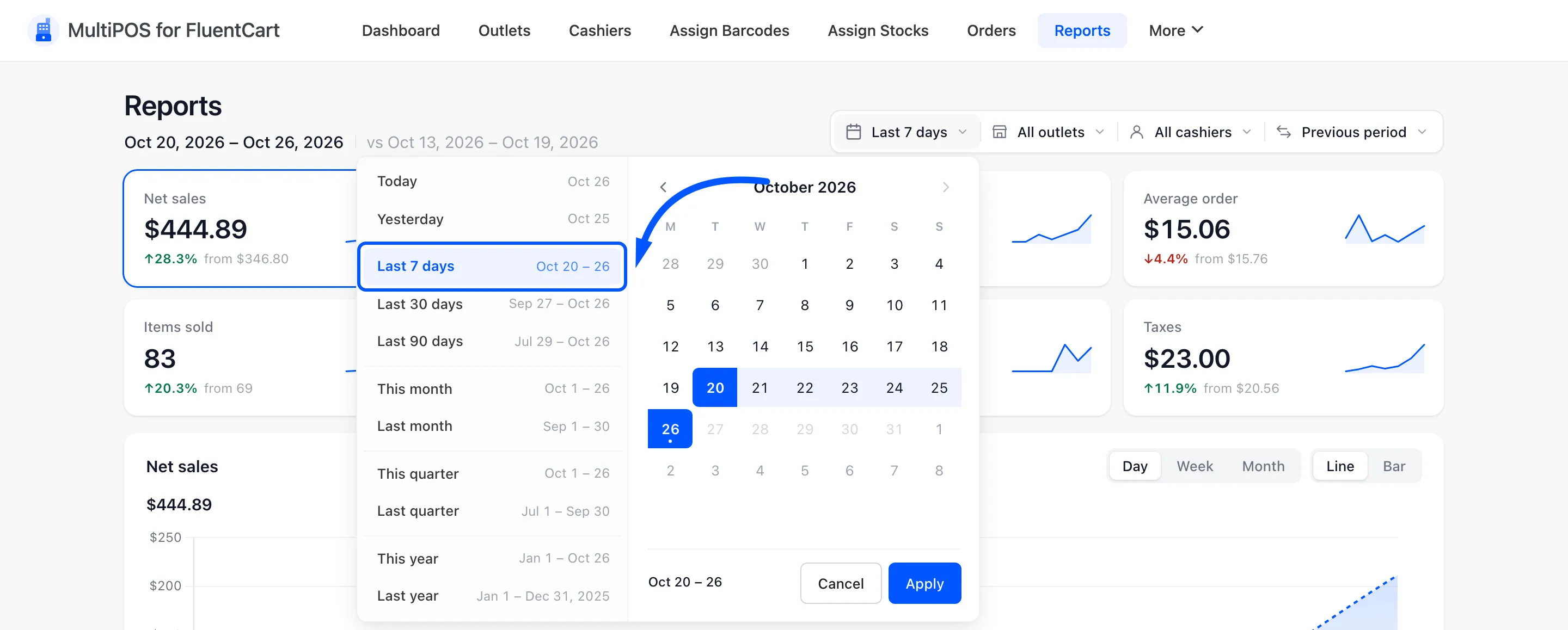
The page opens on Last 7 days. Each preset shows its dates beside it:
- Today and Yesterday
- Last 7 days, Last 30 days and Last 90 days
- This month and Last month
- This quarter and Last quarter
- This year and Last year
For any other range, click a start day and an end day on the calendar and press Apply. Days after today cannot be picked.
Outlet and cashier
Section titled “Outlet and cashier”
All outlets narrows the page to one outlet.
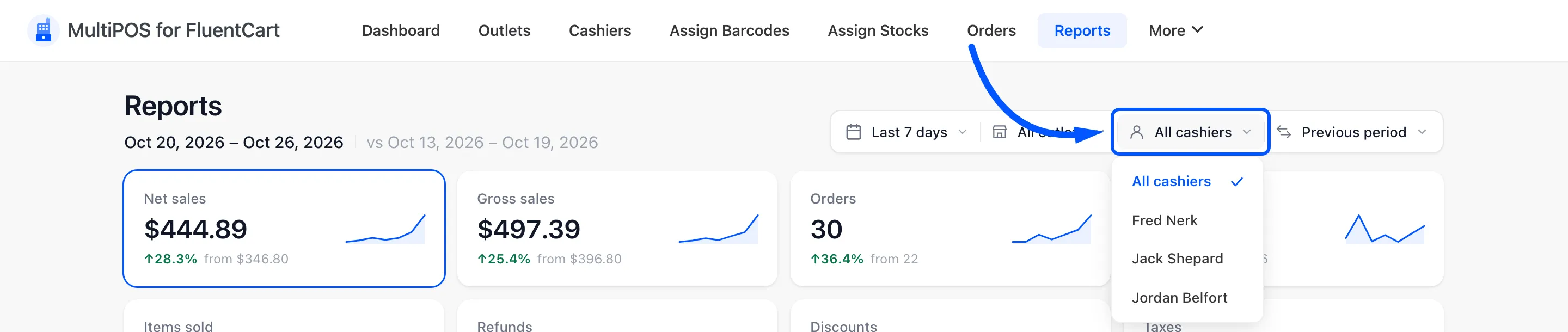
All cashiers narrows it to the sales one person took.
Comparison
Section titled “Comparison”
- Previous period: The same number of days just before. Last 7 days is compared with the 7 days before it.
- Same period last year: The same dates a year earlier.
- No comparison: Hides the change figures and the grey line on the chart.
The figure tiles
Section titled “The figure tiles”
Eight tiles: Net sales, Gross sales, Orders, Average order, Items sold, Refunds, Discounts and Taxes. Each shows the figure, a small trend line, and the change against the comparison with the old figure beside it.
Green means good news. For Refunds and Discounts a rise is shown in red, because more of either costs you money.
A tile reads None in the previous period when there was nothing to compare with, rather than showing a meaningless percentage.
The chart
Section titled “The chart”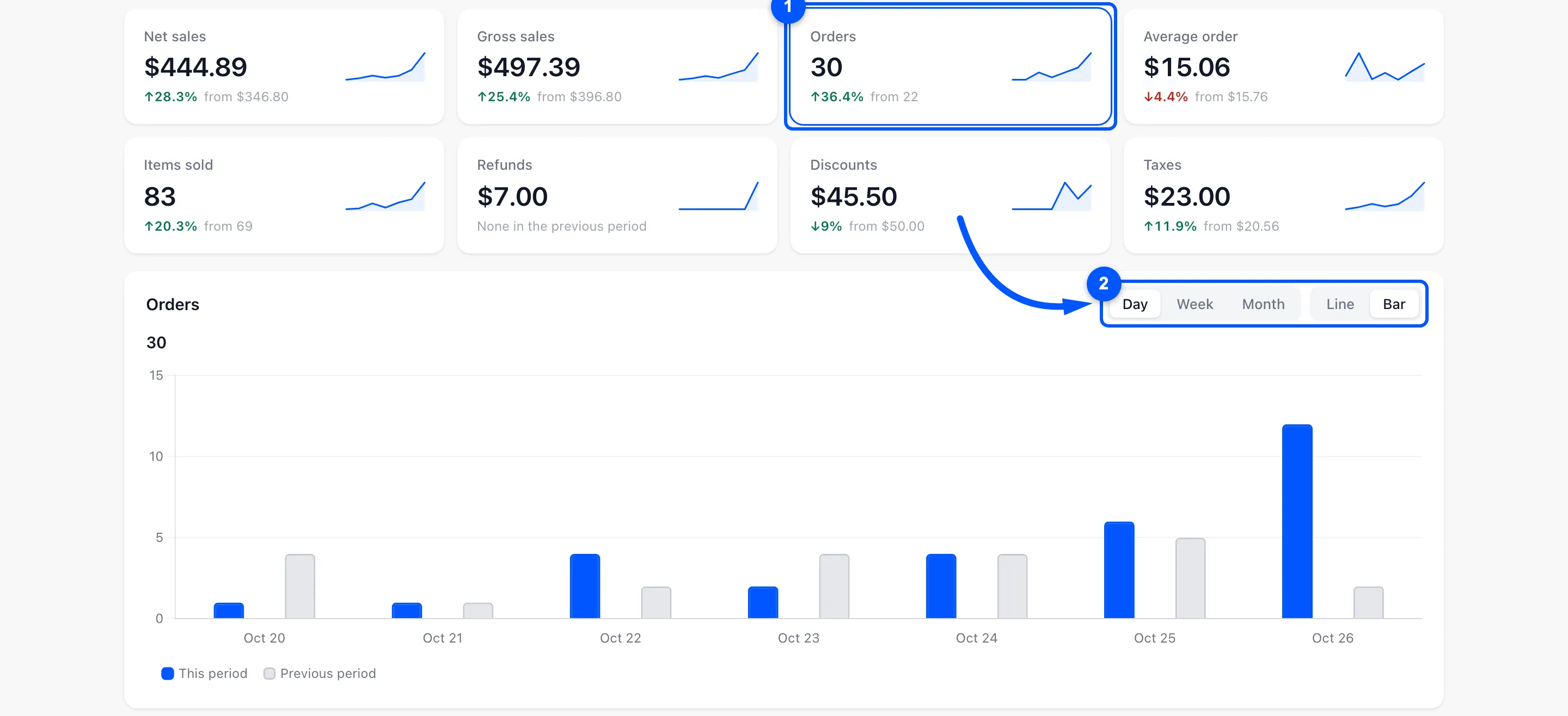
Click any tile to chart it. The chart starts on Net sales.
- Day, Week and Month set how the chart groups the period. It picks one for you from the length of the range: day up to a month, week up to about four months, month beyond that.
- Line and Bar switch the chart type.
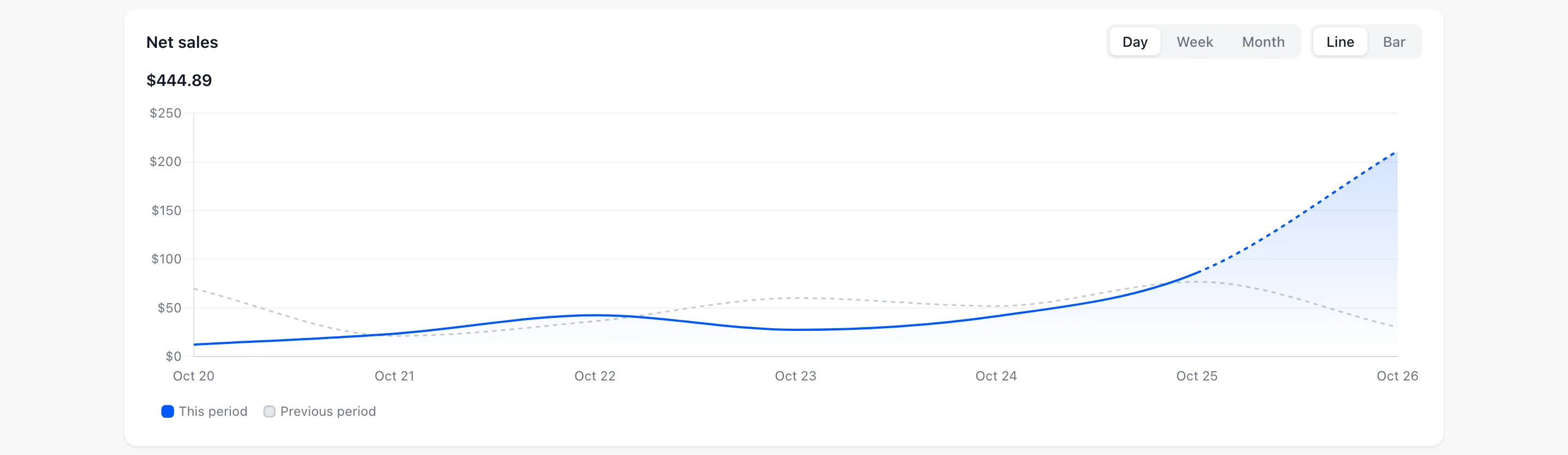
The comparison period is drawn in grey behind this one. Today, or this week or month, is drawn dotted and marked so far, because it is not over yet. Hover a point for the exact figures.
Busiest times and payment methods
Section titled “Busiest times and payment methods”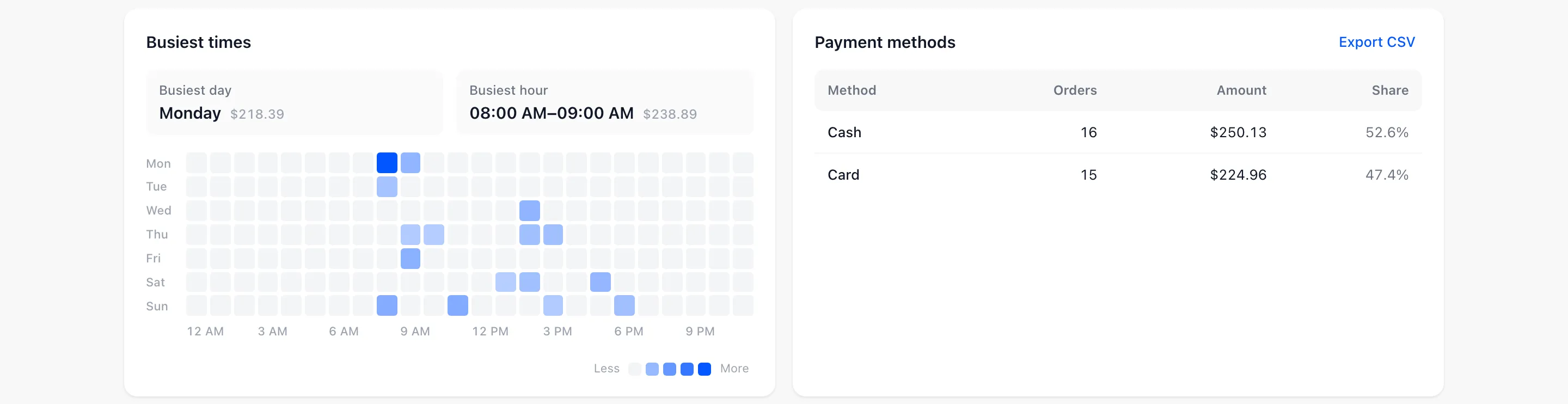
Busiest times is a grid of weekdays against hours, darker where more was sold. Above it, Busiest day and Busiest hour name the peak and what it took. Use it to decide when a second cashier is worth their wage.
Payment methods splits the period by how customers paid, with orders, amount and each method’s share. The change handed back is taken off the cash, so Cash is the cash you kept.
Cashiers
Section titled “Cashiers”
One row per cashier, highest net sales first:
| Column | What it shows |
|---|---|
| Orders | Sales they took in the period. |
| Discounts | What they gave away, coupons and counter discounts together. |
| Refunds | What they refunded. |
| Cash in / out | How many manual cash movements they recorded. |
| Net sales and Share | Their sales, and their part of the total. |
| Drawer | Balanced, or how much over or short their closed registers were. A dash means they closed none. |
This is the screen to check when a drawer comes up short more than once.
Products, categories, customers and outlets
Section titled “Products, categories, customers and outlets”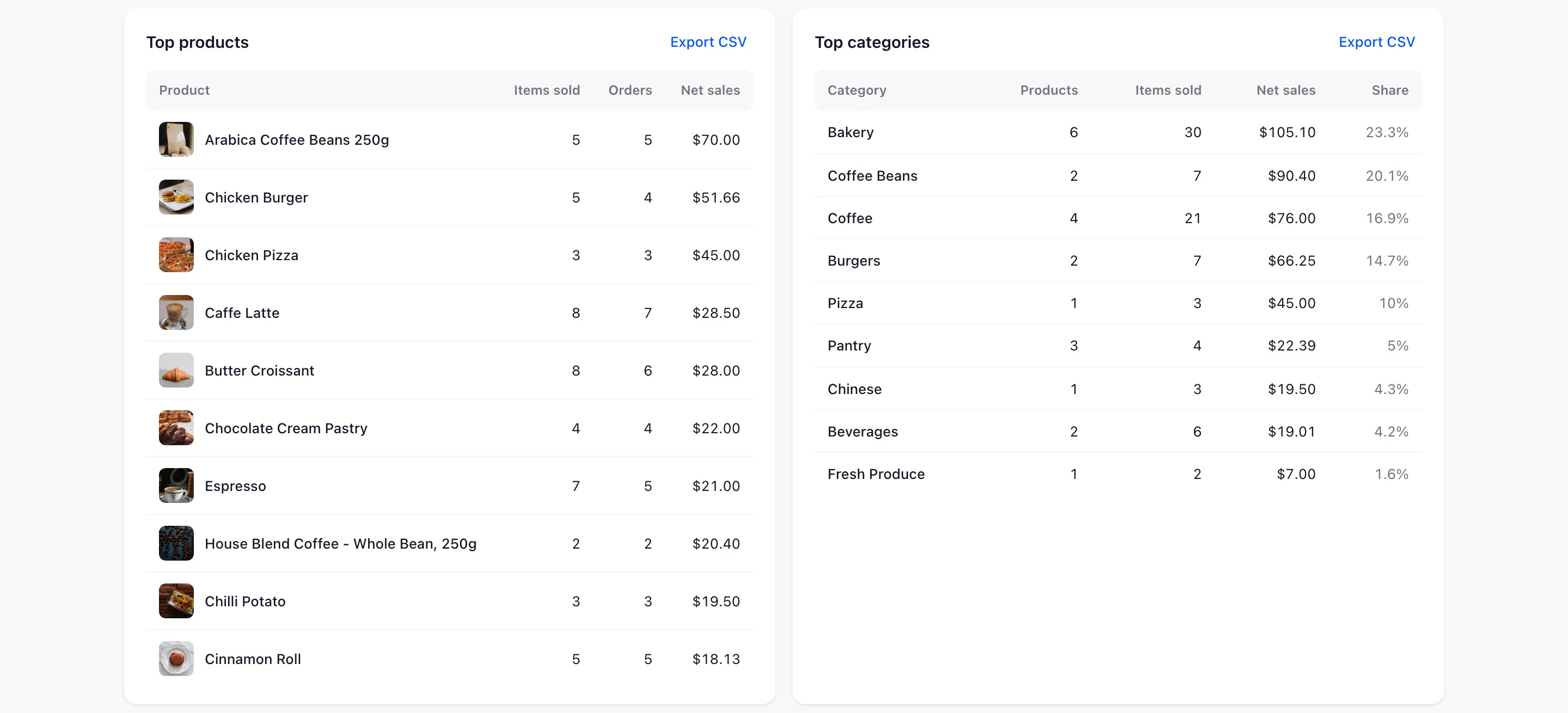
- Top products: The ten best sellers by net sales, with items sold and orders. The name opens the product in FluentCart.
- Top categories: Sales by product category, with how many of its products sold and its share.
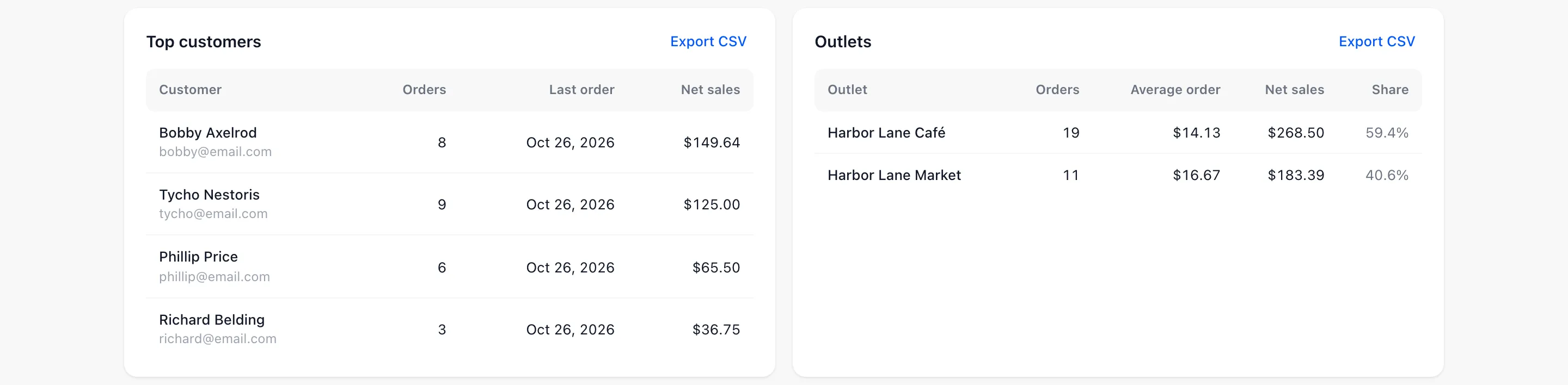
- Top customers: Named customers by what they spent, with their last order. The name opens the customer in FluentCart. Sales on the Walk-In Customer record are left out, so pick the customer at the counter if you want them here.
- Outlets: Each outlet’s orders, average order, net sales and share.
Coupons, cash drawer and taxes
Section titled “Coupons, cash drawer and taxes”
- Coupons: Each FluentCart coupon used at the counter, with orders and the discount it gave. A discount the cashier typed in by hand is not a coupon, so it shows under Discounts, not here.
- Cash drawer: The period’s net over or short and how many registers were closed, with how many did not balance. View registers opens the Registers screen.

Taxes lists each FluentCart tax rate with its rate, orders, order tax, shipping tax and total. These are the figures your accountant asks for.
Exporting to CSV
Section titled “Exporting to CSV”Every table has an Export CSV link at its top right. It downloads that table for the dates and filters on screen, with plain numbers rather than formatted money, so it opens cleanly in a spreadsheet.
Where to go next
Section titled “Where to go next”- How to Read Your POS Reports
- Dashboard Overview for the summary view.
- Registers for each closed drawer and its Z-report.
- Transactions for the payment-level record.