

How to Sell Offline and Sync
A shop with an unreliable connection should not stop trading. Offline mode stores orders in the browser and sends them to FluentCart when you tell it to.
Step 1: Turn on offline orders
Section titled “Step 1: Turn on offline orders”Go to DevDiggers Plugins → MultiPOS for FluentCart → Configuration → General → Checkout Features.
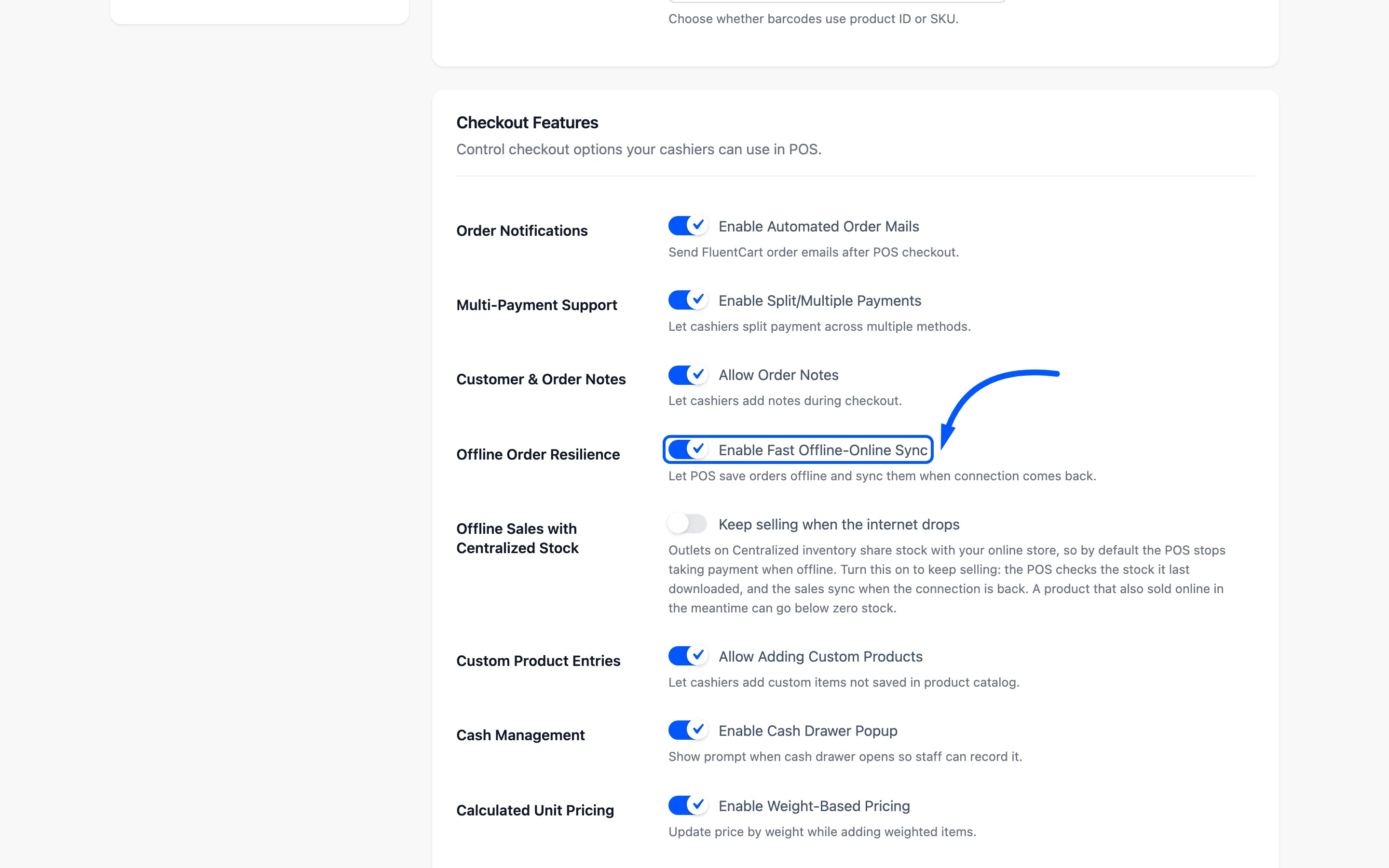
Switch on Enable Fast Offline-Online Sync and click Save Changes.
If the outlet uses Centralized stock
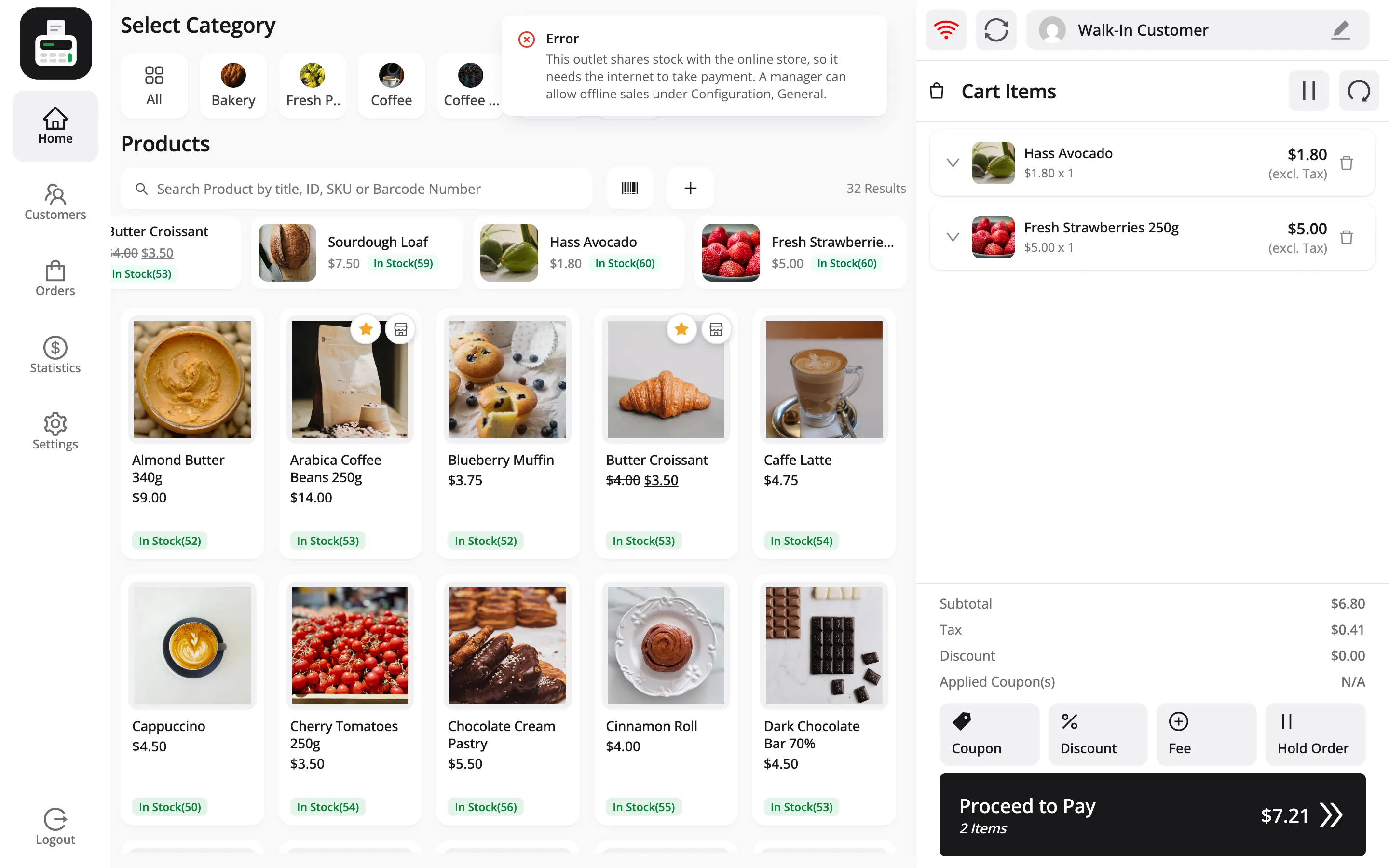
Section titled “If the outlet uses Centralized stock”An outlet on Centralized (FluentCart Sync) inventory shares its FluentCart stock with your website, so by default the POS stops taking payment while offline. Proceed to Pay shows This outlet shares stock with the online store, so it needs the internet to take payment. That stops the same item being sold twice.
To keep selling anyway, also turn on Keep selling when the internet drops under Configuration → General.
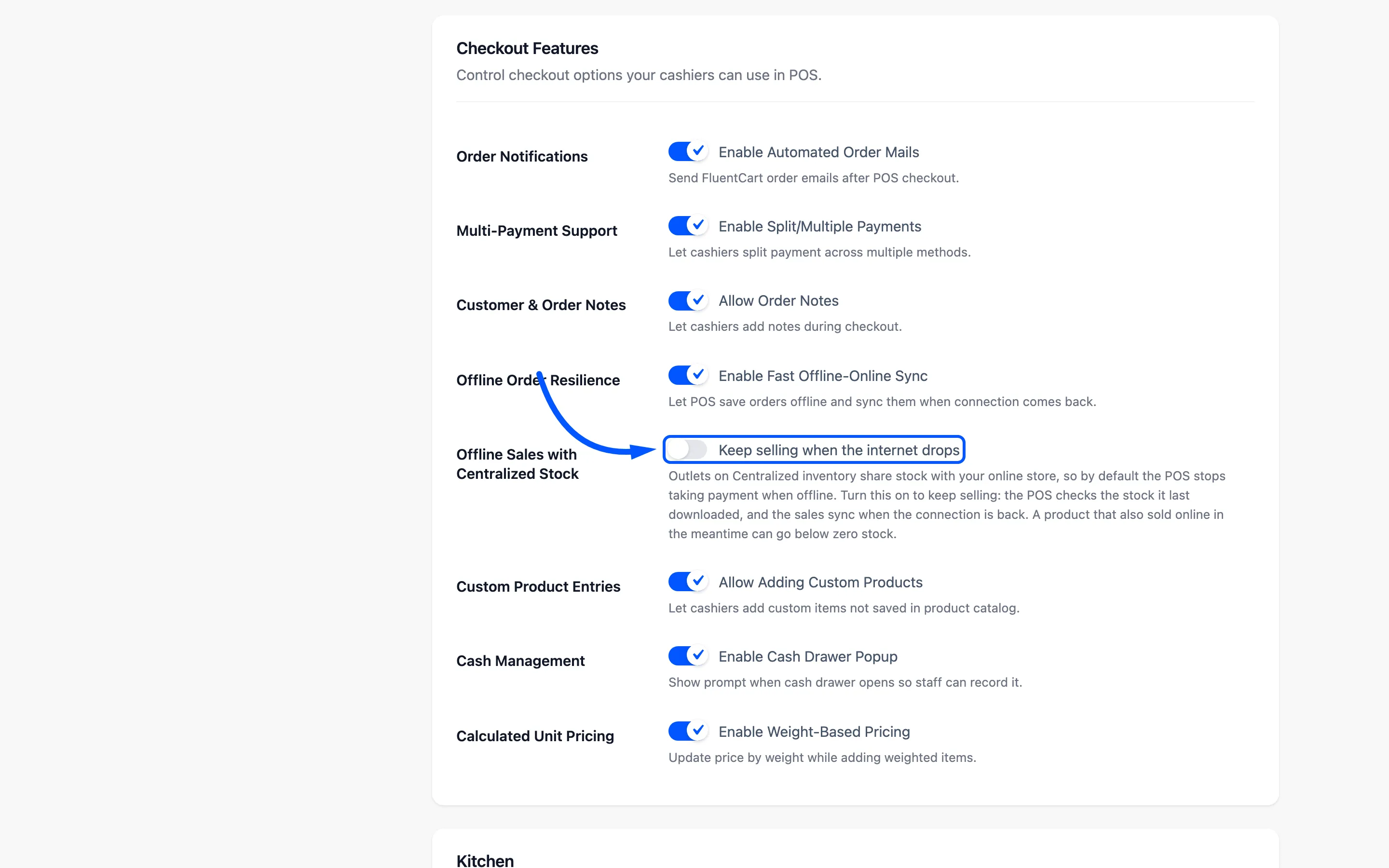
The trade-off: a product sold online meanwhile can go below zero stock.
Step 2: Watch the connection indicator
Section titled “Step 2: Watch the connection indicator”The cart header carries a wifi icon. Green means Online.
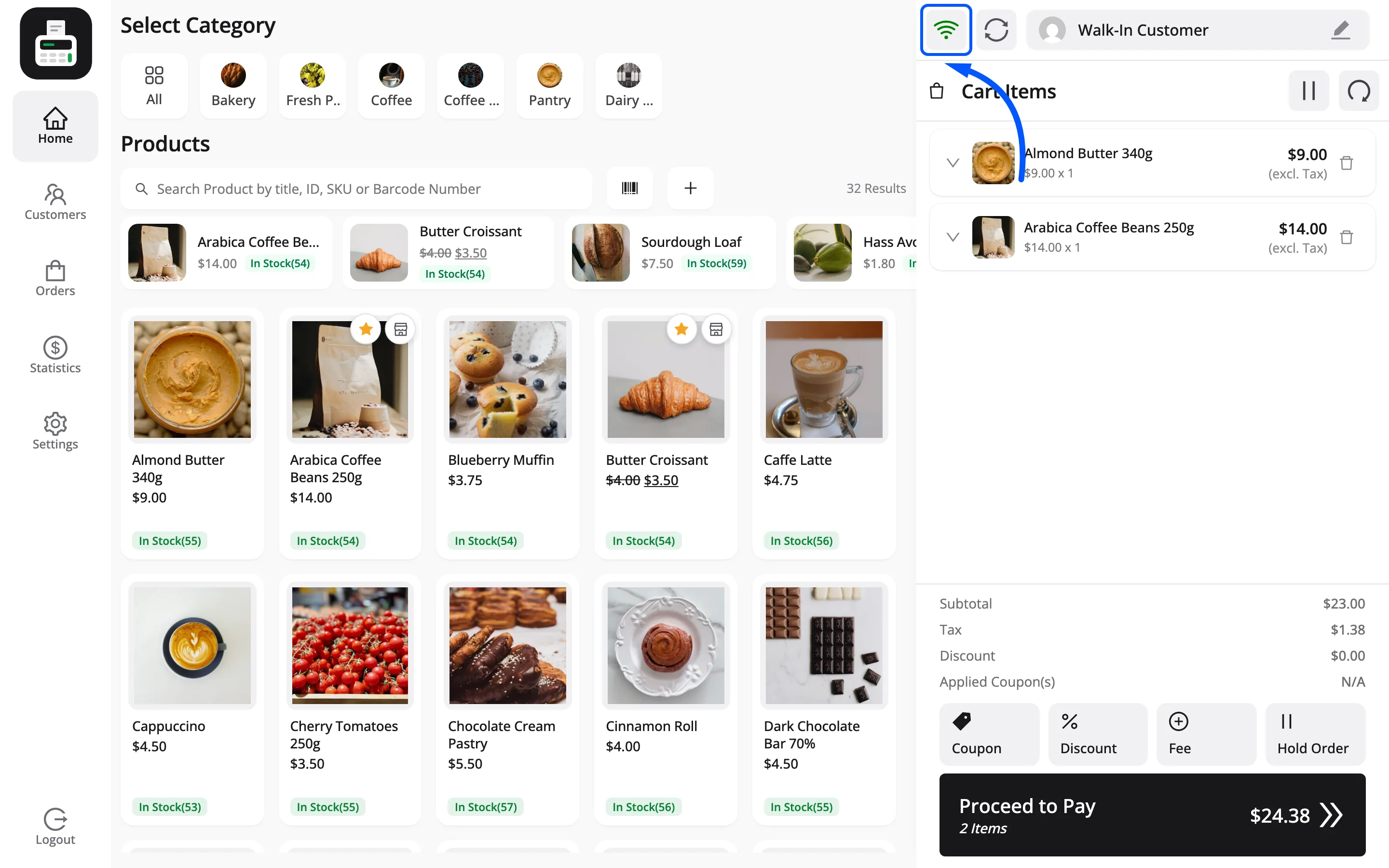
Red means Offline. Hover it and the tooltip says which.
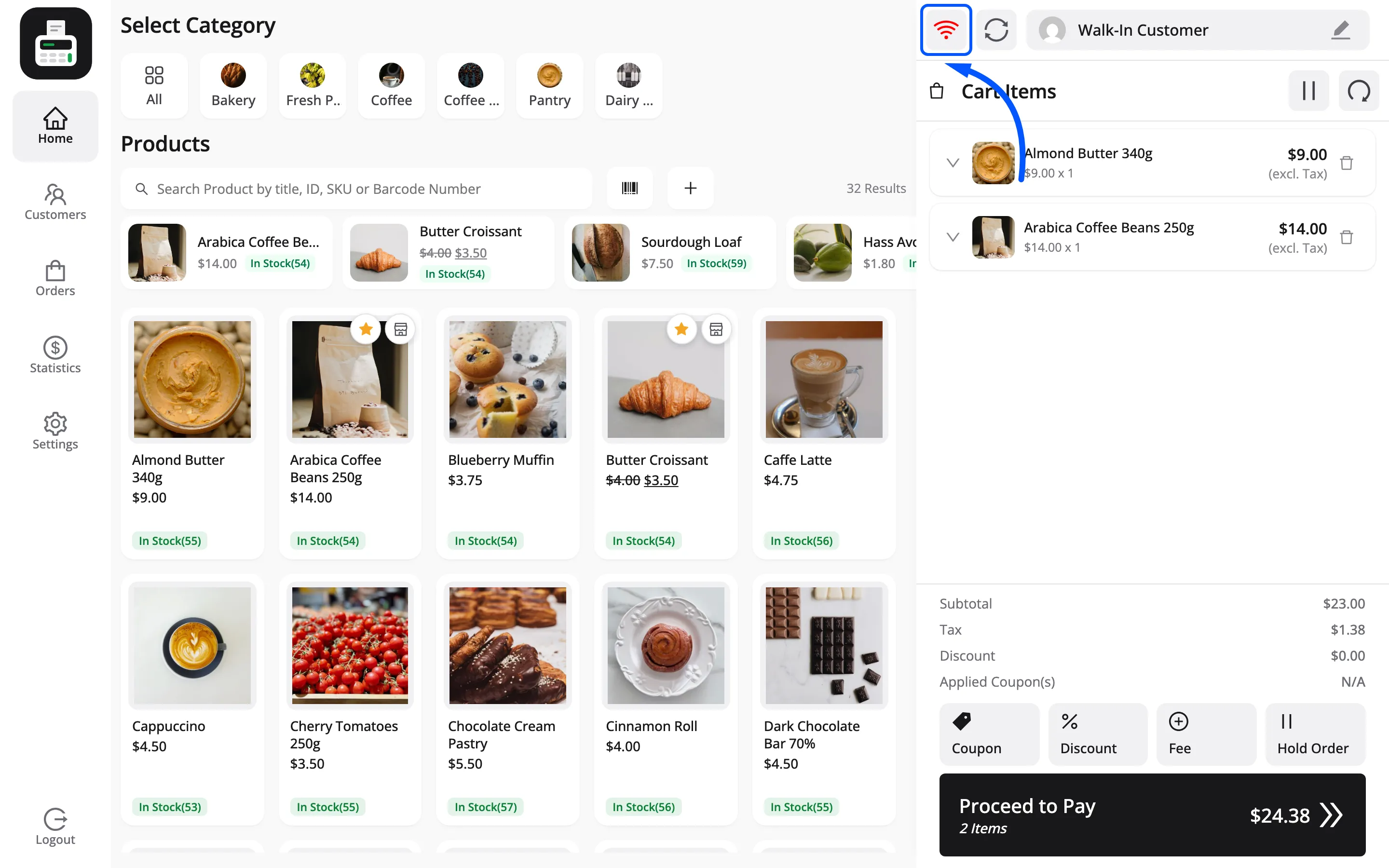
Teach staff to glance at it. It is the difference between an order that is in FluentCart and one that is still sitting in a browser.
Step 3: Keep selling while offline
Section titled “Step 3: Keep selling while offline”Build carts and take payment as normal. The order is stored in the browser rather than sent, and the Print Receipt prompt still appears with the order number on it.
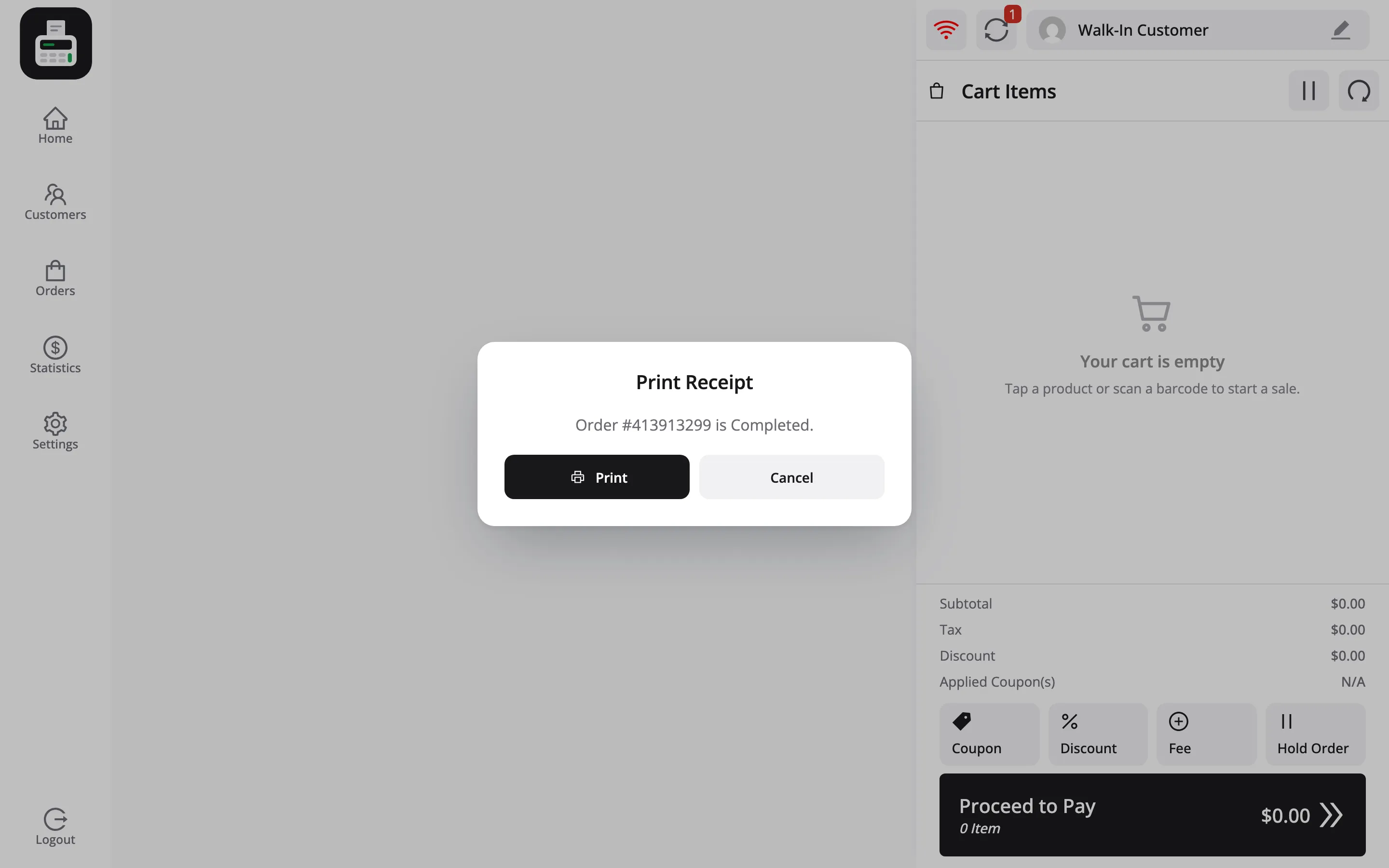
Three things do not work offline:
- Coupons: Validating a code needs the server.
- Saving or deleting a customer: Same reason.
- Anything that needs a live stock check.
The POS says so at the point you try, rather than failing quietly.
One habit matters here. Move around the POS by tapping, not by typing addresses. Every screen is a real page request. Retyping the URL while the connection is down loads nothing at all.
Step 4: Sync when the connection returns
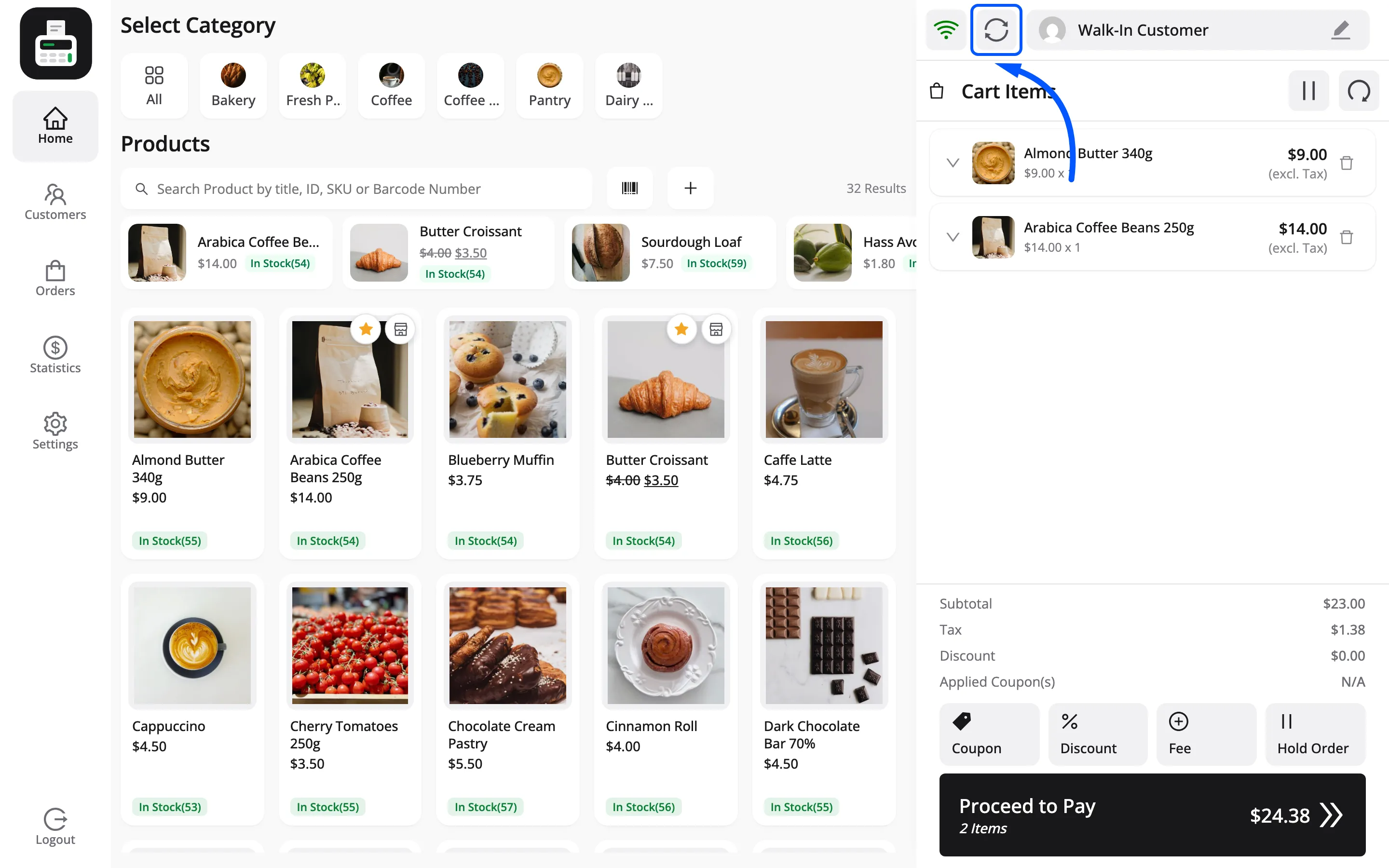
Section titled “Step 4: Sync when the connection returns”Reconnecting does not send the orders. The wifi icon goes green and nothing else happens, which is the part people get wrong. The sync is a button you press.
The circular arrow beside the wifi icon opens the queue. Once something is waiting it also carries a count, so the number of unsent orders is visible from the selling screen.
That is the Offline tab of the Orders screen. Every queued order is listed with its date, its customer and its total, and selecting one shows the full breakdown.
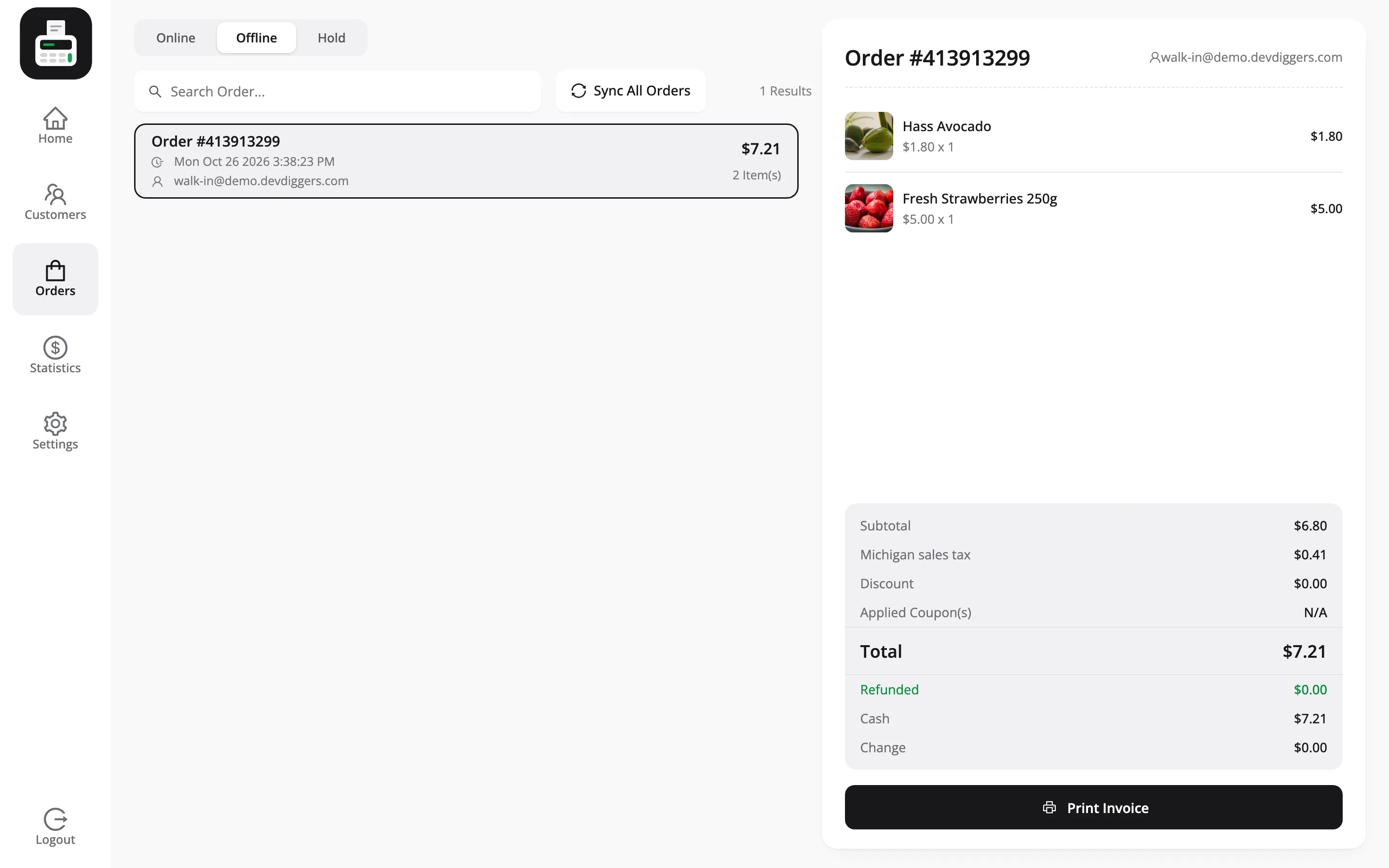
Press Sync All Orders. Each one is created as a FluentCart order and moves to the Online tab.
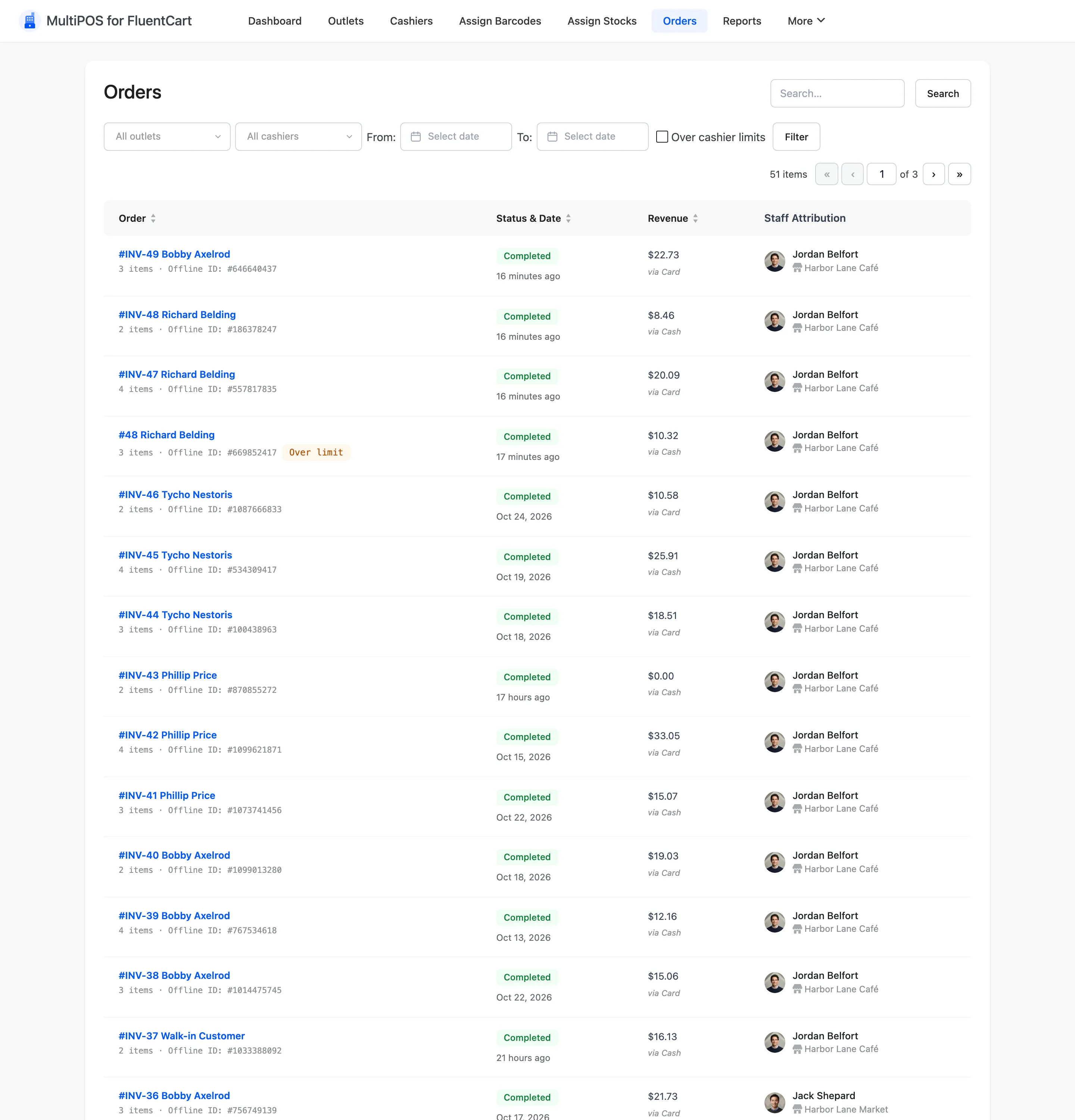
Each carries its outlet, its cashier and its payment method, so the transactions list and the reports match what actually happened.
A sync sent twice does not create the order twice. Each offline sale carries its own ID. If the connection drops mid-sync and you press the button again, an order that already reached FluentCart is handed back as it is rather than created a second time.
The order keeps the time it was sold. A sale rung up offline at 10:08 and synced at 10:10 is dated 10:08 in FluentCart, in Reports and on the cash ledger, so it lands on the right day even when the sync happens hours later. A sale synced after a register close still counts in the shift that is open when it syncs, so sync before closing the register.
Press it while still offline and the POS refuses: Offline orders cannot be synced until the system is online.
Step 5: Do not log out with orders queued
Section titled “Step 5: Do not log out with orders queued”The POS blocks logout while unsynced orders remain, and says why:
There are offline orders present in the POS, kindly sync them first.
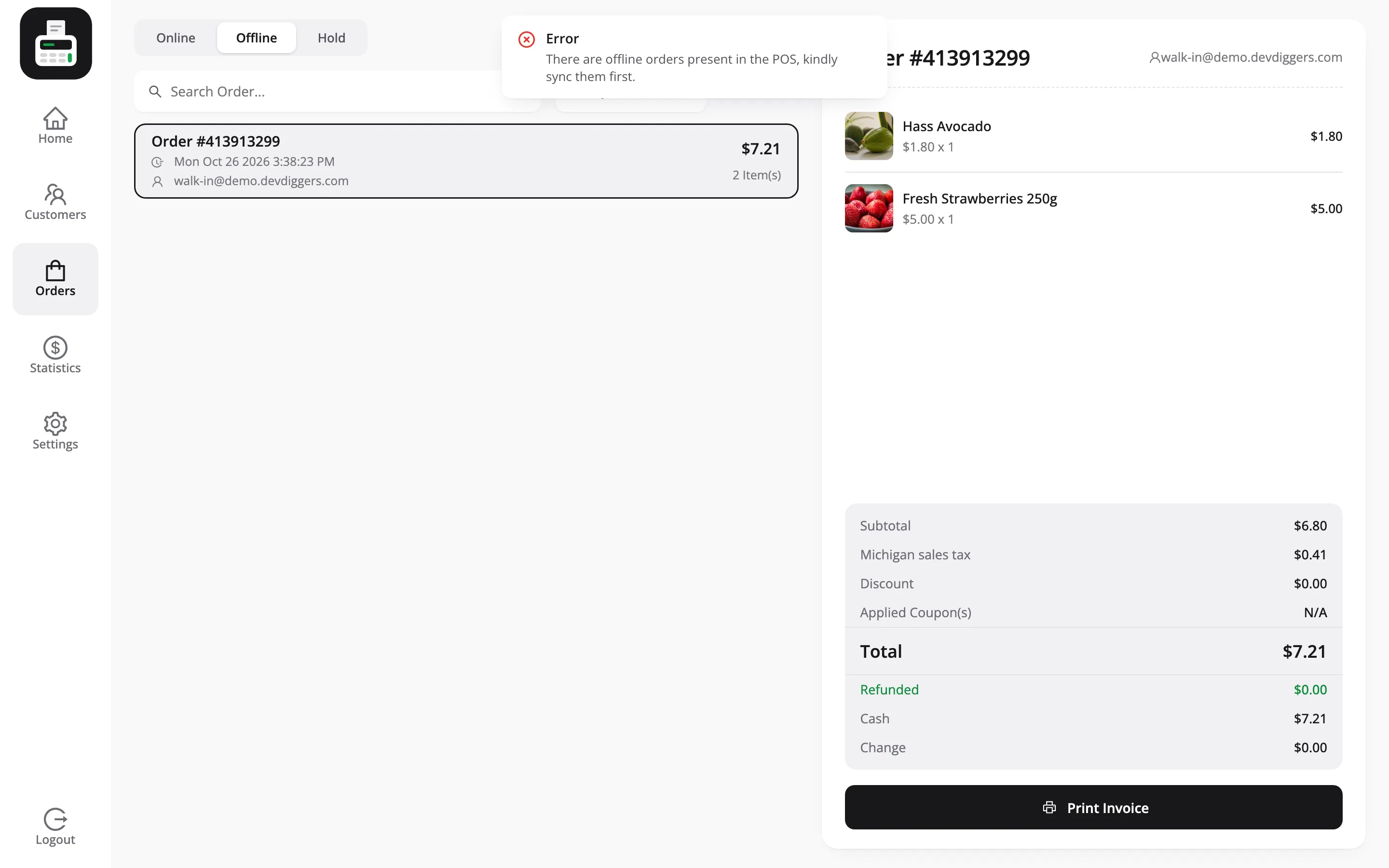
That guard is the important part of the feature. An offline order lives in that browser and nowhere else, so closing the session is how you lose a day’s sales.
Wait for the connection, press Sync All Orders, then use Logout at the foot of the sidebar.
What to tell staff
Section titled “What to tell staff”Three rules, and they are the whole training:
- Check the wifi icon before you count the drawer. Red means orders are still in the browser.
- Do not clear browser data on the POS device. That is where queued orders live.
- Do not switch devices with orders queued. They do not follow you.
What offline cannot do
Section titled “What offline cannot do”- It does not reserve stock. A product sold offline at the counter is still on sale on the website until the sync lands.
- It does not queue coupons. A customer with a code either waits for the connection or does not get the discount.
- It does not survive a cleared browser. This is browser storage, not a server queue.
The feature is built for a line that drops for minutes. A shop with no connection for a day should plan differently.
Where to go next
Section titled “Where to go next”- General Settings for the field reference.
- How to Take Your First Sale
- The Cashier Experience