

How to Manage Customers in the POS
Most counter sales need no customer at all. The ones that do are the ones you want to sell to again, which is what makes this worth setting up properly.
POS customers are FluentCart customers, the same records you see under FluentCart → Customers.
Step 1: Check the default guest account
Section titled “Step 1: Check the default guest account”Go to DevDiggers Plugins → MultiPOS for FluentCart → Configuration → General and find Customers.
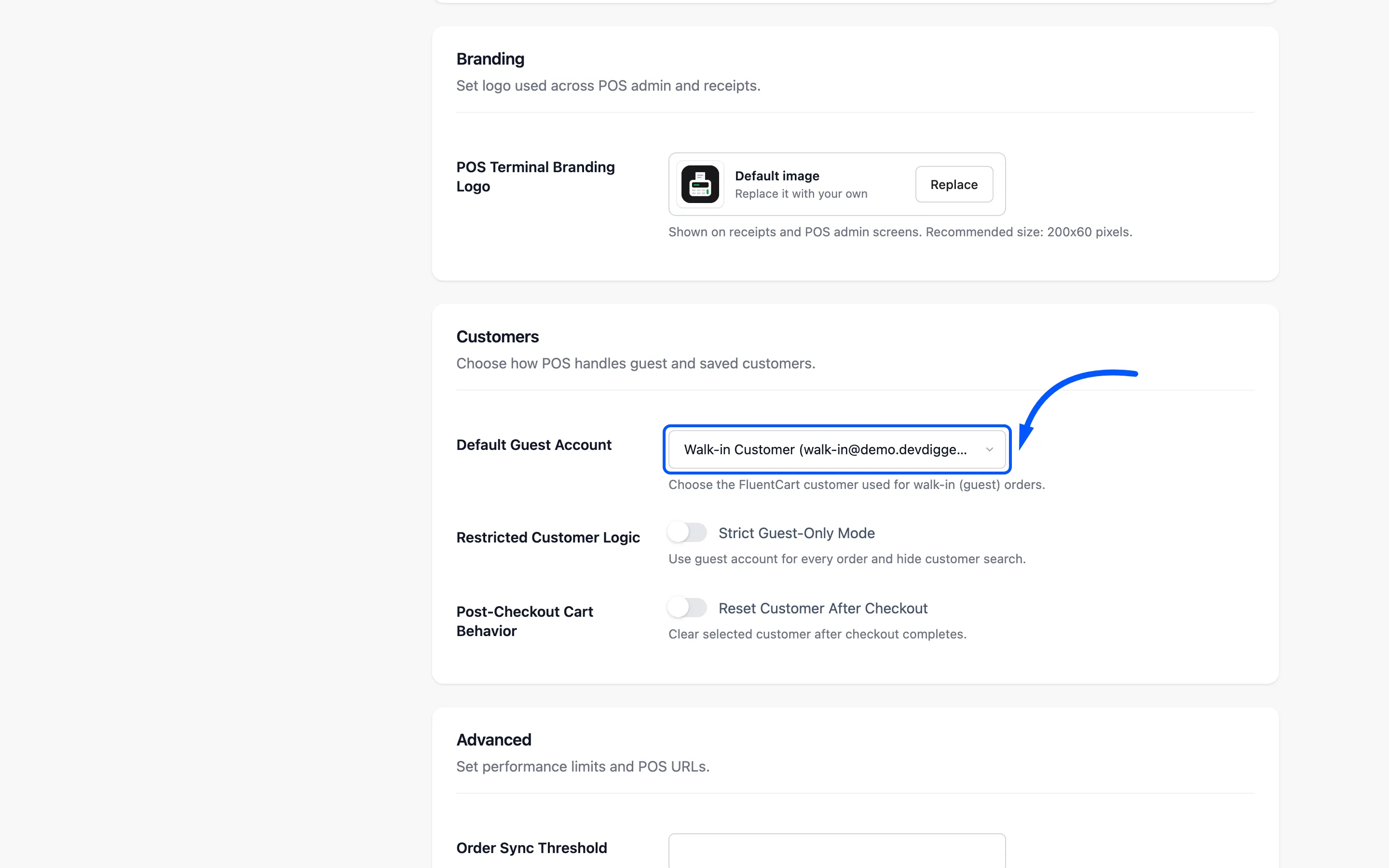
Default Guest Account is the FluentCart customer every walk-in sale is billed to when the cashier does not pick anyone.
MultiPOS creates one for you, called Walk-in Customer, and selects it here. You only need to change it if you want walk-in sales on a different record. Without a guest account, every anonymous sale needs a customer chosen by hand, which is a step nobody has time for at a counter.
Click Save Changes if you changed it.
Step 2: Open the Customers screen
Section titled “Step 2: Open the Customers screen”In the terminal, click Customers in the sidebar.
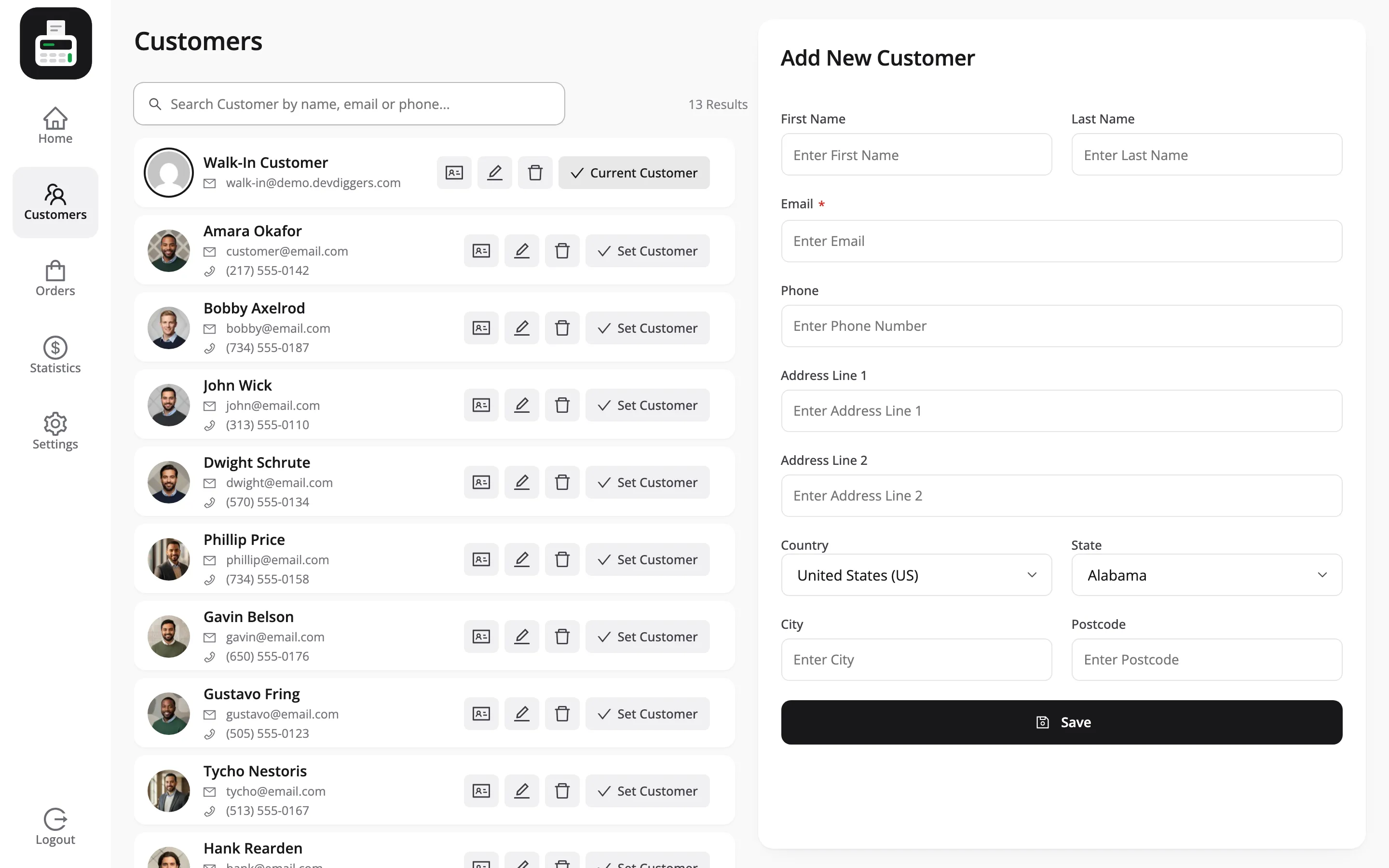
The list is your FluentCart customers, and the form on the right adds or edits one.
Step 3: Find an existing customer
Section titled “Step 3: Find an existing customer”The search box, Search Customer by name, email or phone…, matches all three.
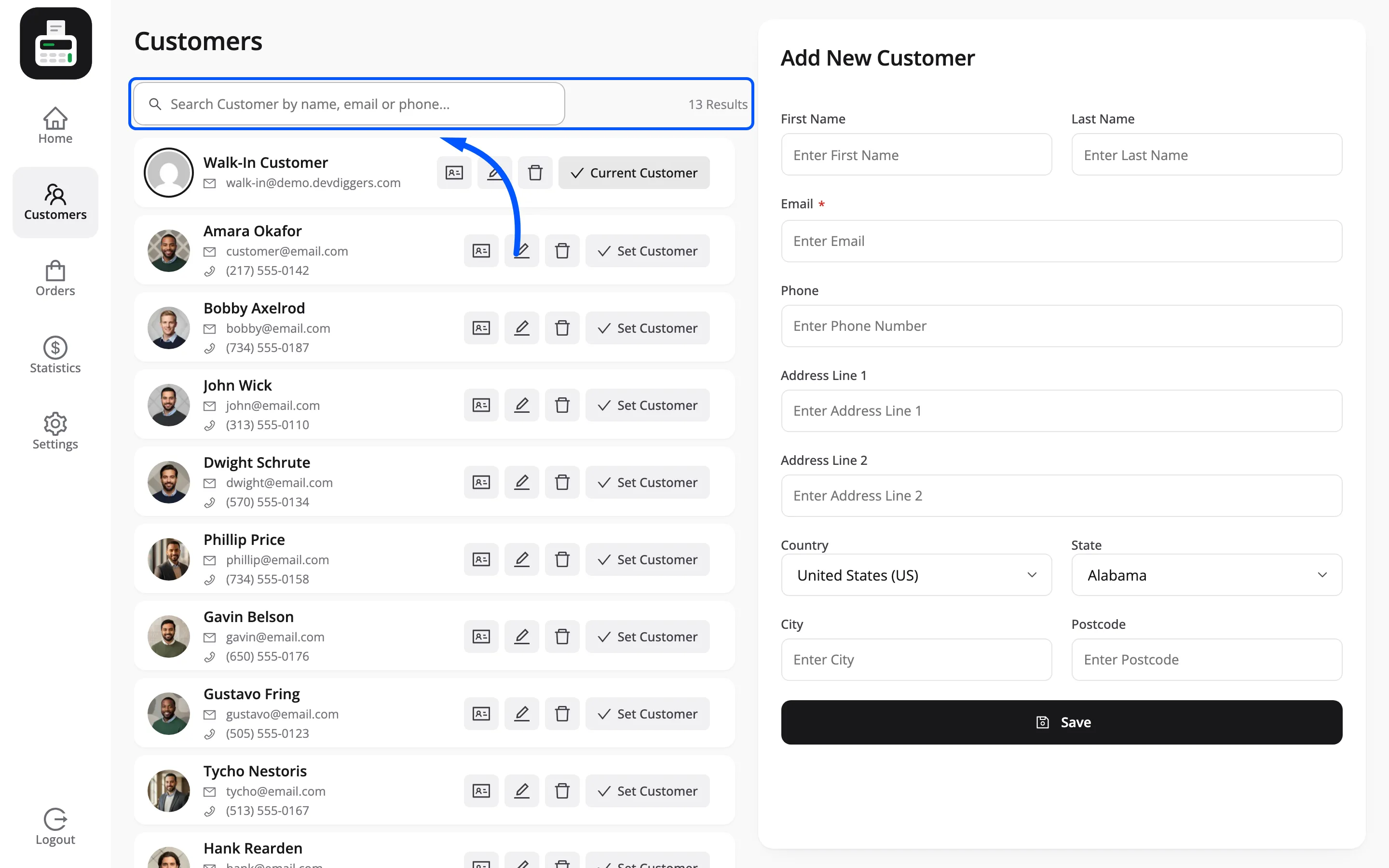
Phone is the useful one at a counter. A customer will read out a number faster than they will spell an email address.
Press Set Customer on their row and the cart header switches to their name. The next sale is billed to them. On the demo that is how a sale goes to Bobby Axelrod.
Step 4: Add a new customer
Section titled “Step 4: Add a new customer”Press Add New and fill in the form.
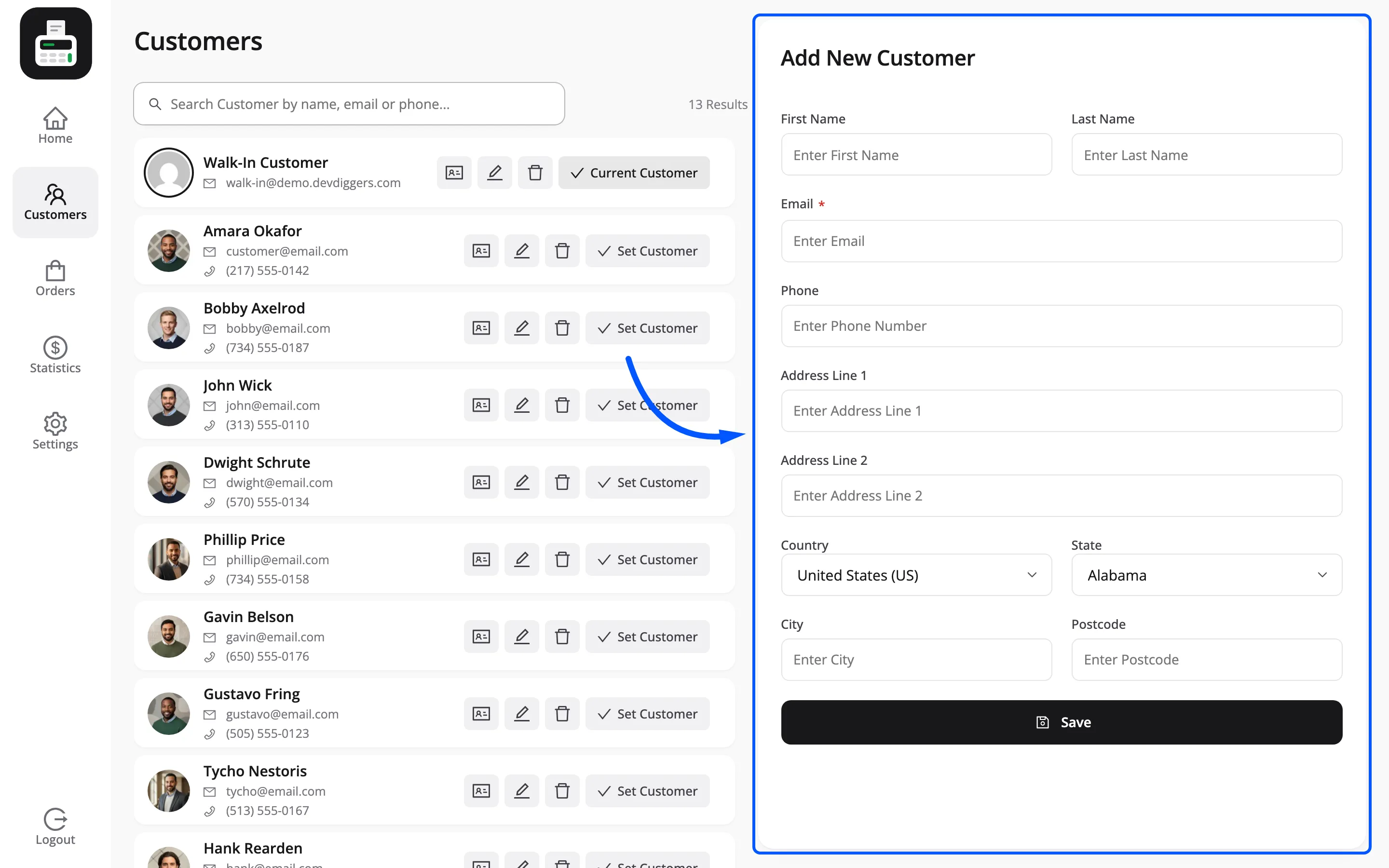
First name, last name, email, phone and a full address. Only the mandatory fields have to be filled in, and the POS says Kindly fill out the mandatory field(s). if you miss one.
This creates a FluentCart customer record, not a WordPress login. Each email can belong to one customer only, so an address already in FluentCart is refused with Email already exists. A customer who has ordered online is already in the list: search for them instead of adding them again.
Take the email even when you take nothing else. It is the field that makes the customer findable later, and the one an order confirmation needs.
Step 5: Edit or remove a customer
Section titled “Step 5: Edit or remove a customer”Each row carries an edit control and a delete control. The pencil loads that customer into the panel on the right, which now reads Edit Customer and comes pre-filled.
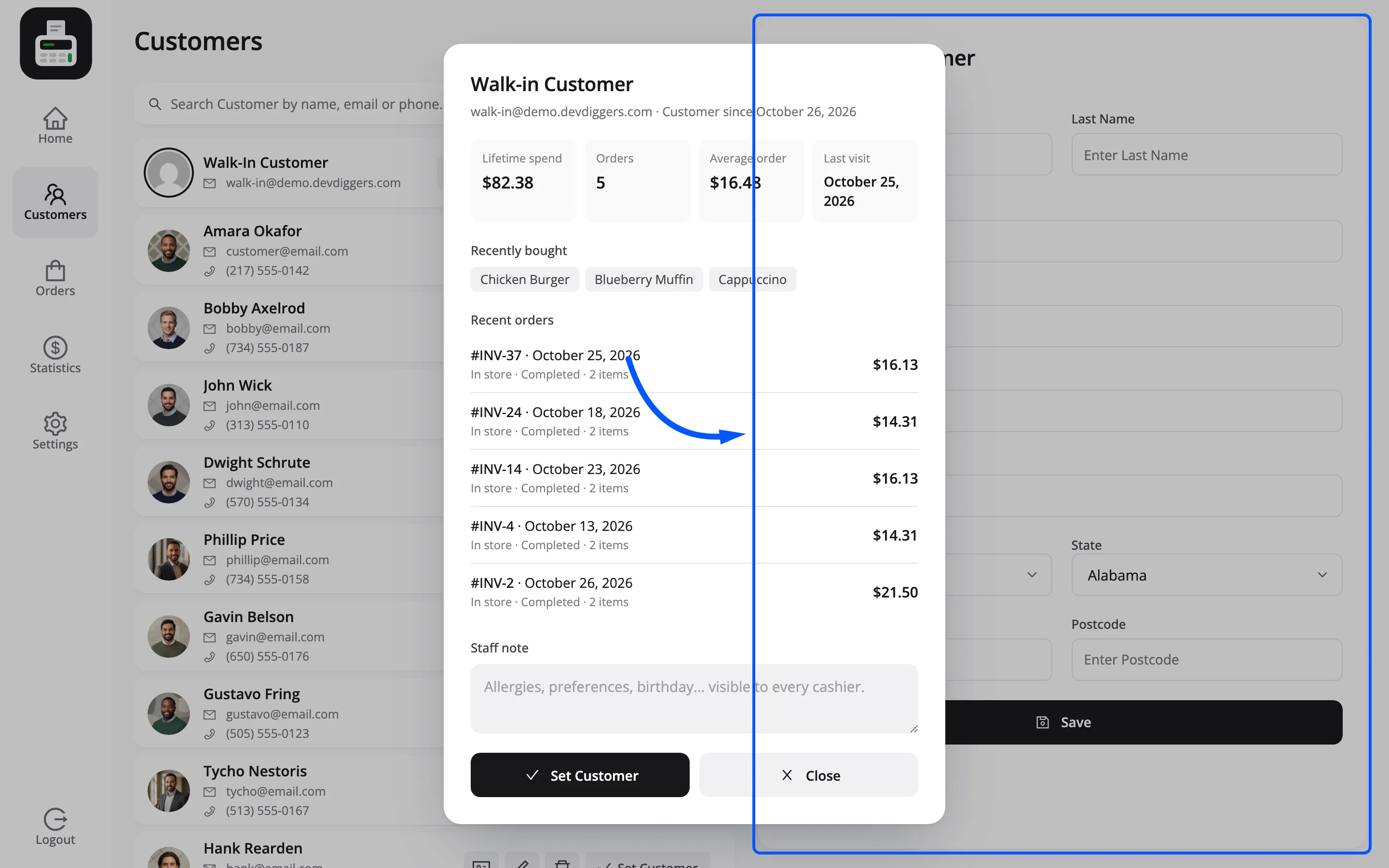
Change what you need and press the button at the foot of the panel. Cancel below it drops the edit and empties the form.
Edit fixes a typo in a name or a phone number. Email cannot be changed once a customer exists, so a wrong address needs fixing under FluentCart → Customers rather than here.
Delete removes the FluentCart customer. The browser asks Are you sure you want to delete this customer? first, because it cannot be undone. A customer who already has orders cannot be deleted from the POS at all, and neither can a store staff account.
Your Permissions settings decide whether a cashier may edit or delete customers alone, or needs a manager’s PIN. Adding a new customer is always allowed.
Step 6: Check the sale is attached
Section titled “Step 6: Check the sale is attached”Take a sale with a customer set, then open the order in FluentCart → Orders.
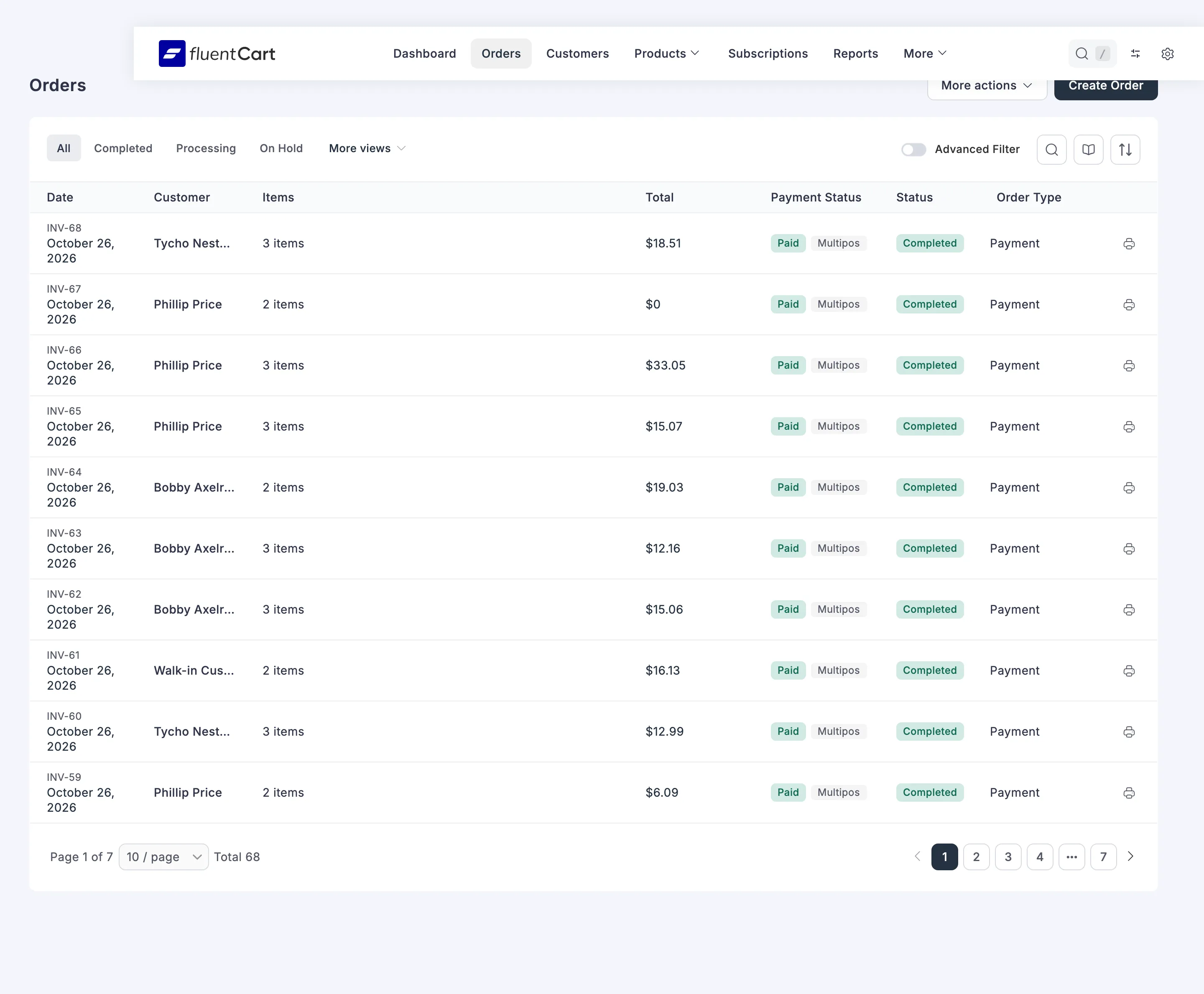
The customer’s name is on the order. Their address is not: a POS order carries the outlet’s address, because the sale happened in the shop and tax follows the shop.
That is deliberate, and it is worth knowing before you go looking for a bug.
Offline
Section titled “Offline”Customers cannot be saved or deleted while the terminal is offline. The POS says so rather than losing the entry.
Existing customers are still searchable, because they are already loaded.
Two options worth knowing
Section titled “Two options worth knowing”Both are on the General tab under Customers.
- Strict Guest-Only Mode: Uses the guest account for every order and hides the customer search. Use it on a terminal where nobody should be attaching customers at all.
- Reset Customer After Checkout: Clears the selected customer when a sale finishes. The next person in the queue then cannot inherit the last one’s account. Without it, a cashier who forgets to switch back bills a stranger’s purchase to a regular.
Where to go next
Section titled “Where to go next”- How to View a Customer Profile
- How to Take Your First Sale
- General Settings for the guest account field.
- The Cashier Experience