

How a POS Sale Works
A POS sale touches five things: the terminal, the cart, a FluentCart order, your stock and a transaction row. This is that chain in order, so the settings docs make sense when you read them.
1. The cashier opens the terminal
Section titled “1. The cashier opens the terminal”The POS lives at the path set in Configuration → General → POS Terminal URL Path, which
defaults to yoursite.com/pos.
Who can open it is fixed: a POS Cashier, an administrator, or a FluentCart manager. Anyone else who visits the URL while logged in is sent to the home page. Roles and POS Access has the detail.
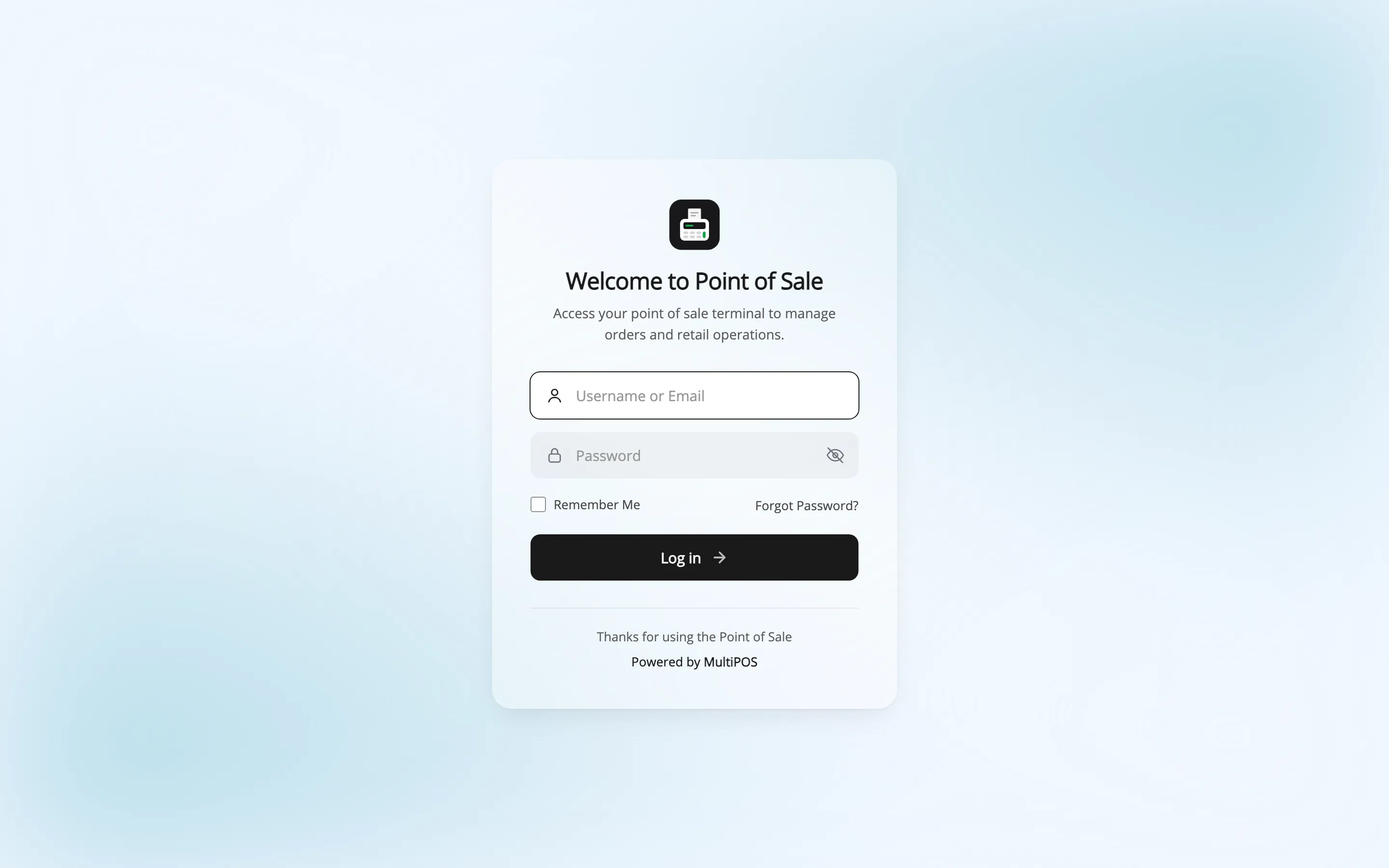
A visitor who is not logged in gets the POS login screen. It is a separate screen from
wp-login.php, styled under
Configuration → Login.
2. The cashier picks an outlet
Section titled “2. The cashier picks an outlet”After signing in, the terminal asks which outlet to open.
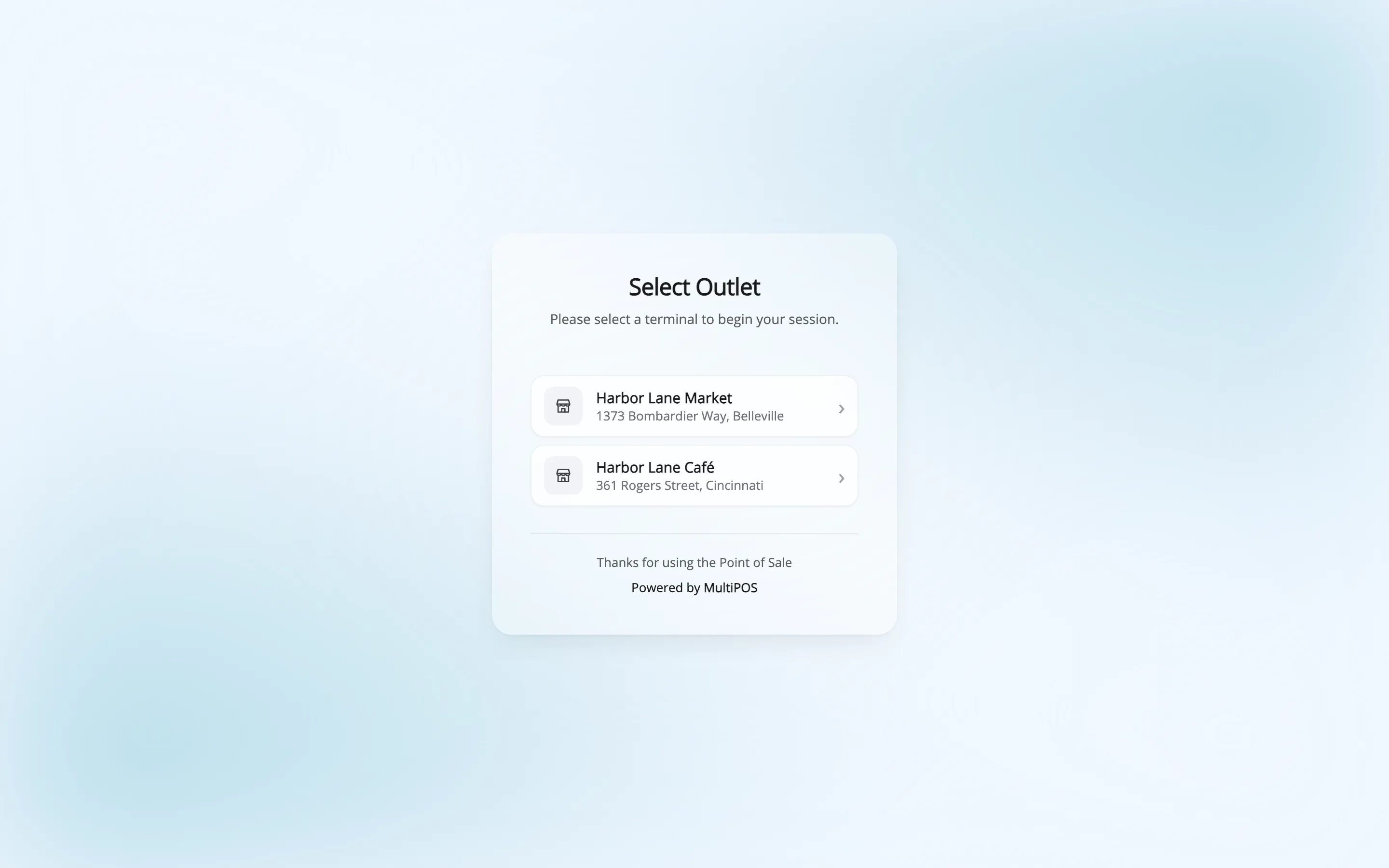
The outlet decides what matters for the rest of the sale: which payment methods the cashier can take, which dining tables exist, which stock is sold, and which address the order carries.
The choice is remembered in the browser, so the cashier only sees this screen once per device. Clearing it is a button under Settings → Outlet → Reset Outlet Data in the terminal.
3. Products go into the cart
Section titled “3. Products go into the cart”Three ways, and cashiers use all three in a shift.
- Tap a product card. The grid shows the FluentCart products the outlet can sell.
- Scan a barcode. A USB scanner types into the search field. The product drops into the cart on Enter.
- Search: The search box matches product title, ID, SKU and barcode number.
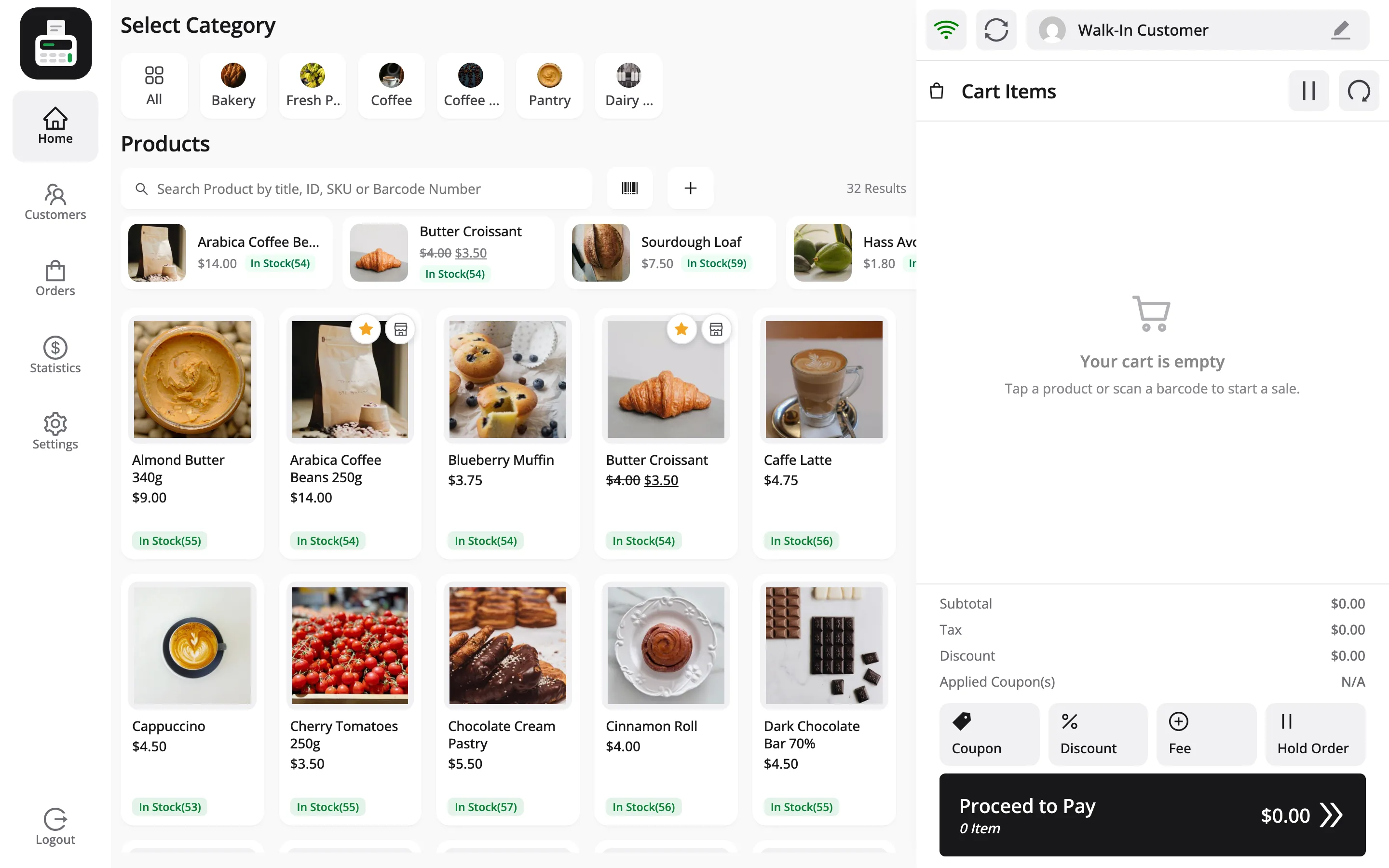
Subscription and bundle products are left out of the grid. They stay with the online checkout.
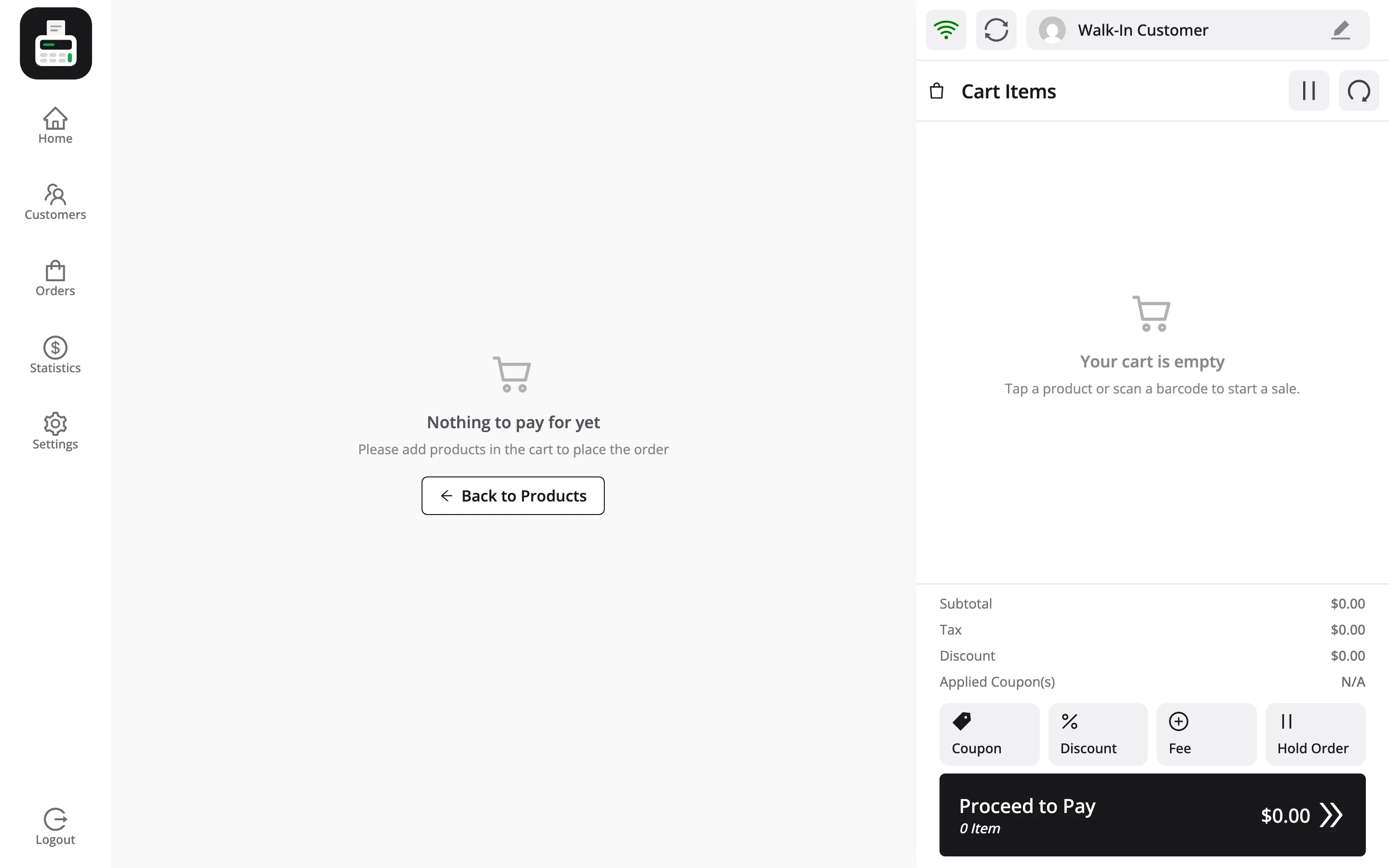
Each addition updates the cart panel on the right: line total, subtotal, tax and the running total.
4. The cart is adjusted
Section titled “4. The cart is adjusted”The cart is where everything except payment happens.
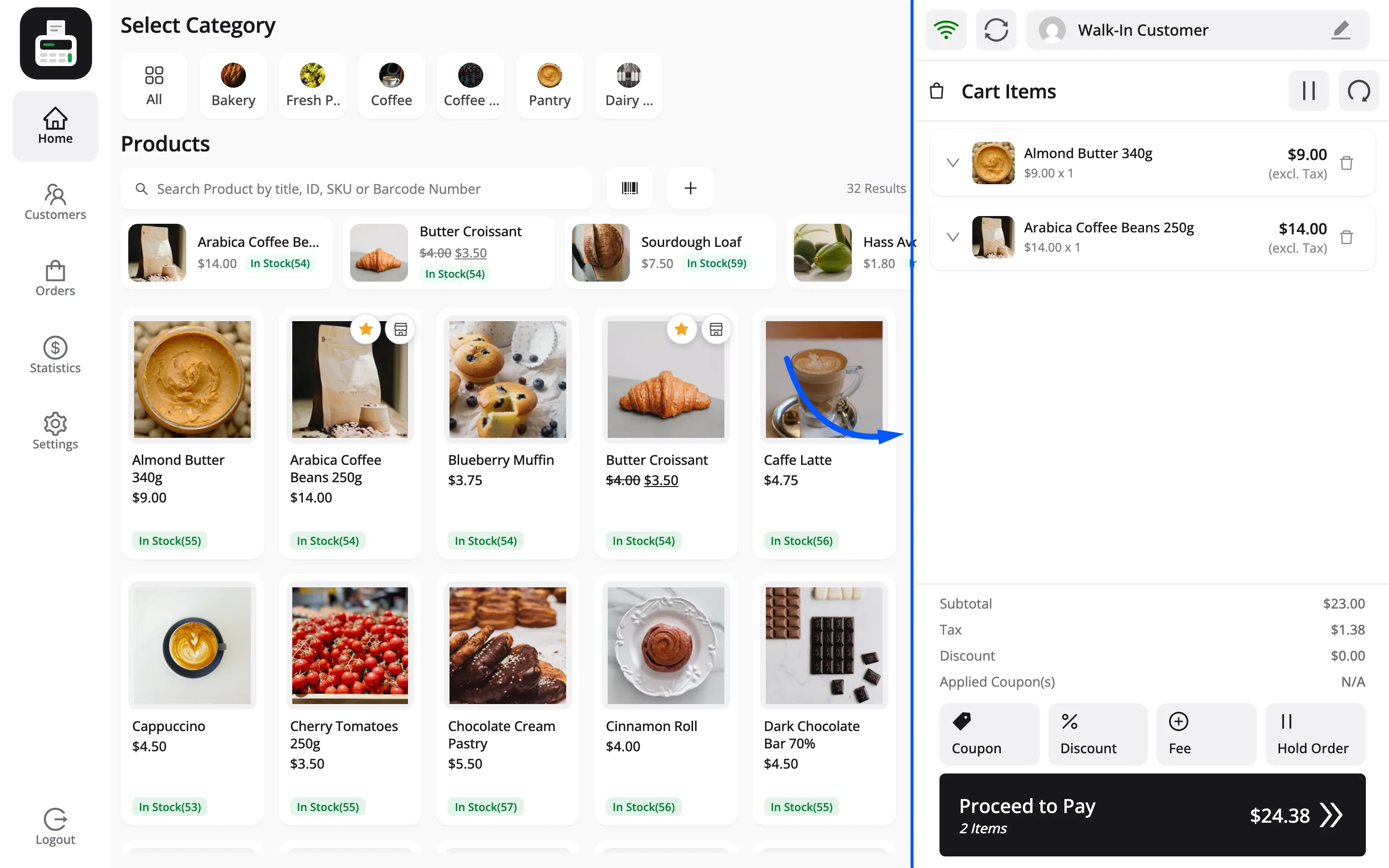
- Select Customer attaches a FluentCart customer to the sale. Leave it and the order goes to the Default Guest Account, the Walk-in Customer unless you chose another.
- Coupon applies a FluentCart coupon code. Discount takes money off the cart by hand.
- Hold Order holds the cart under a label so the cashier can serve someone else.
- Reset Cart empties it.
- Select Table attaches a dining table, in restaurant mode.
5. Payment is taken
Section titled “5. Payment is taken”Proceed to Pay opens the payment screen: Total Due, a payment method list, a numeric keypad and quick-amount buttons.
The cashier picks a method, enters what the customer handed over, and presses Pay. Change is the difference between the amount handed over and the total due.
Add Another Payment Method splits one sale across several methods, so a customer can pay half in cash and half by card.
6. A FluentCart order is created
Section titled “6. A FluentCart order is created”This is the moment the sale becomes real. MultiPOS saves it as an ordinary FluentCart order, and several things happen at once.
- It is a paid order of type payment. It carries a succeeded transaction for what the customer paid. The tender names, such as Cash, Card or Split, show as the payment method.
- One line per item. Each product, variation or custom item is its own line. A surcharge, delivery or service charge is a fee line, and a coupon is a FluentCart applied coupon with its use count raised.
- The address comes from the outlet, not the customer. A counter sale is made at the shop, so the shop’s address is on the order.
- Tax is worked out by FluentCart’s own tax engine for the outlet’s address, and the per-rate breakdown is saved on the order.
- Stock moves. At a Centralized outlet, FluentCart stock moves from available to committed, the same way a delivered order books it. A Custom-stock outlet takes the units off its own count and leaves FluentCart stock alone.
- The status is set to whatever Initial Order Status says under Configuration → General. That ships as Completed.
- Physical items are marked Delivered, because the customer leaves with them.
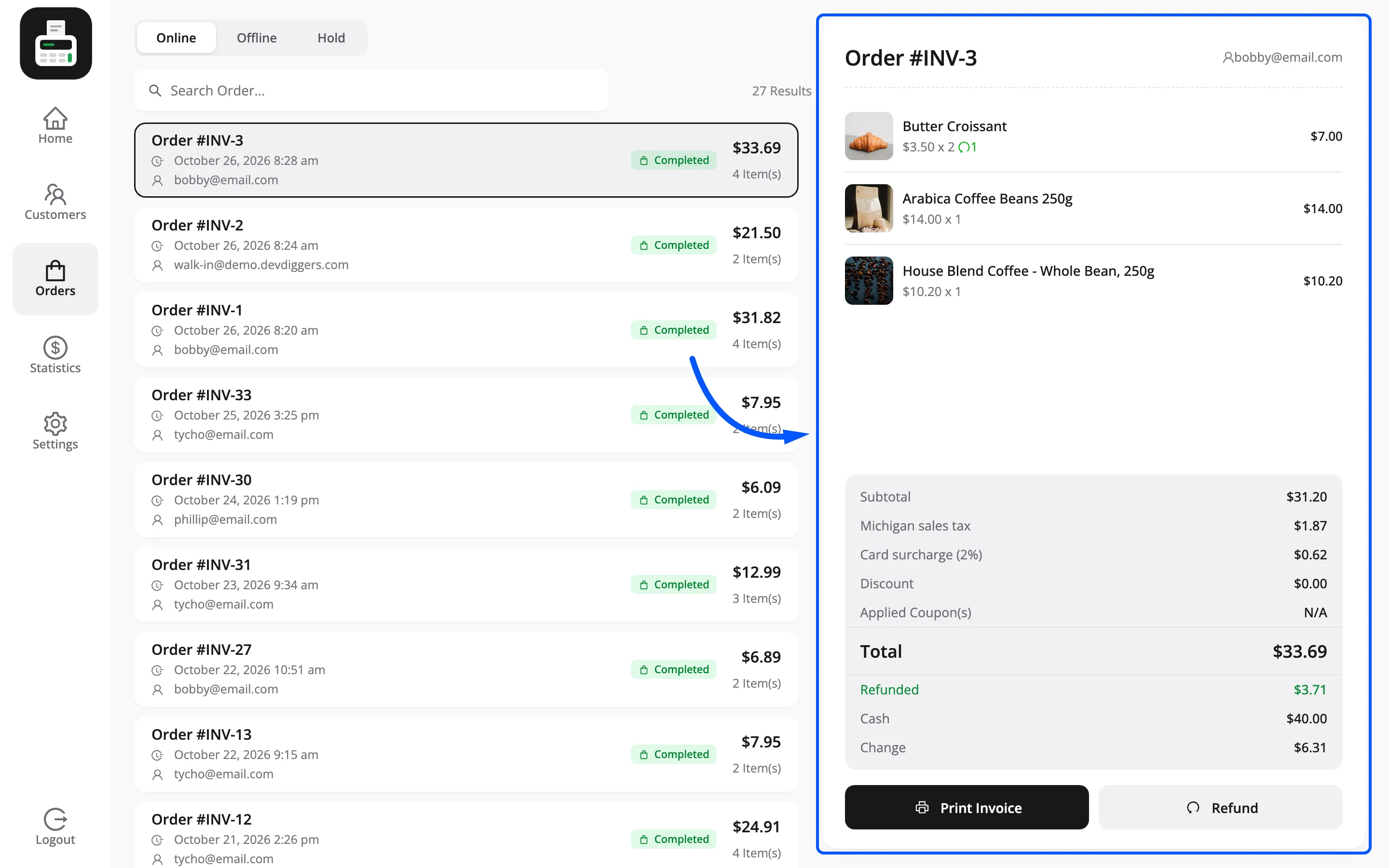
The finished order also carries the outlet and the cashier who took it. That is what the MultiPOS Orders screen reads to show who made each sale.
7. A transaction row is written
Section titled “7. A transaction row is written”Separately from the order, MultiPOS writes one transaction row per payment method used.
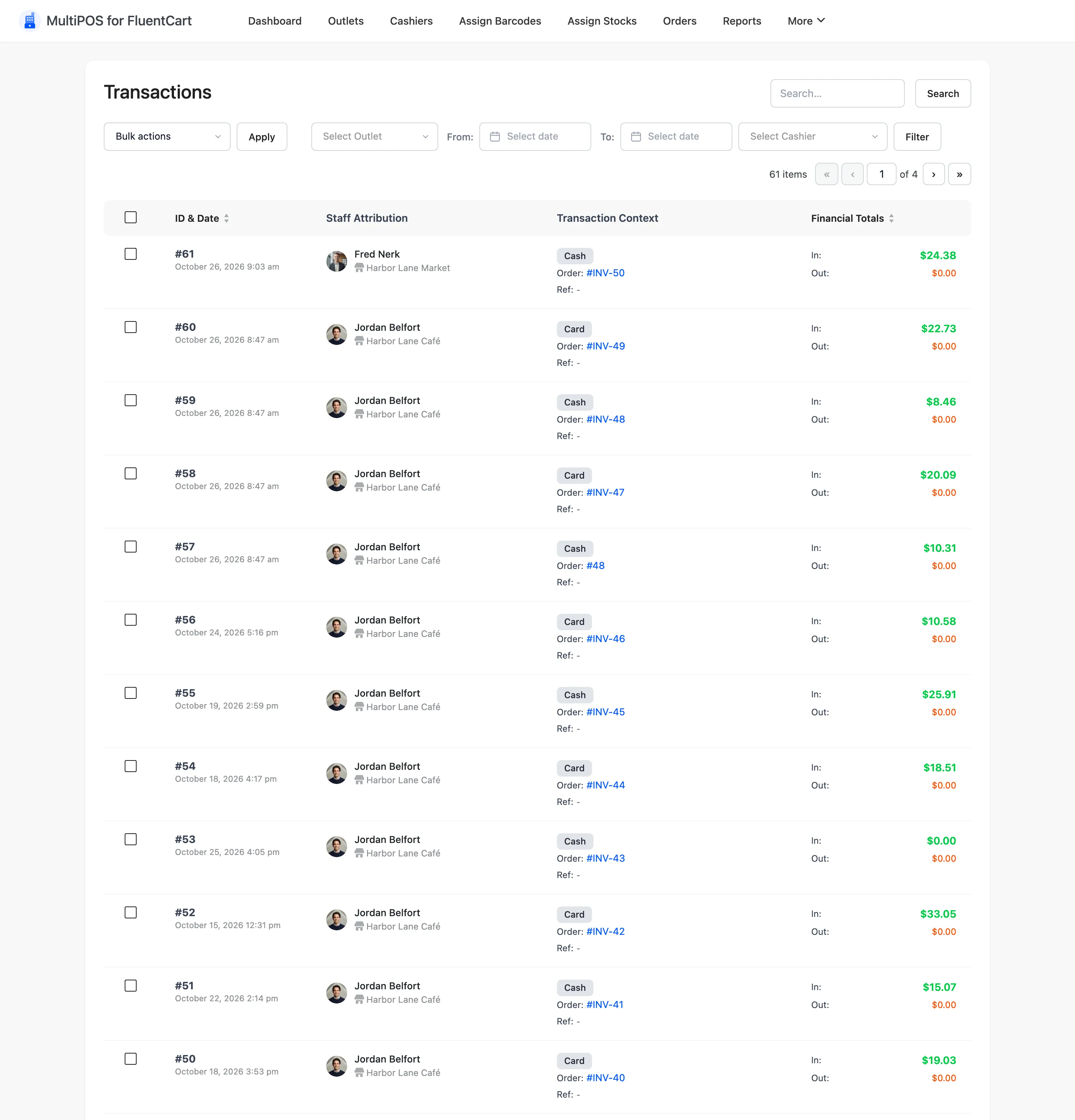
Each row records the cashier, the outlet, the order, the method, the date, and two figures:
- In is the amount the customer handed over.
- Out is the change given back.
Out is only ever filled in for cash, and only when the payment method’s slug is exactly cash.
Card and transfer payments are recorded with Out at zero, because no change leaves the drawer.
That pair is what makes the drawer easy to check. Cash in, minus cash out, is what should be sitting in the drawer.
8. The receipt prints
Section titled “8. The receipt prints”A Print Receipt prompt appears with the order number and its status, such as “Order #INV-1 is Completed.”
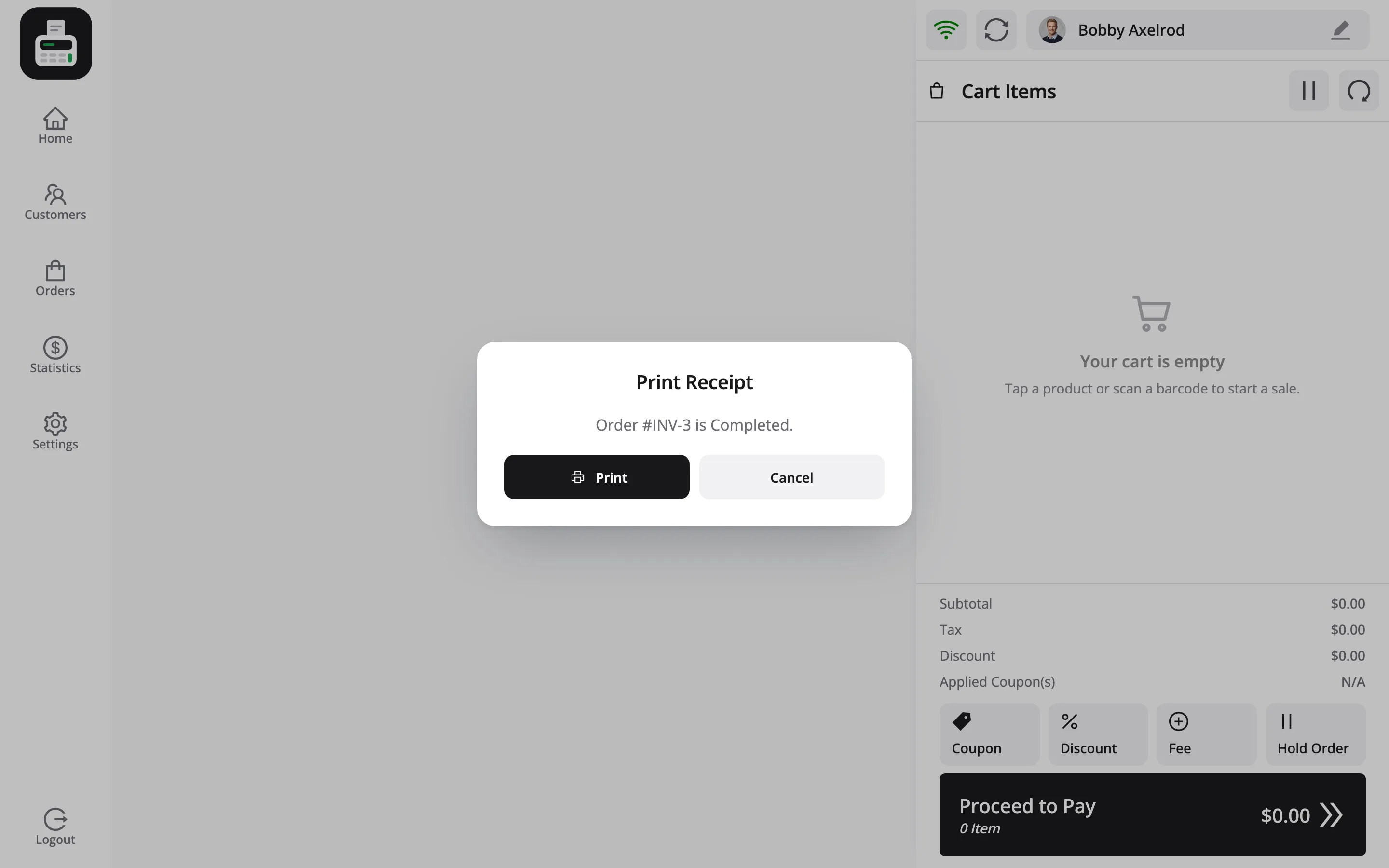
Its Print button sends the receipt to the printer at the size set under Configuration → Printer.
Closing the prompt without printing does not undo the sale. The order already exists.
9. The order appears in FluentCart
Section titled “9. The order appears in FluentCart”Open FluentCart → Orders and the sale is there with every website order, paid and with the status you chose.
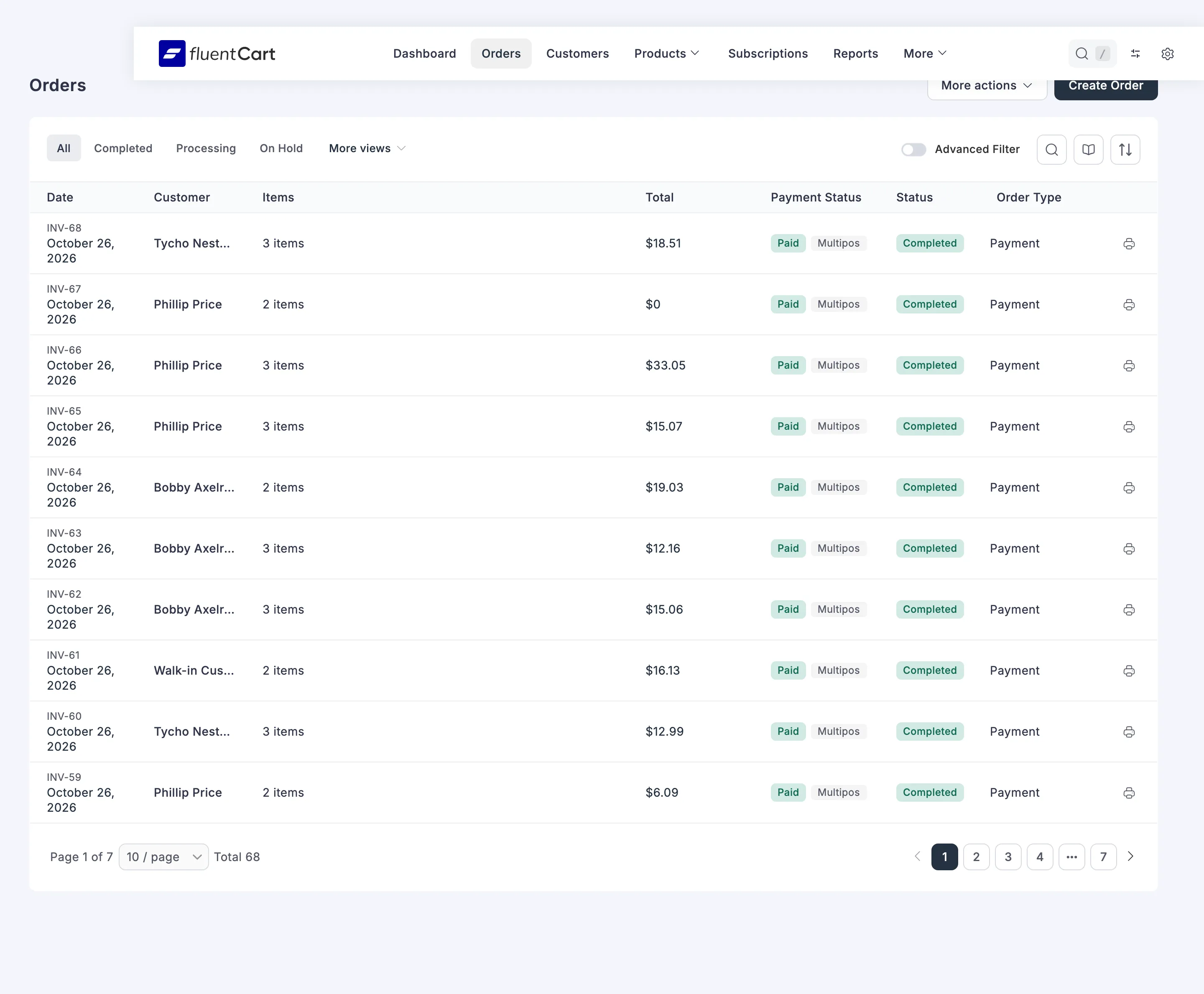
Open it and you see the lines, the tax, the outlet address and the payment. A refund taken at the POS goes through FluentCart’s own refund service, so the order shows as partly or fully refunded here too.
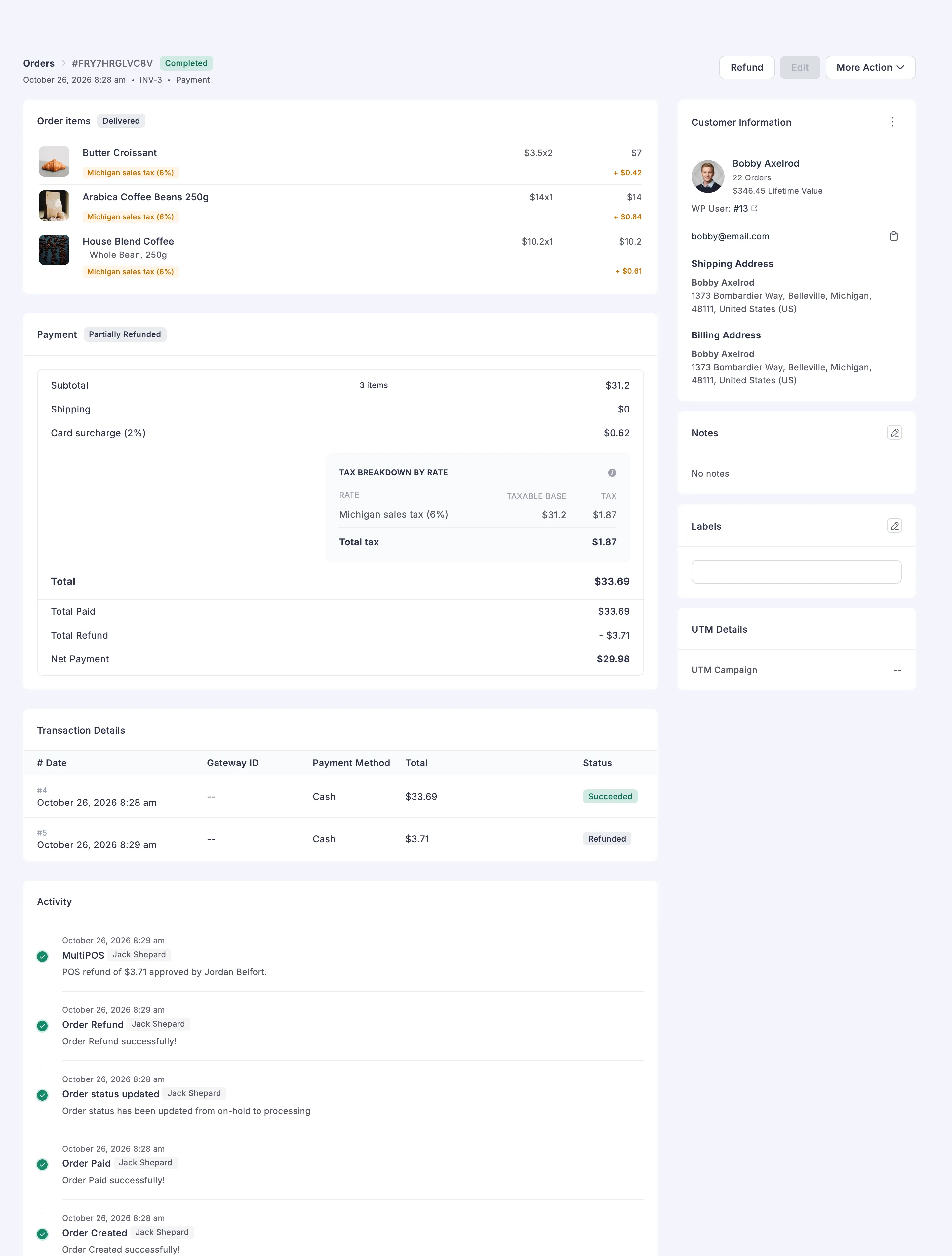
FluentCart’s usual order events still fire: reports, the customer’s order history, and the integrations that listen for a paid order. Order emails go out only when Enable Automated Order Mails is on.
Where to go next
Section titled “Where to go next”- The Cashier Experience for a screen-by-screen tour of the terminal.
- How to Take Your First Sale to do it yourself.
- Transactions for the transactions side.