

How to Use the Manager PIN
A cashier should be able to sell without waiting for anyone. A refund, a big discount or a change to the drawer is different, and you may want a second person to agree.
MultiPOS handles that with a PIN. The cashier is stopped, a supervisor types their PIN on the same screen, and the sale carries on. Nobody has to log out and back in.
Step 1: Choose what cashiers may do
Section titled “Step 1: Choose what cashiers may do”Go to MultiPOS for FluentCart → Configuration → Permissions. Switch off each action that should need a manager, and type a Maximum Discount in percent.
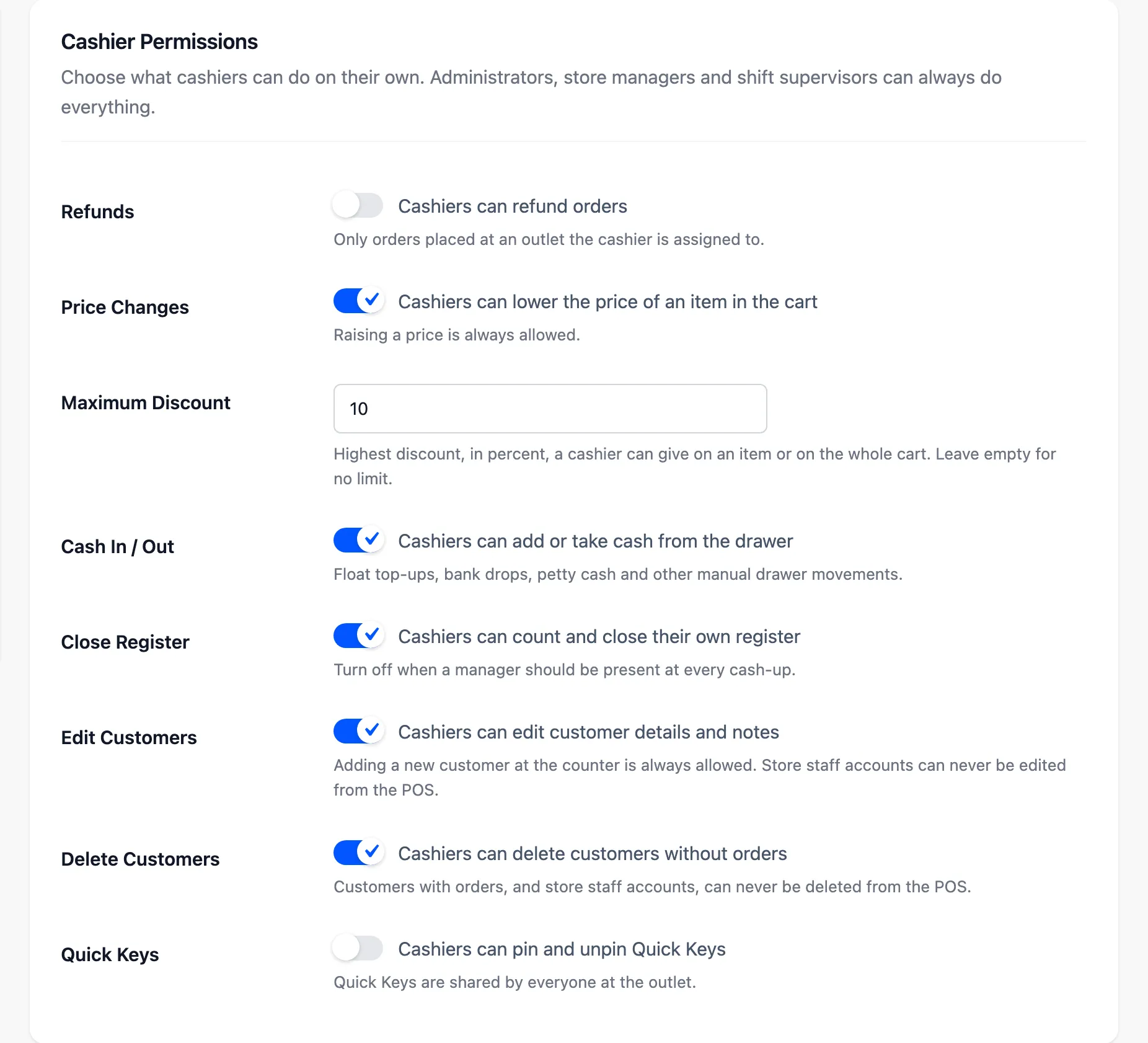
The demo switches Refunds off and caps discounts at 10. Leave Manager PIN on in the Manager Approval section, or a refused cashier is simply stopped. Press Save Changes.
Every field is explained in Permissions Settings.
Step 2: Make a cashier a shift supervisor
Section titled “Step 2: Make a cashier a shift supervisor”Open MultiPOS for FluentCart → Cashiers and edit the cashier who runs the shift. In the POS Access section, tick Make this cashier a shift supervisor.
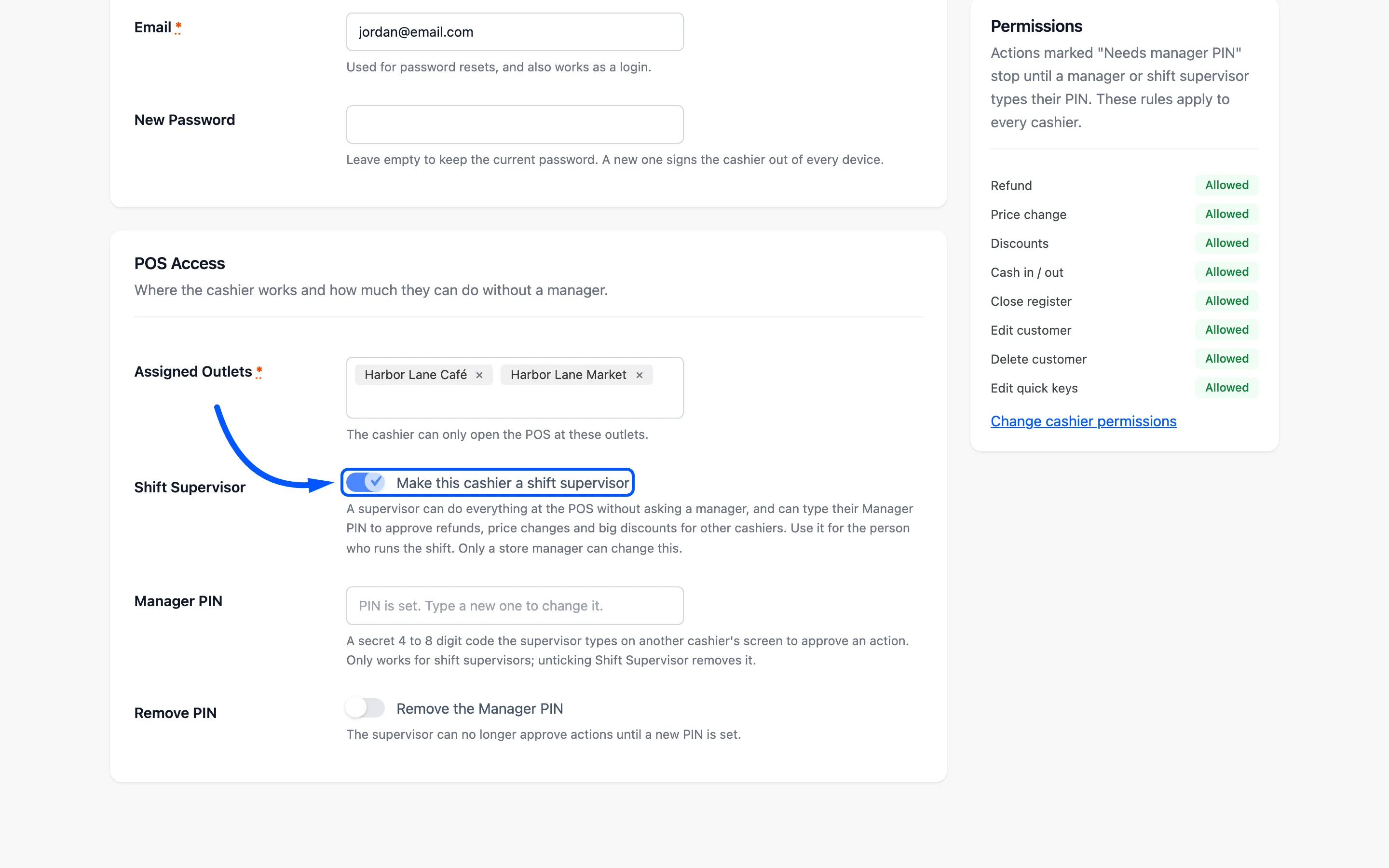
Then type a 4 to 8 digit number in Manager PIN and press Update Cashier.
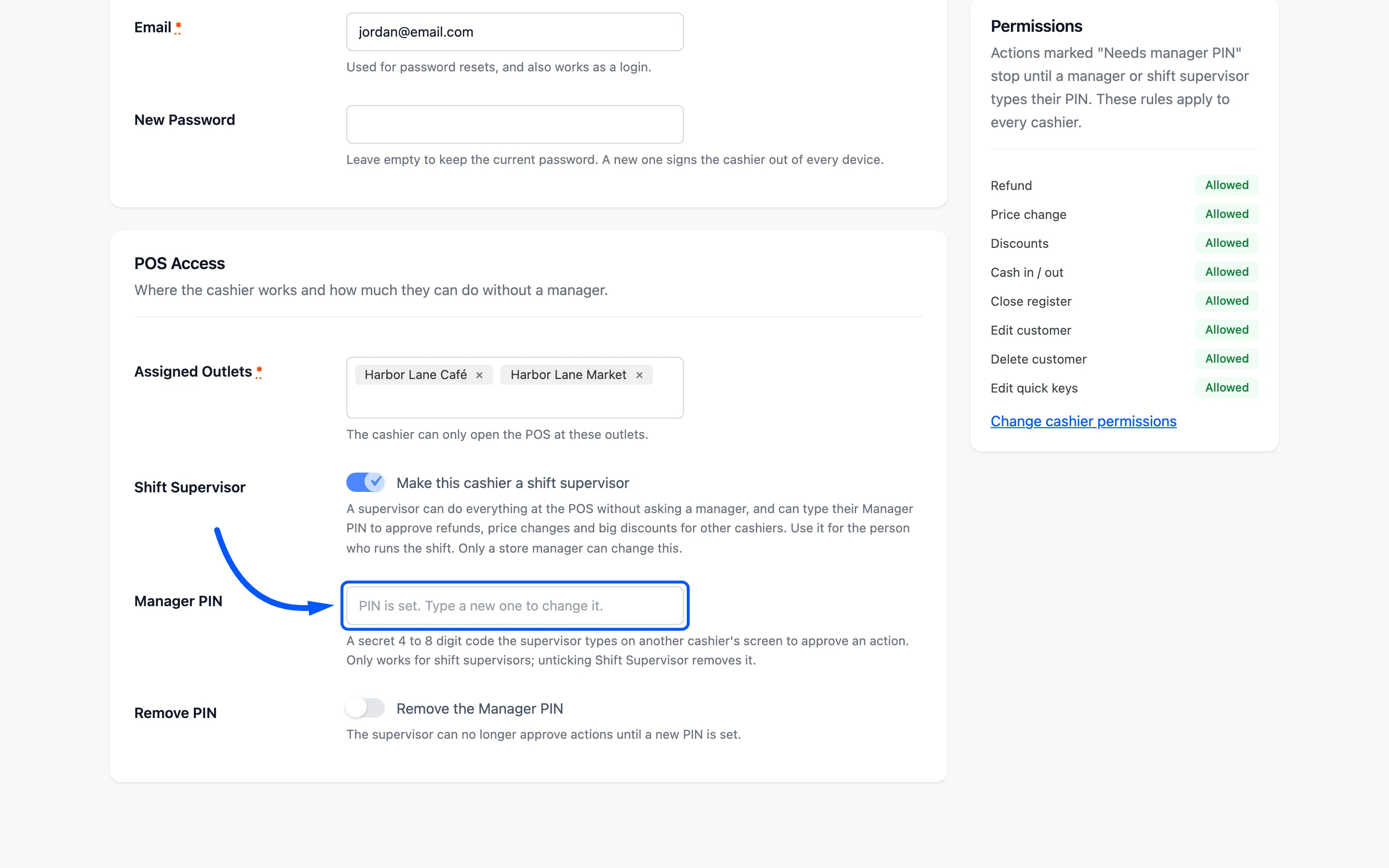
Three rules apply here:
- Only a store manager can change it: A cashier cannot make themselves a supervisor. Store managers are administrators, and FluentCart managers when you run FluentCart Pro.
- Supervisors only: A cashier who is not ticked as a supervisor cannot hold a PIN. Untick it and the PIN is removed.
- Every PIN is different: Two people cannot share one, so each approval names the right person.
Once a PIN is saved, the field reads PIN is set. Type a new one to change it. The PIN itself is never shown again.
Step 3: Or give a manager a PIN on their profile
Section titled “Step 3: Or give a manager a PIN on their profile”Administrators can approve too, and so can FluentCart managers with FluentCart Pro. They set their own PIN under Users → Profile → MultiPOS Manager PIN.
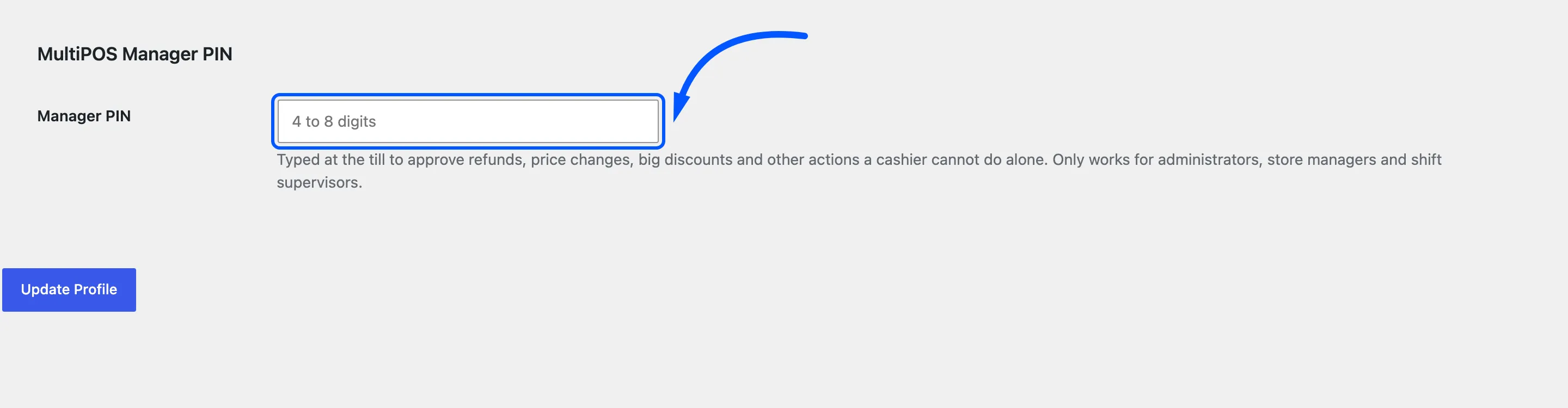
The same section shows the Shift Supervisor checkbox when you edit a cashier’s profile.
Step 4: Approve at the POS
Section titled “Step 4: Approve at the POS”The cashier does what they normally do. When they reach something they are not allowed to do, the POS asks for a manager instead of refusing.
On the demo, the cashier tried a 15% discount on one item, above the 10% cap.
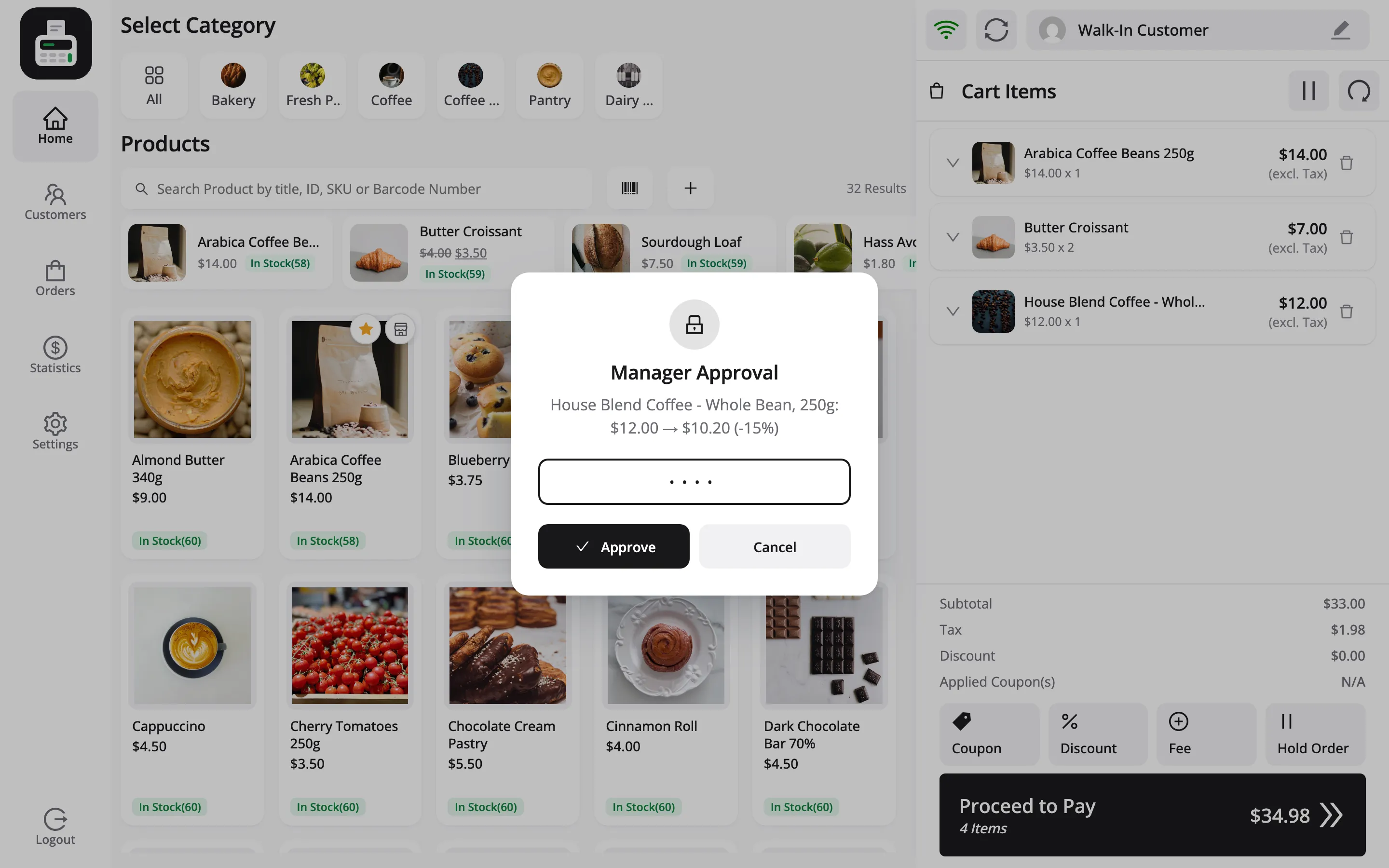
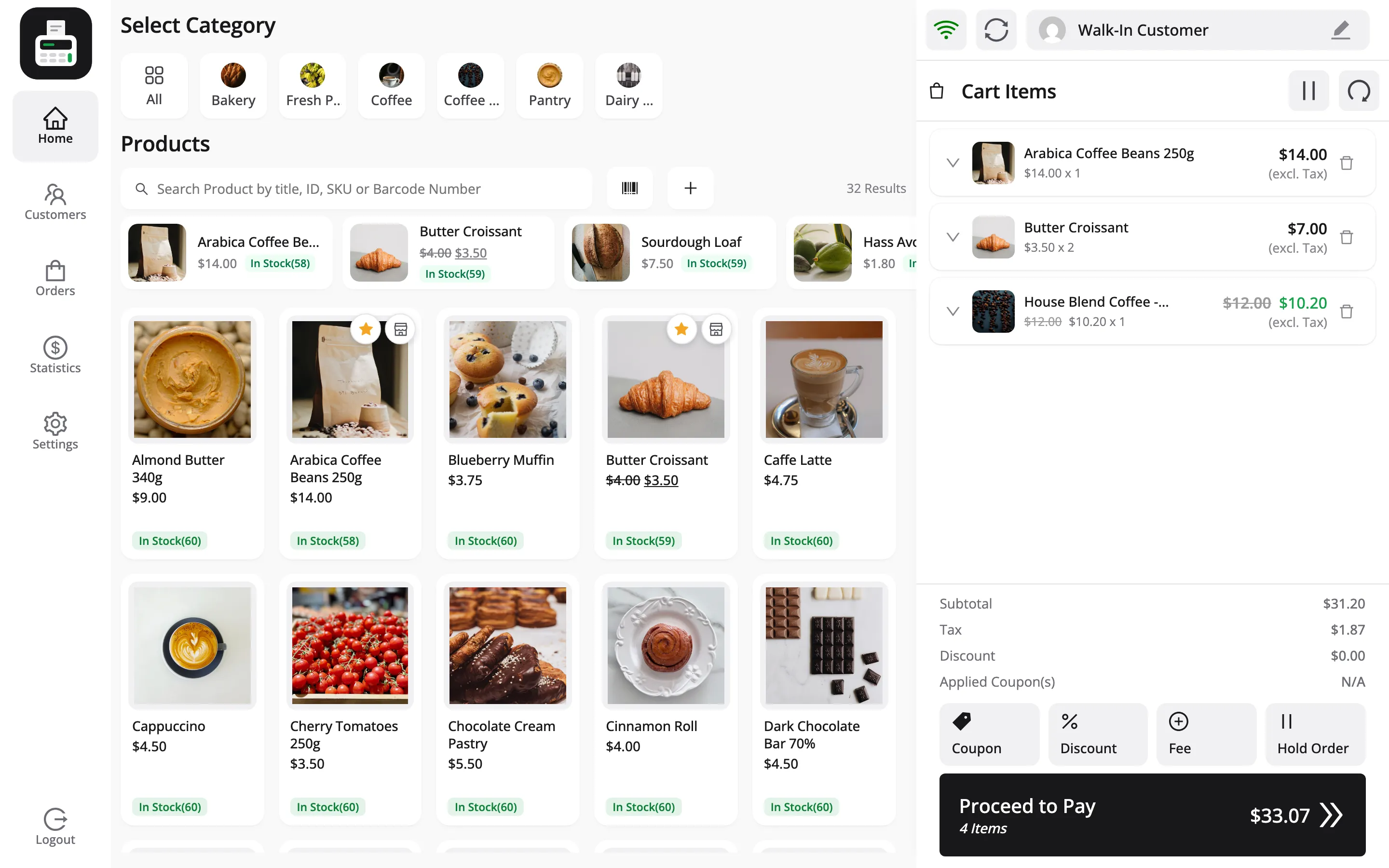
The popup says what is being approved. The supervisor types their PIN and presses Approve. A message reads Approved by Jordan Belfort., and the discount is applied to the line.
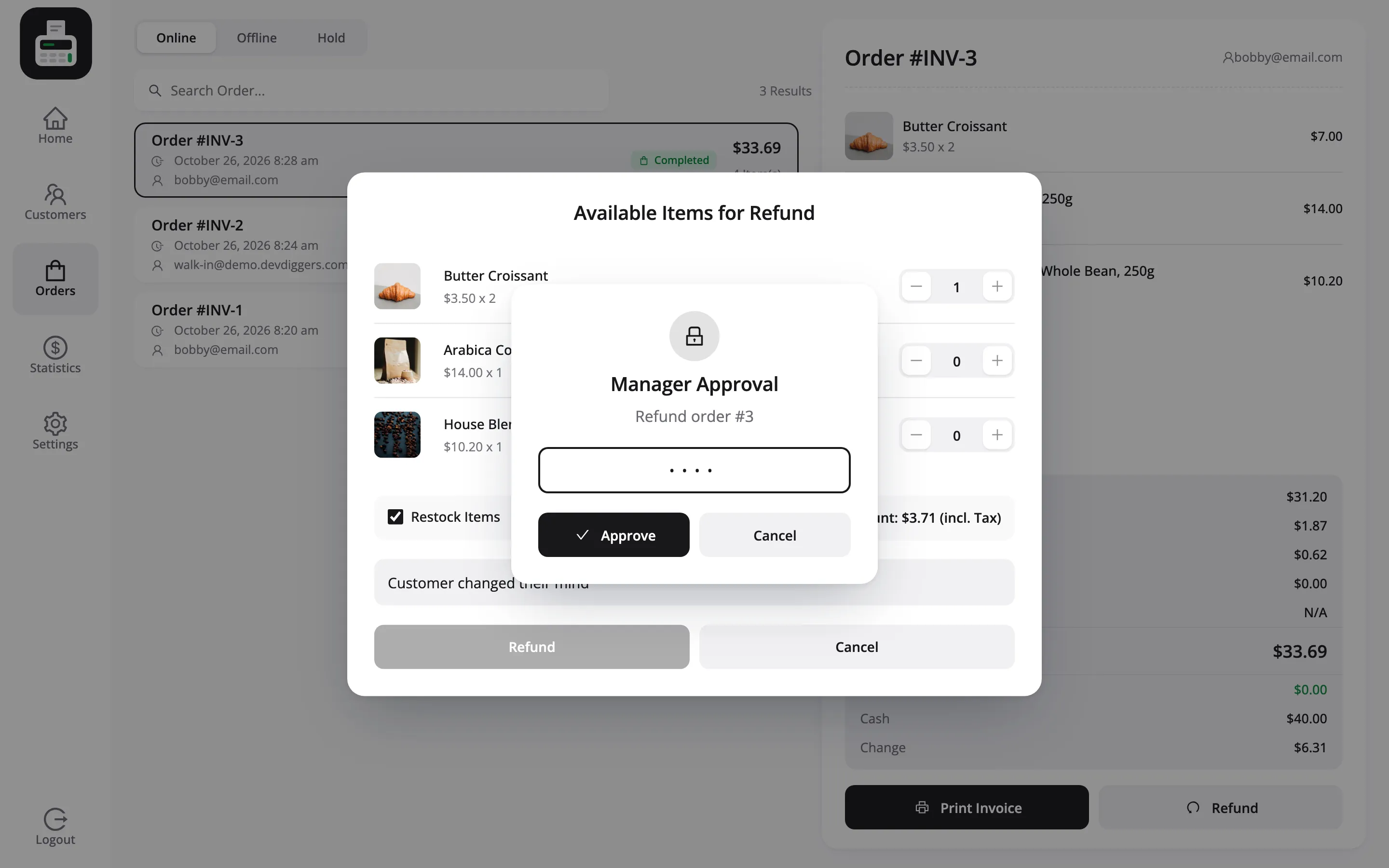
Refunds work the same way. The reason line reads Refund order and the order number.
What can trigger it
Section titled “What can trigger it”| Action | Setting that decides |
|---|---|
| Refund an order | Refunds |
| Lower a price in the cart | Price Changes |
| A discount above the cap, on a line or the cart | Maximum Discount |
| Cash in or out of the drawer | Cash In / Out |
| Close the register | Close Register |
| Edit a customer or their staff note | Edit Customers |
| Delete a customer | Delete Customers |
| Pin or unpin a Quick Key | Quick Keys |
If it goes wrong
Section titled “If it goes wrong”- This PIN does not belong to a manager: The PIN is wrong, or belongs to someone who is no longer a supervisor.
- Too many wrong PINs: After five wrong tries the prompt locks for 15 minutes.
- Manager approval needs an internet connection: The PIN is checked by the server.
Each approval covers the one action it was asked for and expires after 5 minutes. Nothing carries over to the next sale.
Step 5: Check the record
Section titled “Step 5: Check the record”Every approval leaves a trail. On the order, the note POS price changes lists the item, the old and new price, and (approved by Jordan Belfort).
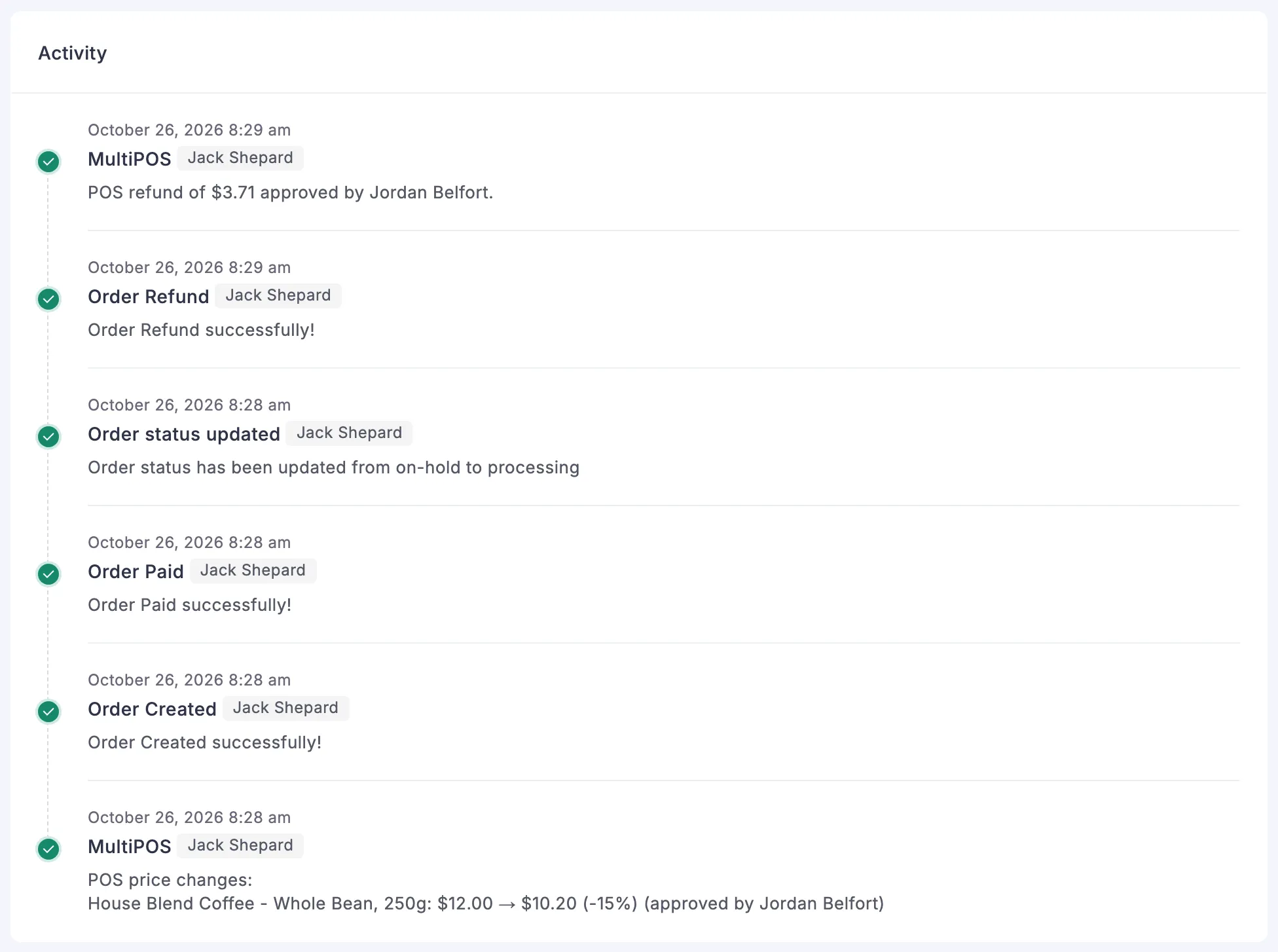
A refund gets its own note, such as POS refund of $14.15 approved by Jordan Belfort., and an approved cash movement names the approver on the transaction.
A discount above the cap that nobody approved, which can happen on a sale made offline, is flagged. Tick Over cashier limits on the Orders screen to find those.