

The Setup Wizard
The wizard runs once, right after activation. It sets the handful of options the POS cannot start without, and skips everything you can decide later.
It is not the only way in. Every field it shows also lives under Configuration, so skipping it costs you nothing but the guided order.
Reopen the wizard
Section titled “Reopen the wizard”If you closed it, add &setup-wizard=true to the dashboard URL:
/wp-admin/admin.php?page=ddfcpos-dashboard&setup-wizard=trueStep 1: Welcome
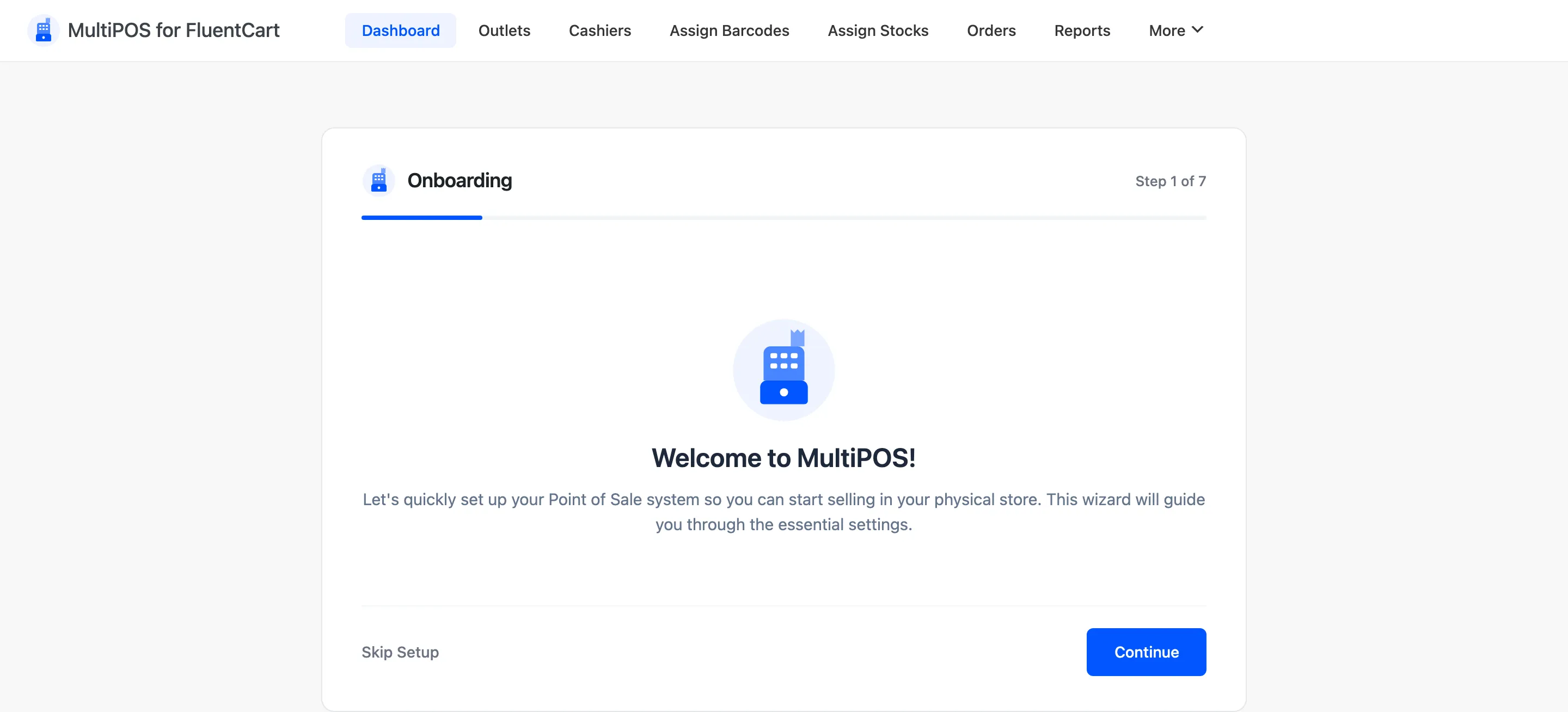
Section titled “Step 1: Welcome”The opening step introduces the plugin and does nothing else. Read it and continue.
Step 2: License
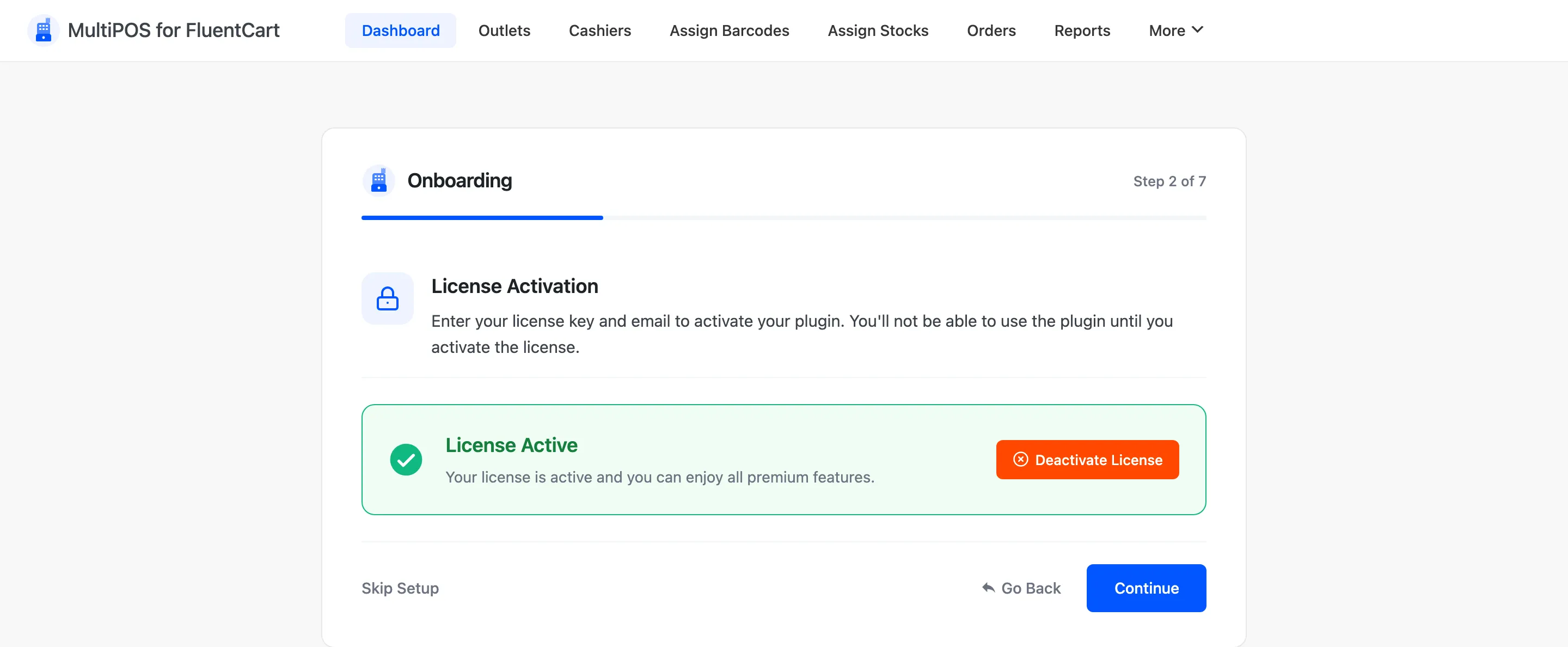
Section titled “Step 2: License”Enter the purchase code and email from your DevDiggers order, then activate. The wizard answers “Please activate your license to continue.” until the license is active.
Step 3: General
Section titled “Step 3: General”Six fields, and the first one is the switch that turns the whole plugin on.
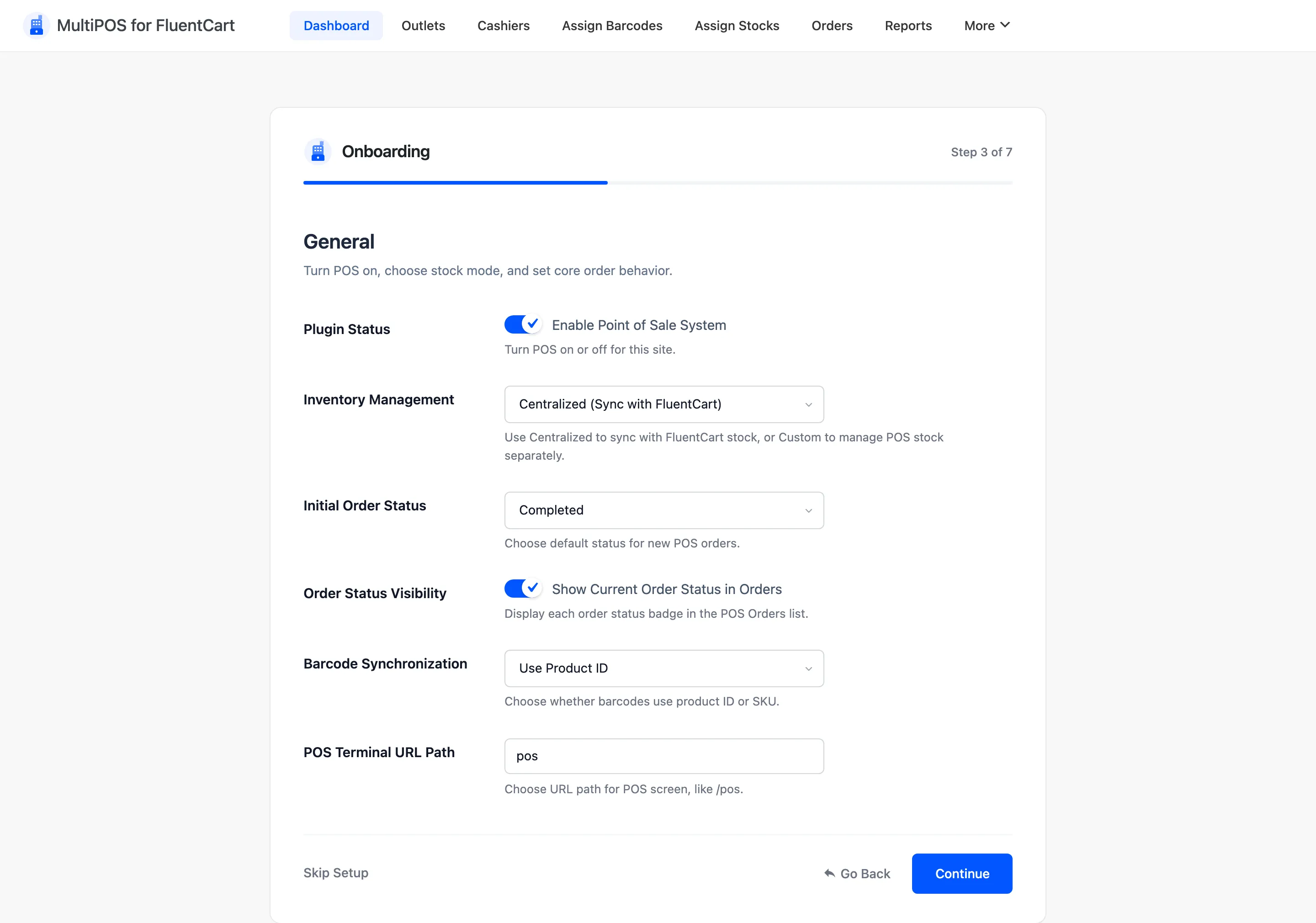
- Enable Point of Sale System turns the POS on for the site. Leave it off and the terminal URL does not resolve.
- Inventory Management is either Centralized (Sync with FluentCart), which sells from FluentCart stock, or Custom (Manual POS Stock), which keeps a separate count for the POS.
- Initial Order Status is the FluentCart status every POS order is created with. It defaults to Completed, which is the right answer for a counter sale where the customer walks out with the goods. Choose Processing if your POS orders still need packing or shipping.
- Show Current Order Status in Orders puts each order’s status badge in the POS Orders list.
- Barcode Synchronization decides whether a barcode is generated from the product ID or from its SKU. It defaults to Use Product ID.
- POS Terminal URL Path is the path the POS answers on. It defaults to
pos, giving youyoursite.com/pos.
Pick the URL now. Changing it later means retraining staff and re-bookmarking every device.
Step 4: Checkout
Section titled “Step 4: Checkout”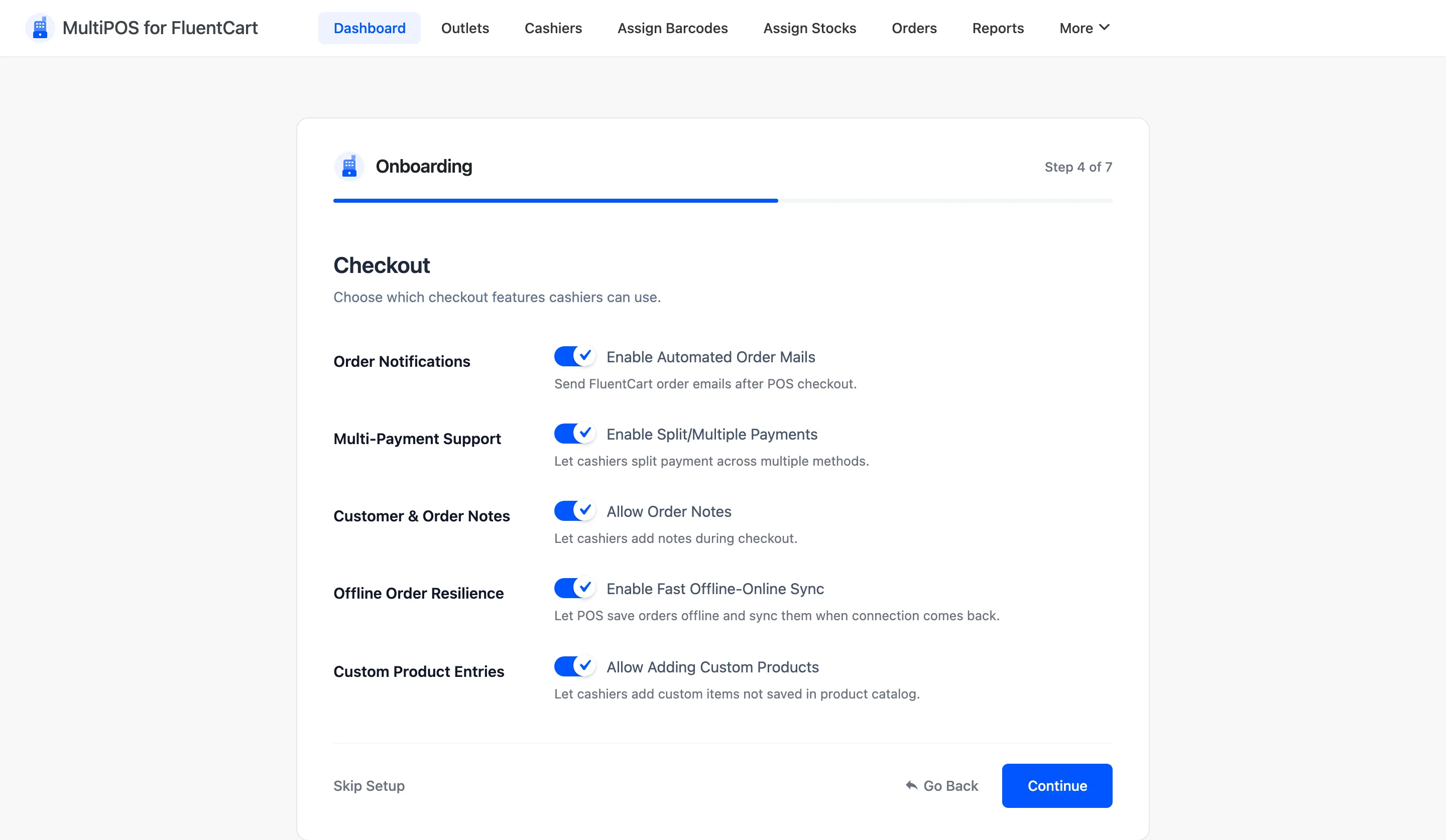
Enable Automated Order Mails sends FluentCart’s order emails after a POS checkout. It is off by default.
Off is usually right for a counter. The customer is standing in front of you with a printed receipt, so a “your order is complete” email is noise. Turn it on if you take orders for later collection.
The other four switch checkout features on for cashiers:
- Enable Split/Multiple Payments lets a cashier split one order across several payment methods.
- Allow Order Notes lets a cashier add a note during checkout.
- Enable Fast Offline-Online Sync lets the POS save orders offline and sync them when the connection comes back.
- Allow Adding Custom Products lets a cashier sell an item that is not in your catalog.
Step 5: Layout
Section titled “Step 5: Layout”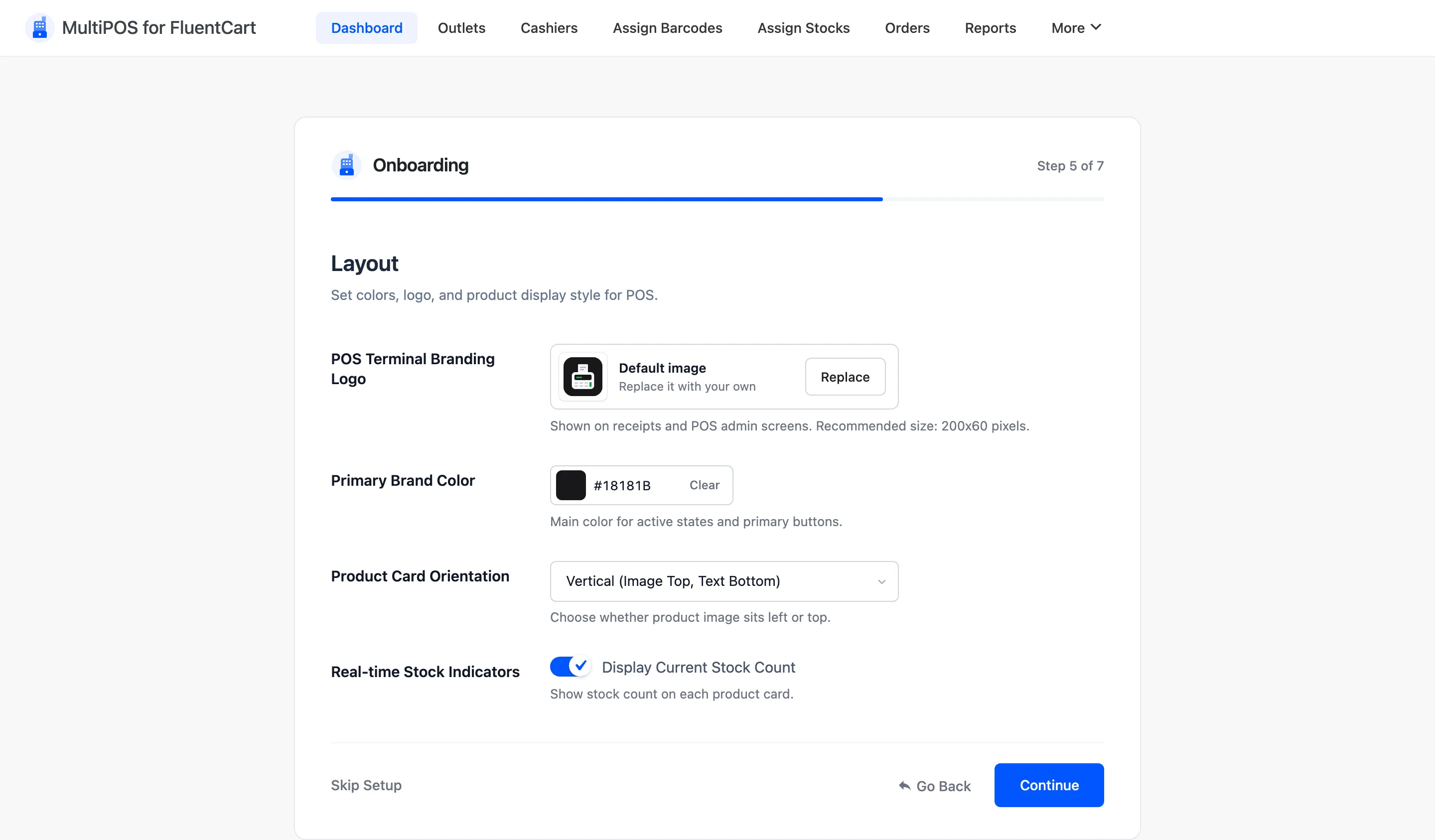
- POS Terminal Branding Logo appears on receipts and on the POS admin screens. The recommended size is 200 by 60 pixels.
- Primary Brand Color is the colour of active states and primary buttons in the terminal.
- Product Card Orientation is either Vertical (Image Top, Text Bottom), the default, or Horizontal (Image Left, Text Right). Vertical fits more products on a screen. Horizontal reads better when your product names are long.
- Display Current Stock Count prints the stock figure on every product card. It is on by default, and it is worth keeping on. A cashier who can see one left in stock will not promise a second.
Step 6: Customers
Section titled “Step 6: Customers”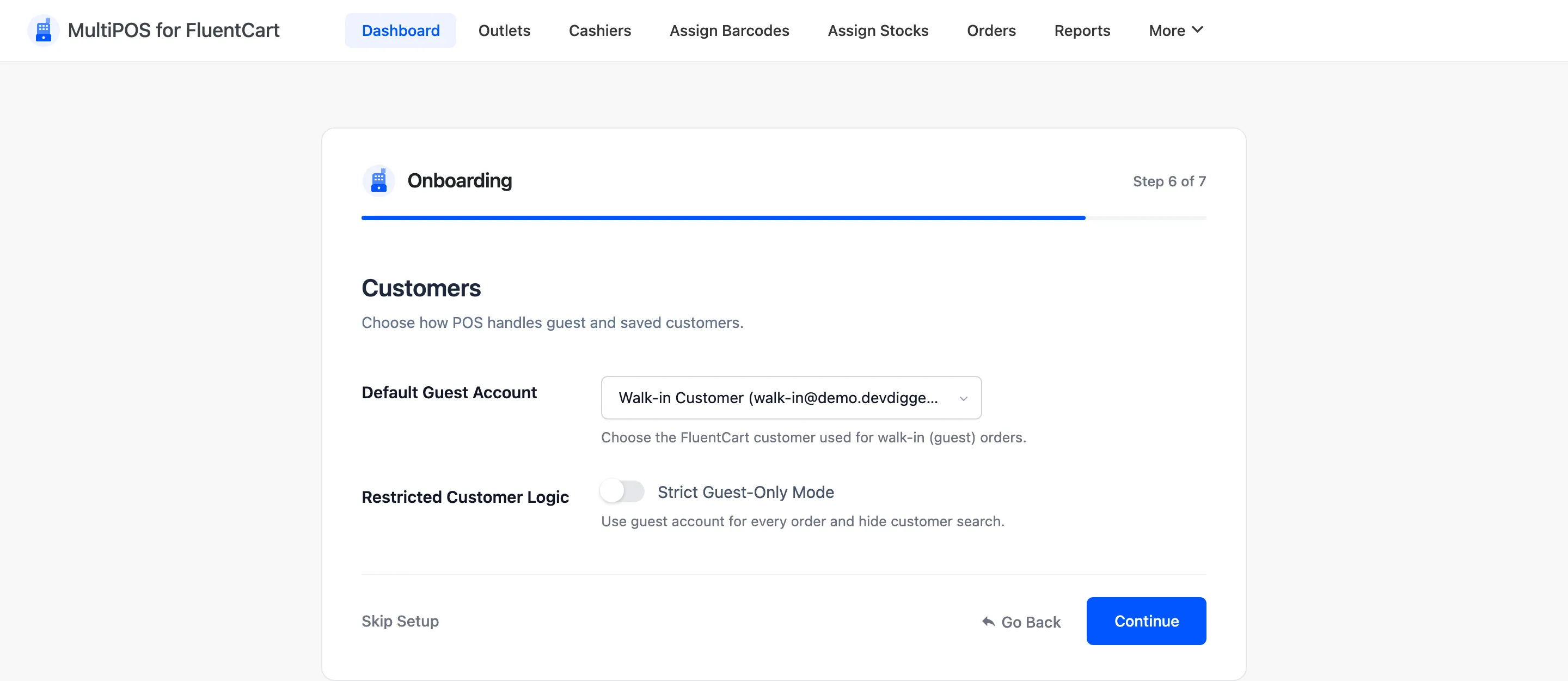
Default Guest Account is the FluentCart customer that walk-in sales are booked to when the cashier does not pick one.
You do not need to create it. MultiPOS adds a FluentCart customer called Walk-in Customer and uses it until you choose another. Every anonymous sale then lands on one record.
Strict Guest-Only Mode books every order to the guest account and hides the customer search. Use it when a counter never takes customer details.
Step 7: Ready
Section titled “Step 7: Ready”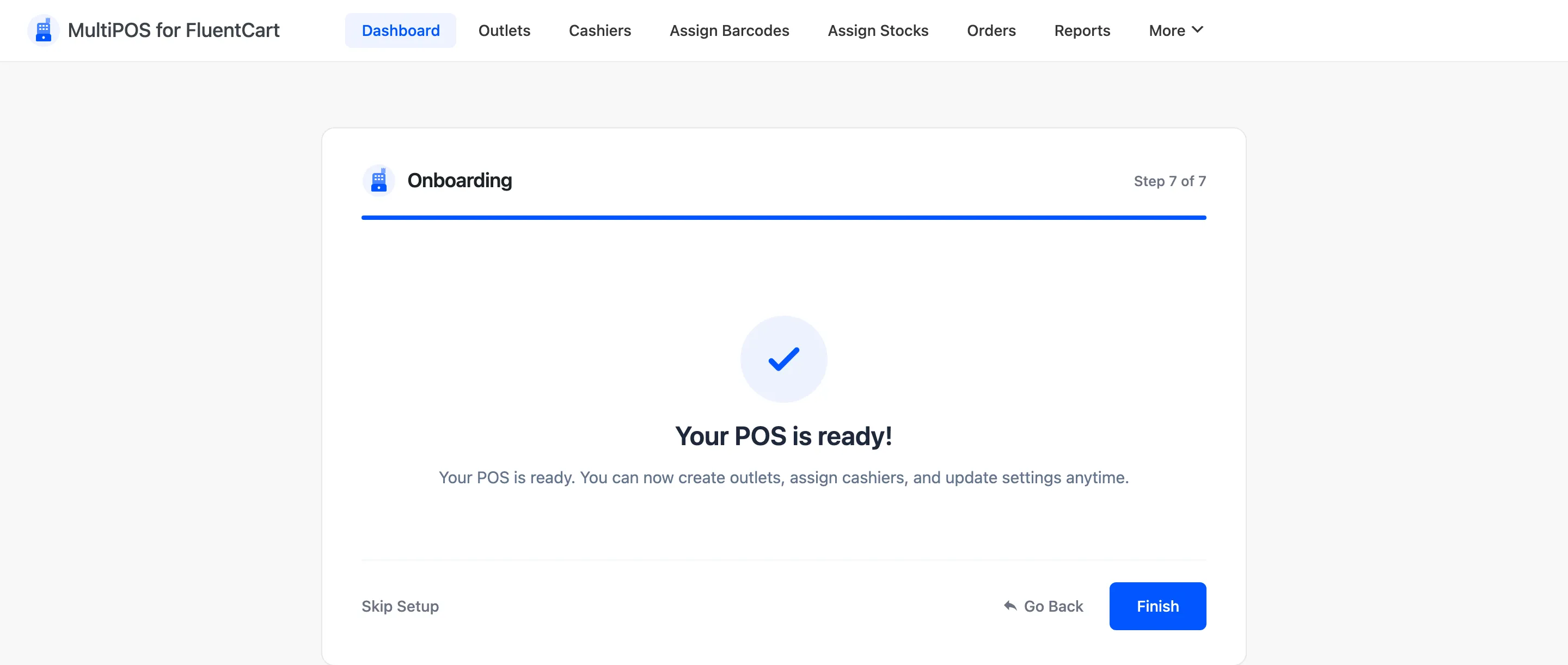
The last step confirms the POS is configured and drops you on the dashboard.
You are not finished yet. The POS still needs an outlet before it will open, and it needs at least one cashier before anyone but you can use it.
What the wizard does not cover
Section titled “What the wizard does not cover”- The outlet: Its address, its payment methods and its operating mode.
- Payment methods: Which ones each outlet offers.
- Cashiers: Who can open the POS, and what they may do there.
- Barcodes: Which products have one.
- The receipt size: Set it to match your printer roll.
Where to go next
Section titled “Where to go next”- How to Set Up Your Outlet
- How to Add a Cashier
- General Settings for every field the wizard skipped.