

How to Read Your POS Reports
Reports answers the questions a store owner asks on a Monday morning. How did last week go, against the week before? Who sold what? When are we busy? Did every drawer balance?
This walks through the page in the order those questions come up.
Step 1: Open Reports
Section titled “Step 1: Open Reports”Go to DevDiggers Plugins → MultiPOS for FluentCart → Reports.
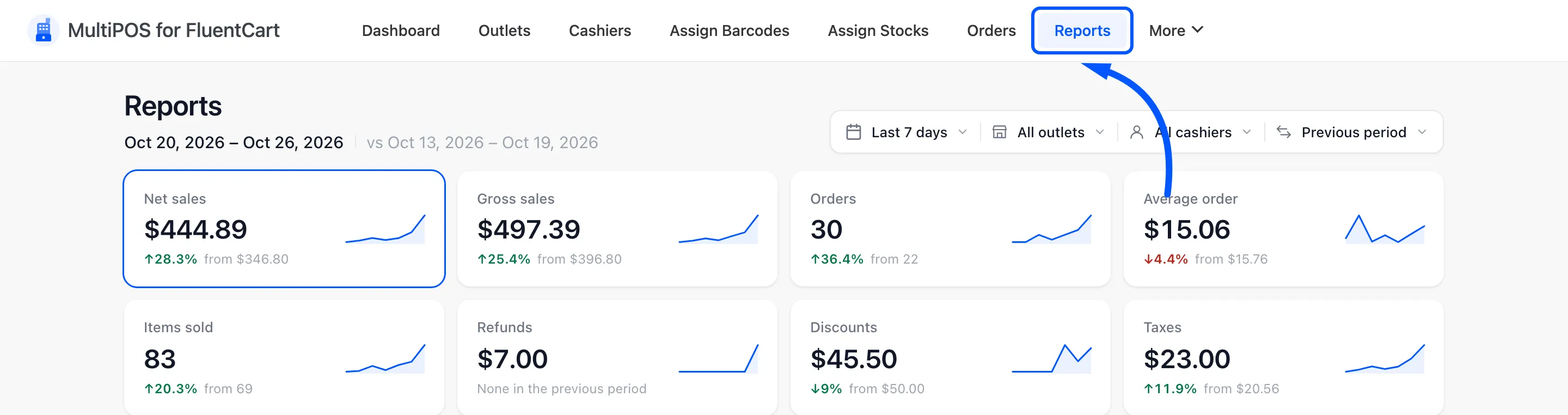
The page opens on the Last 7 days, compared with the 7 days before. The dates are printed under the title, so you always know what you are looking at.
Step 2: Set the date range
Section titled “Step 2: Set the date range”Click the date control at the top right.
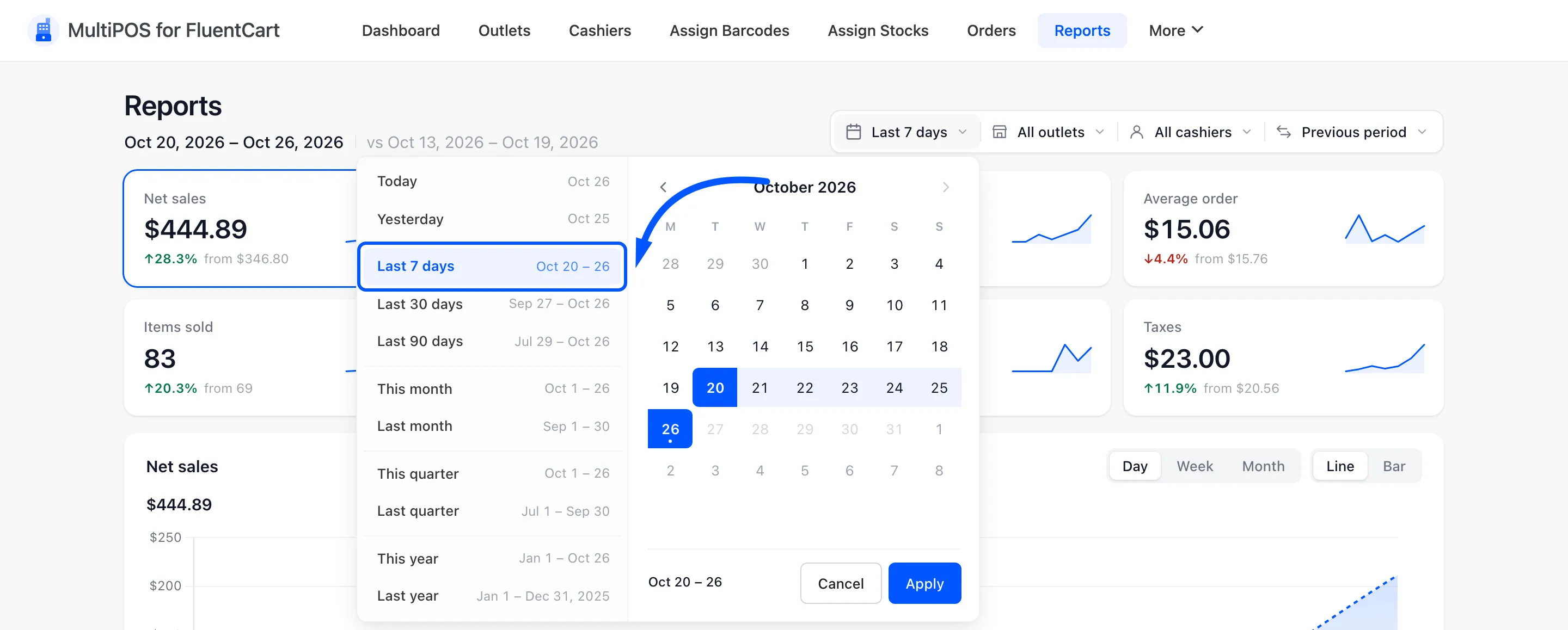
Pick a preset, from Today to Last year. For anything else, click the first and the last day on the calendar and press Apply.
The chart regroups itself to fit. It shows days for up to a month, weeks for up to about four months, and months beyond that.
Step 3: Narrow it to one outlet or cashier
Section titled “Step 3: Narrow it to one outlet or cashier”Open All outlets and pick one.

All cashiers works the same way for one person’s sales. The two combine, so you can see one cashier at one outlet.
Step 4: Pick what to compare with
Section titled “Step 4: Pick what to compare with”Open the comparison menu.

Previous period is right for a trend. Same period last year is right for a seasonal shop, where this December is only fairly compared with last December. No comparison clears the change figures.
Step 5: Read the figure tiles
Section titled “Step 5: Read the figure tiles”
Start with Net sales. It is what you kept after discounts and refunds, without tax, and it is the number to plan on. Gross sales is the same before discounts and refunds.
Then read Orders and Average order together. Fewer orders with a higher average means fewer, bigger baskets. Fewer orders at the same average means fewer people came in.
Refunds and Discounts turn red when they rise, because a rise costs you money. A tile that says None in the previous period had nothing to compare with.
Step 6: Chart the figure you care about
Section titled “Step 6: Chart the figure you care about”Click a tile, then choose how to draw it.
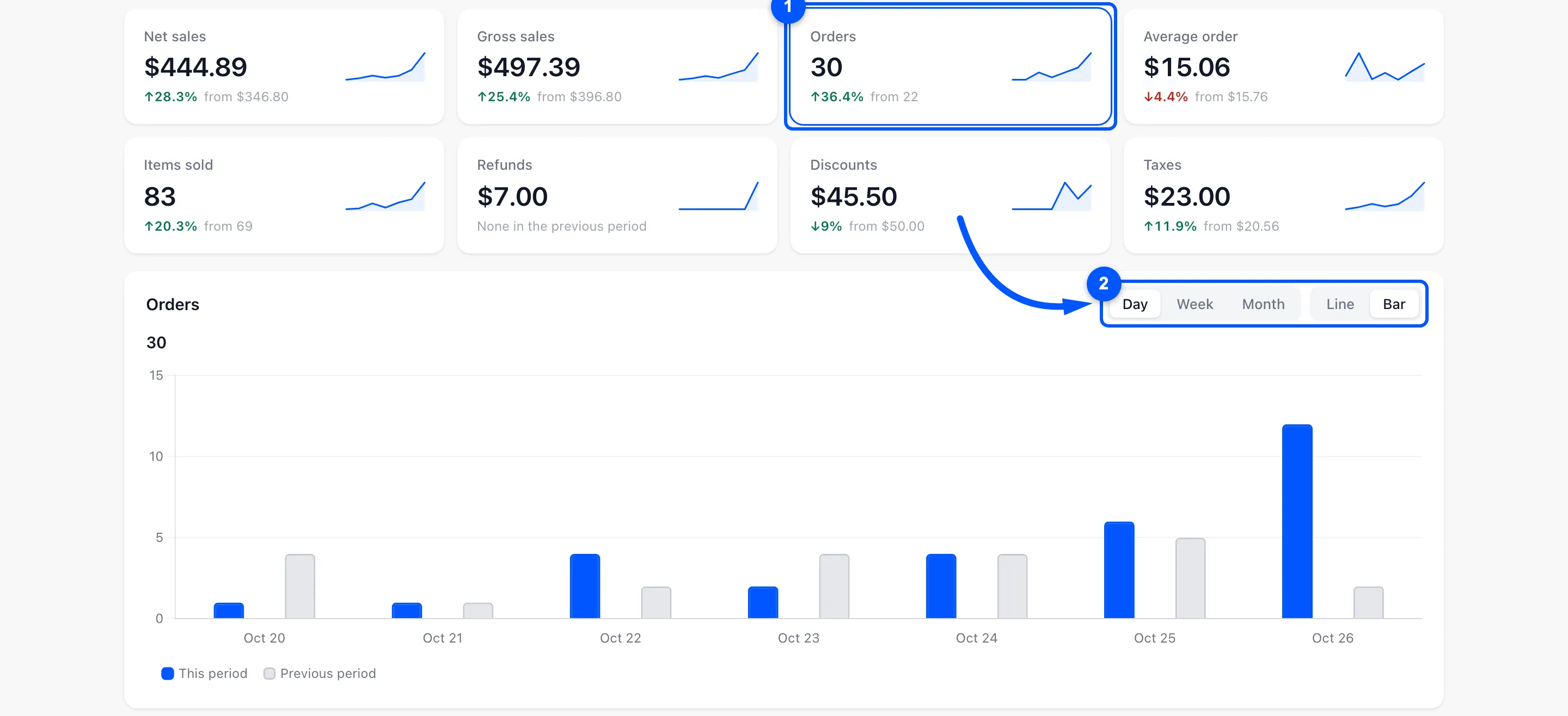
Here Orders is charted by day as bars, with the previous week in grey beside each day. Hover a bar for the exact count.
The last day is still running, so on a line chart it is dotted and marked so far. Do not read a drop at the right-hand end as bad news until the day is over.
Step 7: Find your busiest hours
Section titled “Step 7: Find your busiest hours”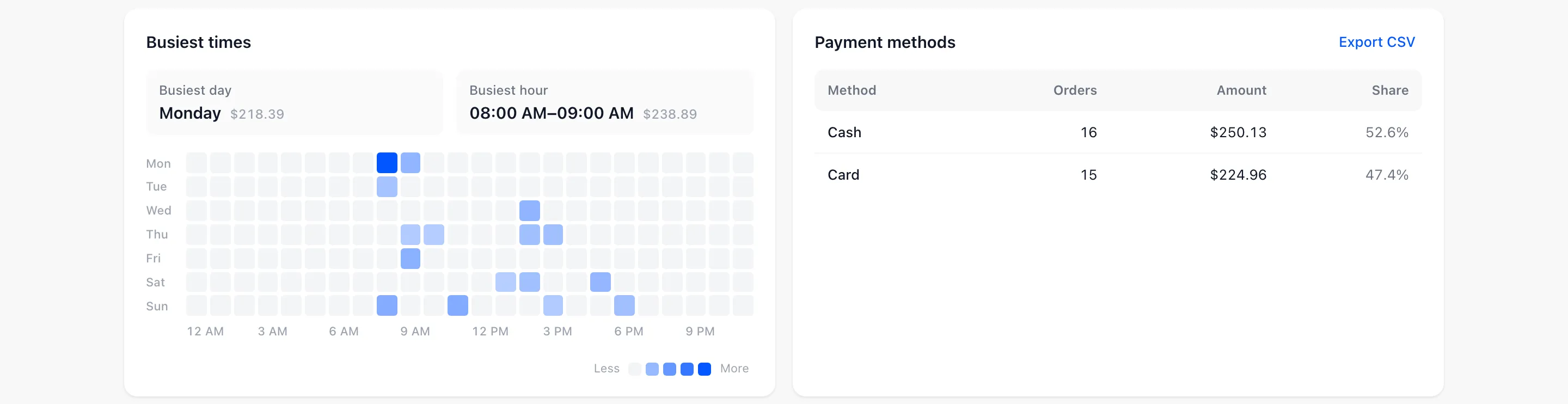
The darker a square, the more was sold on that weekday at that hour. Busiest day and Busiest hour sit above the grid. This is the panel to plan staff rotas from.
Payment methods beside it shows how customers really pay. Check it before deciding whether a card terminal earns its rental.
Step 8: Check each cashier and their drawer
Section titled “Step 8: Check each cashier and their drawer”
Each cashier’s orders, discounts, refunds, manual cash movements and net sales sit side by side. The Drawer column says Balanced, or how much over or short their closed registers came to, such as $2.00 short.
Read Discounts and Refunds against Net sales. One cashier giving away far more than the others is worth a quiet conversation.
Step 9: See what sells
Section titled “Step 9: See what sells”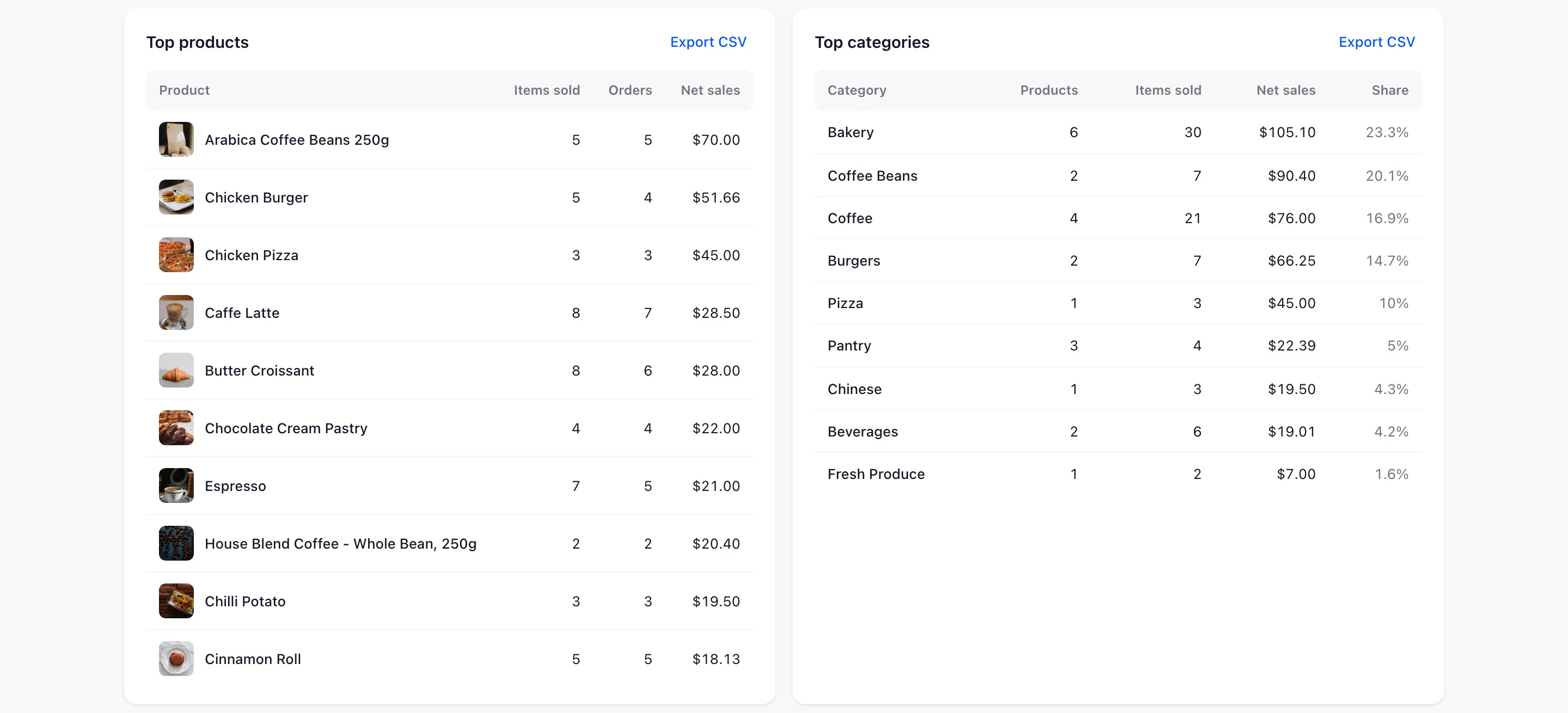
Top products lists the ten best sellers by net sales, and Top categories the same by category.
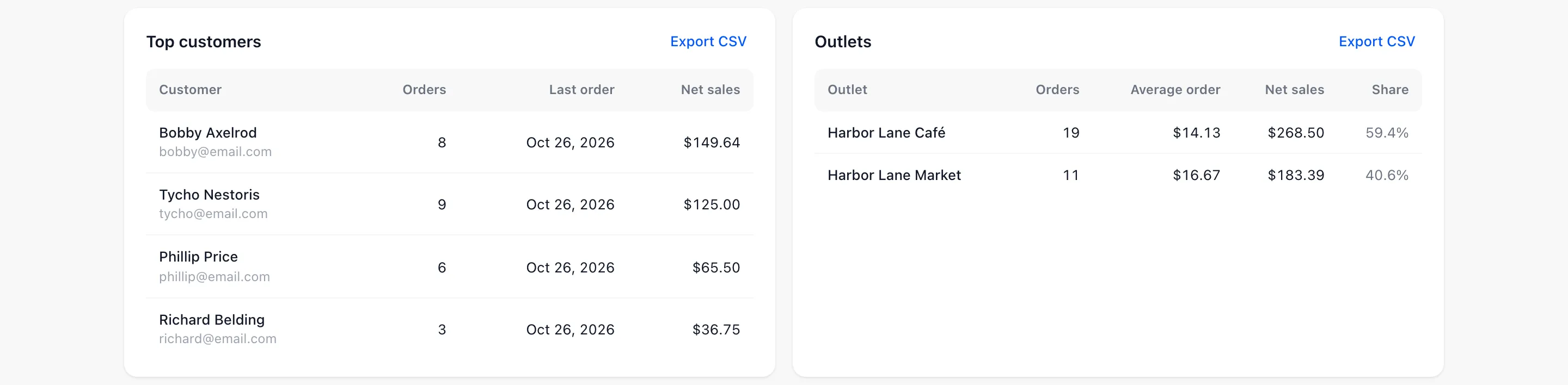
Top customers only counts sales where the cashier picked a customer. Outlets compares your stores by orders, average order and net sales.
Step 10: Export a table
Section titled “Step 10: Export a table”Press Export CSV at the top right of any table.
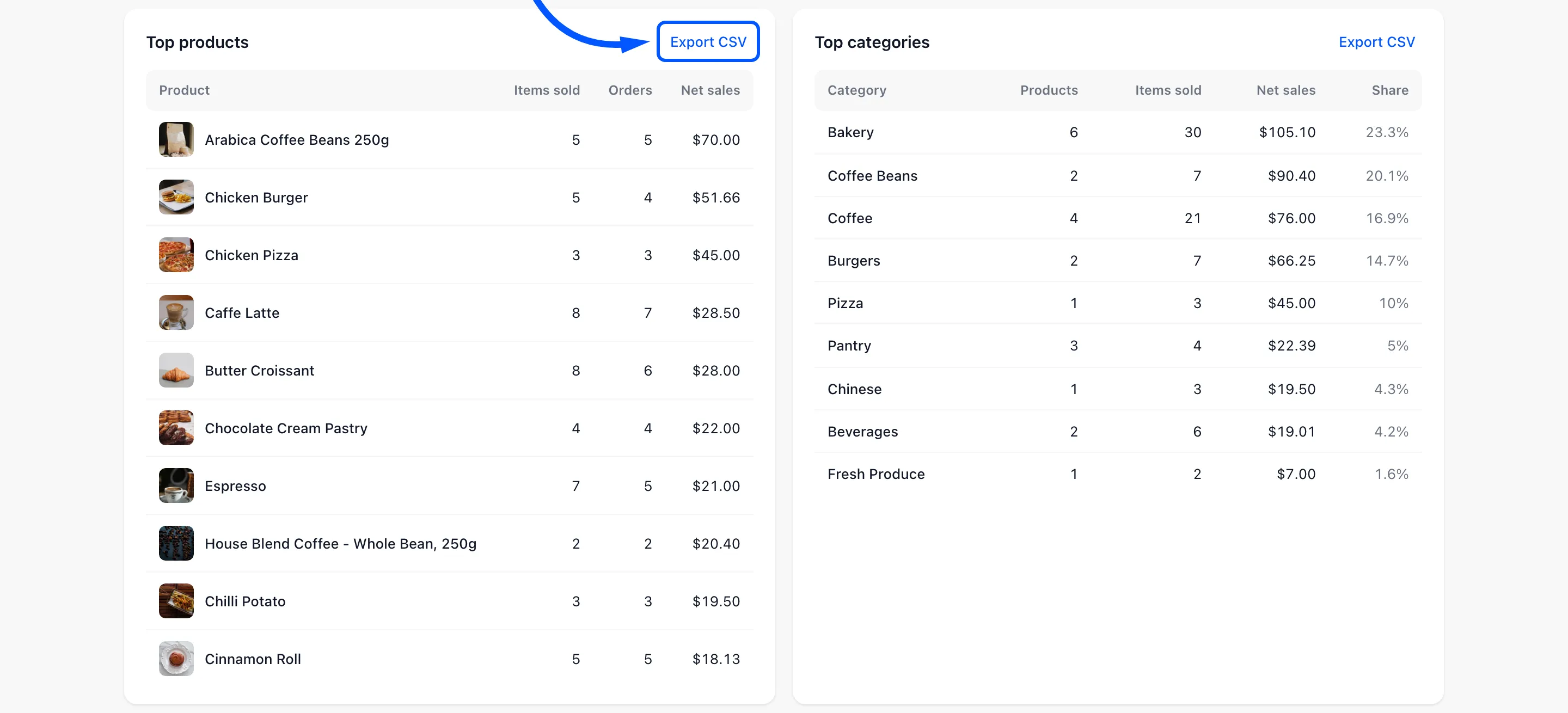
The file holds that table for the dates and filters on screen, as plain numbers. The Taxes table is the one your accountant wants each month.
Step 11: Follow a drawer that did not balance
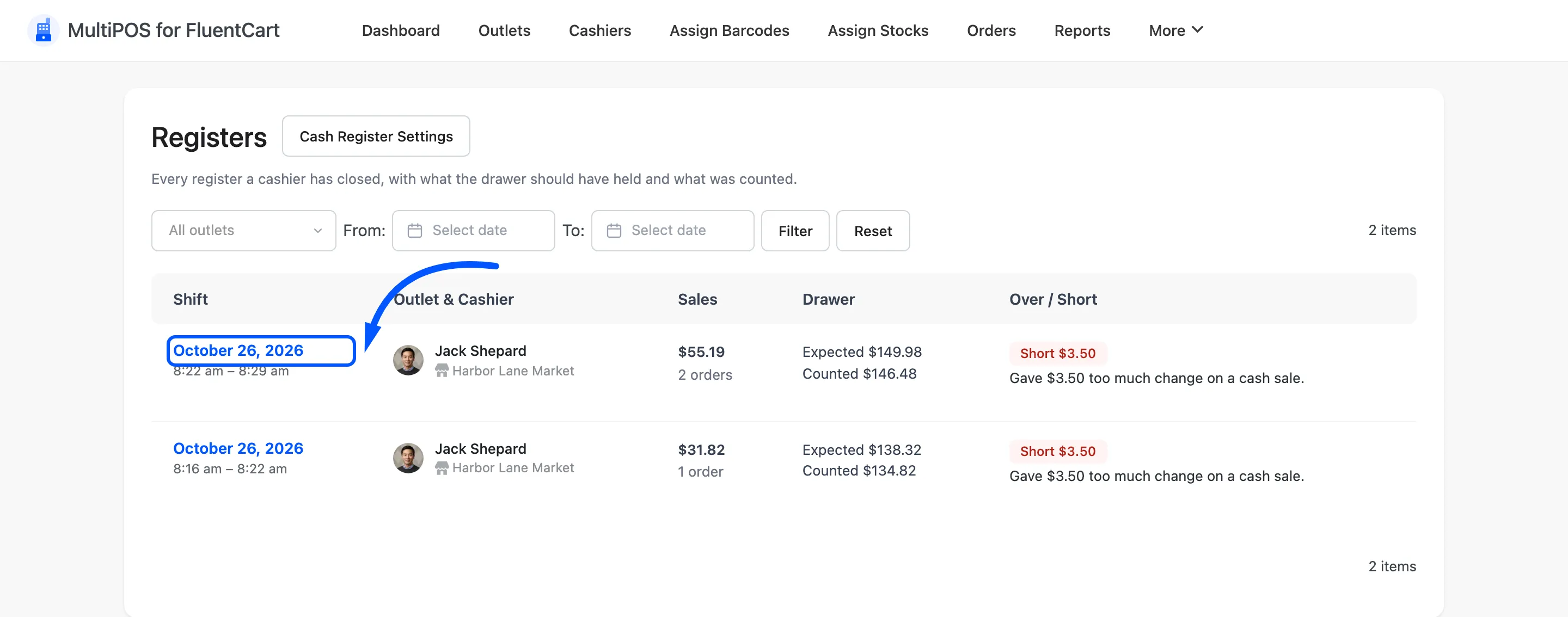
Section titled “Step 11: Follow a drawer that did not balance”On the Cash drawer card, press View registers.

It opens the Registers screen, with every closed register and its result. Click a register’s date to open its Z-report and see what happened in that shift.
What you have now
Section titled “What you have now”A weekly habit that takes five minutes. Read the tiles against last week and the busiest hours for the rota. Check the cashiers table for the drawers, and export the taxes for the books.
Where to go next
Section titled “Where to go next”- Reports for every tile, table and how each figure is worked out.
- Registers
- How to Close the Register