

How to Manage Stock Across Outlets
One FluentCart stock figure cannot say a product is on the shelf in one branch and sold out in another. Per-outlet stock is how you say it.
Step 1: Decide which stock model each outlet needs
Section titled “Step 1: Decide which stock model each outlet needs”- Centralized sells from FluentCart’s own stock. A counter sale and a website sale draw down the same number. A sale moves the units from available to committed in FluentCart, just as a delivered order does, and a refund can put them back. This needs FluentCart’s Stock Management module switched on; without it, FluentCart tracks no stock for the POS to share.
- Custom (Manual POS Stock) gives the outlet its own count, kept by MultiPOS. FluentCart’s stock is never touched by its sales.
| Your setup | Pick |
|---|---|
| One shop plus a website | Centralized |
| Several branches | Custom for each branch |
| One shop, website ships from a warehouse | Custom |
| Pop-up or market stall carrying a fixed set of stock | Custom |
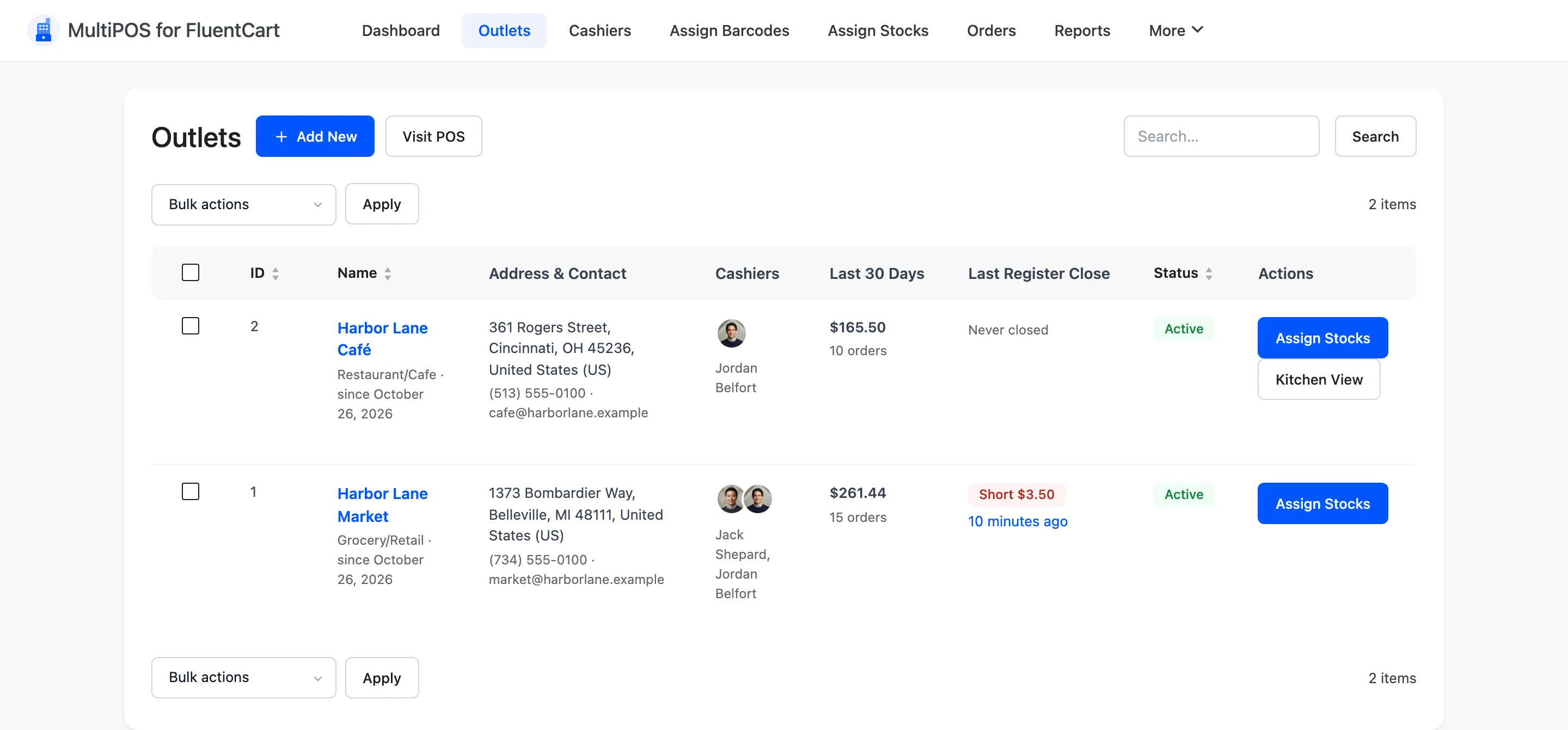
The choice is per outlet, so you can mix them. The demo does: Harbor Lane Market sells from FluentCart stock, while Harbor Lane Café keeps its own count.
Step 2: Set the default and each outlet
Section titled “Step 2: Set the default and each outlet”Go to DevDiggers Plugins → MultiPOS for FluentCart → Configuration → General and set Inventory Management: Centralized (Sync with FluentCart) or Custom (Manual POS Stock).
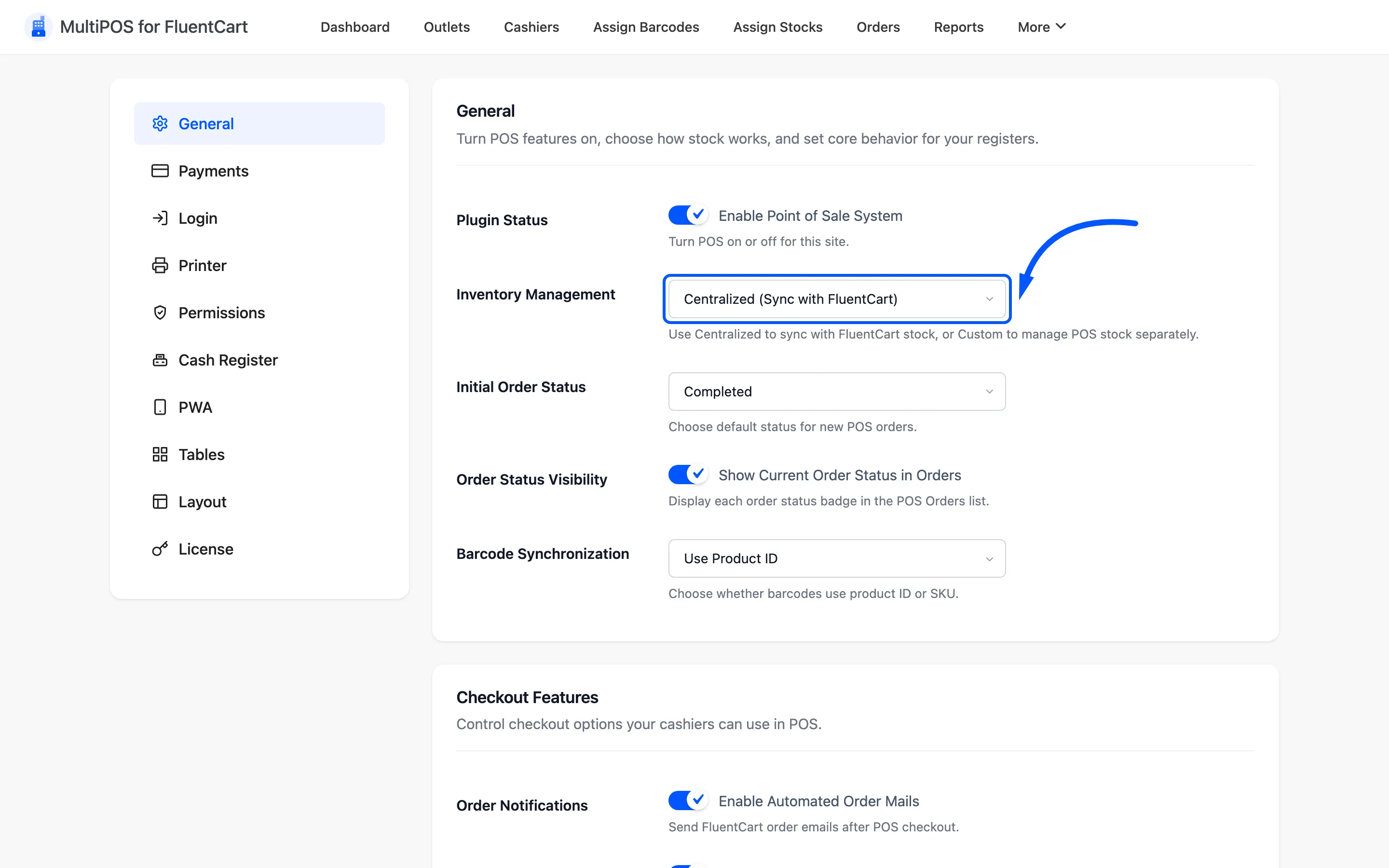
That is the default. Each outlet has its own Inventory Management field in its Stock & Receipts section, set to Global Default, Centralized (FluentCart Sync) or Custom (Manual POS Stock). Set it on any outlet that differs from the default, then save the outlet.
Pick a model per outlet and stay with it. Switching mid-trade leaves two figures that disagree and no record of which one was right at the time.
Step 3: Open the Assign Stocks screen
Section titled “Step 3: Open the Assign Stocks screen”Go to DevDiggers Plugins → MultiPOS for FluentCart → Assign Stocks.
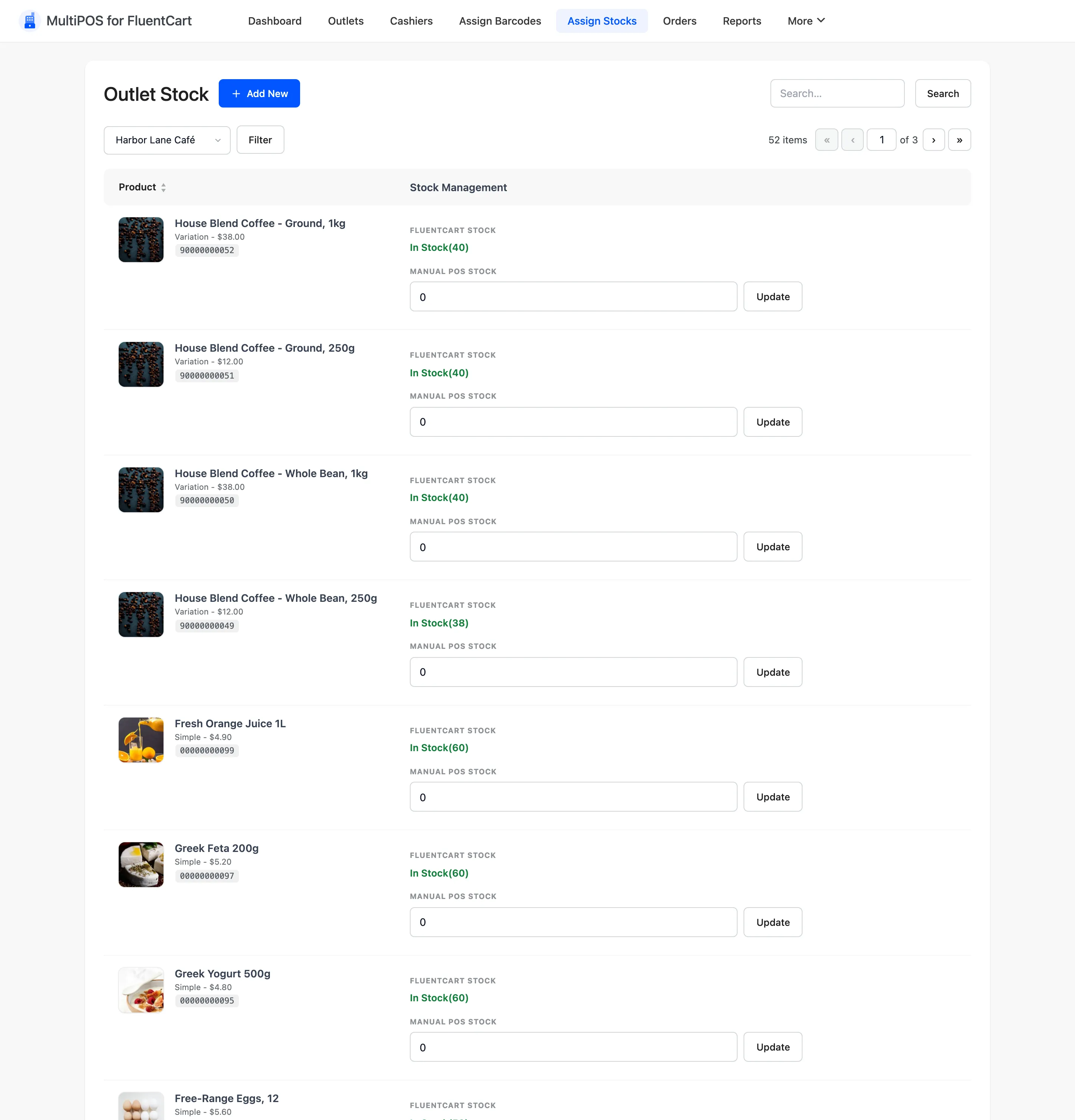
Every published product is listed, variations included. With no outlet chosen, each row shows a chip per custom-stock outlet with its count, so the page works as an overview. When no outlet keeps its own stock, the column reads Every outlet sells from FluentCart stock.
Step 4: Choose an outlet
Section titled “Step 4: Choose an outlet”Pick the outlet from the Select Outlet filter. With exactly one custom-stock outlet, the screen opens on it straight away.
Choose a custom-stock outlet. The filter lists every outlet, and a Centralized one shows the same Manual POS Stock fields, but its terminal sells from FluentCart stock and never reads them.
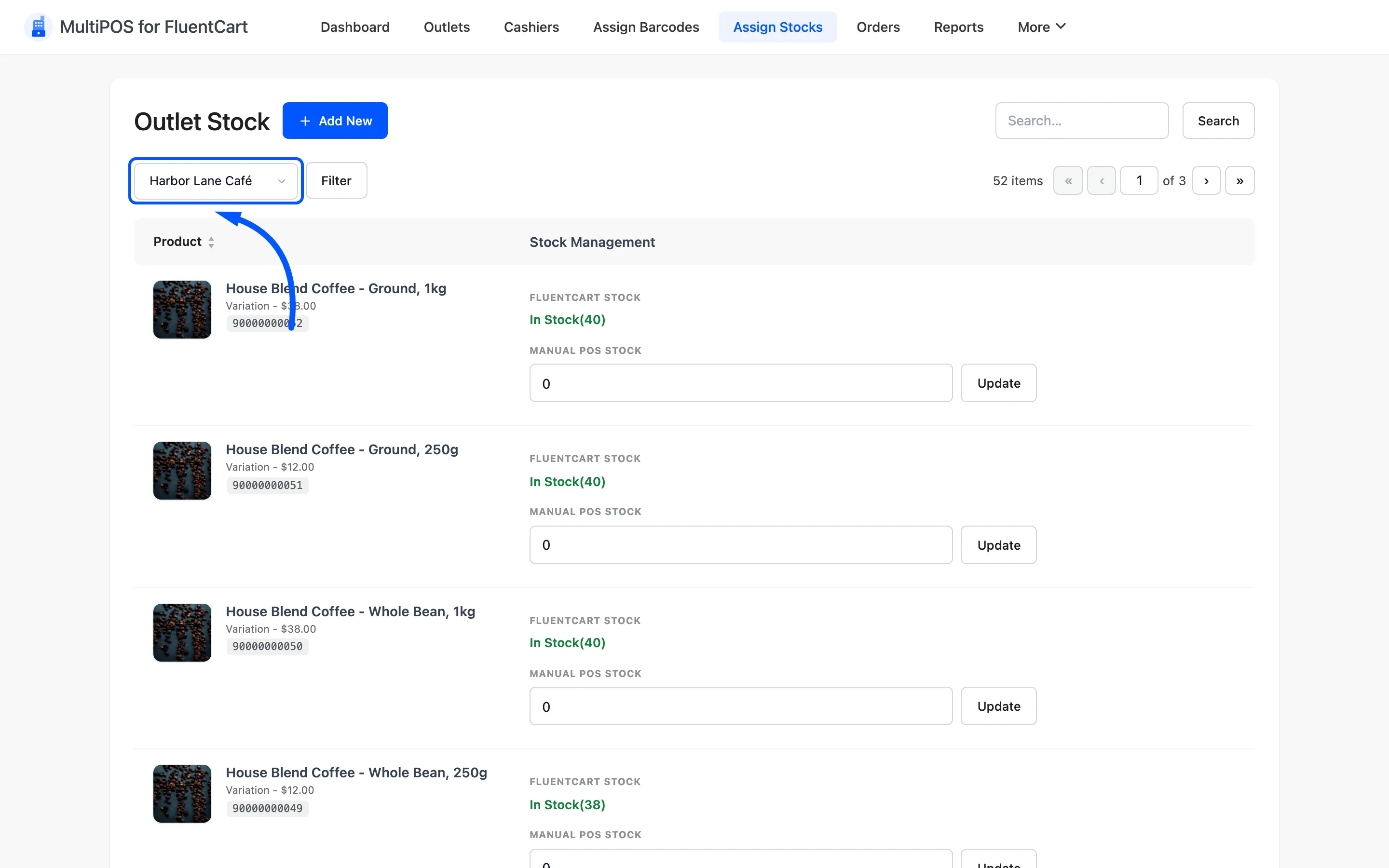
The Assign Stocks button on each row of the Outlets list jumps here with the outlet already chosen. That is the faster route when you are working branch by branch.
Step 5: Set the stock per product
Section titled “Step 5: Set the stock per product”Each row shows two figures side by side:
- FluentCart Stock is the central figure, read only.
- Manual POS Stock is this outlet’s own count.
Seeing both together is the point. It is how you notice that the website thinks there are forty and the back room has three.
Type what is physically at that location into Manual POS Stock, then press Update on that same row.
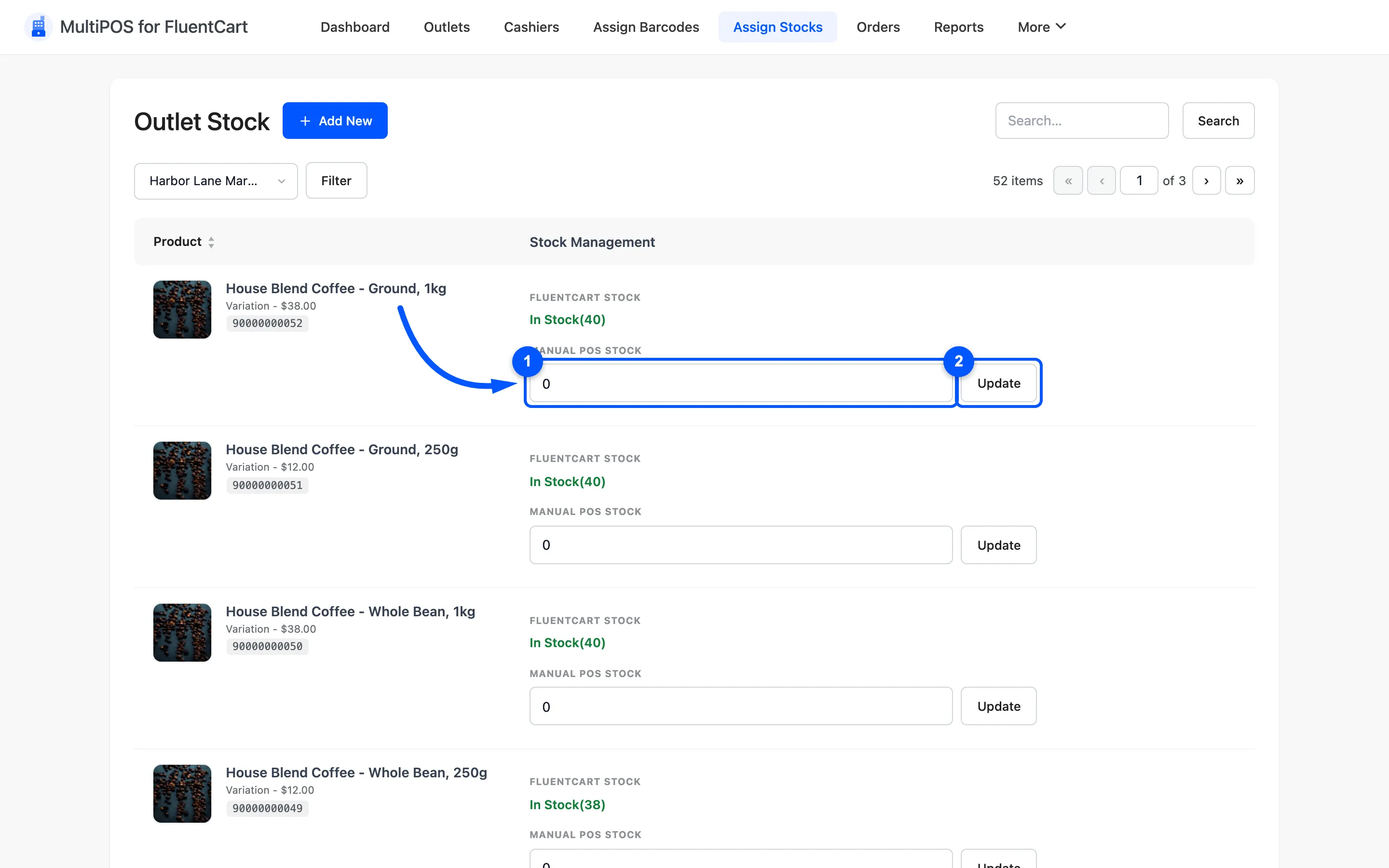
Each row saves on its own. There is no single save at the foot of the screen. A row you typed into without pressing Update keeps its old figure.
Step 6: Repeat per outlet
Section titled “Step 6: Repeat per outlet”Change the outlet filter and do it again. Stock is per location, so a product needs a figure at every custom-stock branch that sells it.
A product with no count at a custom-stock outlet does not appear at that terminal. That is correct, because the cashier cannot sell what is not there.
What the cashier sees
Section titled “What the cashier sees”At a custom-stock outlet, only the products that outlet has. The grid is filtered, so a cashier at the branch that sold out never sees the item and never promises it. At a Centralized outlet the grid follows FluentCart’s stock, backorders included.
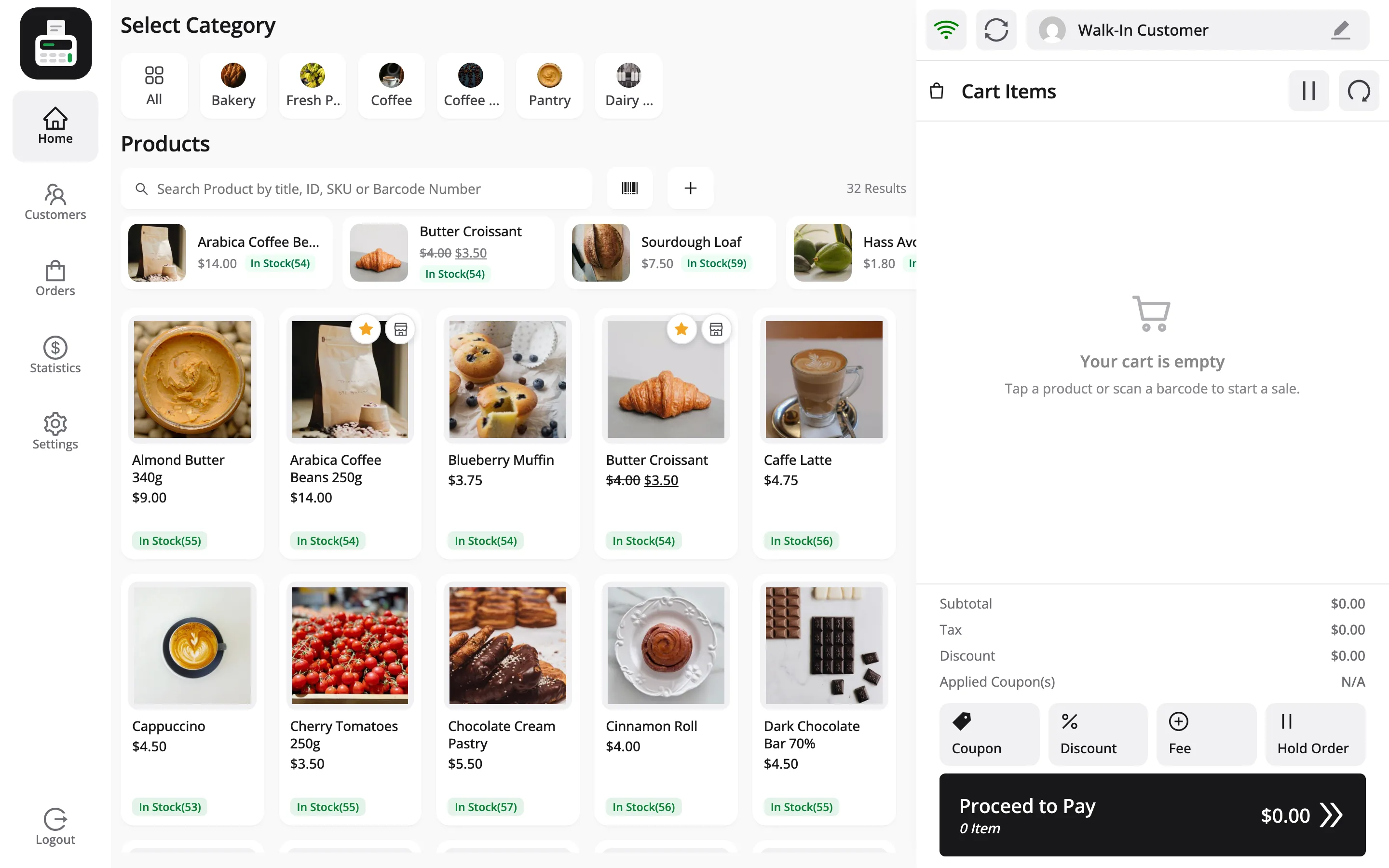
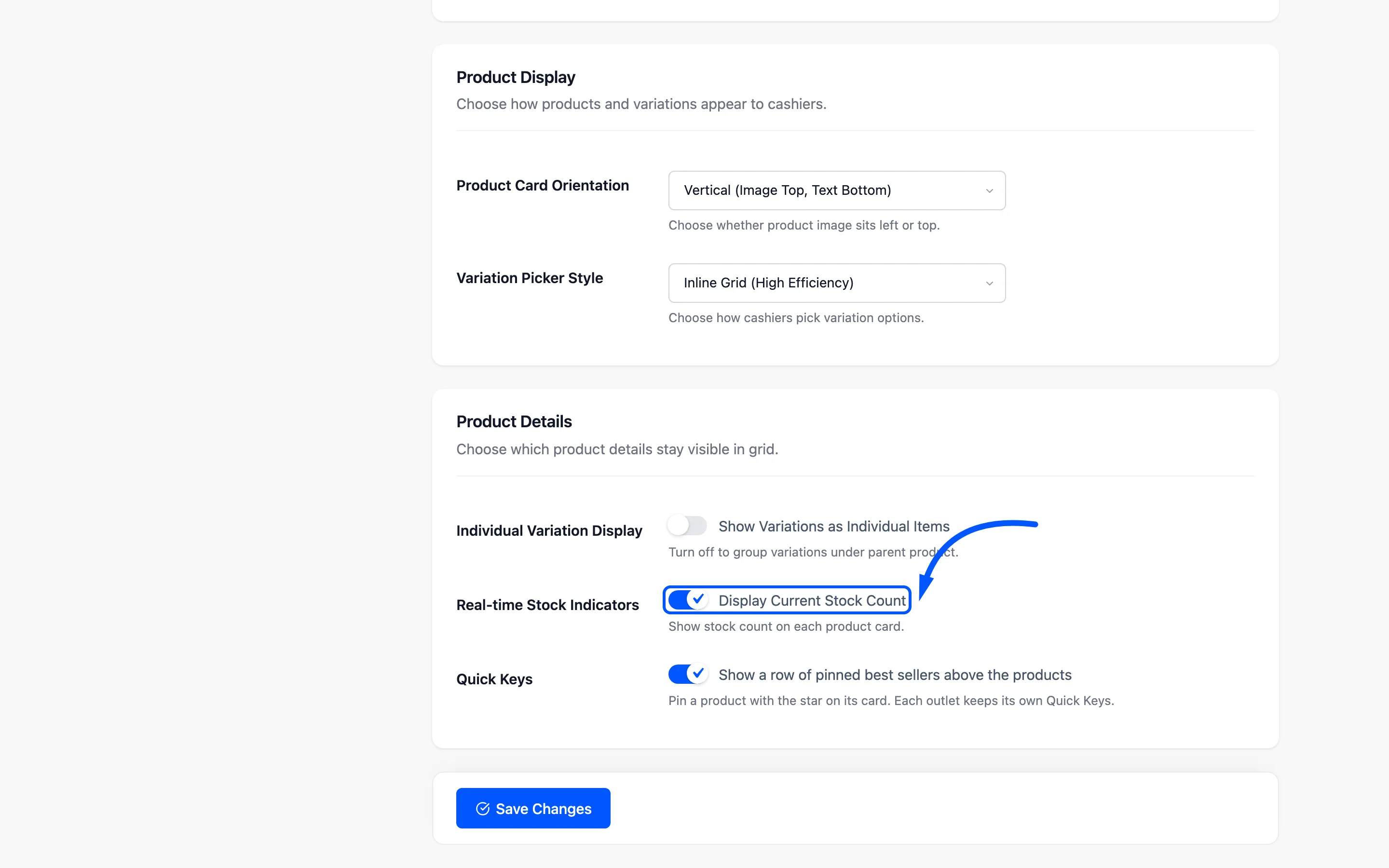
The stock count on each card is that outlet’s figure. It shows as long as Display Current Stock Count is on under Configuration → Layout.
To see another outlet’s figure from the terminal, use the shop icon on the product card: How to Check Stock at Other Outlets.
After a transfer between branches
Section titled “After a transfer between branches”Moving stock between custom-stock locations is two edits, not one. Reduce the sending outlet, increase the receiving one.
Nothing does it for you, so it belongs in your transfer paperwork rather than in someone’s memory.
Where to go next
Section titled “Where to go next”- Assign Stocks for the screen reference.
- Outlets to create the locations.
- General Settings