

How to Apply a Coupon in the POS
MultiPOS uses your existing FluentCart coupons. There is no separate POS coupon system, which means a code that works on the website works at the counter.
Step 1: Create the coupon in FluentCart
Section titled “Step 1: Create the coupon in FluentCart”Go to FluentCart → Coupons. The list shows every coupon you already have, and the POS can use any active one.
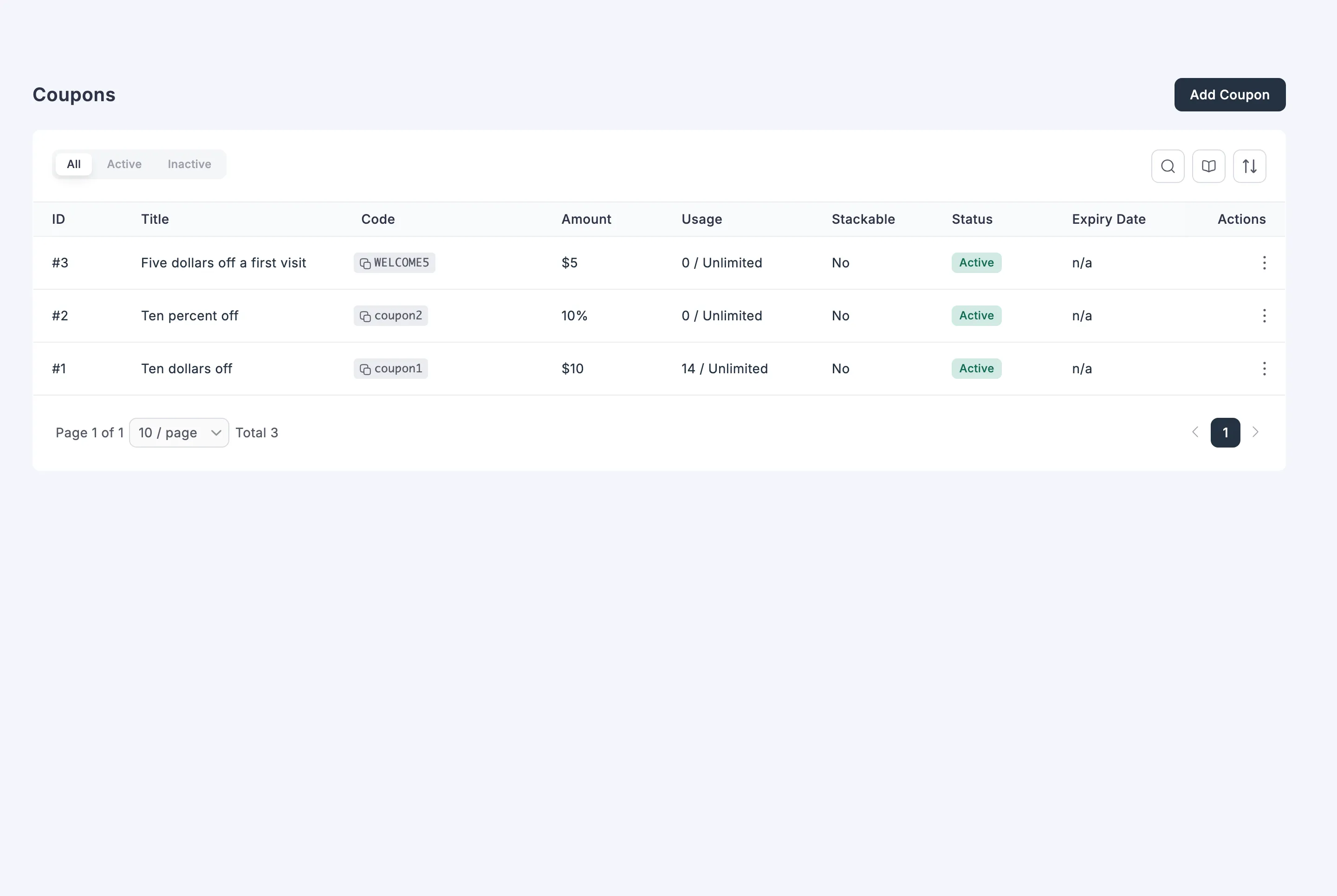
Create a new one, or open an existing one. Give it a code, choose a percentage or a fixed amount, and set whatever limits you want.
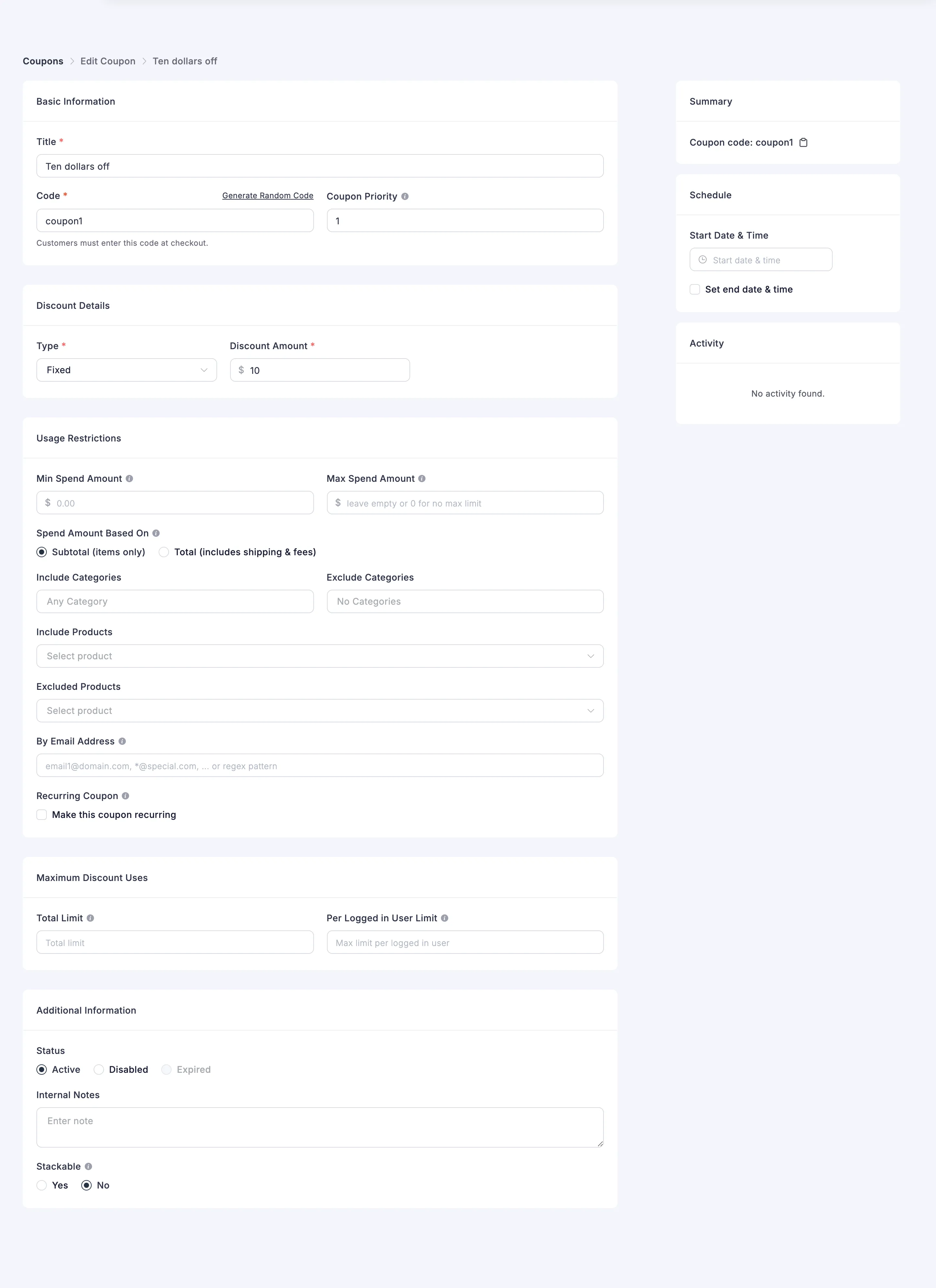
Nothing extra is needed to make it work at the POS. The demo has three: coupon1 ($10 off),
coupon2 (10% off) and WELCOME5 ($5 off).
Keep the code short and unambiguous. A cashier types it under time pressure, and SUMMER10 beats
summer-promo-2026-instore.
Step 2: Build the cart at the POS
Section titled “Step 2: Build the cart at the POS”Open the terminal and add the customer’s items.
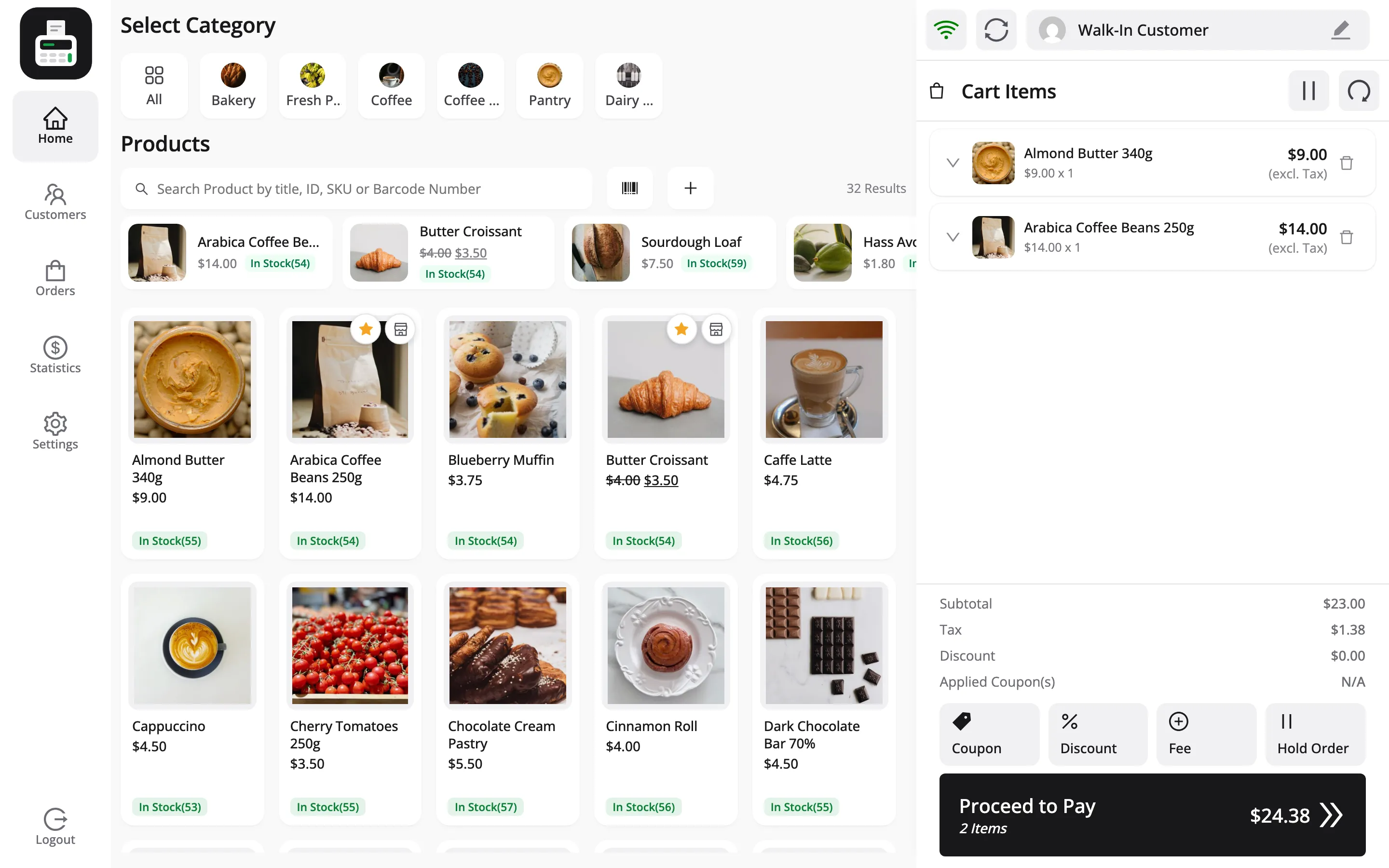
An empty cart cannot take a coupon. Pressing Coupon on one raises Empty Cart, reading Please add products in the cart to apply coupon.
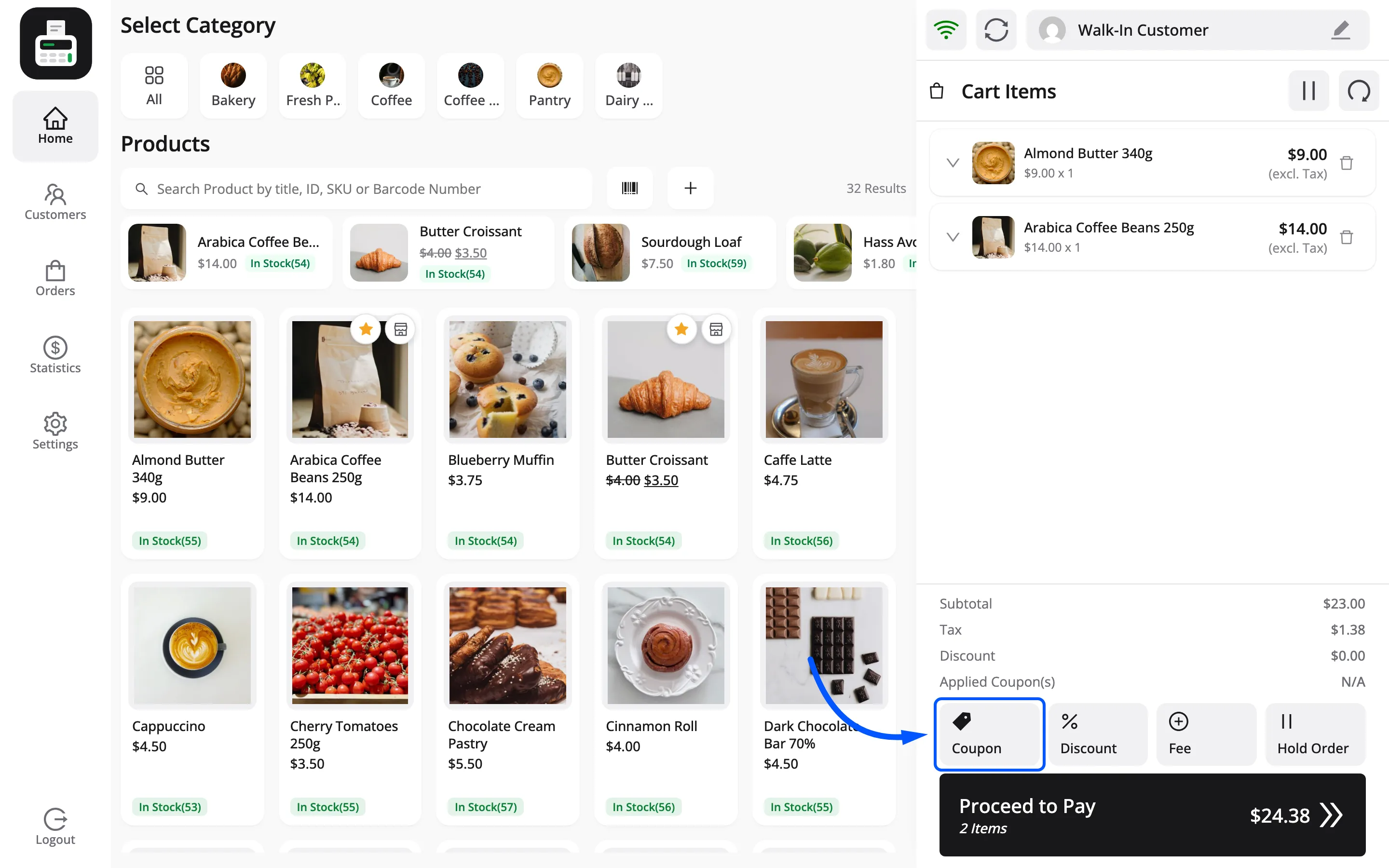
Step 3: Press Coupon
Section titled “Step 3: Press Coupon”Coupon is the first of the cart actions, under the totals.
Step 4: Type the code and apply it
Section titled “Step 4: Type the code and apply it”The Apply Coupon box opens with the cursor already in the Coupon Code field.
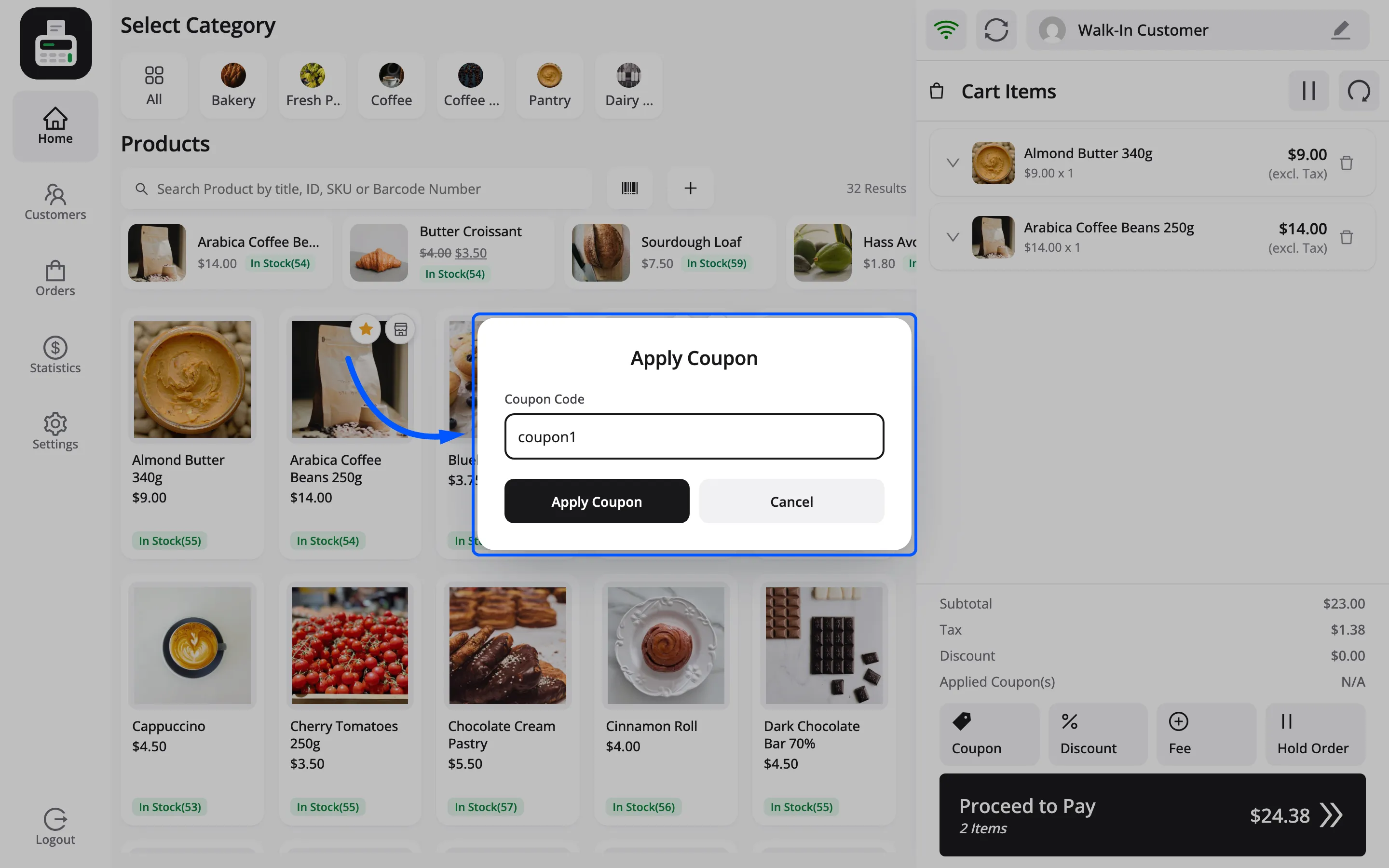
Type the code and press Apply Coupon. Enter does the same thing, which is the faster habit to teach.
Apply Coupon stays greyed out until you have typed something. The button is disabled rather than raising an error.
Step 5: Read the new total back
Section titled “Step 5: Read the new total back”The code lands on the Applied Coupon(s) row with the amount it took off, and Proceed to Pay falls by that much.
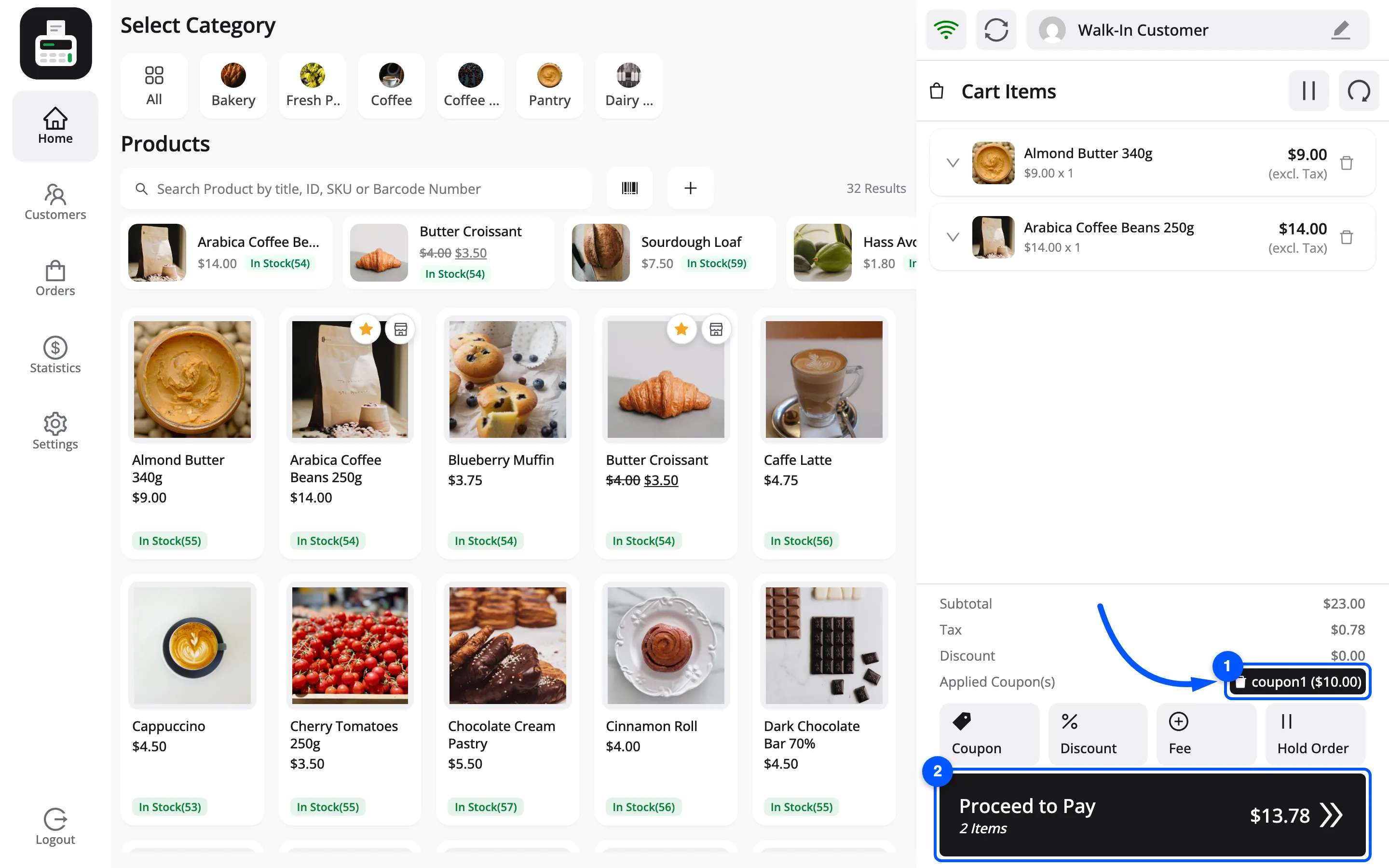
Two details in that picture are worth naming, because both surprise people.
- The tax moves too. The discount comes off before FluentCart works out the tax for the outlet, so the tax line drops along with the subtotal.
- The Discount row does not move. It stays at $0.00 even though a discount has plainly been applied. That row is for a manual discount a cashier types in. A coupon always shows on Applied Coupon(s), never on Discount.
Read the new total back to the customer before taking payment. It is the fastest way to catch a coupon that applied to fewer items than either of you expected.
More than one coupon can go on the same cart, unless one of them is set not to combine with others in FluentCart. Each one shows in the list with its own value, and the second works on what is left after the first.
How to take a coupon back off
Section titled “How to take a coupon back off”There is a small bin icon inside the Applied Coupon(s) value, immediately before the code.
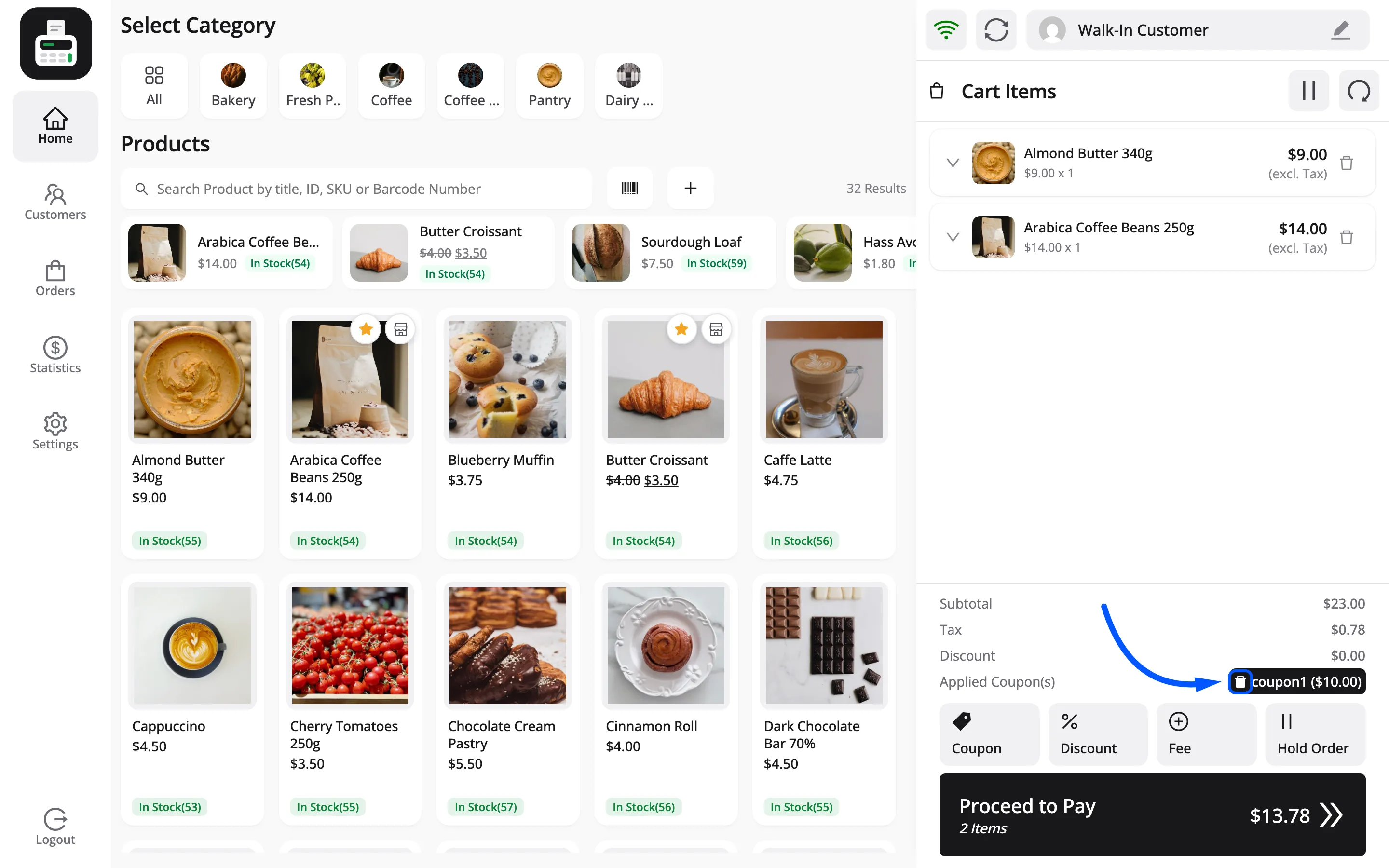
Press it and the coupon comes off, the total goes back up, and the POS confirms with Coupon Removed. It does not ask twice.
It is small and carries no label, so point it out during training. A cashier who cannot find it resets the whole cart instead and rings the sale up again.
When a coupon is rejected
Section titled “When a coupon is rejected”The POS raises a Coupon Error with the reason. The server checks the coupon against FluentCart’s own rules:
- Not active: This coupon is not active.
- Not started yet: This coupon can not be used yet.
- Expired: Sorry, Coupon Expired. Try another one!
- Usage limit reached: Sorry, Coupon usage limit exceeded
- Per customer limit reached: Sorry, Coupon already used at limit by this customer
- Email restrictions: This coupon is not valid for this customer.
The cart itself then checks the minimum and maximum spend, the products and categories the coupon is limited to, and whether it can be combined with another coupon. A coupon that fails one of those comes straight back off with This coupon is not applicable as per restrictions.
Applying the same code twice gets its own message: Coupon is already applied in the cart.
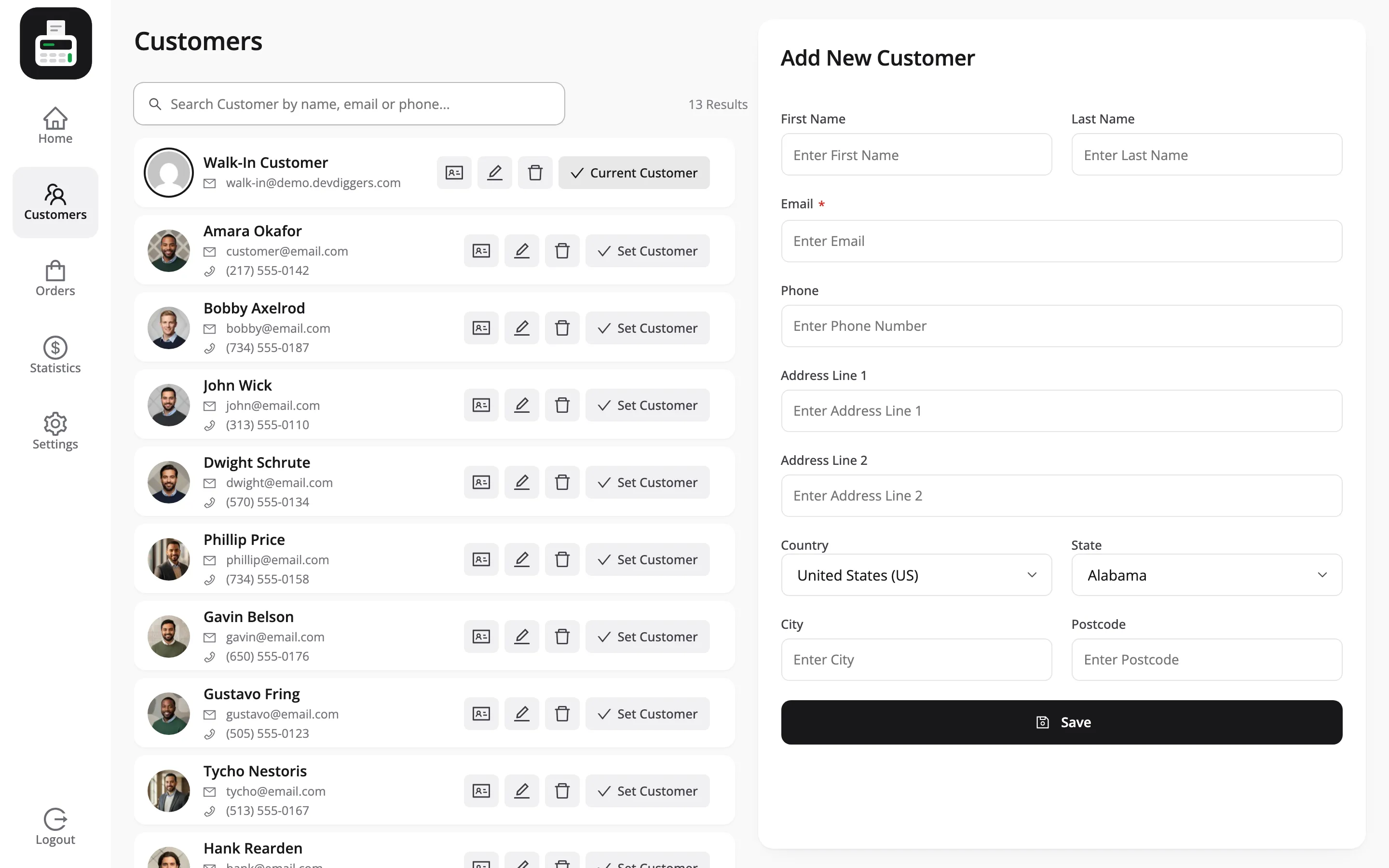
The email restriction catches people out. A coupon limited to specific email addresses cannot validate against the Walk-In Customer, so set the real customer on the cart first.
Coupons need a connection
Section titled “Coupons need a connection”A coupon cannot be applied while the terminal is offline. Validating a code, its usage count and its restrictions all need the server.
The POS says:
Coupon cannot be applied in offline mode, please apply after getting online.
There is no queue for this. A customer with a code either waits for the connection or does not get the discount.
The order checks it again
Section titled “The order checks it again”When the sale is placed, the server runs the same checks again, minimum spend included. A coupon that no longer passes, for example because it ran out of uses on the website a minute earlier, is left off the order. The order then carries a note, Coupons not applied:, naming the code and the reason.
Usage counts include POS sales
Section titled “Usage counts include POS sales”A coupon used at the counter counts against its usage limit like any other. A code limited to a hundred uses does not get a fresh hundred in store.
The count moves when the order is placed, not when the code is applied. Applying a code and then resetting the cart costs the coupon nothing.
That is usually what you want. Watch it on a code you meant for online only, because there is no setting that keeps a coupon off the POS. Limit such a code to products you do not stock in store, or use a separate code.
Reading it back later
Section titled “Reading it back later”The applied coupons and the discount show on the order in FluentCart → Orders, and on the order detail panel in the POS.
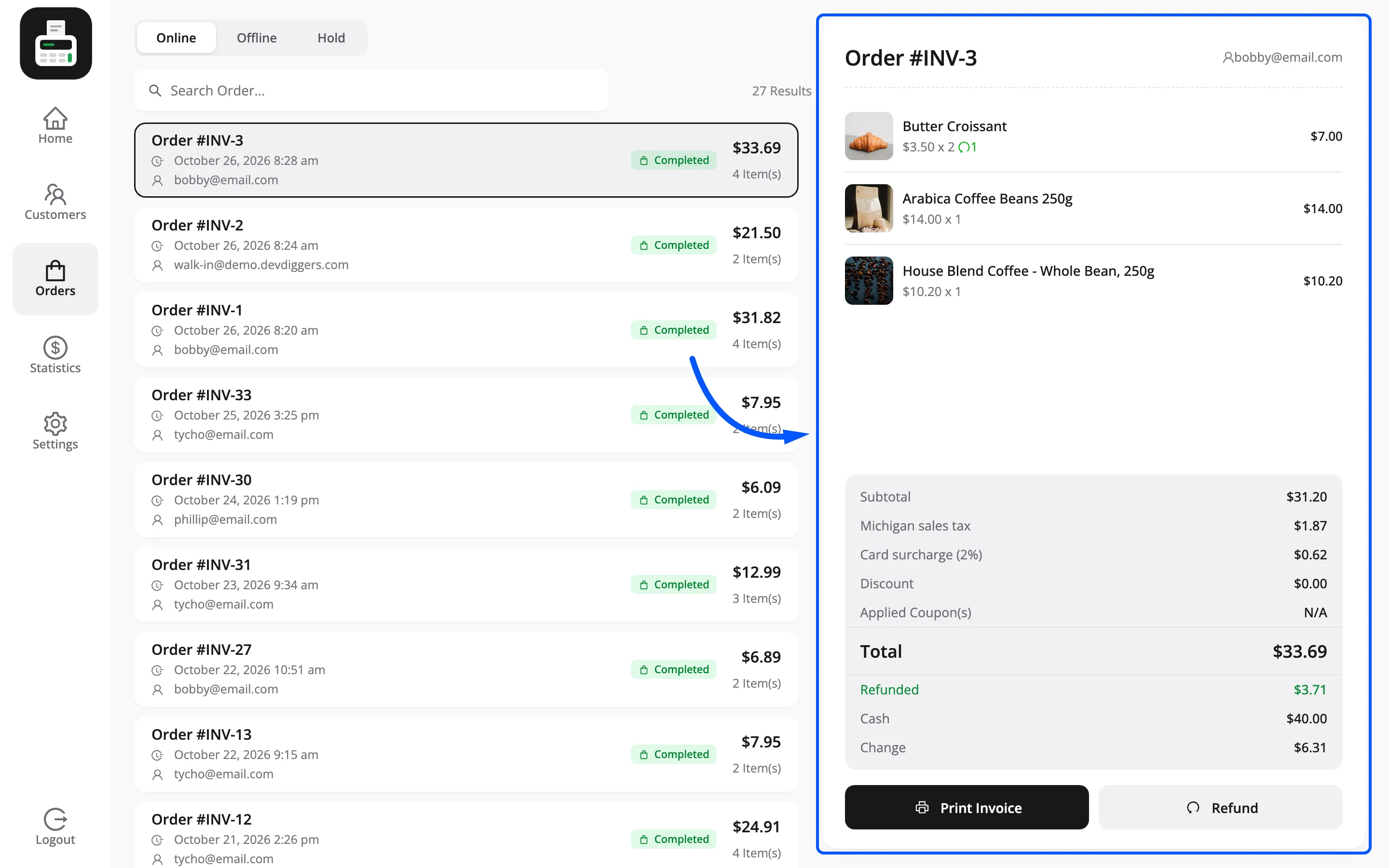
For a period, the Coupons table in Reports lists each code with the orders that used it and the discount it gave.

Where to go next
Section titled “Where to go next”- How to Give a Discount for a price cut with no code behind it.
- How to Take Your First Sale
- How to Manage Customers in the POS
- How to Read Your POS Reports