

Installing and Activating MultiPOS for FluentCart
MultiPOS installs like any other WordPress plugin. Activation also creates a user role and its database tables and opens a setup wizard, so check for those before you configure anything.
Before you start
Section titled “Before you start”FluentCart must be installed and active first. MultiPOS lists FluentCart as a required plugin and will not run without it. FluentCart Pro is supported but not required.
- WordPress 6.5 or newer
- FluentCart 2.0 or newer
- PHP 7.4 or newer
WooCommerce is not needed. If the site also runs MultiPOS for WooCommerce, see Running next to MultiPOS for WooCommerce below.
Install from the downloaded zip
Section titled “Install from the downloaded zip”MultiPOS for FluentCart is sold by DevDiggers and ships as a .zip.
-
In WordPress admin, go to Plugins → Add New Plugin.

-
Click Upload Plugin at the top of the screen.

-
Click Choose File and select the plugin
.zipyou downloaded.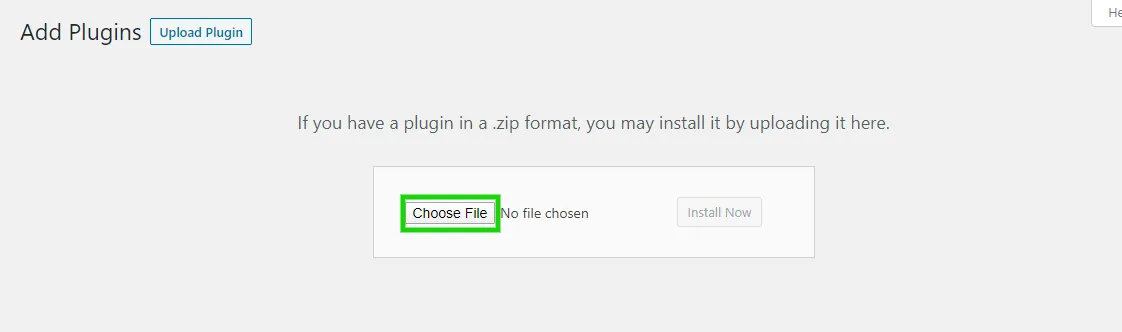
-
Click Install Now.
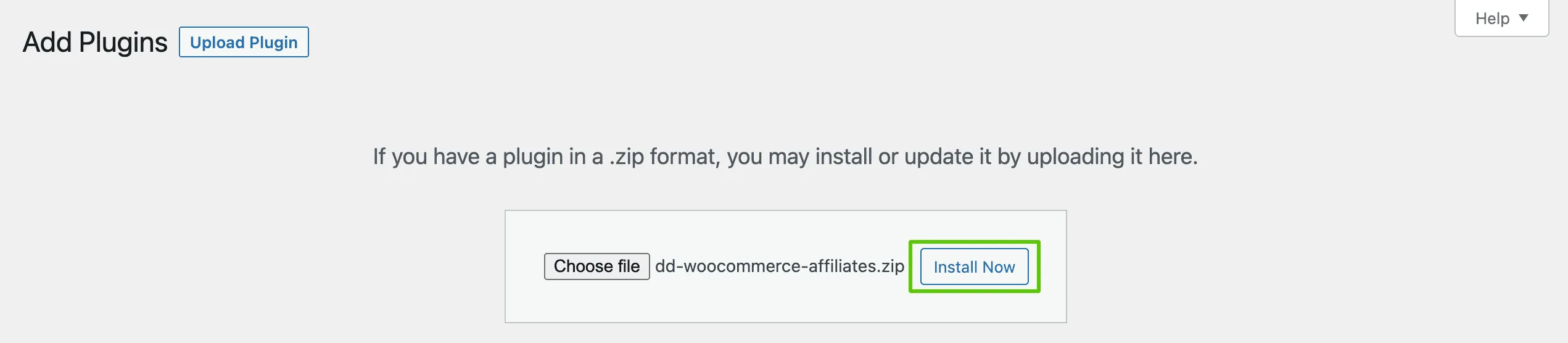
-
When the install finishes, click Activate Plugin.

Do not unzip the file first. WordPress expects the .zip, not the folder inside it.
What activation creates
Section titled “What activation creates”Three things happen the moment the plugin activates.
- A POS Cashier role: MultiPOS adds a role called POS Cashier that can read the site and open the POS, and nothing else in WordPress. Administrators can open the POS as well.
- Its own tables: Outlets, cash drawer transactions and register sessions each get a table. Orders, products and customers stay in FluentCart’s own tables.
- A POS terminal URL: The POS answers at
/posand the kitchen screen at/kitchen. Change either path under Configuration → General.
Activate the license
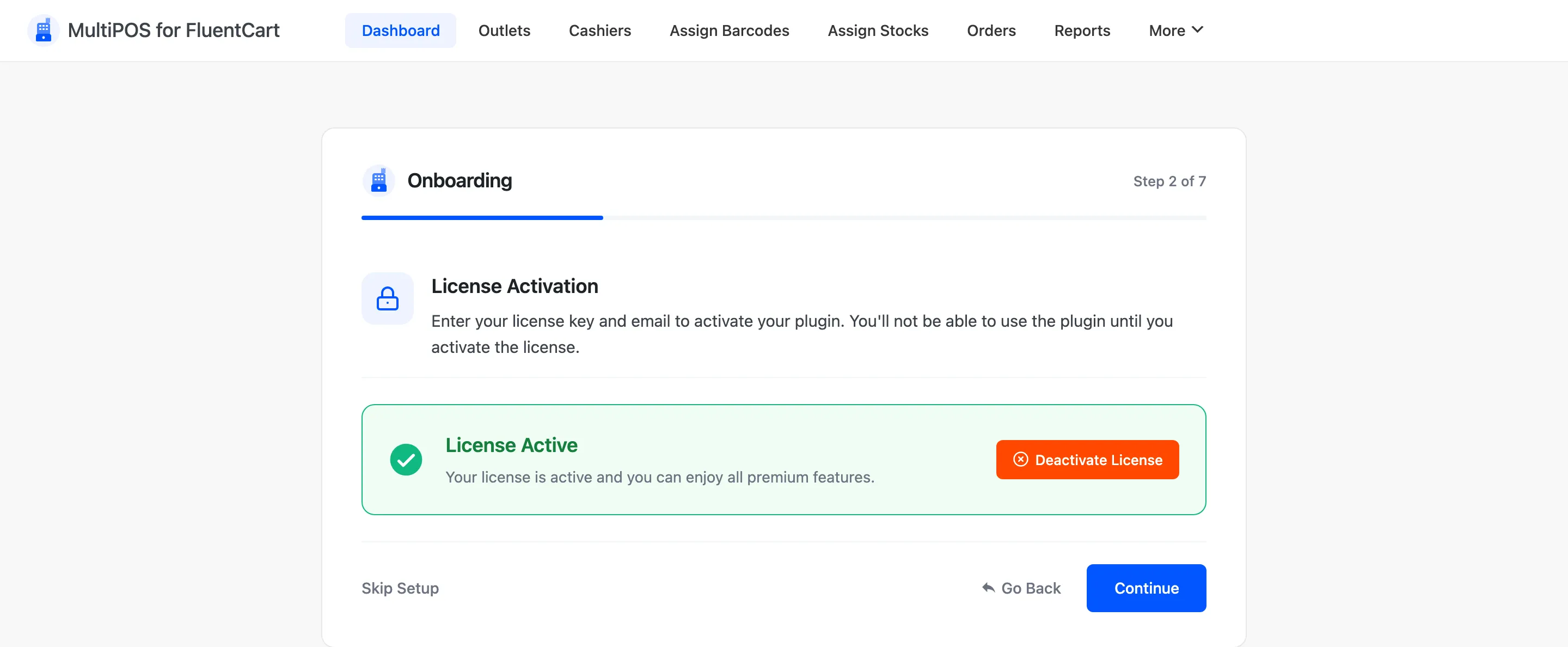
Section titled “Activate the license”The setup wizard’s second step asks for your purchase code, and it will not move on until the license is active. You can also activate it later under Configuration → License.
Confirm the plugin is active
Section titled “Confirm the plugin is active”Go to DevDiggers Plugins → MultiPOS for FluentCart. The dashboard loads with the tab row across the top.
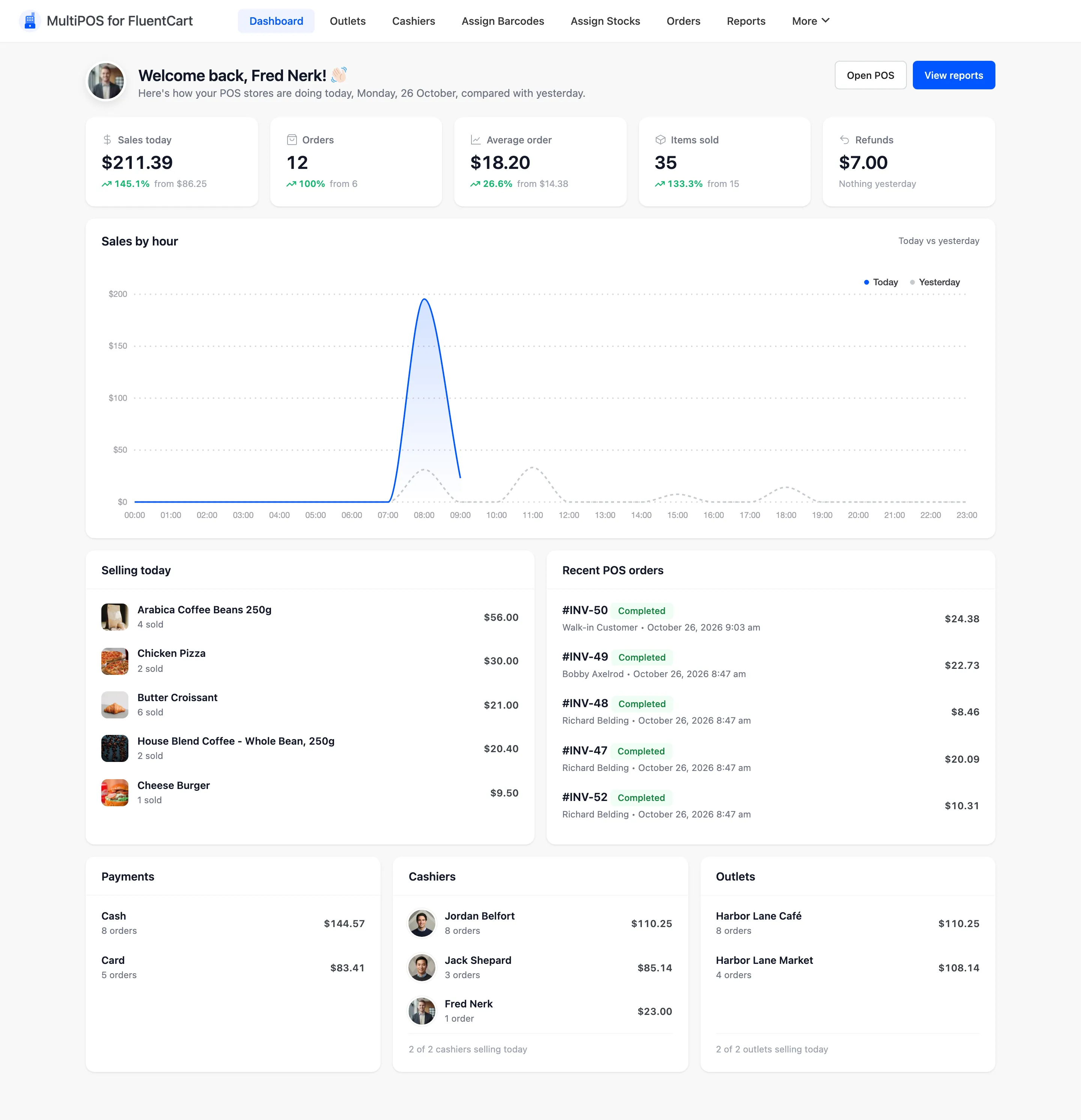
If the plugin shows a notice that it “is activated but not effective”, FluentCart is not active. Open Plugins → Installed Plugins, activate FluentCart and reload.
Finish the setup wizard
Section titled “Finish the setup wizard”Activation redirects you into a short wizard that switches the POS on, sets the terminal URL and picks a guest customer. It is the fastest path to a working POS.
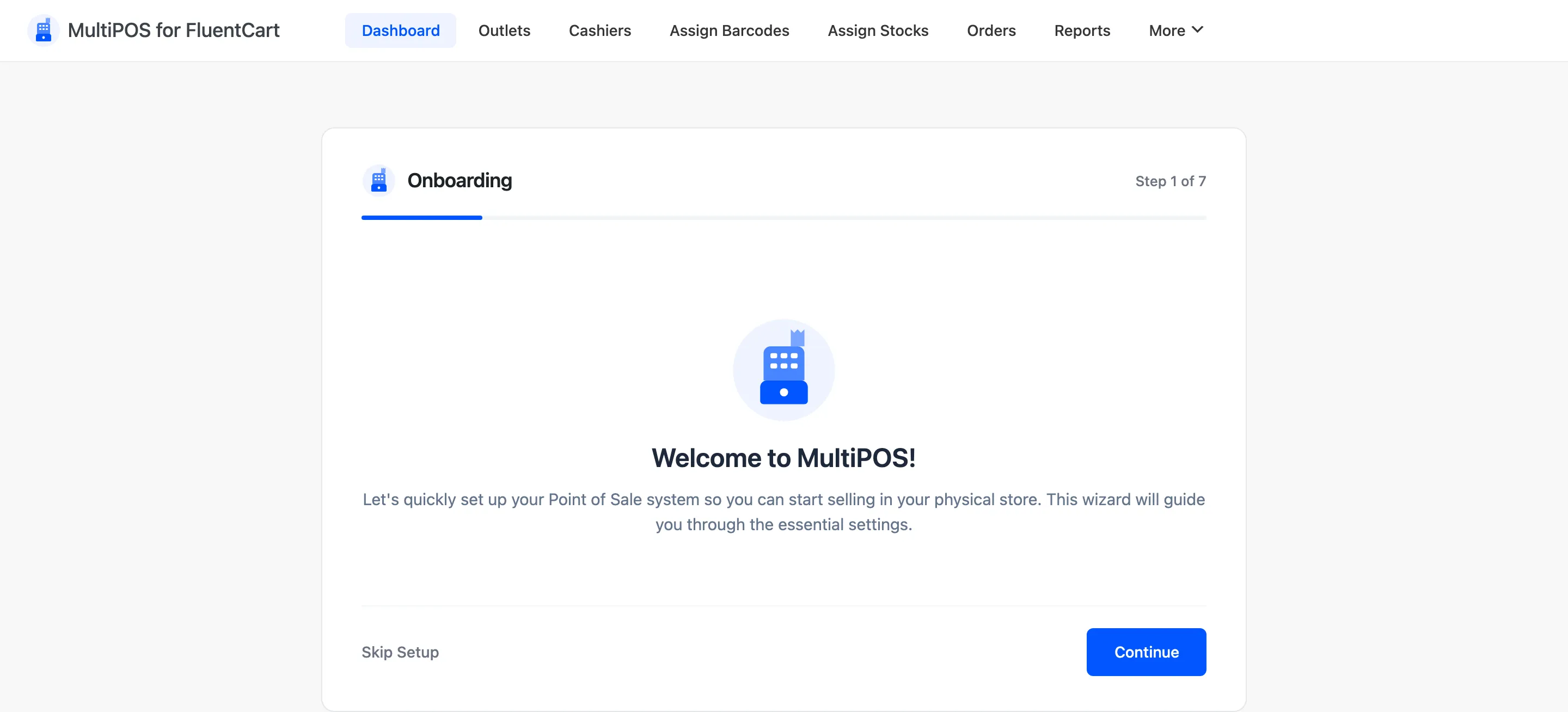
If you skipped it, every one of its fields also lives under Configuration, so nothing is lost.
Running next to MultiPOS for WooCommerce
Section titled “Running next to MultiPOS for WooCommerce”Both MultiPOS plugins can run on one site. Their settings and tables are separate.
Both open the POS at /pos and the kitchen at /kitchen by default, so the two addresses clash.
Give one plugin other paths under Configuration → General before anyone uses either POS.
If the terminal returns a 404
Section titled “If the terminal returns a 404”The /pos path is a rewrite endpoint, and WordPress needs to be told about it once. Go to
Settings → Permalinks and click Save Changes.
Saving the General configuration tab flushes the rules for you, so this only bites if you never open that tab.
Where to go next
Section titled “Where to go next”- The Setup Wizard, step by step.
- How to Set Up Your Outlet, which the POS needs before it will open.