

How to Add a Cashier
A cashier is a WordPress user with the POS Cashier role. That role opens the POS and nothing else in WordPress, so a cashier cannot reach your products, orders or settings.
MultiPOS creates them on its own screen, so you do not need the WordPress user form at all.
Step 1: Open Add Cashier
Section titled “Step 1: Open Add Cashier”Go to MultiPOS for FluentCart → Cashiers and press Add New.
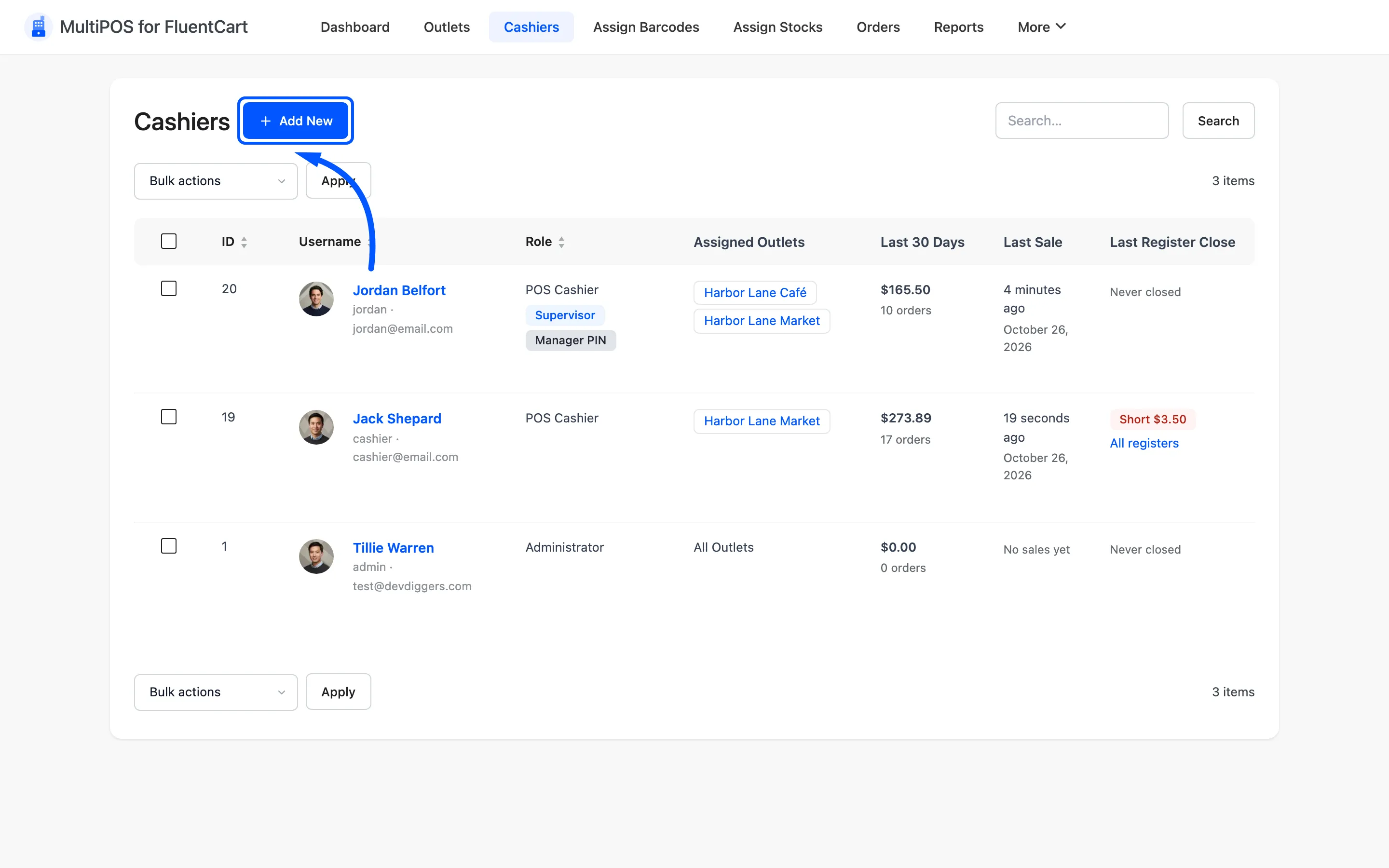
Administrators can add cashiers. With FluentCart Pro, FluentCart managers can too.
Step 2: Fill in the account
Section titled “Step 2: Fill in the account”The Account section is how the cashier logs in. The screen says it plainly: they are a normal WordPress user with the POS Cashier role.
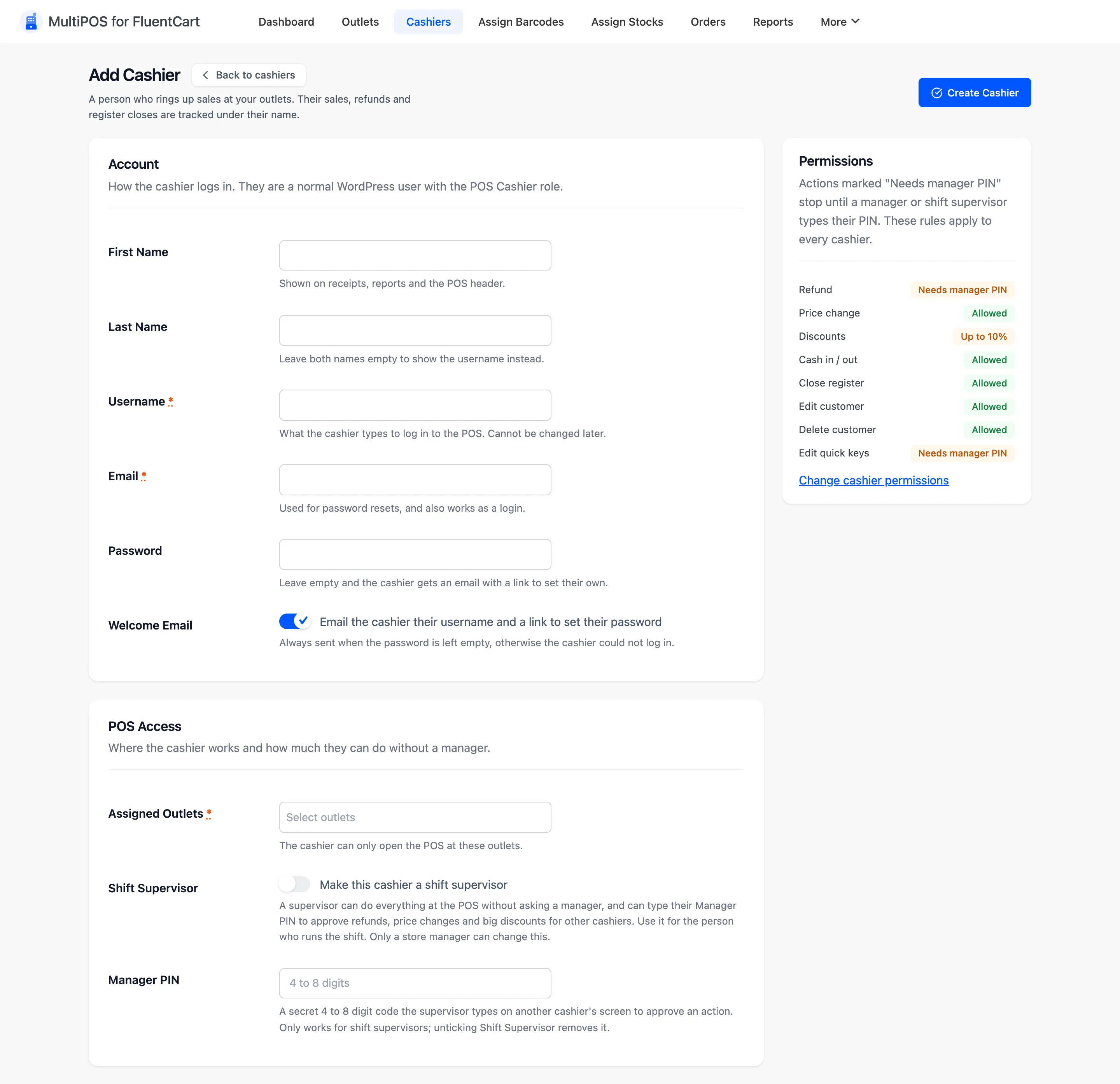
- First Name and Last Name: Shown on receipts, reports and the POS header. Leave both empty to show the username instead.
- Username: What they type to log in to the POS. It cannot be changed later.
- Email: Used for password resets, and also works as a login.
- Password: Set one now, or leave it empty.
- Welcome Email: Emails them their username and a link to set their password.
Leaving the password empty is the safer choice. The welcome email is then always sent, so you never have to tell anyone a password.
Step 3: Choose the outlets
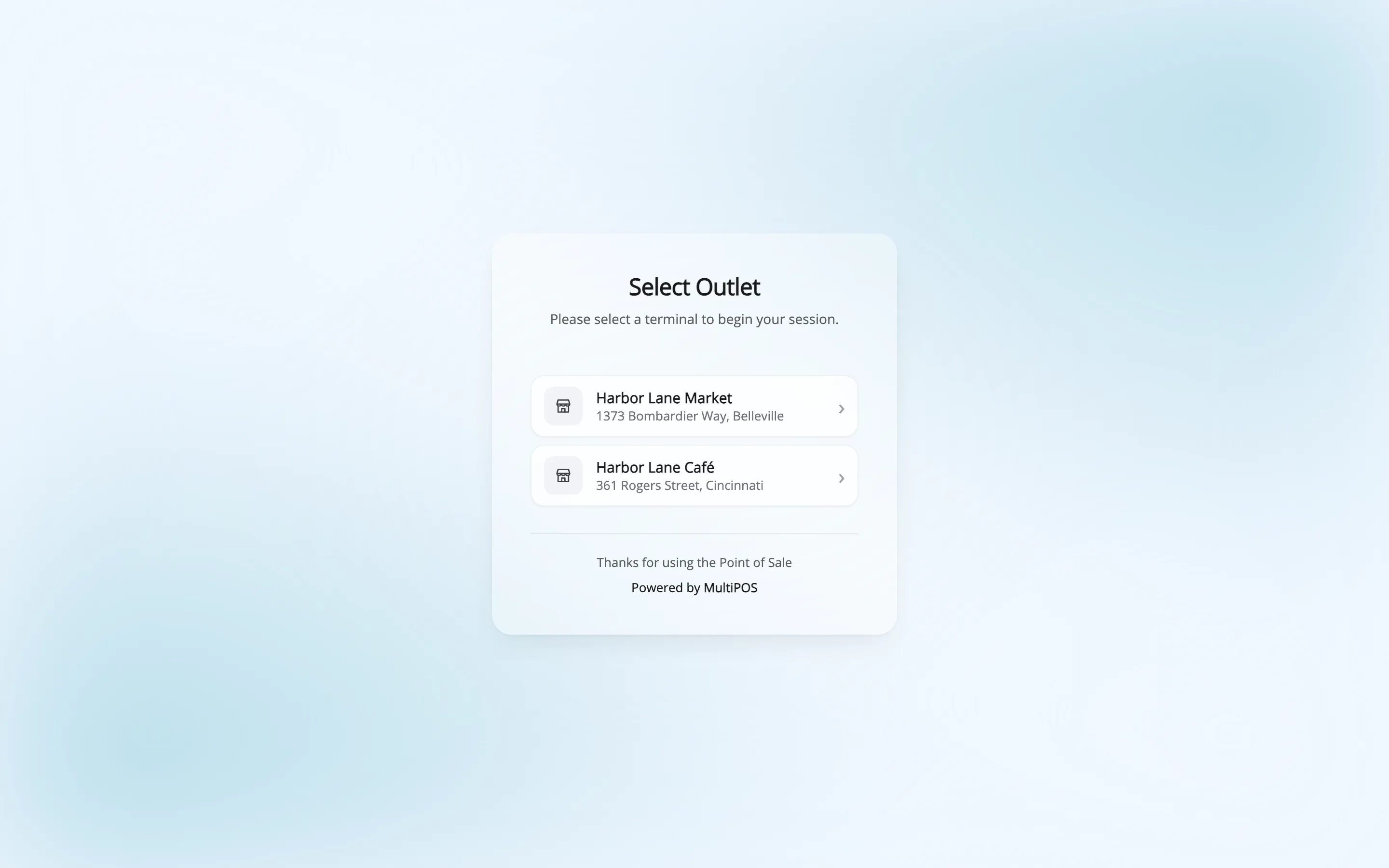
Section titled “Step 3: Choose the outlets”In POS Access, open Assigned Outlets and pick each outlet this cashier works at. The cashier can only open the POS at these outlets. A cashier with several picks one at the start of a session, and a cashier with one goes straight in.
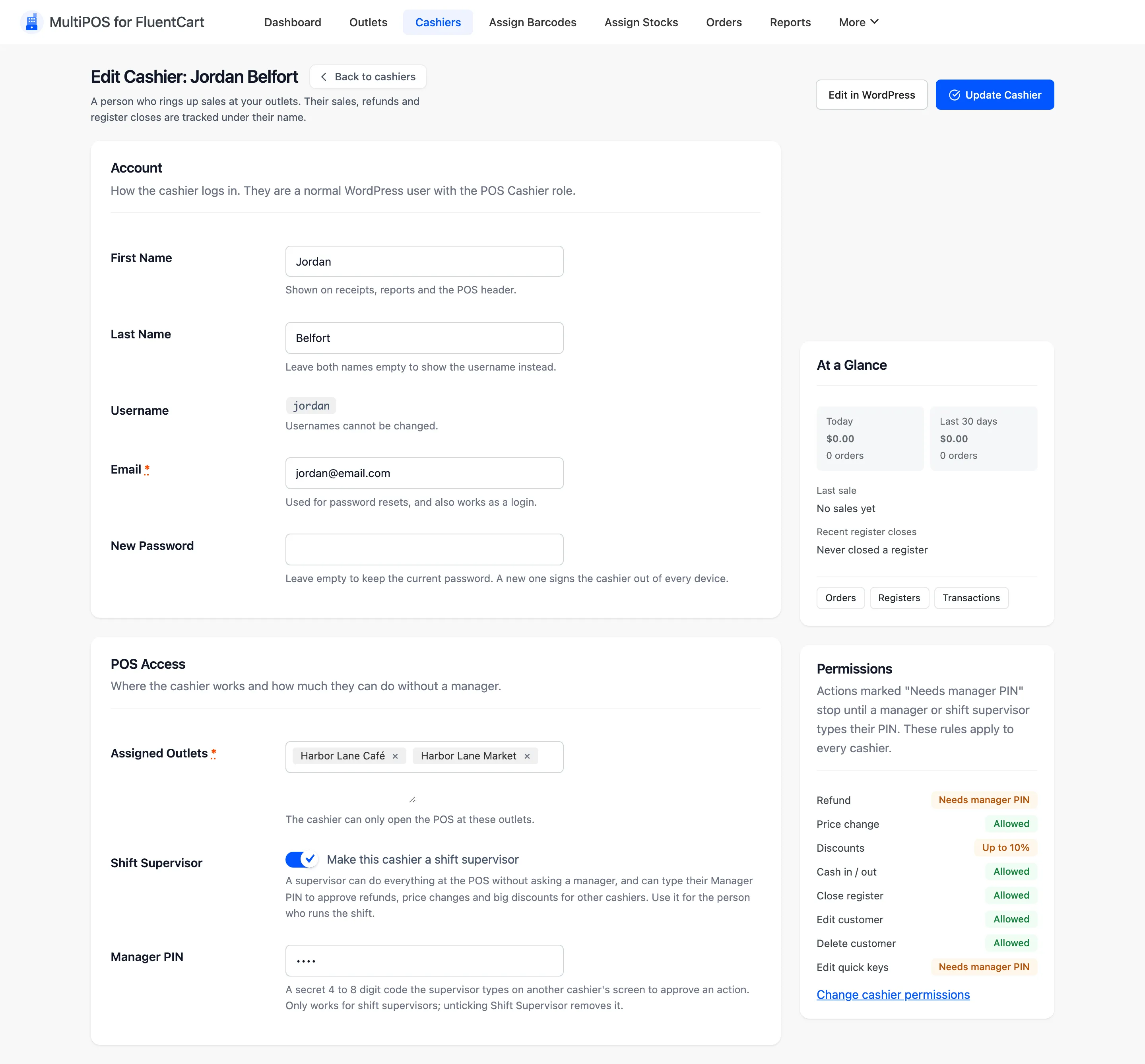
The same section can make them a Shift Supervisor with a Manager PIN, as on the demo’s Jordan Belfort. Leave that for the people who should approve refunds and big discounts: How to Use the Manager PIN.
Step 4: Check the permissions
Section titled “Step 4: Check the permissions”The Permissions panel on the right lists what a cashier may do alone, from your Permissions settings. Each rule reads Allowed, Needs manager PIN or a limit such as Up to 10%.
These apply to every cashier. To change them, use Change cashier permissions under the panel.
Step 5: Create the cashier
Section titled “Step 5: Create the cashier”Press Create Cashier. The notice reads Cashier created. They can log in to the POS with their
username or email. They log in at your POS address, by default yoursite.com/pos.
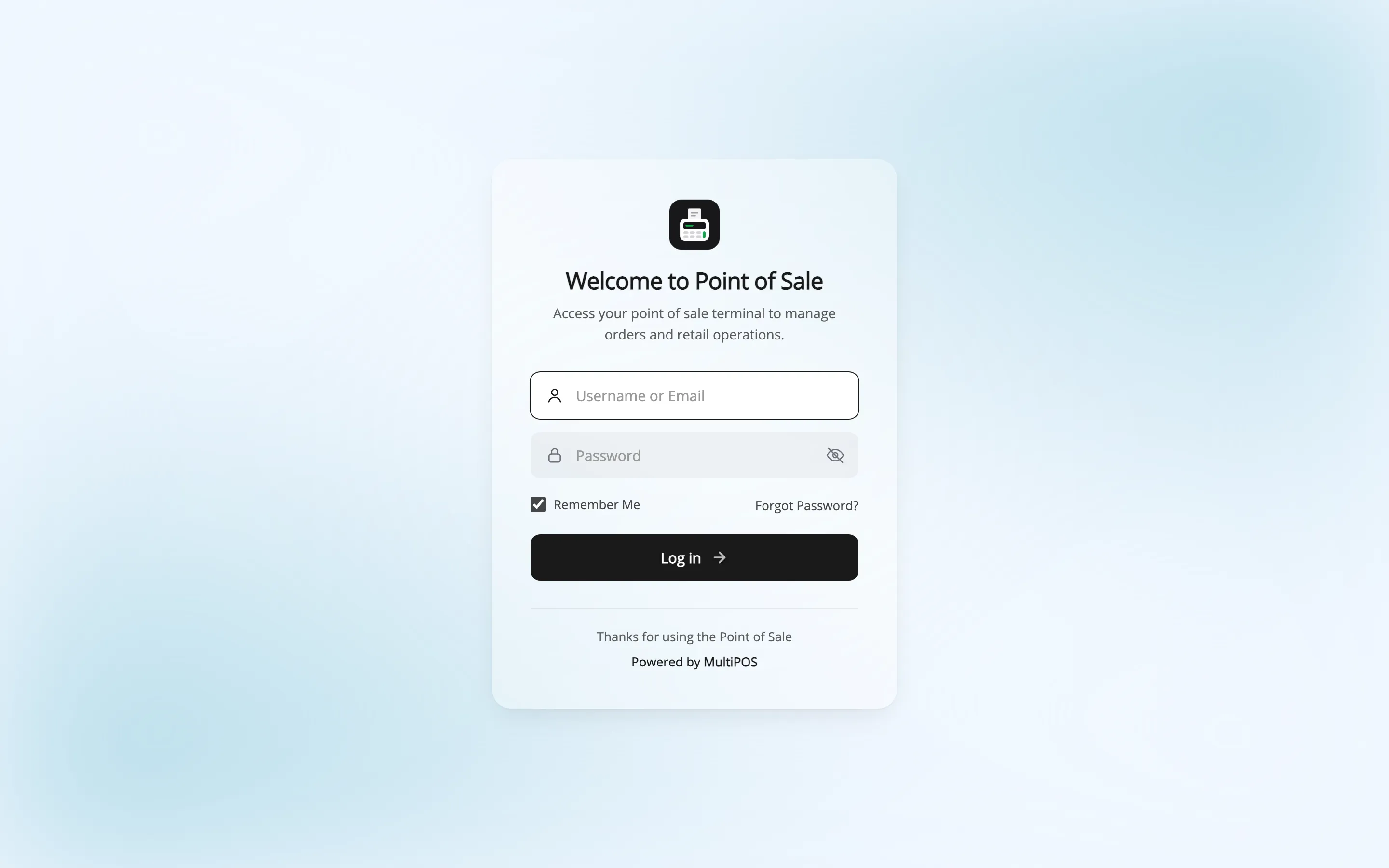
When they have more than one outlet, the next screen asks which one to open.
Who else can open the POS
Section titled “Who else can open the POS”Administrators can open the POS without the cashier role, and permissions never limit them. With FluentCart Pro, FluentCart managers can as well. A customer or subscriber cannot open it at all.