

Assign Stocks
Per-outlet stock exists for one reason: a product can be on the shelf in one branch and sold out in another. One FluentCart stock figure cannot say that.
Open the screen
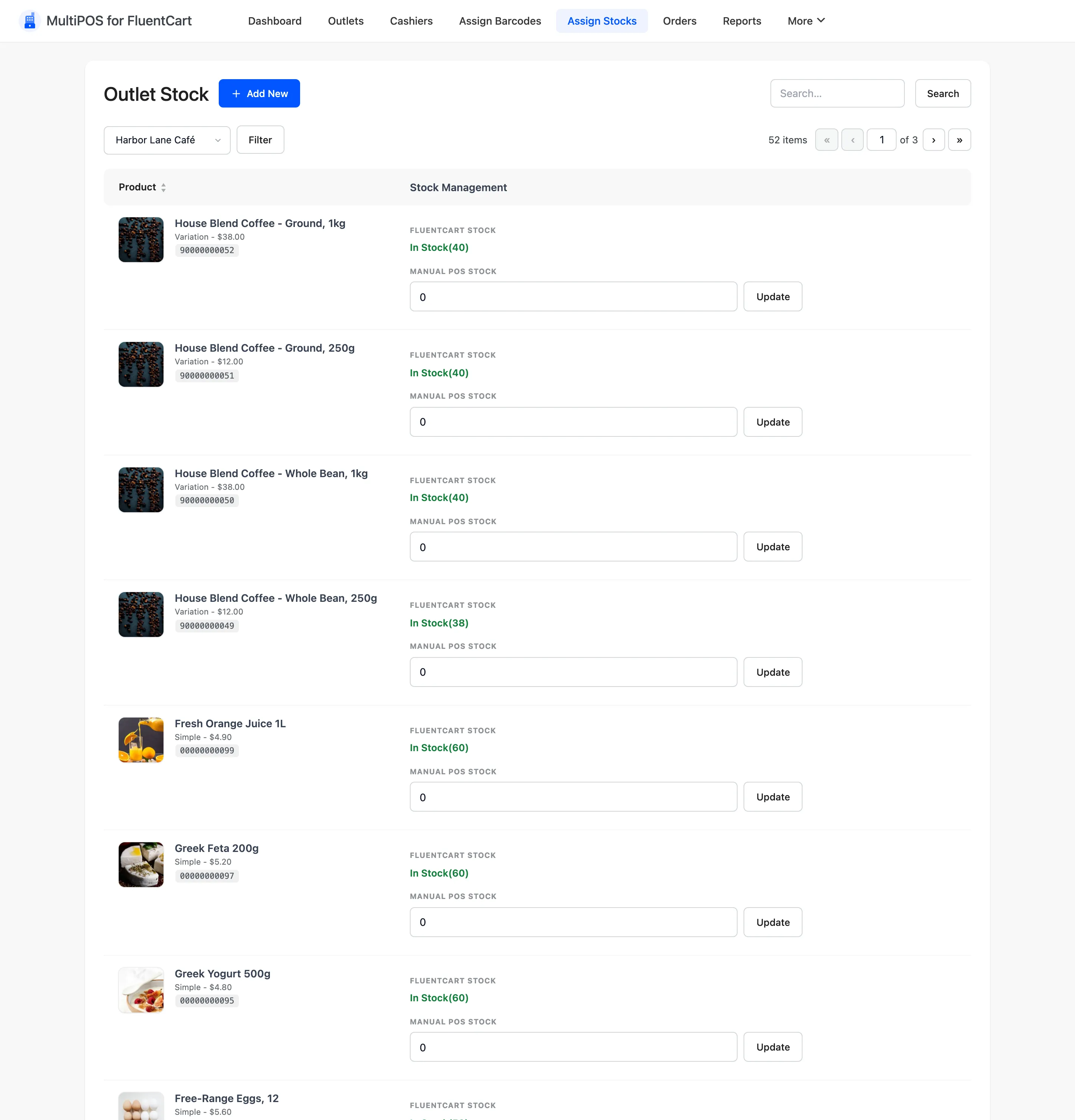
Section titled “Open the screen”Go to DevDiggers Plugins → MultiPOS for FluentCart → Assign Stocks.
Pick an outlet first
Section titled “Pick an outlet first”The counts are per outlet, so nothing is editable until you choose one. Pick it in Select Outlet and press Filter.
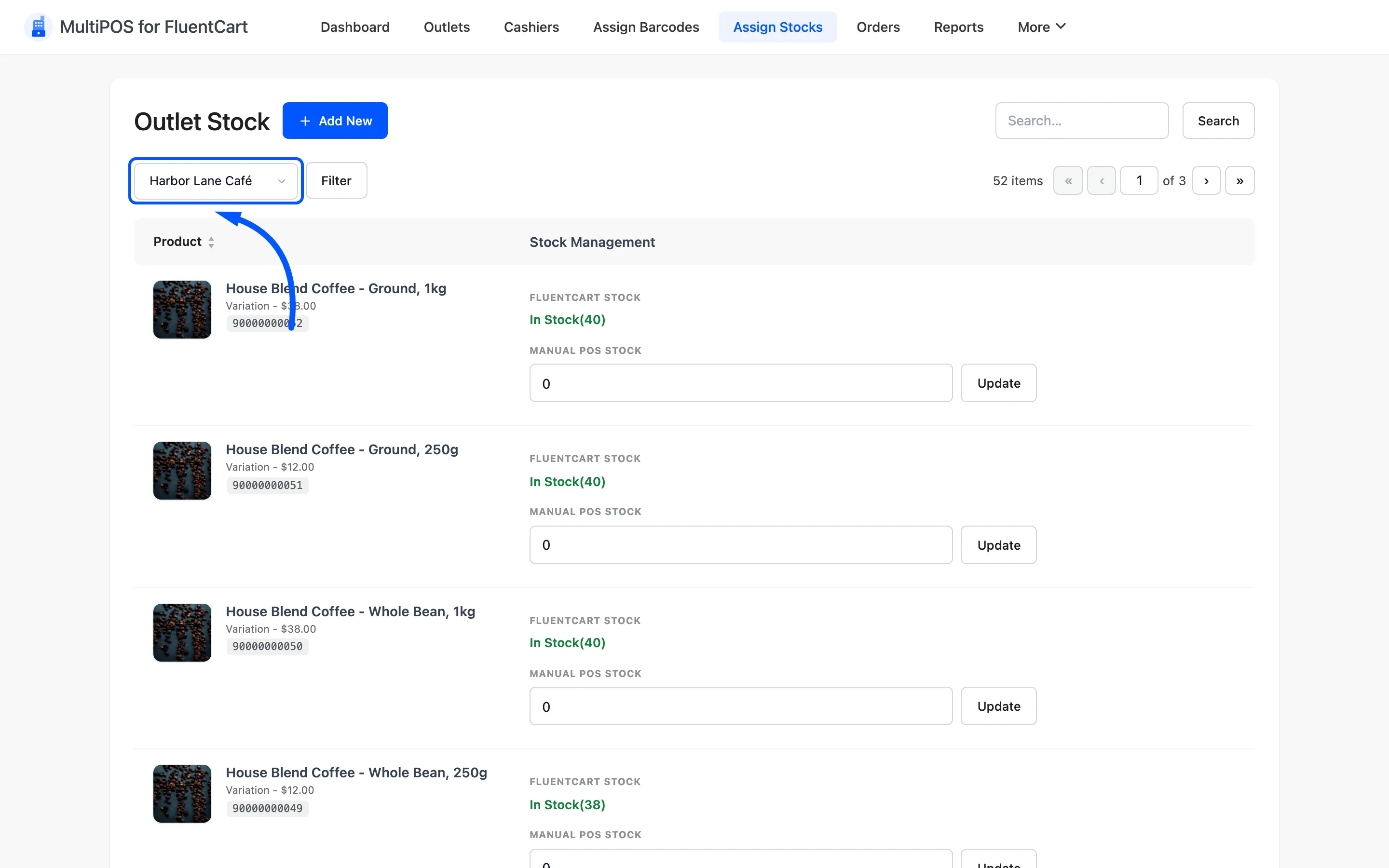
Before you pick, each row shows the count at every Custom outlet, and each count links to that outlet. If only one outlet keeps its own count, the screen opens on it. If none does, the column reads Every outlet sells from FluentCart stock.
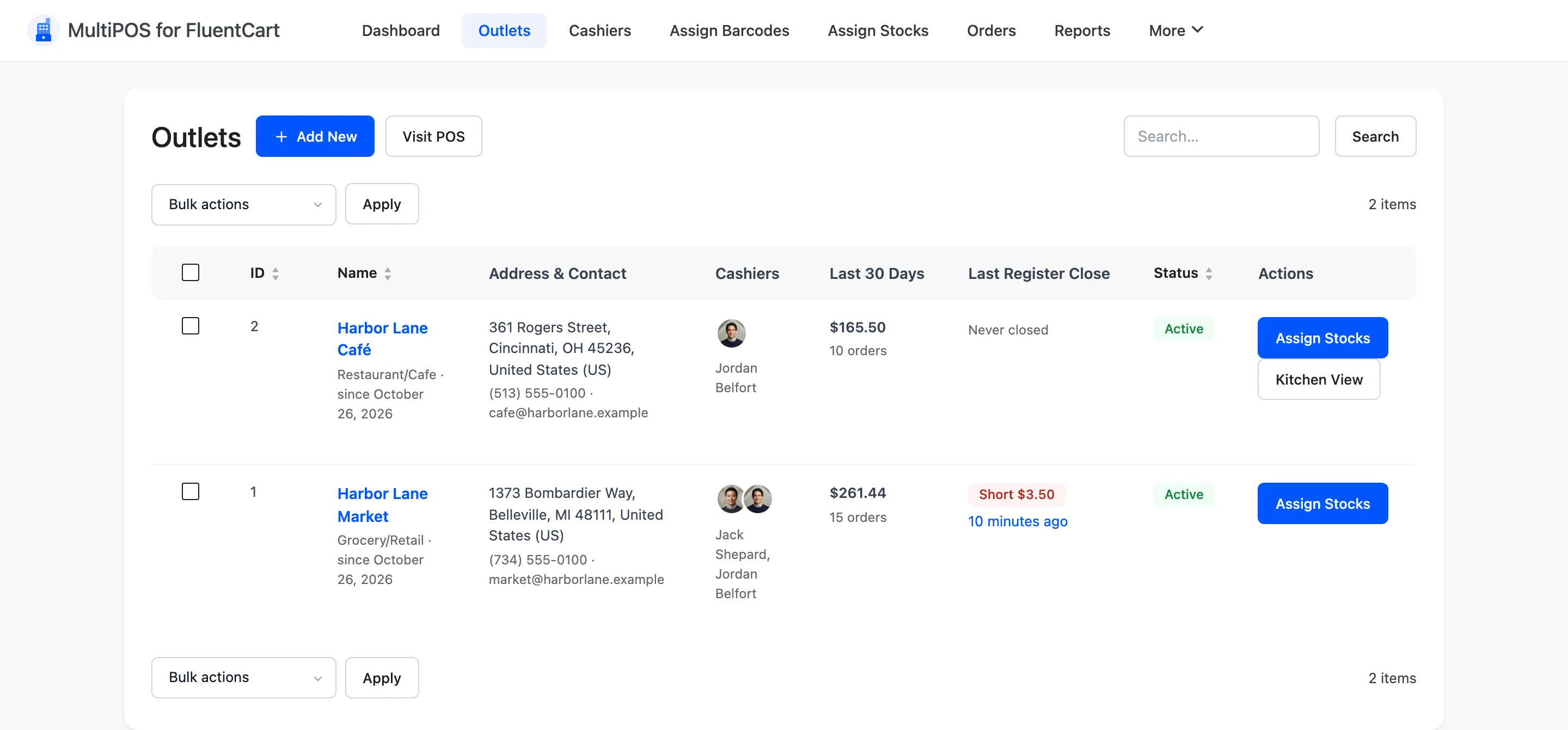
The Assign Stocks button on each row of the Outlets list jumps straight here with the outlet already chosen.
The two columns
Section titled “The two columns”- Product shows the name, its type, its price and its barcode, with Edit and View row actions.
- Stock Management shows two figures side by side:
- FluentCart Stock is the central figure, read only here: In Stock with the count, or Out of Stock.
- Manual POS Stock is this outlet’s own count. Type it and press Update.
Seeing both together is the point. It is how you spot that the website thinks there are forty and the back room has three.
Which figure the POS uses
Section titled “Which figure the POS uses”Inventory Management under Configuration → General decides.
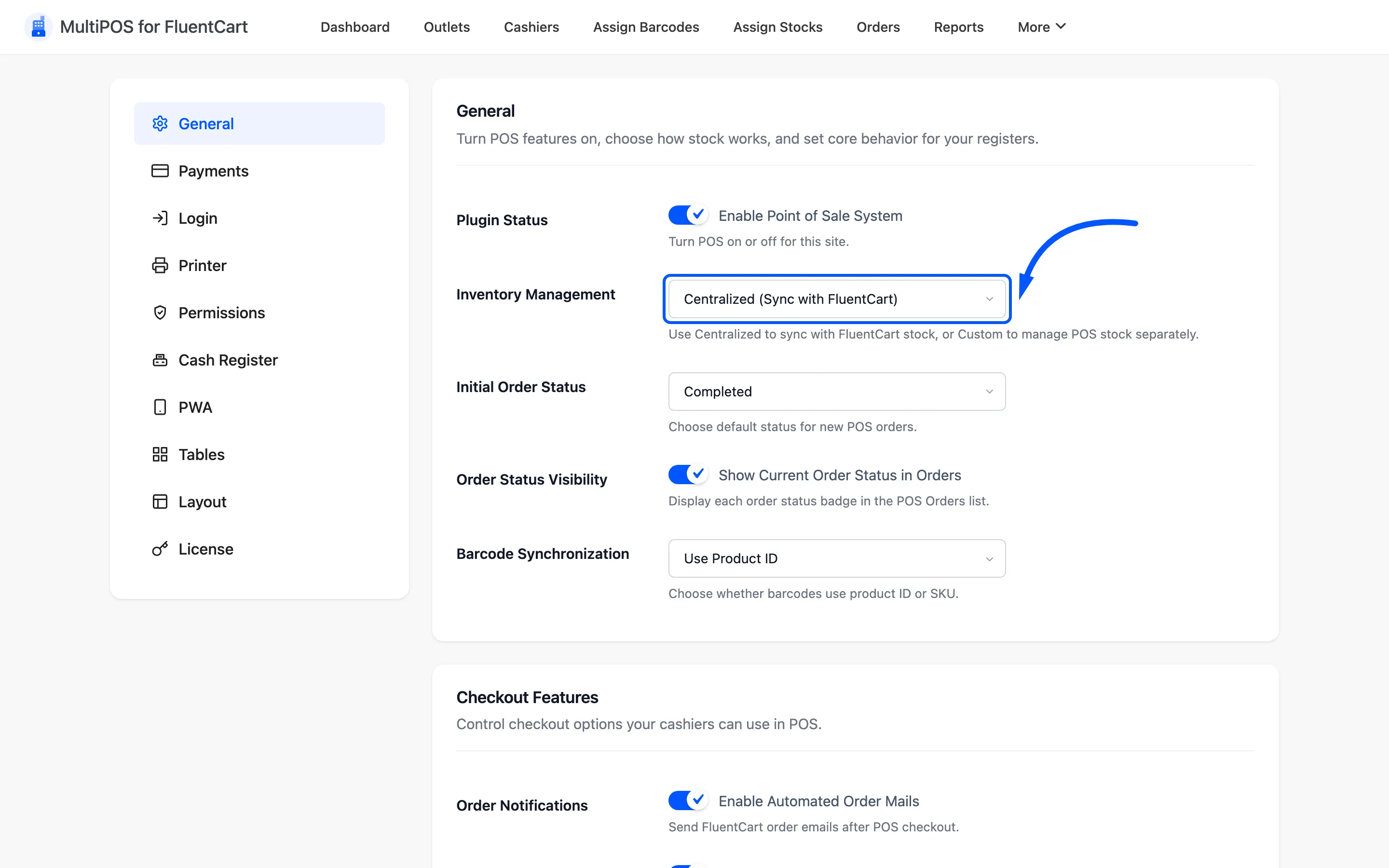
Centralized (Sync with FluentCart) reads and writes the FluentCart figure, so a counter sale and a website sale draw down the same number. It needs FluentCart’s stock management switched on for the product.
Custom (Manual POS Stock) uses the per-outlet figure instead, so each branch runs its own count. FluentCart’s own stock is left untouched.
Each outlet can override the global choice with its own Inventory Management field on the outlet form.
Pick one and stay with it. Switching mid-trade leaves two figures that disagree and no record of which one was right.
When to use each
Section titled “When to use each”- Centralized suits one shop plus a website. The whole appeal of a POS on your FluentCart store is one stock figure, and this keeps it.
- Custom suits several branches, or a shop whose website ships from a separate warehouse. Then the central figure is warehouse stock and the outlet figure is shelf stock, which are genuinely different numbers.
Only in-stock products show
Section titled “Only in-stock products show”With per-outlet stock on, the terminal only lists products that have a count at the open outlet. A product you never gave a count there does not appear at all, so set the counts before the first shift.
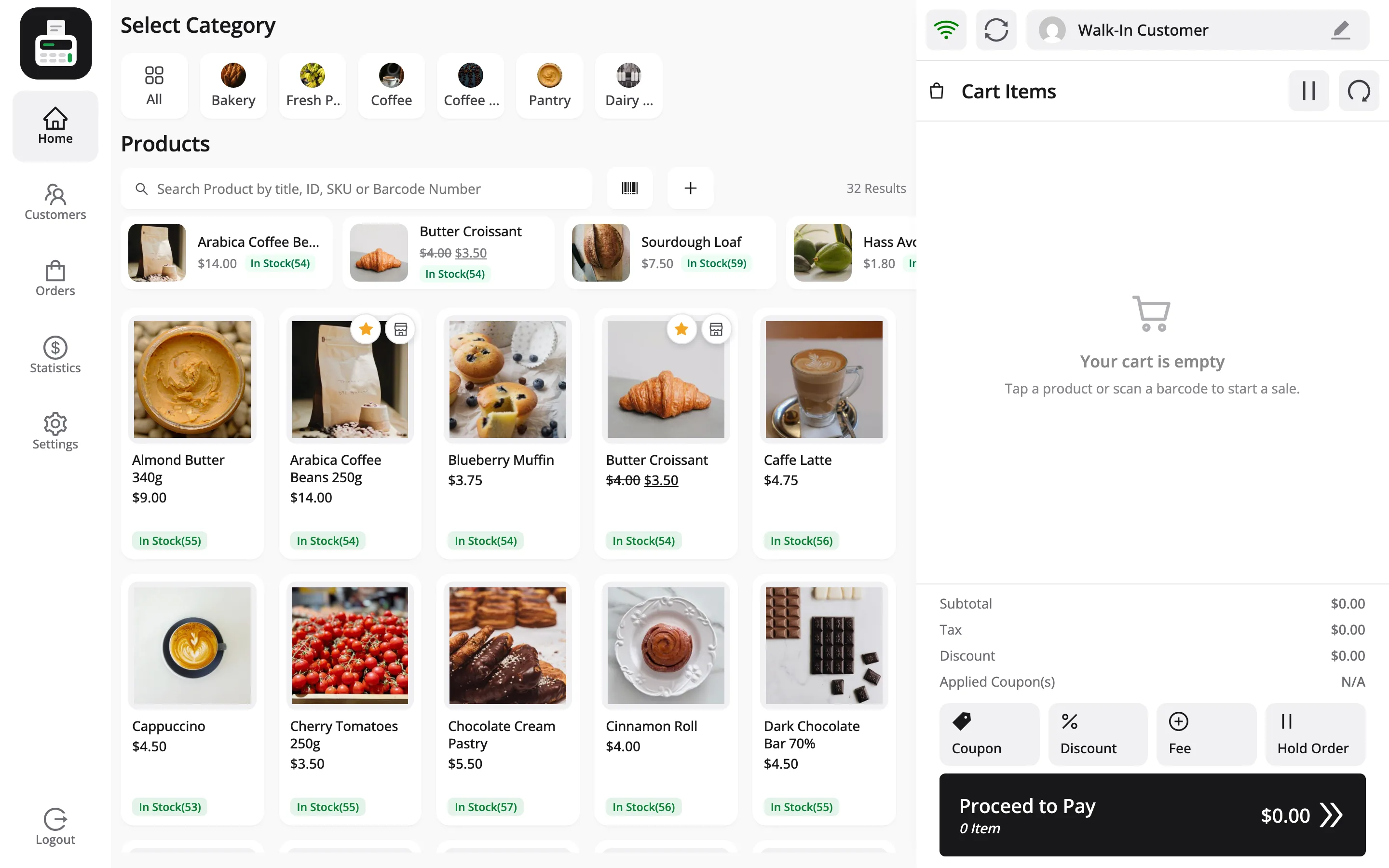
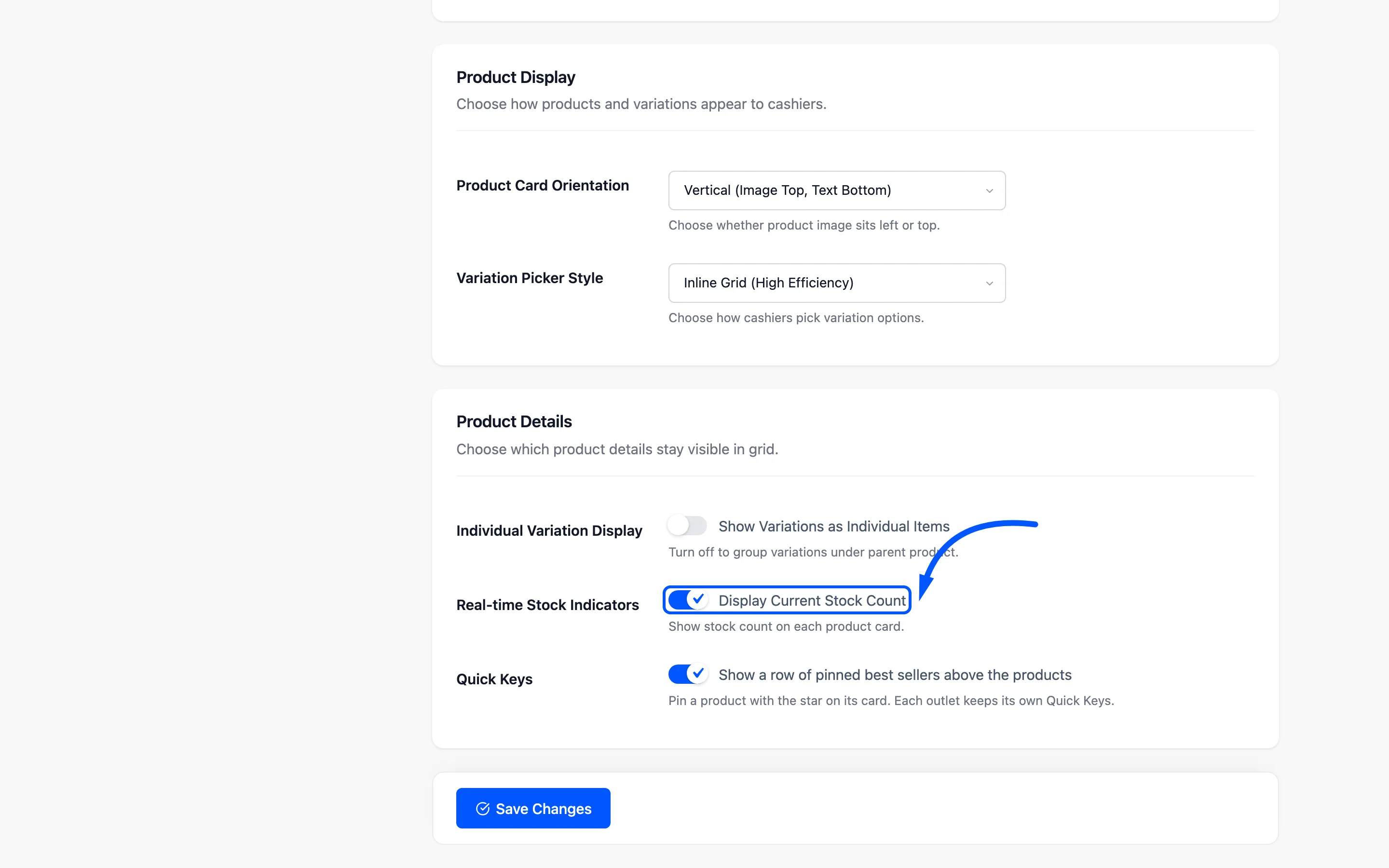
The figure on each card is that outlet’s count, as long as Display Current Stock Count is on under Configuration → Layout.
Where to go next
Section titled “Where to go next”- Outlets to create the locations this screen tracks.
- General Settings for the Inventory Management switch.
- How to Manage Stock Across Outlets