

How to Style the Keywords Box and Loader
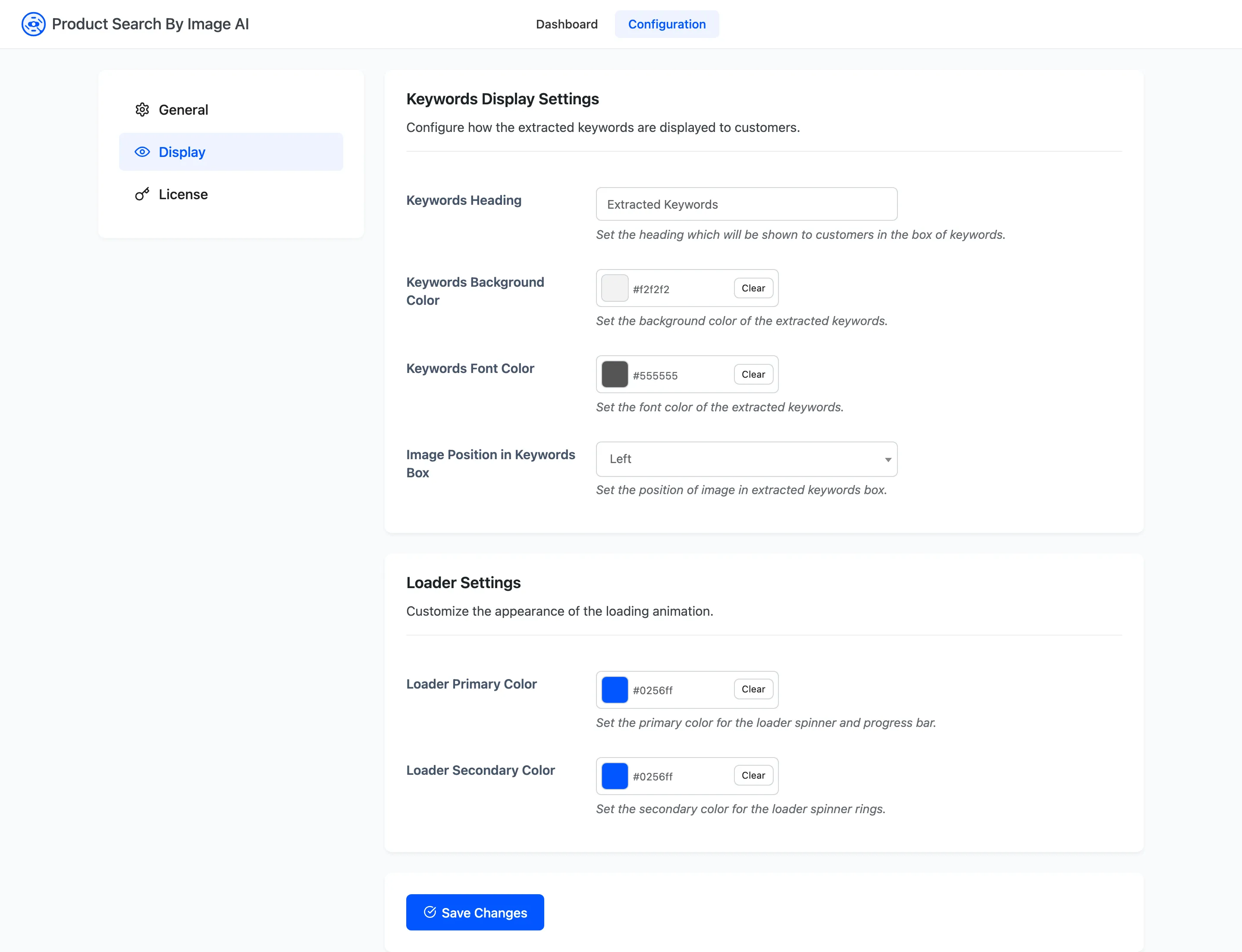
The plugin puts two of its own screens in front of shoppers: a loader while the photo is read, and a keywords box above the results. Both are styled from one tab.
Go to DevDiggers Plugins → Product Search By Image AI → Configuration → Display.
Step 1: Write the heading
Section titled “Step 1: Write the heading”Keywords Heading is the line above the chips, and it replaces the page title on that search.
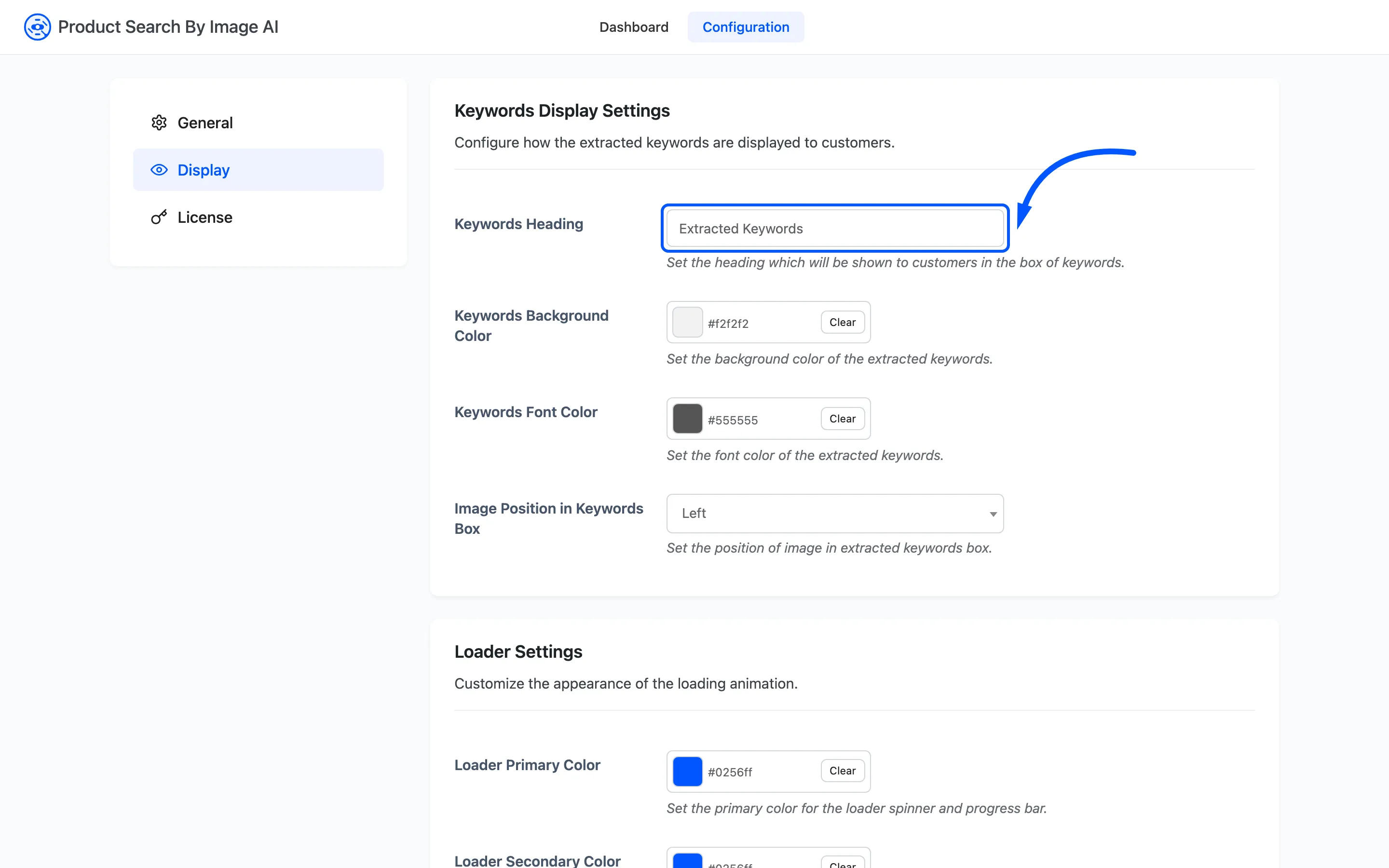
The shipped text, Extracted Keywords, names the feature. It does not tell the shopper the chips do anything. A line like “We found these in your photo. Tap one to narrow the search.” earns its place at the top of the page.
Step 2: Set the chip background
Section titled “Step 2: Set the chip background”Keywords Background Color fills each chip. Default #f2f2f2.
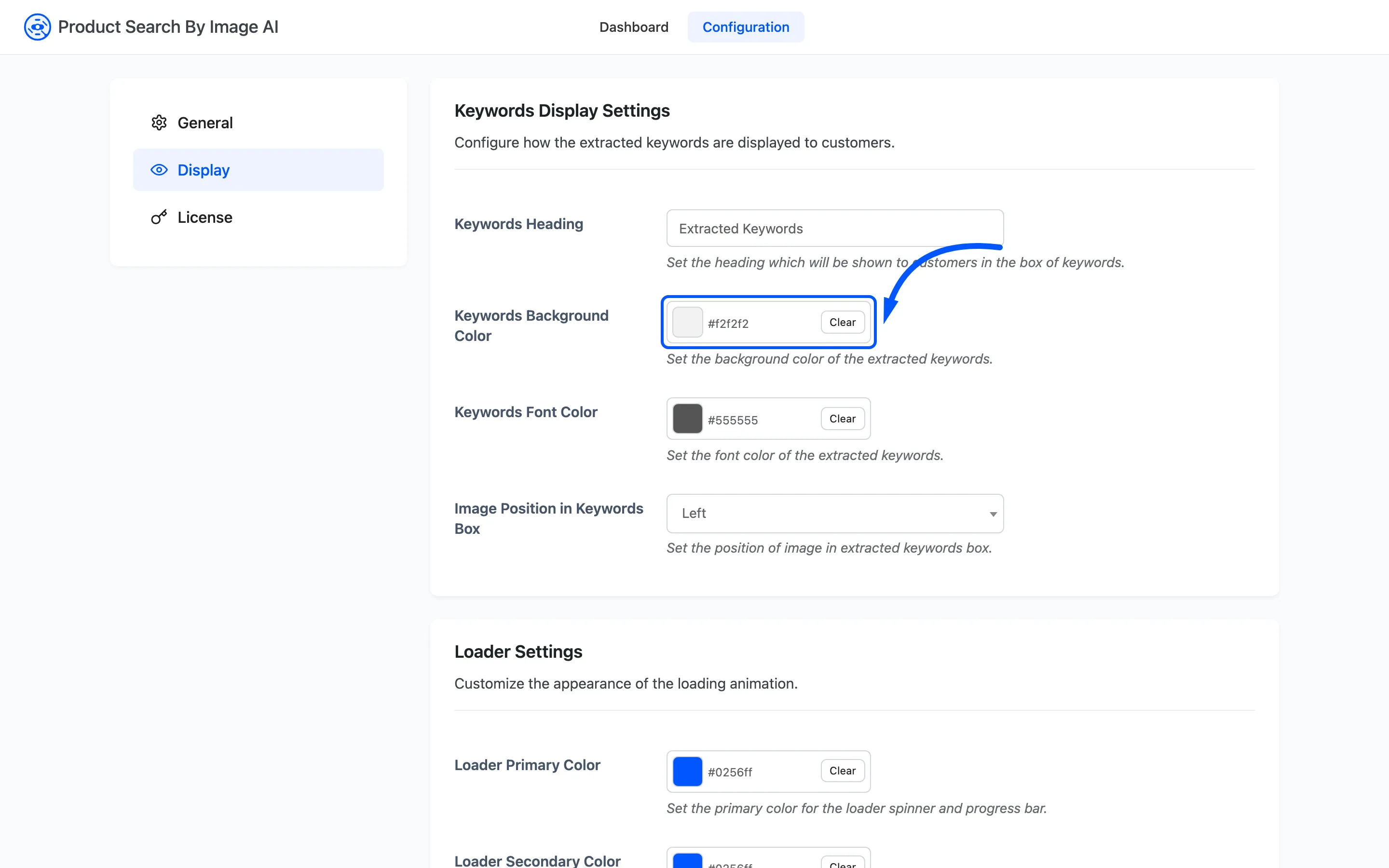
Keep it quiet. There can be up to fifty chips in that row, directly above the products, so anything strong here competes with what the shopper came for.
Step 3: Set the chip text colour
Section titled “Step 3: Set the chip text colour”Keywords Font Color colours the text. Default #555555.
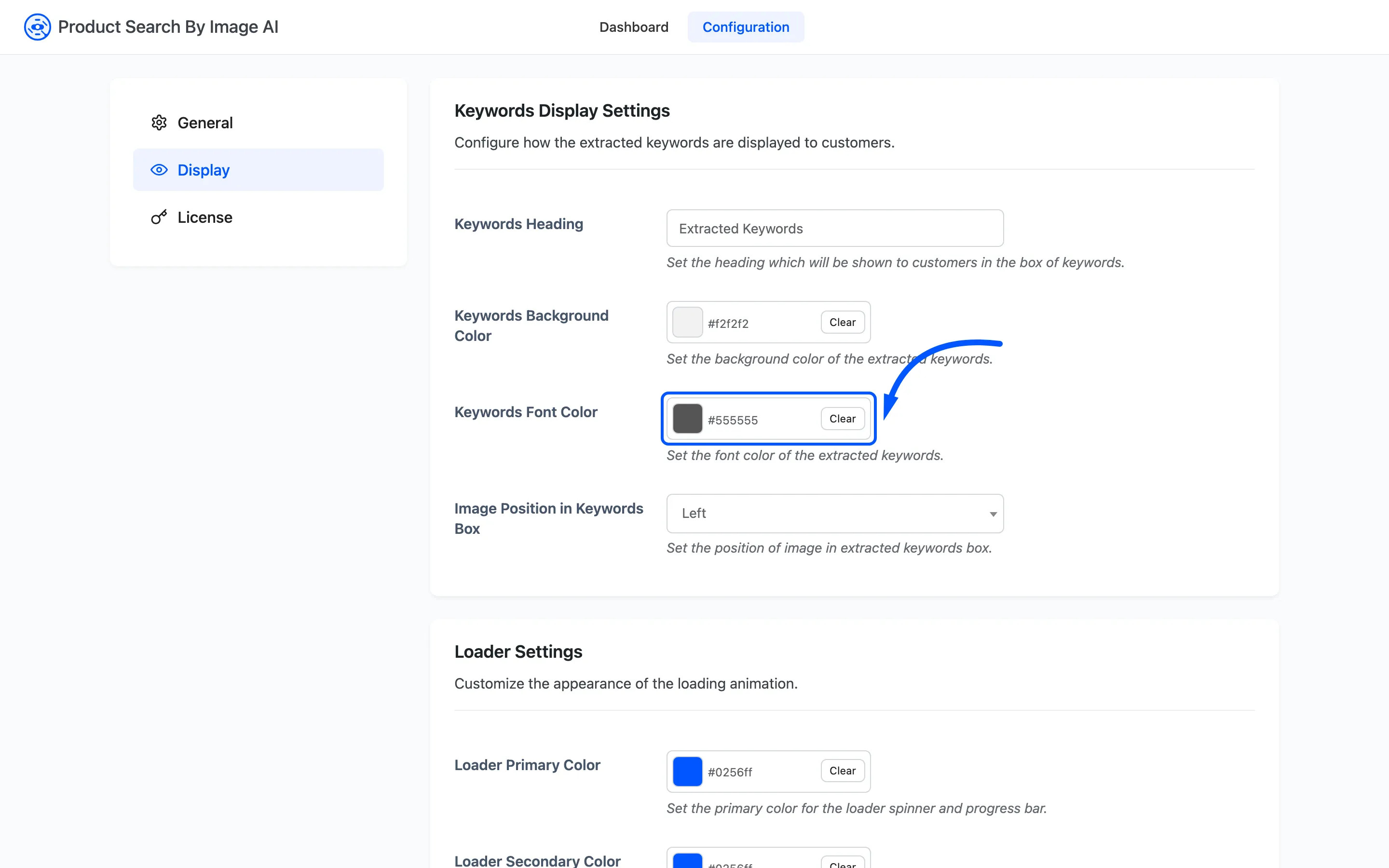
This field sets the chip border as well. The plugin lightens whatever you pick and draws the outline in it, which is why there is no separate border setting. Pick a text colour that reads against the background from step 2 and the outline follows.
Step 4: Choose the photo position
Section titled “Step 4: Choose the photo position”Image Position in Keywords Box puts the shopper’s uploaded photo on the Left or the Right of the chips. Default Left.
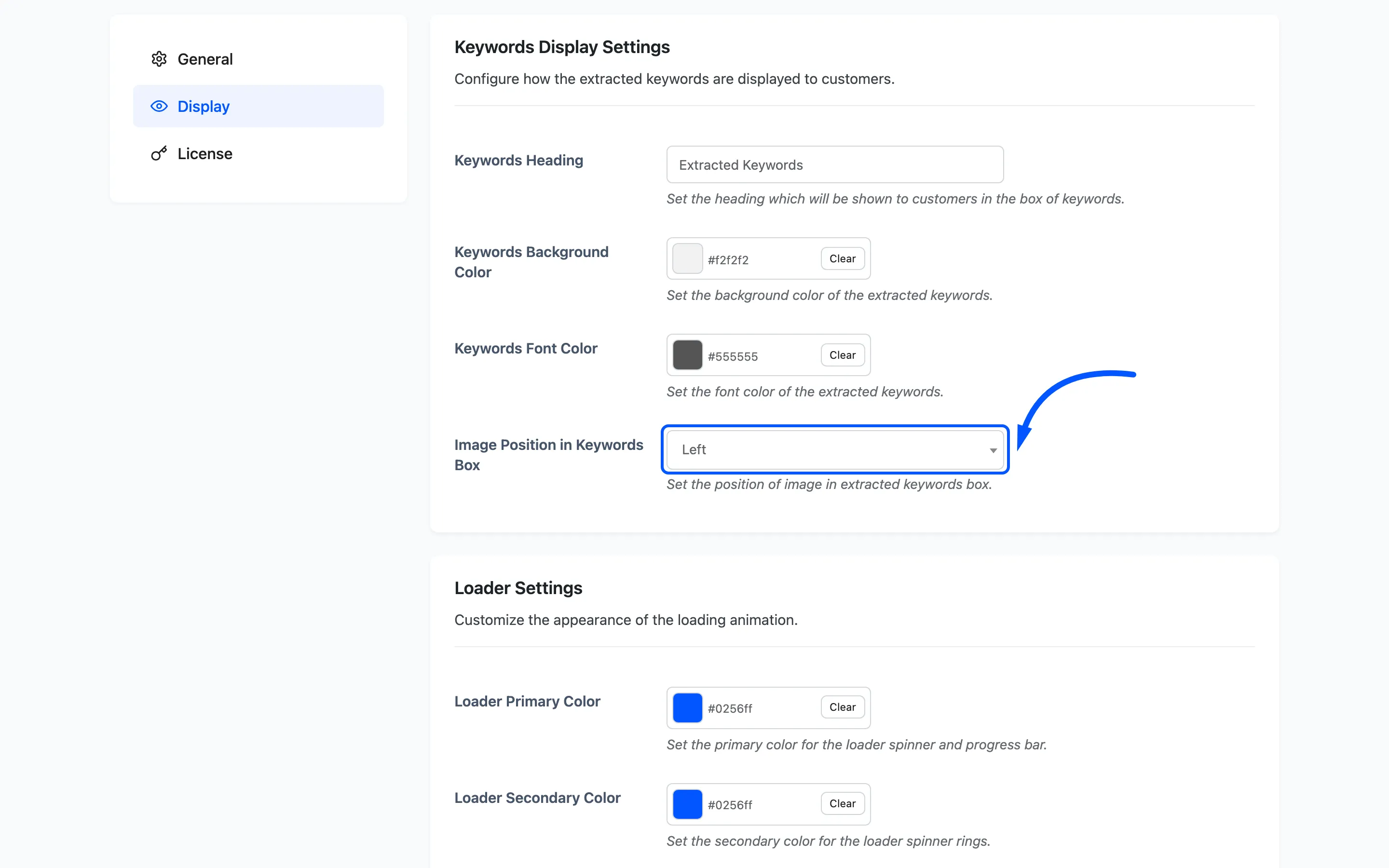
The photo takes a fixed 110px column and the chips take the rest. On a narrow phone the box stacks into one column and the setting stops applying.
Step 5: Set the loader colours
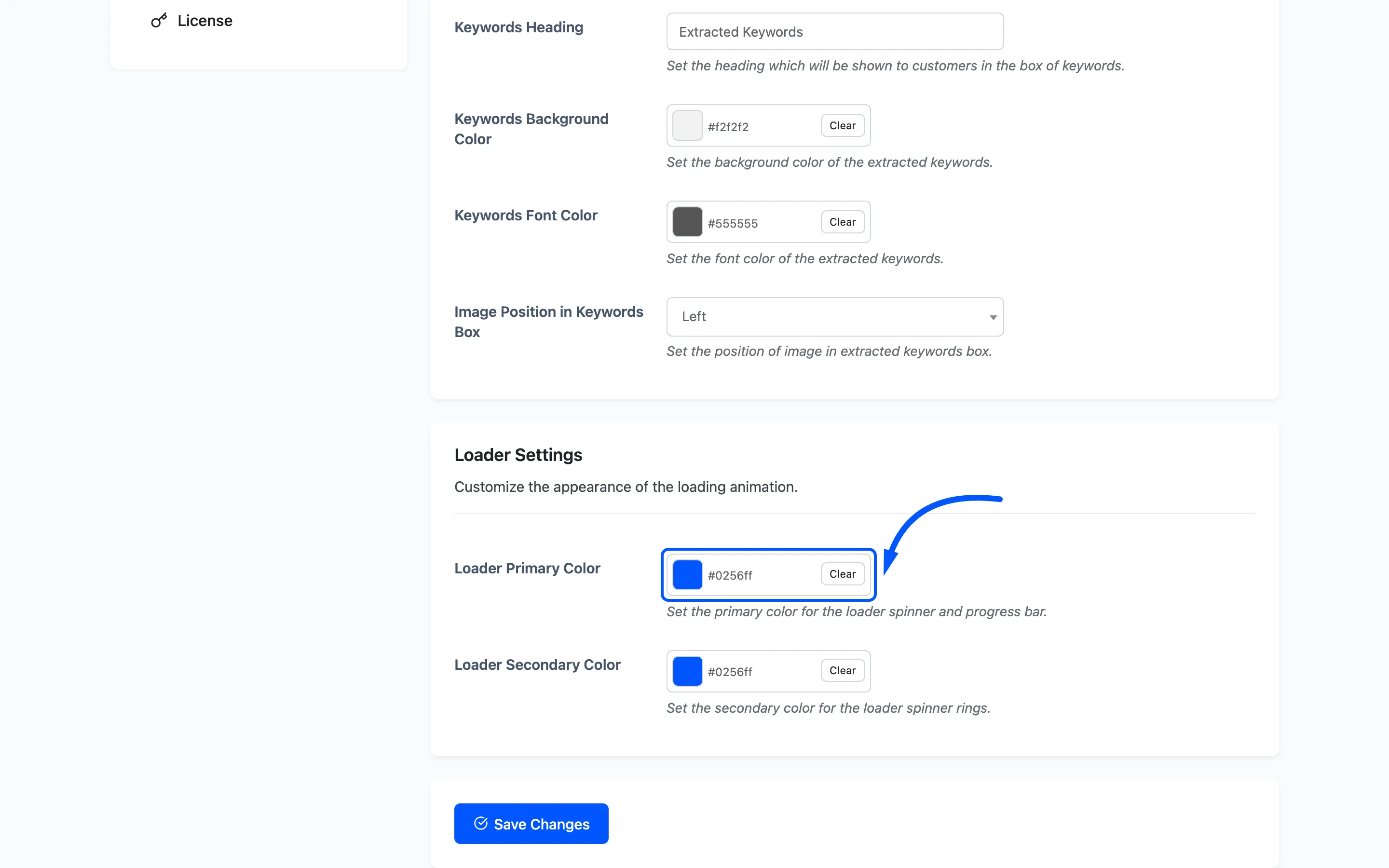
Section titled “Step 5: Set the loader colours”Loader Primary Color draws the main spinner ring and the progress bar. Default #007cba.
Loader Secondary Color draws the alternating rings. Default #00a0d2.
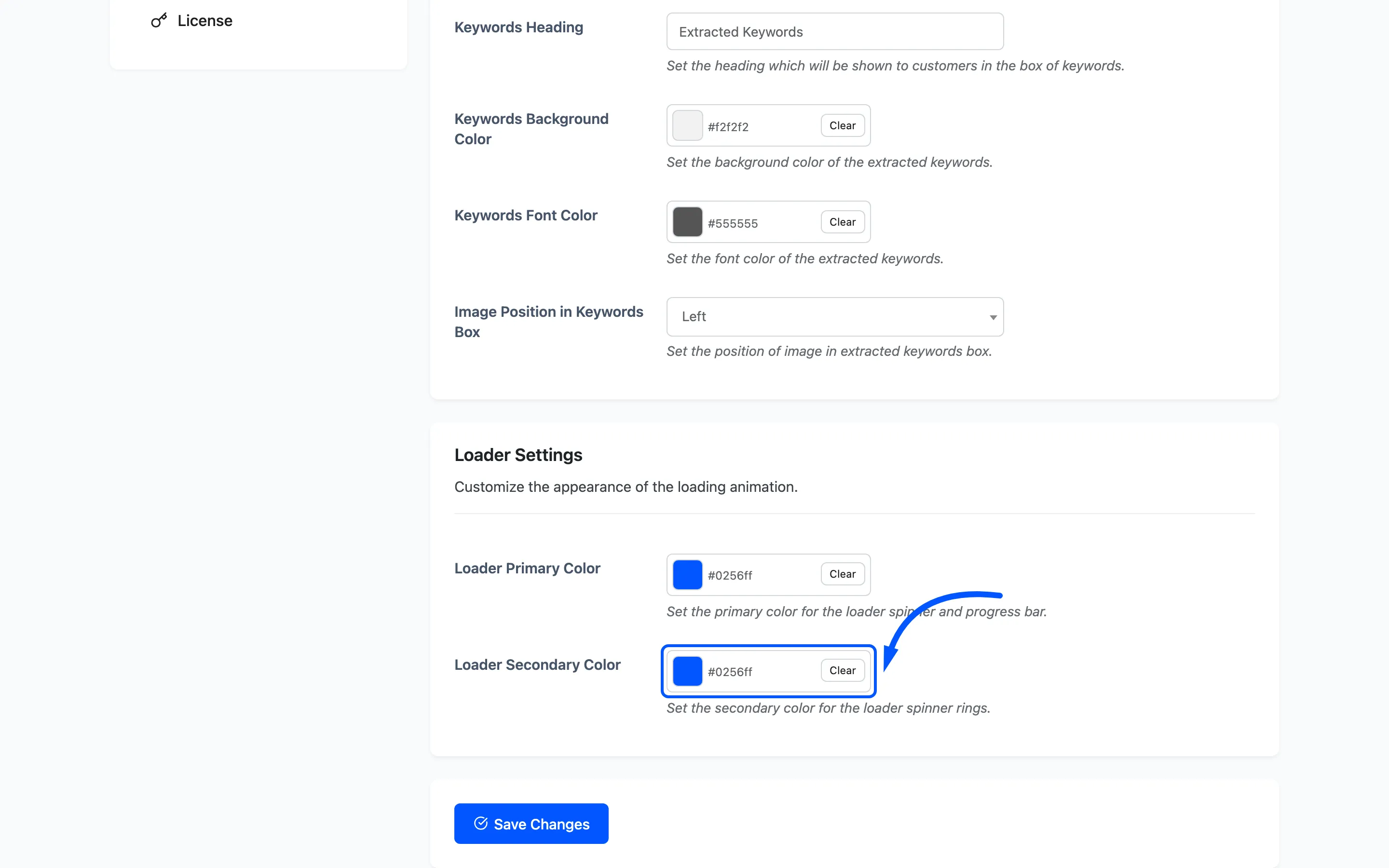
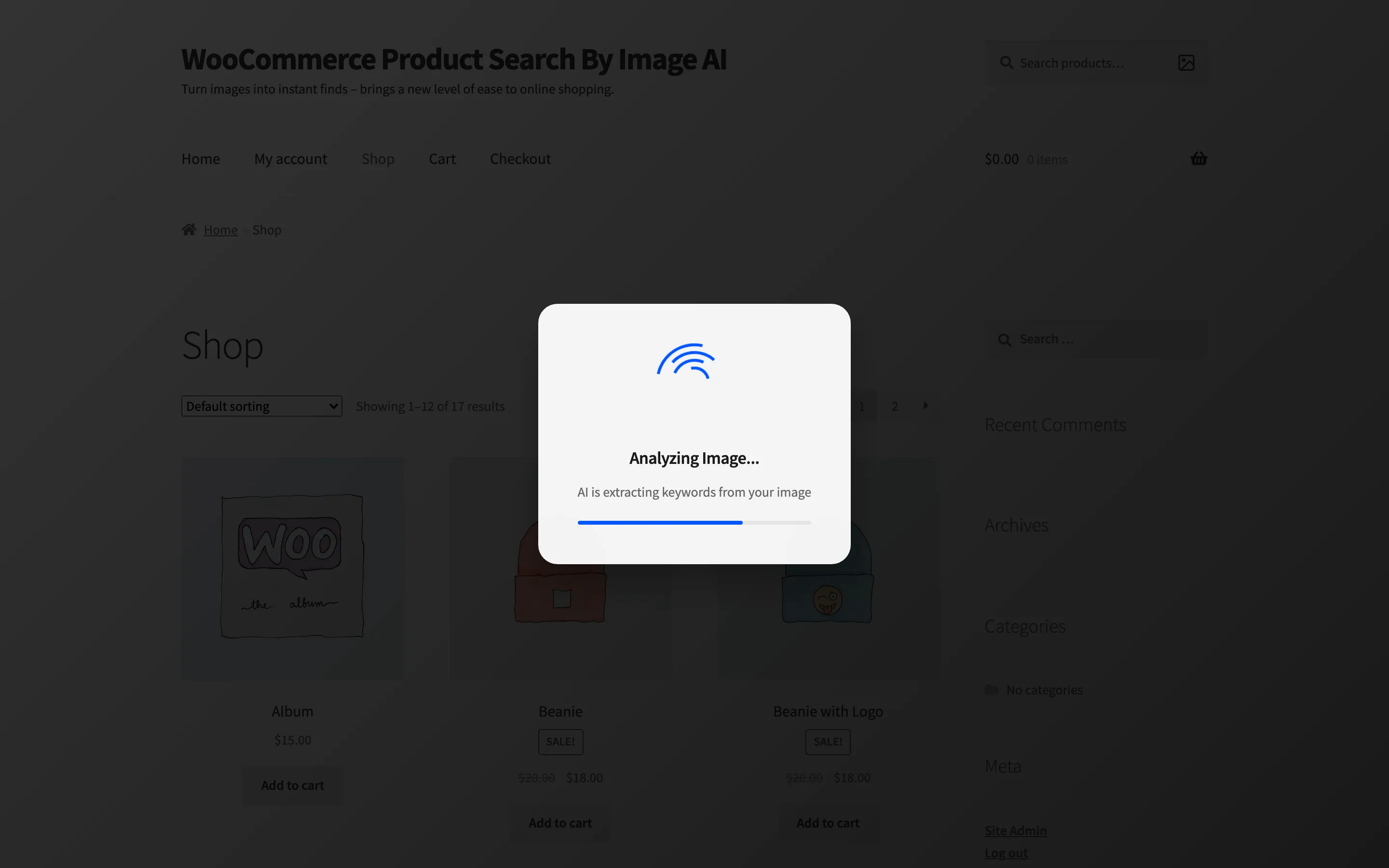
The loader nests four rings and alternates the two colours across them, and the progress bar runs a gradient from primary through secondary and back. Two shades of one brand colour reads as one component. Two unrelated colours reads as a fault.
Press Save Changes.
Step 6: Check the loader on the storefront
Section titled “Step 6: Check the loader on the storefront”Run a real image search. The loader is on screen for the whole classification. On a shopper’s phone that is several seconds, so it is worth looking at rather than assuming.
Step 7: Check the keywords box
Section titled “Step 7: Check the keywords box”Then read the results page the search lands on.
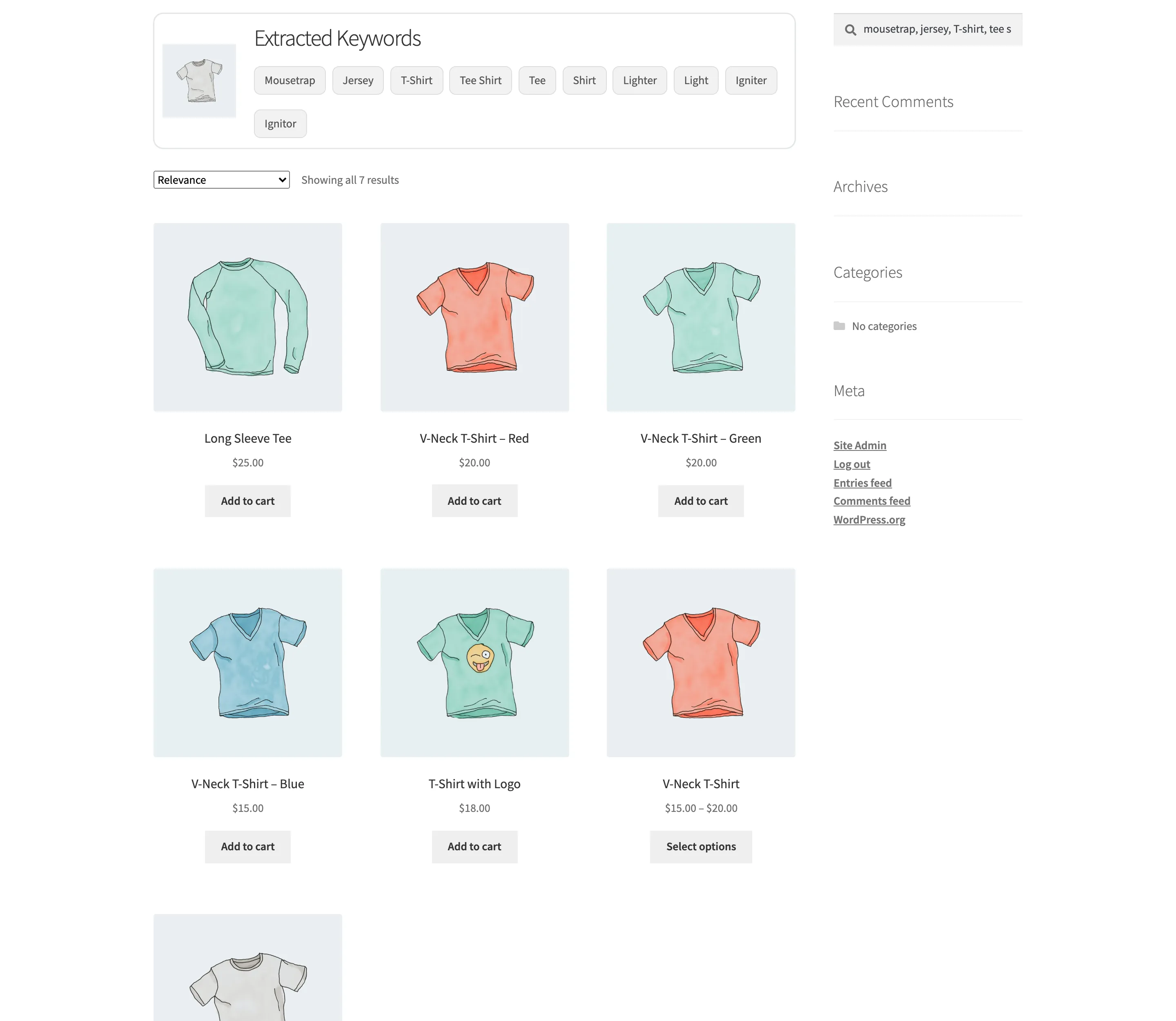
Judge it against the products below rather than on its own. The box is a navigation aid sitting above the thing the shopper wants. It should be legible and quiet, and the products should still be what the eye lands on.