

The Customer Experience
Four screens, and a shopper meets all of them in under a minute. Walking them in order is the fastest way to see what each setting changes.
The search box
Section titled “The search box”The plugin puts a camera icon inside the WooCommerce product search box, at the right-hand end of the field. The box still works exactly as before for typed searches.
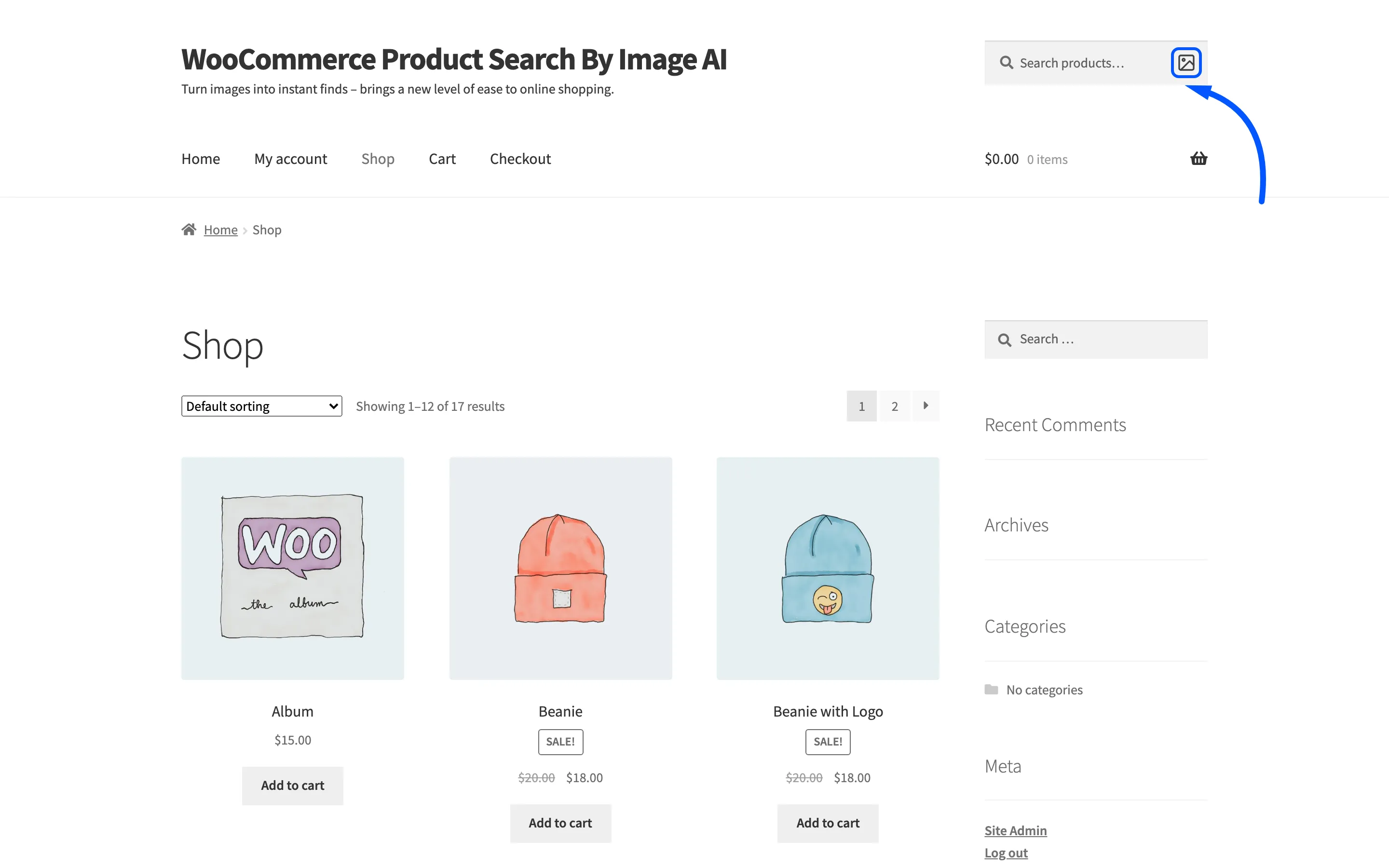
The icon appears in WooCommerce product search forms, not in every search box on the site. A theme’s plain WordPress search widget is a different form and does not get one. If the icon is missing where you expect it, that is the first thing to check, after the license.
Pressing the icon opens the device’s own file picker. On a phone that offers the camera as well as the photo library, so a shopper can photograph the thing in front of them.
The loader
Section titled “The loader”Choosing a file starts the search on its own. The page dims and a panel says Analyzing Image… over the line AI is extracting keywords from your image.
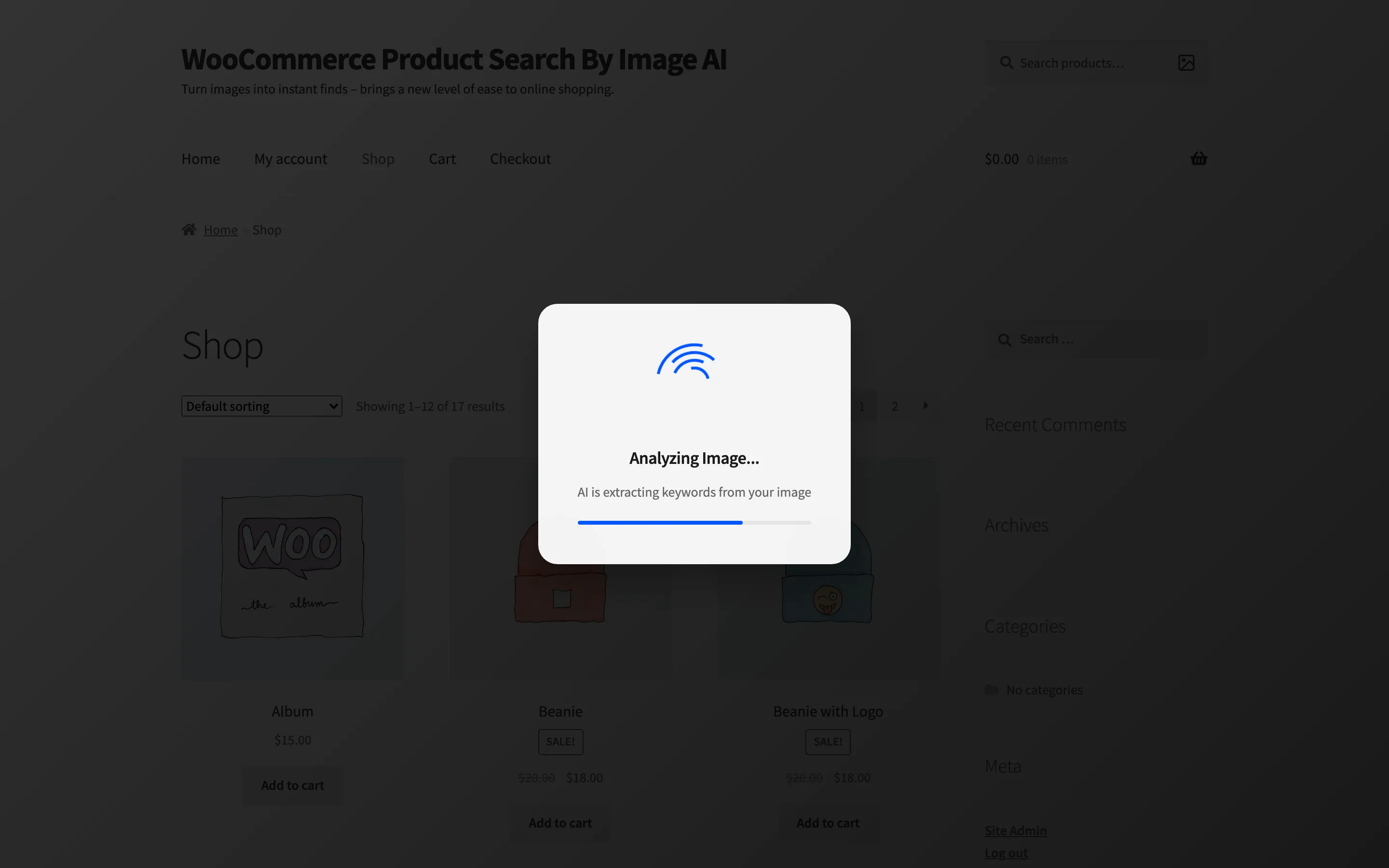
How long it stays depends on the AI service. TensorFlow.js runs on the shopper’s own device, so an old phone is slower than a laptop. Hugging Face and Google Vision go through your server instead, so the wait is a network round trip rather than the device’s work.
The spinner and bar colours are the two loader colours on the Display tab.
The results page
Section titled “The results page”The page then reloads as your store’s own search results, with the plugin’s keywords box in place of the usual page title.
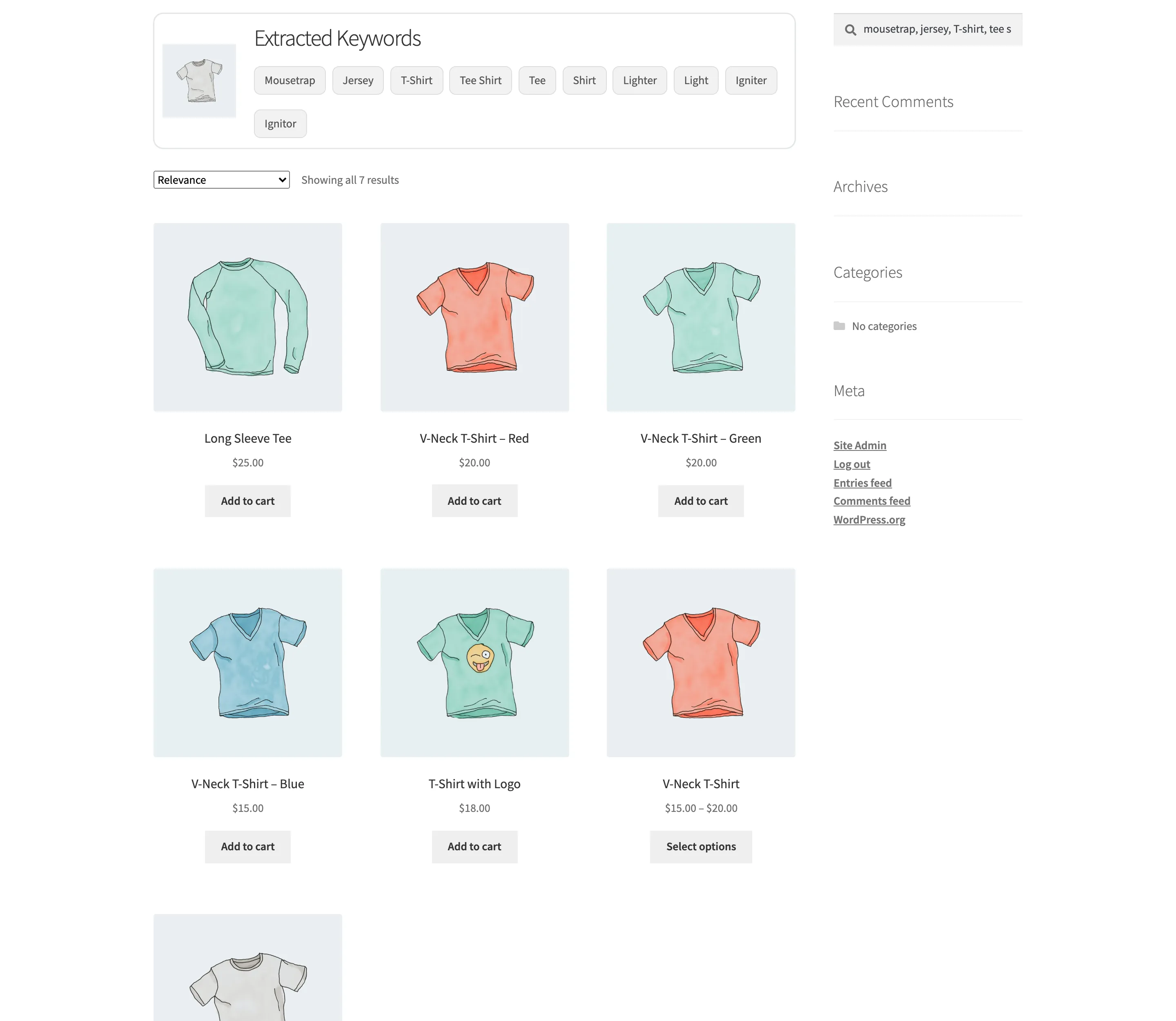
The box holds three things: the photo the shopper uploaded, the heading you set, and one chip per extracted keyword. Below it the products are laid out by your theme, exactly like any other search result, with sorting and paging intact.
The uploaded photo appears for a shopper the store already has a session for. It is held in the WooCommerce session rather than uploaded anywhere, so a signed-in shopper sees it beside the chips. A shopper the store has no session for sees the heading and the chips without the thumbnail.
The keyword chips
Section titled “The keyword chips”Each chip is a link to an ordinary product search for that one word.
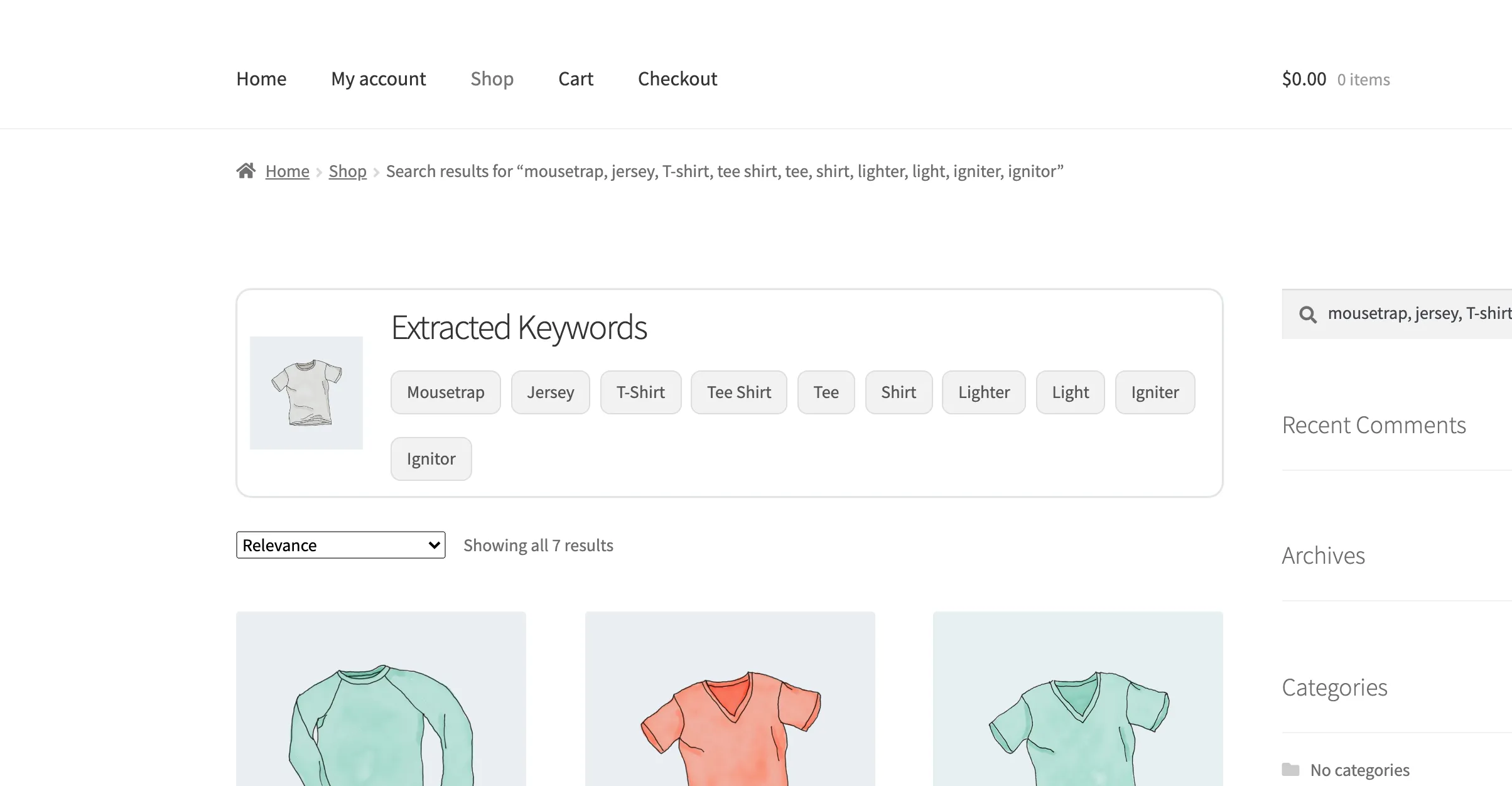
This is the escape hatch, and it is the part shoppers use most. An AI service reading a photo of a t-shirt might answer with jersey, tee, shirt and a couple of words that are plainly wrong. Pressing the right one drops the wrong ones and searches for that word alone.
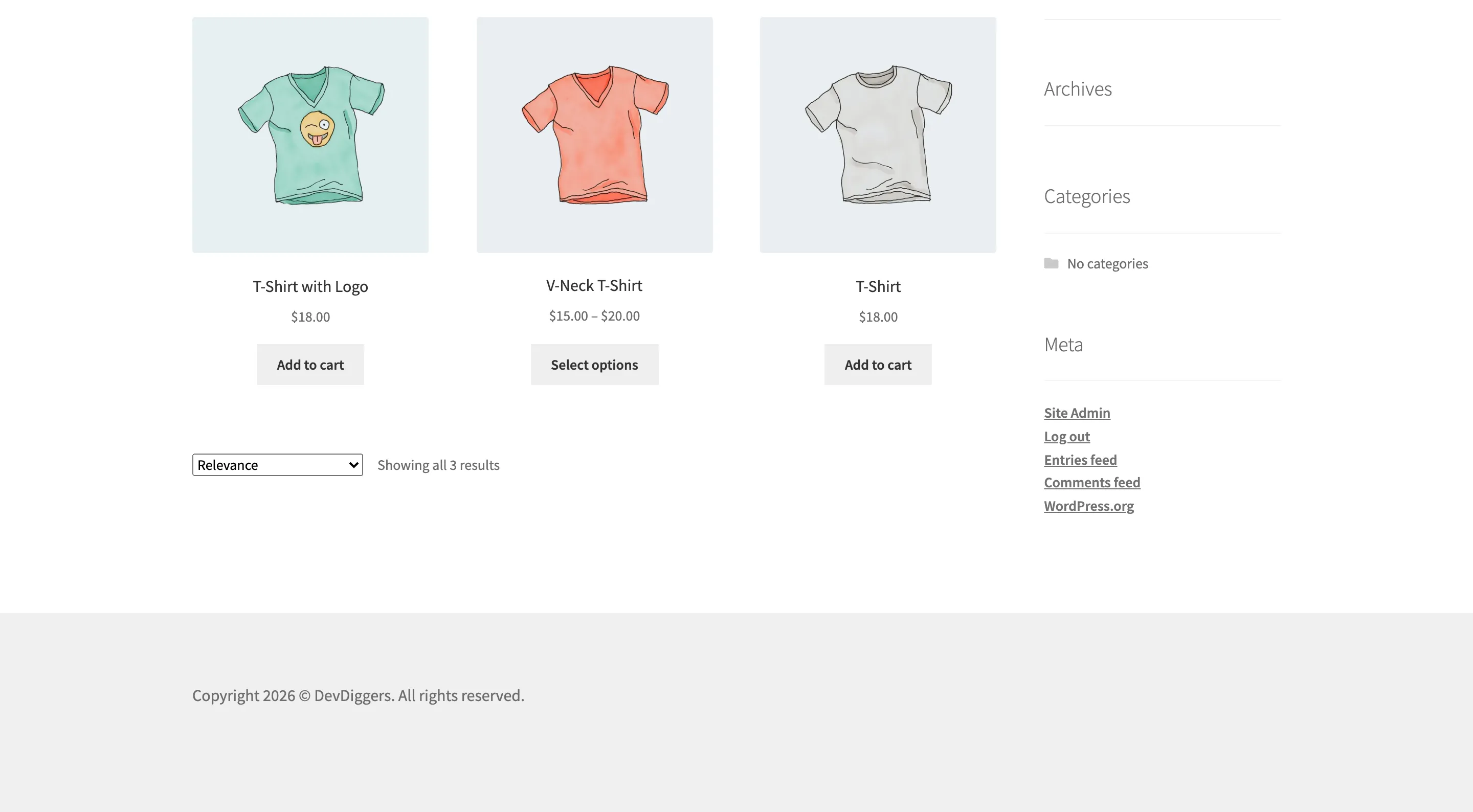
The page a chip leads to is a normal product search, with no keywords box on it, because no photo was involved in reaching it.
What the shopper never sees
Section titled “What the shopper never sees”- No upload. The photo is read in the browser. It does not enter your media library and it is not attached to any product.
- No account. Image search works signed out, and nothing asks the shopper to register.
- No extra button. Choosing the file is the whole interaction. There is nothing to submit.