

How to Choose an AI Service Provider
Three services, and the real choice is not accuracy. It is where the work happens and who pays for it.
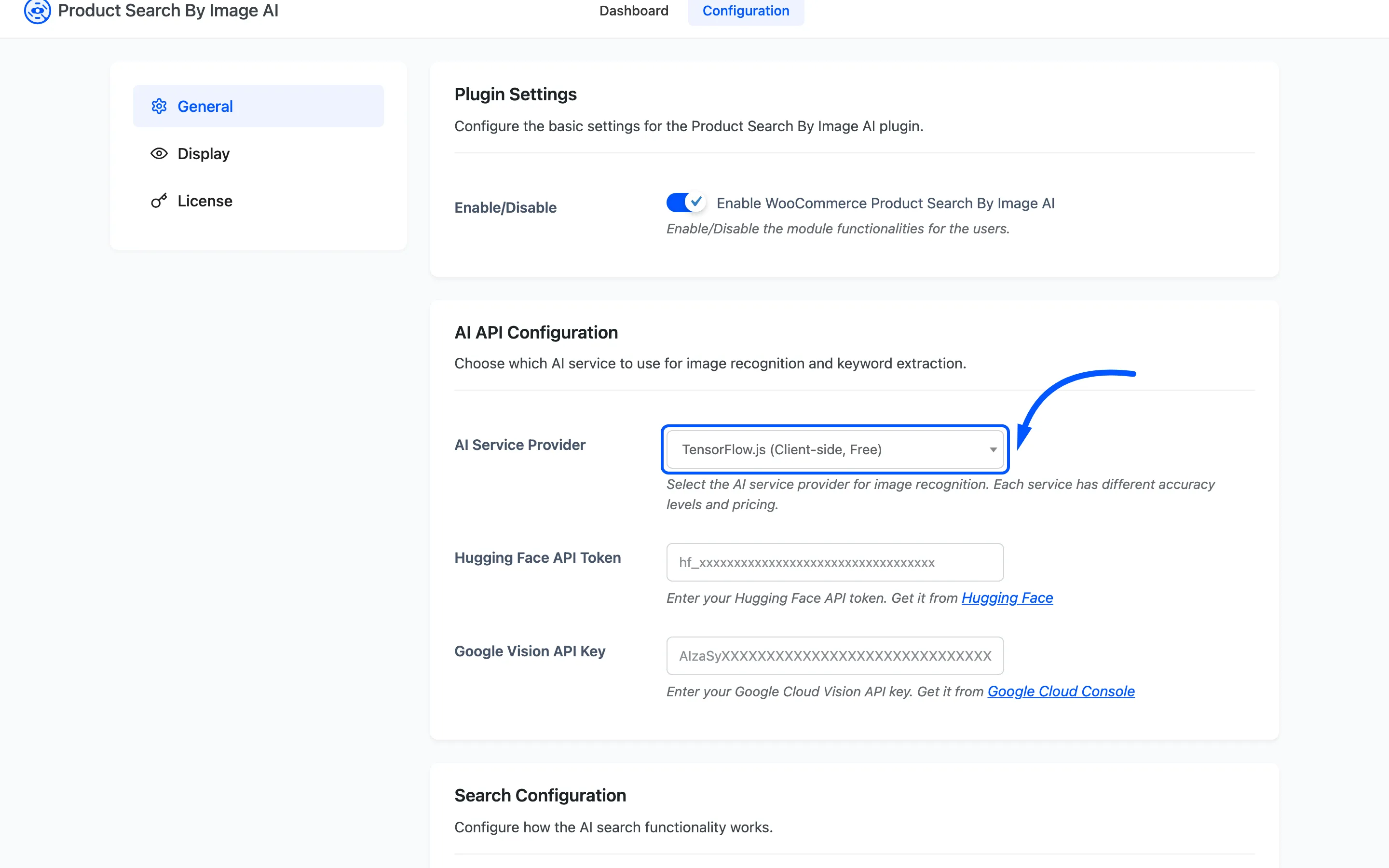
Go to DevDiggers Plugins → Product Search By Image AI → Configuration → General.
The three, compared
Section titled “The three, compared”| TensorFlow.js | Hugging Face | Google Vision | |
|---|---|---|---|
| Where it runs | The shopper’s browser | Your server, then the service | Your server, then the service |
| Needs an account | No | Yes | Yes |
| Cost per search | None | Free to 1,000 a month | Free to 1,000 a month |
| Does the photo leave the device | No | Yes | Yes |
| Speed depends on | The shopper’s device | Your server and the network | Your server and the network |
| First search on a device | Slower, the model downloads | Same as any other | Same as any other |
Where the work should happen
Section titled “Where the work should happen”TensorFlow.js is the one to rule out first. It is on by default, costs nothing per search, has no quota to exhaust and keeps the photo on the shopper’s device, which is the shortest answer you can give anyone asking what happens to their photos.
Its limits are real. The model is general purpose, so it answers in everyday categories rather than in your product names, and it leans on the shopper’s own hardware. An old phone is a slow search.
Move to a hosted service when the words coming back are consistently unhelpful, not because a hosted one sounds better. Run the same handful of product photos through TensorFlow.js first and read the chips. If they describe the product, you are done.
Getting a key
Section titled “Getting a key”Both hosted options need credentials, and both fields carry a link straight to the page that issues them.
- Hugging Face issues an API token from your account settings. It starts with
hf_. - Google Vision issues an API key from the Google Cloud Console, on a project with the Vision API enabled.
Both advertise 1,000 free requests a month on the picker itself. One shopper search is one request.
Step 1: Paste the key into its field
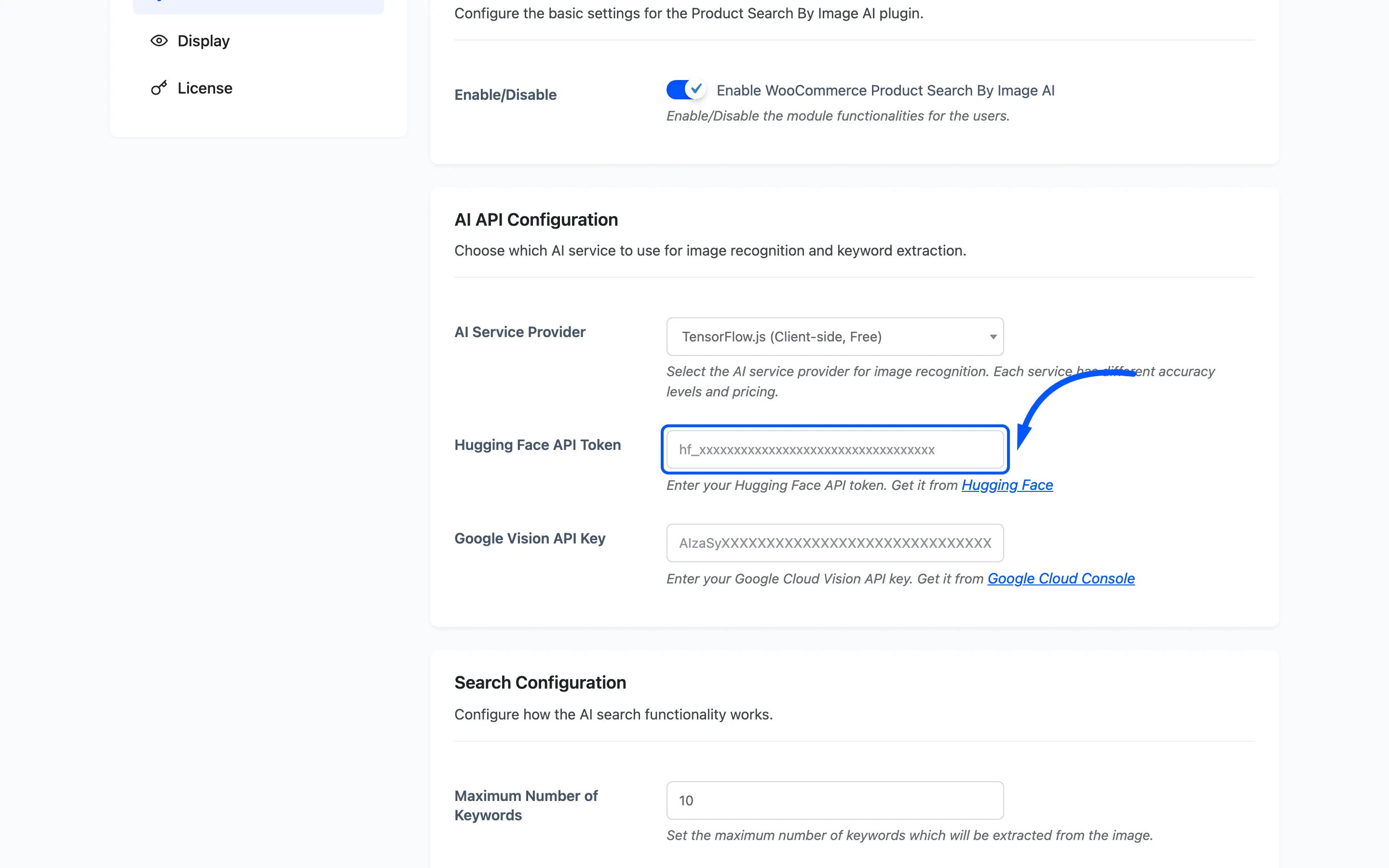
Section titled “Step 1: Paste the key into its field”For Hugging Face, put the token in Hugging Face API Token.
For Google Vision, put the key in Google Vision API Key.
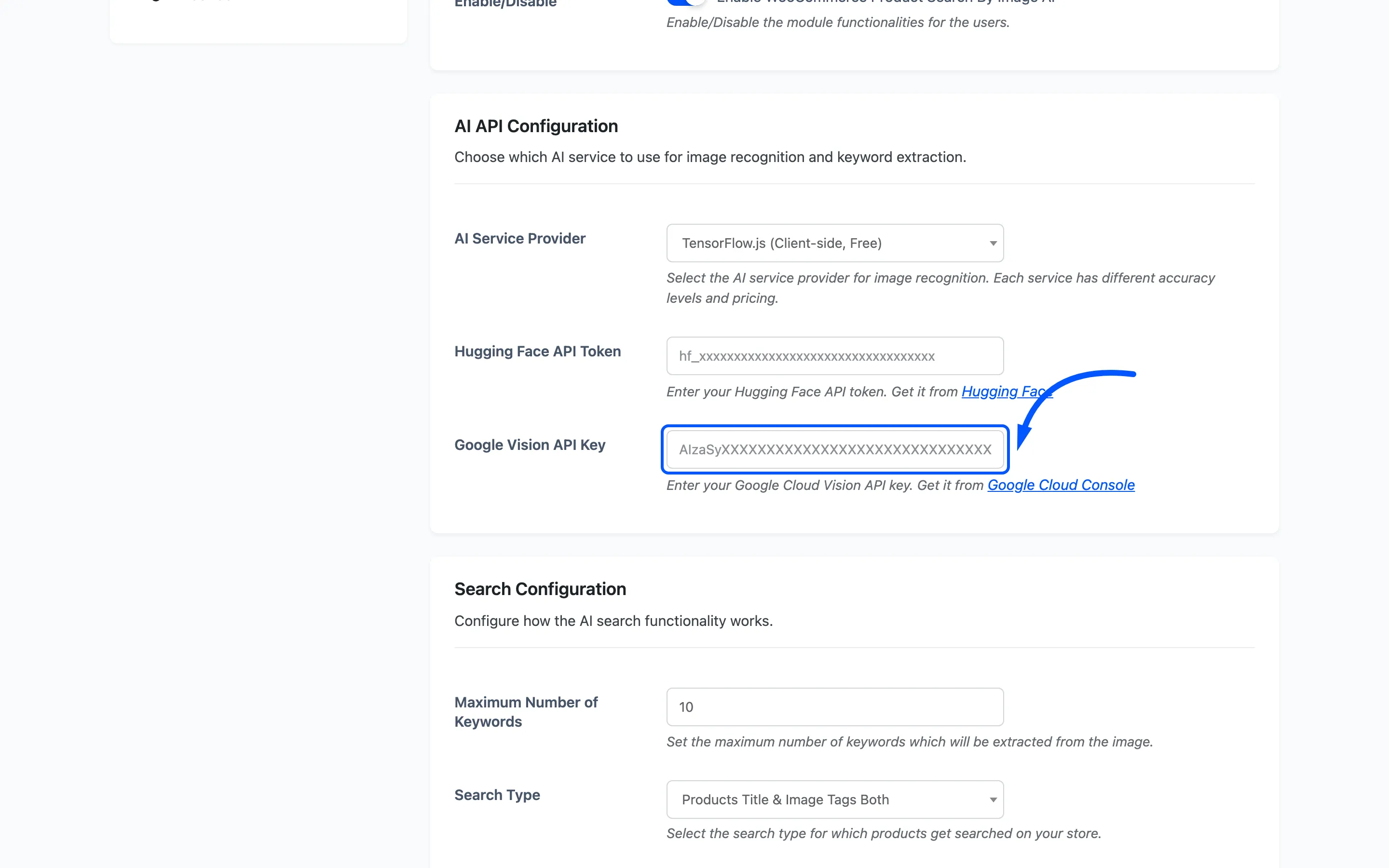
Both fields are on screen whichever provider is selected, and only the one belonging to the selected service is read. A key left behind in the other field does nothing.
Step 2: Switch the provider
Section titled “Step 2: Switch the provider”Change AI Service Provider to the service whose key you just entered, then press Save Changes.
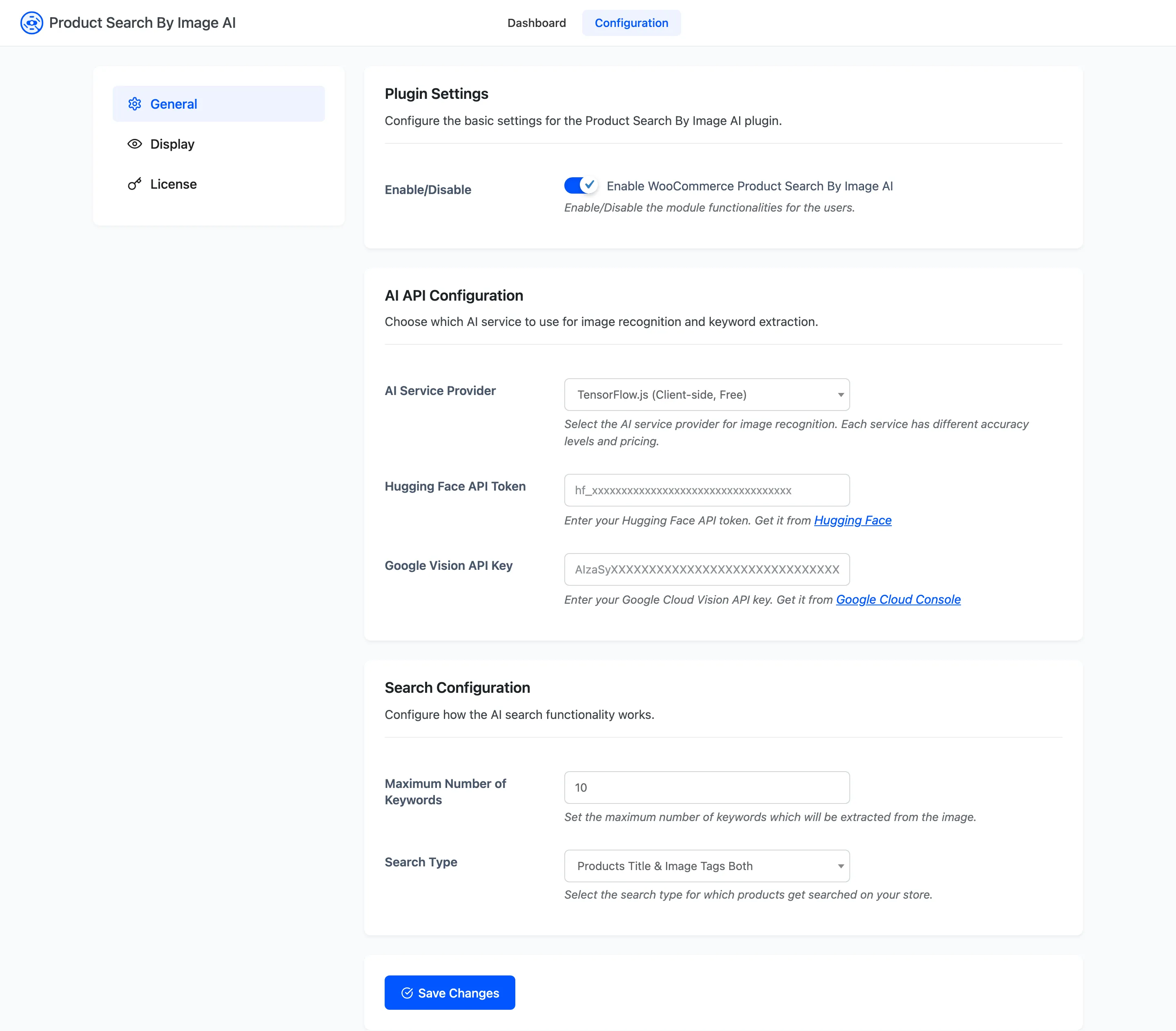
The change takes effect on the next storefront page load. There is nothing to flush.
Step 3: Test, then watch the Failed counter
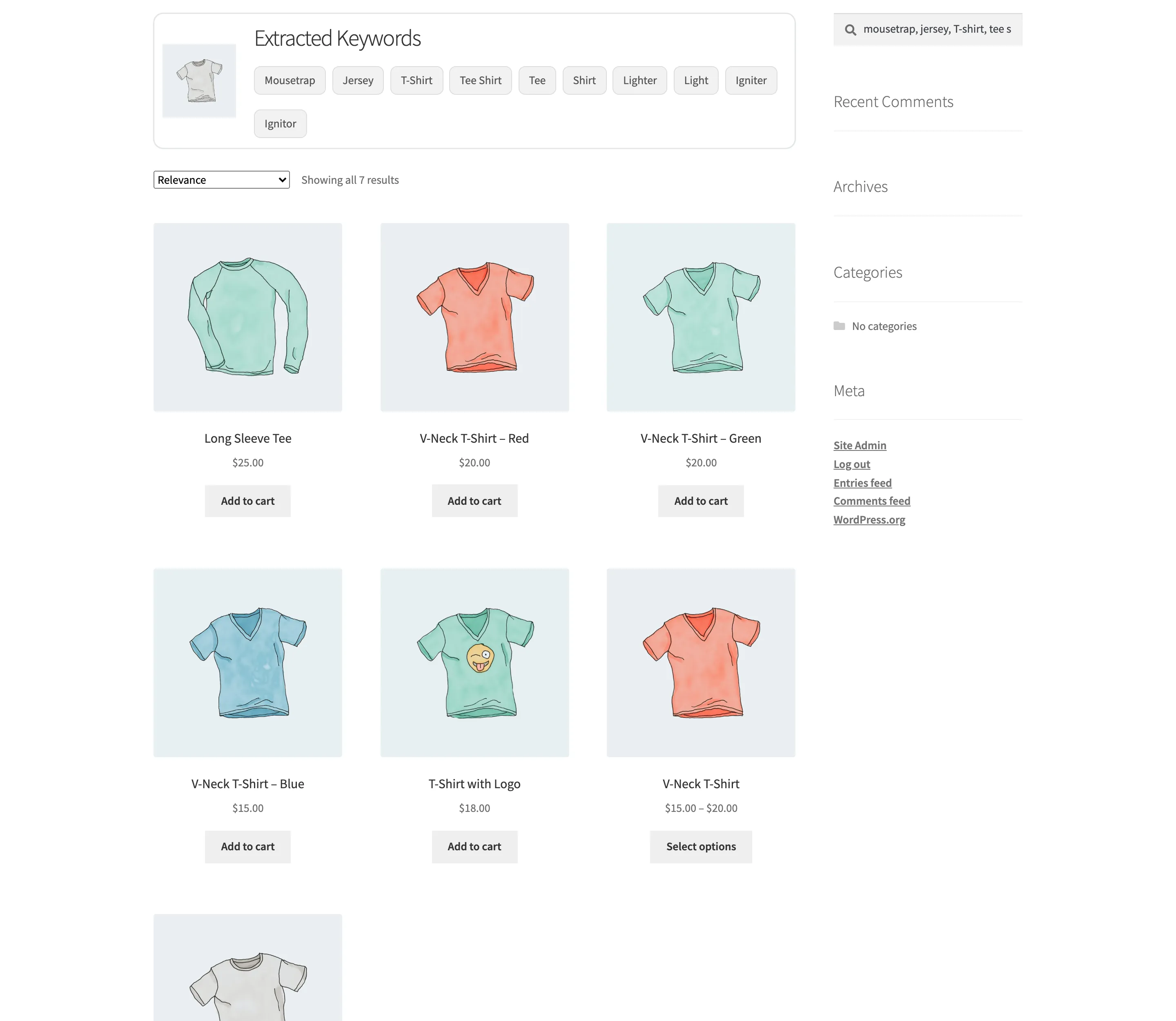
Section titled “Step 3: Test, then watch the Failed counter”Run a real image search on your storefront and check the words that come back.
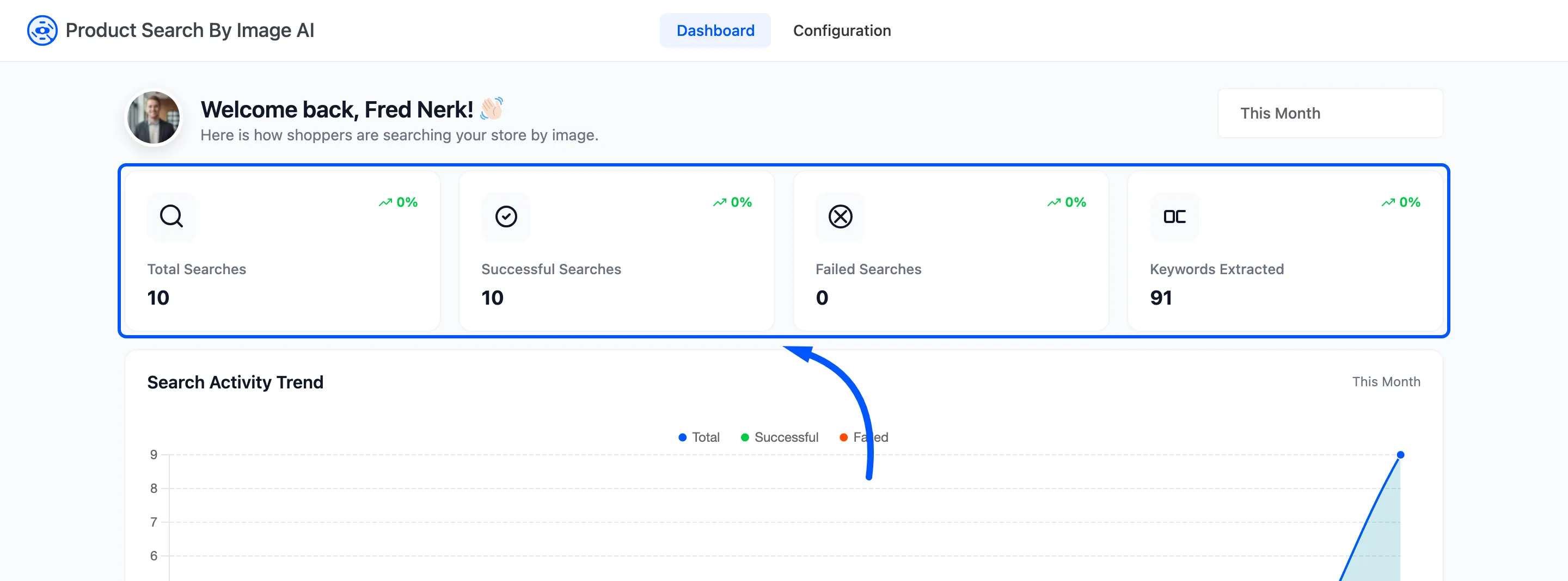
Then open the Dashboard. A provider with a bad key does not go quiet, it fails every search, and the Failed Searches counter is where that shows up.
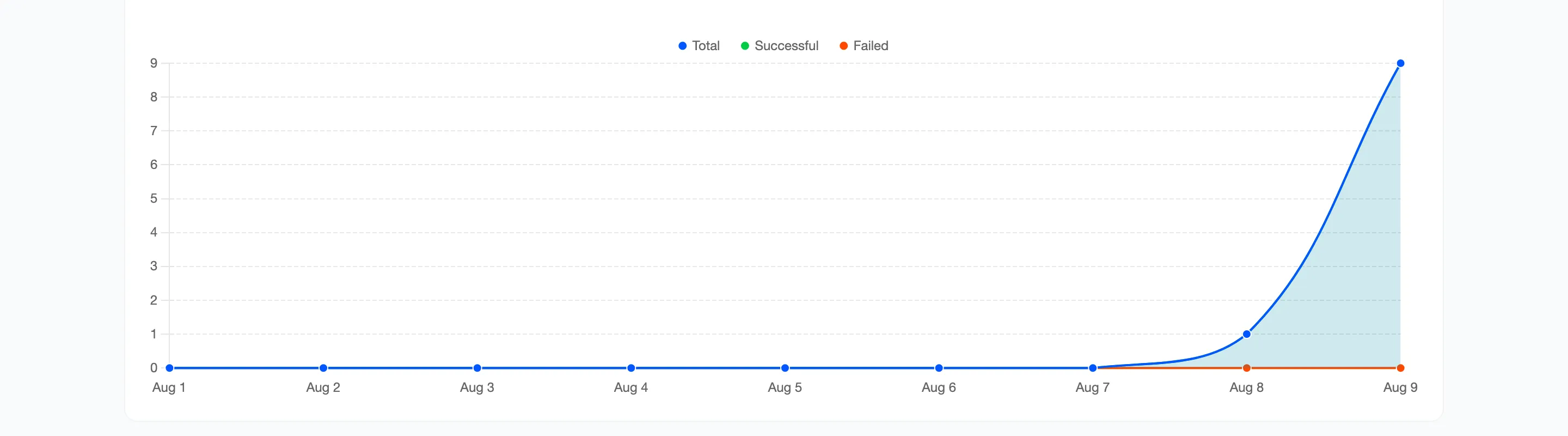
Watch the same number a few days later too. That is when an exhausted monthly quota appears, and the symptom is identical: every search failing at once.
What each service is good at
Section titled “What each service is good at”- TensorFlow.js is strong on broad, everyday categories: clothing, furniture, animals, vehicles. It answers in phrases and the plugin splits those into their separate words, so one label often becomes several usable keywords.
- Hugging Face classifies the photo and keeps only the labels it is reasonably confident about, so it returns fewer words than the maximum more often than the others.
- Google Vision returns labels for a scene as well as its subject, so it is the most descriptive of the three and the most likely to include words about the background.