

License Activation
The License tab activates your purchase. It is also the single most common reason a correctly configured store shows no camera icon.
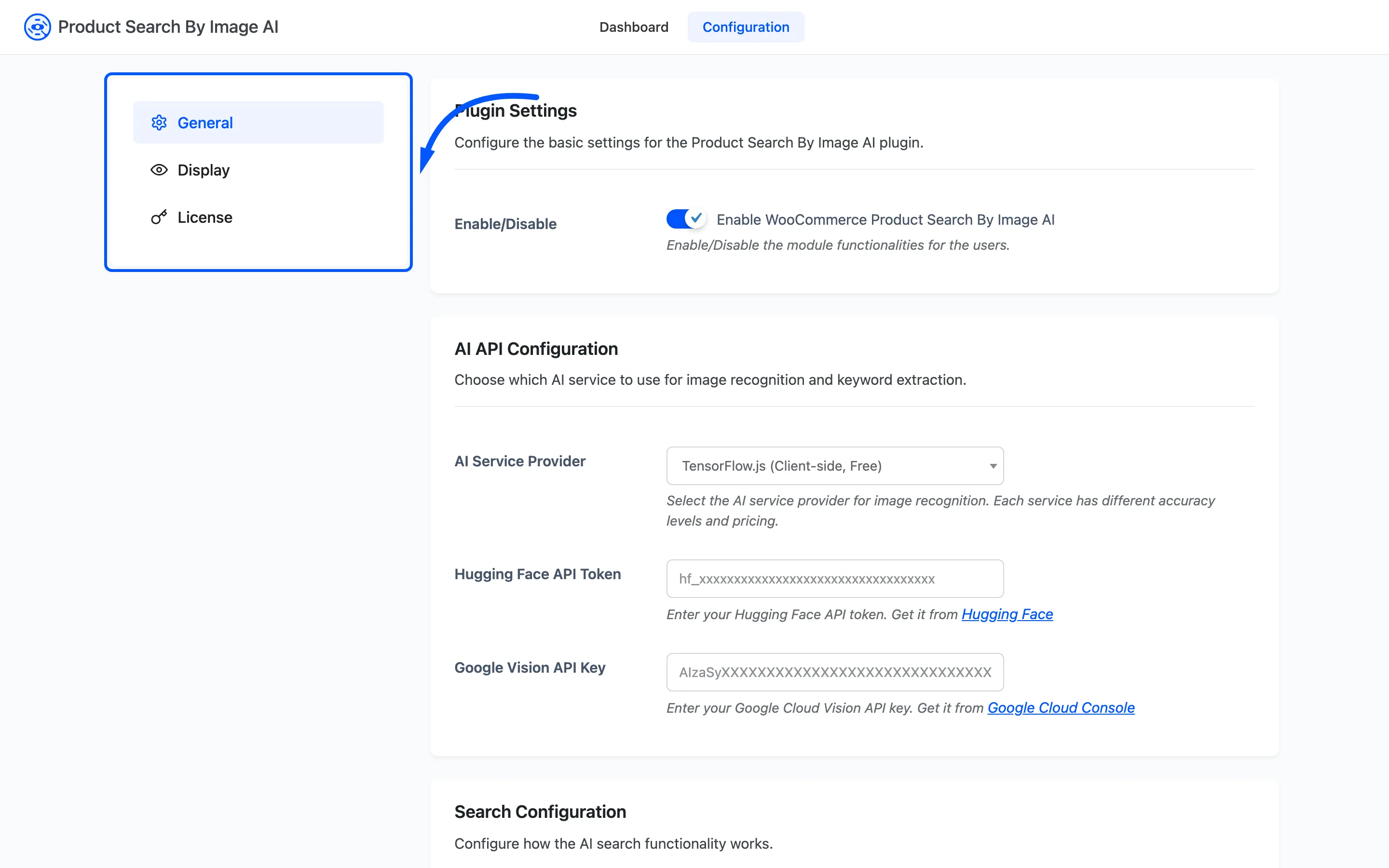
Go to DevDiggers Plugins → Product Search By Image AI → Configuration → License. It is the third entry in the Configuration rail.
The two fields
Section titled “The two fields”Before activation the tab shows a short form.
- Purchase Code: The code from your DevDiggers order.
- Purchase Email: The email address the order was placed with.
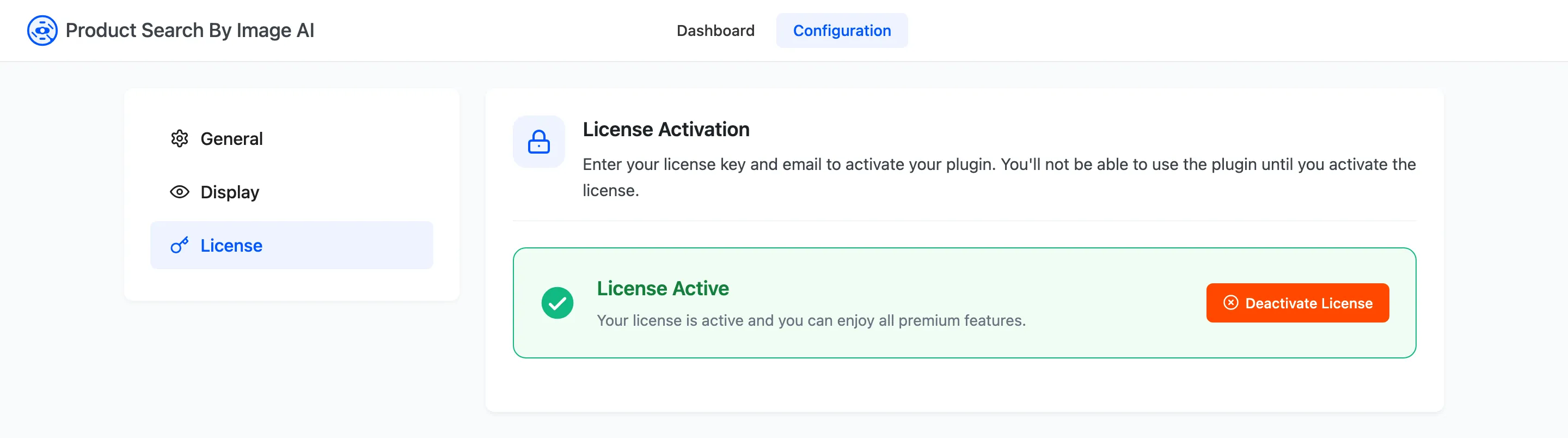
Enter both and press the activate button. The tab then reads License Active with a Deactivate License button in place of the form, which is the state in the screenshot above.
What an inactive license actually does
Section titled “What an inactive license actually does”The storefront loads nothing. No camera icon in the search box, no loader, no keywords box, on any page, whatever the General tab says.
Every admin screen keeps working. The tabs open, the fields save, the dashboard draws. That asymmetry is what makes this confusing to diagnose: the plugin looks entirely healthy from the admin while doing nothing at all for shoppers.
So when the settings look right and the search box still has no icon, open this tab before changing anything else.
Deactivating
Section titled “Deactivating”Deactivate License releases the activation, which is what you want before moving the licence to another site. Deactivating takes the storefront features away immediately and leaves your settings, image tags and analytics untouched.
Updates
Section titled “Updates”The plugin registers itself for licence-based updates, so an active licence is also what puts new versions on your Plugins screen. On an expired or deactivated licence the plugin keeps running as it is and stops offering updates.