

How to Add Image Tags to a Product
Image tags are how you teach the catalogue the words an AI service actually uses. The reliable way to choose them is not to guess, it is to look at what the service already returns.
Set Search Type to Products Image Tags or Products Title & Image Tags Both first. Under Products Title the tags are never read, so nothing in this article would change anything.
Step 1: Search the product’s own photo
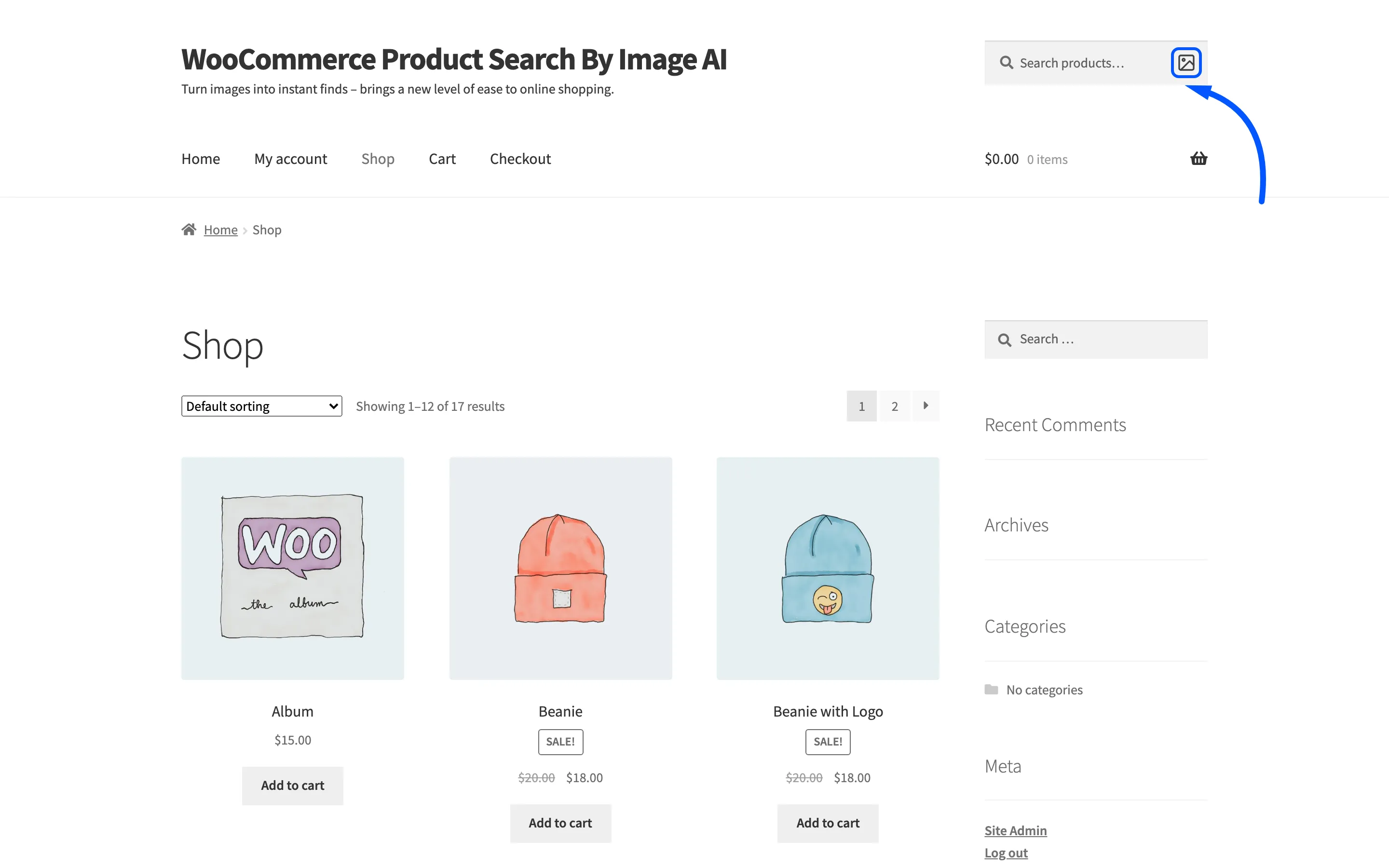
Section titled “Step 1: Search the product’s own photo”Go to your storefront, press the camera icon in the product search box and pick the product’s own photo.
Step 2: Read the chips it comes back with
Section titled “Step 2: Read the chips it comes back with”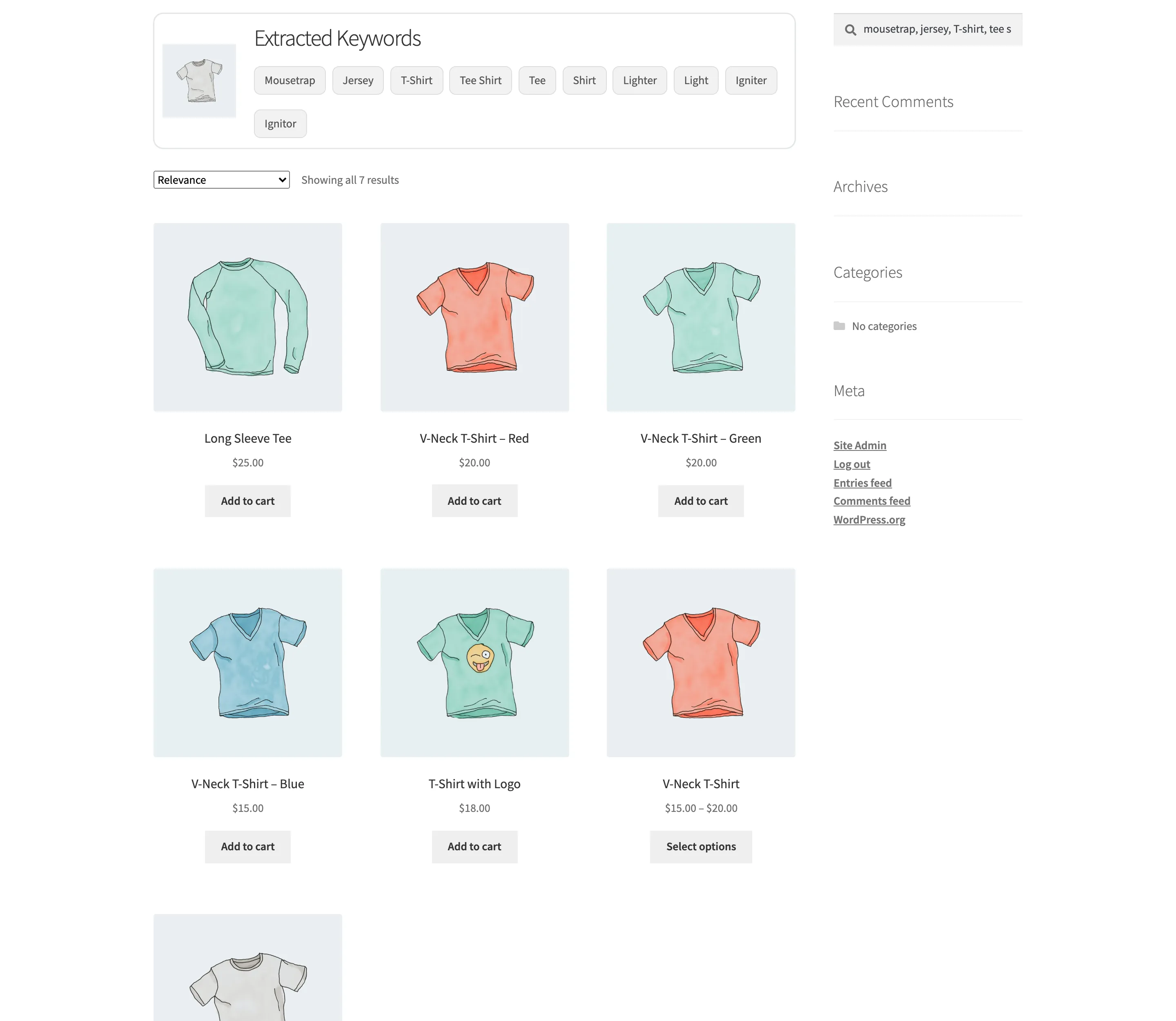
Those chips are the vocabulary the service uses for this kind of product. Some of them will be nowhere in the product title, and those are exactly the ones worth saving.
Do it once per product family rather than once per product. Every t-shirt in the catalogue comes back with much the same words.
Step 3: Open the product for editing
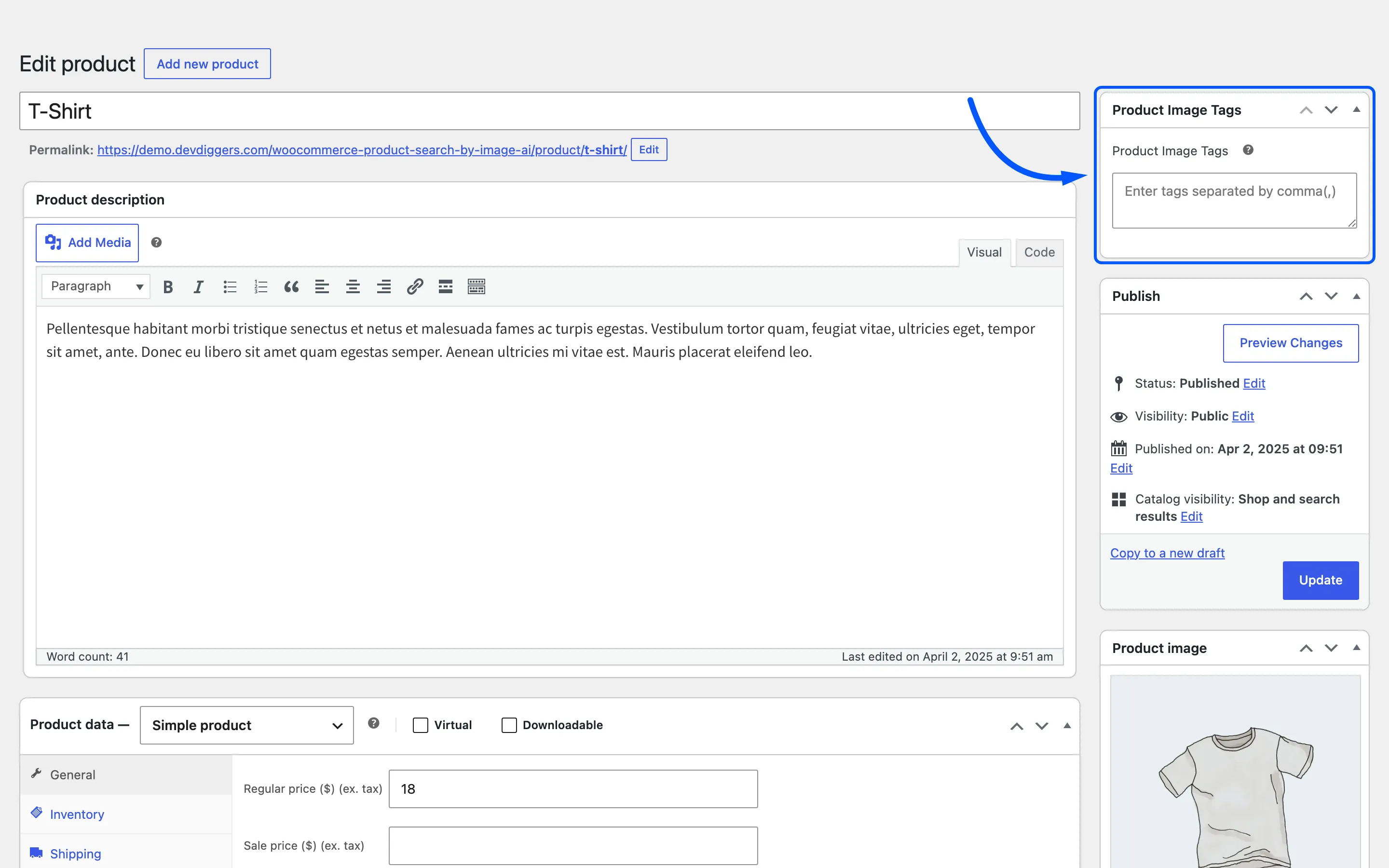
Section titled “Step 3: Open the product for editing”Go to Products, open the product, and find Product Image Tags in the right-hand column.
Step 4: Type the words in and press Update
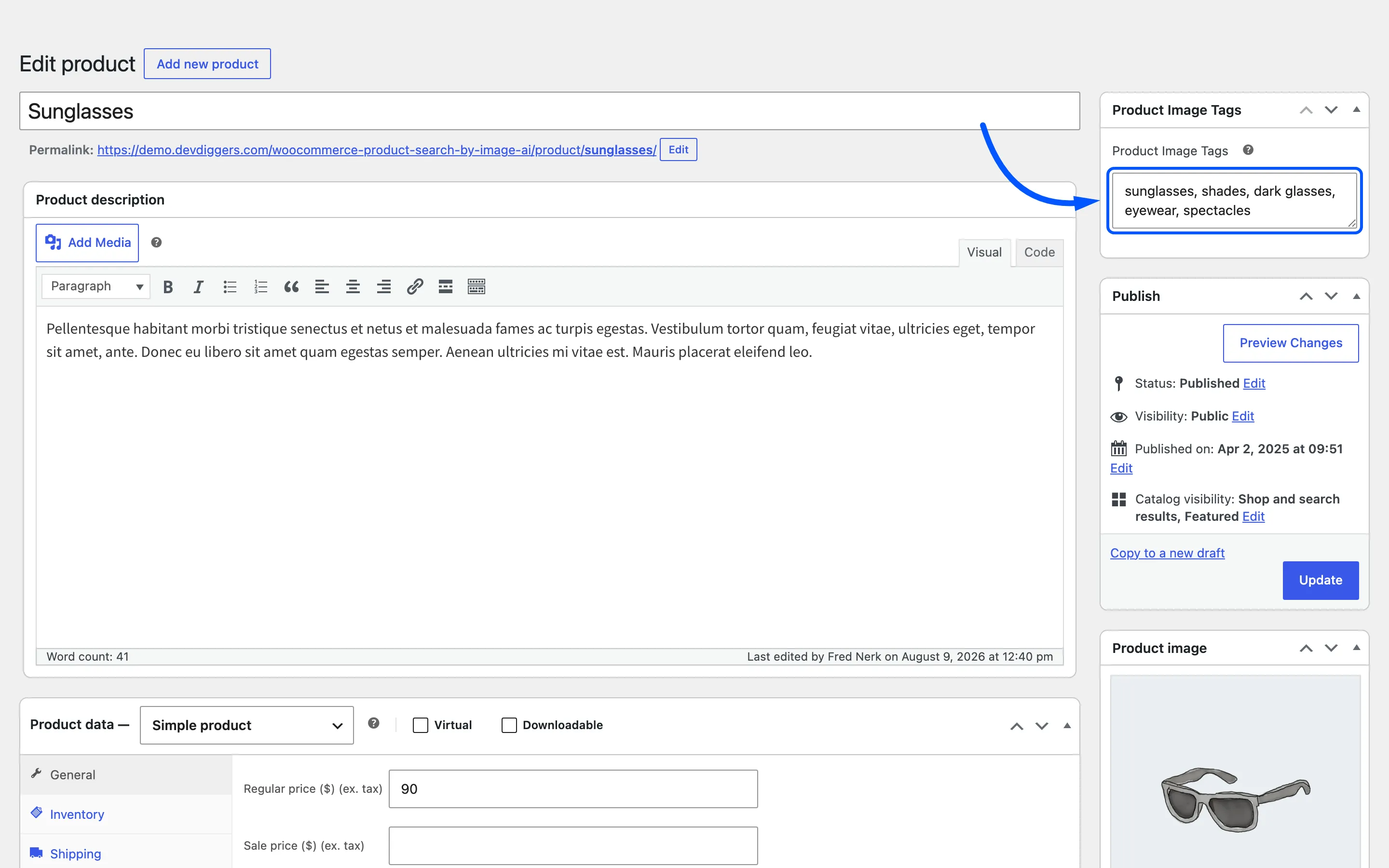
Section titled “Step 4: Type the words in and press Update”Enter the useful chips from step 2, plus the plain words a shopper would say out loud: the shape, the colour, the material, the category. Then press Update. The tags save with the product, and the box comes back holding them.
Three things worth knowing while you type.
- A keyword matches anywhere inside a tag. A tag of
dark glassesis found by a search forglasses, so short distinct words earn more than long phrases. - Emptying the box does not clear the tags. The plugin only saves the field when it has something in it. To change tags, type the replacement over the top.
- There is no upper limit worth worrying about, but a wall of loosely related words makes the product turn up in searches it has nothing to do with.
Step 5: Search the same photo again
Section titled “Step 5: Search the same photo again”Go back to the storefront and repeat step 1 with the same photo. The product should now be in the results, alongside anything that already matched on title.
If it still is not there, check Search Type on the General tab. Tags are only read under Products Image Tags and Products Title & Image Tags Both.
Which products to do first
Section titled “Which products to do first”Working through a whole catalogue is not the job. Start where image search cannot work at all today.
- Products whose titles are model numbers or brand names. No photo will ever match a title of
RX-4400, so these are invisible to image search until they are tagged. - Products people photograph. Clothing, furniture, tools, anything a shopper sees in the world and wants to find in your shop.
- Products that share a look but not a name. If three products photograph the same, tagging one and not the others makes the search look broken.