How to Control What the Search Matches
Two fields decide everything about the results a photo produces. One decides what the words are matched against, the other decides how many words there are.
Go to DevDiggers Plugins → Product Search By Image AI → Configuration → General.
Step 1: Set Search Type
Section titled “Step 1: Set Search Type”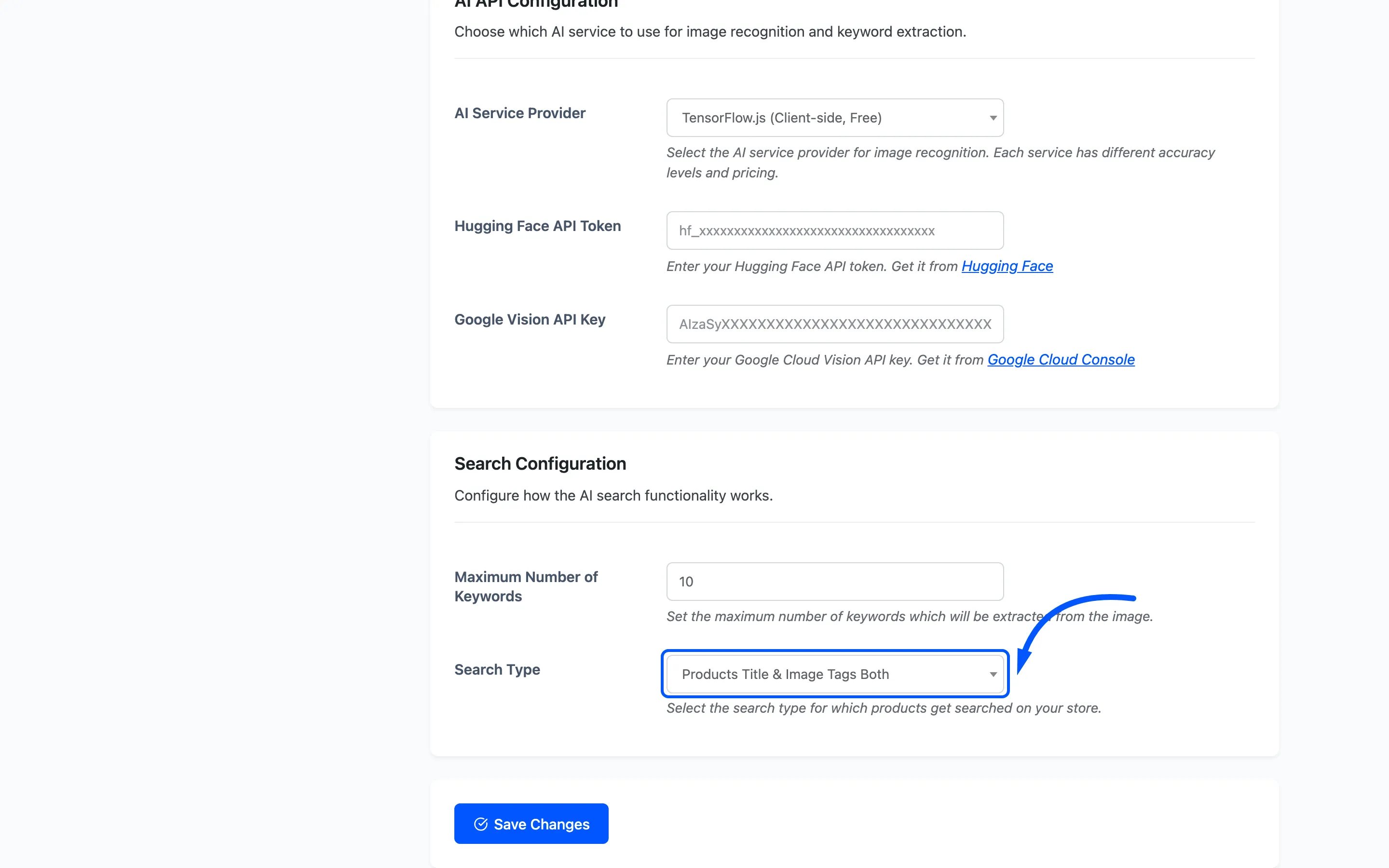
Products Title & Image Tags Both is the setting to use. A product qualifies when any single keyword matches its title or its image tags, which is what a photo search needs: the model returns a spread of words and one of them is usually right.
Products Image Tags narrows that to your own tags. It is the precise option, and it is only worth having once you have tagged the products people actually photograph. An untagged product becomes unreachable by image search entirely.
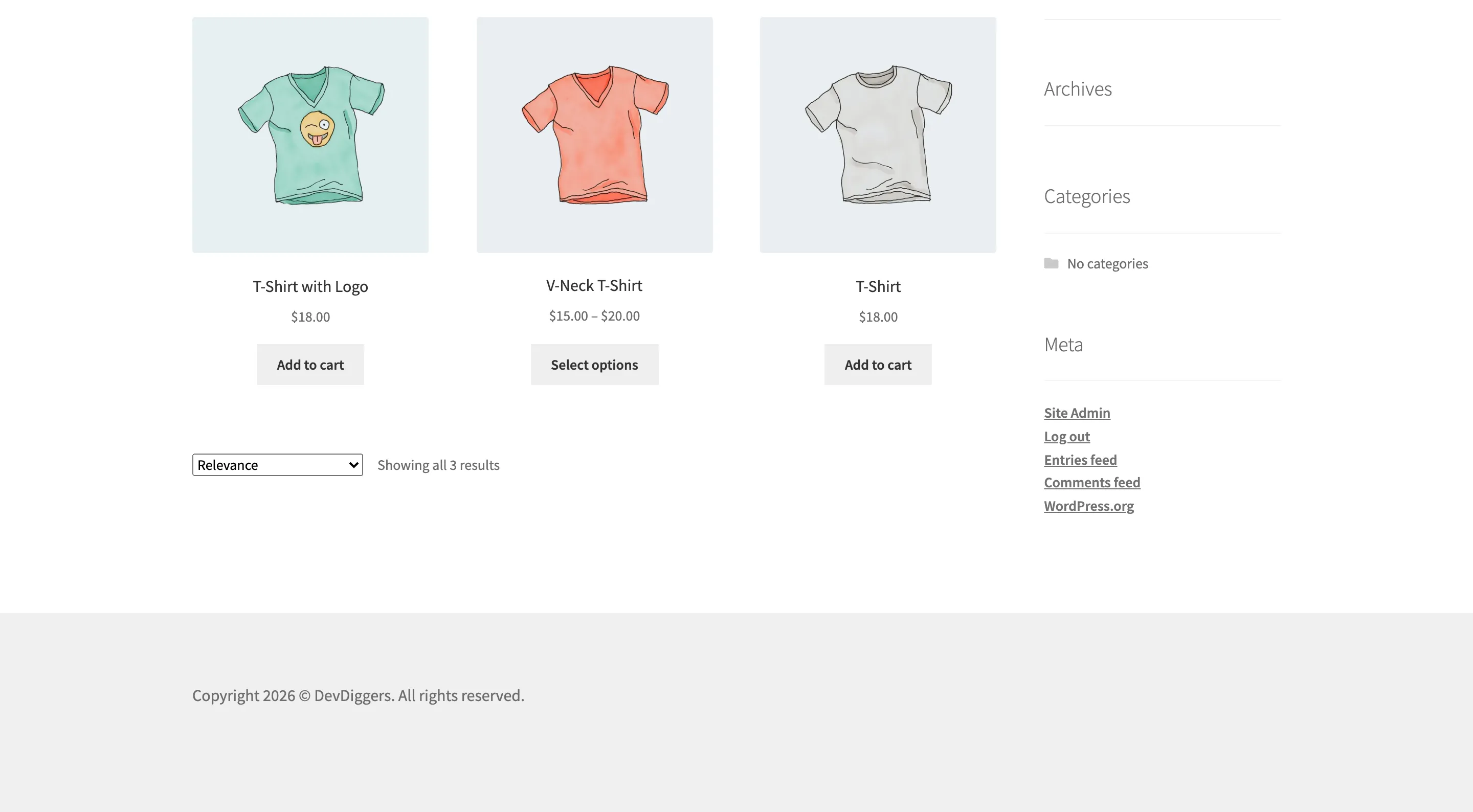
Products Title is the shipped default and it behaves unlike the other two. It runs an ordinary WordPress product search for the whole list of words, and WordPress requires every word to match. Ten words from a photo will not all appear in one product title, so the usual result is nothing at all. On the demo catalogue, one t-shirt photo returns seven products under Both and zero under Products Title.
Step 2: Set Maximum Number of Keywords
Section titled “Step 2: Set Maximum Number of Keywords”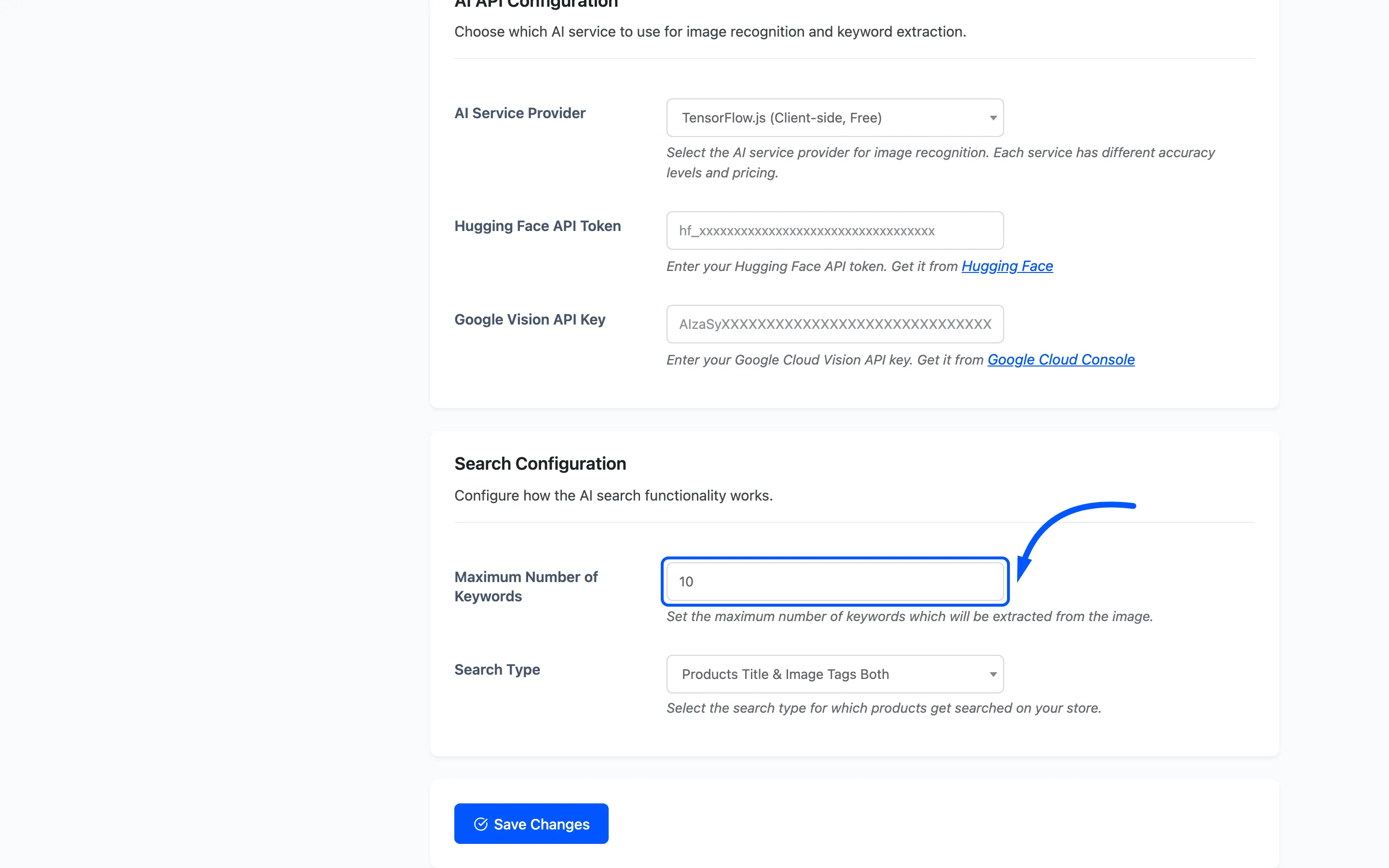
The field takes 1 to 50 and ships at 10.
Under Both or Image Tags the keywords are matched with OR, so this number is a width control. More words means more products, including less relevant ones. Fewer words keeps only what the service was most confident about.
- Start at 10. It gives the service room to be right in at least one word.
- Drop to 5 or 6 when searches come back with a page of loosely related products. The words the service is least sure of are the ones doing that.
- Raise it only on a large catalogue where searches return too little.
TensorFlow.js hits the ceiling faster than the other two. Its labels arrive as phrases, and the plugin adds each phrase and then each separate word inside it, so a single label of “jersey, T-shirt, tee shirt” fills six of your ten places on its own.
Step 3: Test with a real photo
Section titled “Step 3: Test with a real photo”Press Save Changes, then search a product photo on your storefront.
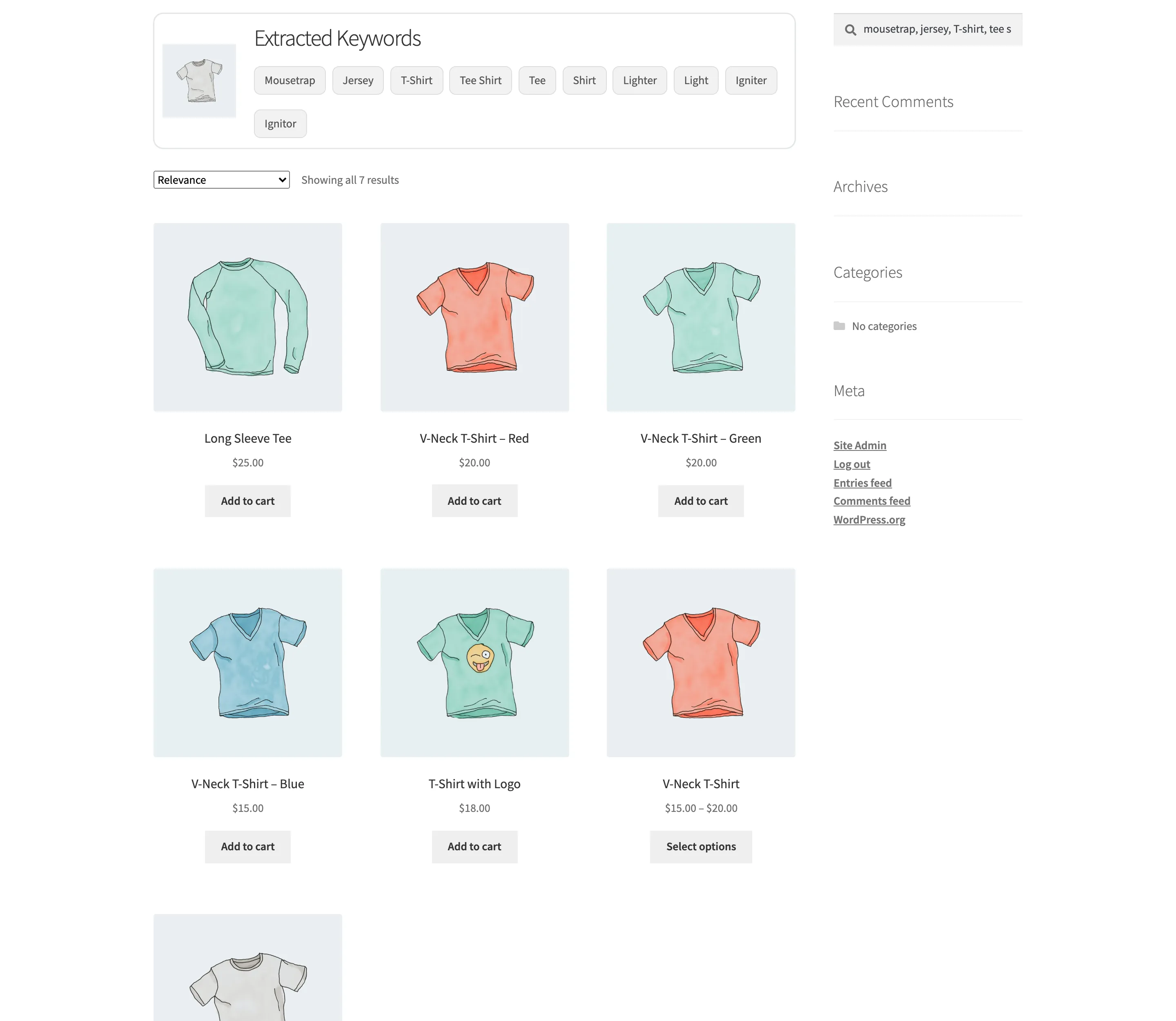
Read both halves of the result, because they fail for different reasons.
- Sensible chips, no products. The words are fine and your catalogue does not use them. Fix it with image tags, not with these two fields.
- Sensible chips, too many products. Lower Maximum Number of Keywords.
- Wrong chips: Neither field will help. That is the AI service, so see How to Choose an AI Service Provider.
Step 4: Give shoppers the way out
Section titled “Step 4: Give shoppers the way out”Whatever you set, every keyword on the results page is a link that searches that word alone.
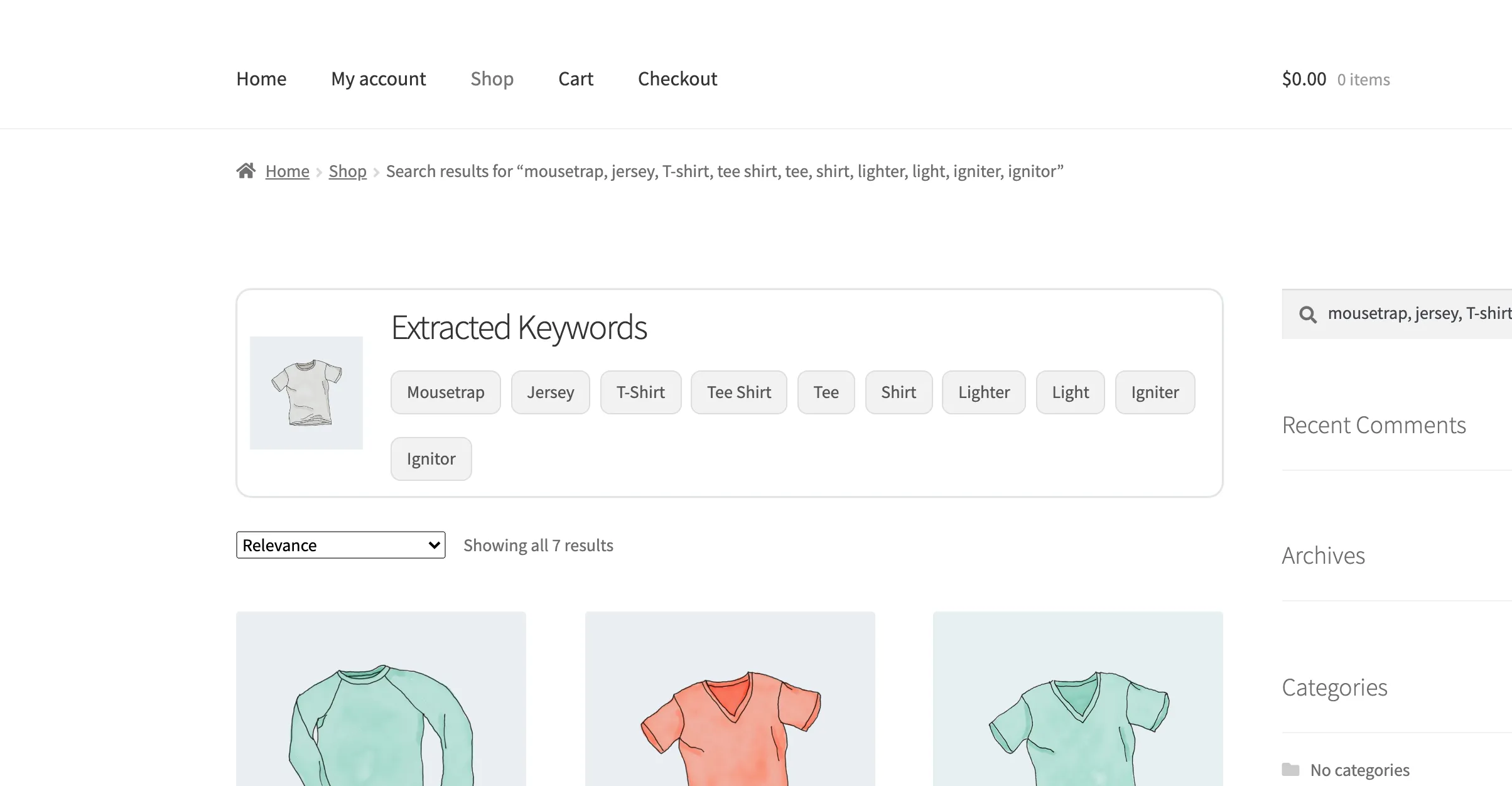
That is what makes a slightly wide setting safe. A shopper facing a broad set of results presses the one word that describes what they want and gets a clean search.