

How to Fix a Search That Finds Nothing
An image search that ends on an empty results page has four possible causes, and they are easy to tell apart. Work them in this order and each step rules out the one above it.
Step 1: Is the camera icon there at all
Section titled “Step 1: Is the camera icon there at all”Open your shop page and look inside the product search box.
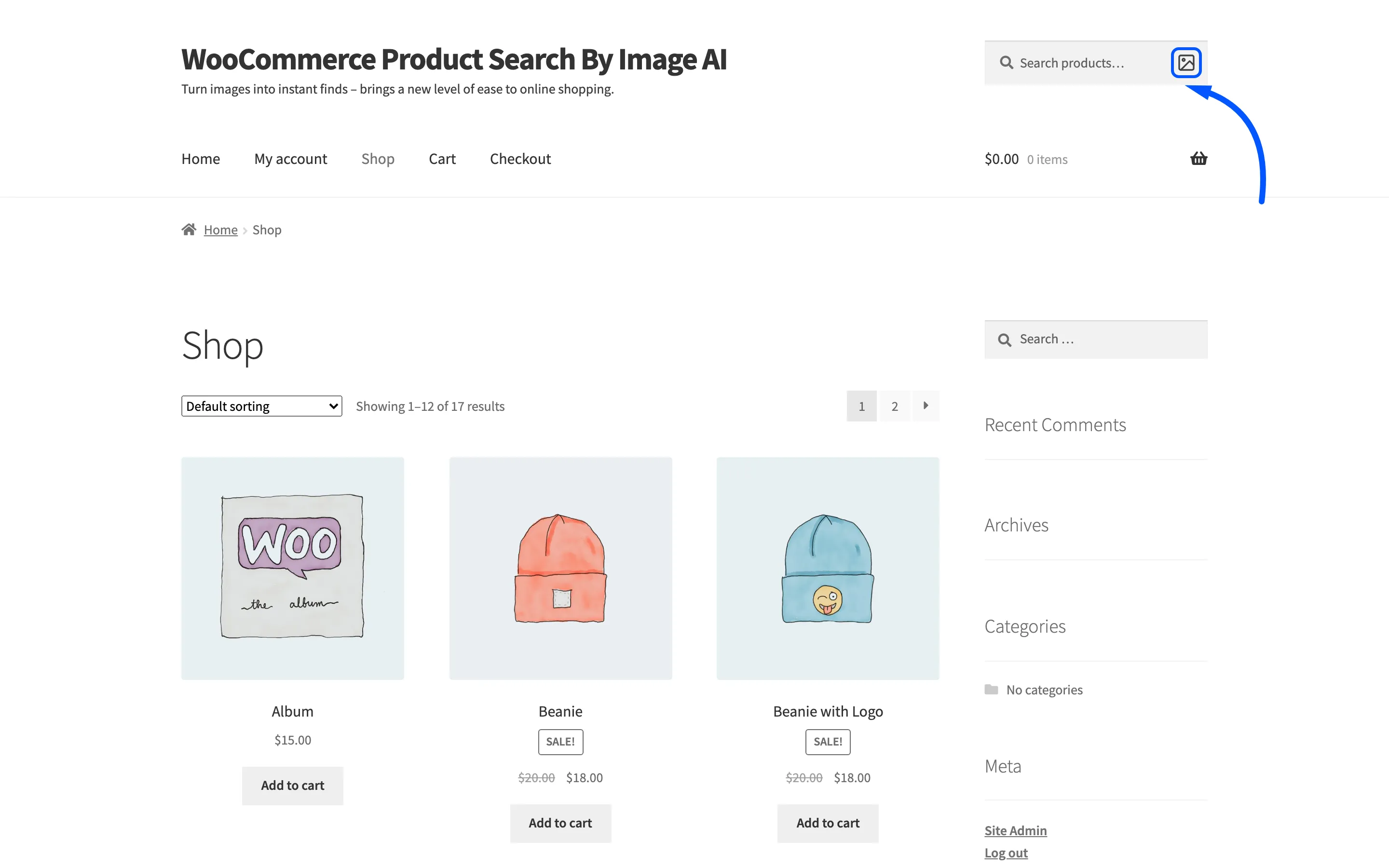
No icon means the search never ran, so nothing later in this list applies. Three causes, in the order they happen:
- The license is not active. The storefront half of the plugin loads nothing until it is. Check the License tab.
- Enable is not ticked on the General tab.
- That box is not a WooCommerce product search form. The icon goes into WooCommerce product search forms. A theme’s plain WordPress search widget is a different form and never gets one.
Step 2: Did any keywords come back
Section titled “Step 2: Did any keywords come back”Run a search and look at the box above the results.
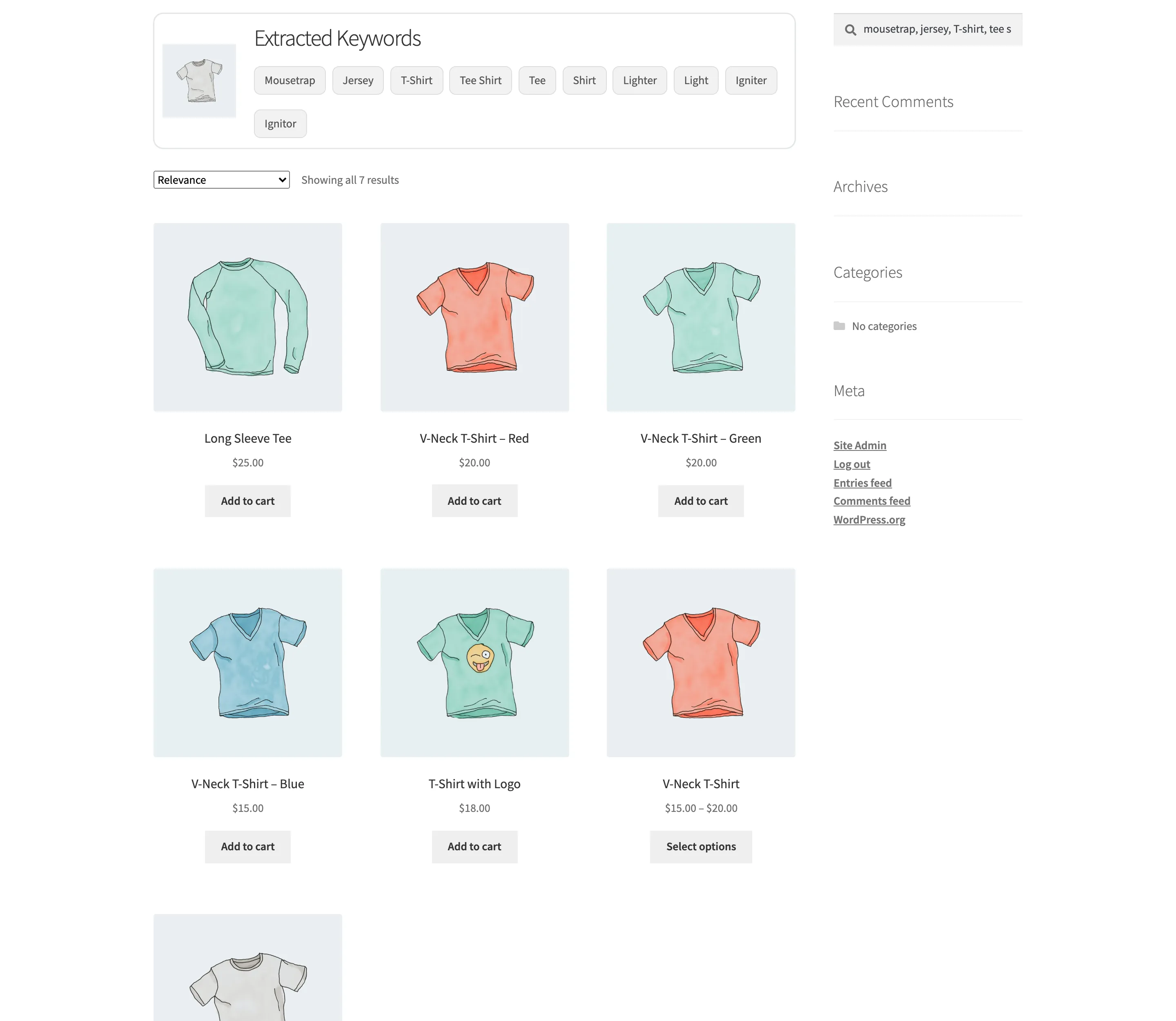
No chips at all means the AI service returned nothing, and that search is counted as a failure on the dashboard. Open Dashboard and check Failed Searches.
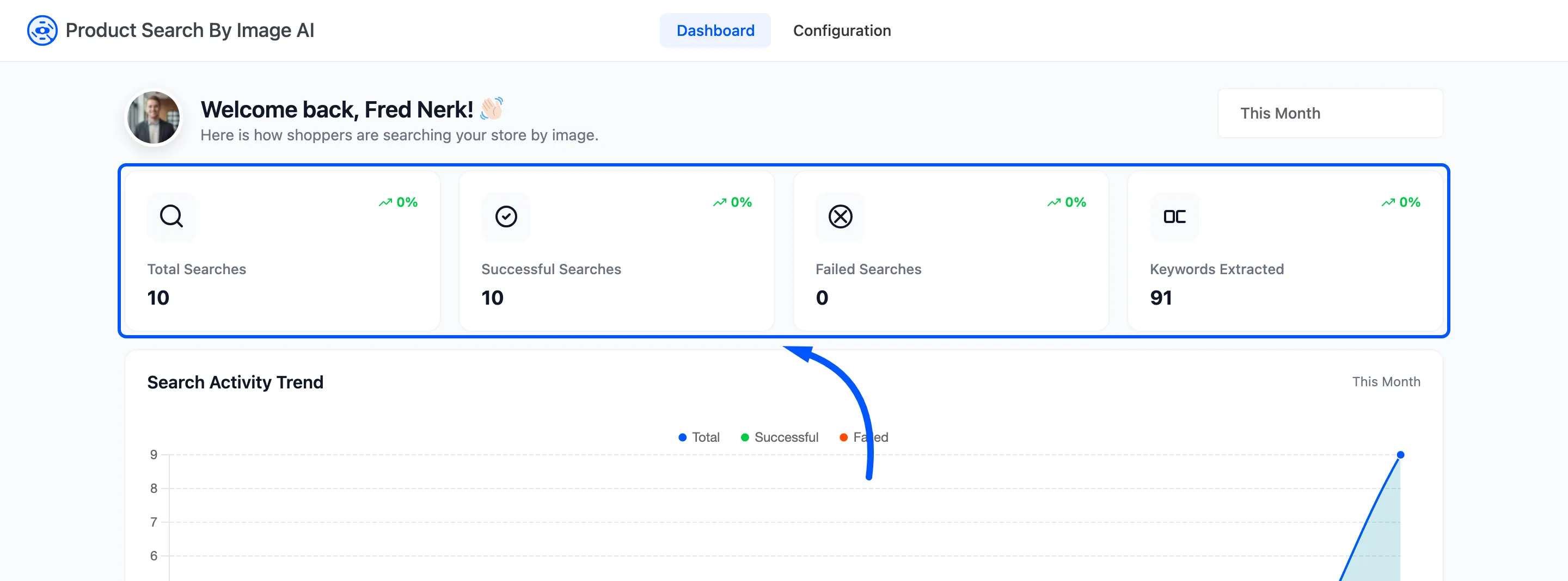
A climbing failure count on Hugging Face or Google Vision is nearly always the key: wrong, revoked, or a monthly quota that has run out. Switching the provider back to TensorFlow.js proves it in one search, because that option needs no key.
Step 3: Is Search Type the problem
Section titled “Step 3: Is Search Type the problem”Chips came back and no products did. Check Search Type on the General tab before anything else.
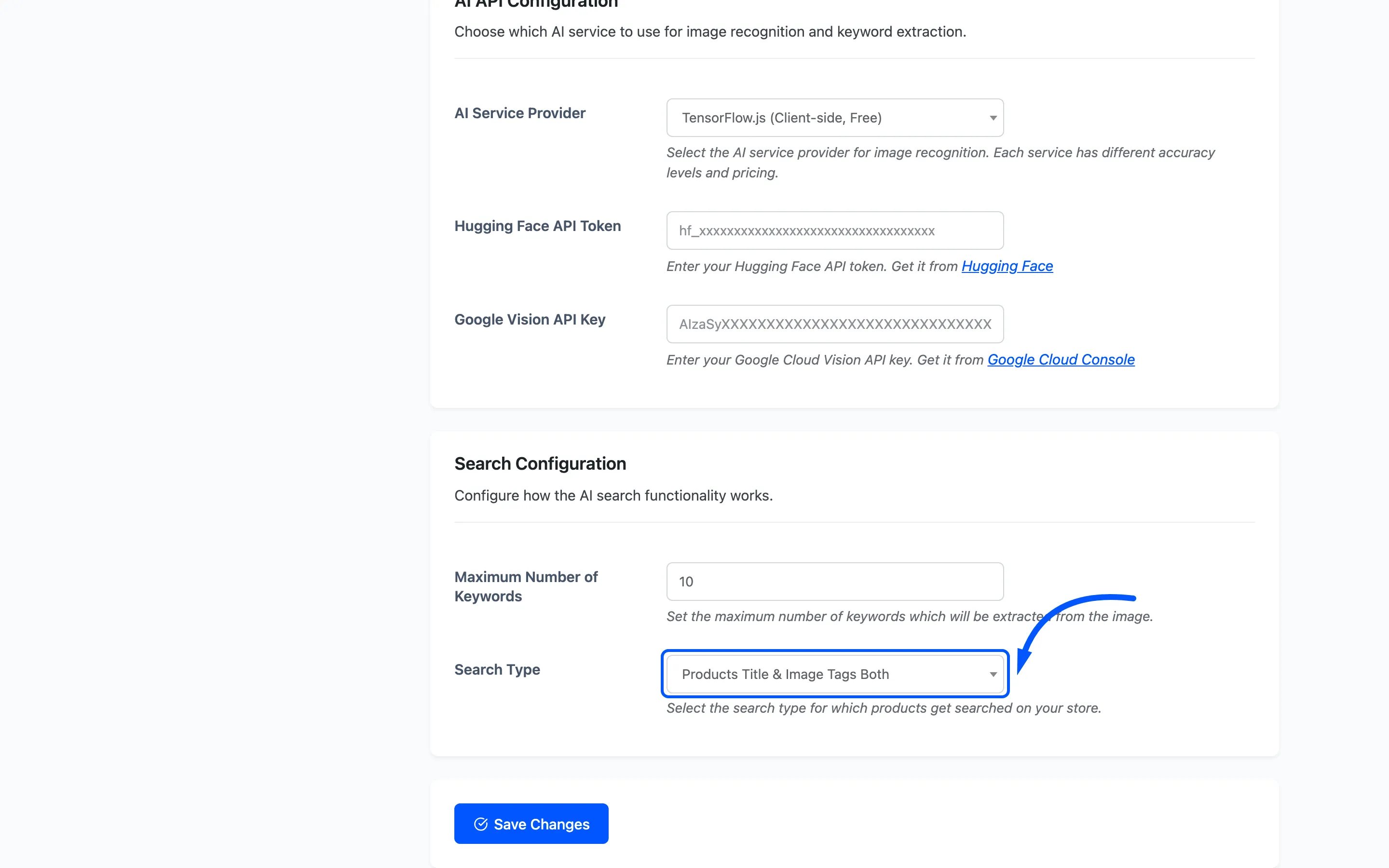
Products Title is the shipped default and it is the usual answer here. It runs an ordinary WordPress product search for the whole list of extracted words, and WordPress needs every word to match one product. A photo produces up to ten words, so that search almost always returns nothing.
Change it to Products Title & Image Tags Both, press Save Changes, and run the same photo again. On the demo catalogue that one change takes the same photo from zero products to seven.
Step 4: Does your catalogue use those words
Section titled “Step 4: Does your catalogue use those words”Still nothing, under Both, with sensible chips. Then the words the service uses are simply not in your product titles, and no setting fixes that.
Open the product you photographed and put those words in Product Image Tags.
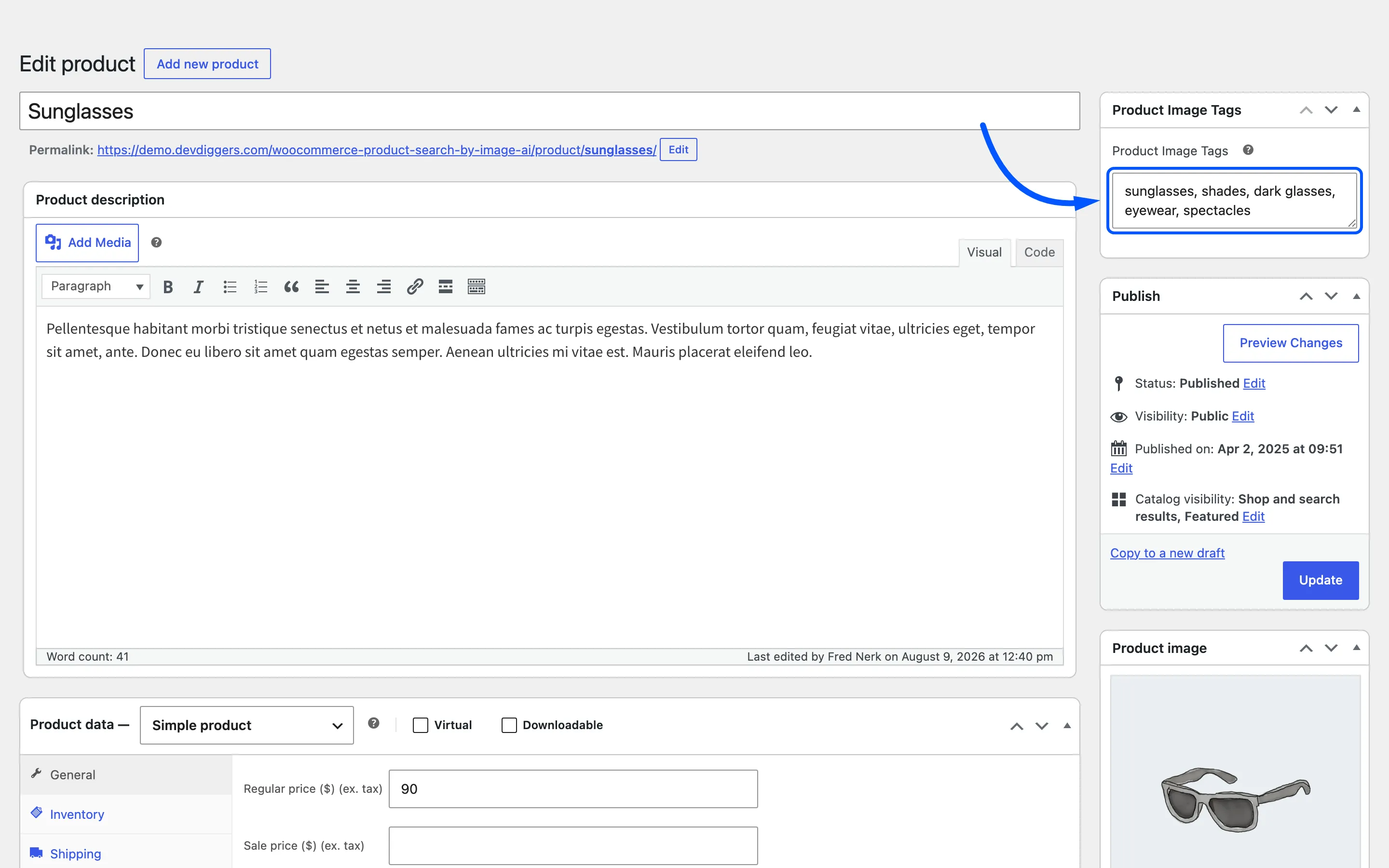
Press Update, then search the same photo again. This is the loop that turns image search from working to useful. How to Add Image Tags to a Product walks it once in full.
When it finds too much instead
Section titled “When it finds too much instead”The opposite problem has one control. Lower Maximum Number of Keywords.
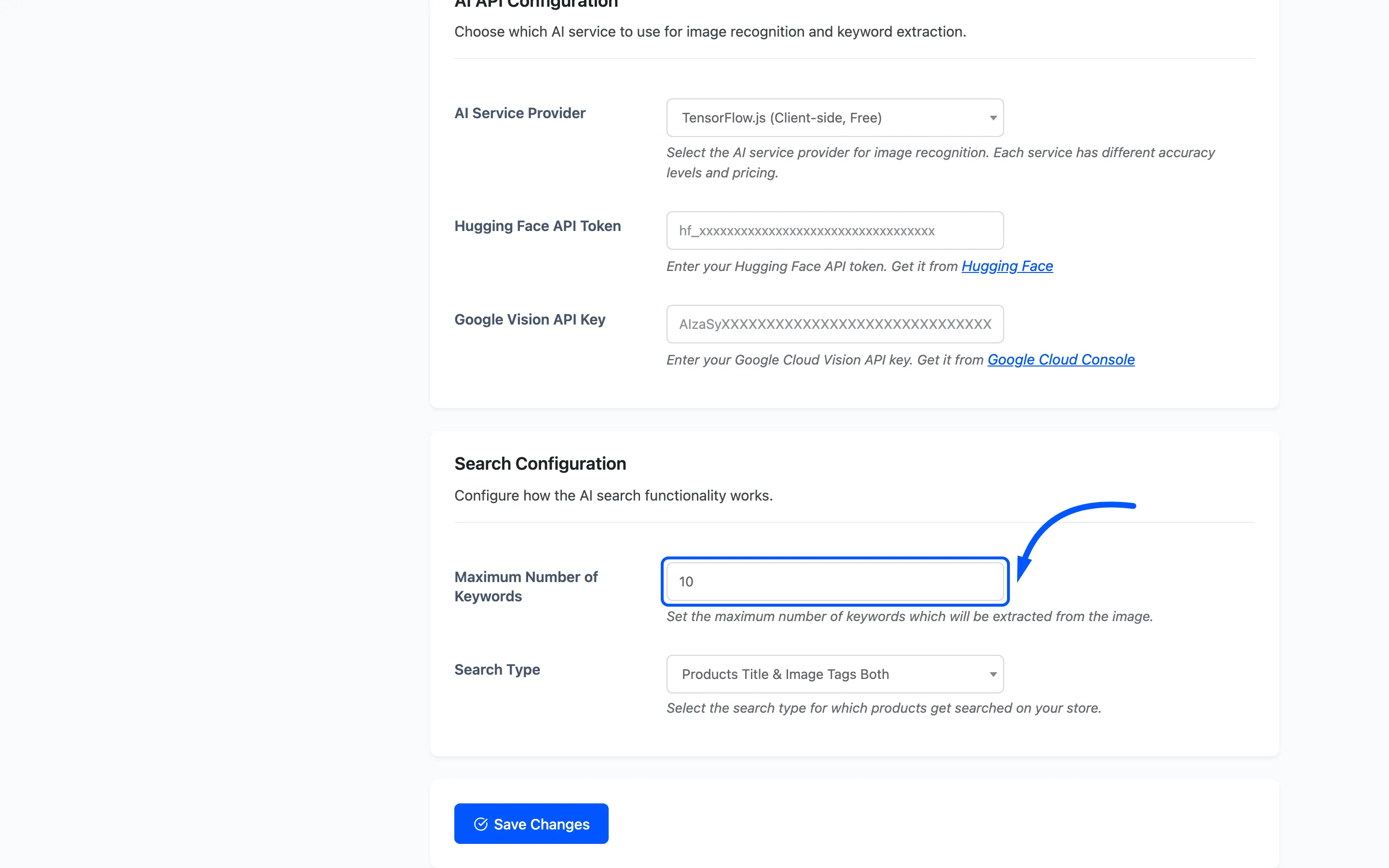
Under Both the keywords are matched with OR, so every extra word widens the net. The last few words a service returns are the ones it is least sure of, and they are what drag in unrelated products.